Custom instrumentation using Web Client
By default, APM Insight agent captures all your application transactions, known classes and methods, and web frameworks. In certain cases, methods or frameworks, apart from the default ones, are not captured, so as to minimize the agent overload on the application.
To view all your methods and frameworks and to obtain granularity in your debugging process, you can instrument your custom methods or frameworks - this process, is called as Custom instrumentation.
Uses of Custom instrumentation
- When you want to obtain 100% visibility into all your application methods and frameworks.
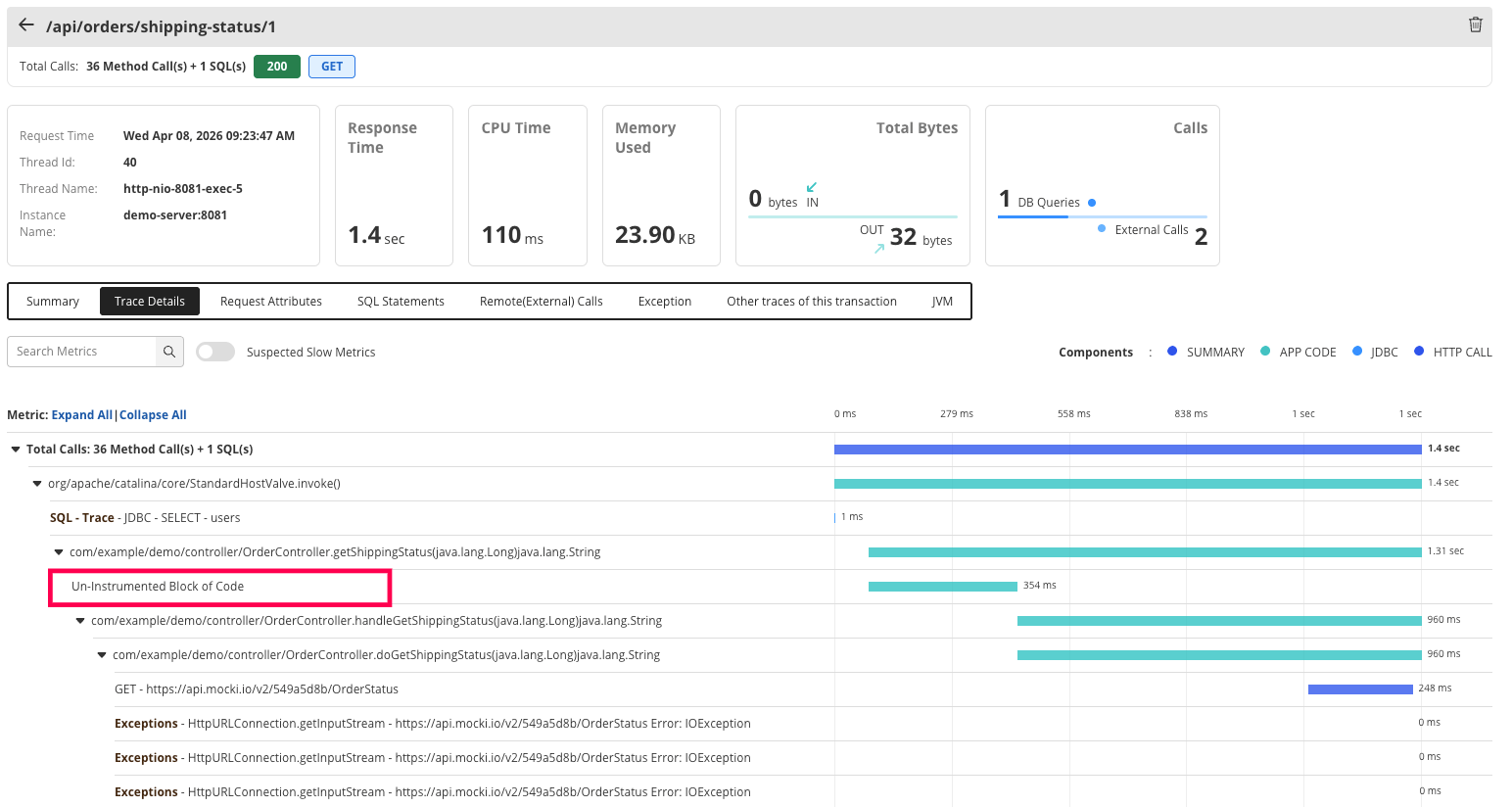
- When you see an 'Uninstrumented block of code' while checking transaction traces. In such cases, you can instrument the method or class, that was not picked by the agent to check its performance.
- When the framework is not supported or instrumented by default.
For the above mentioned circumstances, you can deploy custom instrumentation.
Note: This method is supported only for Java and .NET/.NET Core agents. You can custom instrument your Ruby and Node.js applications via agent APIs.
Also, these configurations are specific to APM Insight applications and this will be applied across all instances. For instance specific custom instrumentation, you can use Java agent API or .NET agent API, depending upon your application platform.
How to custom instrument methods, classes, or frameworks?
Follow the steps given below to perform custom instrumentation:
- Log in to Applications Manager web client.
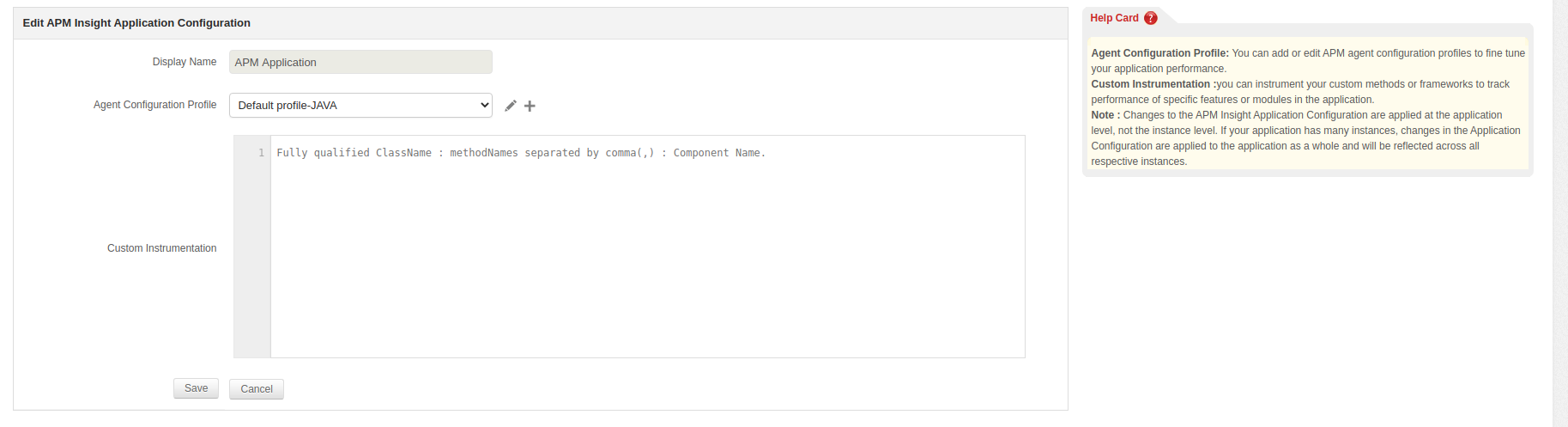
- Go to APM tab → Your application → Edit APM Insight Application Associates.
- Enter the following lines of code mentioned below as input in the textbox. You can enter the input either in Text or JSON format. The format for both types are given below:
JSON format type:
{"Fully qualified ClassName":{"MethodName1" : "ComponentName", "MethodName2" : "ComponentName" }}{ "com.sample.web.tasks.ModelUpdateHandler": { "doHandle": "MODEL_UPDATE", "update": "MODEL_UPDATE" }}Text format type:
Fully qualified ClassName : methodNames separated by comma(,) : Component Namecom.sample.web.tasks.ModelUpdateHandler : doHandle,update : MODEL_UPDATEcom.sample.web.services.SystemCheck : doCheck, isHealthy :com.sample.web.store.DataModifier : : MODIFIERcom.sample.web.utils.FileUtils : :Note: For both JSON and Text type, use the below format for specifying the fully qualified classname:
Java classes format - com/appmanager/apminsight/agent/JavaAgent
.NET/.NET Core classes format - Com.Appmanager.Apminsight.Agent.DotAgent
- After entering the above lines, click Save.
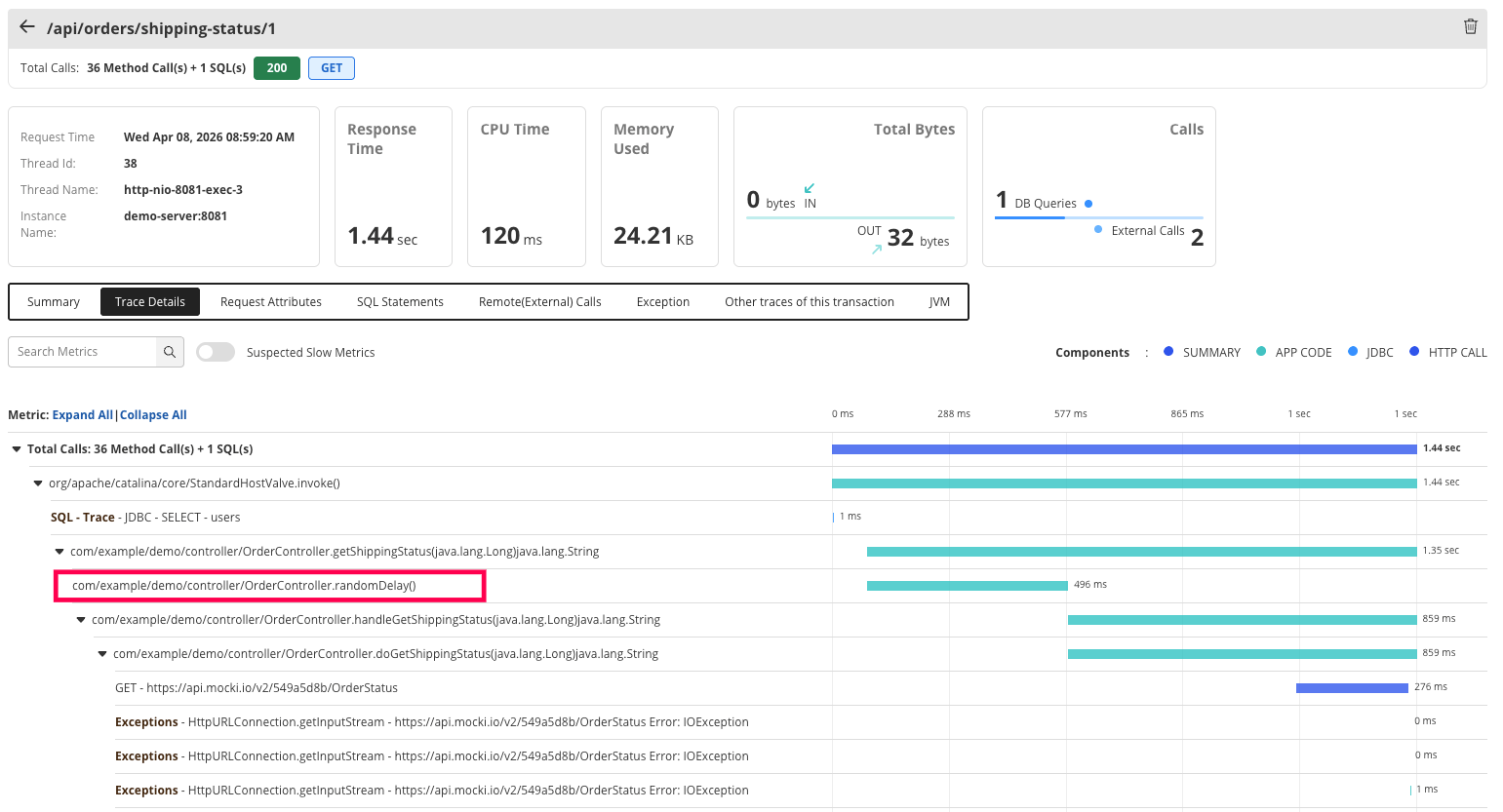
Before and after custom instrumentation
Java agent