Managing Bulk Actions in Applications Manager
Overview
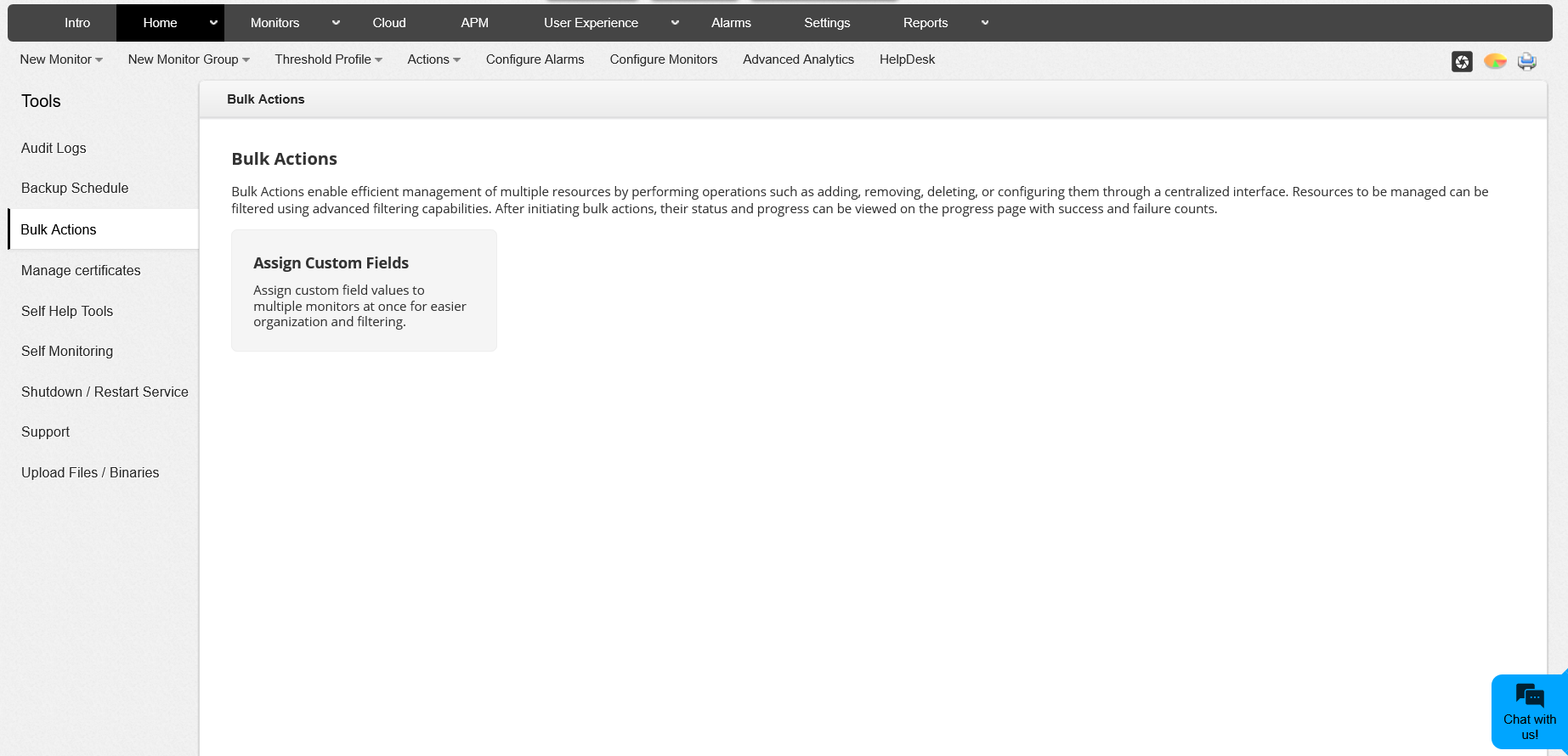
The Bulk Actions feature in Applications Manager allows you to perform operations on multiple monitors or monitor groups simultaneously, helping save time and reduce manual effort. You can access this feature from Settings > Tools > Bulk Actions. With Bulk Actions, you can easily assign custom fields and perform other supported tasks from a centralized interface, all in just a few clicks.
Who Can Use Bulk Actions
Available for: Professional and Enterprise (Central and Probe) editions
User Access: Bulk actions can be performed only by authorized users. Currently, only users with the ADMIN or DELEGATED ADMIN roles are permitted to perform these operations. The specific permissions available may vary depending on the bulk action being performed.
Performing Bulk Actions
- Navigate to Settings > Tools > Bulk Actions.
- Choose the desired bulk operation from the available options.
- Apply filters to select the required monitors or monitor groups.
- Click Next to proceed with the selected operation.
Search Filters for Bulk Actions
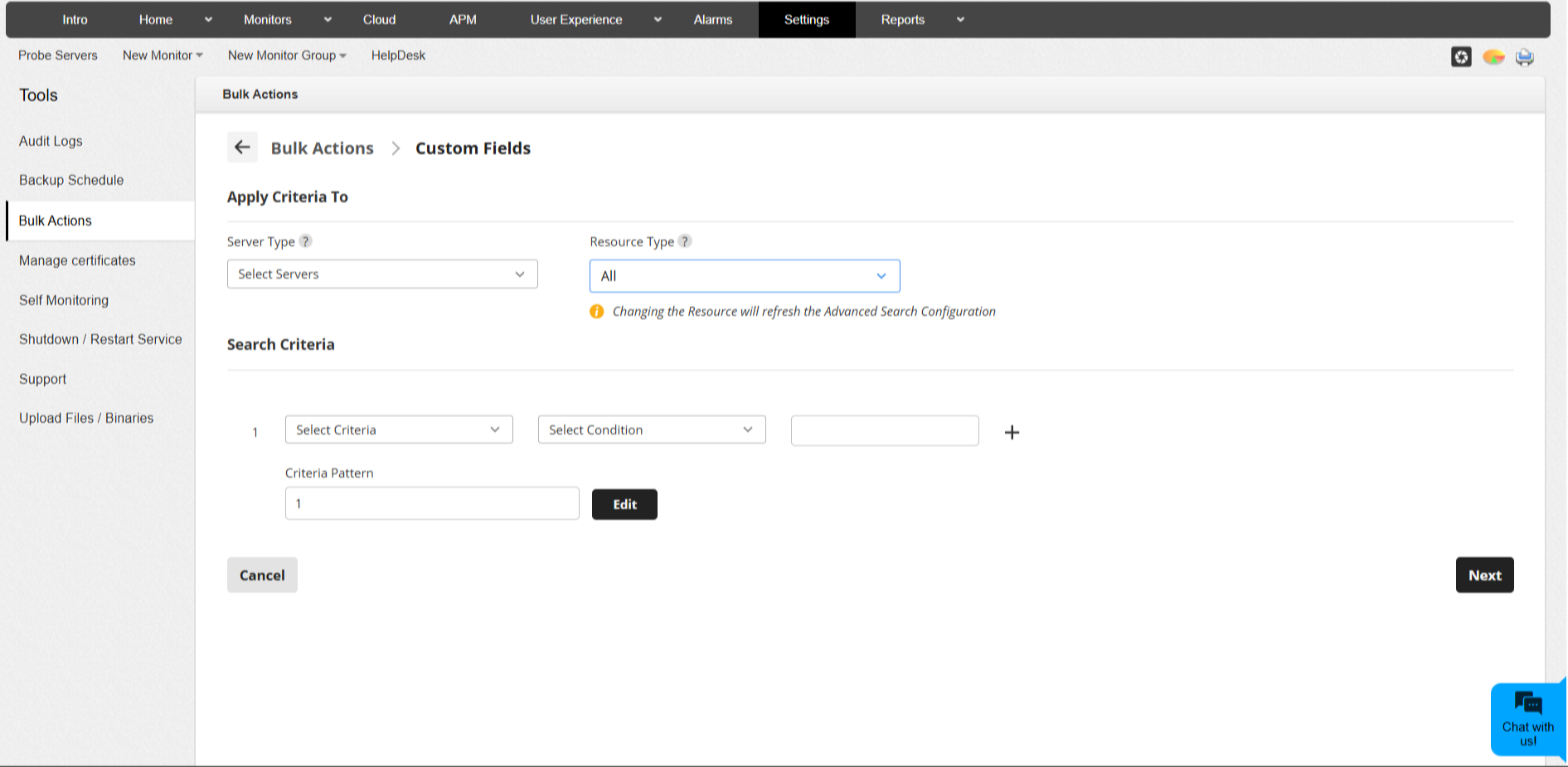
You can narrow down your monitor selection using various filter criteria. Here, you can combine up to 15 search criteria for a refined selection.
Filter Options
| Filter | Description |
|---|---|
| Server Type | (Enterprise only) Choose between All Servers, Central Server, or Probe Servers. |
| Resource Type | Filter by All Resources, Monitors, or Monitor Groups. |
| Resource Name | Search for monitors or groups by name. |
| Monitor Type | Filter by specific monitor type. |
| Monitor Groups | Limit actions to particular groups. |
| Custom Fields | Filter monitors based on existing custom field values. |
| Monitor Category | Filter based on category like Database, Server, Cloud, etc. |
| Added Time | Filter by the time monitors were added. |
| Monitor Status | Filter based on Up/Down/Unknown status. |
| Hostname / IP Address | Search by hostname or IP. |
Bulk Assign - Custom Fields
The Assign Custom Fields option under Bulk Actions allows you to add or modify custom field values for multiple monitors at once.
Steps to Assign Custom Fields
- From the Bulk Actions page, select Assign Custom Fields.
- Choose the Server Type (available only in Enterprise edition).
- Select the Resource Type and define your Search Criteria to filter the required monitors.
- Click Next to view the matching monitors.
- Choose the desired operation and execute it.
Supported Operations
- Append: Assigns or associates the selected custom field value to the monitor or monitor group.
- Overwrite: Replaces existing values with new ones.
- Remove: Removes the previously assigned custom field value from the monitor or monitor group.
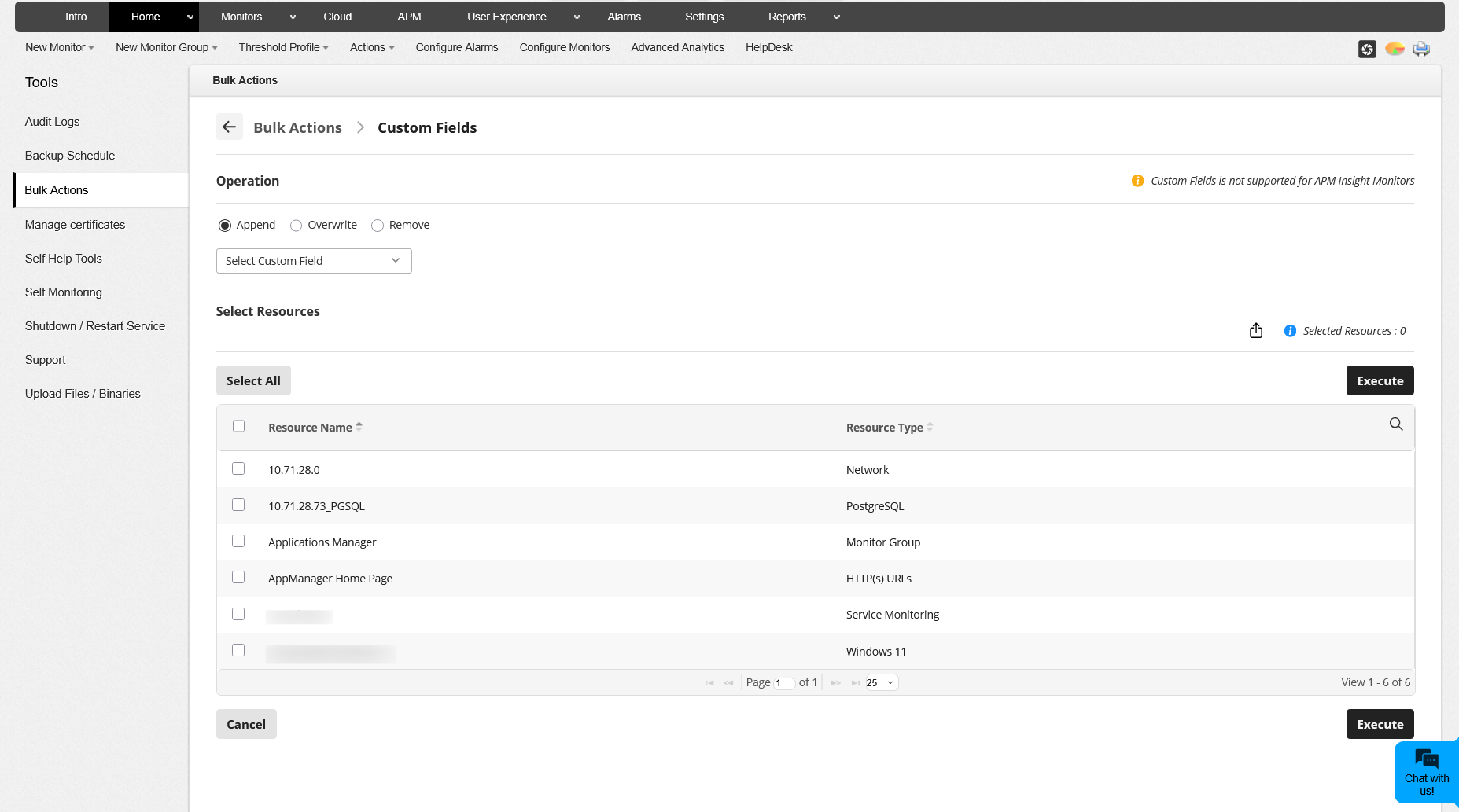
For multi-select fields (like Label), you can choose to remove specific values or all existing values.
Selecting Fields
Choose from available custom field types such as:
- Label
- Predefined List
- User-defined List
- Location
- Text fields
Notifications and Status
When a bulk action is initiated, Applications Manager displays real-time notifications on the status of the operation.
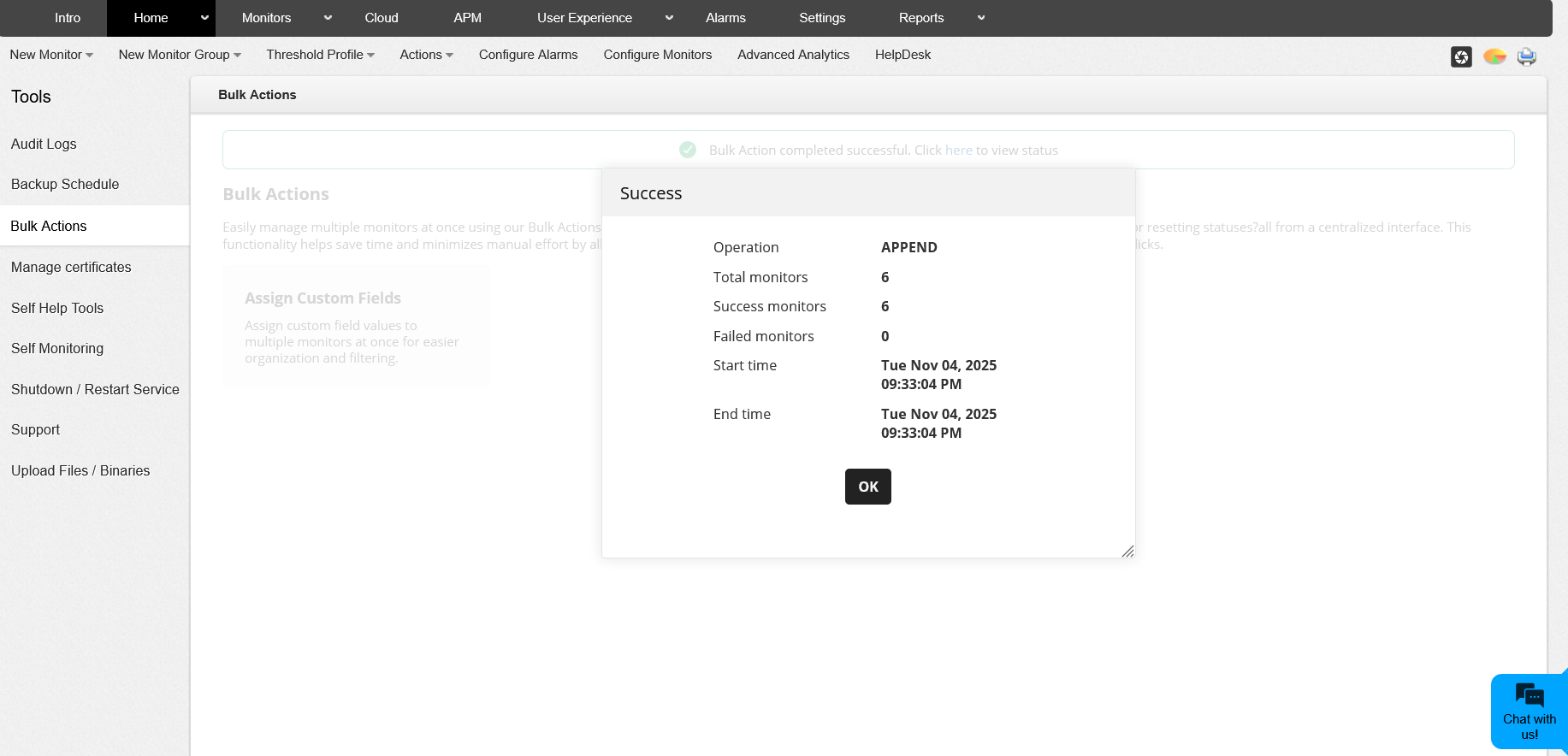
- Success/Error Notification: Once the action is completed, a notification appears showing whether it was successful or failed. Click on the notification to view a summary containing:
- Operation Name: Name of the operation performed (e.g., APPEND).
- Total Monitors: Number of monitors involved.
- Success Count: Number of successful operations.
- Failure Count: Number of failed operations.
- Start and End Time: Timestamps of the bulk operation.
- In Progress Status: A progress bar will be displayed if a bulk action is running. Only the user who initiated the action can view the detailed progress. Other users will see a message indicating that a bulk action is currently in progress.
- Leaving Progress Page: If a user exits mid-process, the live status will continue on the Home page until completion for the initiating user.
- View Status Option: After completion, users can view detailed results via the status panel on the Home page. For other users, a generic completion message will be displayed.
Viewing Results
You can click on the notification or status link to view the detailed summary of the bulk operation. Also, the failure count will be displayed if there are failed items.
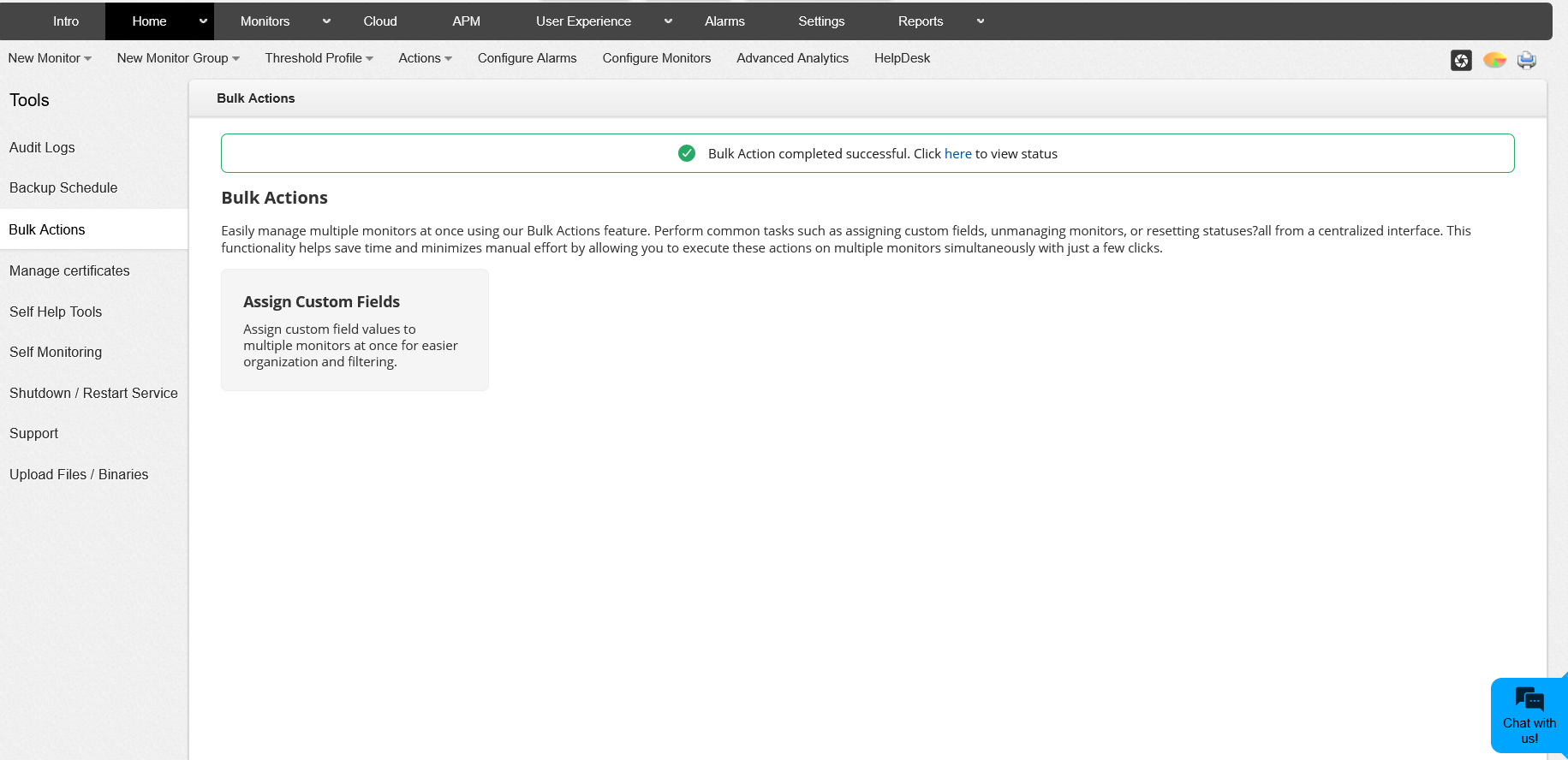
- While a bulk action is in progress, the Bulk Actions options will be in read-only mode for all other users.
- Only one bulk operation can run at a time. When a bulk action is already in progress, any attempt to start another action is restricted and you will be notified with an action restriction message.