REST API
Applications Manager provides REST-style APIs that enable seamless integration with internal portals and third-party system management software. The REST API functionality uses module-specific API keys for authentication, ensuring secure access to data and services across different monitoring capabilities.
To use the REST APIs, you need a valid Applications Manager user account and the appropriate API keys for the modules you want to access. API keys are unique to each user within an installation and can be managed from Settings → Integration with Portals → REST API. Learn how to manage API Keys
Following are the list of modules for which API keys can be fetched in Applications Manager:
| Module | Description |
|---|---|
| Applications Manager | This API key can be used for fetching data from Applications Manager and integrating them into a portal or third-party system management software. Use this key to access monitor data, performance metrics, alerts, and other Applications Manager resources through REST API calls. |
| End User Monitoring | This API key is used during EUM Agent installation and it will be useful for linking the agent with this Applications Manager installation. It is also required during EUM Agent login to authenticate and establish secure communication between the agent and the server. |
| Real User Monitor | This API key is used during RUM Agent installation and it will be useful for linking the agent with this Applications Manager installation. The key ensures that RUM data collection and transmission occur securely between the monitoring endpoints and the Applications Manager server. |
| Heartbeat Monitor | This API key is used to authenticate the ping URL that is received during heartbeat monitor data collection. It ensures that only authorized heartbeat requests are processed, preventing unauthorized access and maintaining the integrity of heartbeat monitoring operations. |
Managing API Keys
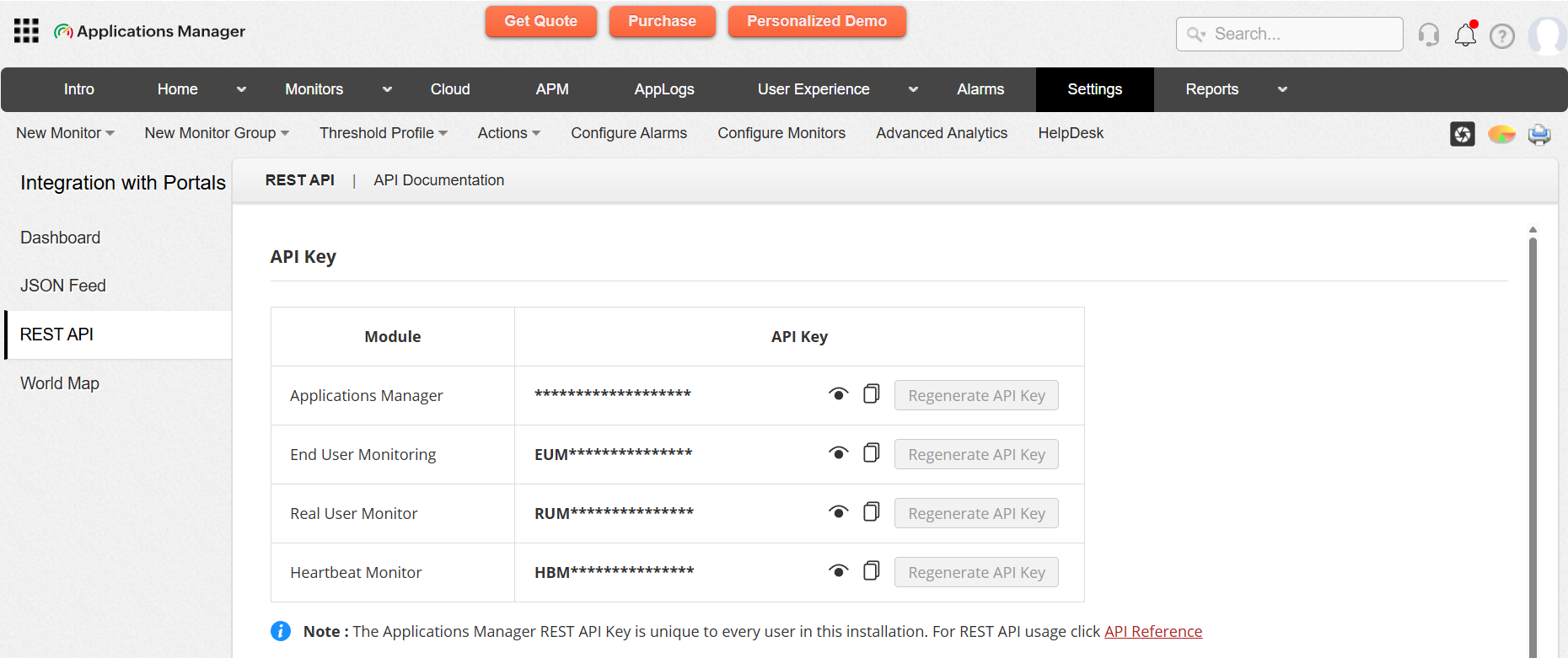
The REST API page provides several actions to manage API keys securely. Following are the list of actions that can be performed for respective modules:
- View/Hide API Key: Allows you to toggle between showing and hiding the full API key. Click on the eye icon to view/hide the full API key. By default, API keys are masked.
- Copy API Key: Allows you to instantly copy the API key and paste into configuration files, scripts, or agent installation processes without manual typing errors. Click the copy icon to copy the API key to clipboard.
- Regenerate API Key: Allows you to regenerate a fresh API key for secured authentication. Click the Regenerate API Key button to generate a new API key for the selected module. Note that regenerating a key will invalidate the previous key immediately, and all applications or agents using the old key needs to be updated.
- The Applications Manager REST API Key is unique to every user in this installation.
- After regenerating an API key, ensure that all integrations, agents, and scripts using the old key are updated with the new key to maintain uninterrupted service.
API Documentation
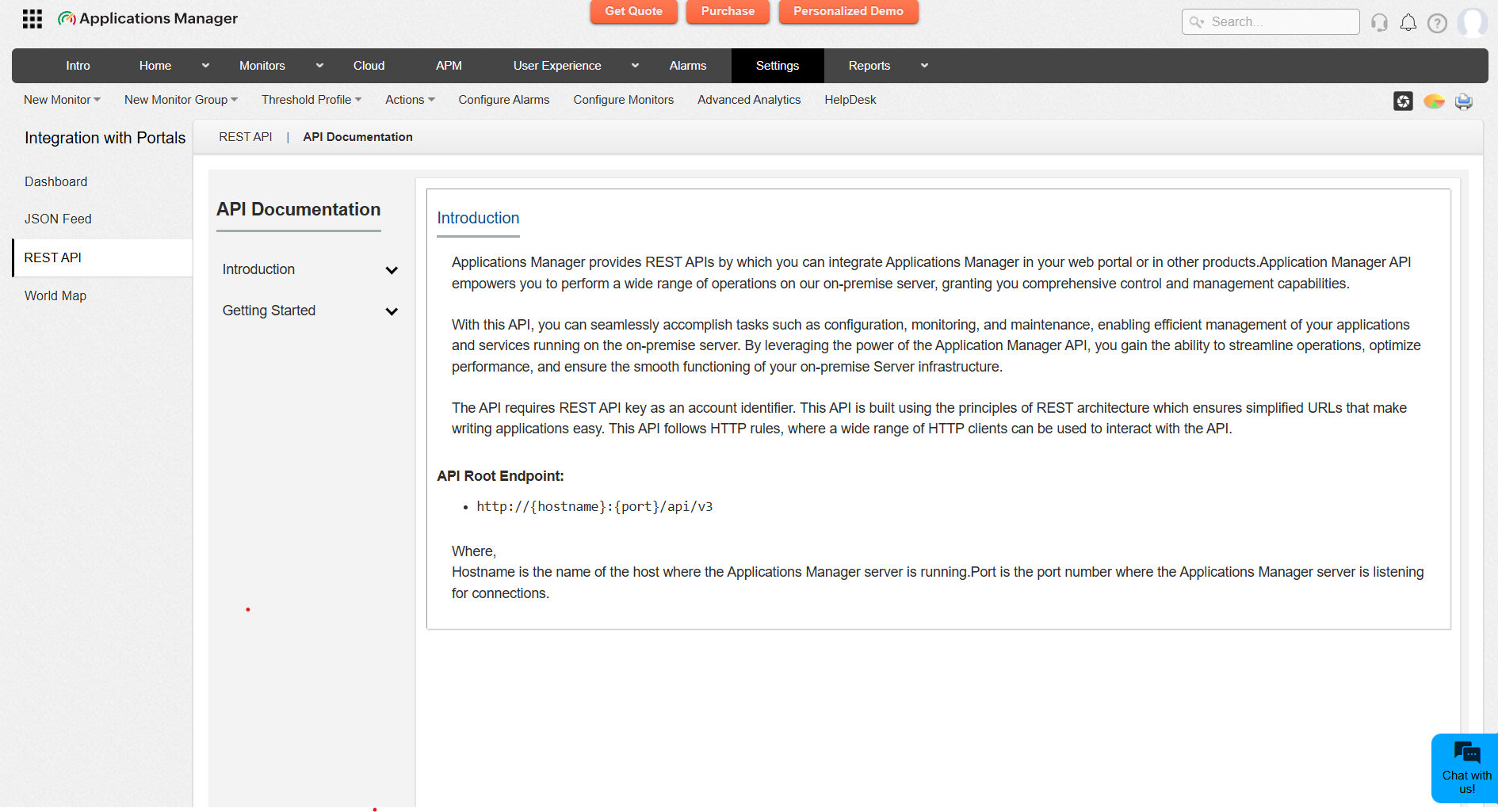
For complete information on available v3 REST API endpoints, request and response formats, you can refer to the API Documentation section, located under Settings → Integration with portals → REST API → API Documentation.
Learn how to use REST APIs in Applications Manager