How to configure SAML authentication settings in Central Server for OneLogin SSO?
Description
This document will walk you through the steps required to configure SAML Authentication settings in Central Server for OneLogin. Please visit this site to learn about integrating Central Server with OneLogin SSO.
Installation Steps
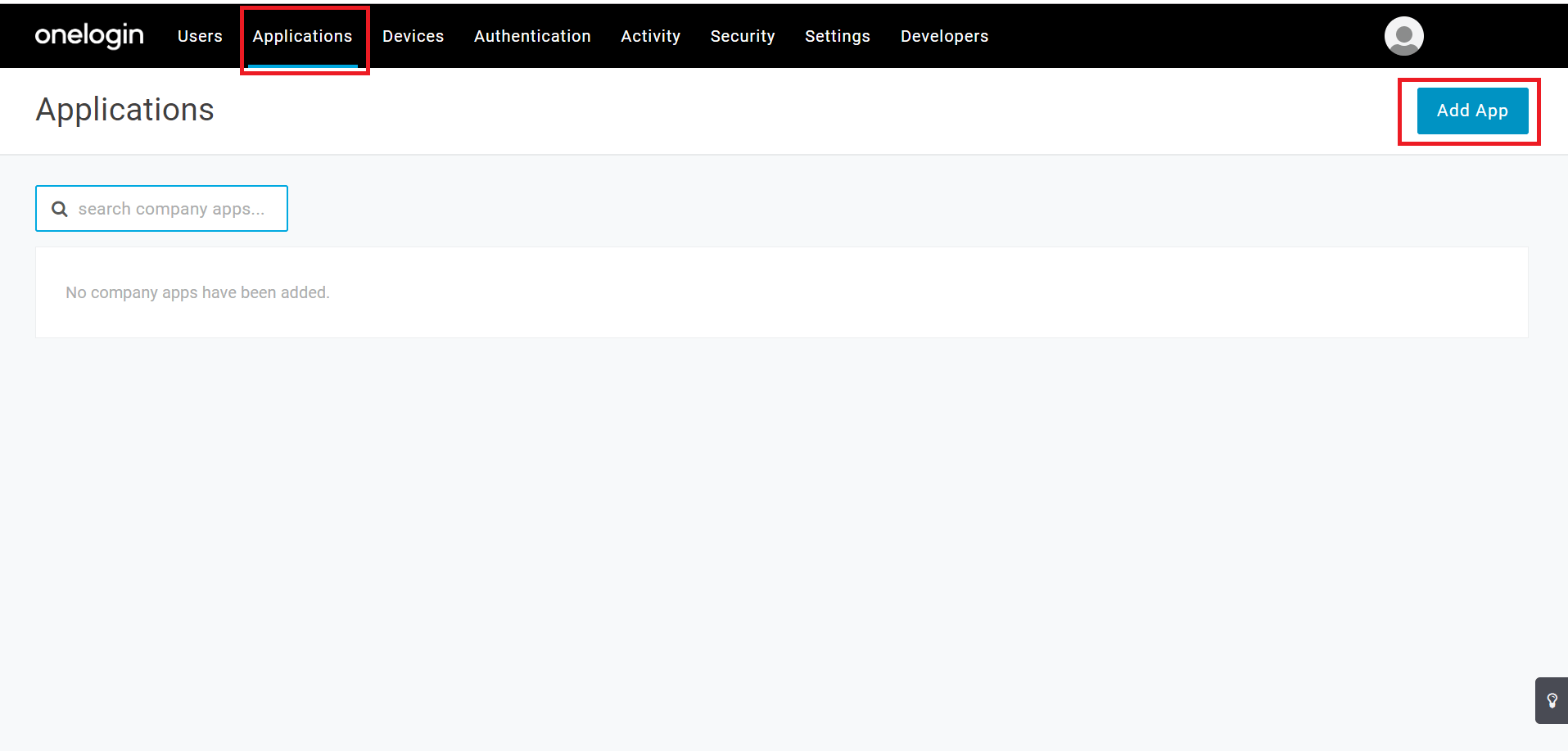
- Go to https://app.onelogin.com/login and login using your admin account. Navigate to Applications tab and click on Add App.
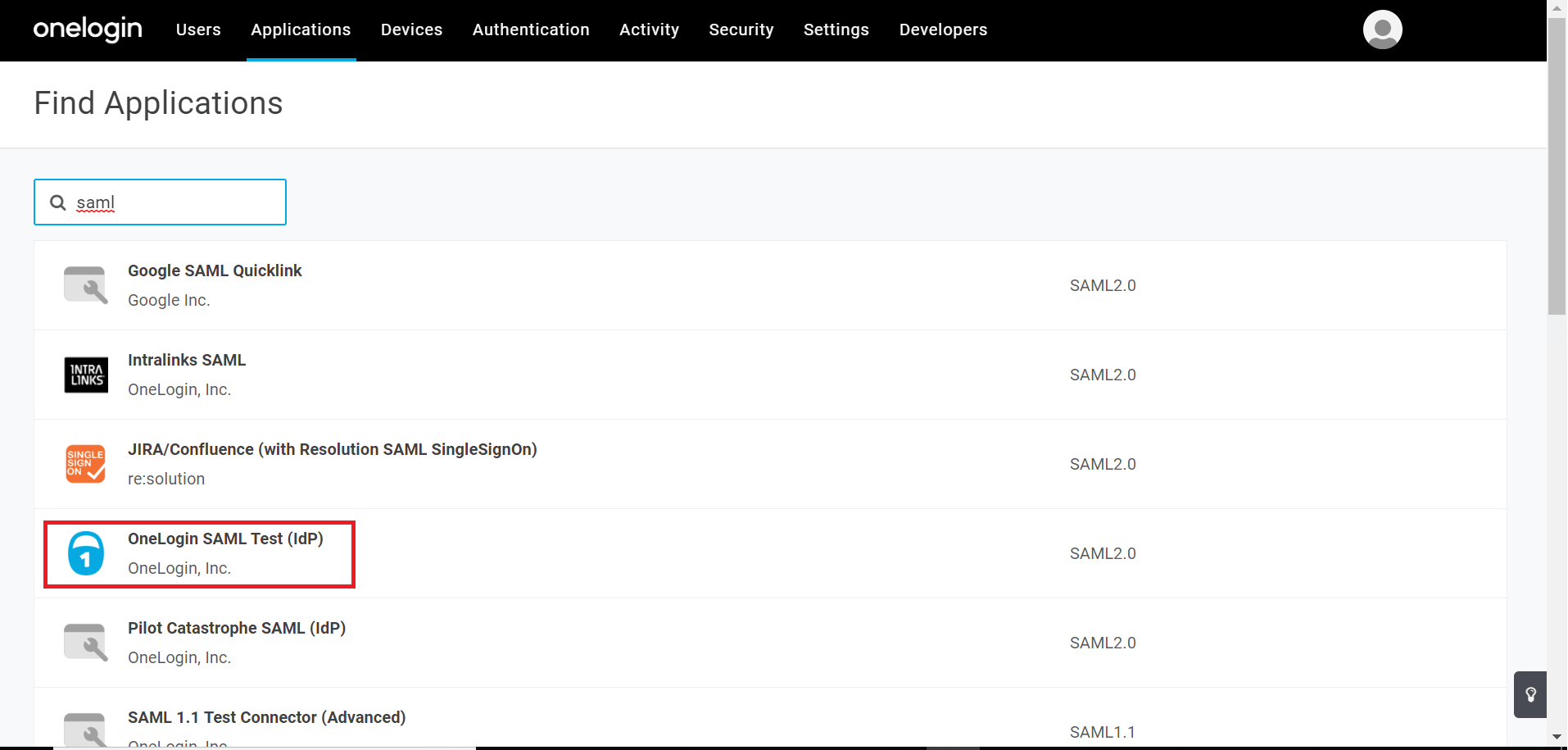
- Type saml and select OneLogin SAML Test (IdP).
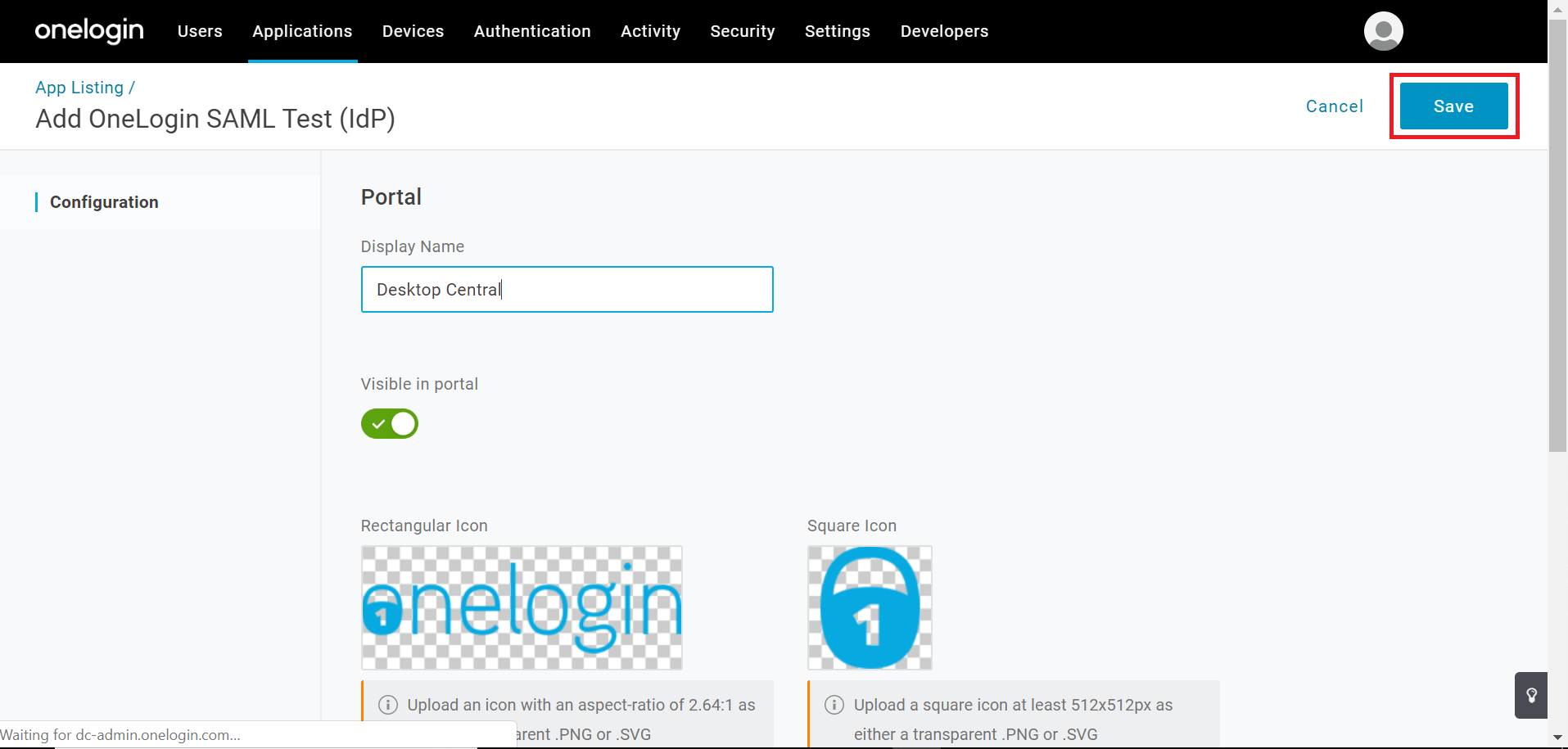
- Typethe Service Provider's name is, Central Server and click on save.
- Click on Save.
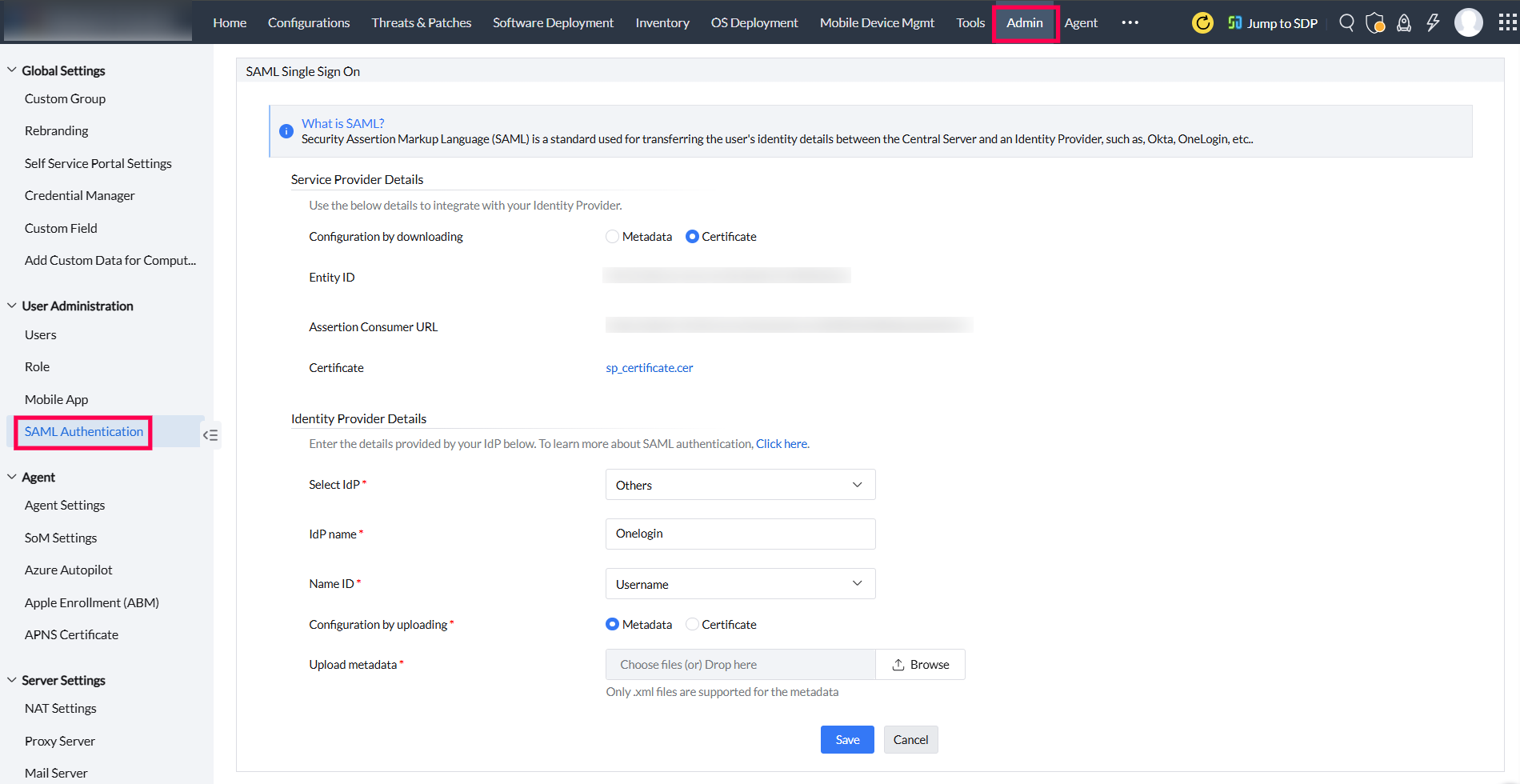
- Navigate to Admin tab and select SAML Authentication. Choose certificate against Configuration by downloading. Copy the Entity ID and Assertion Consumer URL.
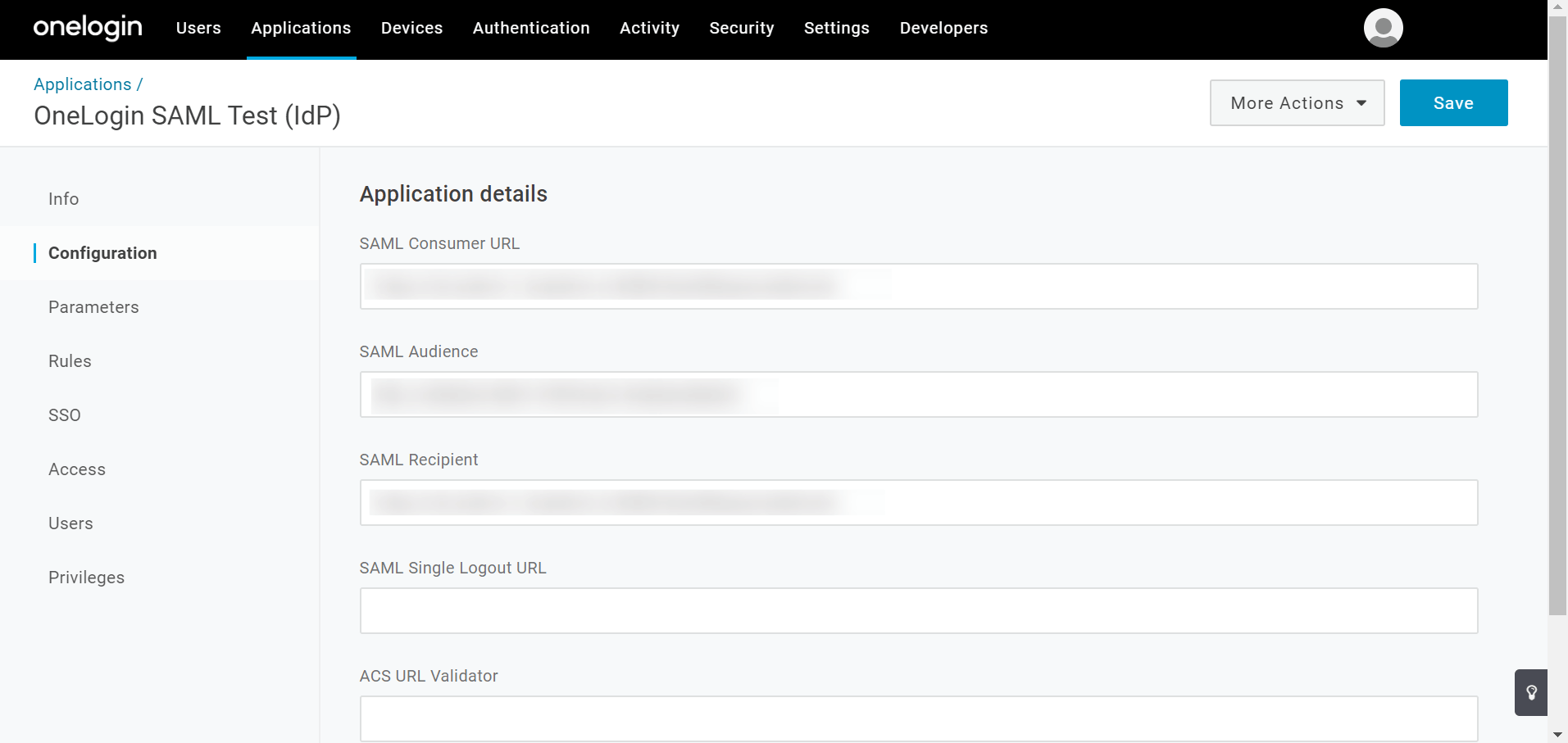
- Paste Assertion Consumer URL in SAML Consumer URL and SAML Recipient. Paste the Entity ID in SAML Audience.
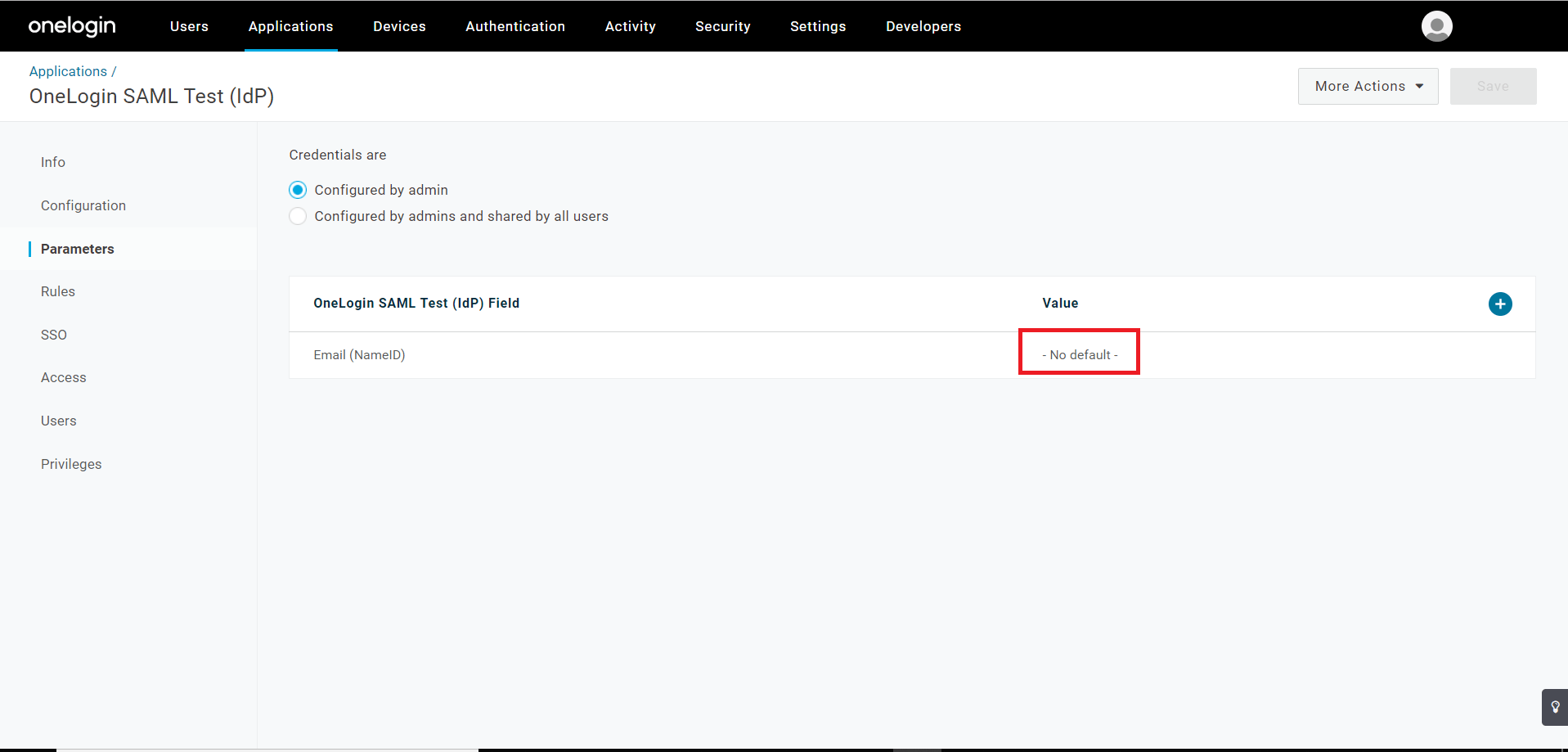
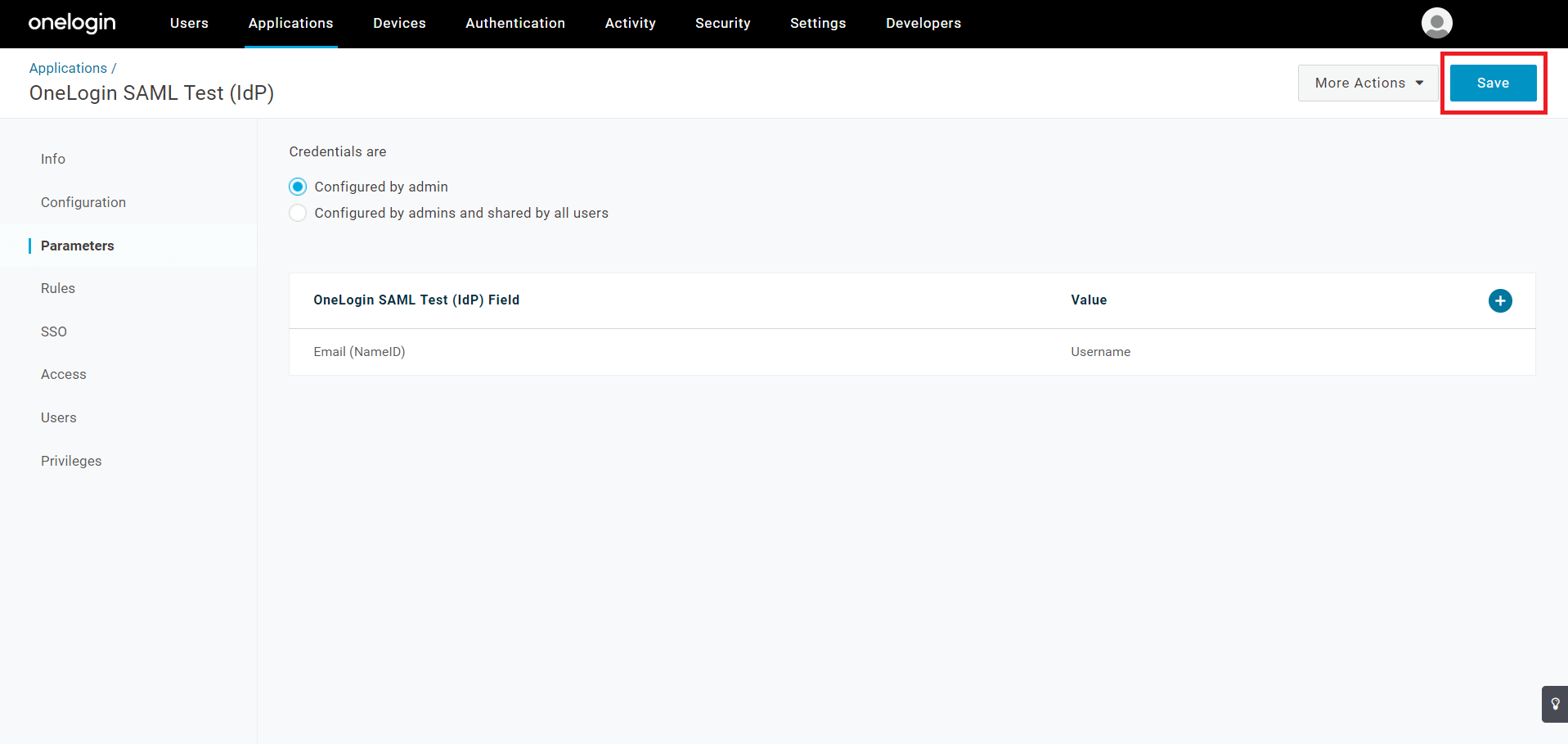
- Under Parameters tab, choose Configured by admin. Click on No Default.
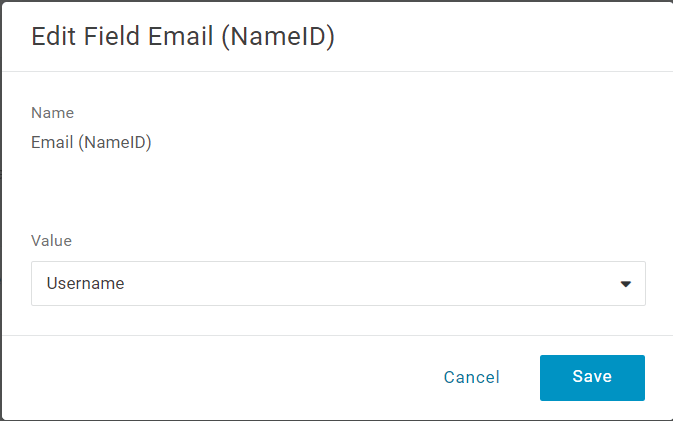
- Select Username in the drop-down list. Click on Save.
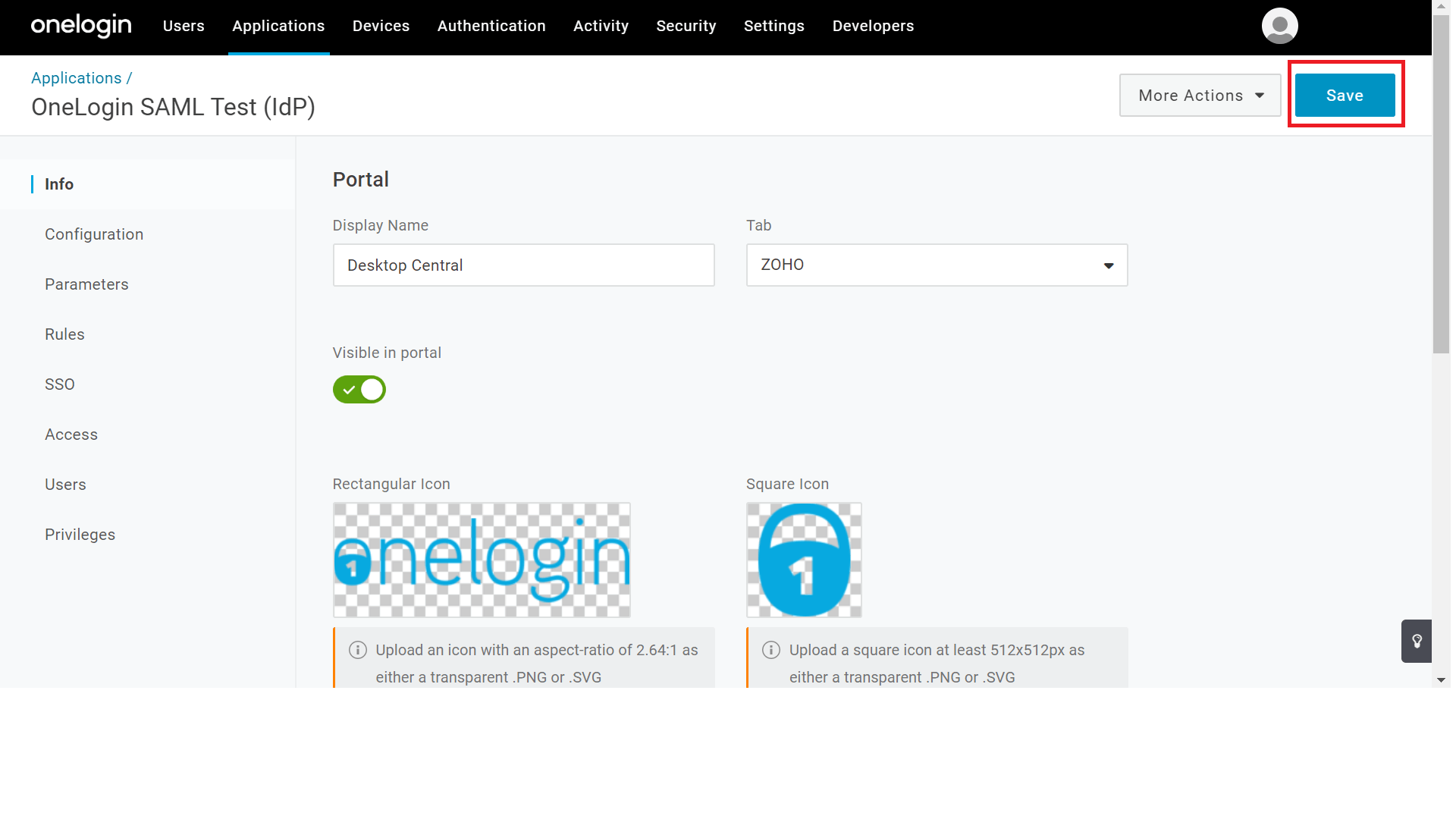
- In the top right corner, click on Save.
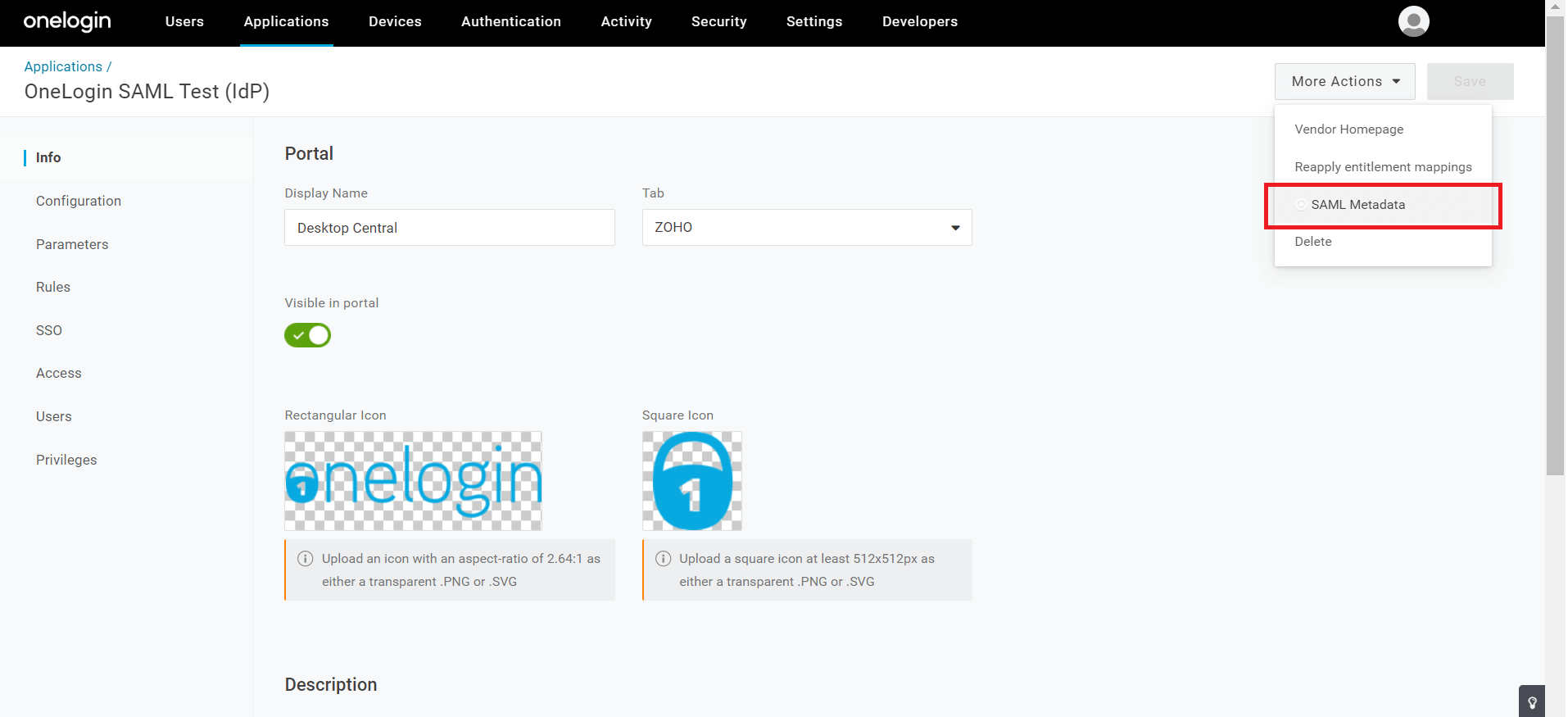
- Navigate to Info tab. Click on More Actions. Select SAML Metadata from the drop-down list.
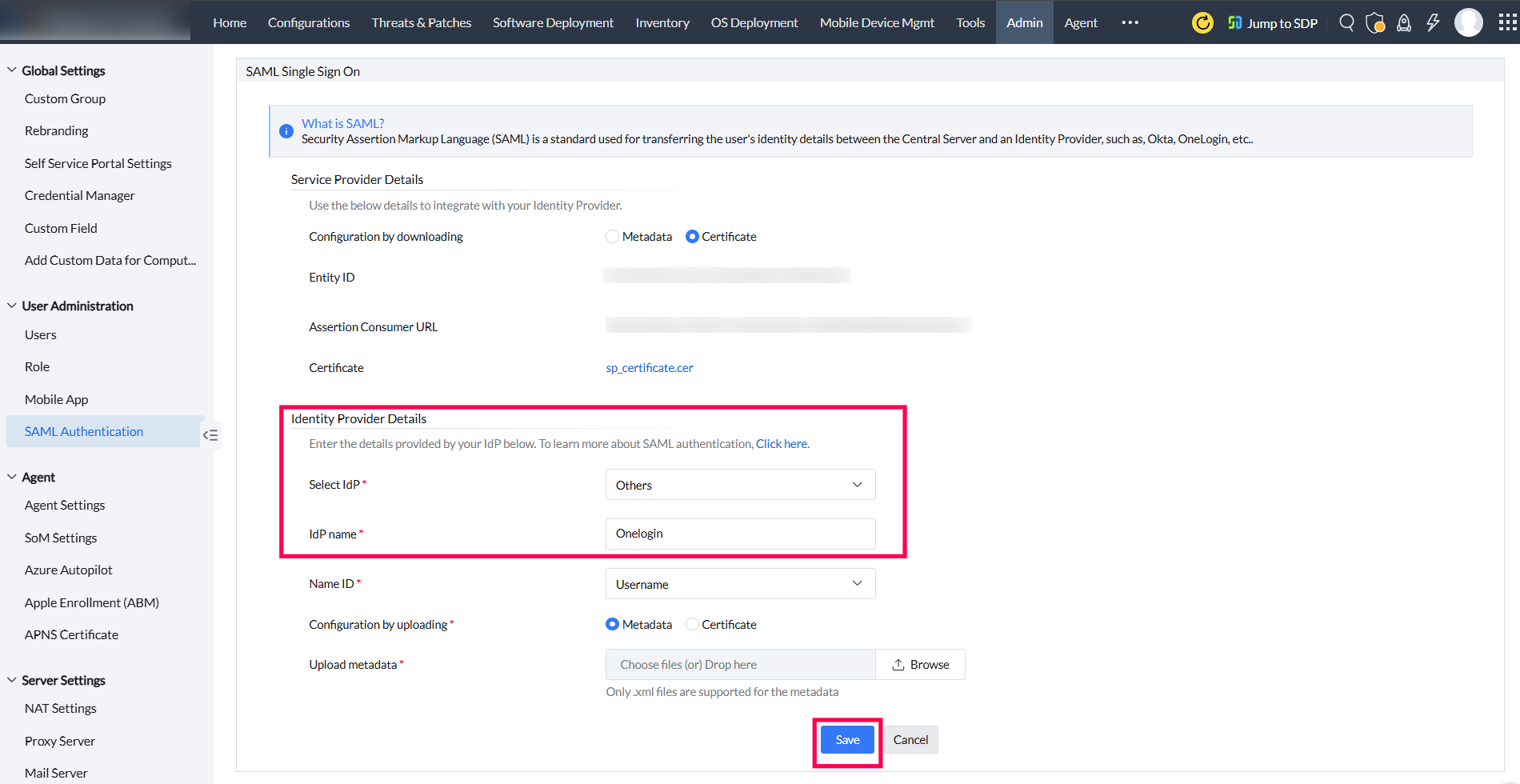
- In SAML Authentication settings of Central Server, select Idp as Others. Enter OneLogin as IdP name. Select Username as Name ID. Select Browse and upload the metadata file. Click on Save.
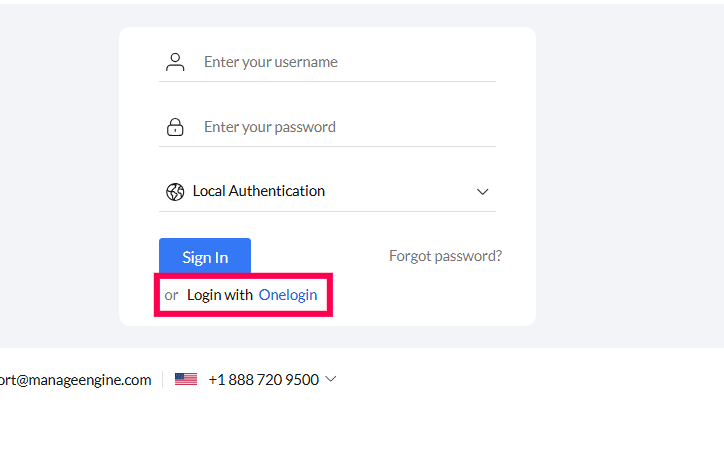
- Go to Central Server login page. Select the new option- Login with OneLogin.
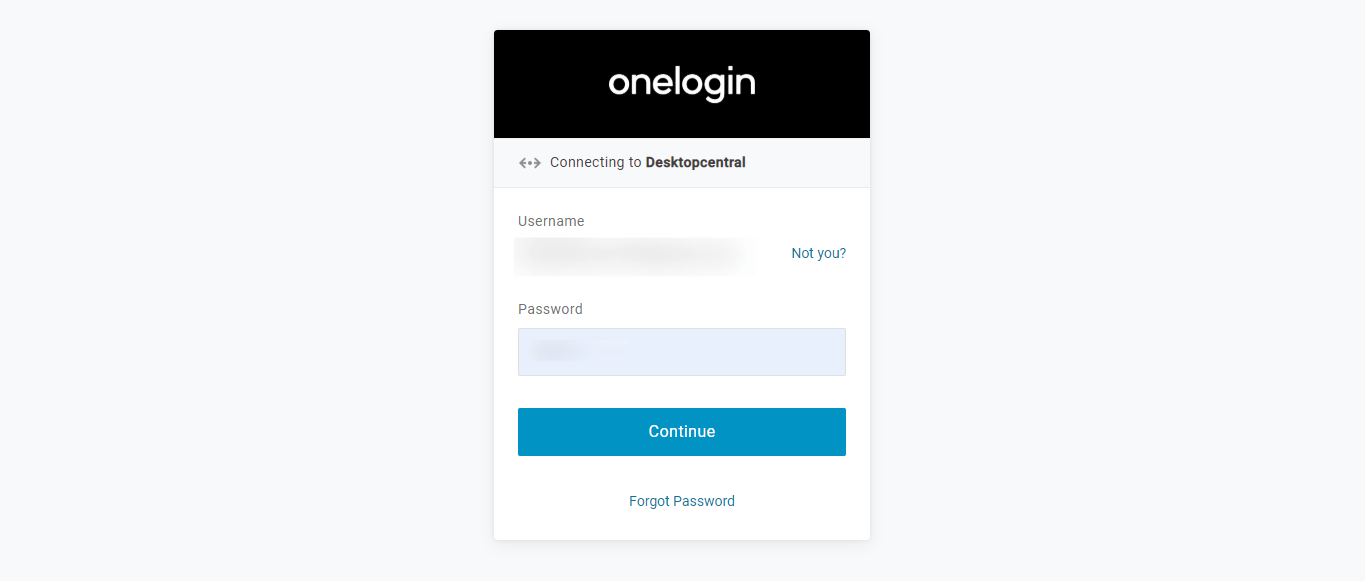
- Enter Username and password to login.