Displaying Legal Notices | Computer Configuration
Be it important announcements or displaying legal notices, it can be configured easily throughout the enterprise using the Legal Notice configuration. The configured message will be displayed whenever the user presses ctrl+alt+del to log in.
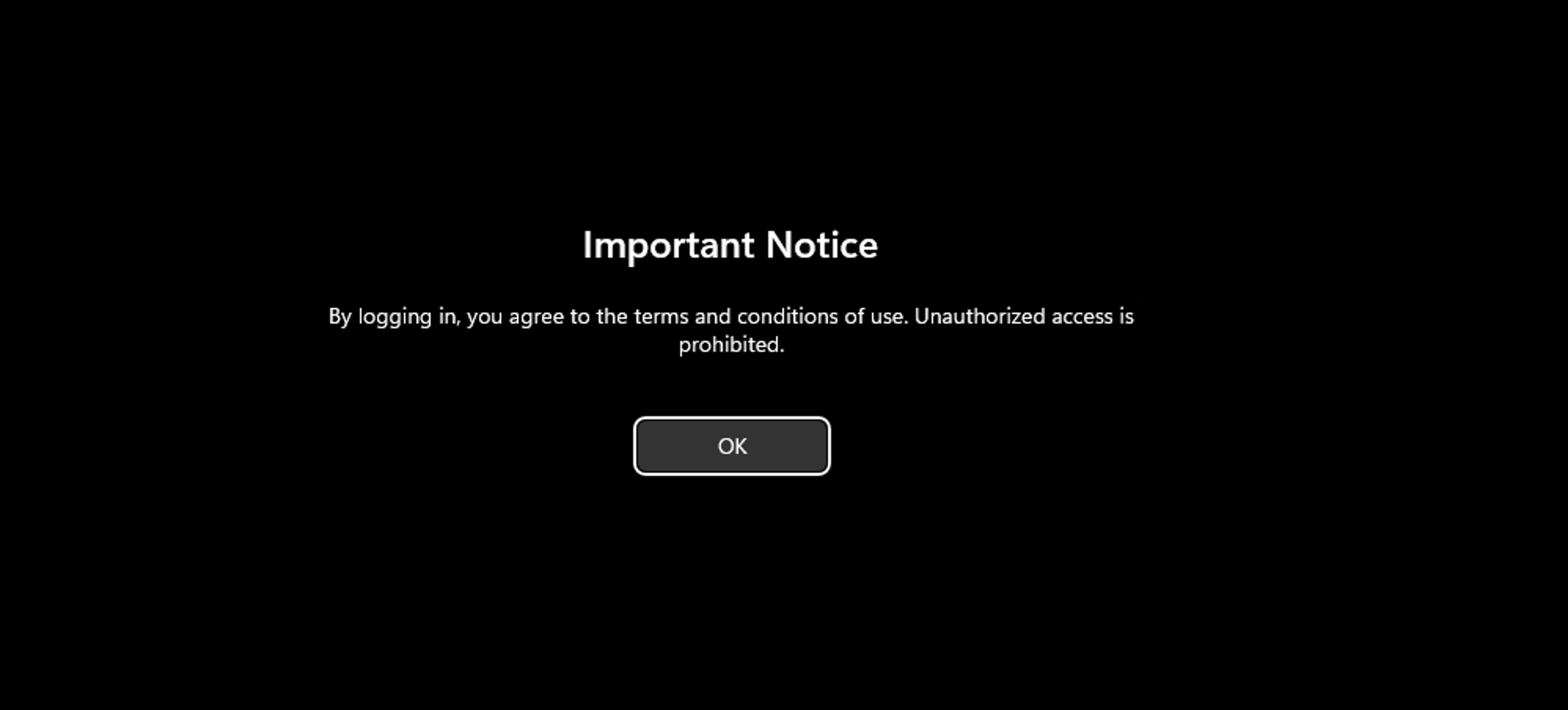
Step 1: Name the Configuration
Provide a name and description for the Legal Notice Configuration.
Step 2: Define Configuration
Specify the following:
| Parameter | Description |
|---|---|
Action | Choose the appropriate action to either create/modify or remove a legal notice. |
Window Title* | Specify the window title of the legal notice. |
Message* | Specify the message that has to be displayed. |

Step 3: Define Target
Using the Defining Targets procedure, define the targets for deploying the Legal Notice Configuration.
Step 4: Deploy Configuration
Click the Deploy button to deploy the defined Legal Notice Configuration in the defined targets. The configured legal notice will be displayed during the next system startup.
To save the configuration as a draft, click Save as Draft.
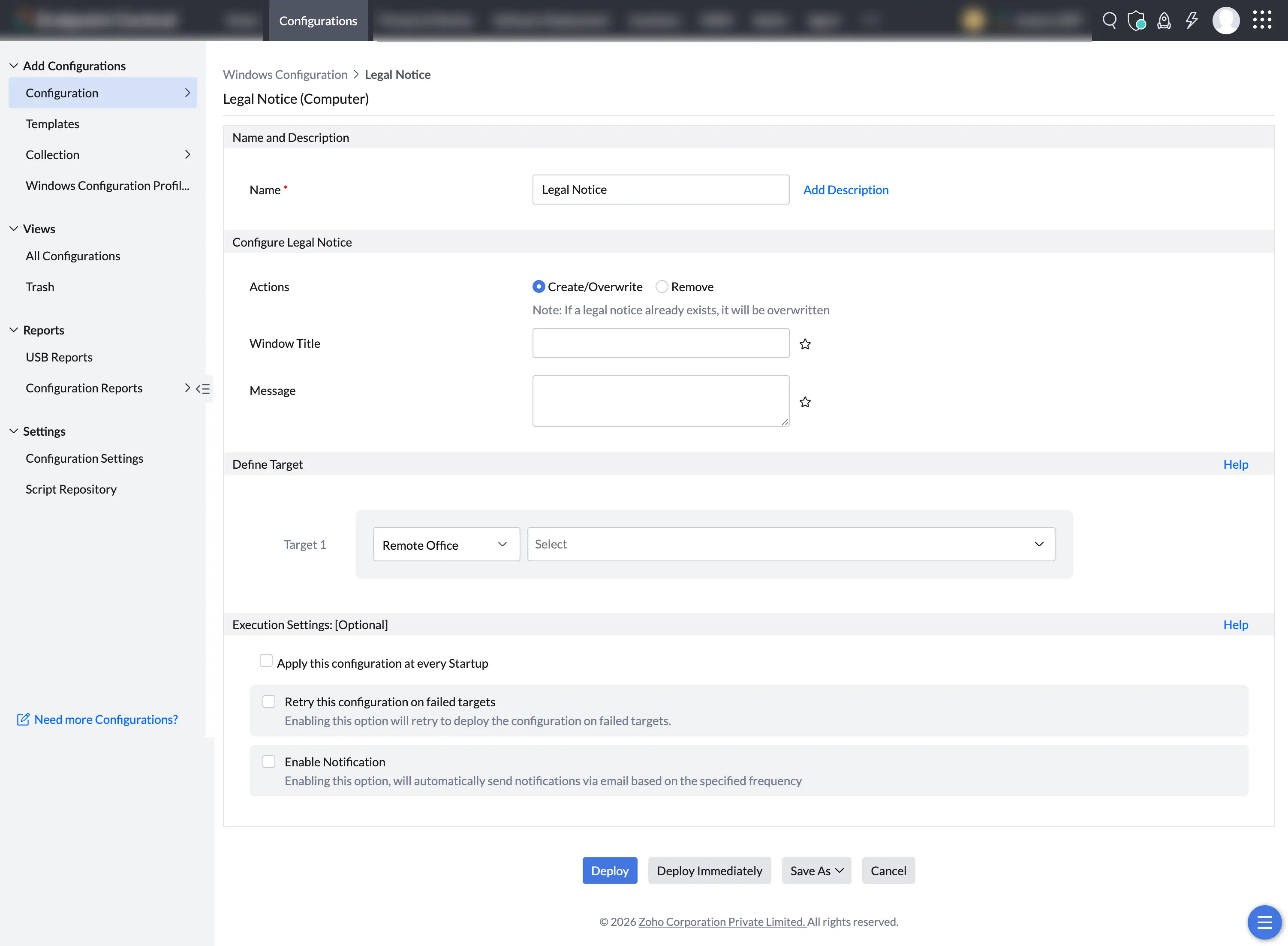
The Legal Notice appears as shown below: