

For every software that you wish to deploy using Endpoint Central, a package should be created. The package contains the details of the software application, its installation location and the installation/uninstallation commands. The packages once created can be used to deploy software to any number of computers later. The software application, which needs to be deployed to target computers should be uploaded to a particular location. This should be accessible only via 'HTTP share'. "Network Share" is not applicable for Mac, unlike Windows. Administrators should specify the HTTP path while creating a software package.
Installables can be uploaded only in .dmg format. If you want to upload the installable, which is in .pkg/.mpkg / .app format or upload more than one installable, then it should be compressed and uploaded in .zip, .tar, .gz, .bz2, .tgz, .tbz or .dmg format.
Creating a package to install with a single installable file is very easy. Follow the steps mentioned below:
Navigate to Software Deployment -> Add Packages -> Mac.
Specify a name for the Package and provide the details of the package for your personal reference.
Click Installation tab
Click Browse, under Upload Files upload the installable (software application) that needs to be deployed to the target computers. The installable should be in .pkg/.mpkg or .app format.
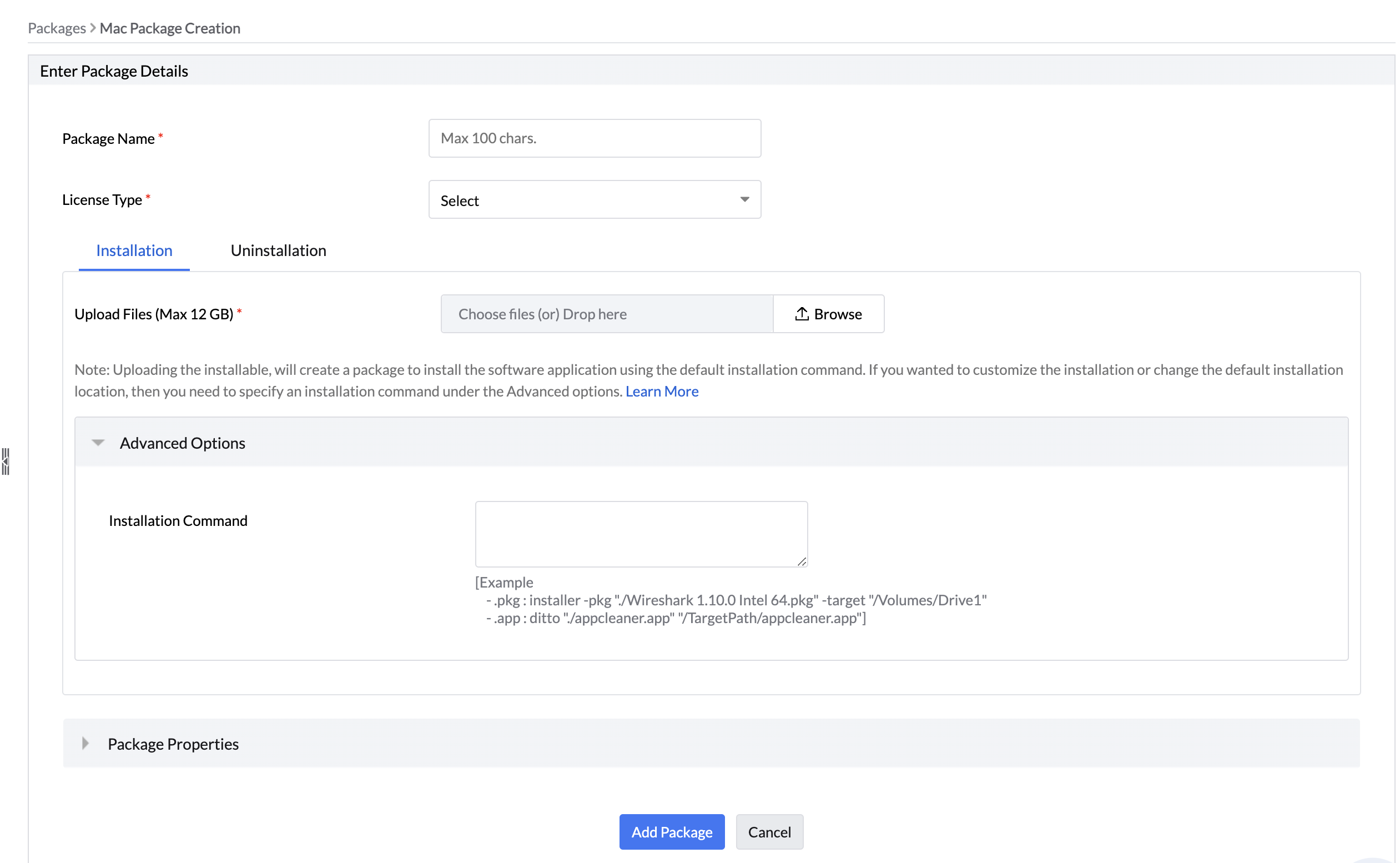
You have successfully created a package with a single installation file.
The steps to create a package with multiple files, is the same like creating a package with single installation file. some software applications like Office, would require more than one installation file, in such cases administrators can upload the installable files in .zip, .tar, .gz, .bz2, .tgz, .tbz or .dmg format. These files will be extracted to identify the .pkg/.mpkg or .app files.
Administrators can use installation commands if they want to customize the installation or change the default installation location. If installation command is not specified, then the software application will be installed using the default installation commands. The following are examples, of how commands can be used to change the default installation location:
For pkg: installer -pkg "./Wireshark 1.10.0 Intel 64.pkg" -target /
For app: Can be deployed without any installation command
A software can be removed by specifying the appropriate installed location. If there is more than one file that needs to be removed, then you can add more than one location or use a script for uninstallation. Uninstallation command can be specified under, "Advanced Options". If you write a script of your own, then it is recommended to test it, before it is added to the software package.
Scripts can be uploaded in .sh (shell), .py(Phyton) formats.
Remove a software for all users by using the command as mentioned below:
"/Library/Application Support/Google/Chrome"
The above is a sample command to remove "Google Chrome" for all users.
Remove a software for a specific users by using the command as mentioned below:
"/Users/user1/Library/Application Support/Google/Chrome"
The above is a sample command to remove "Google Chrome" for a specific user 'user1'.
Remove a software for the currently logged on users by using the command as mentioned below:
"/Library/Application Support/Google/Chrome"
A software can be removed with its preferences. If there is more than one file that needs to be removed, then you can specify more than one location of the file/folder which needs to be removed or use a script for uninstallation. The shell script below is an example for an uninstallation script, used to remove a software application with its dependent files from multiple computers. Most vendors provide the script for uninstallation, if you write a script of your own, then it is recommended to test it before it is added to the software package.


