Error while remotely connecting to macOS 10.14 (Mojave) and above
Problem
Remotely connecting to Mac computers fails with an error message "Accessibility / screen capturing permissions not configured".
Cause
This might occur when ManageEngine Remote Access component or the Zoho component of Endpoint Central has insufficient privileges to remotely control that computer.
Note: Enabling/ disabling the Screen Recording permission in macOS devices can be done by the standard user when the admin pushes a profile to the device enabling the user to toggle with the above permission. If no profile is pushed, they can still toggle with the permission by giving the admin password.
Resolution
- For Endpoint Central on-premise, to resolve this problem, grant accessibility and screen capturing permissions for ManageEngine Remote Access component to remotely control the computer.
- For Endpoint Central, to resolve this problem, grant accessibility and screen capturing permissions for Zoho component to remotely control the computer.
Steps
Choose the operating system:
Identify the macOS version first
Before configuring Remote Control permissions, verify the macOS version on the target computer. The permission names and required approval flow differ across macOS releases. Initiate Remote Control once from the console before checking System Settings > Privacy & Security; this allows the Remote Control helper entry to be registered on supported versions.
Endpoint Central on-premise
macOS 10.14 Mojave
This issue can be resolved in two ways, either from the problematic machine or directly from the product console. Please choose the method:
- From the problematic machine
- From the product console
In the problematic Mac machine navigate to,
- Attempt to initiate remote control from the ManageEngine console. This will prompt the Mac to display "ManageEngineRemoteAccess" in the Accessibility settings, allowing you to grant necessary permissions.
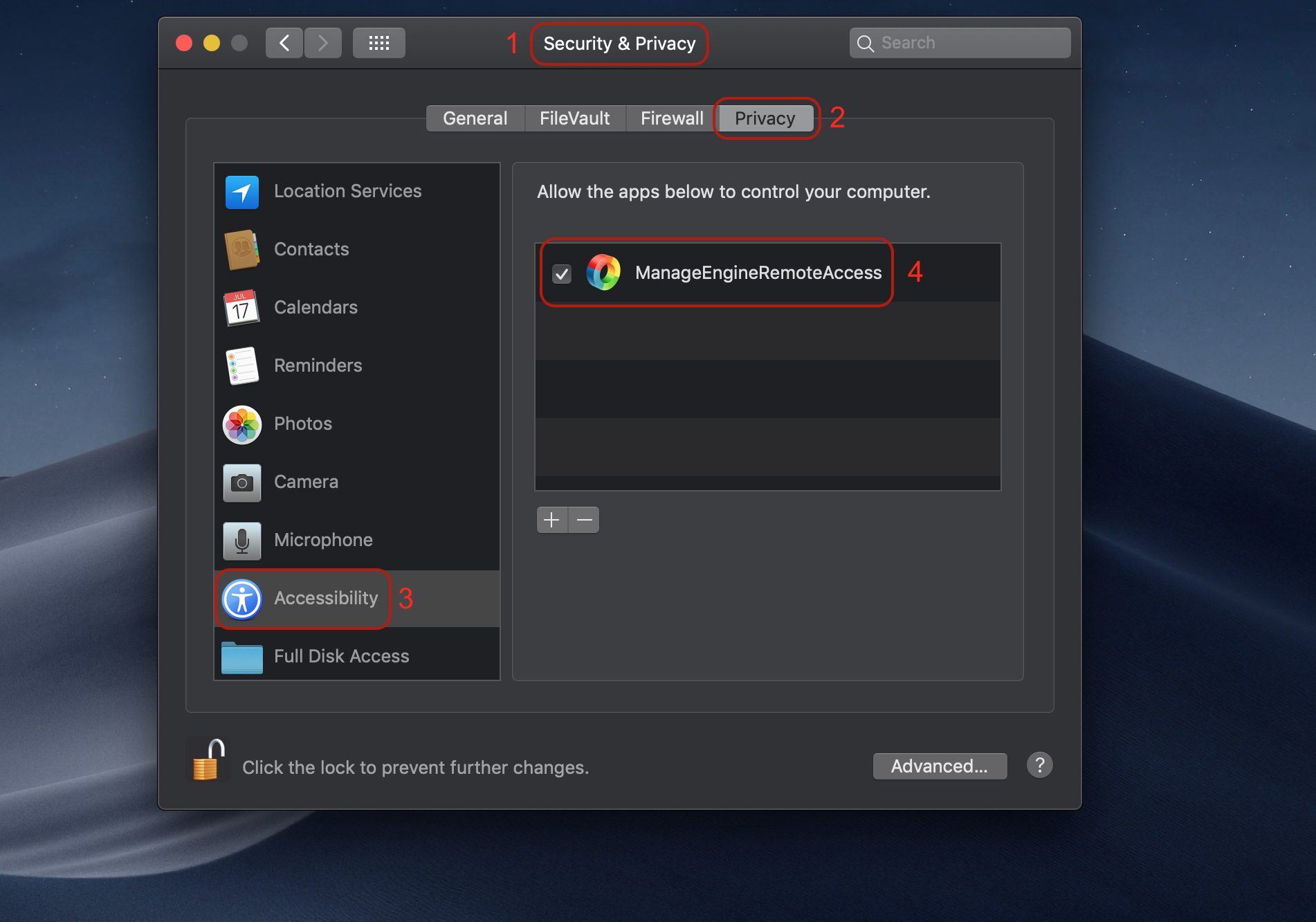
- System Preference -> Security and Privacy -> Privacy -> Accessibility -> Enable access for "ManageEngineRemoteAccess" component. This will resolve the issue if you are using Mac OS version 10.14 - Mojave. If you are using the version 10.15 - Catalina, ensure you follow the next step as well.
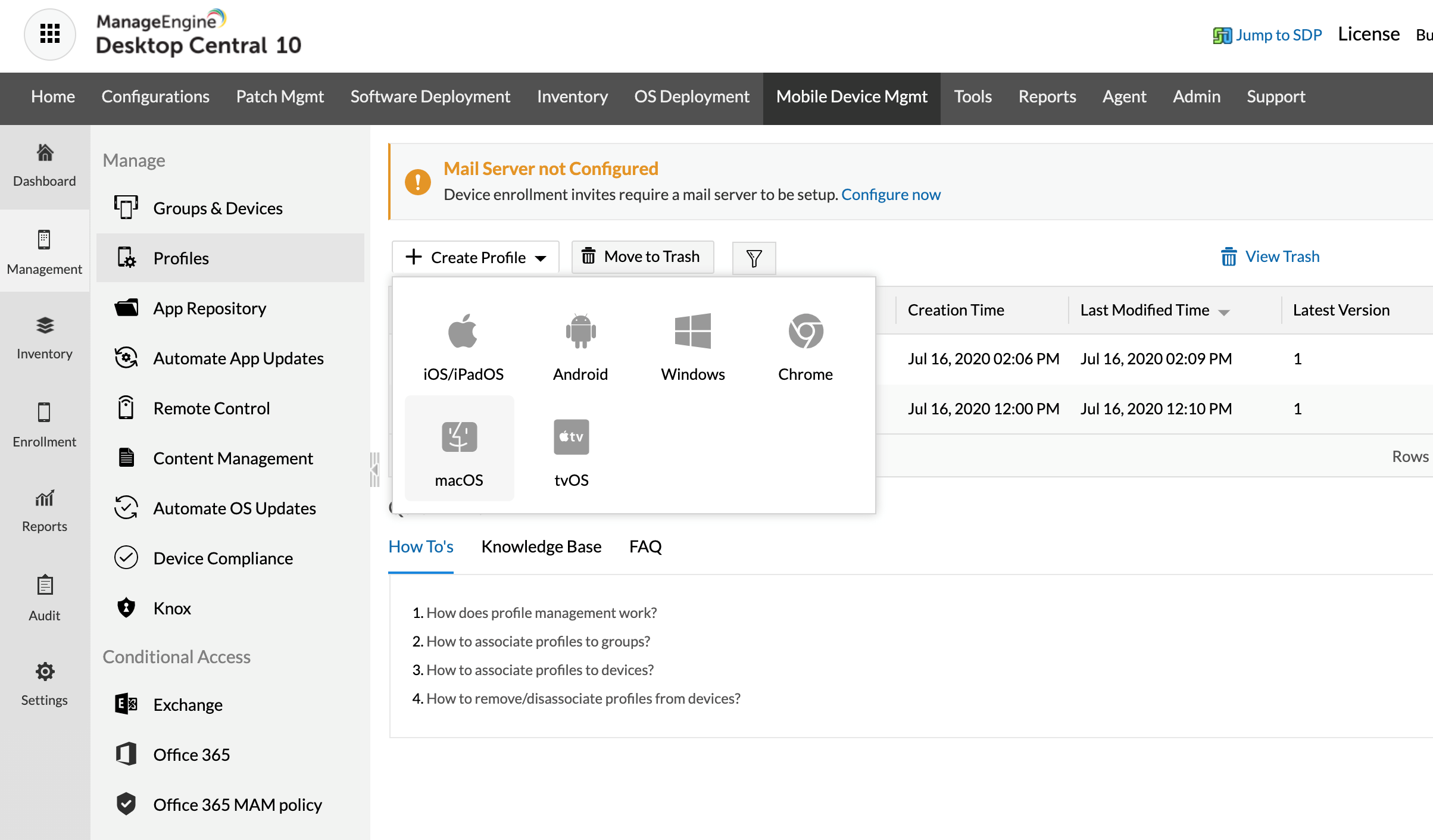
- Under Mobile Device Management, select Management > Profiles.
- Click Create Profile and select MacOS/Apple.
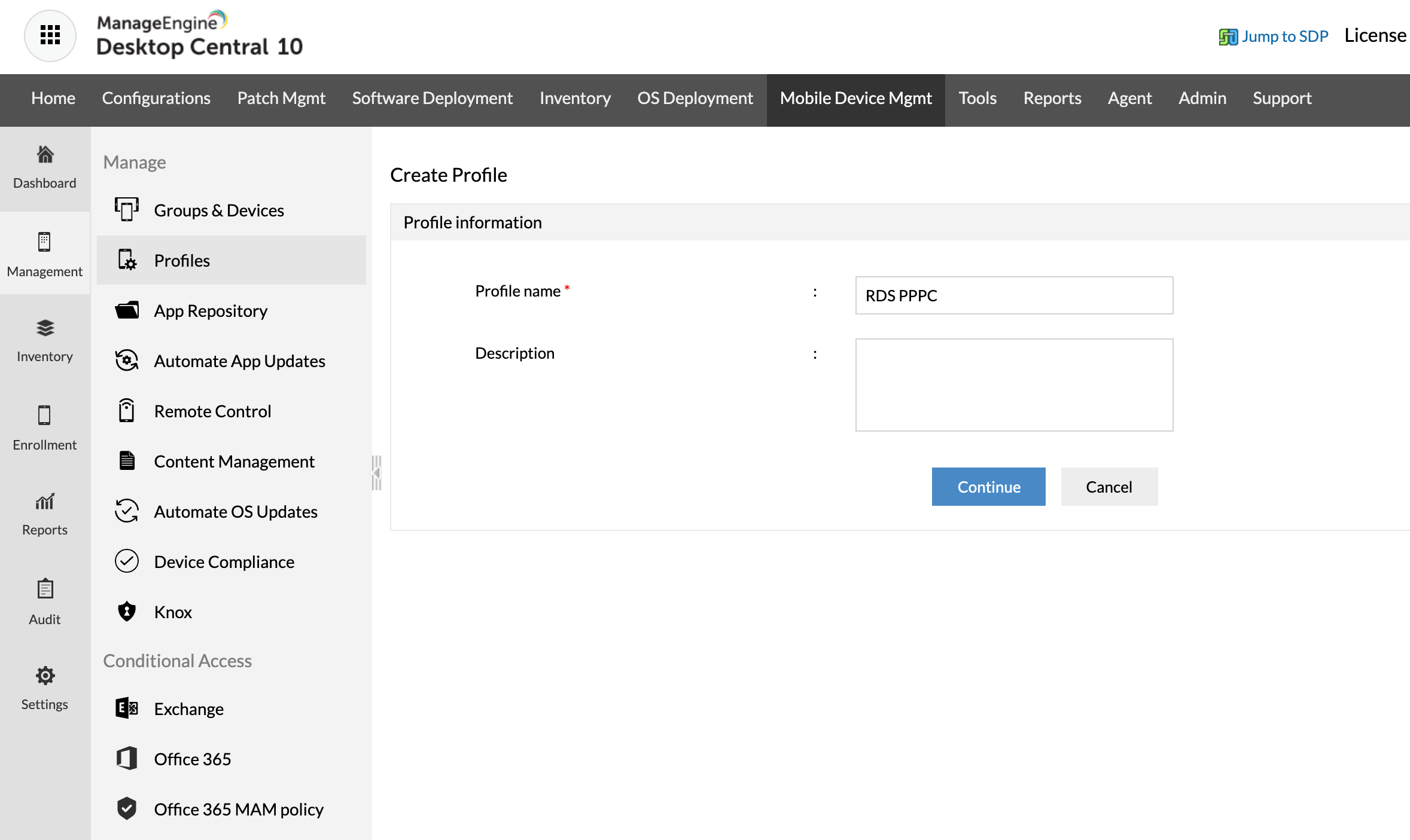
- Provide the Profile name and click Continue.
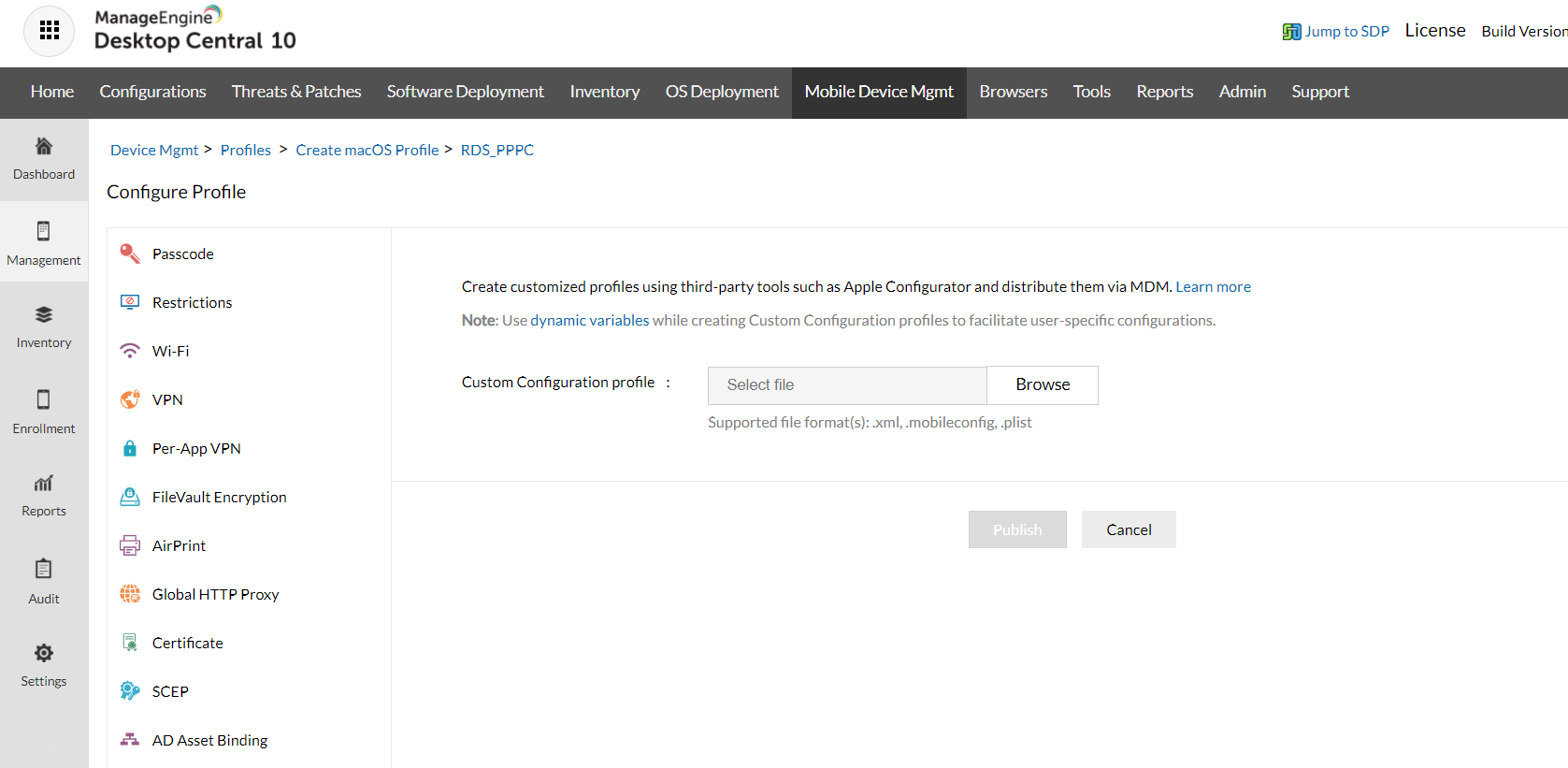
- On the left tree, select Custom Configuration. Download the PPPC file, extract it and upload the PPPC .mobileconfig file.
- Save and Publish this profile.
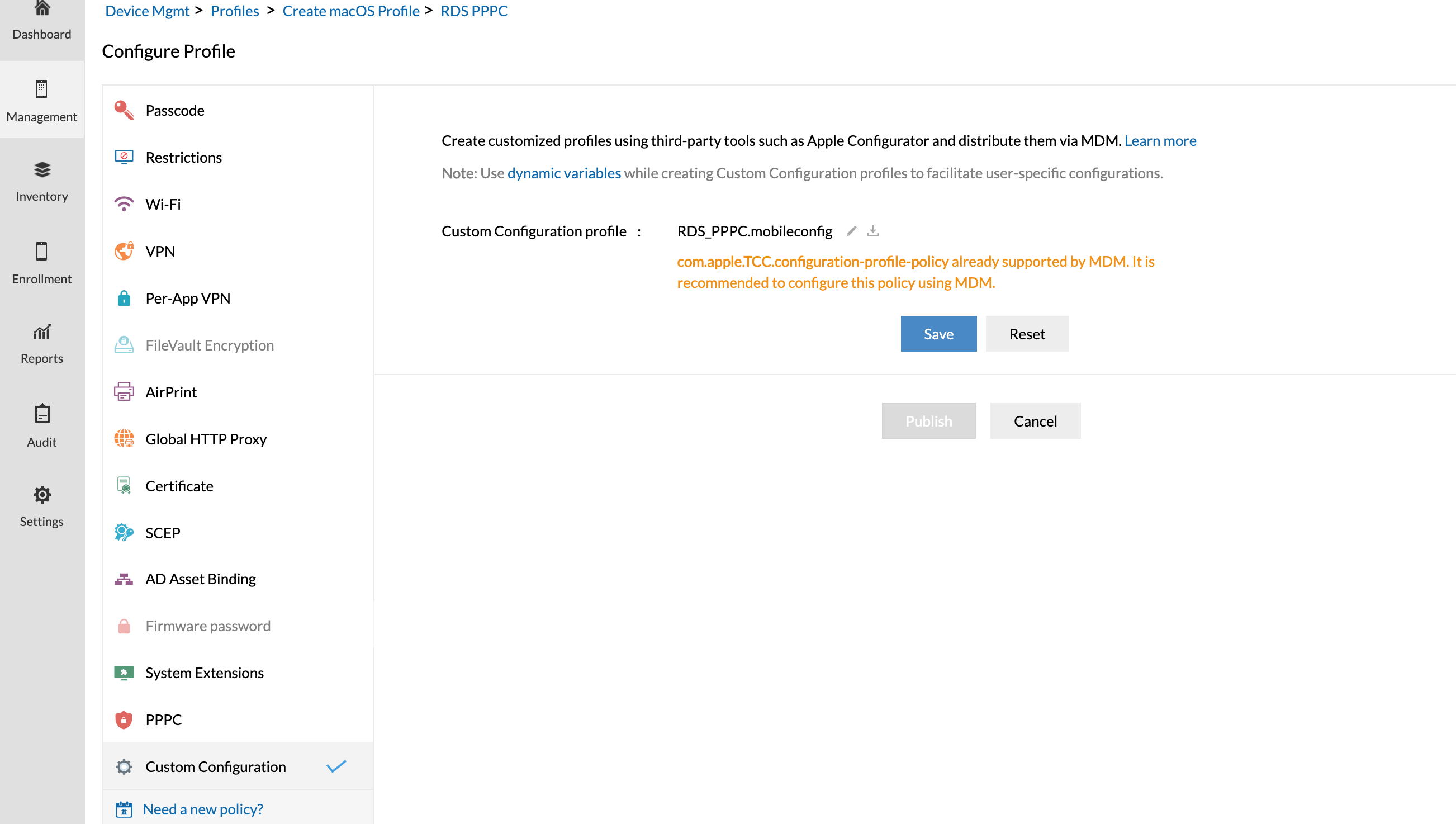
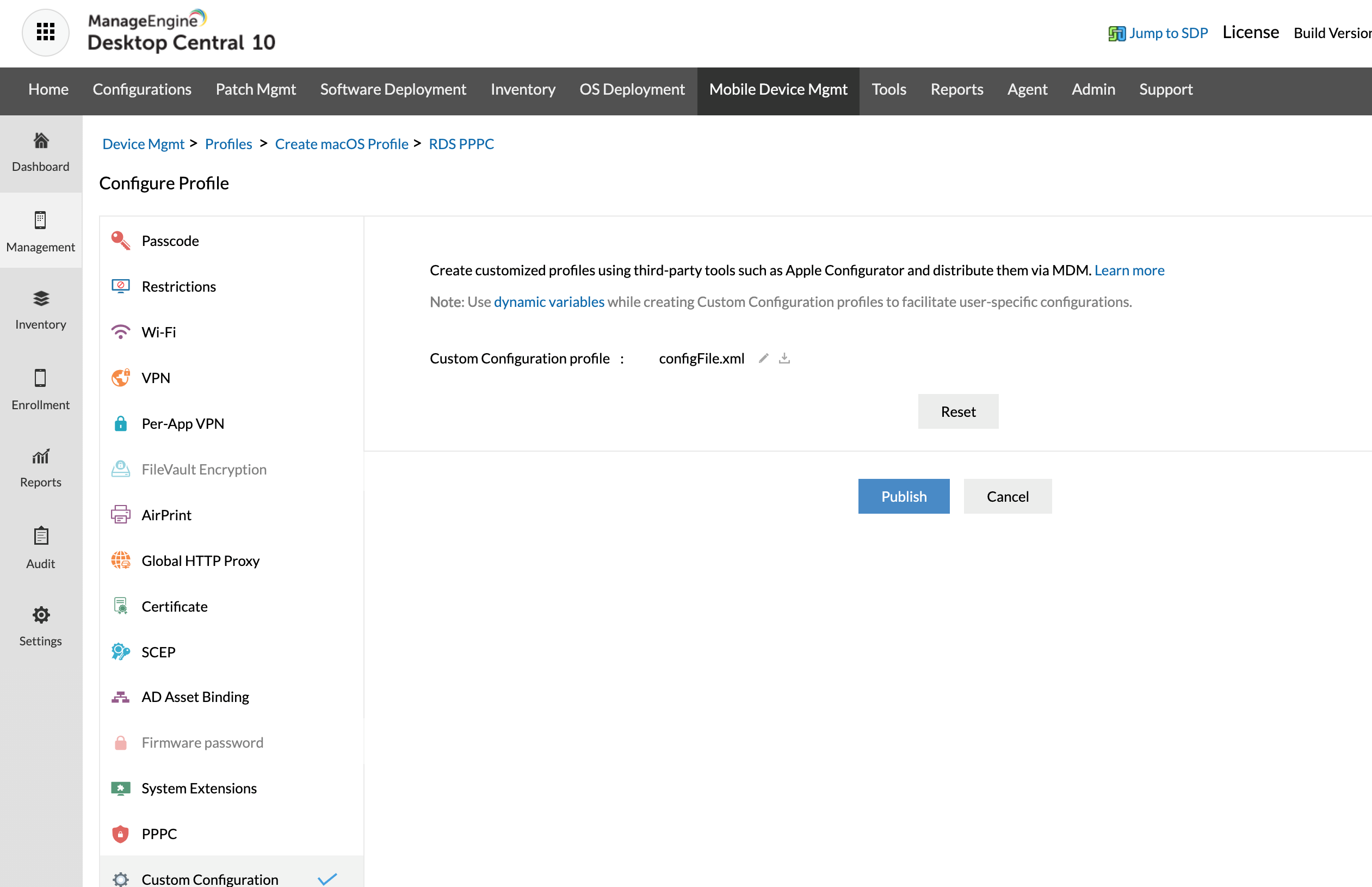
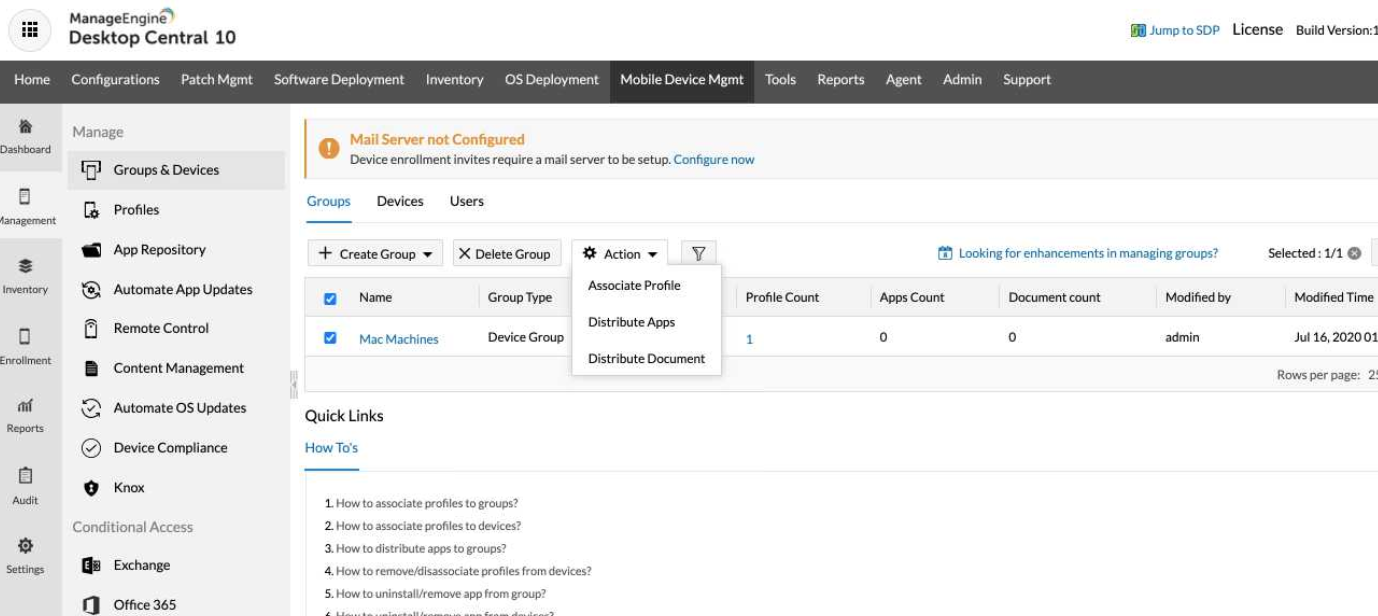
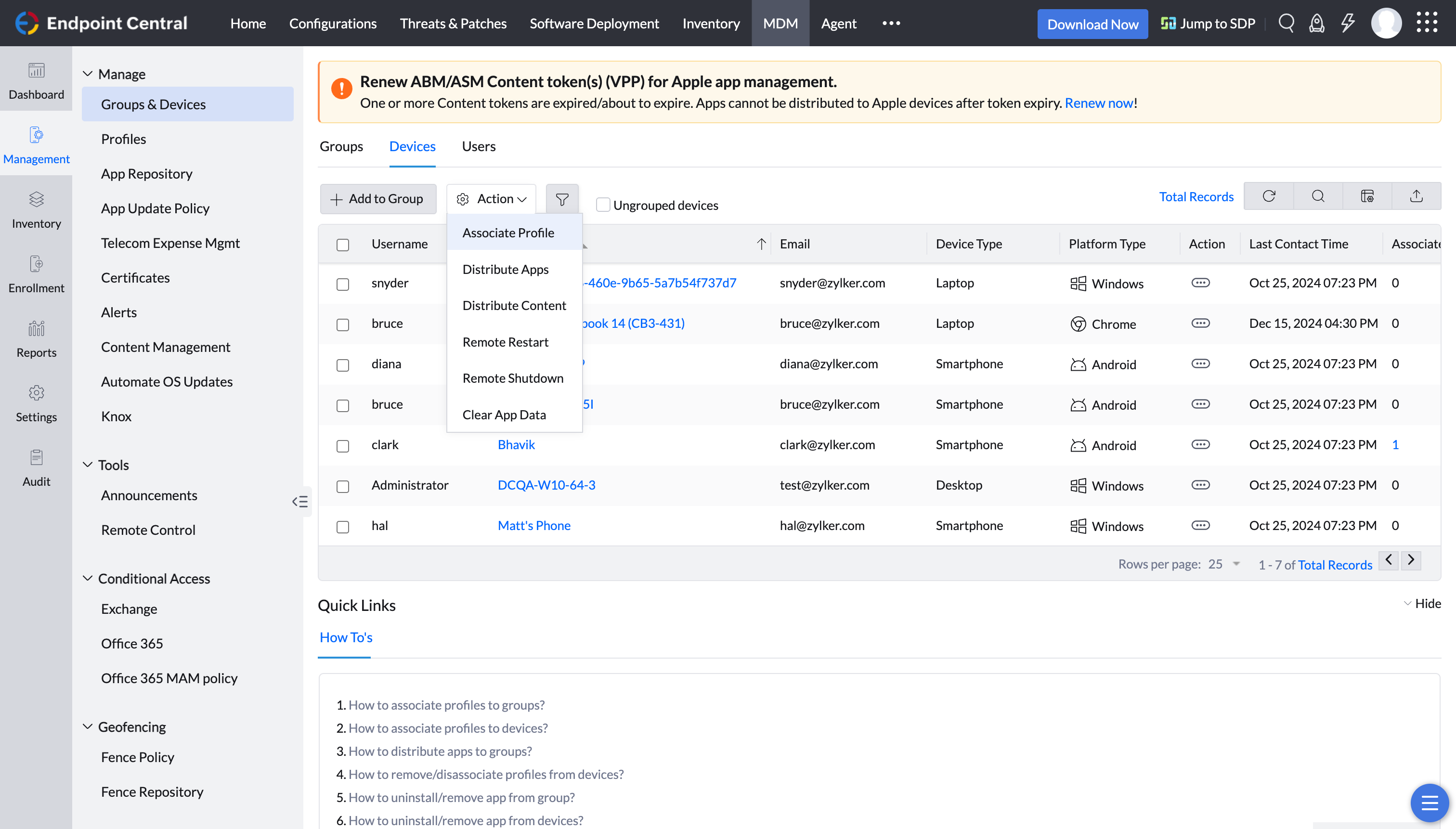
- Navigate to Groups and Devices. Select the required group. Click Action and select Associate Profile.
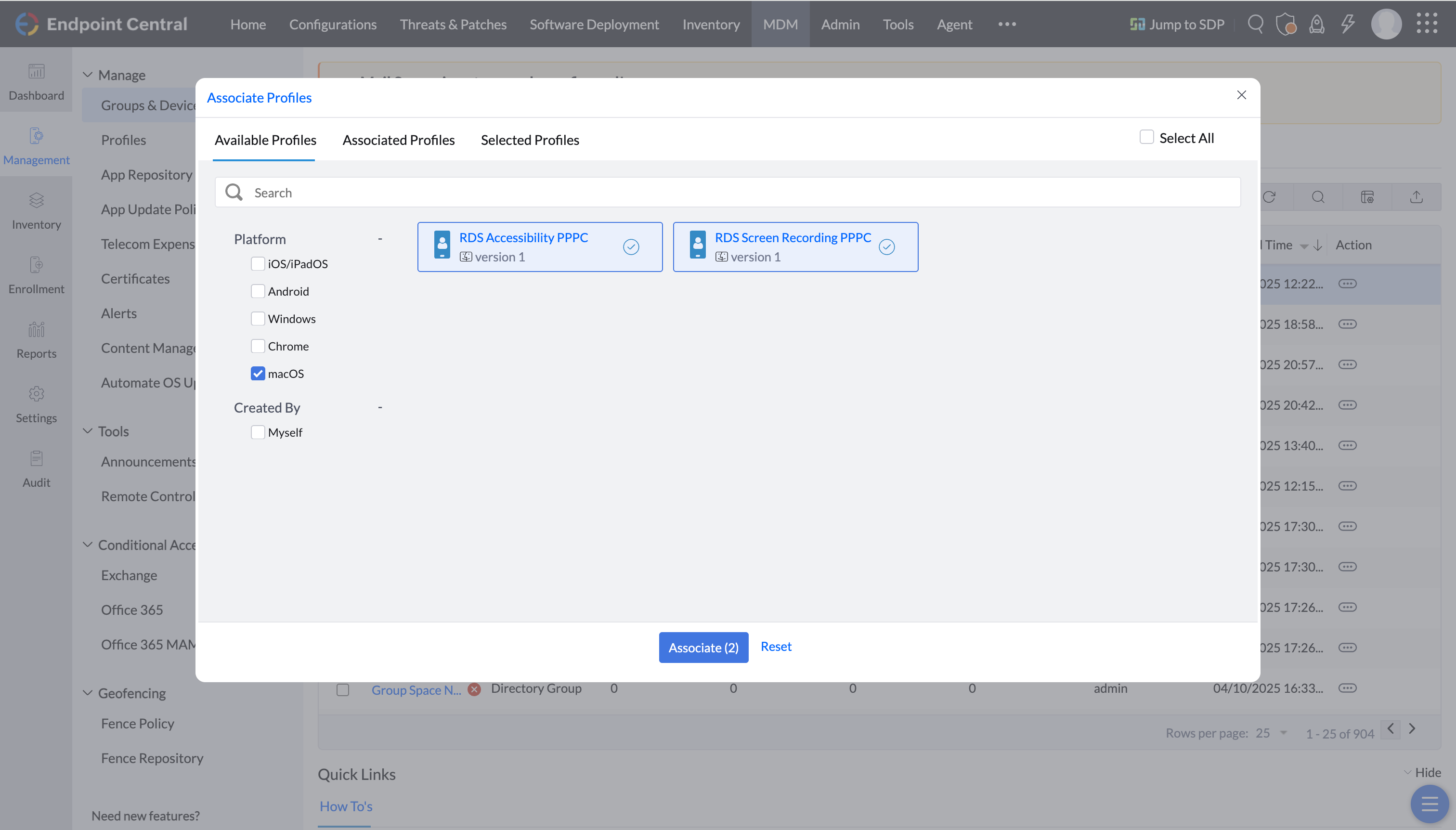
- Select the profile you have just created and associate it.
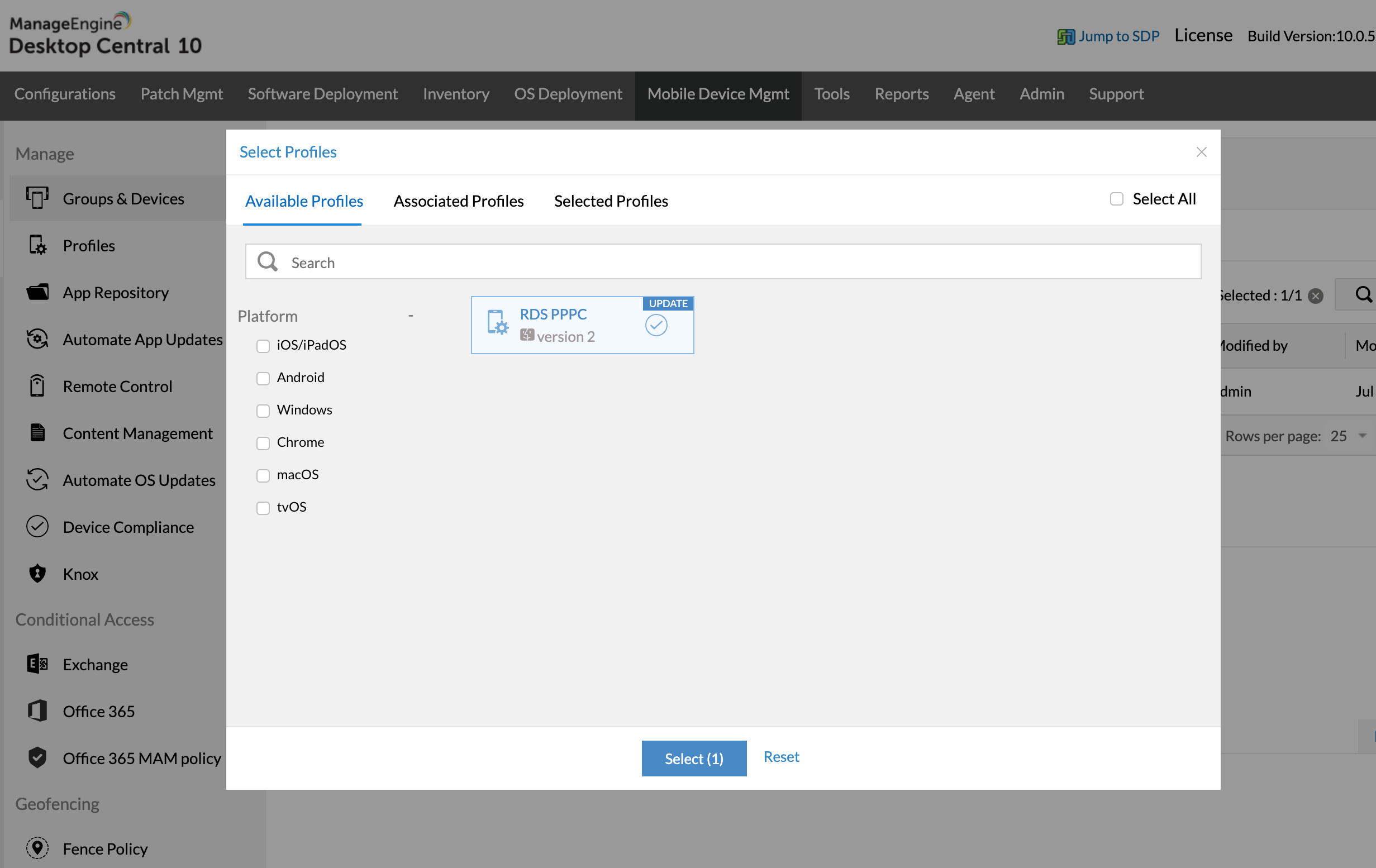
- Permission for accessibility has been fully configured. Standard users will now have the ability to grant access for screen capturing.
You can now remotely troubleshoot macOS 10.14 Mojave computers in your network.
macOS 10.15 Catalina
This issue can be resolved in two ways, either from the problematic machine or directly from the product console. Please choose the method:
- From the problematic machine
- From the product console
In the problematic Mac machine navigate to,
- Attempt to initiate remote control from the ManageEngine console. This will prompt the Mac to display "ManageEngineRemoteAccess" in the Accessibility settings, allowing you to grant necessary permissions.
- System Preference -> Security and Privacy -> Privacy -> Accessibility -> Enable access for "ManageEngineRemoteAccess" component.
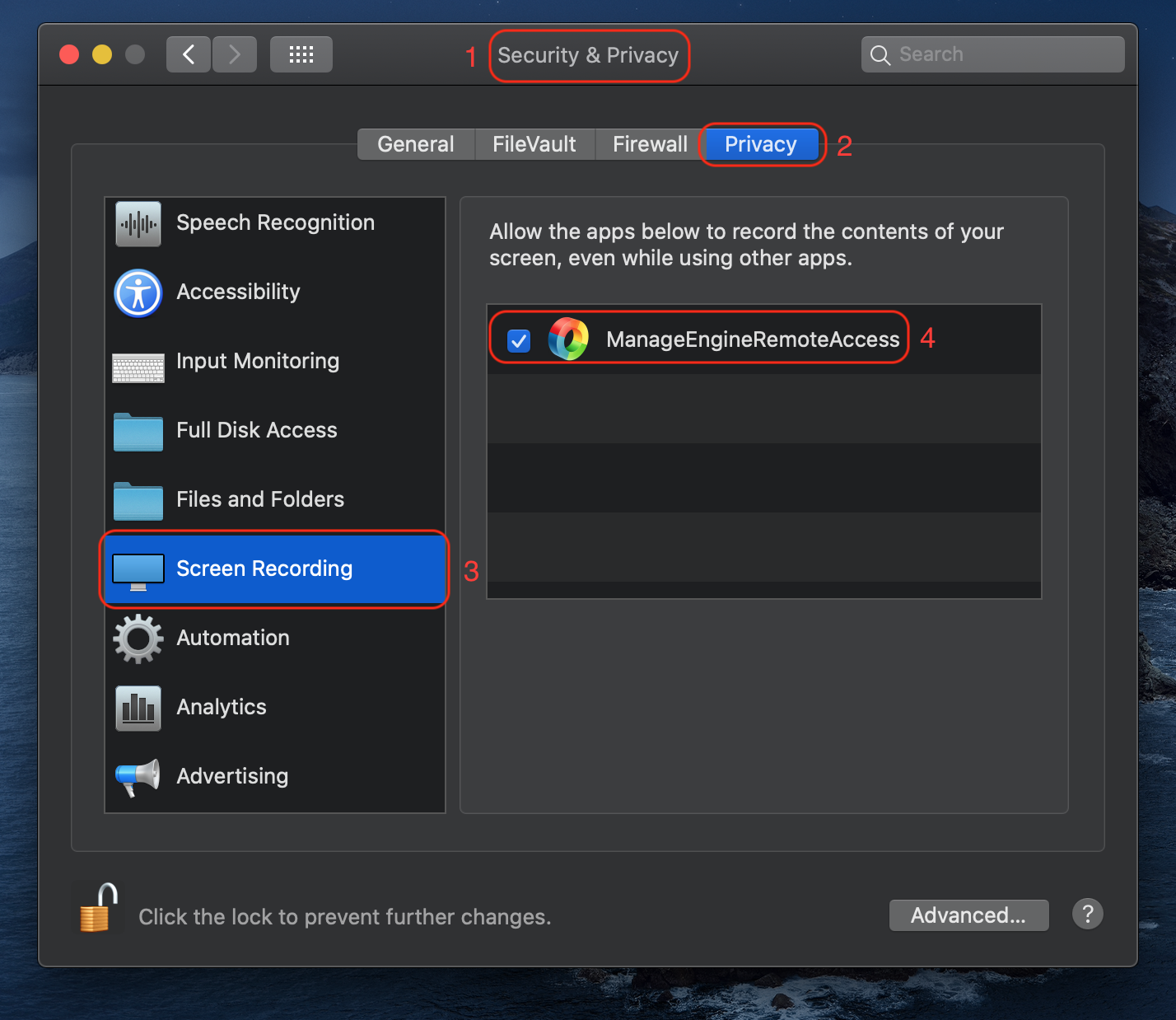
- System Preference -> Security and Privacy -> Privacy -> Allow the "ManageEngineRemoteAccess" component to record the contents of your screen.
- Under Mobile Device Management, select Management > Profiles.
- Click Create Profile and select MacOS/Apple.
- Provide the Profile name and click Continue.
- On the left tree, select Custom Configuration. Download the PPPC file, extract it and upload the PPPC .mobileconfig file.
- Save and Publish this profile.
- Navigate to Groups and Devices. Select the required group. Click Action and select Associate Profile.
- Select the profile you have just created and associate it.
- Permission for accessibility has been fully configured. Standard users will now have the ability to grant access for screen capturing.
You can now remotely troubleshoot macOS 10.15 Catalina computers in your network.
macOS 11 Big Sur
This issue can be resolved in two ways, either from the problematic machine or directly from the product console. Please choose the method:
- From the problematic machine
- From the product console
In the problematic Mac machine navigate to,
- Attempt to initiate remote control from the ManageEngine console. This will prompt the Mac to display "ManageEngineRemoteAccess" in the Accessibility settings, allowing you to grant necessary permissions.
- System Preference -> Security and Privacy -> Privacy -> Accessibility -> Enable access for "ManageEngineRemoteAccess" component.
- System Preference -> Security and Privacy -> Privacy -> Allow the "ManageEngineRemoteAccess" component to record the contents of your screen.
- Under Mobile Device Management, select Management > Profiles.
- Click Create Profile and select MacOS/Apple.
- Provide the Profile name and click Continue.
- On the left tree, select Custom Configuration. Download the PPPC file, extract it and upload the PPPC .mobileconfig file.
- Save and Publish this profile.
- Navigate to Groups and Devices. Select the required group. Click Action and select Associate Profile.
- Select the profile you have just created and associate it.
- Permission for accessibility has been fully configured. Standard users will now have the ability to grant access for screen capturing.
You can now remotely troubleshoot macOS 11 Big Sur computers in your network.
macOS 12 Monterey
This issue can be resolved in two ways, either from the problematic machine or directly from the product console. Please choose the method:
- From the problematic machine
- From the product console
In the problematic Mac machine navigate to,
- Attempt to initiate remote control from the ManageEngine console. This will prompt the Mac to display "ManageEngineRemoteAccess" in the Accessibility settings, allowing you to grant necessary permissions.
- System Preference -> Security and Privacy -> Privacy -> Accessibility -> Enable access for "ManageEngineRemoteAccess" component.
- System Preference -> Security and Privacy -> Privacy -> Allow the "ManageEngineRemoteAccess" component to record the contents of your screen.
- Under Mobile Device Management, select Management > Profiles.
- Click Create Profile and select MacOS/Apple.
- Provide the Profile name and click Continue.
- On the left tree, select Custom Configuration. Download the PPPC file, extract it and upload the PPPC .mobileconfig file.
- Save and Publish this profile.
- Navigate to Groups and Devices. Select the required group. Click Action and select Associate Profile.
- Select the profile you have just created and associate it.
- Permission for accessibility has been fully configured. Standard users will now have the ability to grant access for screen capturing.
You can now remotely troubleshoot macOS 12 Monterey computers in your network.
macOS 13 Ventura
This issue can be resolved in two ways, either from the problematic machine or directly from the product console. Please choose the method:
- From the problematic machine
- From the product console
In the problematic Mac machine navigate to,
- Attempt to initiate remote control from the ManageEngine console. This will prompt the Mac to display "ManageEngineRemoteAccess" in the Accessibility settings, allowing you to grant necessary permissions.
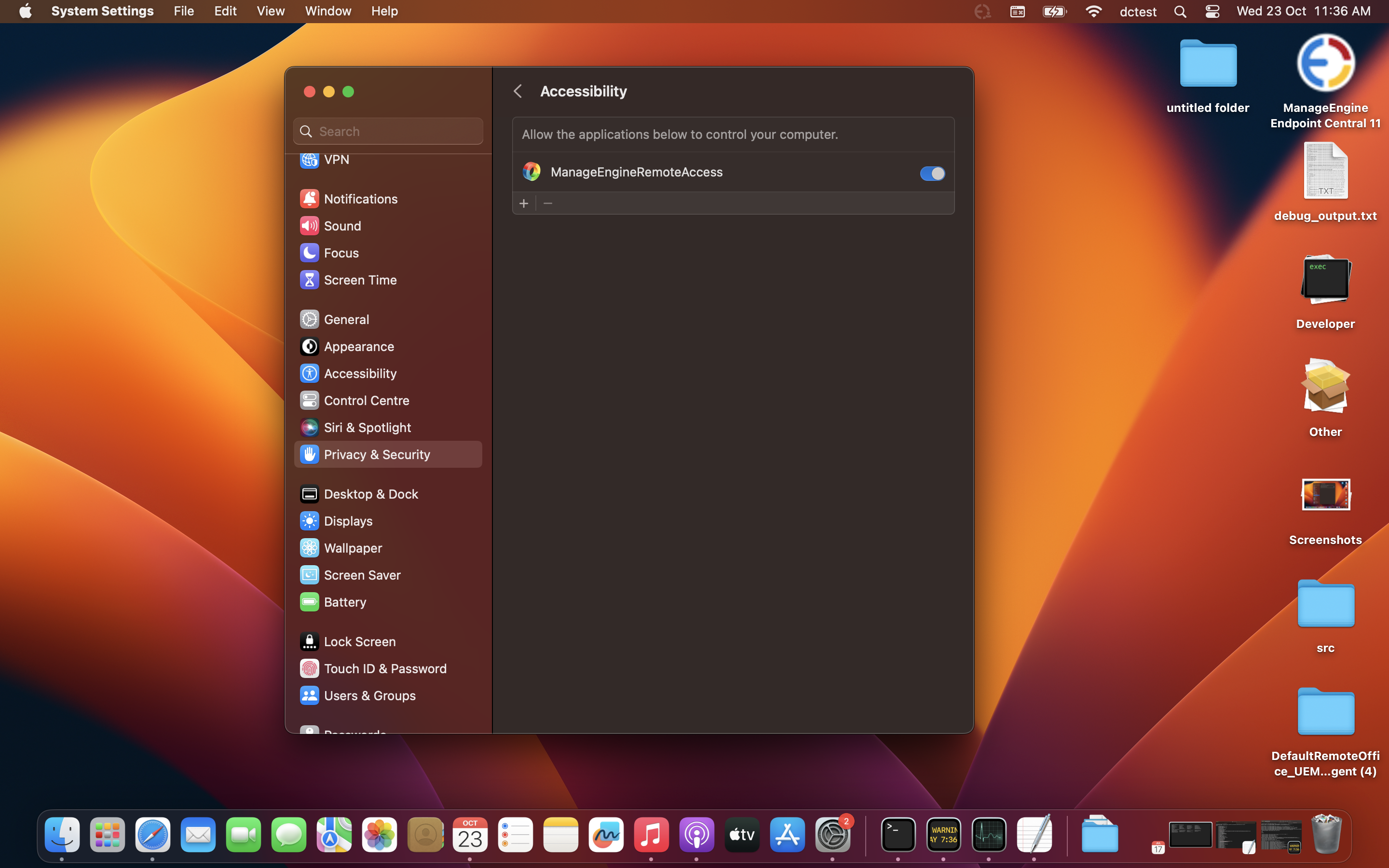
- Navigate to System Settings->Privacy & Security->Accessibility and enable access for "ManageEngineRemoteAccess" component.
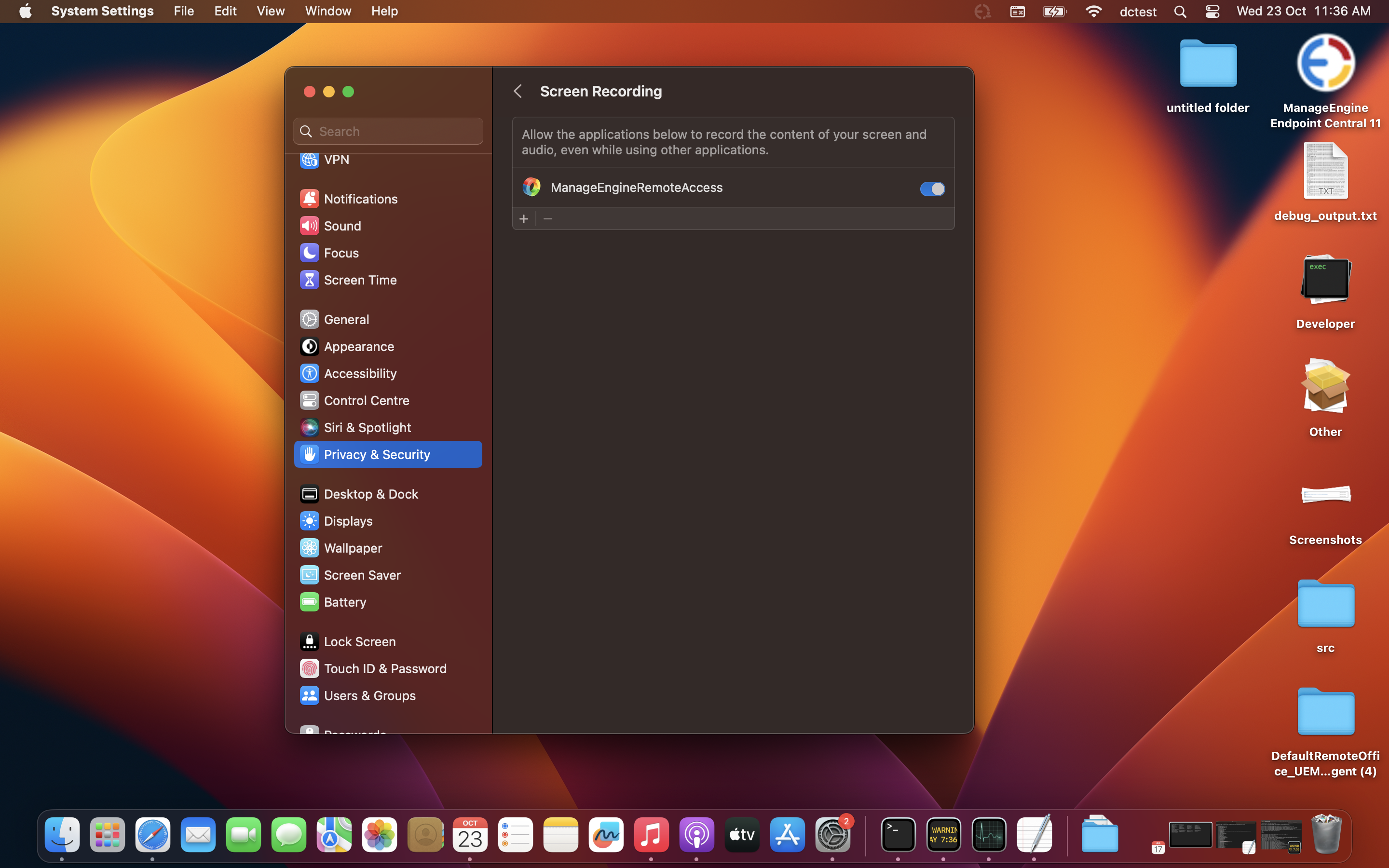
- Navigate to System Settings->Privacy & Security->Screen recording and allow the "ManageEngineRemoteAccess" component to record the contents of your screen.
- Under Mobile Device Management, select Management > Profiles.
- Click Create Profile and select MacOS/Apple.
- Provide the Profile name and click Continue.
- On the left tree, select Custom Configuration. Download the PPPC file, extract it and upload the PPPC .mobileconfig file.
- Save and Publish this profile.
- Navigate to Groups and Devices. Select the required group. Click Action and select Associate Profile.
- Select the profile you have just created and associate it.
- Permission for accessibility has been fully configured. Standard users will now have the ability to grant access for screen capturing.
You can now remotely troubleshoot macOS 13 Ventura computers in your network.
macOS 14 Sonoma
This issue can be resolved in two ways, either from the problematic machine or directly from the product console. Please choose the method:
- From the problematic machine
- From the product console
In the problematic Mac machine navigate to,
- Attempt to initiate remote control from the ManageEngine console. This will prompt the Mac to display "ManageEngineRemoteAccess" in the Accessibility settings, allowing you to grant necessary permissions.
- Navigate to System Settings->Privacy & Security->Accessibility and enable access for "ManageEngineRemoteAccess" component.
- Navigate to System Settings->Privacy & Security->Screen recording and allow the "ManageEngineRemoteAccess" component to record the contents of your screen.
- Under Mobile Device Management, select Management > Profiles.
- Click Create Profile and select MacOS/Apple.
- Provide the Profile name and click Continue.
- On the left tree, select Custom Configuration. Download the PPPC file, extract it and upload the PPPC .mobileconfig file.
- Save and Publish this profile.
- Navigate to Groups and Devices. Select the required group. Click Action and select Associate Profile.
- Select the profile you have just created and associate it.
- Permission for accessibility has been fully configured. Standard users will now have the ability to grant access for screen capturing.
You can now remotely troubleshoot macOS 14 Sonoma computers in your network.
macOS 15 Sequoia
This issue can be resolved in two ways, either from the problematic machine or directly from the product console. Please choose the method:
- From the problematic machine
- From the product console
In the problematic Mac machine, follow these steps:
- Attempt to initiate remote control from the ManageEngine console. This action will prompt the Mac to display "ManageEngineRemoteAccess" in the Accessibility settings, allowing you to grant the necessary permissions.
- Navigate to System Settings -> Privacy & Security -> Accessibility, and enable access for the "ManageEngineRemoteAccess" component.
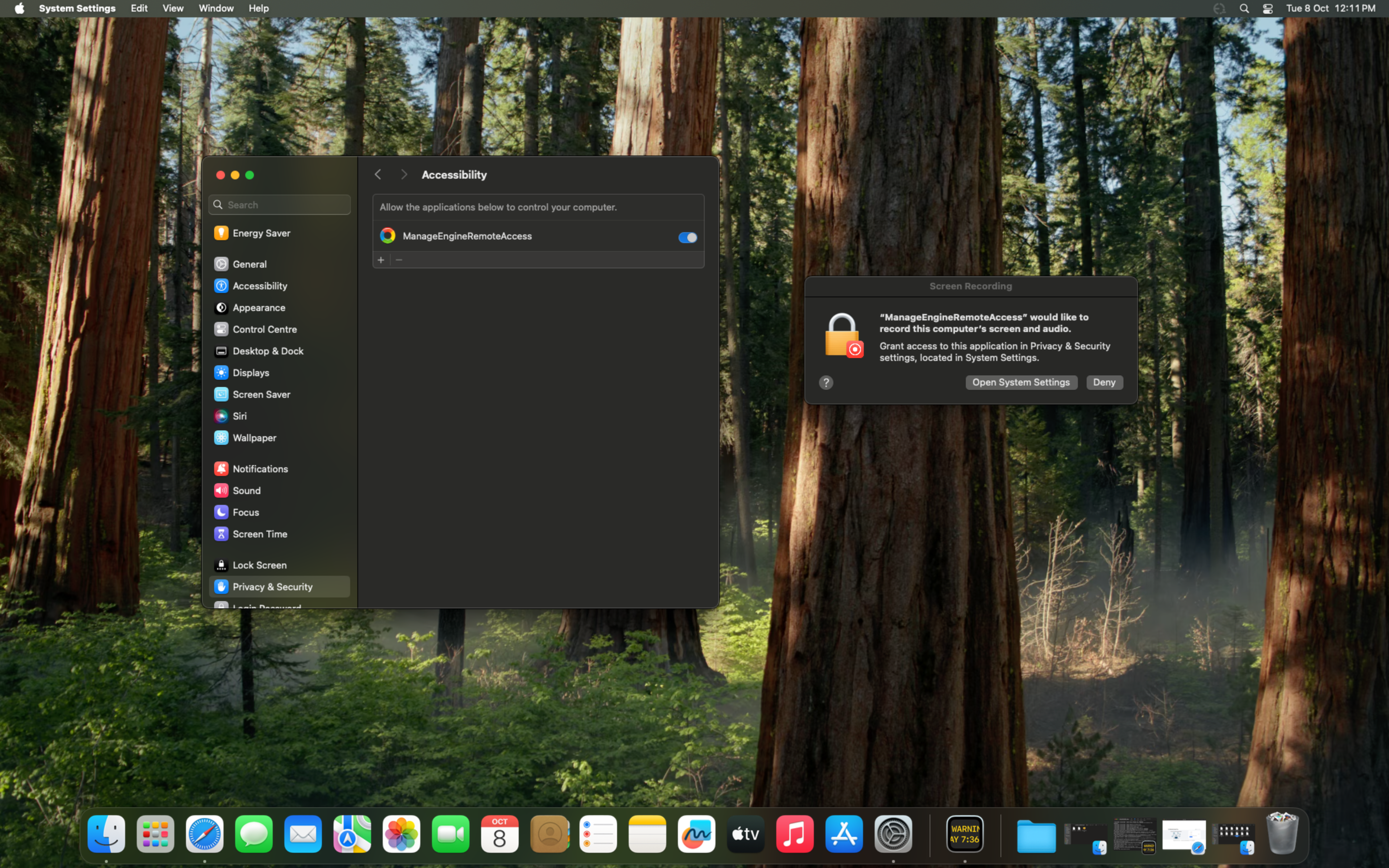
- Navigate to System Settings -> Privacy & Security -> Screen & System Audio Recording, and allow the "ManageEngineRemoteAccess" component to record the contents of your screen.
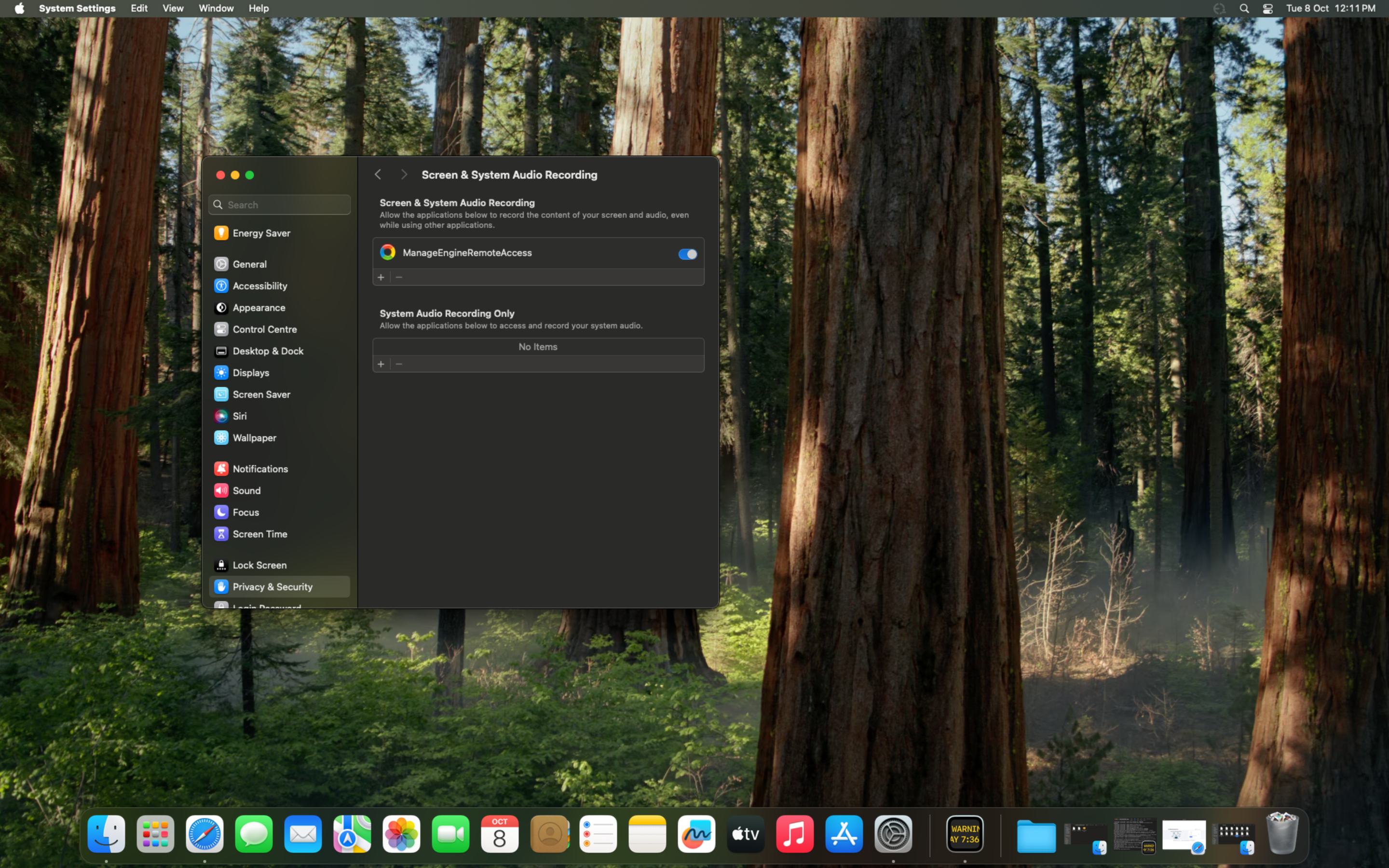
- Initiate a remote session again from the ManageEngine console. This step is necessary to ensure that all permissions are properly registered and ready for use. Follow the additional prompts for further access.
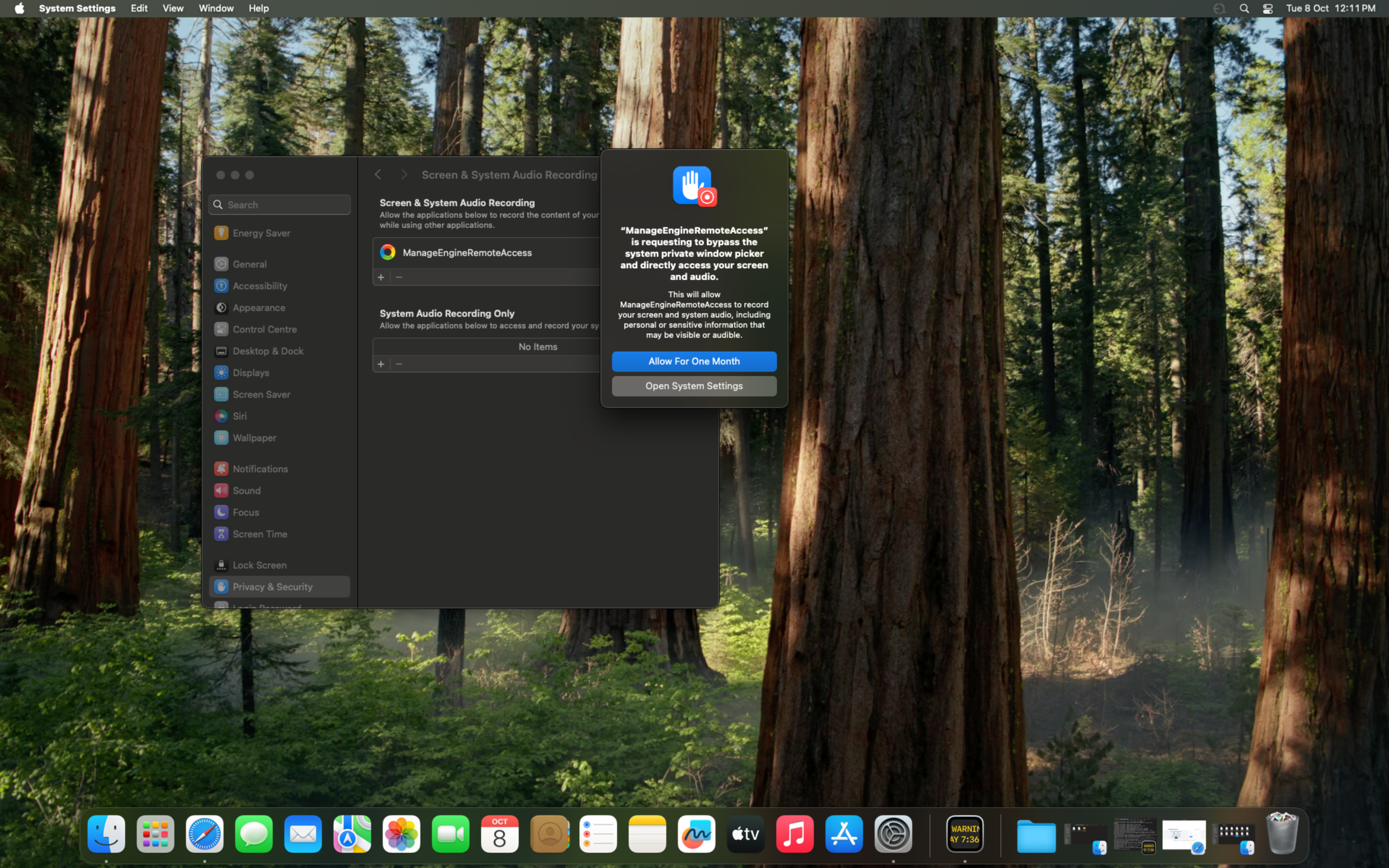
- When prompted, provide permission to bypass the system’s private window picker. This permission will allow direct access to screen and audio controls, which is essential for remote control functionality. Choose the option to "Allow for one month" to minimize future prompts.
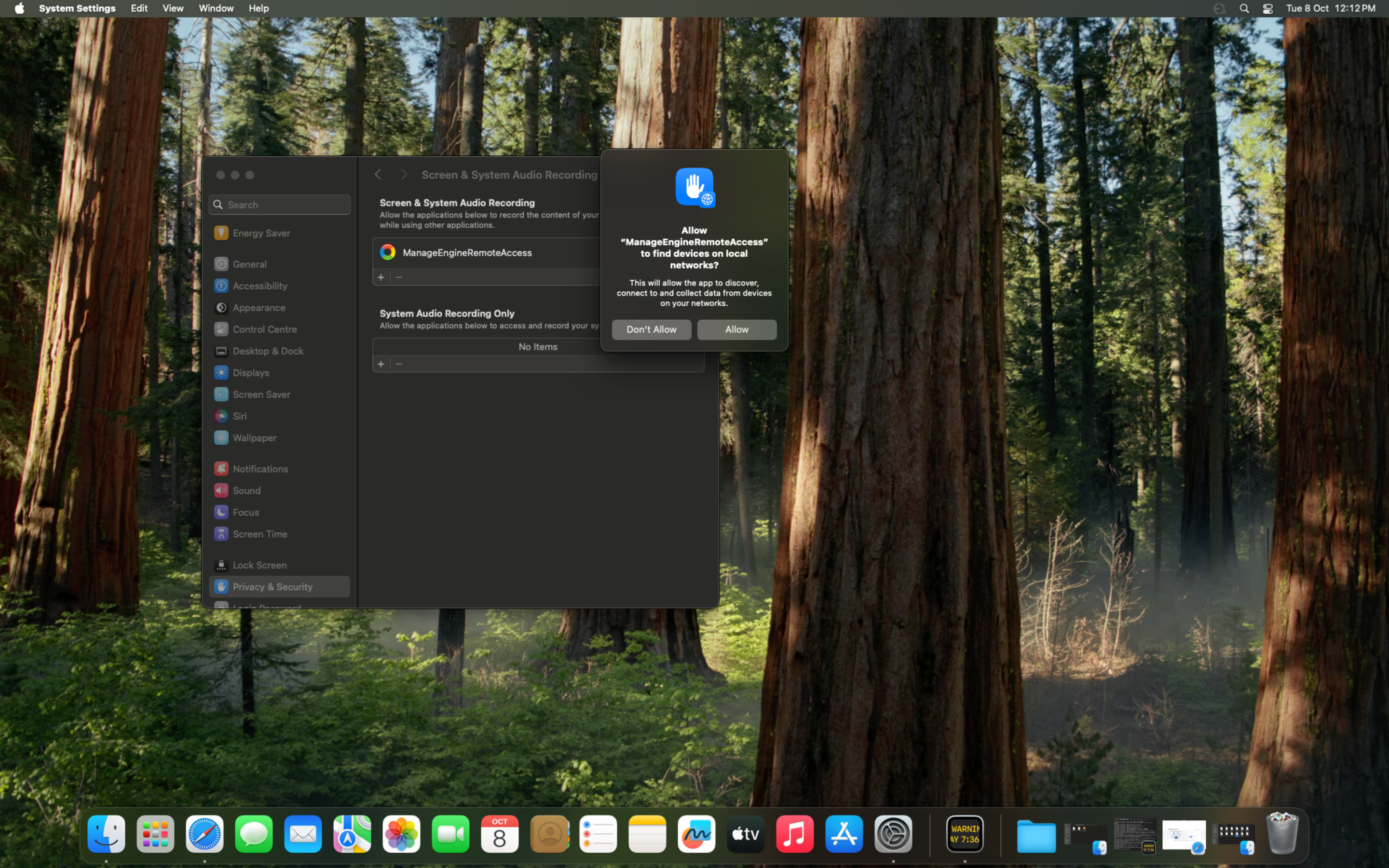
- A final prompt will appear asking if you would like to allow "ManageEngineRemoteAccess" to find and communicate with devices on your local network. Select "Allow" to enable this access, as it is required for remote control features to work effectively.
- Once all permissions are set, initiate the remote session once more to ensure that all access controls are active and functioning correctly.
- Under Mobile Device Management, select Management > Profiles.
- Click Create Profile and select MacOS/Apple.
- Provide the Profile name and click Continue.
- On the left tree, select Custom Configuration. Download the PPPC file, extract it and upload the PPPC .mobileconfig file.
- Save and Publish this profile.
- Navigate to Groups and Devices. Select the required group. Click Action and select Associate Profile.
- Select the profile you have just created and associate it.
- Permission for accessibility has been fully configured. Standard users will now have the ability to grant access for screen capturing.
You can now remotely troubleshoot macOS 15 Sequoia computers in your network.
macOS 26 Tahoe
This issue can be resolved in two ways, either from the problematic machine or directly from the product console. Please choose the method:
- From the problematic machine
- From the product console
In the problematic Mac machine, follow these steps:
- Attempt to initiate remote control from the ManageEngine console. This action will prompt the Mac to display "ManageEngineRemoteAccess" in the Accessibility settings, allowing you to grant the necessary permissions.
- Navigate to System Settings -> Privacy & Security -> Accessibility, and enable access for the "ManageEngineRemoteAccess" component.
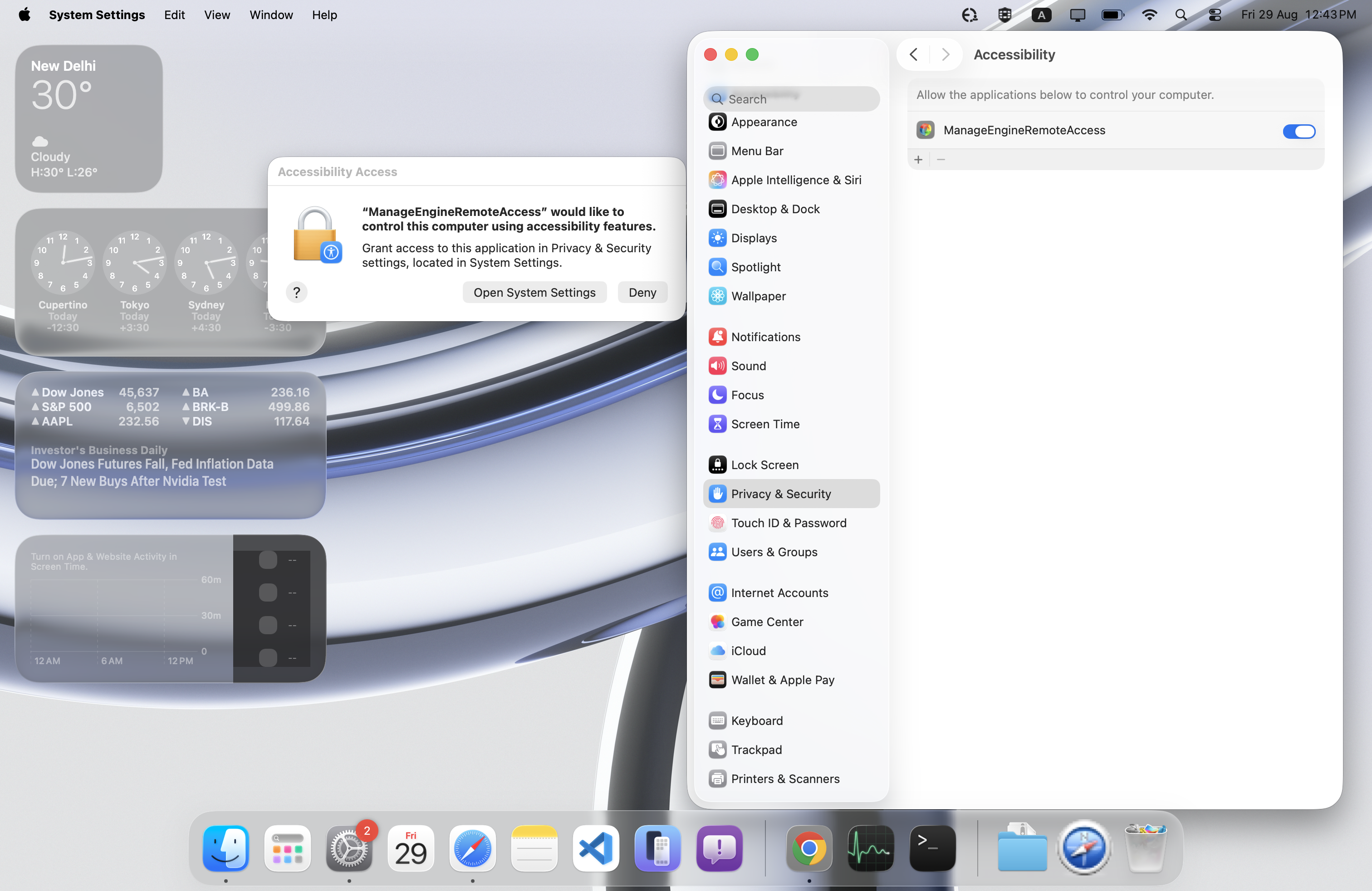
- Navigate to System Settings -> Privacy & Security -> Screen & System Audio Recording, and allow the "ManageEngineRemoteAccess" component to record the contents of your screen.
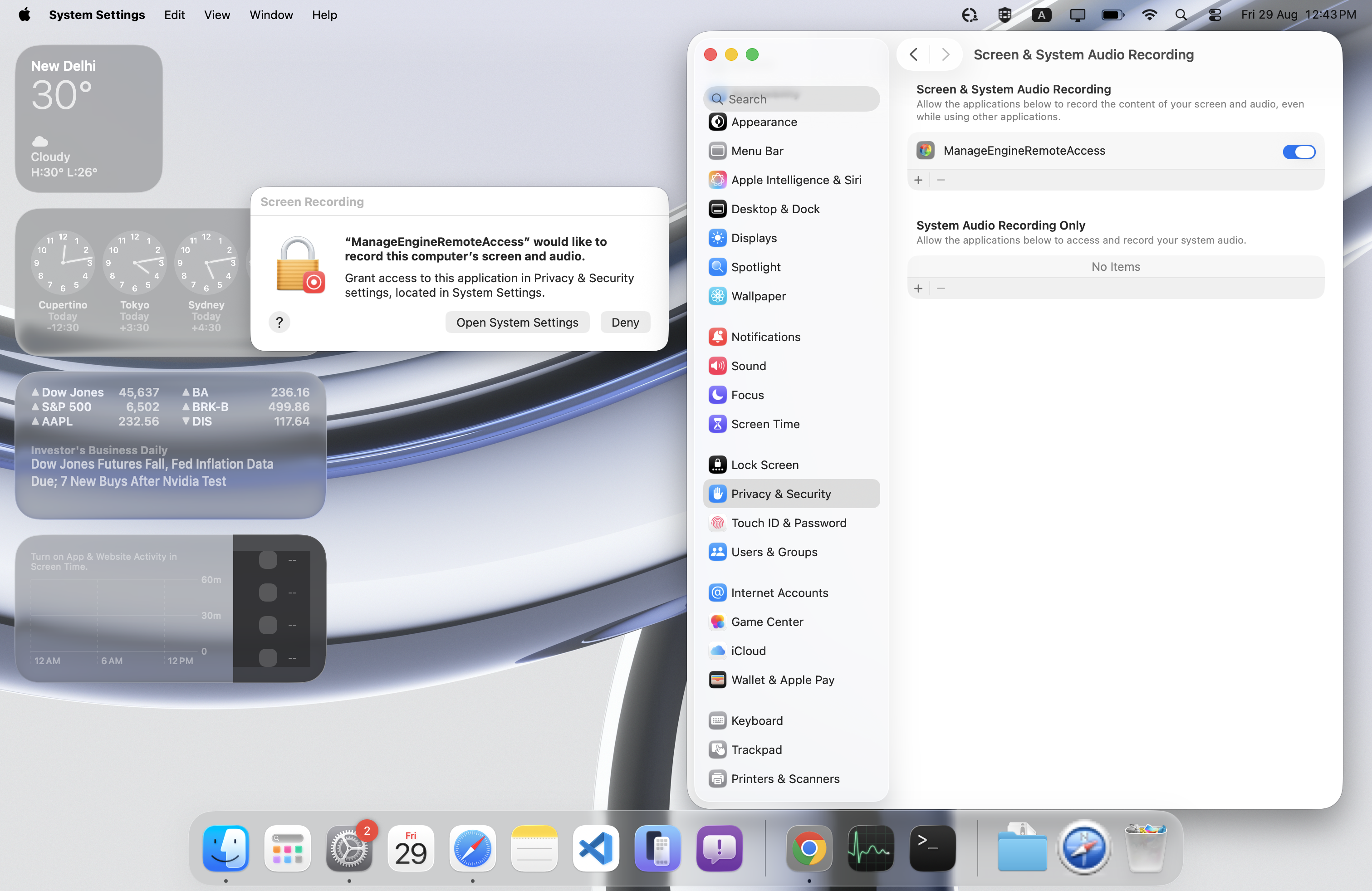
- Initiate a remote session again from the ManageEngine console. This step is necessary to ensure that all permissions are properly registered and ready for use. Follow the additional prompts for further access.
- When prompted, provide permission to bypass the system’s private window picker. This permission will allow direct access to screen and audio controls, which is essential for remote control functionality. Choose the option to "Allow for one month" to minimize future prompts.
- A final prompt will appear asking if you would like to allow "ManageEngineRemoteAccess" to find and communicate with devices on your local network. Select "Allow" to enable this access, as it is required for remote control features to work effectively.
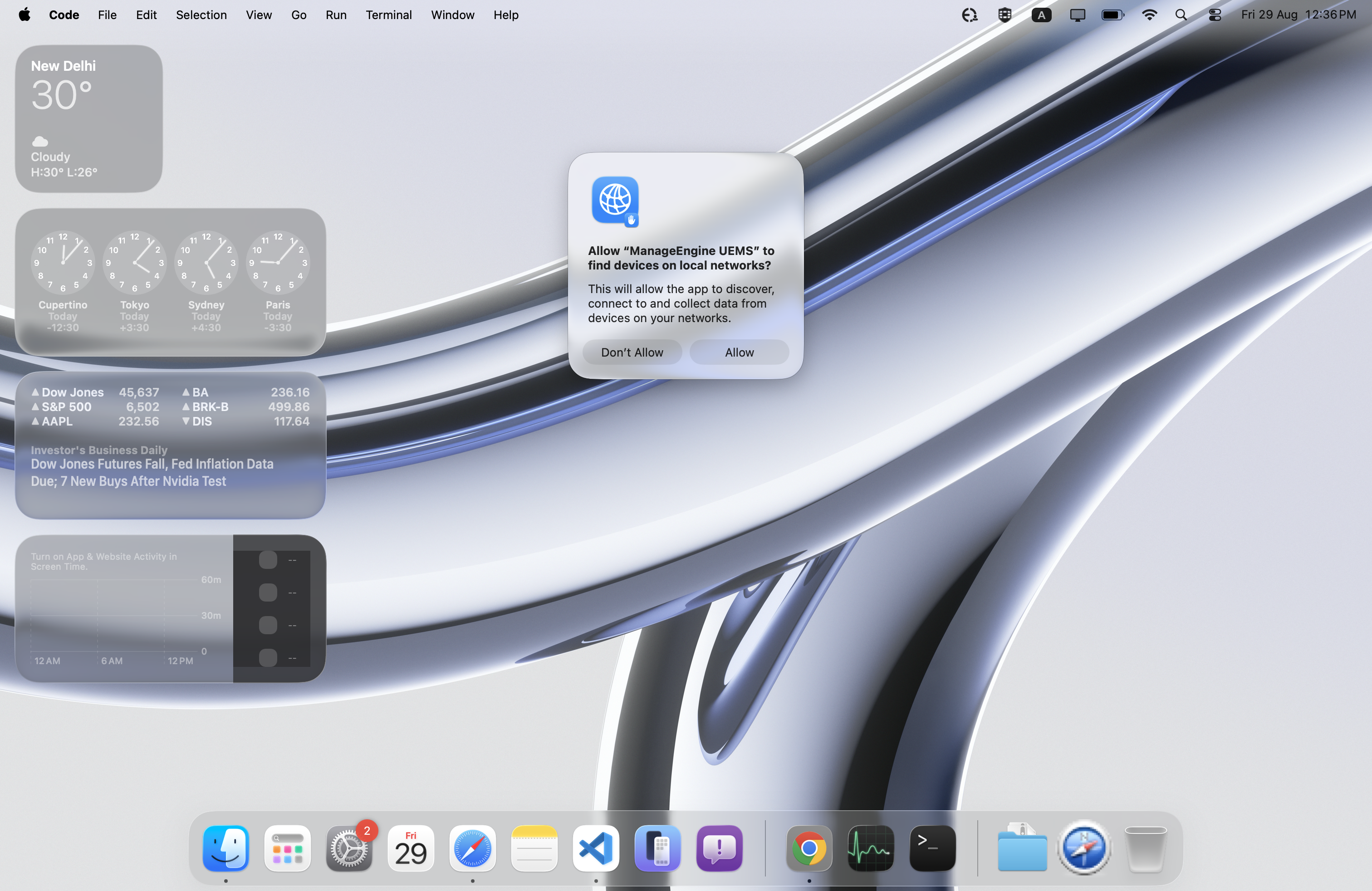
- Once all permissions are set, initiate the remote session once more to ensure that all access controls are active and functioning correctly.
Creating Profiles for Accessibility and Screen Recording
To configure permissions, you must create two separate profiles, one for Accessibility and another for Screen Recording.
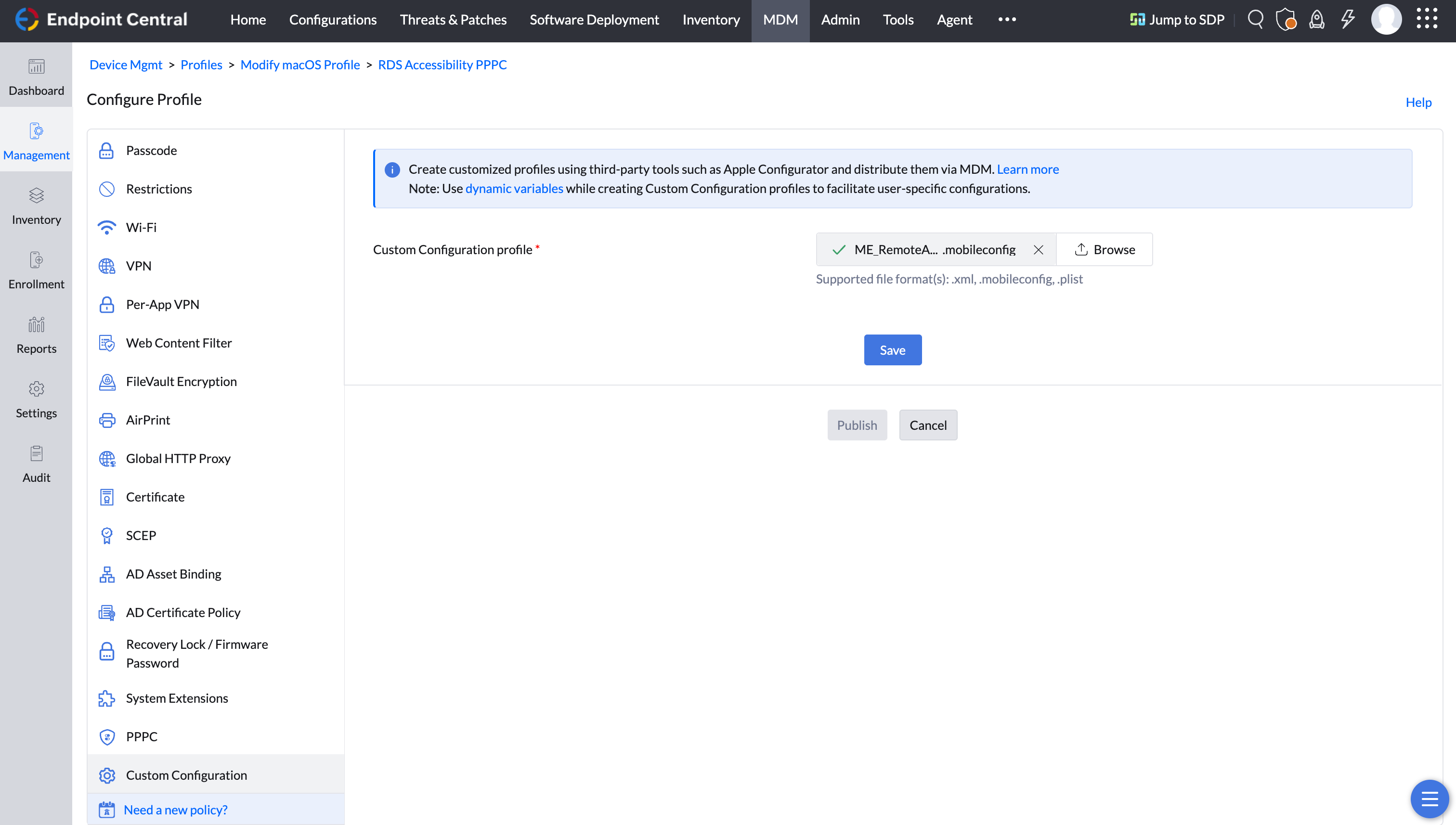
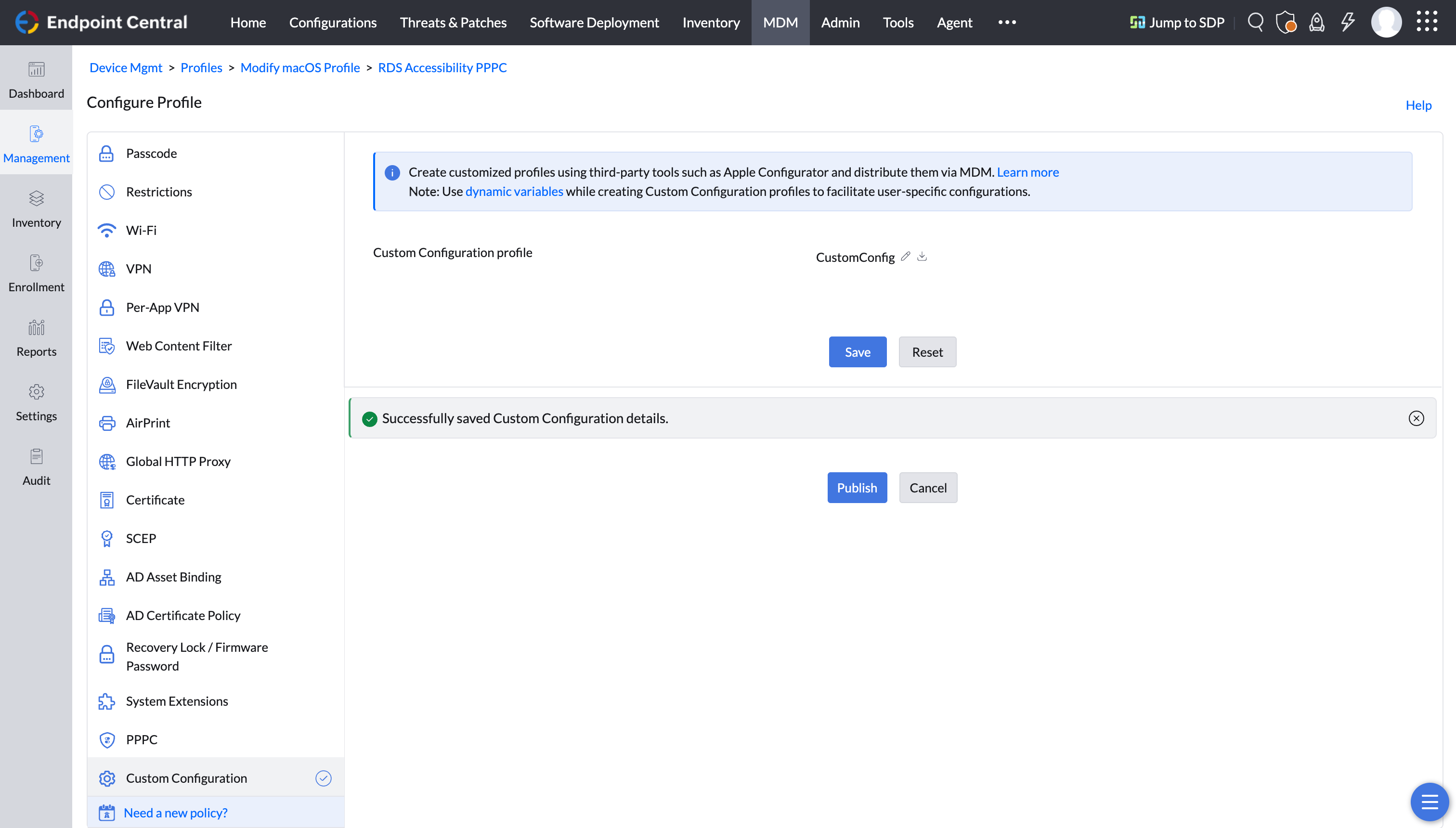
Accessibility Profile
- Under Mobile Device Management, go to Management > Profiles.
- Click Create Profile and choose macOS/Apple.
- Enter a Profile name (e.g., Accessibility Settings) and click Continue.
- In the left tree, select Custom Configuration.
- Download the PPPC file, extract it and upload the accessibility.mobileconfig file.
- Save and publish the profile.
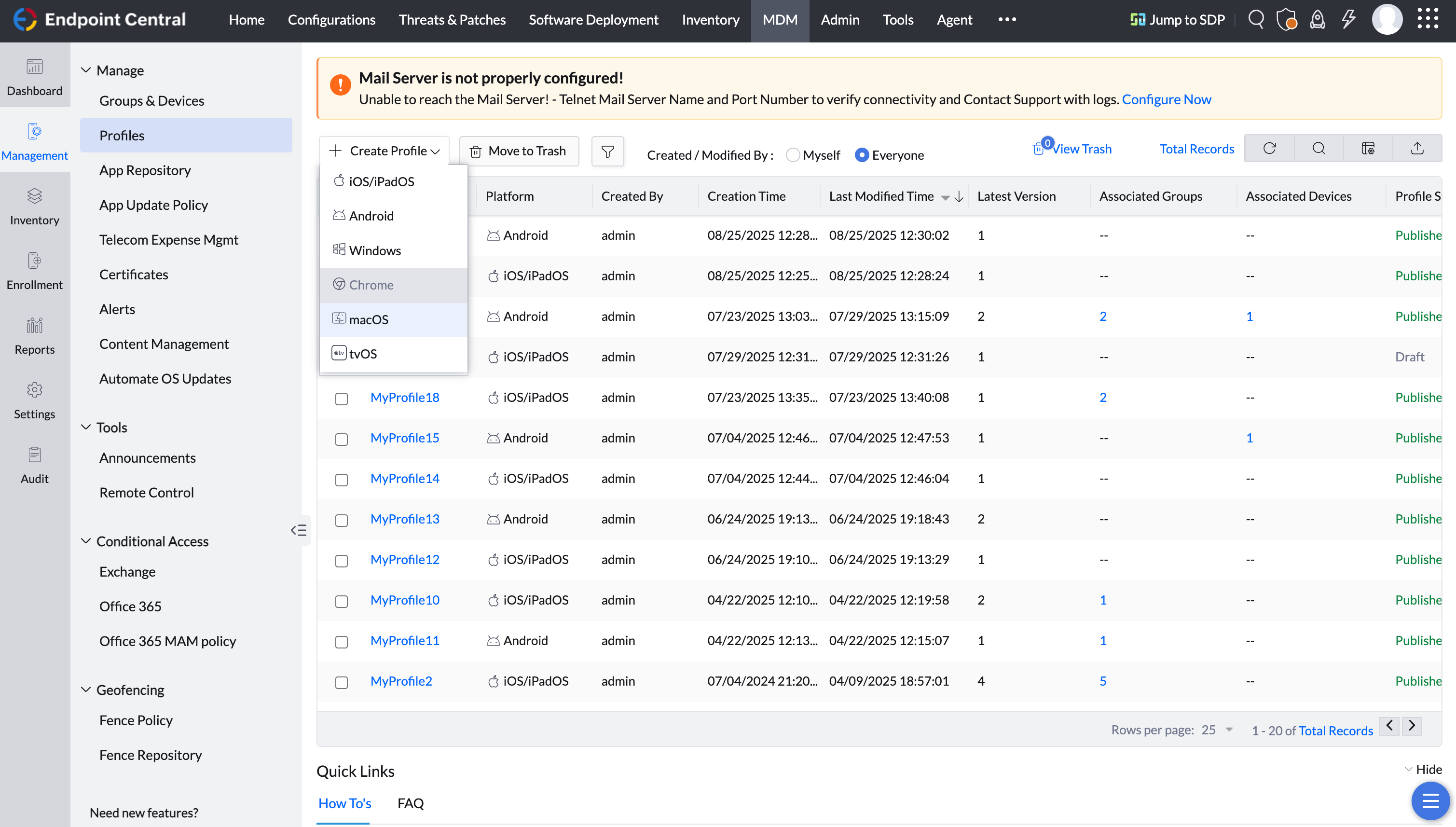
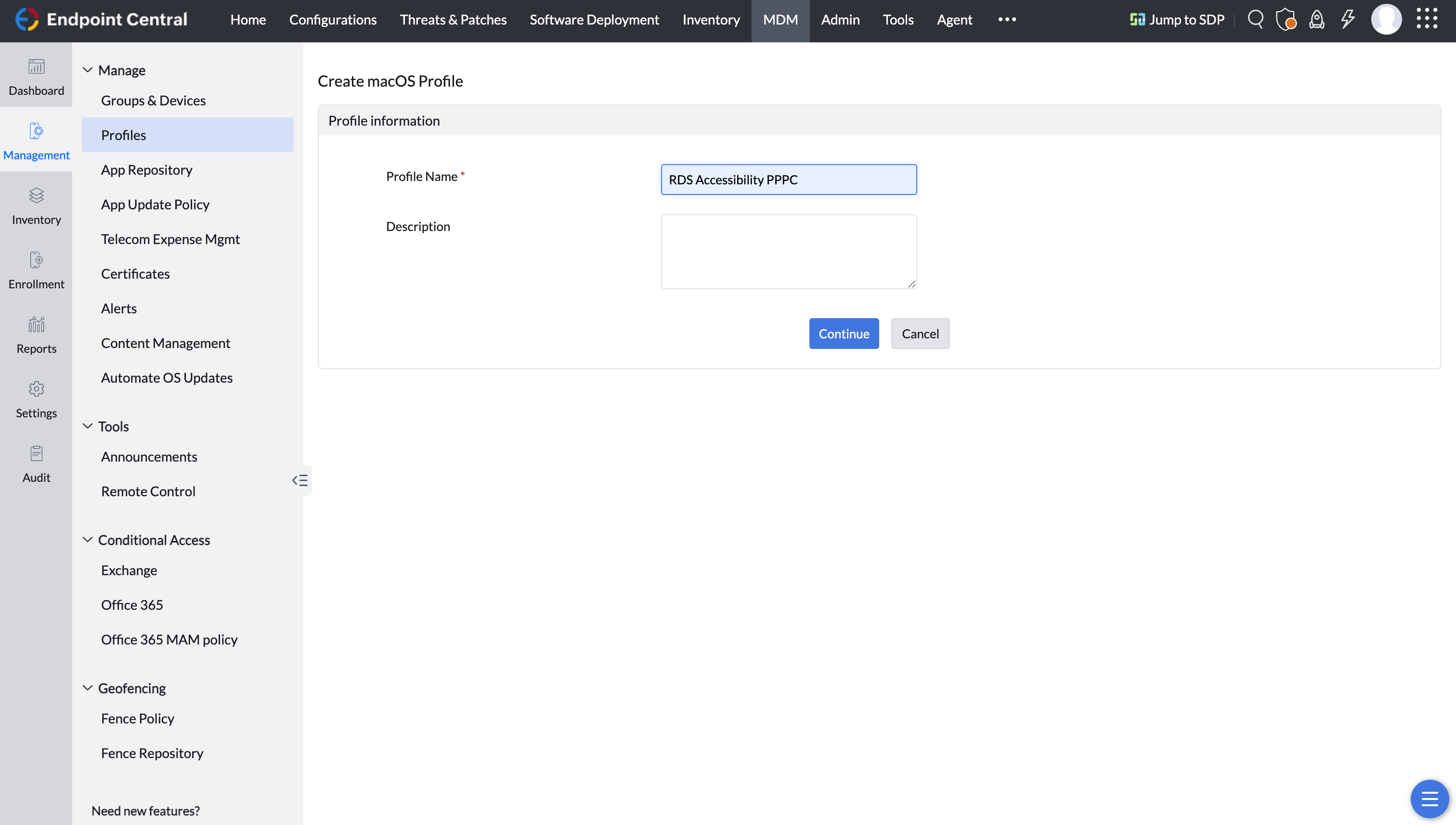
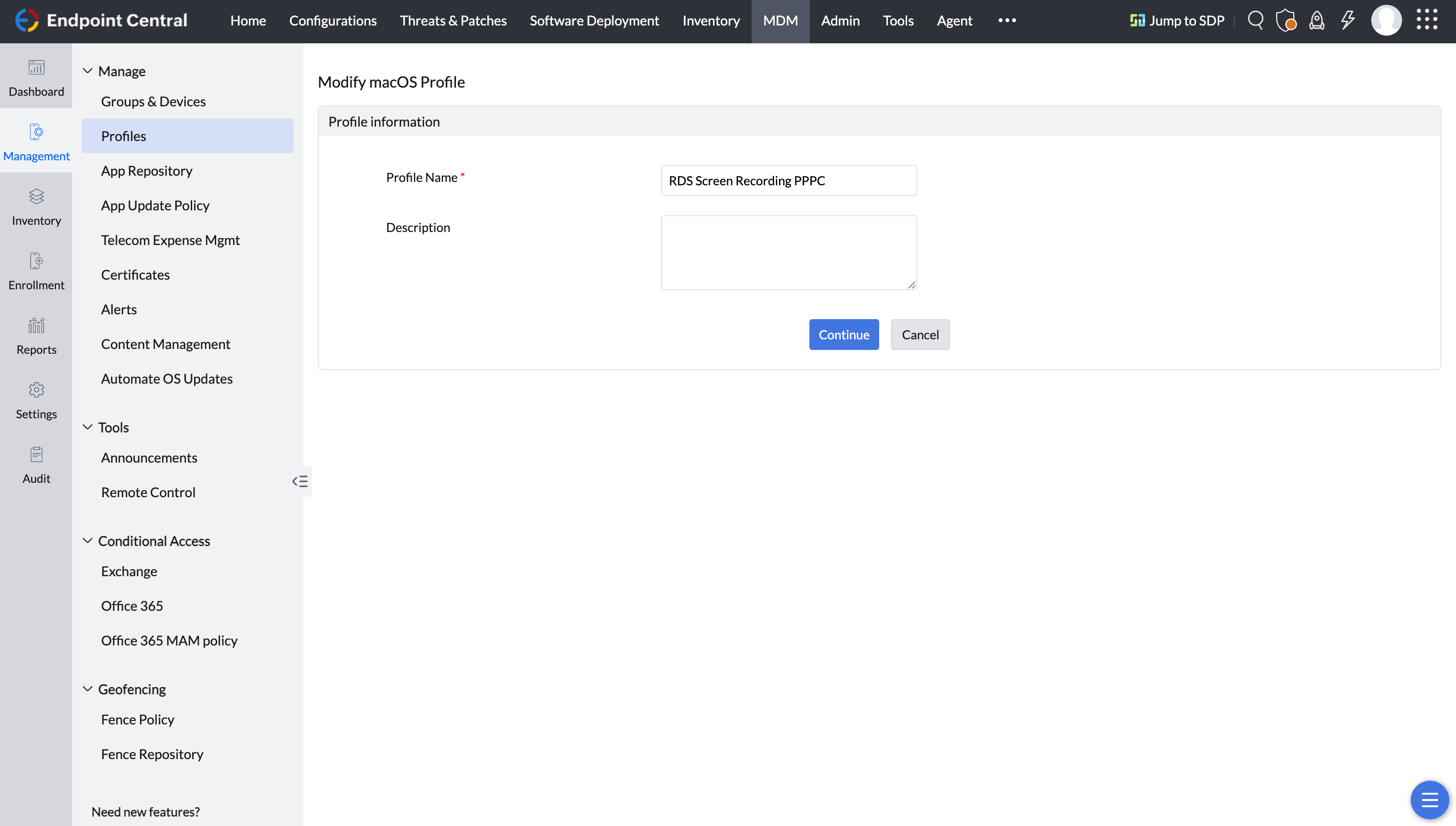
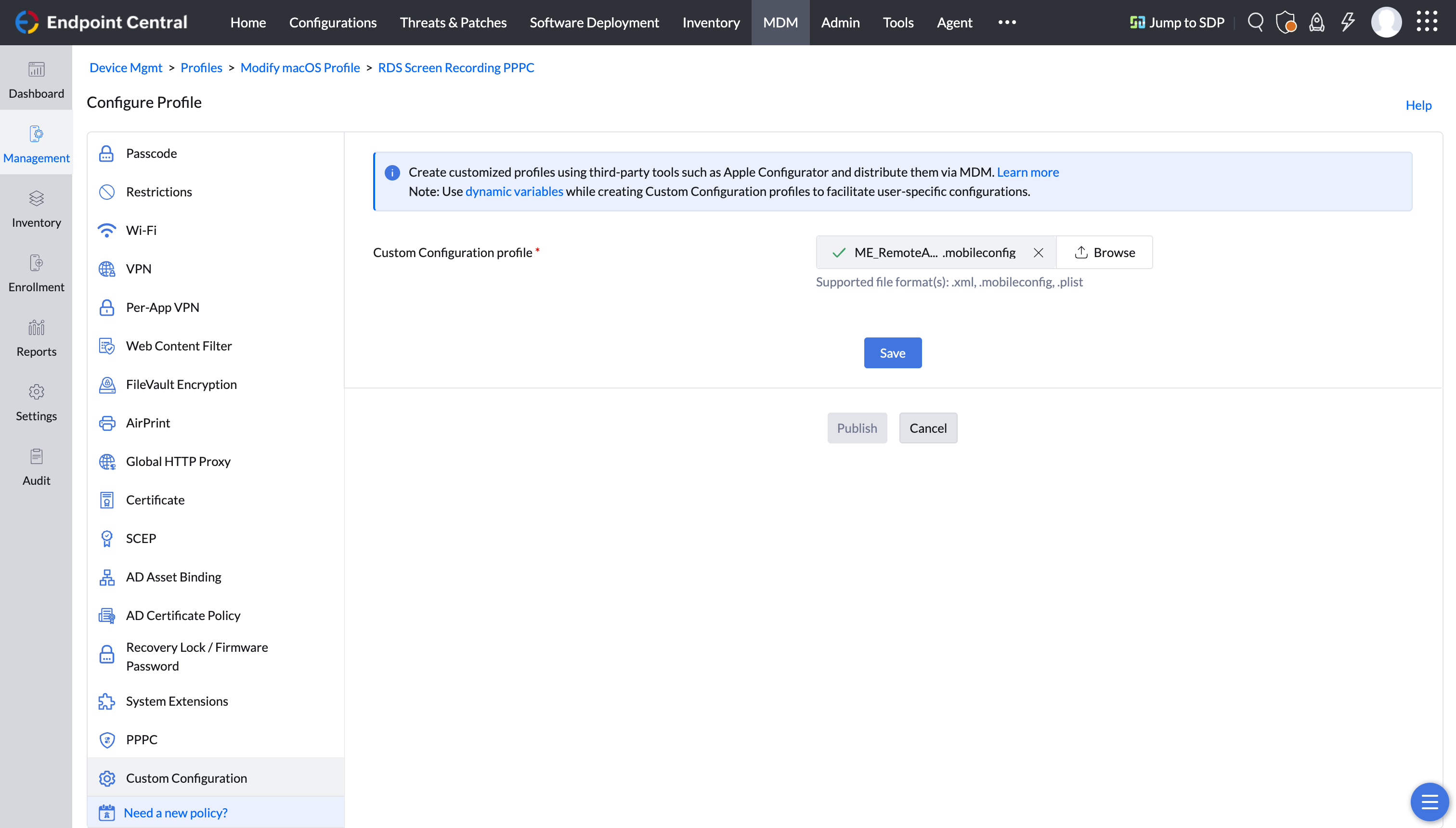
Screen Recording Profile
- Under Mobile Device Management, go to Management > Profiles.
- Click Create Profile and choose macOS/Apple.
- Enter a Profile name (e.g., Screen Recording Settings) and click Continue.
- In the left tree, select Custom Configuration.
- Download the PPPC file, extract it and upload the screenrecording.mobileconfig file.
- Save and publish the profile.
Associate Accessibility and Screen recording Profiles with Groups and Devices
- Navigate to Groups and Devices. Select the required group. Click Action and choose Associate Profile.
- Select the profile you have just created (Accessibility or Screen Recording) and associate it.
- Permission for accessibility and screen recording has now been configured. Standard users will have the ability to grant access for screen capturing.
You can now remotely troubleshoot macOS 26 Tahoe computers in your network.
Endpoint Central
macOS 10.14 Mojave
This issue can be resolved in two ways, either from the problematic machine or directly from the product console. Please choose the method:
- From the problematic machine
- From the product console
In the problematic Mac machine navigate to,
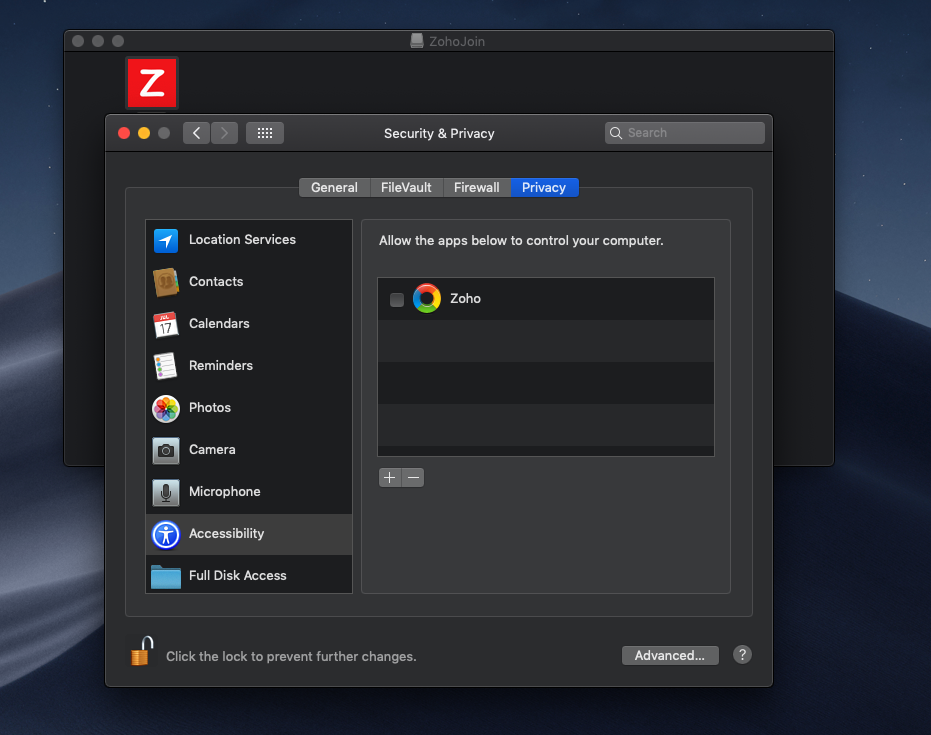
- System Preference -> Security and Privacy -> Privacy -> Accessibility -> Enable access for "Zoho" component. This will resolve the issue if you are using Mac OS version 10.14 - Mojave. If you are using the version 10.15 - Catalina, ensure you follow the next step as well.
- Under Mobile Device Management, select Management > Profiles.
- Click Create Profile and select MacOS/Apple.
- Provide the Profile name and click Continue.
- On the left tree, select Custom Configuration. Download the PPPC file, extract it and upload the PPPC .mobileconfig file.
- Save and Publish this profile.
- Navigate to Groups and Devices. Select the required group. Click Action and select Associate Profile.
- Select the profile you have just created and associate it.
- Permission for accessibility has been fully configured. Standard users will now have the ability to grant access for screen capturing.
You can now remotely troubleshoot macOS 10.14 Mojave computers in your network.
macOS 10.15 Catalina
This issue can be resolved in two ways, either from the problematic machine or directly from the product console. Please choose the method:
- From the problematic machine
- From the product console
In the problematic Mac machine navigate to,
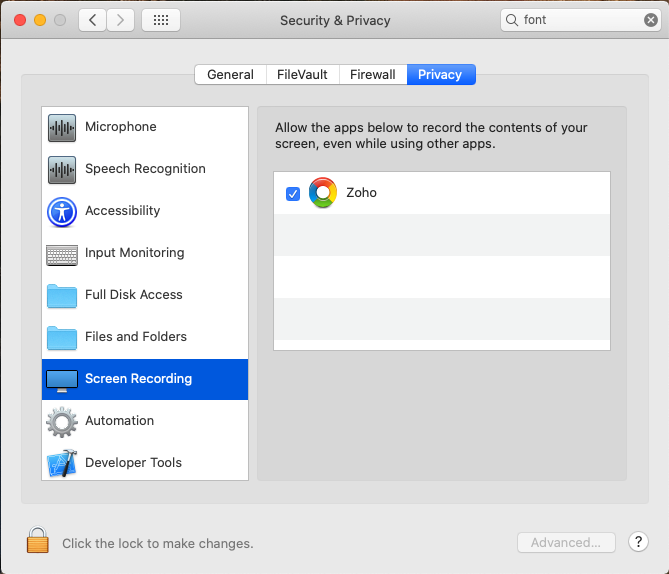
- System Preference -> Security and Privacy -> Privacy -> Accessibility -> Enable access for "Zoho" component.
- System Preference -> Security and Privacy -> Privacy -> Allow the "Zoho" component to record the contents of your screen.
Creating Profiles for Accessibility and Screen Recording
To configure permissions, you must create two separate profiles, one for Accessibility and another for Screen Recording.
Accessibility Profile
- Under Mobile Device Management, go to Management > Profiles.
- Click Create Profile and choose macOS/Apple.
- Enter a Profile name (e.g., Accessibility Settings) and click Continue.
- In the left tree, select Custom Configuration.
- Download the PPPC file, extract it and upload the accessibility.mobileconfig file.
- Save and publish the profile.
Screen Recording Profile
- Under Mobile Device Management, go to Management > Profiles.
- Click Create Profile and choose macOS/Apple.
- Enter a Profile name (e.g., Screen Recording Settings) and click Continue.
- In the left tree, select Custom Configuration.
- Download the PPPC file, extract it and upload the screenrecording.mobileconfig file.
- Save and publish the profile.
Associate Accessibility and Screen recording Profiles with Groups and Devices
- Navigate to Groups and Devices. Select the required group. Click Action and choose Associate Profile.
- Select the profile you have just created (Accessibility or Screen Recording) and associate it.
- Permission for accessibility and screen recording has now been configured. Standard users will have the ability to grant access for screen capturing.
You can now remotely troubleshoot macOS 26 Tahoe computers in your network.
macOS 11 Big Sur
This issue can be resolved in two ways, either from the problematic machine or directly from the product console. Please choose the method:
- From the problematic machine
- From the product console
In the problematic Mac machine navigate to,
- System Preference -> Security and Privacy -> Privacy -> Accessibility -> Enable access for "Zoho" component.
- System Preference -> Security and Privacy -> Privacy -> Allow the "Zoho" component to record the contents of your screen.
- Under Mobile Device Management, select Management > Profiles.
- Click Create Profile and select MacOS/Apple.
- Provide the Profile name and click Continue.
- On the left tree, select Custom Configuration. Download the PPPC file, extract it and upload the PPPC .mobileconfig file.
- Save and Publish this profile.
- Navigate to Groups and Devices. Select the required group. Click Action and select Associate Profile.
- Select the profile you have just created and associate it.
- Permission for accessibility has been fully configured. Standard users will now have the ability to grant access for screen capturing.
You can now remotely troubleshoot macOS 11 Big Sur computers in your network.
macOS 12 Monterey
This issue can be resolved in two ways, either from the problematic machine or directly from the product console. Please choose the method:
- From the problematic machine
- From the product console
In the problematic Mac machine navigate to,
- System Preference -> Security and Privacy -> Privacy -> Accessibility -> Enable access for "Zoho" component.
- System Preference -> Security and Privacy -> Privacy -> Allow the "Zoho" component to record the contents of your screen.
- Under Mobile Device Management, select Management > Profiles.
- Click Create Profile and select MacOS/Apple.
- Provide the Profile name and click Continue.
- On the left tree, select Custom Configuration. Download the PPPC file, extract it and upload the PPPC .mobileconfig file.
- Save and Publish this profile.
- Navigate to Groups and Devices. Select the required group. Click Action and select Associate Profile.
- Select the profile you have just created and associate it.
- Permission for accessibility has been fully configured. Standard users will now have the ability to grant access for screen capturing.
You can now remotely troubleshoot macOS 12 Monterey computers in your network.
macOS 13 Ventura
This issue can be resolved in two ways, either from the problematic machine or directly from the product console. Please choose the method:
- From the problematic machine
- From the product console
In the problematic Mac machine navigate to,
- Navigate to System Settings->Privacy & Security->Accessibility and enable access for "Zoho" component.
- Navigate to System Settings->Privacy & Security->Screen recording and allow the "Zoho" component to record the contents of your screen.
- Under Mobile Device Management, select Management > Profiles.
- Click Create Profile and select MacOS/Apple.
- Provide the Profile name and click Continue.
- On the left tree, select Custom Configuration. Download the PPPC file, extract it and upload the PPPC .mobileconfig file.
- Save and Publish this profile.
- Navigate to Groups and Devices. Select the required group. Click Action and select Associate Profile.
- Select the profile you have just created and associate it.
- Permission for accessibility has been fully configured. Standard users will now have the ability to grant access for screen capturing.
You can now remotely troubleshoot macOS Ventura computers in your network.
macOS 14 Sonoma
This issue can be resolved in two ways, either from the problematic machine or directly from the product console. Please choose the method:
- From the problematic machine
- From the product console
In the problematic Mac machine navigate to,
- Navigate to System Settings->Privacy & Security->Accessibility and enable access for "Zoho" component.
- Navigate to System Settings->Privacy & Security->Screen recording and allow the "Zoho" component to record the contents of your screen.
- Under Mobile Device Management, select Management > Profiles.
- Click Create Profile and select MacOS/Apple.
- Provide the Profile name and click Continue.
- On the left tree, select Custom Configuration. Download the PPPC file, extract it and upload the PPPC .mobileconfig file.
- Save and Publish this profile.
- Navigate to Groups and Devices. Select the required group. Click Action and select Associate Profile.
- Select the profile you have just created and associate it.
- Permission for accessibility has been fully configured. Standard users will now have the ability to grant access for screen capturing.
You can now remotely troubleshoot macOS 14 Sonoma computers in your network.
macOS 15 Sequoia
This issue can be resolved in two ways, either from the problematic machine or directly from the product console. Please choose the method:
- From the problematic machine
- From the product console
In the problematic Mac machine navigate to,
- Navigate to System Settings->Privacy & Security->Accessibility and enable access for "Zoho" component.
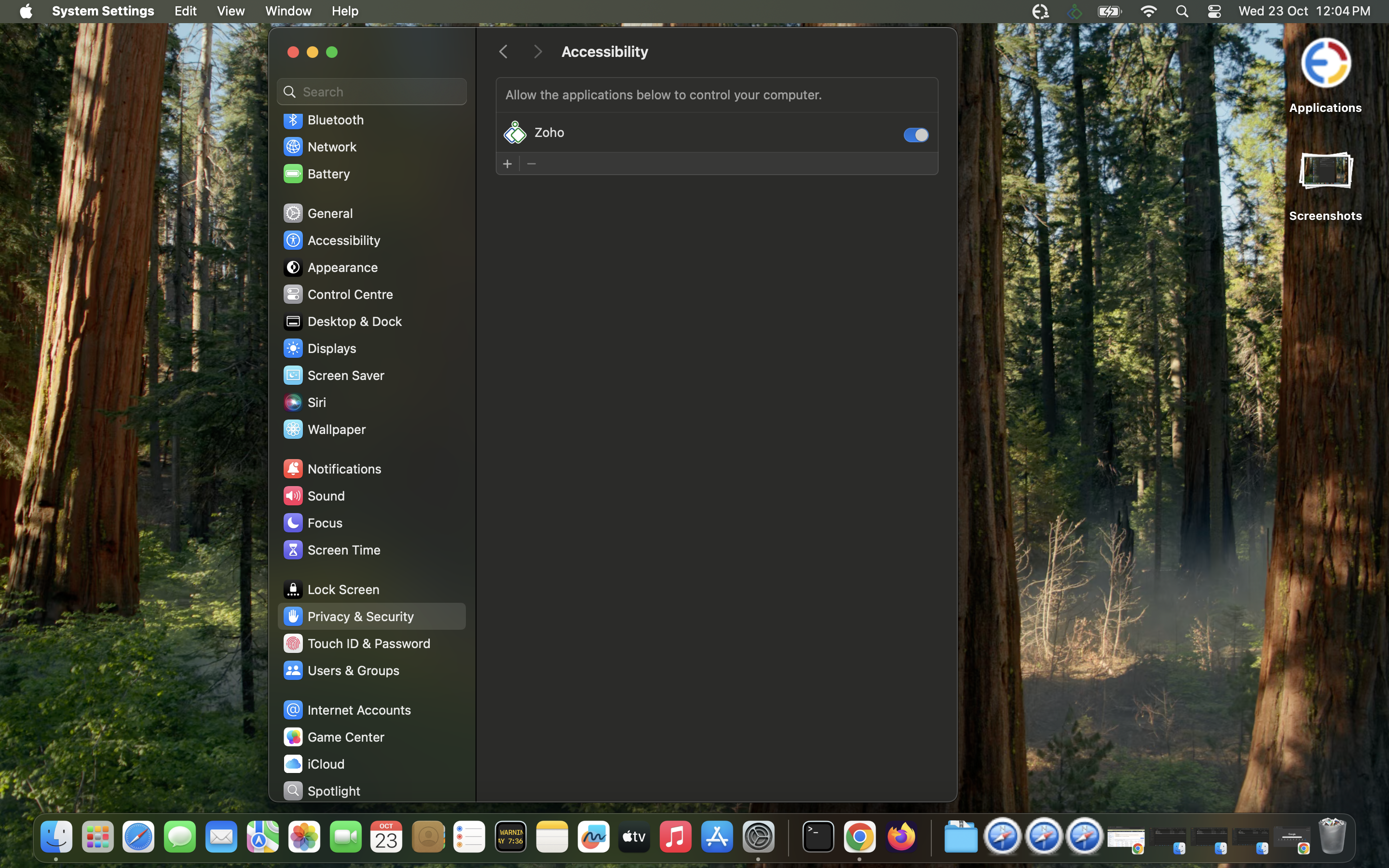
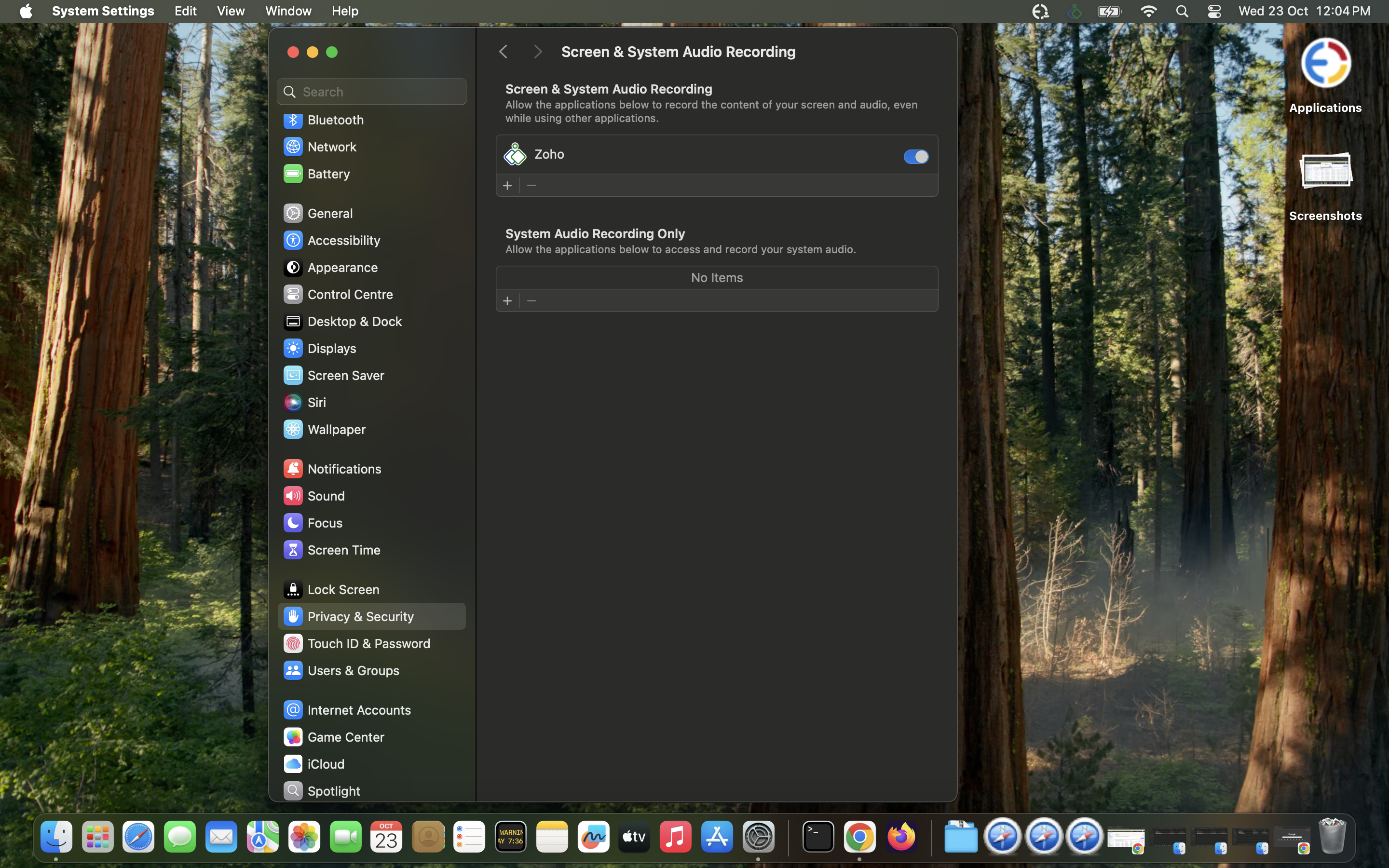
- Navigate to System Settings->Privacy & Security->Screen & System audio recording and allow the "Zoho" component to record the contents of your screen.
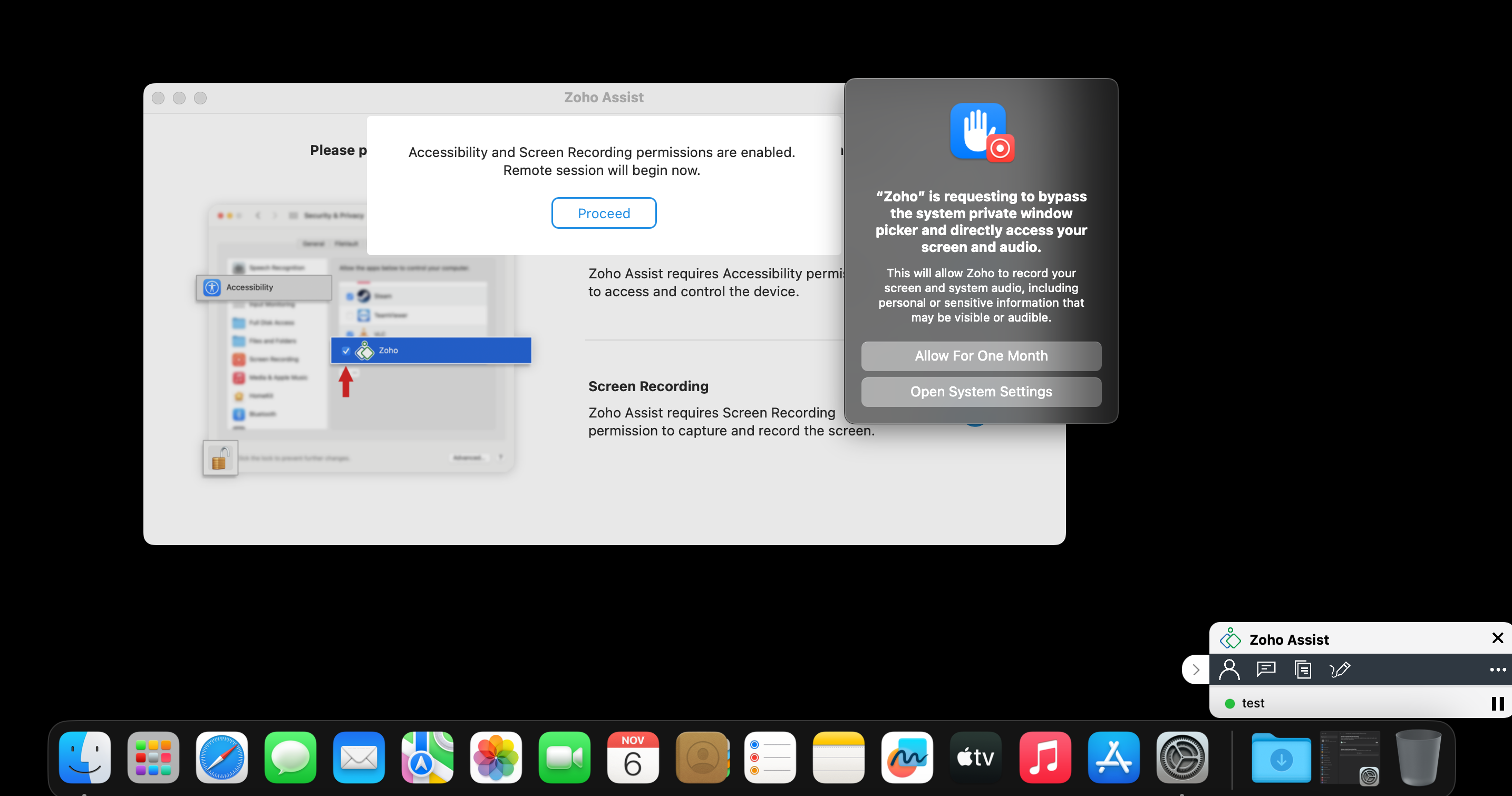
- Initiate a remote session again from the ManageEngine console. This step is necessary to ensure that all permissions are properly registered and ready for use. Follow the additional prompts for further access.
- When prompted, provide permission to bypass the system’s private window picker. This permission will allow direct access to screen and audio controls, which is essential for remote control functionality. Choose the option to "Allow for one month" to minimize future prompts.
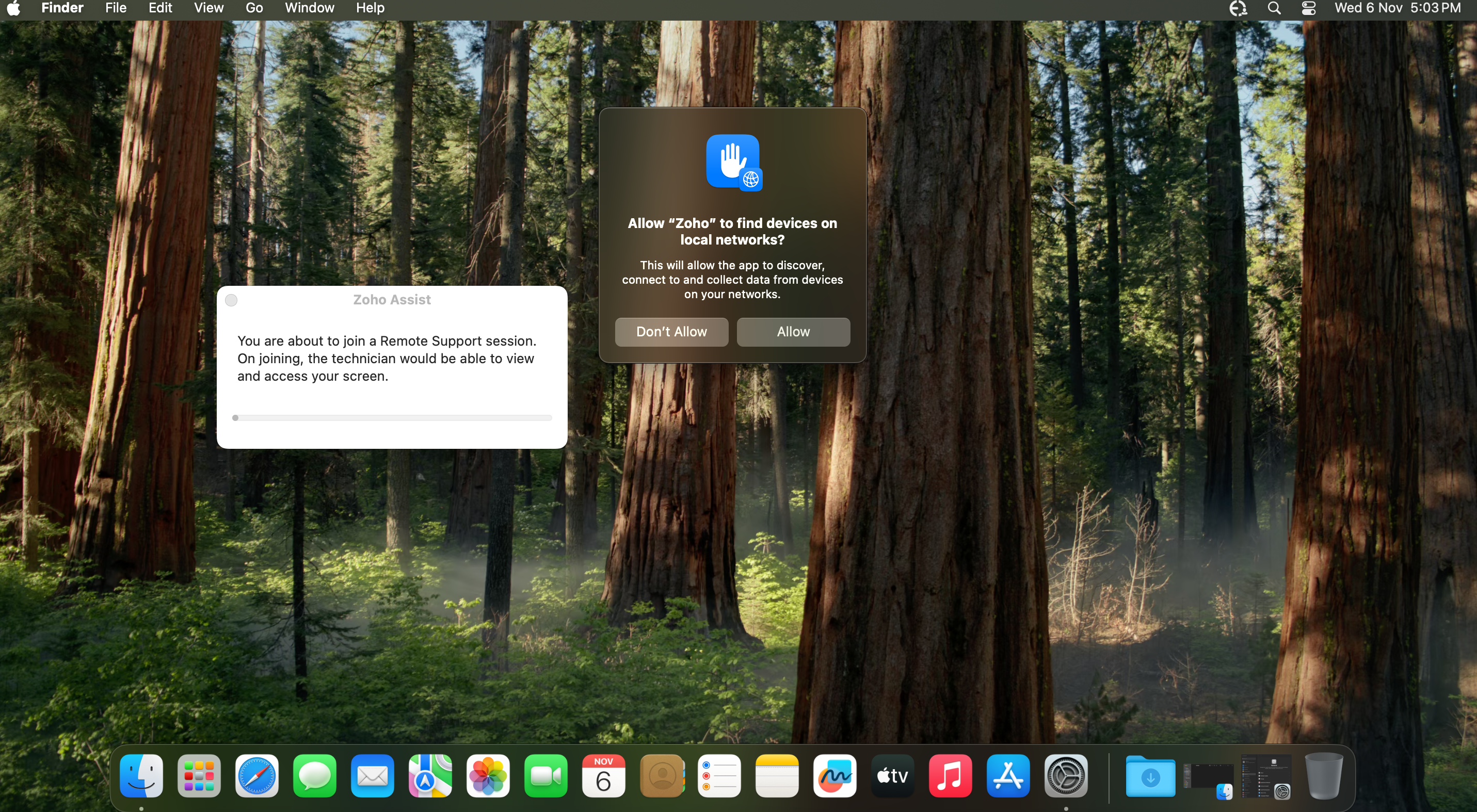
- A final prompt will appear asking if you would like to allow "Zoho" to find and communicate with devices on your local network. Select "Allow" to enable this access, as it is required for remote control features to work effectively.
- Once all permissions are set, initiate the remote session once more to ensure that all access controls are active and functioning correctly.
- Under Mobile Device Management, select Management > Profiles.
- Click Create Profile and select MacOS/Apple.
- Provide the Profile name and click Continue.
- On the left tree, select Custom Configuration. Download the PPPC file, extract it and upload the PPPC .mobileconfig file.
- Save and Publish this profile.
- Navigate to Groups and Devices. Select the required group. Click Action and select Associate Profile.
- Select the profile you have just created and associate it.
- Permission for accessibility has been fully configured. Standard users will now have the ability to grant access for screen capturing.
You can now remotely troubleshoot macOS 15 Sequoia computers in your network.
macOS 26 Tahoe
This issue can be resolved in two ways, either from the problematic machine or directly from the product console. Please choose the method:
- From the problematic machine
- From the product console
In the problematic Mac machine navigate to,
- Navigate to System Settings->Privacy & Security->Accessibility and enable access for "Zoho" component.
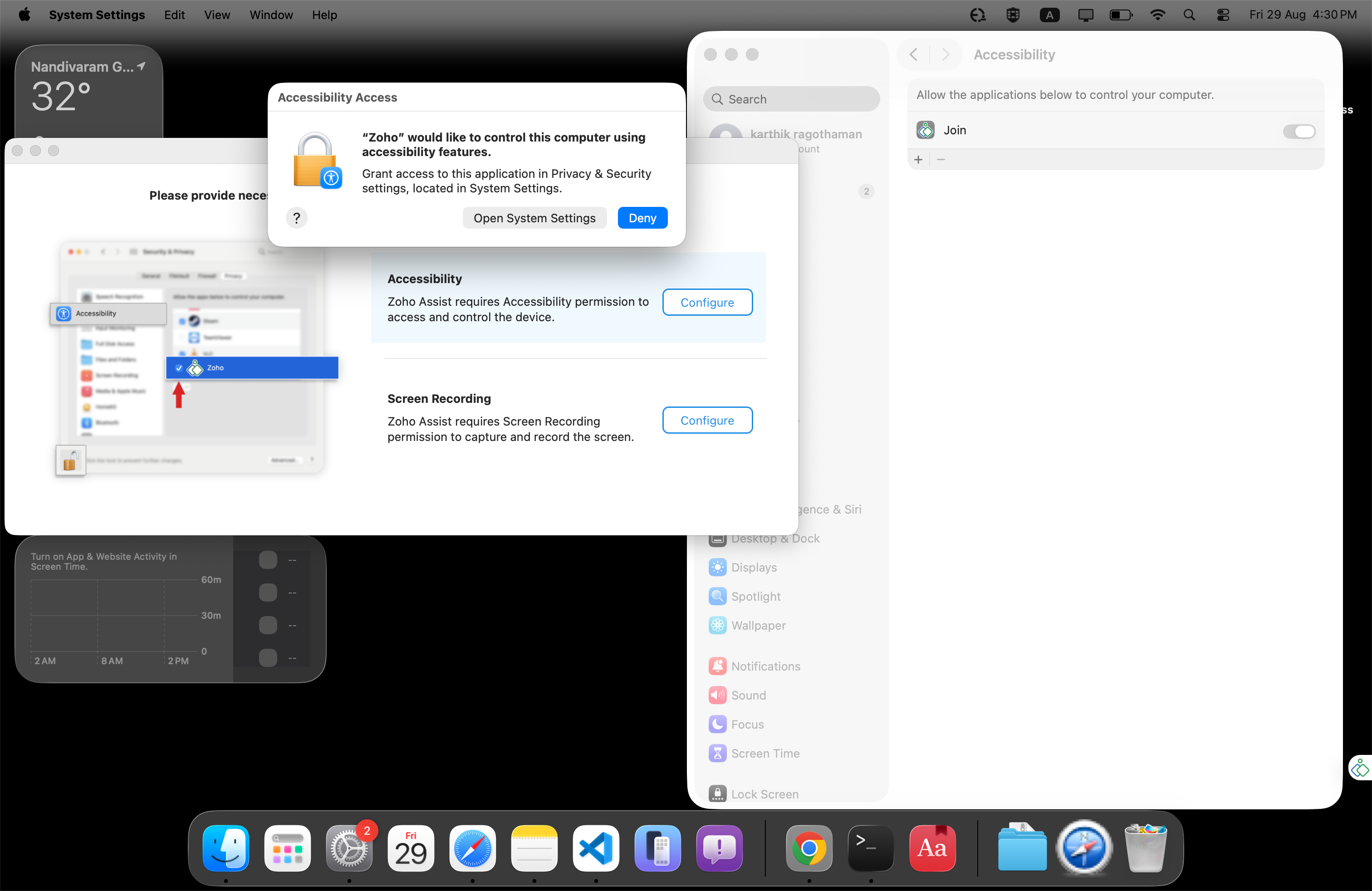
- Navigate to System Settings->Privacy & Security->Screen & System audio recording and allow the "Zoho" component to record the contents of your screen.
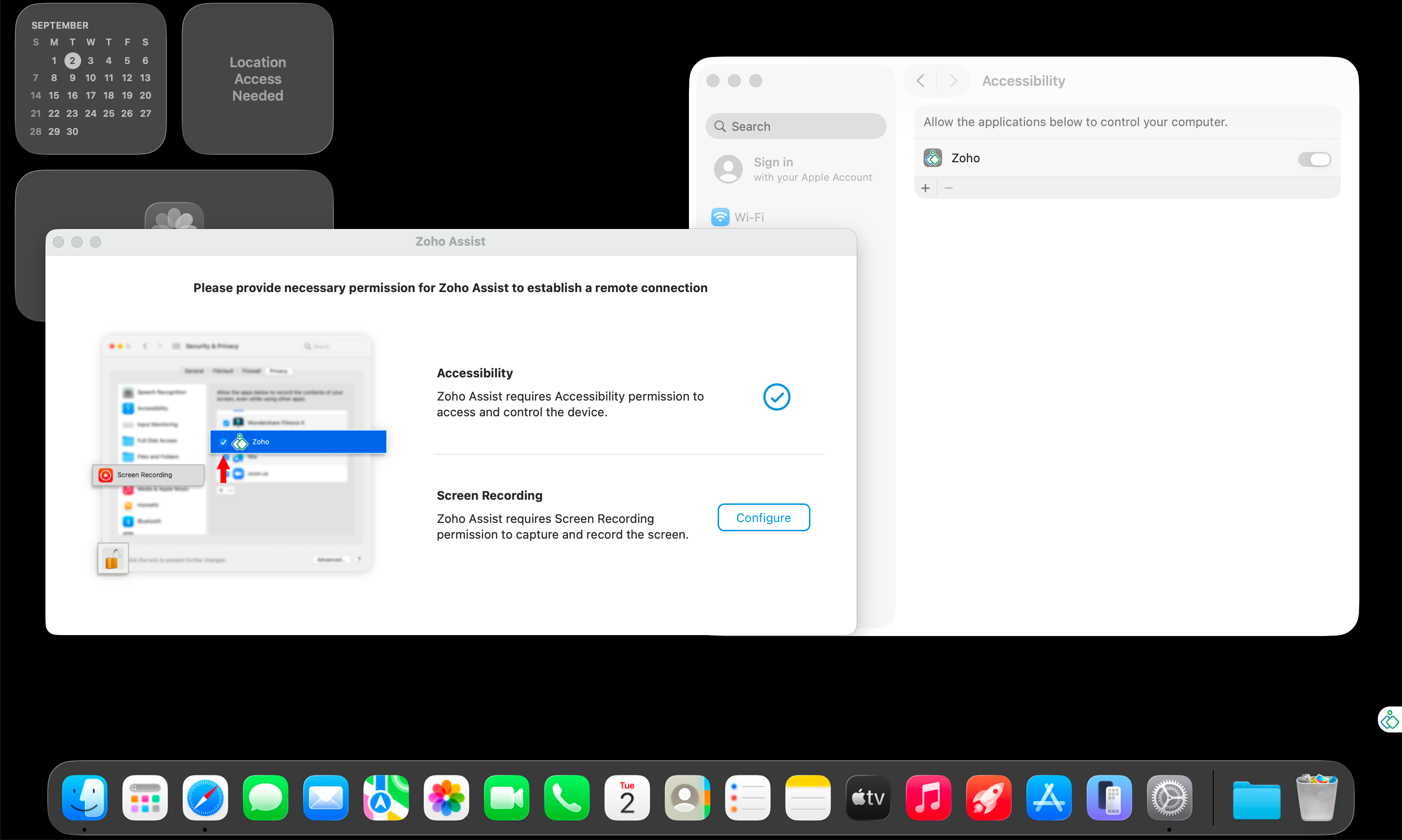
- Initiate a remote session again from the ManageEngine console. This step is necessary to ensure that all permissions are properly registered and ready for use. Follow the additional prompts for further access.
- When prompted, provide permission to bypass the system’s private window picker. This permission will allow direct access to screen and audio controls, which is essential for remote control functionality. Choose the option to "Allow for one month" to minimize future prompts.
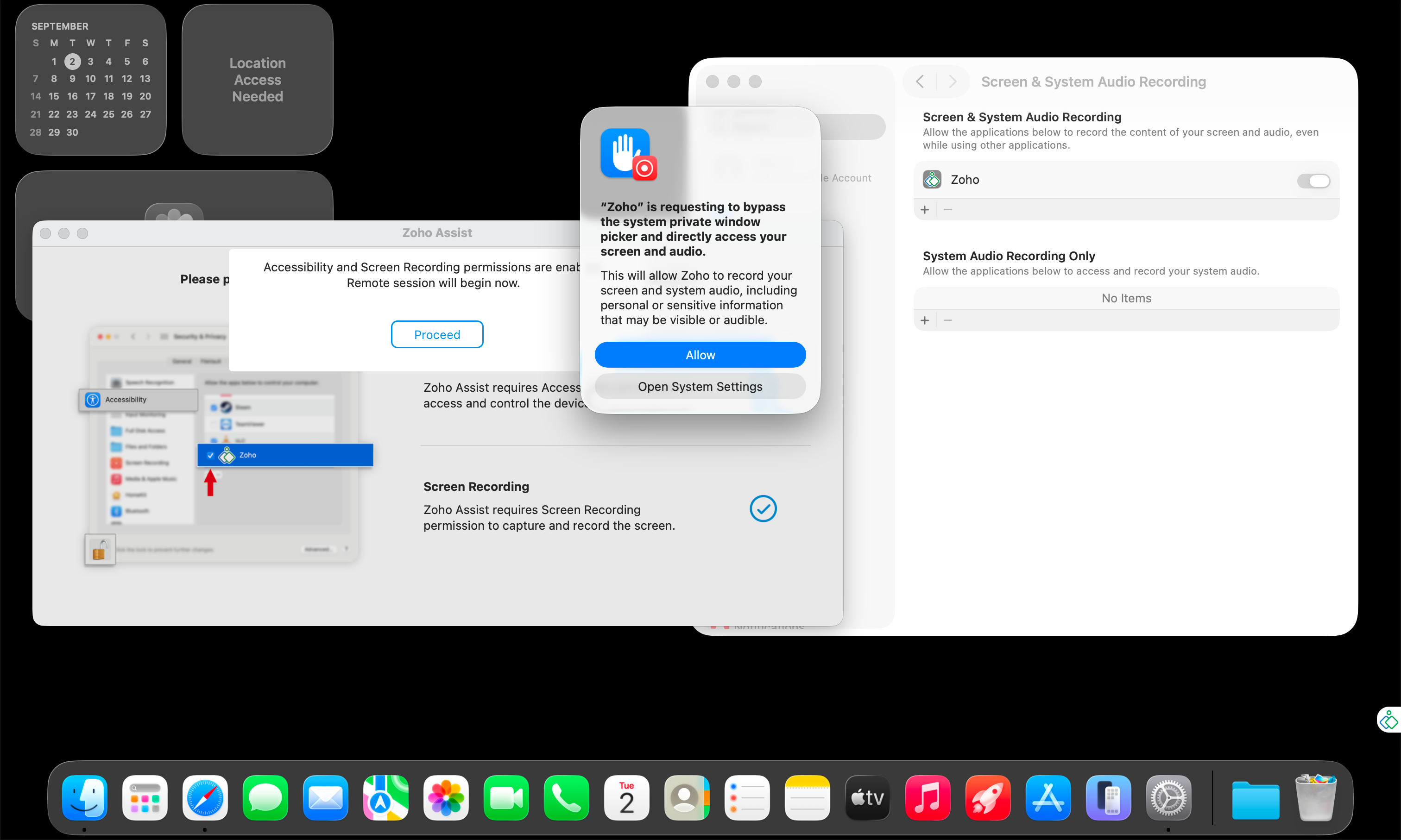
- A final prompt will appear asking if you would like to allow "Zoho" to find and communicate with devices on your local network. Select "Allow" to enable this access, as it is required for remote control features to work effectively.
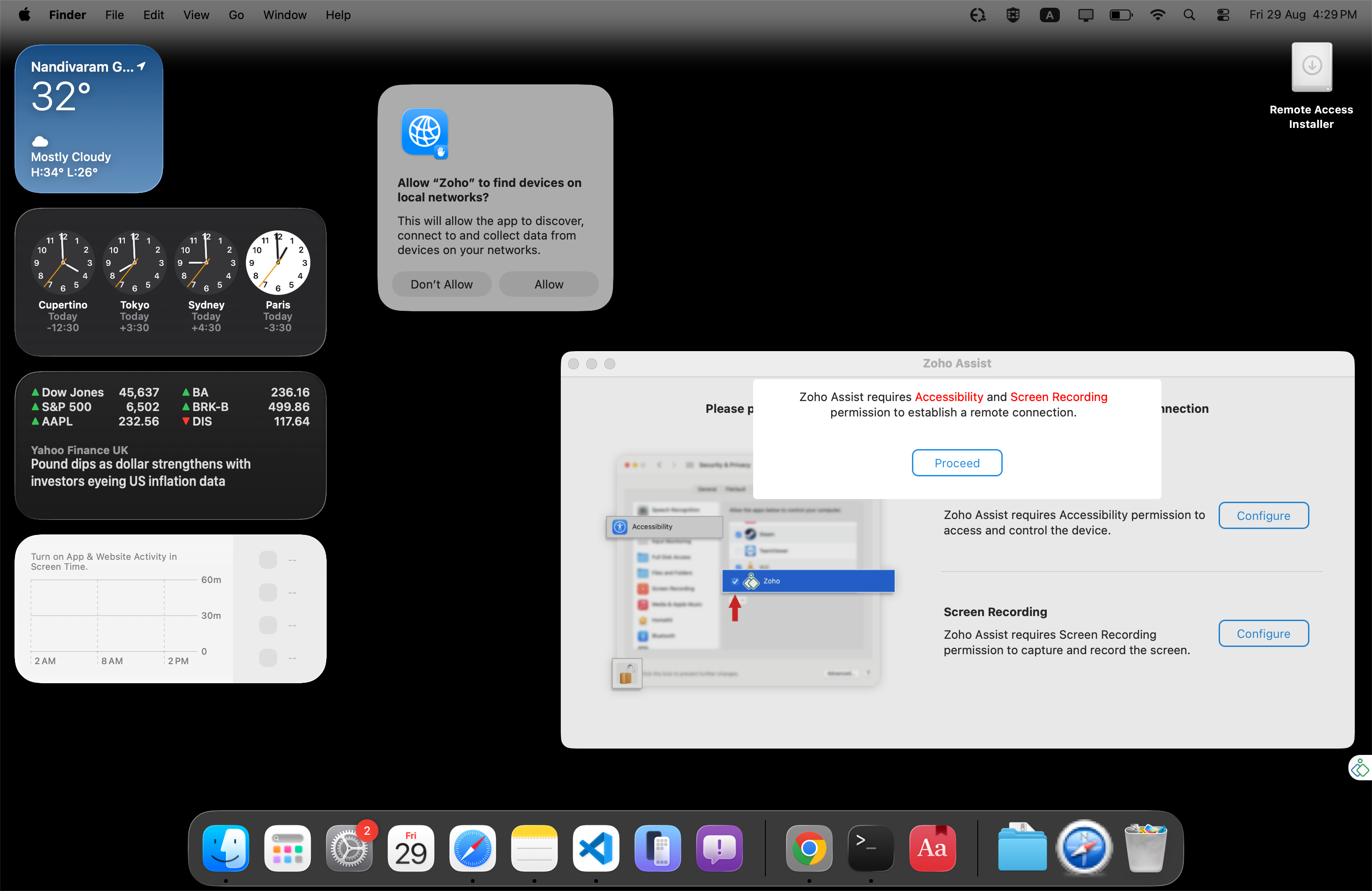
- Once all permissions are set, initiate the remote session once more to ensure that all access controls are active and functioning correctly.
Creating Profiles for Accessibility and Screen Recording
To configure permissions, you must create two separate profiles, one for Accessibility and another for Screen Recording.
Accessibility Profile
- Under Mobile Device Management, go to Management > Profiles.
- Click Create Profile and choose macOS/Apple.
- Enter a Profile name (e.g., Accessibility Settings) and click Continue.
- In the left tree, select Custom Configuration.
- Download the PPPC file, extract it and upload the accessibility.mobileconfig file.
- Save and publish the profile.
Screen Recording Profile
- Under Mobile Device Management, go to Management > Profiles.
- Click Create Profile and choose macOS/Apple.
- Enter a Profile name (e.g., Screen Recording Settings) and click Continue.
- In the left tree, select Custom Configuration.
- Download the PPPC file, extract it and upload the screenrecording.mobileconfig file.
- Save and publish the profile.
Associate Accessibility and Screen recording Profiles with Groups and Devices
- Navigate to Groups and Devices. Select the required group. Click Action and choose Associate Profile.
- Select the profile you have just created (Accessibility or Screen Recording) and associate it.
- Permission for accessibility and screen recording has now been configured. Standard users will have the ability to grant access for screen capturing.
You can now remotely troubleshoot macOS 26 Tahoe computers in your network.
Cloud agent and Remote Control components
For Endpoint Central Cloud, verify dcagentservice and ecuserhandler from /Library/ManageEngine/UEMS_Agent/bin in the applicable Privacy & Security panes, including Full Disk Access when required. The separate Zoho or ManageEngineRemoteAccess helper is registered for Remote Control and normally appears in Accessibility and Screen & System Audio Recording after a Remote Control session is initiated.
macOS 27 Golden Gate
For macOS 27, initiate Remote Control once and check Privacy & Security for the Remote Control helper. If the helper or the expected manual Accessibility control is unavailable, deploy the Accessibility and Screen Recording PPPC configuration profiles instead of relying on the manual application-path method.
The same PPPC .mobileconfig files can be deployed through Endpoint Central MDM or through another MDM service, such as Jamf. Associate the profiles with the affected devices and confirm that the profiles have been received before retrying Remote Control.
Troubleshoot macOS Remote Control permissions
The PPPC profile is applied, but password prompts continue
- Confirm that the Accessibility and Screen Recording profiles are associated with the affected device and that the device has completed an MDM sync.
- Verify that the profile uses the current Remote Control helper identifier and code requirement. A profile created for a different helper does not grant access to the installed component.
- PPPC can preconfigure supported permissions, but macOS may still require the logged-in user to approve Screen & System Audio Recording. Do not share an administrator password with end users.
The Zoho or ManageEngineRemoteAccess entry does not appear
Initiate Remote Control again to register the helper. If it still does not appear, use the PPPC profile method. As a manual fallback, check whether the current agent installation contains /Library/ManageEngine/UEMS_Agent/rds/ZohoMeetingNative/zoho.app; add the installed helper from the system-level /Library path only when that path exists on the device.
A Join component installation prompt appears
If an unexpected Join component prompt appears during Remote Control setup, cancel the installation and collect the Endpoint Central agent and Remote Control component logs for Support. Do not attribute unrelated Bluetooth or audio behavior to this prompt unless Support confirms the root cause.
The session connects, but the viewer keeps loading
After Accessibility and Screen & System Audio Recording permissions are confirmed, run the Agent Troubleshooting Tool. If connectivity checks pass and the viewer still does not render the desktop, collect the Endpoint Central server logs and the Mac agent logs and escalate the case to Support.