Migrating to a New Server Machine with Updated Network Configurations
This guide outlines the steps required to migrate your Central Server to a new machine with a different FQDN, IP address, or machine name. By following these instructions, you will ensure that your agents continue to communicate with the new server seamlessly.
Table of Contents
Pre-requisites Before Server Migration
- Ensure that all necessary ports for agent communication with the new server are open. Refer to the port requirements.
- If your data size is large, follow the cleanup document to remove unnecessary files from the Central Server directory.
- Verify that there is enough space available in the new directory for the Central Server installation.
- After migrating to a new FQDN/IP address, verify the NAT settings. If they have changed, re-enrollment of mobile devices may be required.
- Update the FQDN/IP details on the SAN/CN list of the SSL certificate or use a new SSL certificate with updated details.
- For OS deployment post-migration, create new bootable media or modify existing media and update the DHCP Server configuration.
Steps to Perform on the Current Central Server Setup
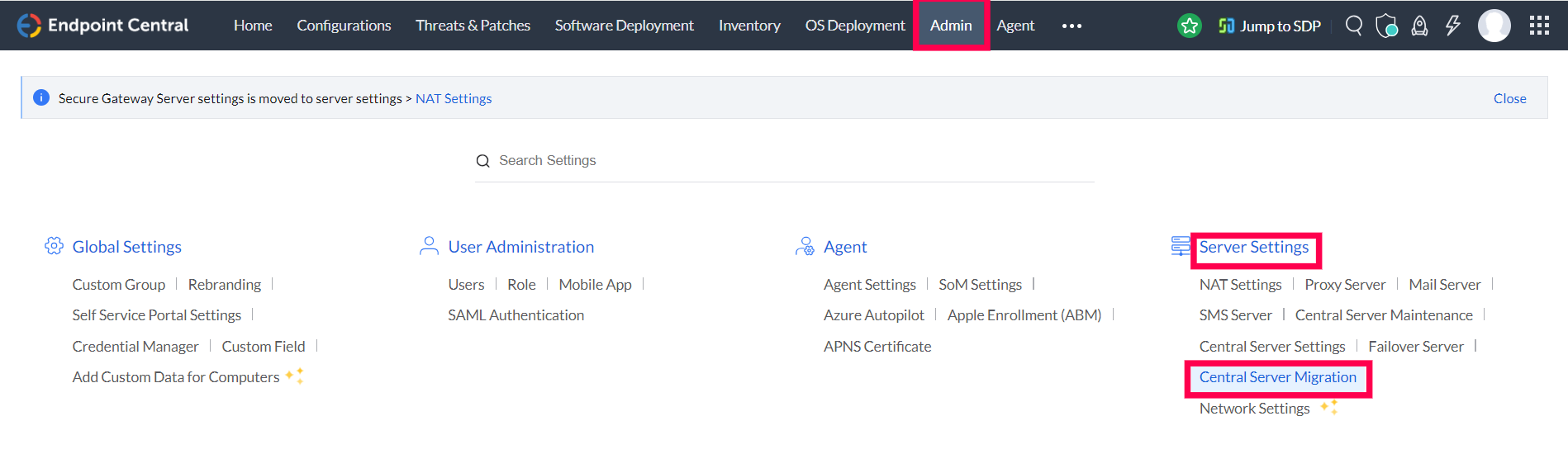
- In the web console, navigate to Admin > Server Settings > Central Server Migration.
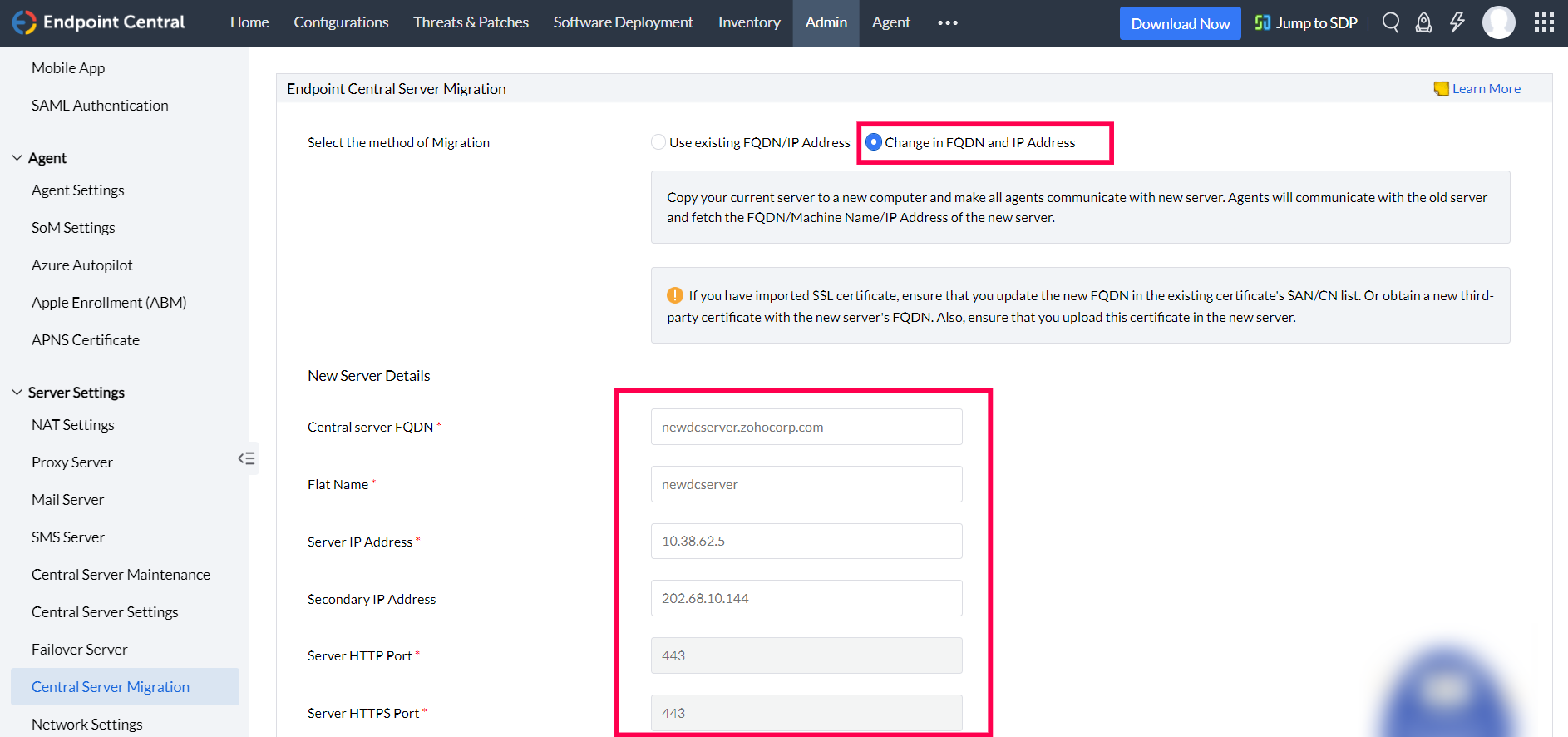
- Select the migration method: Change in FQDN and IP Address. Enter the network details of the new server.
- Download the Server Migration Guide and follow the 'Steps to Ensure' before initiating migration.
Run the following command in Command Prompt (as administrator) on your old installation:
server-migration.bat enable
Example:
C:\Program Files\UEMS_Central Server\bin\server-migration.bat enable
- Zip the entire Central Server installation directory (e.g.,
UEMS_Central Server) and transferUEMS_CentralServer.zipto the new computer. 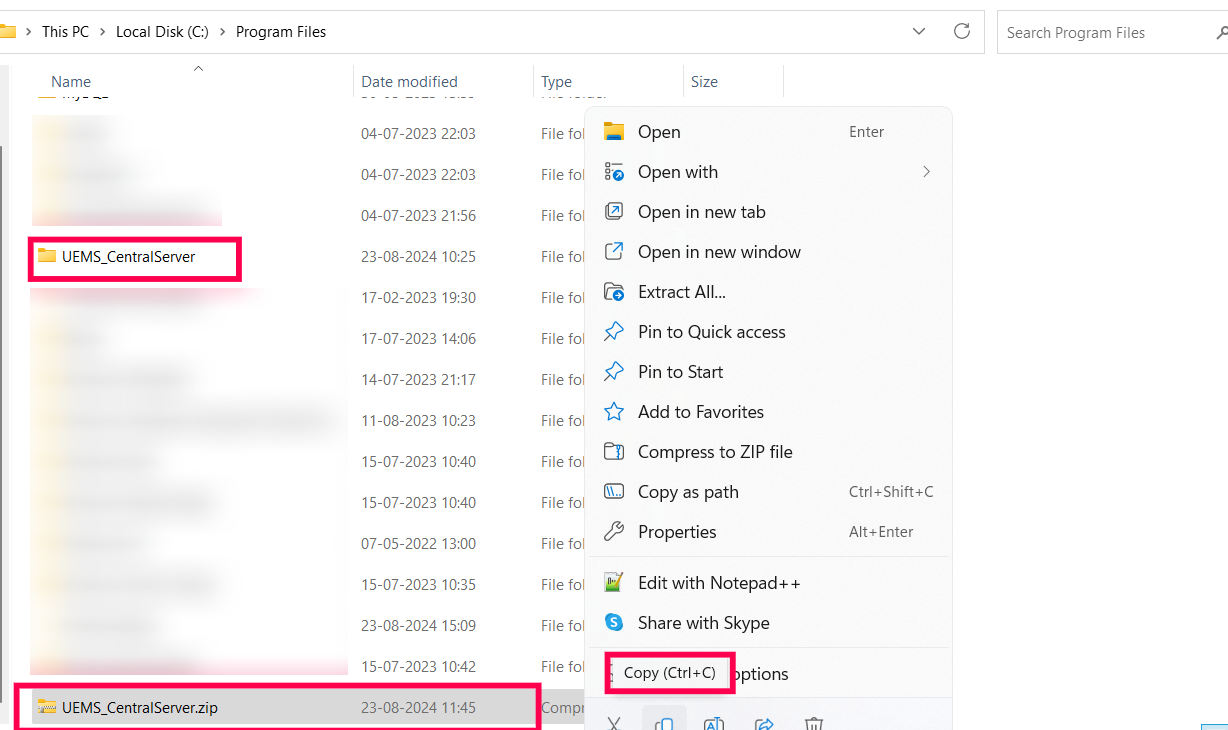
Steps to Perform on the New Central Server Setup
- Extract UEMS_CentralServer.zip on the new server to the desired location.
- Navigate to
<extracted_location>\confand delete the ws.modtime file. 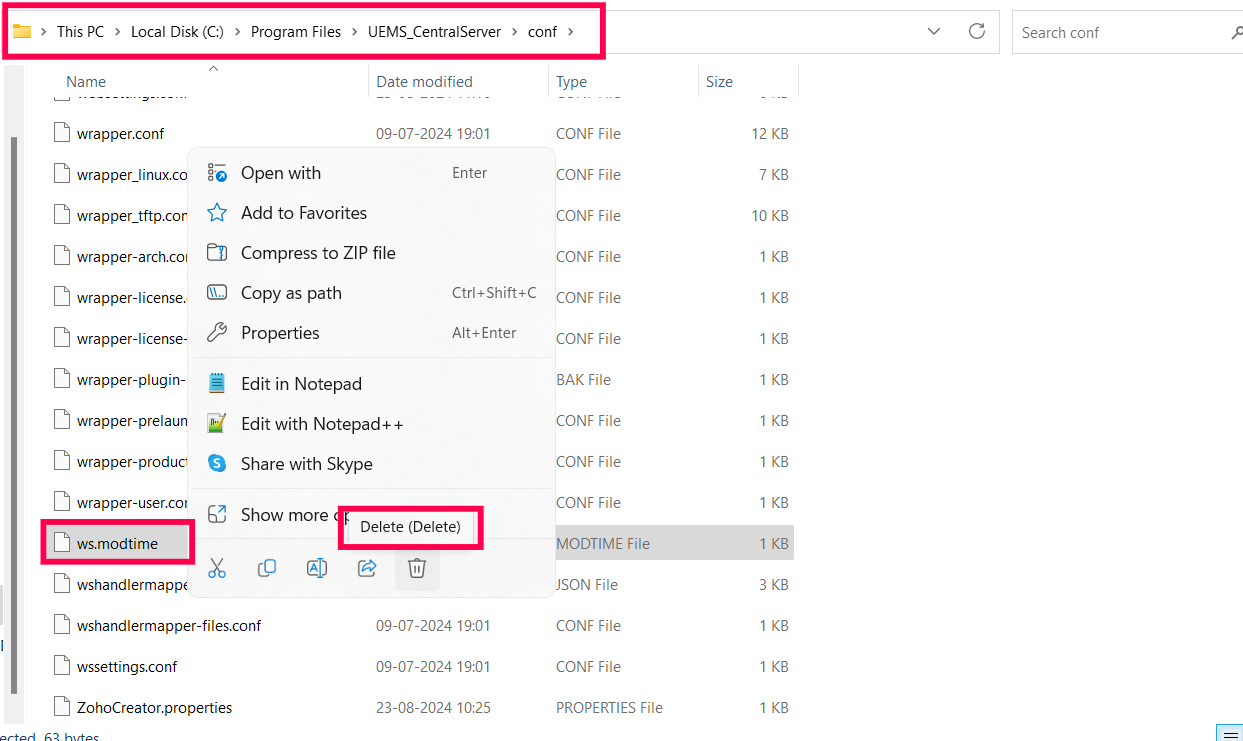
Run the following command in Command Prompt (as administrator) from the extracted location:
Migrate-DCServer.bat
Example:
C:\ManageEngine\UEMS_CentralServer\bin\Migrate-DCServer.bat
- After migration, start the Central Server service. Agents will contact the new server during their next refresh cycle.
Post-Migration Steps
Verify Successful Migration:
- Confirm that only the nginX component is running on the old server. If you try accessing the old server console (e.g.,
https://oldservername:8383), it should redirect to the new server. - Ensure the new server has started successfully.
Verify Agent Communication:
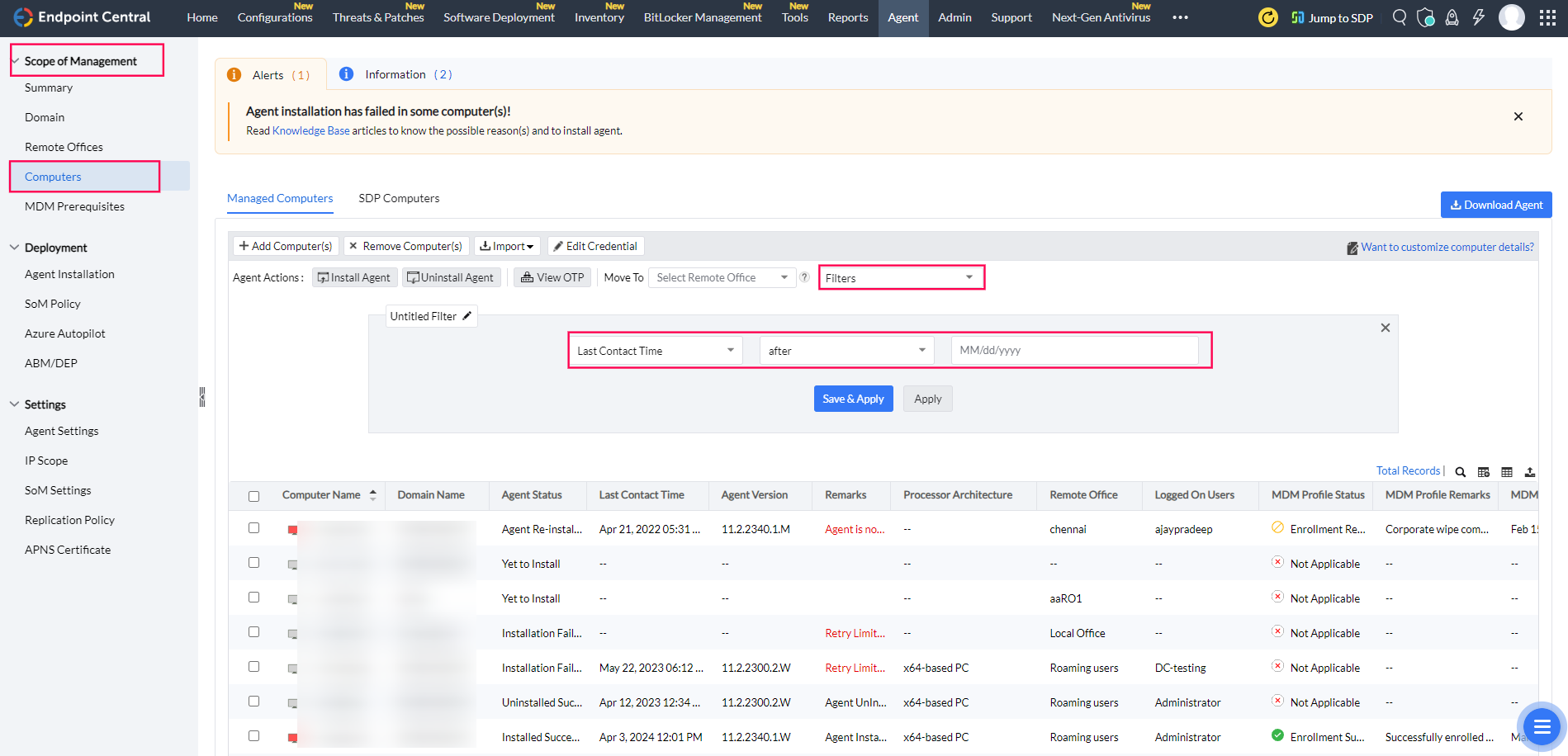
- Navigate to Admin > SOM Settings > Scope of Management > Computers.
- Filter by "Last Contact Time" to confirm agent communication after the new server startup.
Steps to Reconfigure the Secure Gateway Server
If you have a secure gateway server, update the new server machine name and IP address in the secure gateway server settings. Learn more.
Frequently Asked Questions
- When should I remove the old setup? Keep the old setup until all agents have migrated to the new server. Once all agents are communicating with the new server, you can uninstall the old server.
- Do I need to reapply the server license? No, the license remains valid after migration.
 | Need Assistance? Try Our Professional ServiceWe offer a professional service to migrate your Server and Data for $295. Register here if you’re interested. |