Manual Microsoft 365 tenant configuration
If the automatic configuration was not successful due to permission issues, the tenant must be configured manually. To do that, go to Org/Tenant Settings, click Add Tenant, and select Click here to configure with an already existing Entra application.
Manual tenant configuration involves the following three steps:
- Create an Entra application
- Configure the Entra application in Exchange Reporter Plus
Create an Entra application
Set up an application in Entra ID to enable integration with Exchange Reporter Plus.
- Log in to the Microsoft Entra admin center using the credentials of an account with privileges to manage an application.
- Navigate to Identity > Applications > App registration.
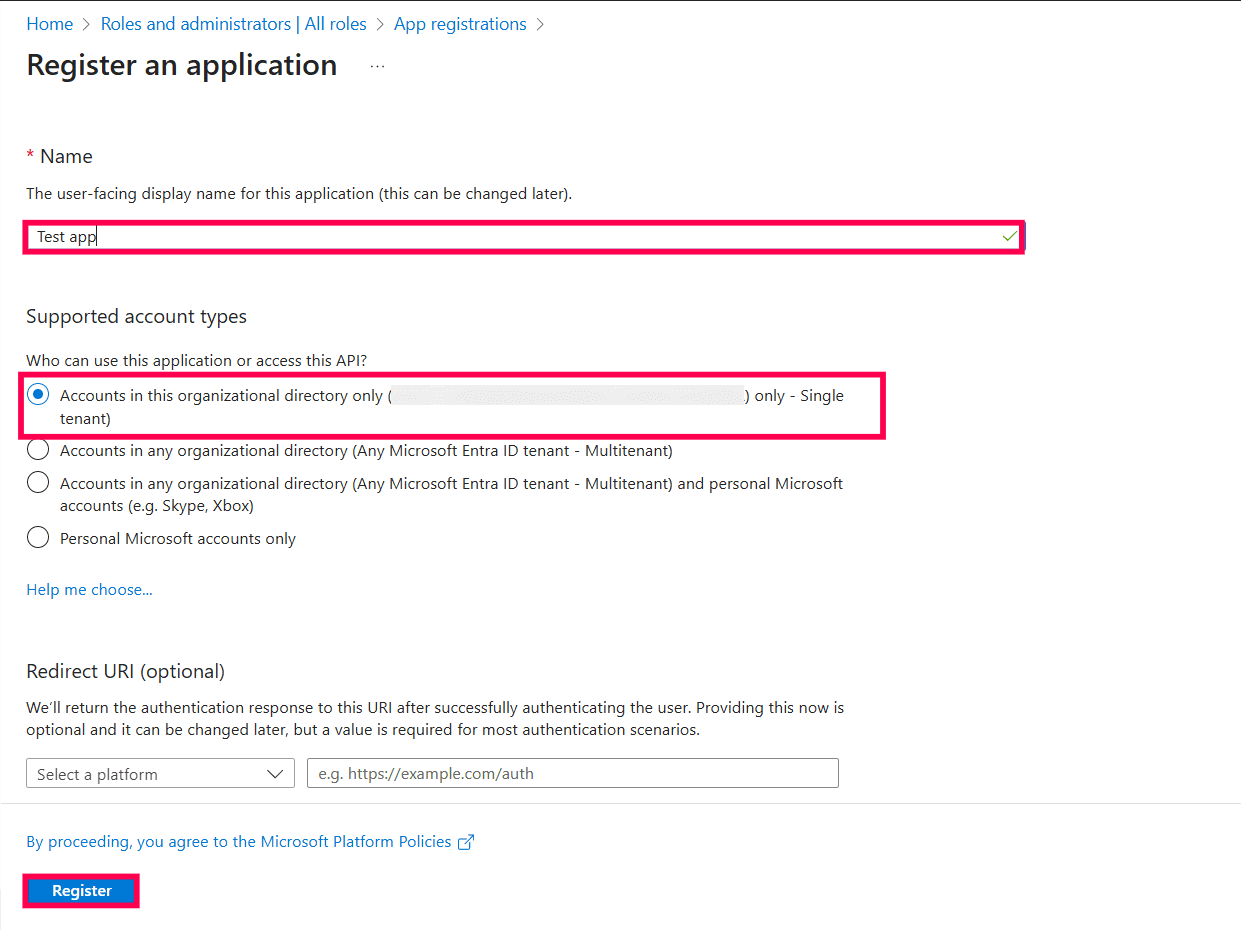
- Click New registration and provide a Name for the Exchange Reporter Plus application to be created.
- Select a supported account type based on your organizational needs.
- Leave Redirect URI (optional) blank; you will configure it in the next few steps.
- Click Register to complete the initial app registration.
- You will now see the Overview page of the registered application.
- Navigate to Authentication in the side pane.
- Click Add Platform under Platform configurations.
- In the Configure platforms pop-up, under Web applications, click Web.
- In the Redirect URI field, enter the following links. You can enter only one link at a time. After you enter a link, click Configure and repeat the steps until all links are configured.
Note:
- The machine name or IP address can be used in place of <localhost> if the product is configured to use HTTPS. You can configure it by referring to the steps mentioned here. Open Command Prompt and enter ipconfig to find your machine's IP address.
- Please note that for users with Exchange Reporter Plus build 5607 and above, REDIRECT URIs f and g are optional.
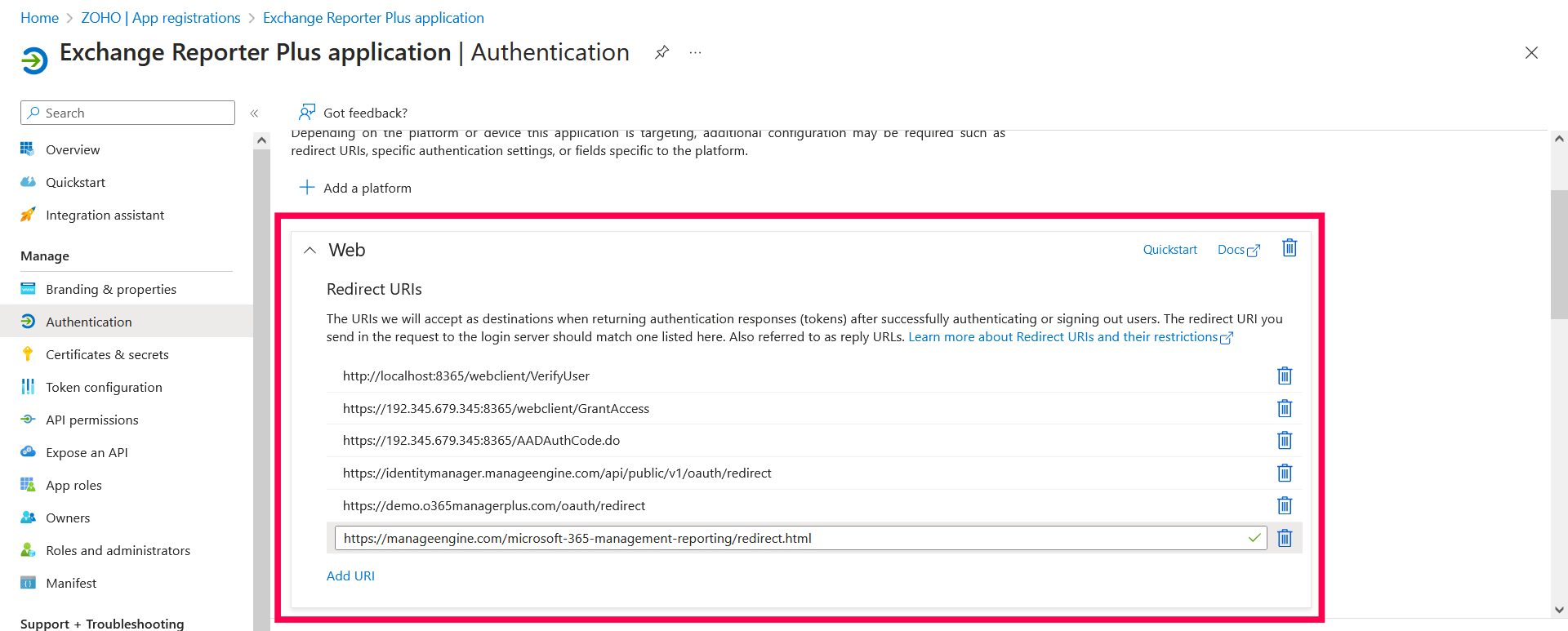
Note: The REDIRECT URI must adhere to the following:
- Click Save.
- Click Manifest from the left pane and look for the requiredResourceAccess array in the code.
- Copy the entire contents from this file and paste them into the section highlighted in the image below and click Save. You can check out the permissions listed in the file by checking out the Minimum scope section. If you want to modify the permissions to be provided, skip this step and follow the steps mentioned on this page.
Note: If your tenant is being created in Azure China, copy the content from
this file and paste it into the section highlighted in the image below.
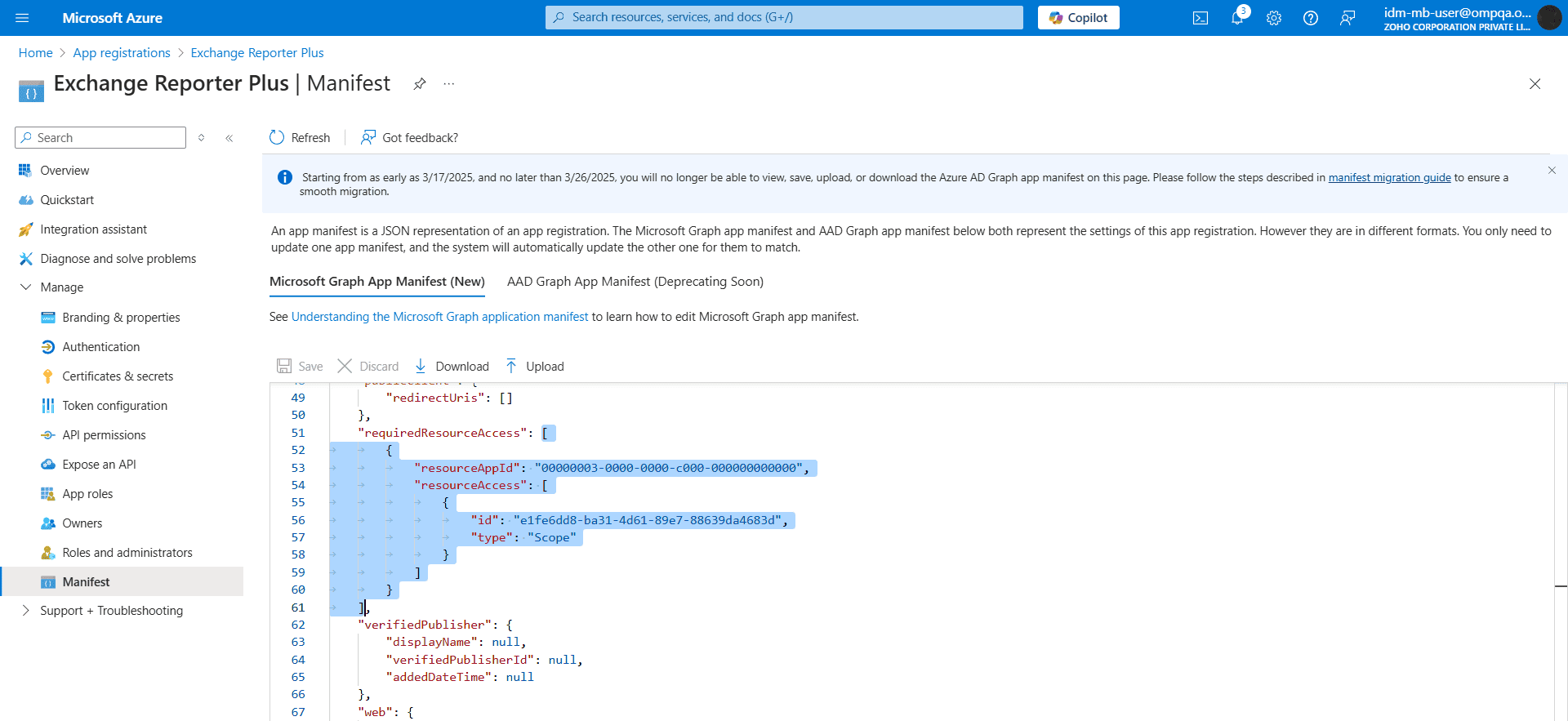
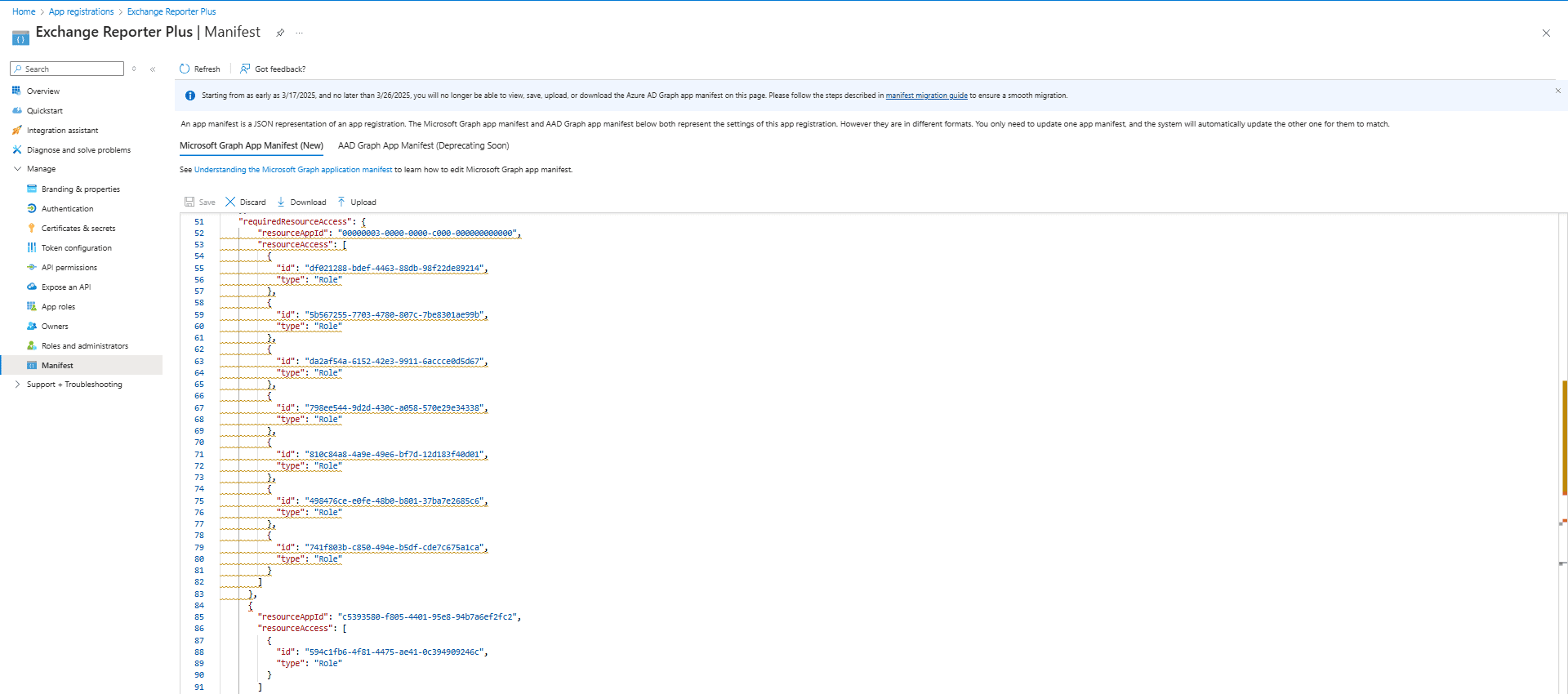
Note: Copy-paste content only from the open square bracket to the closed square bracket. Ensure that all punctuation marks are retained correctly. Once you have pasted the file, it should look like the image below.
- Click API permissions from the left pane and click ✓ Grant admin consent for <your_company_name> in the Configured permissions section, click ✓ Grant admin consent for <your_company_name> and click Yes in the pop-up that appears.
- Click Certificates & secrets from the left pane.
- Under the Client secrets section, click New client secret. This section generates an app password for Exchange Reporter Plus. In the Description field of the pop-up, provide a name to identify the app to which the password belongs.
- Choose when the password should expire and click Add.
- Copy the string under Value and save it. This is the Application Secret Key, which you will require later.
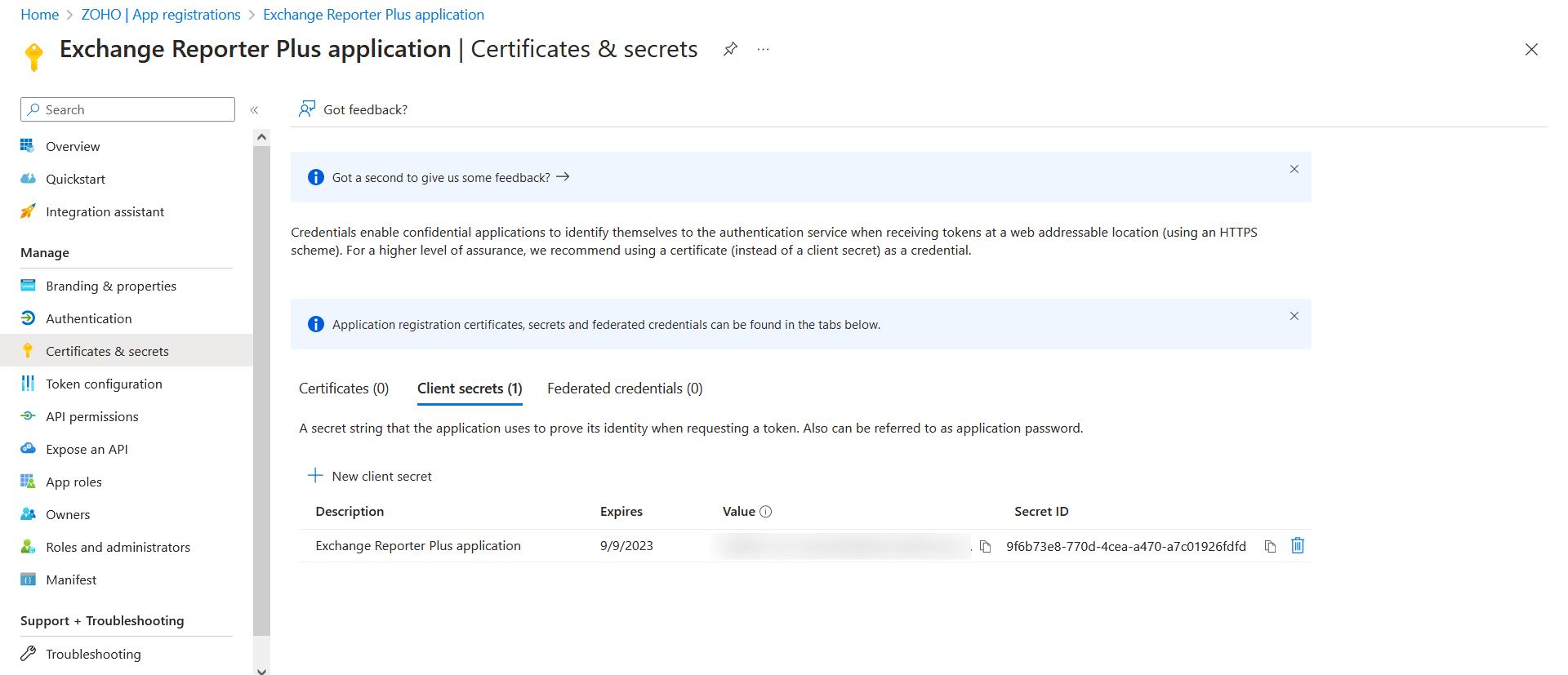
- Go to Certificates and click Upload certificate. Upload your application certificate as a .cer file.
Note:
- Certificate-based authentication is used to contact Microsoft 365 securely and fetch data. During manual configuration, you will be asked to enter your Application Secret and upload the Application Certificate.
- If you have an SSL certificate signed with an encryption algorithm other than SHA-256 with RSA, the same can be used here. Otherwise, click here for the steps to create a self-signed certificate.
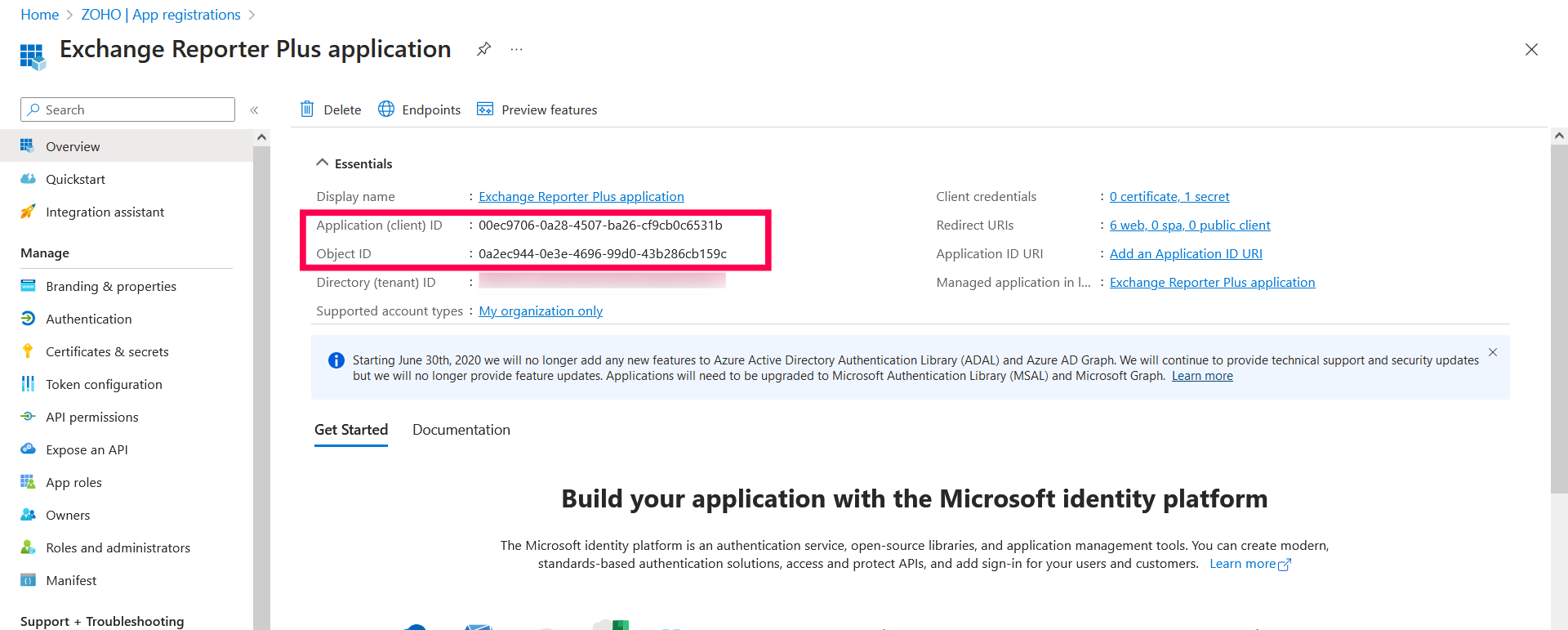
- Go to the Overview section in the left pane and the Application (client) ID and Object ID values and save them. You will need these values to configure your tenant in the Exchange Reporter Plus portal.
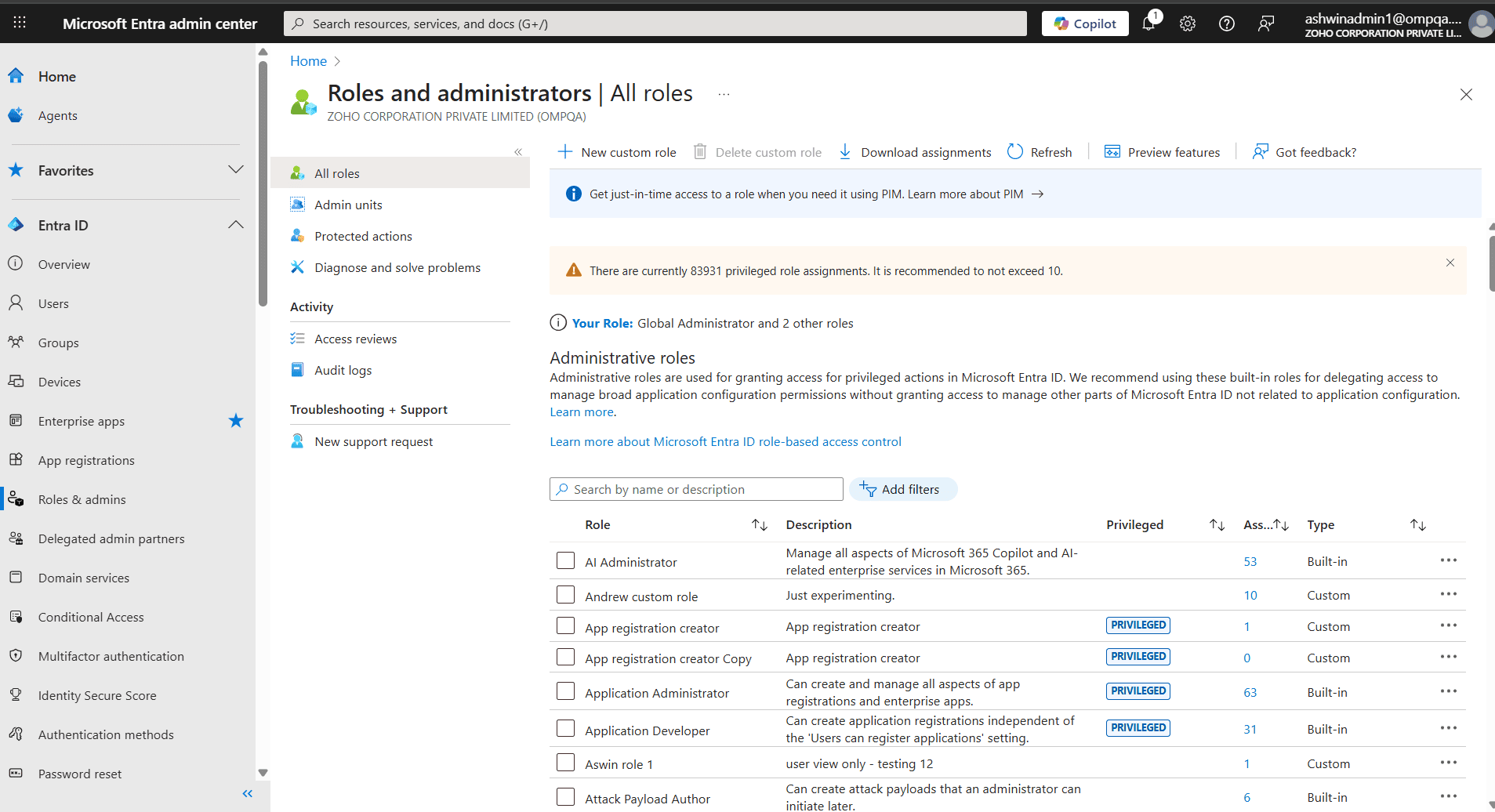
- Navigate to Roles & admins in the sidebar and select any of the following roles that you want to apply to the Entra application you configured.
Table 1: Roles required by the configured Entra application.
| Module |
Role Name |
Description |
| Exchange Online reporting |
Global Reader |
Get reports on all Microsoft 365 services. |
| Security Reader |
Get audit logs and mailbox reports. |
| Exchange Online auditing and alerting |
Security Reader |
Get audit logs and sign-in reports. |
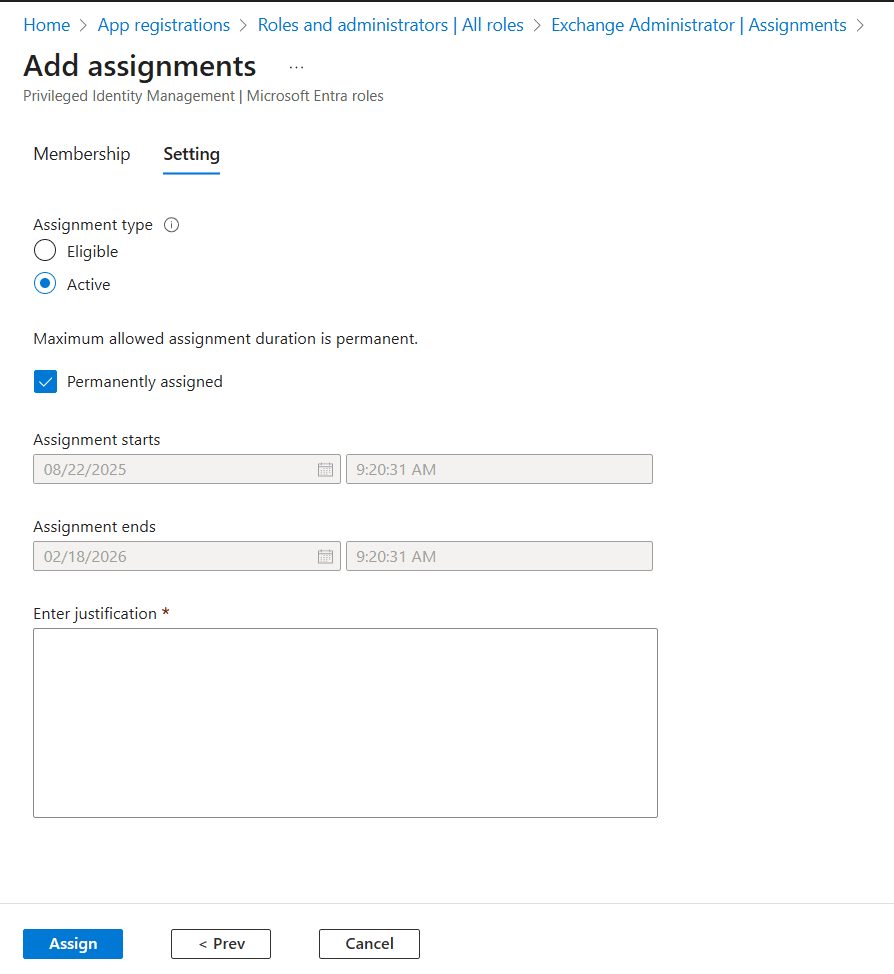
- Click Add assignments. In the new page that opens, select Scope type as Directory and click on the link below Select member(s).
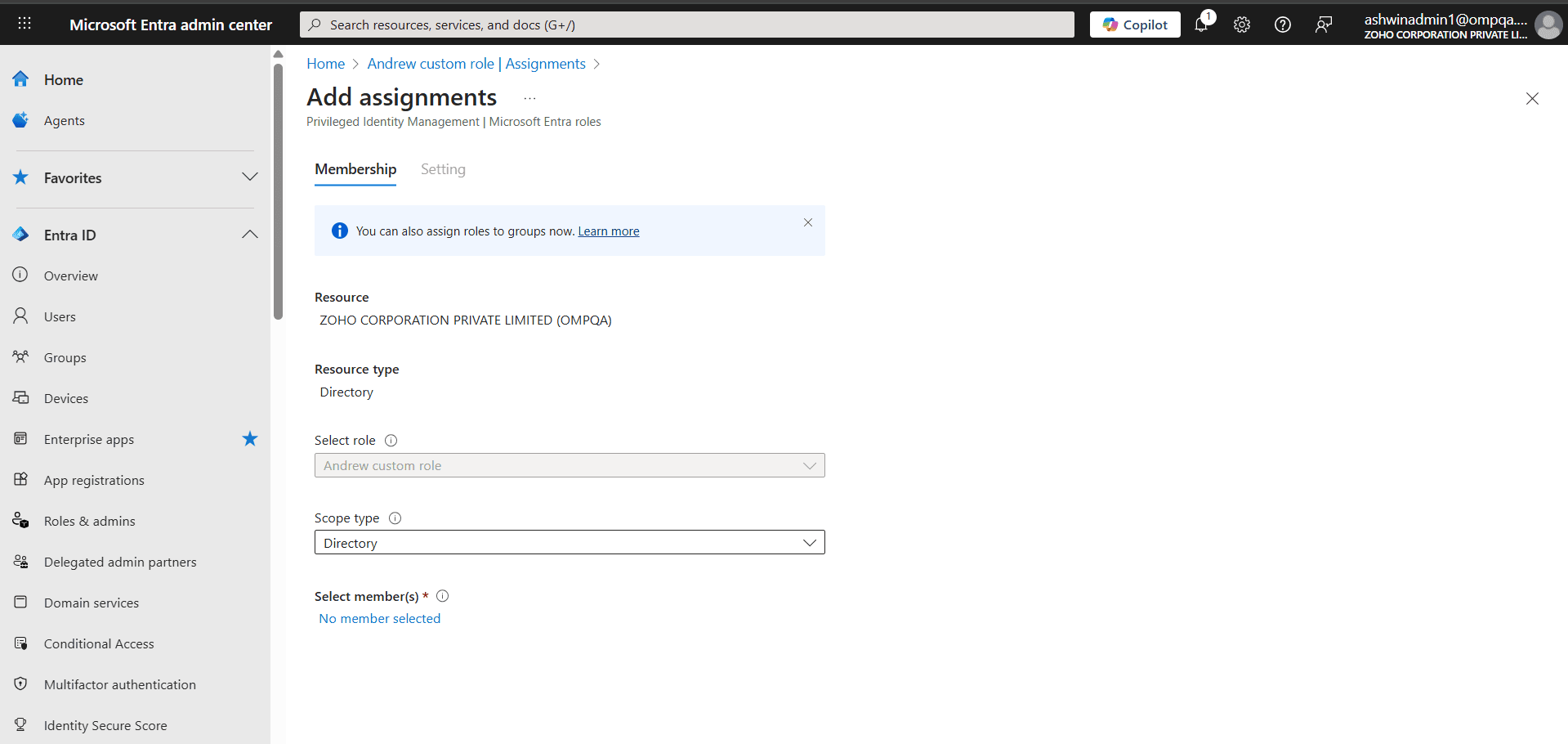
- Add the Entra application you created as a member, and click Next.
- Select Active as the Assignment type, provide a justification, and click Assign.
- Repeat the same for any other roles you wish to add.
Configure the Entra application in Exchange Reporter Plus
Provide the application details in Exchange Reporter Plus to establish the connection.
- Return to the Exchange Reporter Plus console where you have the Configure Office 365 Tenant pop-up.
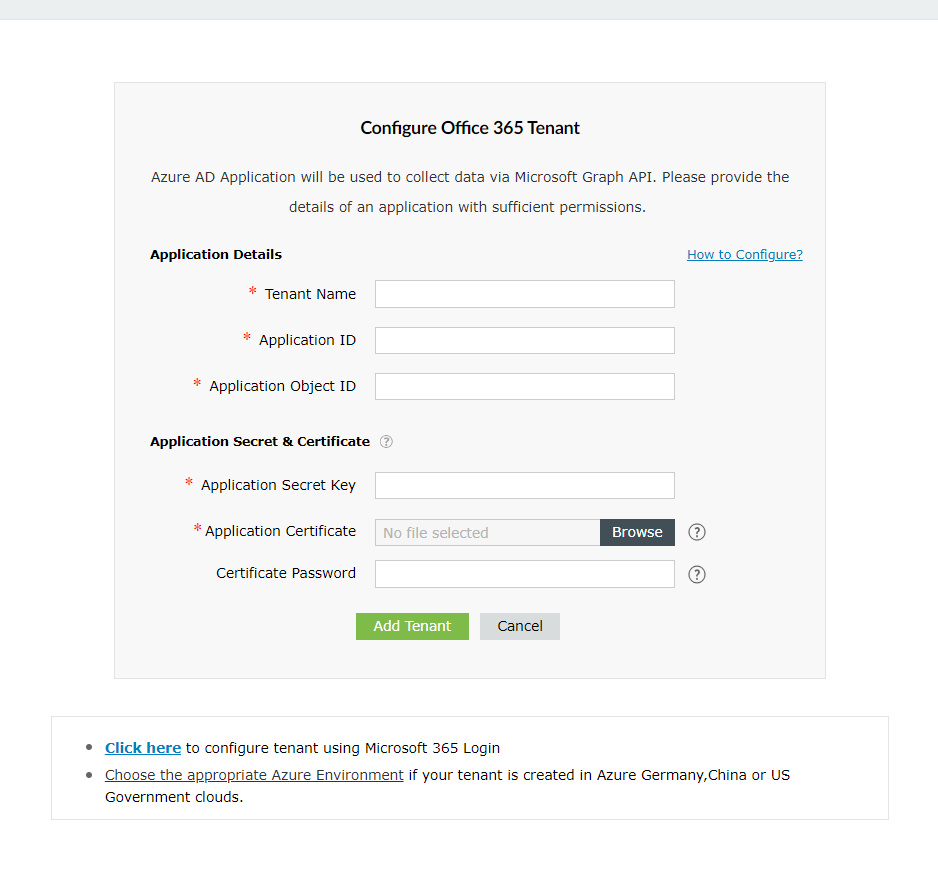
- Enter your Tenant Name. For example, test.onmicrosoft.com.
- Paste the Application ID and Application Object ID values copied in Step 21 in the Create an Entra application section into the respective fields.
- For the Application Secret Key, paste the value copied in Step 19 in the Create an Entra application section.
- Upload a PFX file of the certificate that has been uploaded in the Azure portal. Refer to Step 20 in the Create an Entra application section.
- Enter your certificate password.
- Click Add Tenant.
- You should now see that REST API access is enabled for the account you configured.
Steps to create a self-signed certificate
- Run the following command in Windows PowerShell as an administrator:
Set-ExecutionPolicy -ExecutionPolicy RemoteSigned -Force -Scope process
- Navigate to the <Exchange Reporter Plus installation directory>\bin> folder and run the Create-selfsignedcertificate.ps1 script as an administrator.
- While running the script, you will be asked to add a common name for the certificate, start and end date (YYYY-MM-DD) for the certificate's validity, and a private key to protect it.
- Once you enter the values, the script will generate both a PFX file and a CER file (containing both public and private keys) in the bin folder.
- The PFX file should be uploaded in Exchange Reporter Plus, while the CER file should be uploaded in the Application Overview page of your Microsoft Entra application as mentioned in Step 20 of the Create an Entra application section.
 ADManager Plus
 ADAudit Plus
 ADSelfService Plus
 M365 Manager Plus
 Previous Topic