IP address conflicts are one of the common network problems that can quickly cascade into significant IT issues such as wherein users lose access, VoIP calls drop unexpectedly, printers disappear, and critical apps slow or fail. For administrators, detecting IP conflicts is a daily troubleshooting task, especially in dynamic or BYOD-heavy networks. The symptoms are usually obvious or disruptive, the causes often simple, yet the resulting business impact, ranging from lost productivity to unhappy customers and service outages, can exceed the effort required to resolve it.
This guide gives a practical, administrator-friendly blueprint for troubleshooting IP address conflicts, with quick diagnostics, concrete fixes, and prevention steps you can put in place today.
On this page, we'll understand:
How to troubleshoot IP conflicts?
When you suspect an IP conflict, following a simple, repeatable workflow allows you to approach the issue systematically. This way, you can resolve the common problems first before diving into more complex edge cases.
- Verify the issue: Check your IP Address Manager tools for alerts or whether it appears as an error message, in the event logs, or through a user report.
- Isolate the device: Remove it from the network or move it to a different port or VLAN to prevent further conflicts.
- Check the client: Run ipconfig in Windows devices or ifconfig in Linux and MAC devices to verify the assigned IP and network configuration; review the ARP table, and confirm the device’s MAC address matches the network registration.
- Check the DHCP server: Review the DHCP server’s lease database and scope/pool configurations, including exclusions and reservations, to identify any overlapping or conflicting assignments.
- Check the network: Inspect the switch’s ARP table and review router logs for conflicting IPs.
- Apply a short-term fix: Release/renew the IP or reassign a static address to restore connectivity.
- Implement a long-term fix: Use DHCP reservations, scope exclusions, or an IPAM tool like OpUtils to automate tracking, detect duplicates early, and prevent recurring conflicts.
Most admins handle conflicts the same way where they start with the local checks, expand to DHCP and switching, and end with policies or cloud overlays.
Real-world use cases and quick diagnostics
Here are some real-world scenarios and quick diagnostic steps you can take when duplicate IP address errors appear in everyday environments.
Why am I suddenly seeing duplicate IP address errors on Windows?
Run ipconfig /all and "arp -a", then check the Windows Event Log where the networking entries often show the conflicting IP and sometimes the MAC address as well. If the client is using a static IP within a DHCP range, either move it to a different address or create an exclusion in the DHCP scope. If it’s using DHCP assigned IP, review the lease table to make sure there aren’t duplicate assignments.
Can a disconnecting printer be a sign of an IP conflict?
Yes, printers not showing up when you try to send something to print can be a classic case. Many shops/enterprises set printers to a static IP without documenting it. Check the printer’s network settings and then verify that the DHCP server doesn’t hand the same IP to another client. Best practice is to use DHCP reservation for printers so the address is centrally documented and changeable.
Does VPN usage cause IP conflicts on corporate networks?
Yes, VPN clients can sometimes cause overlaps between remote and corporate subnets. Many VPNs even reuse private IP ranges from users’ home networks. Begin by checking the client’s assigned IP and whether split-tunnel or routing policies are sending overlapping subnets into the LAN.
Why do mobile devices get disconnected when joining office Wi-Fi?
Mobile devices may be set to static IPs or the Wi-Fi controller may be out of DHCP leases. Short DHCP lease times and high churn on BYOD networks increase the risk of transient duplicates. Check the controller’s lease table, access point and controller logs, and the client’s DHCP behavior.
Can cloud networking lead to overlapping CIDR blocks?
Linking VPCs, peering them, or connecting cloud subnets to on-prem networks can create overlapping addresses and routing conflicts. Peering and route propagation may fail if CIDR blocks overlap. When designing hybrid networks, make sure CIDR blocks are unique, or use NAT/translation to avoid conflicts.
By understanding these common scenarios and following quick diagnostic steps, you can identify and resolve IP conflicts efficiently, keeping your network running smoothly and minimizing downtime.
Symptoms of IP address conflicts
Here is how IP address conflicts usually show up in your network:
- Loss of connectivity: Immediate loss of connectivity for one or both hosts, or periodic drops.
- Desktop errors: Desktop errors like “Windows has detected an IP address conflict.”
- Rogue ARP or duplicate MAC entries: Unexpected ARP entries in switch/router tables or duplicate MAC addresses indicate a conflict.
- Flaky application behavior: Applications may behave inconsistently, with visible VoIP jitter, call drops, or slow web app responses.
- Cabling/physical port issues: Shows link-down or no-link, while IP conflicts show link-up but no higher-layer connectivity.
- DNS problems: Affects name resolution but rarely trigger duplicate-IP errors.
- ARP check: Use arp -a on the client or show ip arp on routers/switches to see if two MACs claim the same IP.
- Network tracking: Review switch ARP tables or use IP tracking on Layer 3 devices to confirm the source.
Step-by-step solution for resolving IP address conflicts
1. To resolve IP conflicts on Window devices:
- Open an Command Prompt with admin privileges and run ipconfig /release followed by ipconfig /renew.
- Check the ARP table using arp -a and review the Event Viewer for any entries indicating the conflicting IP.
- If the conflict is caused by a static IP, either assign a different address or configure an exclusion in the DHCP scope.
2. To fix IP issues in MacOS devices:
- Renew the DHCP lease by navigating to System Preferences → Network → Advanced → TCP/IP → Renew DHCP Lease.
- Alternatively, use the Terminal commands: "sudo ipconfig set en0 BOOTP" followed by "sudo ipconfig set en0 DHCP".
- For step-by-step visuals, refer to Apple’s official support documentation.
3. To resolve IP conflicts on Linux devices:
- If using dhclient, release and renew the IP by running "sudo dhclient -r" followed by "sudo dhclient".
- Restarting NetworkManager can also refresh the lease and resolve conflicts.
- Check "/var/lib/dhcp/" and system logs to review lease activity and confirm the conflicting IP.
4. To fix IP conflicts on switches and routers:
- Inspect ARP tables and IP tracking data to identify duplicate IPs.
- Move the affected client to a separate port or VLAN to isolate it.
- Review the DHCP server’s lease history if the same IP was assigned twice, adjust lease times or enable conflict detection.
Without an IPAM tool, identifying the root cause of conflicts can be time-consuming and error-prone. Using an IPAM solution helps you pinpoint conflicts quickly, track IP usage, and apply permanent fixes efficiently.
Preventing IP address conflicts in your network
To keep your network running smoothly, start with some simple process fixes before moving on to monitoring and operational best practices.
Short-term process fixes:
- Up-to-date IP allocation: Keep a real-time record of IP allocation. Ideally, use an automated source of truth rather than a manual spreadsheet.
- Use DHCP reservations: Assign DHCP reservations for servers, printers, and other critical devices instead of manually assigning static IPs.
- Exclude static sub-ranges from DHCP scopes: Prevent accidental overlaps by ensuring statically assigned ranges are not included in dynamic scopes.
Proactive monitoring:
- Continuous IPAM and scheduled scans: Maintain visibility into address usage, lease history, and potential duplicates before users are affected.
- IPv4 & IPv6 support and integration: Look for tools that monitor ARP tables, integrate with DHCP, and detect rogue devices.
- Automated IPAM solutions: Tools like OpUtils automate scanning, reservations, and alerts, reducing firefighting and preventing documentation drift.
Operational best practices:
- Consistent device naming and centralized management: Standardize naming conventions and centralize DHCP/DNS wherever possible.
- Network segmentation: Segment BYOD and guest networks with VLANs to reduce churn in production IP scopes.
- Document static assignments: Keep all static IPs documented centrally and review them whenever network changes occur.
If IP conflicts keep recurring in your network, it’s time to implement longer-term strategies:
- Centralize DHCP and DNS: Use DHCP failover or clustered appliances, and consider split scopes where necessary.
- Adopt an integrated IPAM system: This approach automates reservations and exclusions by connecting directly with DHCP and DNS.
- Enable ARP monitoring and rogue-device detection: Catch duplicate IPs and unauthorized hosts early at the network edge.
- Plan cloud expansions carefully: Validate CIDR allocations and avoid overlapping subnets, or use NAT to handle overlaps.
How OpUtils simplifies IP conflict troubleshooting
Resolving an IP conflict once is easy; preventing it from happening again is where the real challenge lies. OpUtils equips IT teams with the right visibility and automation to move beyond reactive fixes and achieve long-term stability.
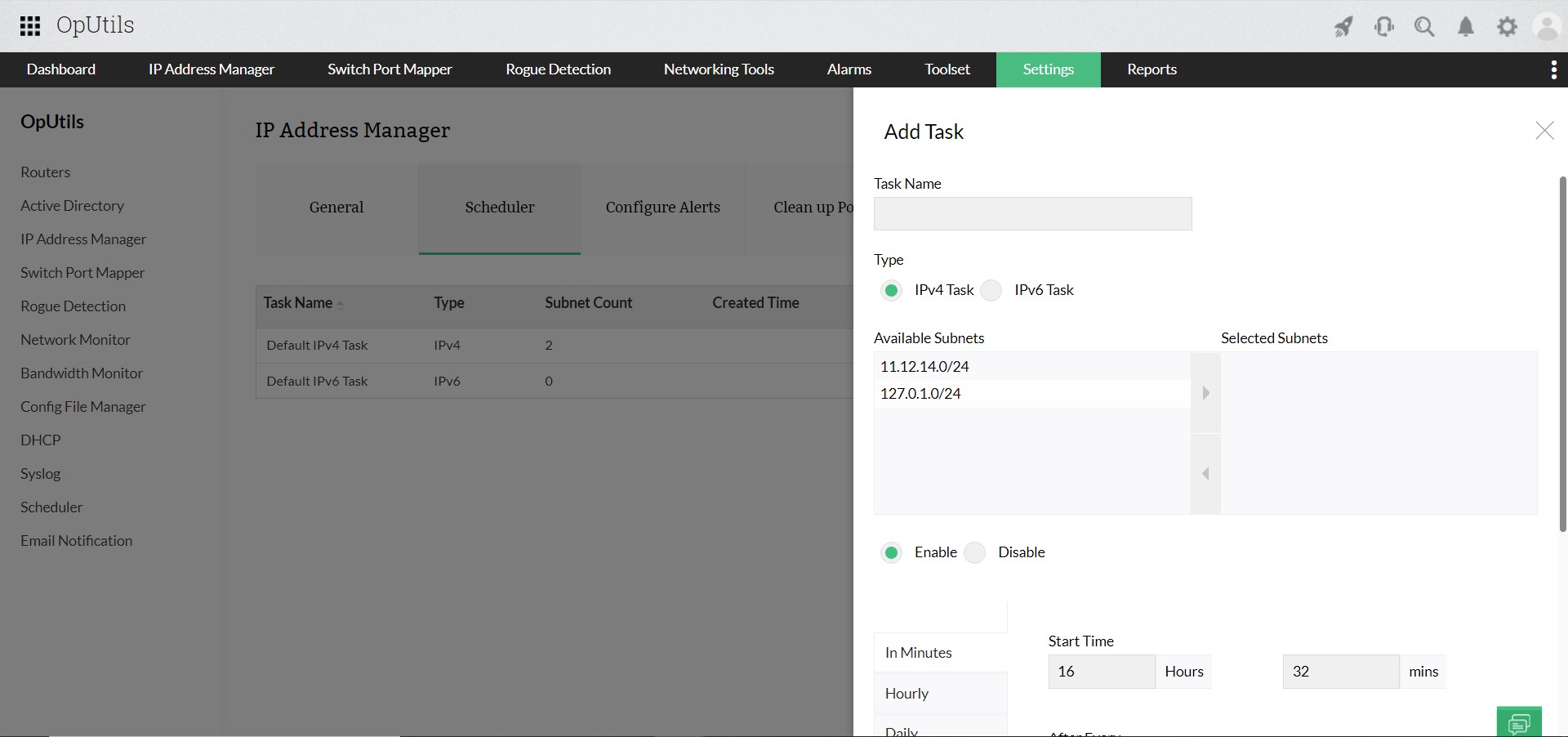
- Proactive subnet scanning: Continuously monitors IPv4/IPv6 subnets to detect duplicate IPs before users report issues.
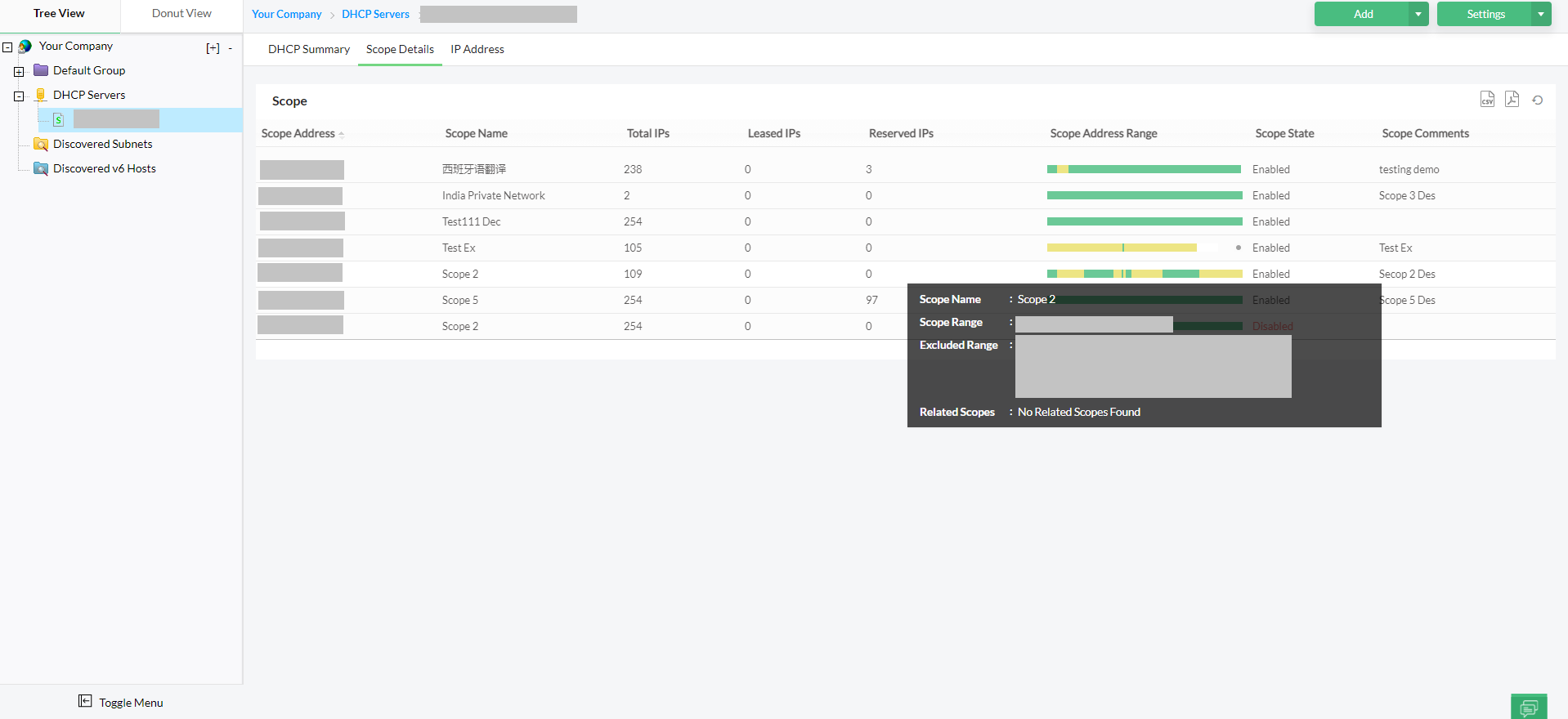
- Real-time DHCP and ARP tracking: Correlates DHCP leases with ARP entries to quickly pinpoint conflicting devices.
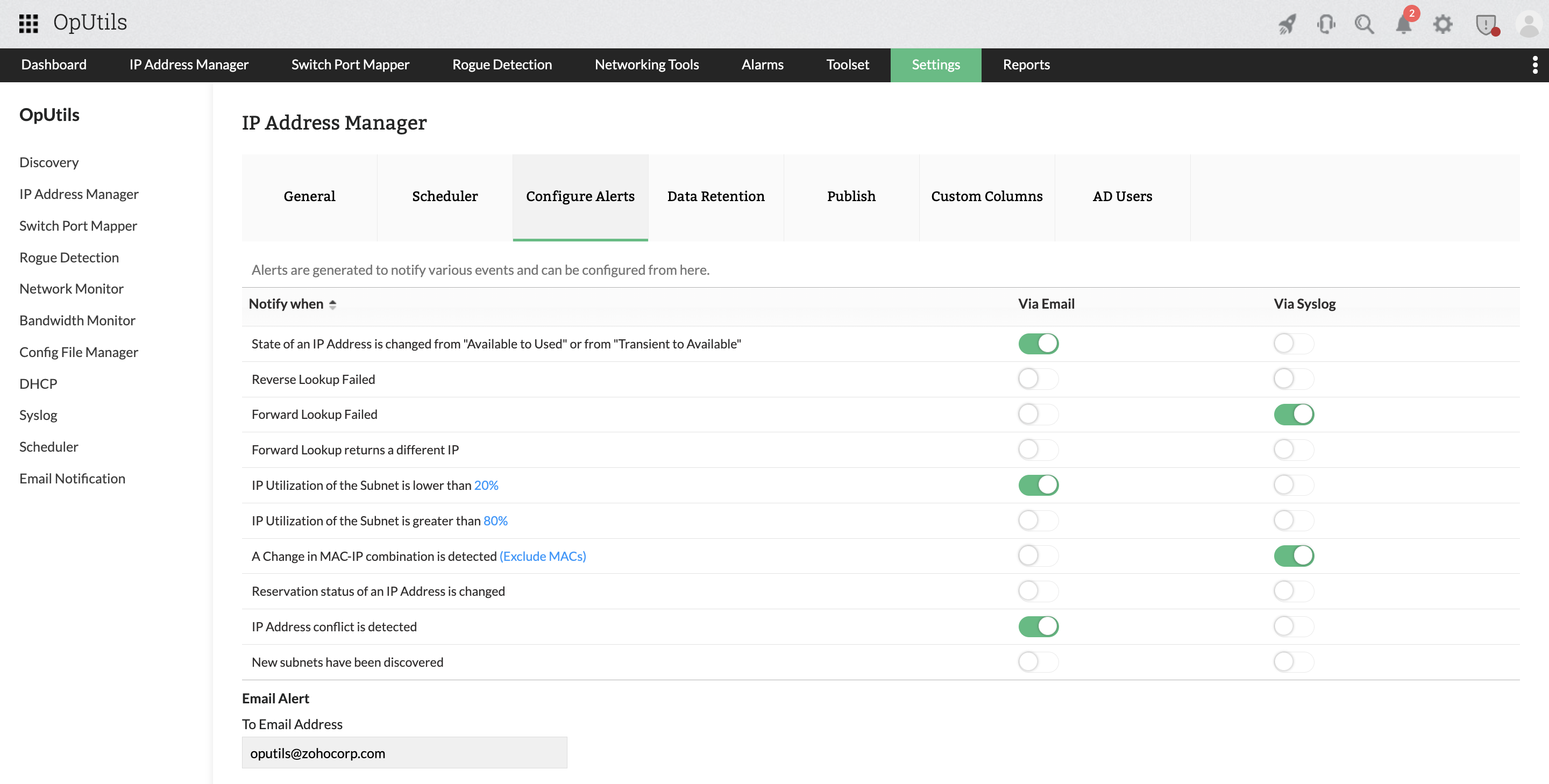
- Duplicate and rogue device alerts: Instantly notifies admins of unauthorized or overlapping IP usage for faster resolution.
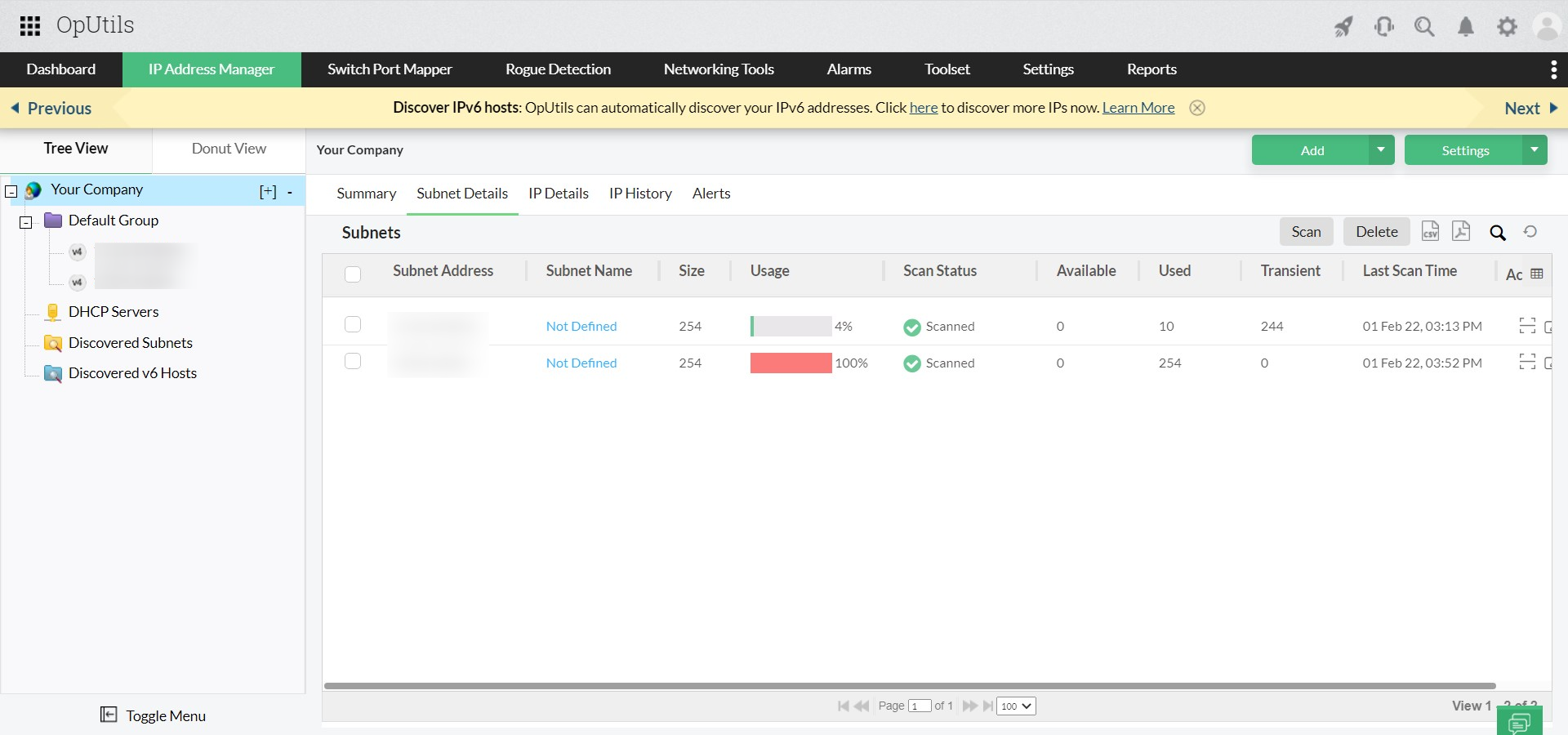
- Integrated IPAM module: Centralizes IP address management so teams can prevent repeat conflicts instead of firefighting the same issues.
Spending a little time on proper documentation and automated tools like IPAM and ARP monitoring can save hours of repeated troubleshooting and help keep your business services running without unnecessary downtime.
Try OpUtils for free for the next 30 days or schedule a free personalized demo and we will connect you with the right product expert.
FAQs on troubleshooting IP address conflicts
Can printers or other static devices cause IP conflicts?
Yes. Devices with manually assigned IPs, especially printers, often cause conflicts if their IP falls within the DHCP range. Best practice is to use DHCP reservations or exclude static IPs from DHCP scopes.
Can VPN or mobile devices trigger IP conflicts?
- VPN clients: May overlap remote and corporate subnets, leading to duplicate IPs.
- Mobile devices: High churn in BYOD networks or short DHCP leases can cause transient duplicates.
How do cloud networks contribute to IP conflicts?
Connecting VPCs, peering cloud subnets, or linking on-prem networks without unique CIDR blocks can result in overlapping IP addresses and routing conflicts. Proper CIDR planning or NAT can prevent this.
Why do IP conflicts keep recurring in my network?
Recurring conflicts usually indicate gaps in IP management, lack of centralized DHCP/DNS control, or overlapping subnets in hybrid and cloud environments. Implementing IPAM, ARP monitoring, and proper documentation can help eliminate recurring issues.
How can an IPAM tool like OpUtils help with conflicts?
OpUtils automatically scans IPv4/IPv6 subnets, tracks DHCP leases, monitors ARP tables, and alerts on duplicates and rogue devices. This shifts network management from reactive troubleshooting to proactive prevention, reducing repeated IP conflicts and downtime.
Stop wasting time on recurring IP conflicts. Detect, resolve, and prevent them with OpUtils
Try OpUtils for free today