Pricing  Get Quote


How to remove CAPTCHA from the ADSelfService Plus portal?

ADSelfService Plus supports CAPTCHA for securing access to the product portal from automated bots. Administrators can disable CAPTCHA for the ADSelfService Plus portal's login screen, self-service password reset and account unlock, web-based password change, or MFA, if required.
To disable CAPTCHA from the ADSelfService Plus login page:

  1. Login to the ADSelfService Plus portal with admin credentials.
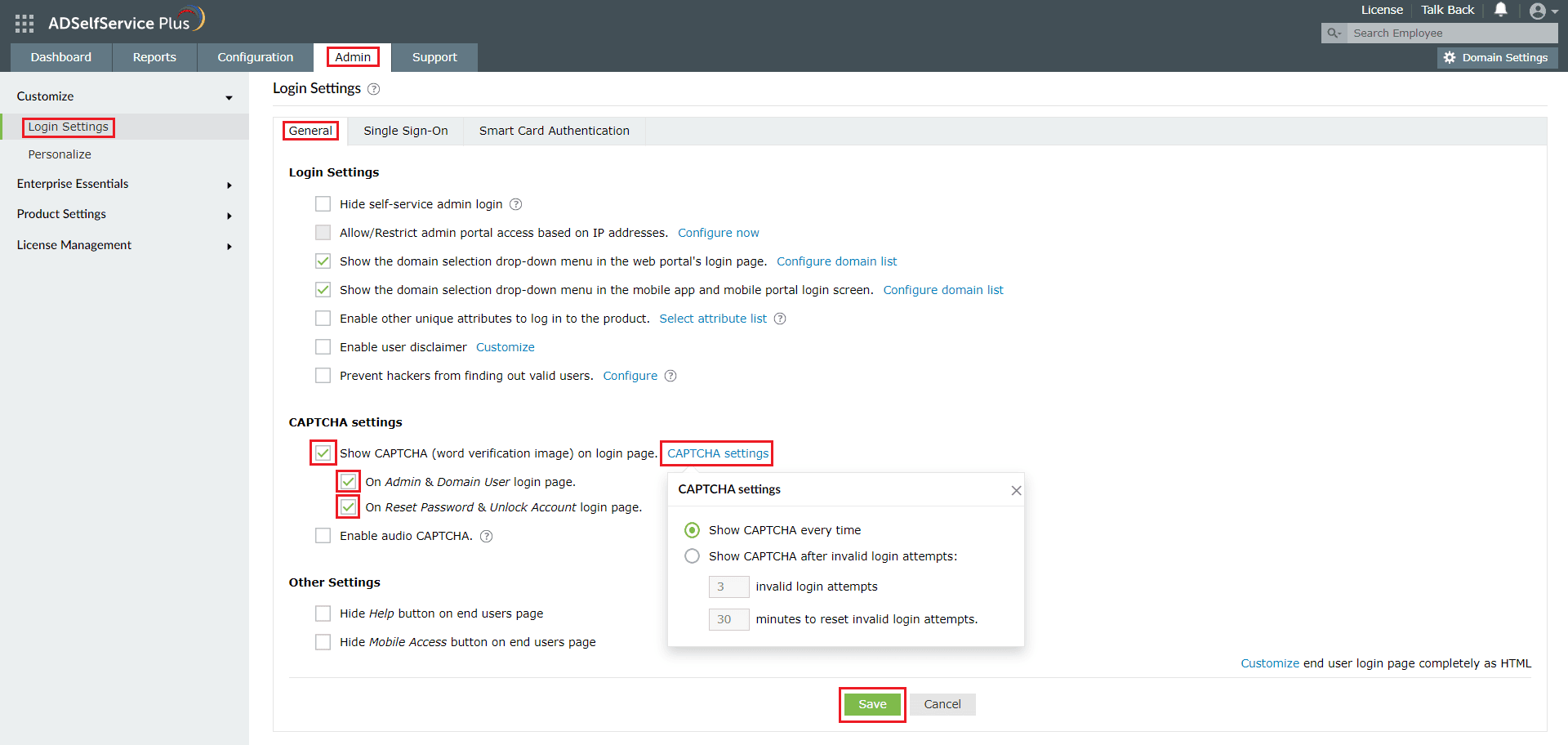
  2. Navigate to Admin > Customize > Login Settings > CAPTCHA settings
  3. Under the Show CAPTCHA (word verification image) on login page setting, disableany of the followingcheckboxes as required:
    1. On Admin & Domain User login page : This disables CAPTCHA during logins into the ADSelfService Plus
    2. On Reset Password & Unlock Account login page : This disables CAPTCHA during the first level of authentication for self-service password reset and account unlock.
  4. Click on CAPTCHA settings to access and enable advanced settings like Show CAPTCHA every time and Show CAPTCHA after invalid login attempt.
  5. Click Save.

To disable CAPTCHA from the ADSelfService Plus login

To disable CAPTCHA for self-service password reset and account unlock, and web-based password change:

  1. Login to the ADSelfService Plus portal with admin credentials.
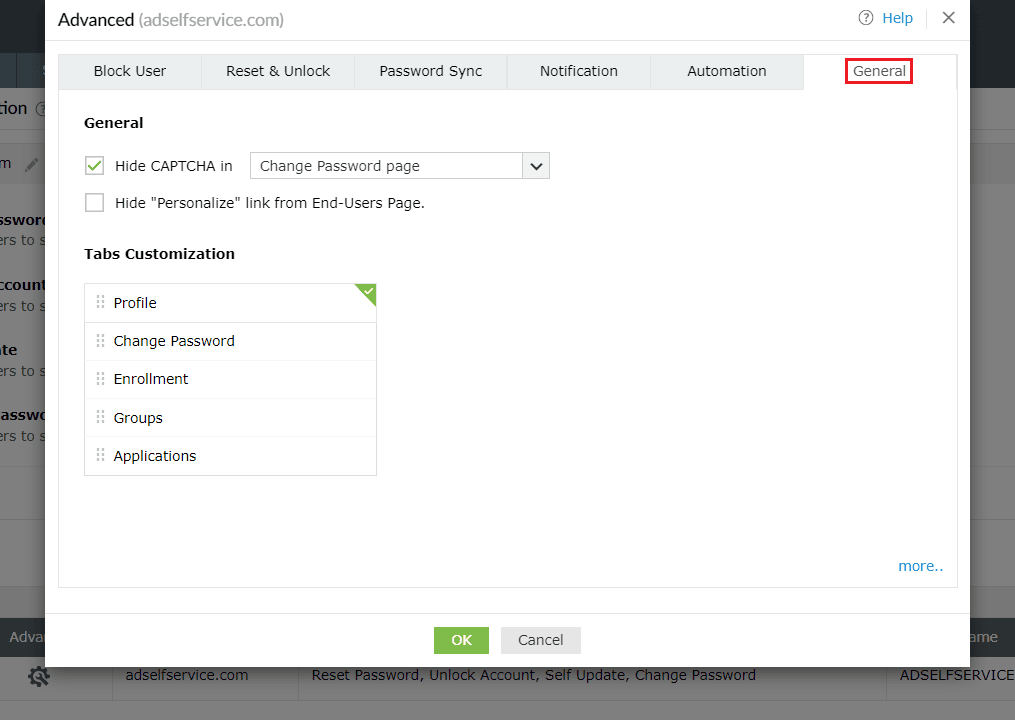
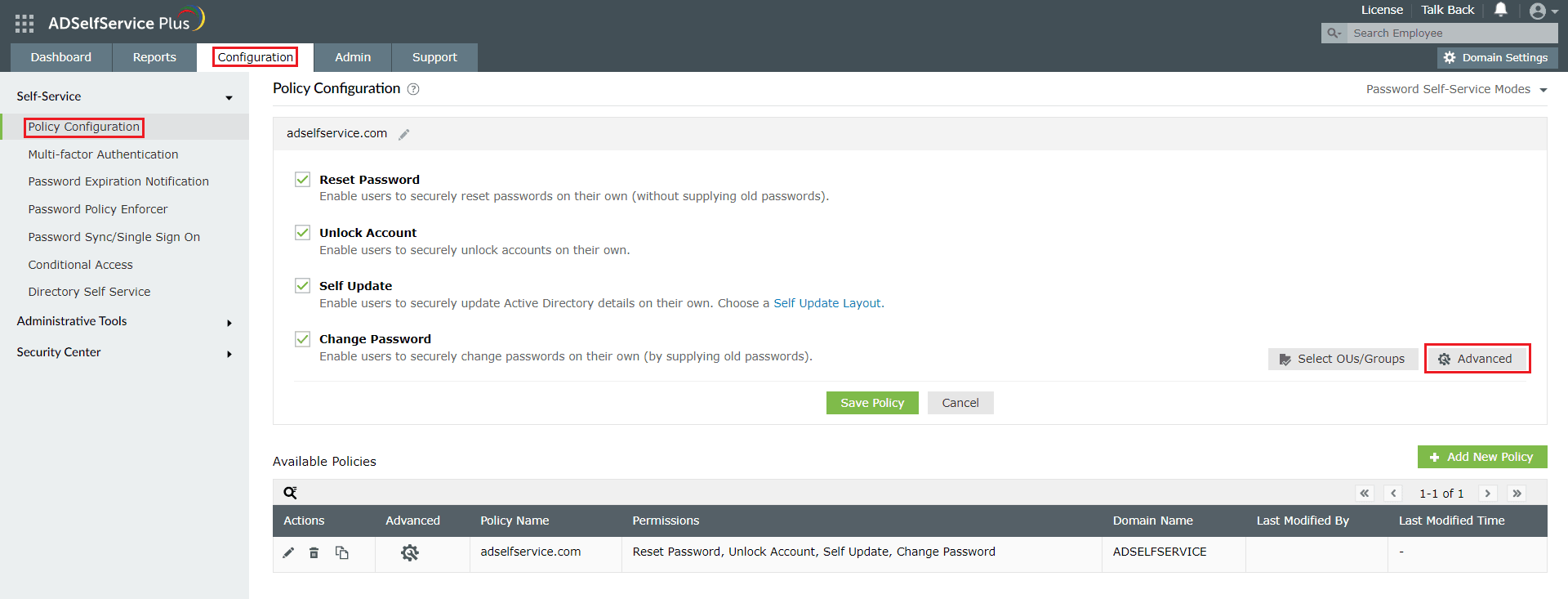
  2. Navigate to Configuration > Policy Configuration > Advanced > General .
  3. Use the Hide CAPTCHA in drop-down to select the action you want to disable CAPTCHA for.

    To disable CAPTCHA for self-service password reset and account unlock

  4. Click OK.

    To disable CAPTCHA for self-service password reset and account unlock

  5. Click Save Policy.

To disable CAPTCHA during specific authentication methods

  1. Login to the ADSelfService Plus portal with admin credentials.
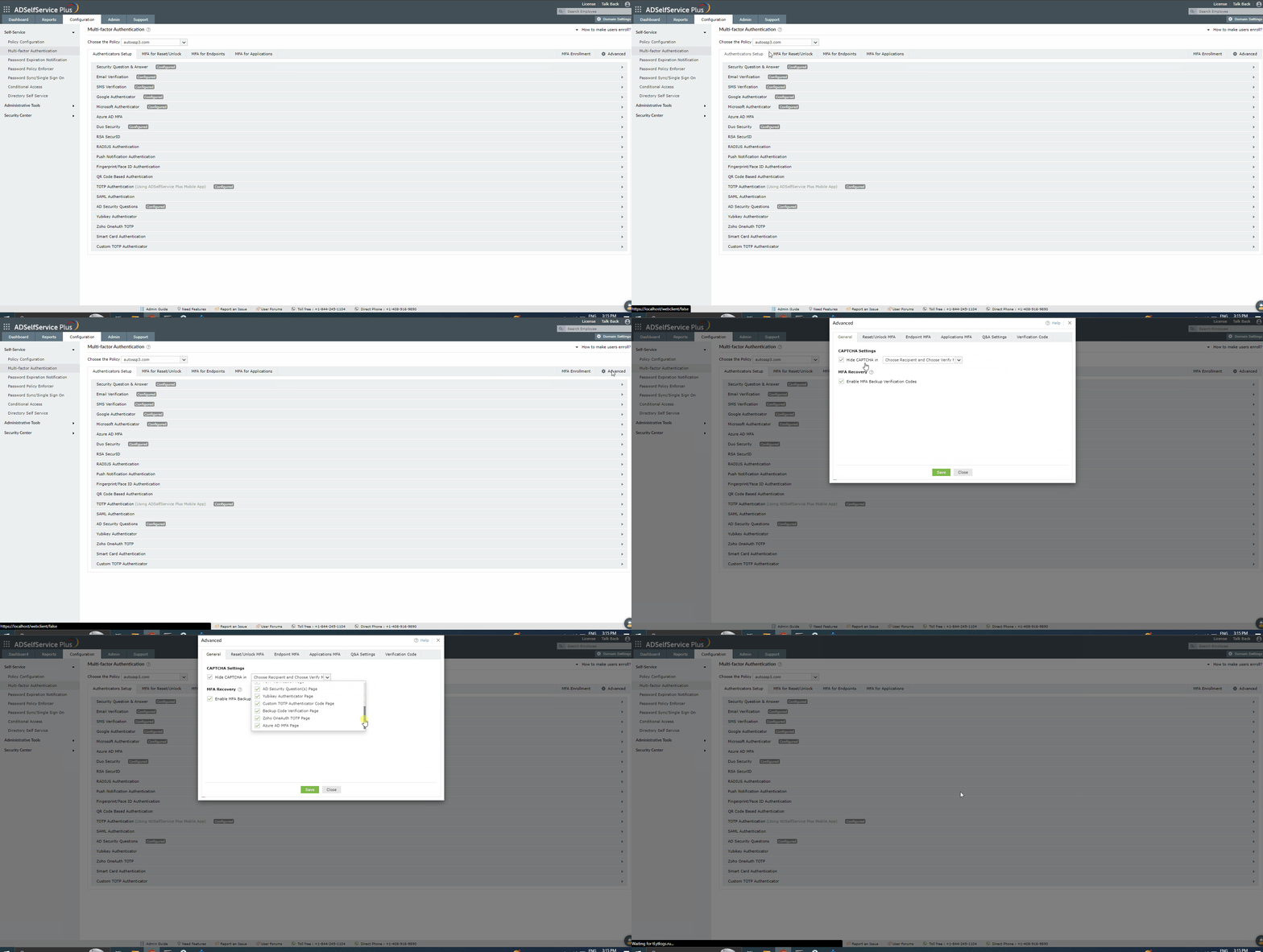
  2. Navigate to Configuration > Multi-Factor Authentication > Advanced .
  3. Go to the General tab. Under CAPTCHA Settings , select the Hide CAPTCHA in _ checkbox, and in the drop-down box, select the specific authentication methods that don't require CAPTCHA.

To disable CAPTCHA for self-service password reset and account unlock

If CAPTCHA is disabled, users will only be authenticated by their username, password, and enrolled authenticators. It is recommended that CAPTCHA is retained as part of the authentication process as they ensure that malicious bots aren't accessing the portal and filling in the fields provided.

Request for Support

Need further assistance? Fill this form, and we'll contact you rightaway.

  • Name
  •  
  • Business Email *
  •  
  • Phone *
  •  
  • Problem Description *
  •  
  • Country
  •  
  • By clicking 'Submit' you agree to processing of personal data according to the Privacy Policy.
Highlights of ADSelfService Plus

Password self-service

Allow Active Directory users to self-service their password resets and account unlock tasks, freeing them from lengthy help desk calls.

One identity with single sign-on

Get seamless one-click access to 100+ cloud applications. With enterprise single sign-on, users can access all their cloud applications using their Active Directory credentials.

Password and account expiry notification

Intimate Active Directory users of their impending password and account expiry via email and SMS notifications.

Password synchronization

Synchronize Windows Active Directory user passwords and account changes across multiple systems automatically, including Microsoft 365, Google Workspace, IBM iSeries, and more.

Password policy enforcer

Strong passwords resist various hacking threats. Enforce Active Directory users to adhere to compliant passwords by displaying password complexity requirements.

Directory self-update and corporate directory search

Enable Active Directory users to update their latest information themselves. Quick search features help admins scout for information using search keys like contact numbers.


ADSelfService Plus trusted by

Embark on a journey towards identity security and Zero Trust