Important :
We recommend users to move to the latest version, ServiceDesk Plus build released on
 TAA-compliant solution TAA-compliant solutionMigrate from Build Customers using build 14840, ..., 14990can install this Service pack for migrating to the latest build to address the listed issues. SHA256 Value SHA256 Value Skip the forced backup Entry: -DSkipForcedBackUp_15100=true
| Migrate from Build Customers using build 15100, .., 15150can install this Service pack for migrating to the latest build to address the listed issues. The correct patch name for the 15130 servicepack is  SHA256 Value 55265970886a8789681551fc2387a96c7711546c6d568110b88de5e5ee3af861 Skip the forced backup Entry: -DSkipForcedBackUp_15200=true
| Customers using build can install this Service pack for migrating to the latest build to address the listed issues. The correct patch name for the 15130 servicepack is SHA256 Value c85237ac7d3a65f9ab8939820b6281fe41bb06a69c082d145590e4a44518af46 Skip the forced backup Entry: -DSkipForcedBackUp_16010=true
|
Windows
For ex :-Xmx2512m %JAVA_OPTS% -Dtier-type=BE Linux
For ex :$JAVA -Xmx2512m $JAVA_OPTS -Dtier-type=BE | ||


Important Note
If you are using an earlier build, follow the migration sequenceto upgrade to the latest version
Check out what is coming in future releases: Major Releases
Instructions to apply the Service Pack in Windows
Follow the instructions given below to upgrade ServiceDesk Plus in Windows.
Step 1:Stop the ManageEngine ServiceDesk service.
Step 2:Take a backup of the existing build for security reasons.
From command prompt, move to [ServiceDesk Plus-Home]\bin directory and execute backUpData.bat. This will start the backup process.
cmd> [ServiceDesk Plus Home]\bin
cmd> backUpData.bat
where, ServiceDesk Plus Home -> C:\ManageEngine\ServiceDesk
NOTE:
- Taking a backup is essential to revert to the existing build without any loss of data if the upgrade fails due to unexpected reasons. The backup is stored under Backup folder in [ServiceDesk Plus Home] directory.
- In Virtual Machines, you can take a snapshot of the machine to revert to the existing version in case of migration failure.
- In MSSQL setups where the application and the MSSQL server are hosted in two different Virtual Machines, you must take a snapshot of both machines to avoid potential data loss.
- In MSSQL setups, you can take a backup using the SQL server studio and save it as a .bak file. Attachments throughout the application will not be included in this type of backup.
Step 3:Download the .ppm file from the link
Step 4:Go to [ServiceDesk Plus Home]\bin and execute the file UpdateManager.bat.In the displayed pop up, click Browseand select the downloaded hotfix/PPM file.
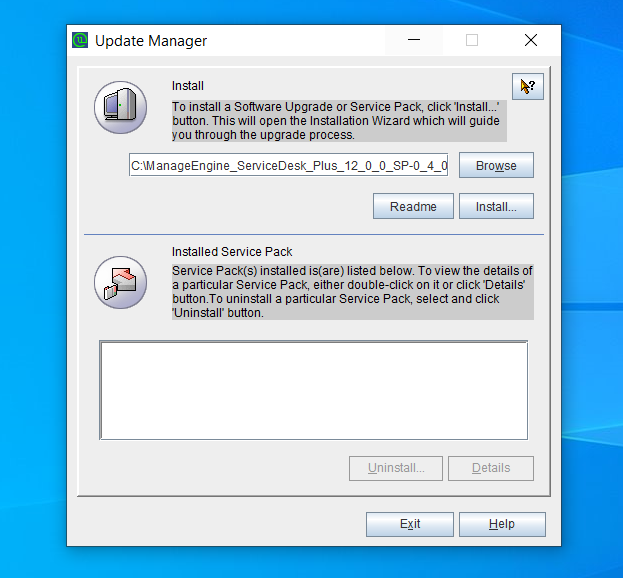
Step 5:Click Installto start the installation process. If you are upgrading to version 12004 or above, the import certificate dialog box appears as given below:
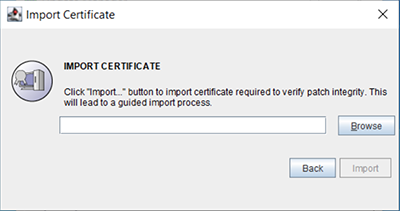
Click hereto download the certificate.
Step 6:Click Browseand locate the certificate.
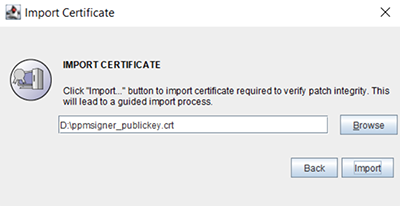
Step 7:Click Import. Follow the on-screen instructions and continue the upgrade process.
NOTE: This is a one-time process and the certificate will be automatically applied during future upgrades.
Click hereto find the Instructions to apply the Service Pack/Hotfix in Linux.
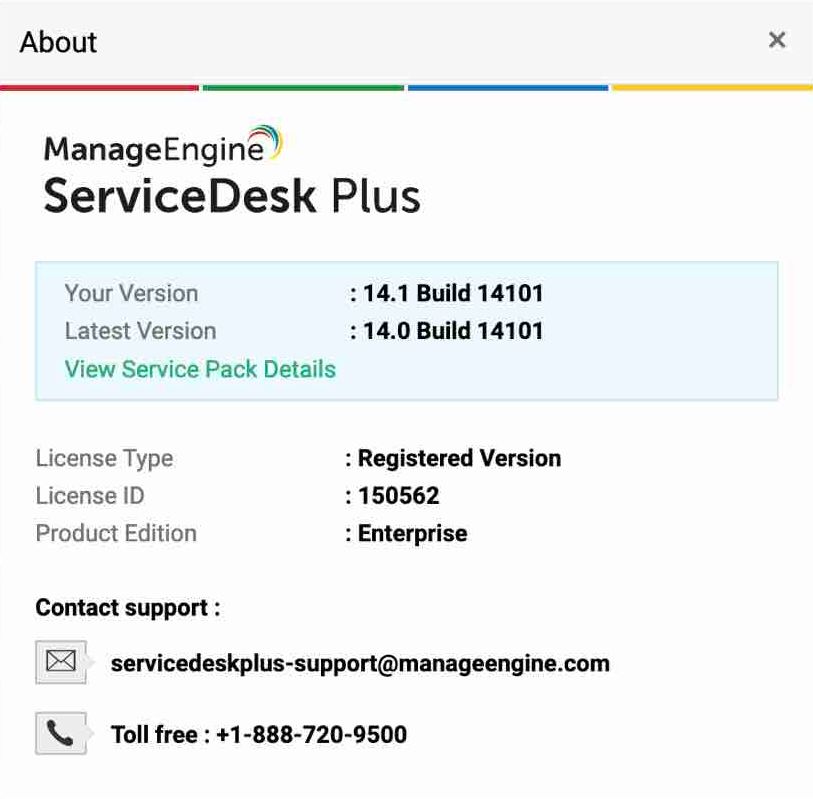
How can I find the Build Number of ServiceDesk Plus?
- In the ServiceDesk Plus web client, click the"About" link on top right of the page.
- You should see the Build number mentioned on the top right of the page.
- Check the following image guide to locate the build number.

Any Issues During Upgrade?
Click herefor Help