MFA Enrollment in Identity360
Multi-factor authentication (MFA) adds a second identity check to your sign-in, so a stolen or guessed password alone is not enough to reach your account. In Identity360, you enroll your MFA methods in the User Portal, and Identity360 then asks you to confirm your identity with one of them whenever verification is required. The methods you enroll apply to cloud sign-in and, if your organization uses Identity Access, to the computers and endpoints it protects. This guide shows you how to enroll your methods, set up a recovery option, and manage the methods you have enrolled.
How it works
Your administrator decides which methods you can use and how your enrollment begins. You might receive an enrollment link in an email notification, see an enrollment window when you sign in to a Windows computer, or be enrolled in bulk by your administrator. In every case, you finish setting up your methods in the User Portal, via the MFA Enrollment tab. After a method is enrolled, Identity360 offers it as a way to verify your identity whenever MFA is required, across cloud sign-in and any devices protected by Identity Access.
Enrolling your MFA methods
Open the MFA Enrollment page
- Log in to Identity360.
- Click the profile icon in the top-right corner, then select User Portal.
- Select the MFA Enrollment tab. Your enrolled methods will appear under Enrolled MFA Methods, and recovery options under Recovery Methods.
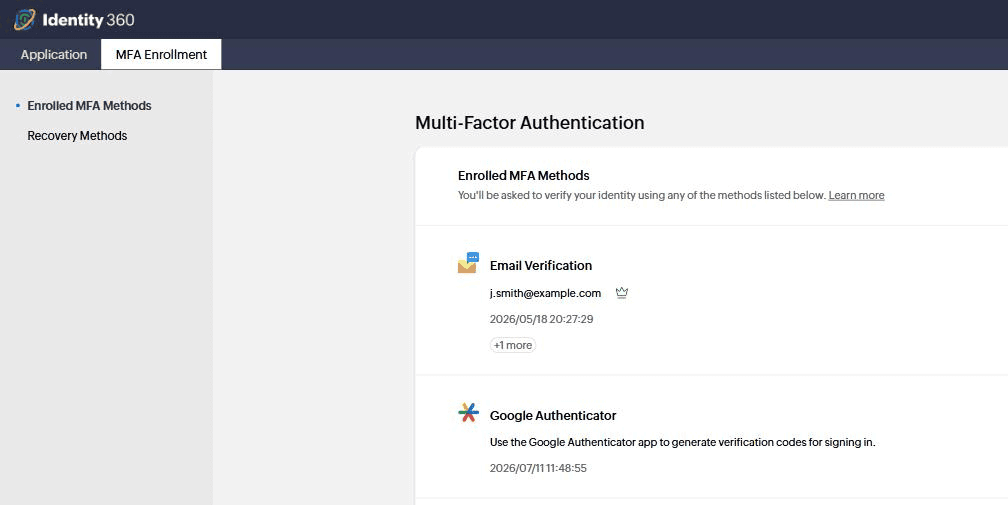
Enroll a method
Enrollment follows the same pattern for most methods:
- Under the MFA Enrollment tab, select the method you want to set up.
- Follow the on-screen prompts, such as scanning a QR code or entering a code sent to you.
- Complete the verification to finish. The method will appear under Enrolled MFA Methods with the date it was enrolled.
The exact methods you see depend on what your administrator has enabled:
- Email Verification: Enrolled automatically on your primary email address. To add a secondary address, click Edit, then Add Email.
- Google Authenticator, Microsoft Authenticator, or Zoho OneAuth: Select the method, scan the QR code with the authenticator app, and enter the generated code.
- SMS Verification: Select the method, enter your mobile number including its country code, and enter the code sent by text.
- Custom TOTP authenticator: Select the method, scan the QR code or enter the setup key in your custom TOTP app, and enter the generated code.
- Passkeys: Select the method, then follow the prompt to create a passkey with Windows Hello, Touch ID, Face ID, a device PIN, or a security key.
- Duo: Select the method and follow the prompts to link your Duo account.
Set up a recovery option
Set up a recovery option so you can verify your identity even when your usual method is unavailable.
- Click Recovery Methods.
- Click Backup Verification Code, then View to generate your one-time codes.
- Store the codes somewhere safe, and use one when your primary method is not reachable.
Manage your enrolled methods
To change or remove a method, click Edit on its card, then choose Modify to update it or Disenroll to remove it. You can also add a secondary email address or mobile number where your organization allows it.
My Devices
The My Devices section lists the computers and endpoints you have been linked to, or registered for Offline MFA. Offline MFA lets you verify your identity on a device even when it cannot reach the Identity360 server, such as when you are off the network. Each device you enroll from appears here automatically.
Each device entry shows:
- Device name: the hostname of the computer, with an icon for its operating system (Windows, macOS, or Linux).
- IP: the IP address the device last connected from.
- Last Access Time: when the device was last used to verify your identity.
- Offline MFA: whether Offline MFA is currently enabled for that device.
Use the Search box to find a specific device by name when the list is long. Select Learn more for more detail on how Offline MFA works.
To remove a device, hover over its entry and click Disenroll. Disenrolling unlinks the device and turns off Offline MFA for it.
Tips
- Enroll more than one method so you always have a backup way to verify your identity.
- Keep your authenticator app's time in sync with your device so that time-based codes are accepted.