

- Overview
- Configuration
Monday.com
Optimize Workforce Management with Replicon - ADManager Plus Integration
Integrating Monday.com with ADManager Plus enables seamless automation of user management tasks, enhancing collaboration and security across your organization. This integration helps in synchronizing user accounts, managing access, and streamlining administrative tasks directly from within Monday.com. IT administrators can now manage employee access more efficiently, ensuring that user records are accurate and up-to-date.
Simplified task delegation and tracking
Streamline task delegation by automating the assignment process based on employee roles and access levels.
Seamless synchronization of employee data
Facilitate the seamless synchronization of employee data by automatically updating user information across both platforms.
Increased organizational productivity
Increase organizational productivity by automating administrative tasks, ensuring efficient resource allocation, and providing clear visibility into project progress and employee performance.
How to integrate ADManager Plus and monday.com
- Log in to ADManager Plus and navigate to Directory/Application Settings.
- Go to Application Integrations, then search and select monday.com.
- Toggle the Enable monday.com integration button on.
- In the Authorization section, paste the API Key generated in monday.com in the Value field.
- Click Configure.
Inbound webhook configuration
Inbound webhook enables you to fetch user data from Monday.com to ADManager Plus. The attribute mapping configured in this section can be selected as the data source during automation configuration to perform the desired action on the list of users received from the API response. To configure an inbound webhook for Monday.com:
- Under Inbound Webhook, click Monday.com Endpoint Configuration.
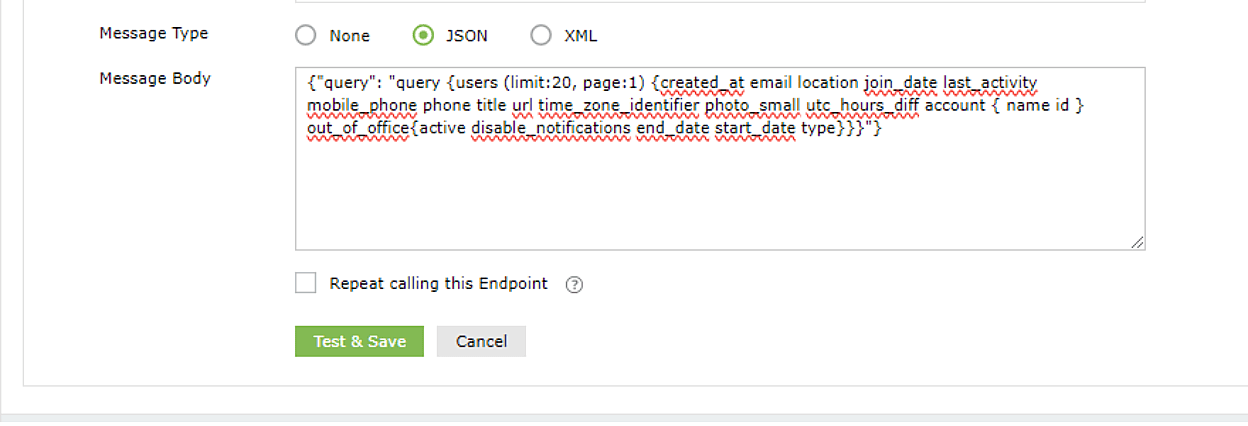
- In the Endpoint Configuration tab, an endpoint, Monday.com USERS ENDPOINT, comes preconfigured with an Endpoint URL, API Method, Headers, and Parameters fields to fetch user accounts from Monday.com. In the API Endpoint Configuration section, modify the Body Message to suit your needs.
- Once done, click Test & Save. A response window will display all the responses. Click Proceed.
- Click Data Source - LDAP Attribute Mapping to match endpoints and to map AD LDAP attributes with the respective attributes in monday.com.
[ADManager Plus also lets you customize attribute format from monday.com]
- Click + Add New Configuration and perform the following:
- Enter the Configuration Name and Description and select the Automation Category from the drop-down menu.
- In the Select Endpoint field, select the desired endpoint and a Primary Key that is unique to a user (e.g. employeeIdentifier). Note: When multiple endpoints are configured, this attribute must hold the same value in all the endpoints.
- In the Attribute Mapping field, select the attribute from the LDAP Attribute Name drop-down menu and map it with the respective column in Monday.com.
- If you would like to create a new custom format for this, click Mapping Attribute.
- Click Save.
- Configure an automation with the required action, repeat frequency, and the above configured attribute mapping configuration.
Outbound webhook configuration
Outbound webhook enables you to update the changes made in AD using ADManager Plus to Monday.com and synchronize them with AD. To configure an outbound webhook for Monday.com:
- Under Outbound Webhook, click Monday.com Webhook Configuration.
- Click + Add Webhook.
- Enter a name and description for this webhook.
- Decide on the action that has to be performed and refer to monday.com's API references for the API details, such as the URL, headers, parameters, and other requirements that will be needed.
- Select the HTTP method that will enable you to perform the desired action on the endpoint from the drop-down menu.
- Enter the endpoint URL.
- Configure the Headers, Parameters, and Body Message in the appropriate format based on the API call that you would like to perform.
- Click Test and Save.
- A pop up window will then display a list of AD users and groups to test the configured API call. Select the desired user or group over which this API request has to be tested and click OK. This will make a real-time call to the endpoint URL, and the selected objects will be modifiedmas per the configuration.
- The webhook response and request details will then be displayed. Verify them for the expected API behavior and click Save.
- The configured webhooks can be integrated into Orchestration Templates—enabling scheduled or event-driven automation—to consecutively perform the action configured in the outbound webhook among of actions on a group of users or on individual users. Note: Use macros to send the data of the object on which the webhook is executed.