Troubleshooting Exchange Online backup issues
The following errors might occur when backing up Exchange Online mailboxes and configuring related settings. Refer to the troubleshooting guide below to resolve these errors.
The remote server returned an error: (401) Unauthorized
Cause: This error occurs when the certificate used for authentication has not been uploaded to the Microsoft Entra ID portal.
Resolution:
- Log in to the Microsoft Entra admin center.
- From the left pane, select Entra ID.
- Under the Manage section, click App registrations > All applications.
- Choose the application configured in RecoveryManager Plus.
- Click Certificates & secrets from the left pane.
- In the Certificates section, click Upload certificate, then upload the CER file used during the tenant configuration in RecoveryManager Plus.
The request failed with HTTP status 403
Cause: This error occurs when the required API permissions are not granted to the application.
Resolution:
Follow these steps. If the issue persists, contact support@recoverymanagerplus.com.
Microsoft .NET version 4.8 or later must be installed
Cause: This error occurs during Exchange Online tenant configuration when the .NET Framework version in use is below 4.8.
Resolution:
- Upgrade to .NET version 4.8 or later.
- Once upgraded, restart the system and try performing the operations again.
Windows PowerShell 5.1 or later must be installed
Cause: This error occurs during Exchange Online tenant configuration when the PowerShell version in use is below 5.1.
Resolution:
- Upgrade to PowerShell version 5.1 or later.
- Once upgraded, restart the system and try performing the operations again.
The application client secret has expired
Cause: This issue occurs when the configured application client secret has expired.
Resolution: To resolve the issue, create a new client secret in the Microsoft Entra ID portal and update it in RecoveryManager Plus by following the steps below:
- Log in to the Microsoft Entra admin center.
- From the left pane, select Entra ID.
- Under the Manage section, click App registrations > All applications.
- Choose the application configured in RecoveryManager Plus.
- Click Certificates & secrets on the left pane.
- Select Client secrets and click + New client secret.
- Enter the description in the respective field, select the expiration period of the client secret, and click Add.
- Copy the client secret from the Value field by clicking the copy icon
 .
.
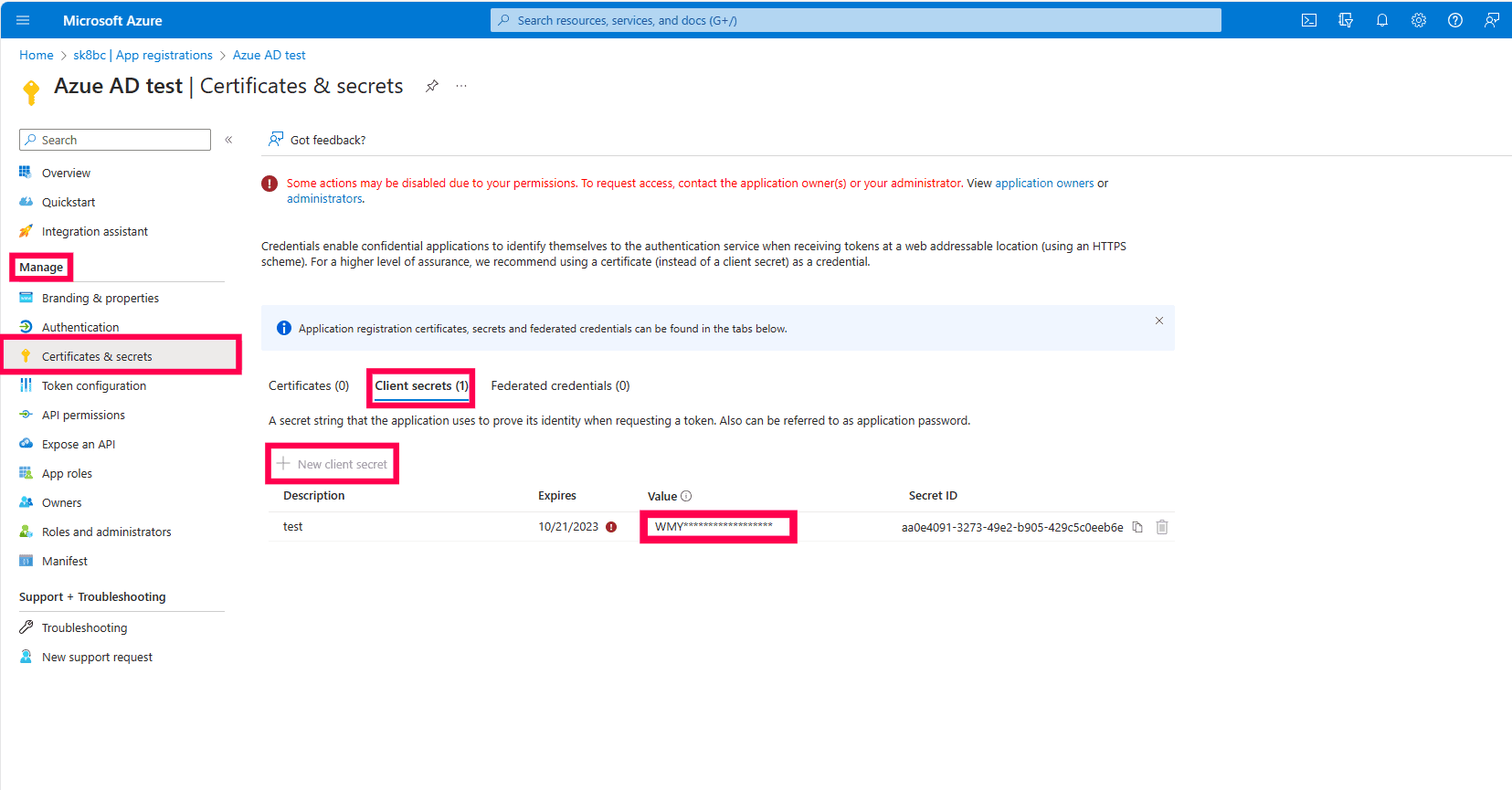
- Log in to RecoveryManager Plus and click Account Configuration in the top-right corner.
- Select Microsoft 365 Tenant, click the edit icon
 next to the relevant tenant, and enter the new client secret.
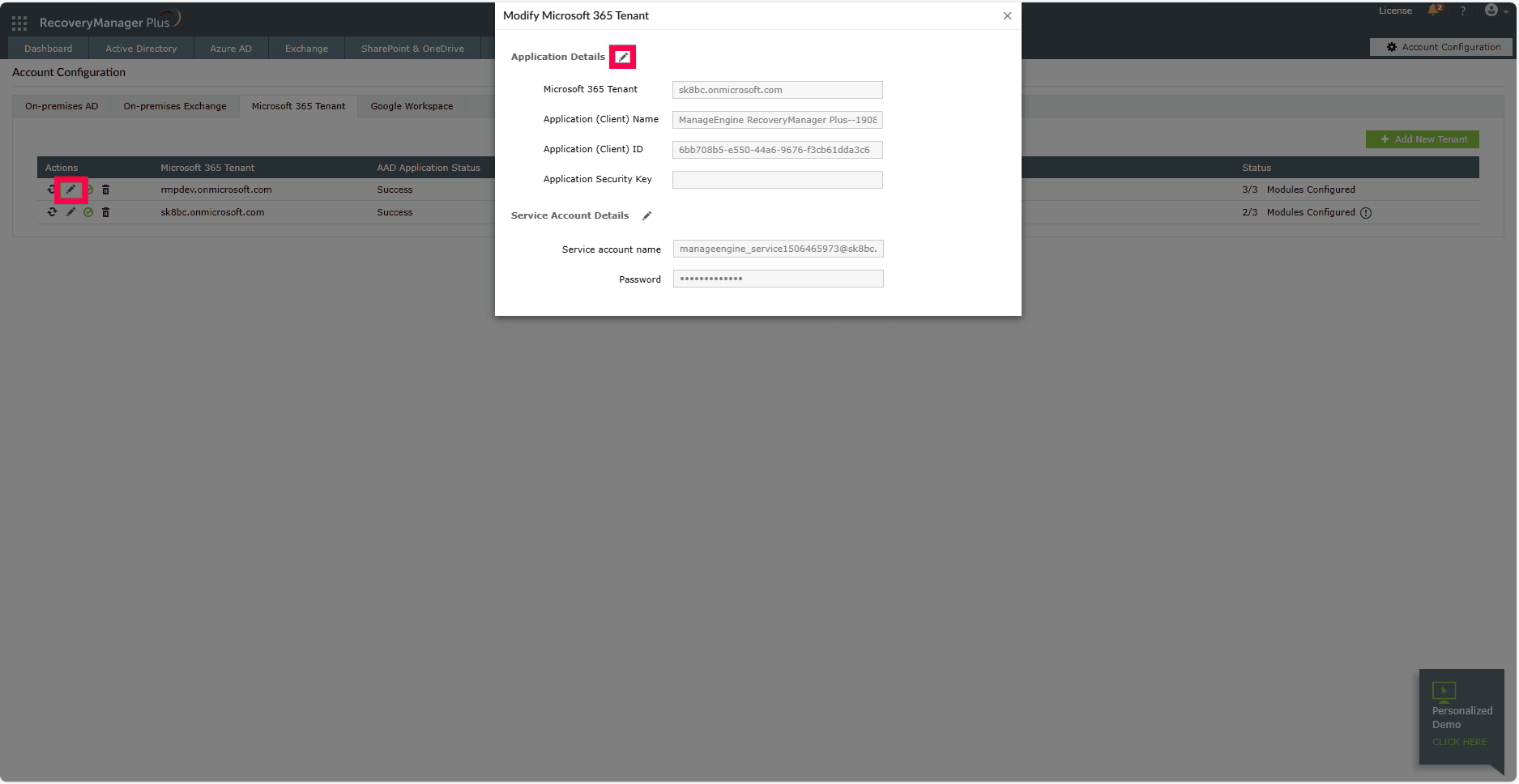
If the issue persists, contact support@recoverymanagerplus.com.
Exchange impersonation SOAP header must be present for this type of OAuth token
Cause: This error occurs when the owner of the group mailbox is not present in the organization.
Resolution: To resolve the issue, update the group owner in the Microsoft Entra ID portal by following the steps below:
- Log in to the Microsoft Entra ID admin center.
- Click Microsoft Entra ID and navigate to Manage > Groups > All groups.
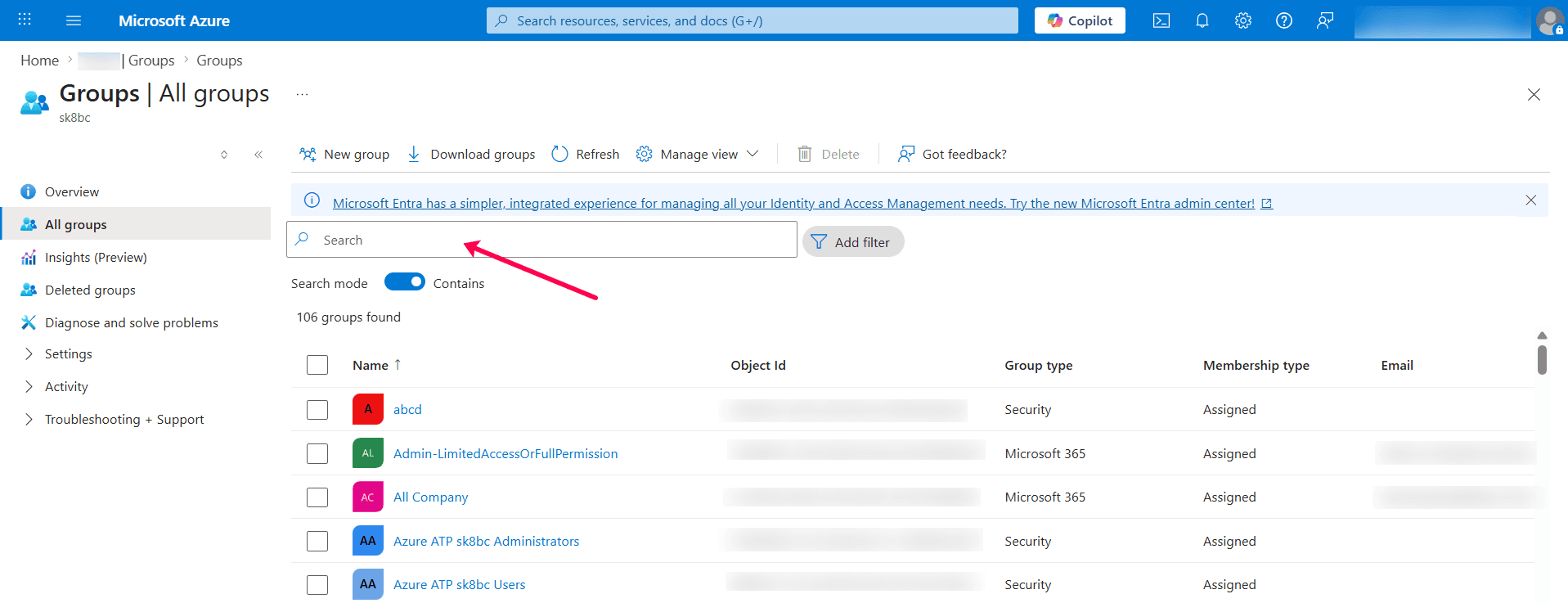
- Select the group to update the group owner.
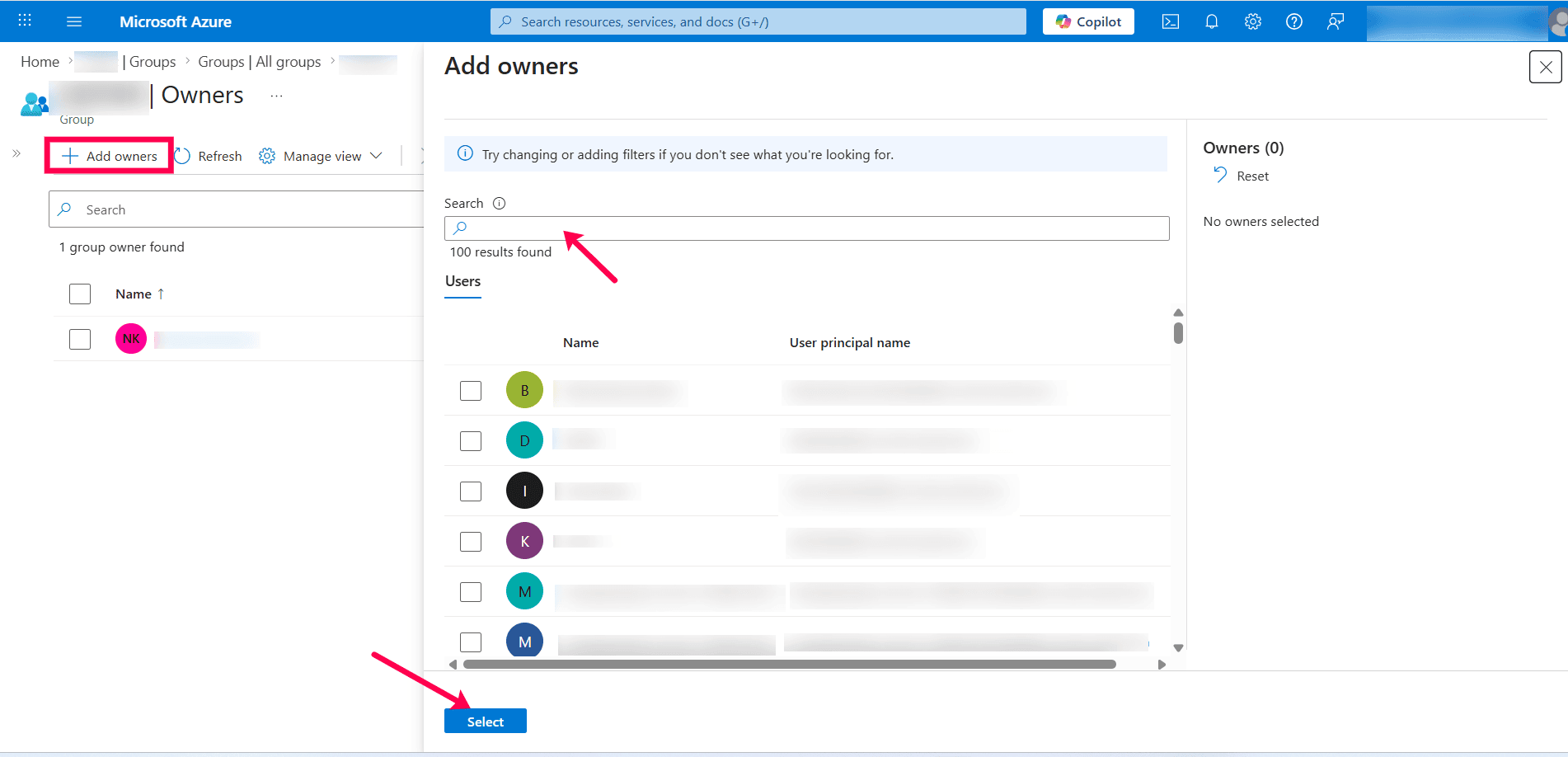
- Click View group owners.
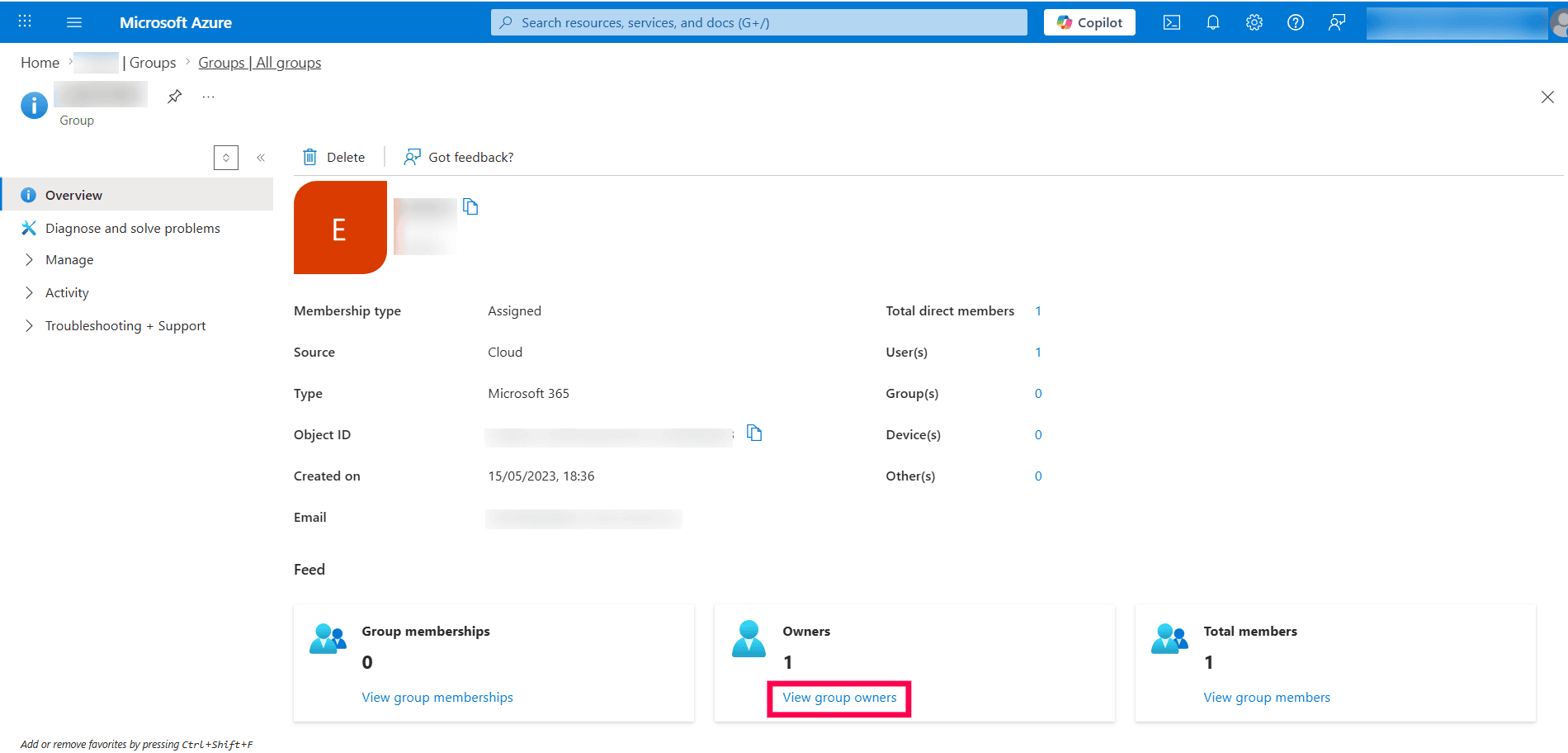
- Select Add owners and add a valid group owner.
Mailbox move in progress. Try again later. Cannot open mailbox
Cause: This error occurs when the mailbox is undergoing migration on Microsoft's end, such as during Exchange Online mailbox migrations or database move operations.
During these migrations, Microsoft may temporarily restrict access to the mailbox through APIs such as Exchange Web Services (EWS) to maintain data consistency and prevent conflicts while the mailbox is being moved between servers or databases.
As a result:
- The mailbox may be temporarily inaccessible.
- Backup or restore operations may fail during this time.
- API requests to access mailbox data may be blocked or return errors.
Resolution: Wait for the mailbox migration to complete and then retry the backup operation.
AADSTS50079: Due to a configuration change made by your administrator, or because you moved to a new location, you must enroll in multi-factor authentication to access '00000002-0000-0ff1-ce00-000000000000'
Cause: This error occurs when MFA is enforced for the account.
Resolution: Configure the application to bypass MFA.
The role assigned to this application is not supported in this scenario
Cause: The error occurs when the Microsoft Entra ID application does not have the required roles to perform the requested action.
Resolution
- Assign the appropriate Exchange administrator role to the app registration in Microsoft Entra ID.
- Refer to Microsoft's documentation for steps on assigning Microsoft Entra roles to the application.
The server cannot service this request right now. Try again later
Cause: This issue occurs due to EWS throttling policies enforced by Microsoft.
It may occur when:
- A high volume of requests is sent to Exchange within a short period.
- Multiple mailboxes are processed simultaneously.
- Resource-intensive or long-running operations are executed.
- Application thresholds such as concurrent connections, request rate, or CPU usage are exceeded.
When these limits are reached, the server may temporarily delay or block requests, resulting in this error.
Resolution:
- Retry the operation after some time, as throttling limits are typically temporary.
- Reduce the load by limiting the number of concurrent operations.
- Schedule backups during off-peak hours.
- Disable the EWS throttling policy in Exchange Online. Refer to this documentation for detailed steps.
The certificate with the identifier used to sign the client assertion is not registered on the application. [Reason - The key was not found. Thumbprint of key used by client: <client name>]
Cause:
- The required permissions or scopes have not been added, and admin consent has not been granted.
- The client secret or certificate may have expired.
- The certificate is not registered with the application.
Resolution: To resolve the issue, ensure the certificate is properly registered with the application and that the required permissions are granted by following the steps below:
- Log in to the Microsoft Entra admin center.
- From the left pane, select Entra ID.
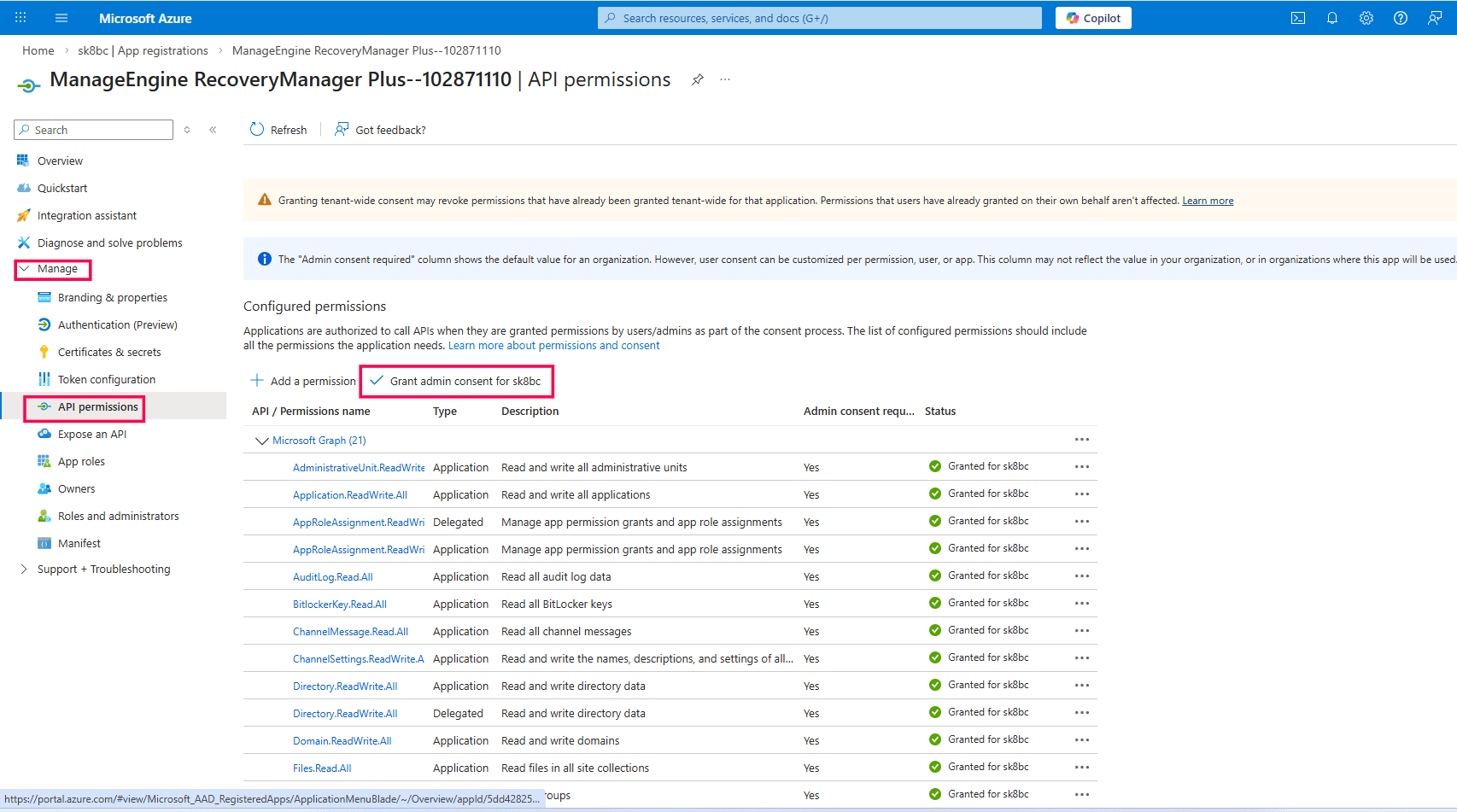
- Under the Manage section, click App registrations > All applications.
- Choose the application configured in RecoveryManager Plus.
- Click API Permissions on the left pane and make sure you Grant admin consent for the required API permissions.
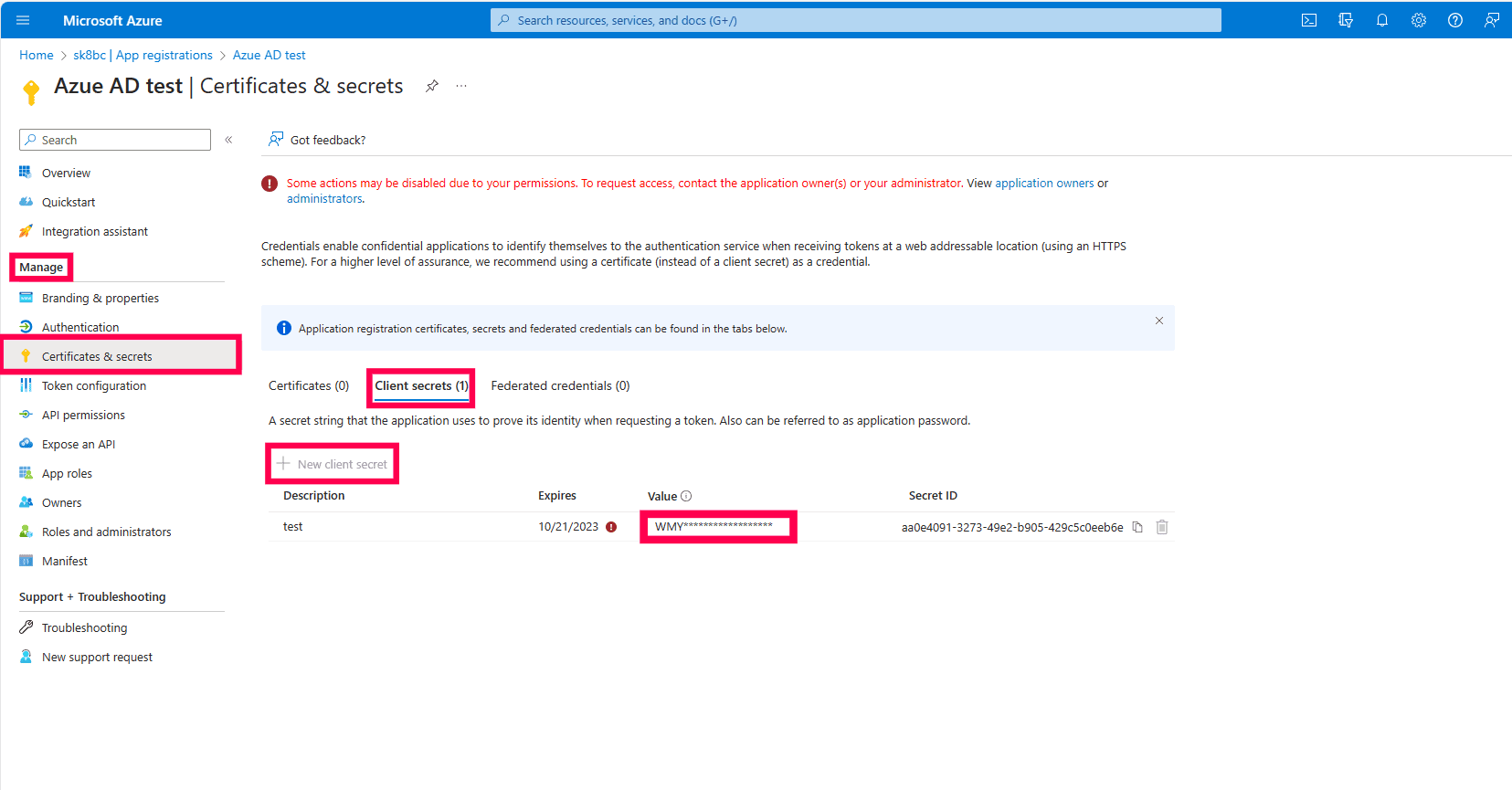
- Click Certificates & secrets on the left pane.
- Select Client secrets and click + New client secret.
- Enter the description in the respective field, select the expiration period of the client secret, and click Add.
- Copy the client secret from the Value field by clicking the copy icon .
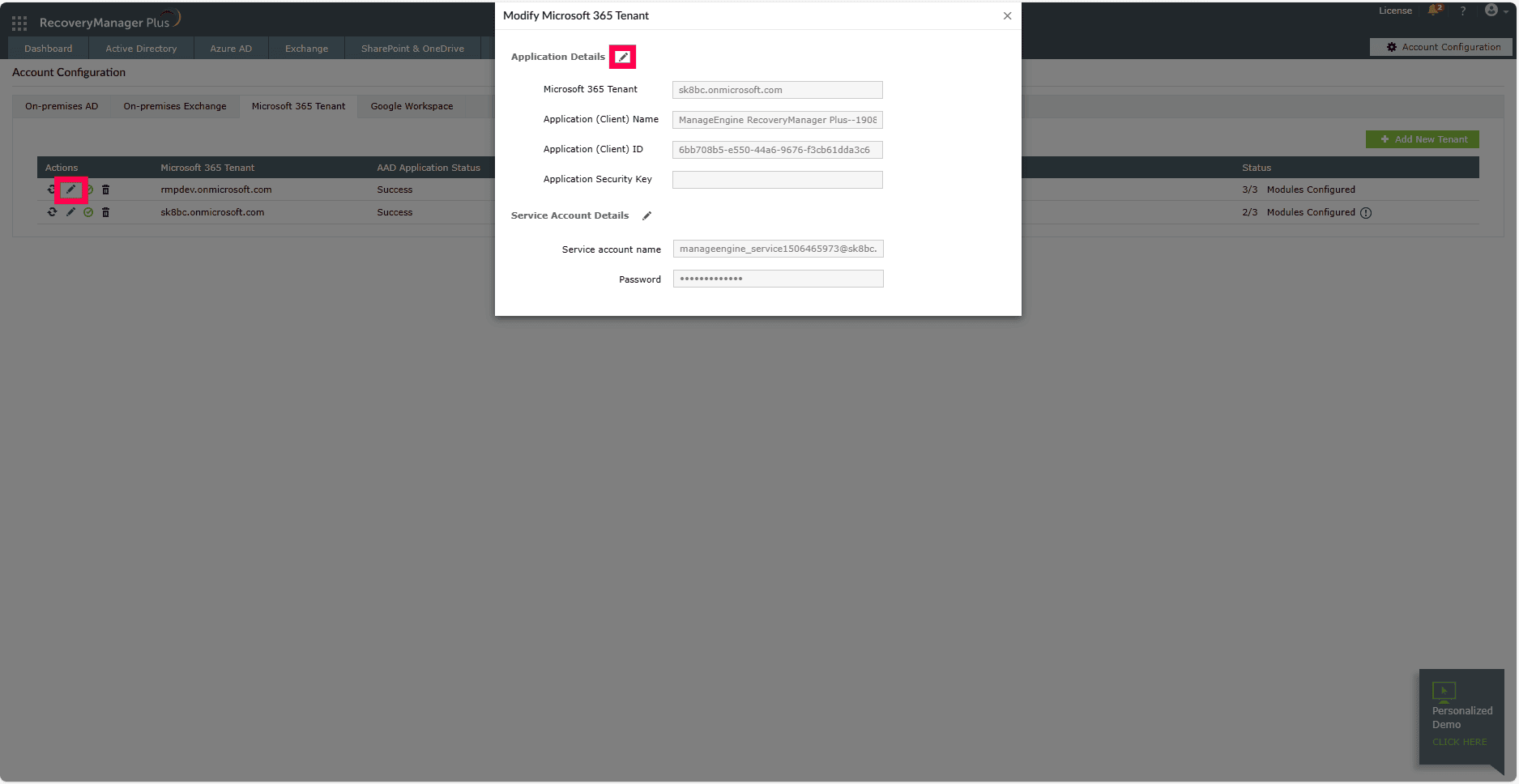
- Log in to RecoveryManager Plus and click Account Configuration at the top-right corner.
- Select Microsoft 365 Tenant, click the edit icon next to the relevant tenant, and enter the new client secret.
- If the issue still persists, contact support@recoverymanagerplus.com.
The license is invalid for this mailbox. Mailbox doesn't have a valid license
Cause: The Exchange Online license may be missing or incorrectly assigned to the mailbox, causing the backup or PST export operation to fail.
Resolution:
- Reassigning the license
- Remove the currently assigned license from the mailbox.
- Assign only the Office 365 E3 license to the user's mailbox.
- After reassigning, create a new backup or export to PST job and verify if it completes successfully.
- Converting the mailbox to a shared mailbox
- If the operation still fails, convert the user mailbox to a shared mailbox.
- Ensure the required permissions are properly assigned before starting the operation.
- Once converted, attempt the operation again.
The remote name could not be resolved: <Domain/Tenant name>
Cause: This error occurs when RecoveryManager Plus cannot communicate with the Exchange Online Server.
Resolution: Make sure the Exchange Online Server and the machine in which RecoveryManager Plus is installed are on the same domain. If they are on different domains, make sure trust has been established between the domains.
The primary SMTP address must be specified when referencing a mailbox
Cause: This error occurs when there is a change in the primary SMTP address of a mailbox.
Resolution:
- Navigate to the Exchange tab in RecoveryManager Plus.
- Select Microsoft 365 from the Exchange Type drop-down menu, and click Create Backup.
- In the Select Mailboxes field, click the add icon
 .
.
- In the pop-up that appears, click Refresh Mailboxes.
- Once mailbox enumeration is complete, the mailbox will be updated with the new SMTP address.
- Retry the backup after the update is completed.
If the issue persists, contact support@recoverymanagerplus.com.
 ADManager Plus
 ADAudit Plus
 ADSelfService Plus
 M365 Manager Plus
 Previous Topic