Removal of Admin Rights
Identify unnecessary local admin accounts, protect critical ones with exclusion policies, and revoke the rest — manually or automatically.
The Remove Local Admin Rights workflow on this page applies to Windows computers. Do not use its Exclusion Policy or Admin Rights Summary steps as a macOS administrator-removal procedure. Application Control allowlisting and privilege management have different platform scopes.
Overview
Remove unnecessary admin rights
Remove unnecessary local admin accounts to help secure endpoints.
The Admin Rights removal workflow
Removing admin rights in Application Control Plus restricts administrative privileges on endpoint devices, preventing unauthorized installation, modification, or removal of applications and reducing the risk of malware infections and credential abuse.
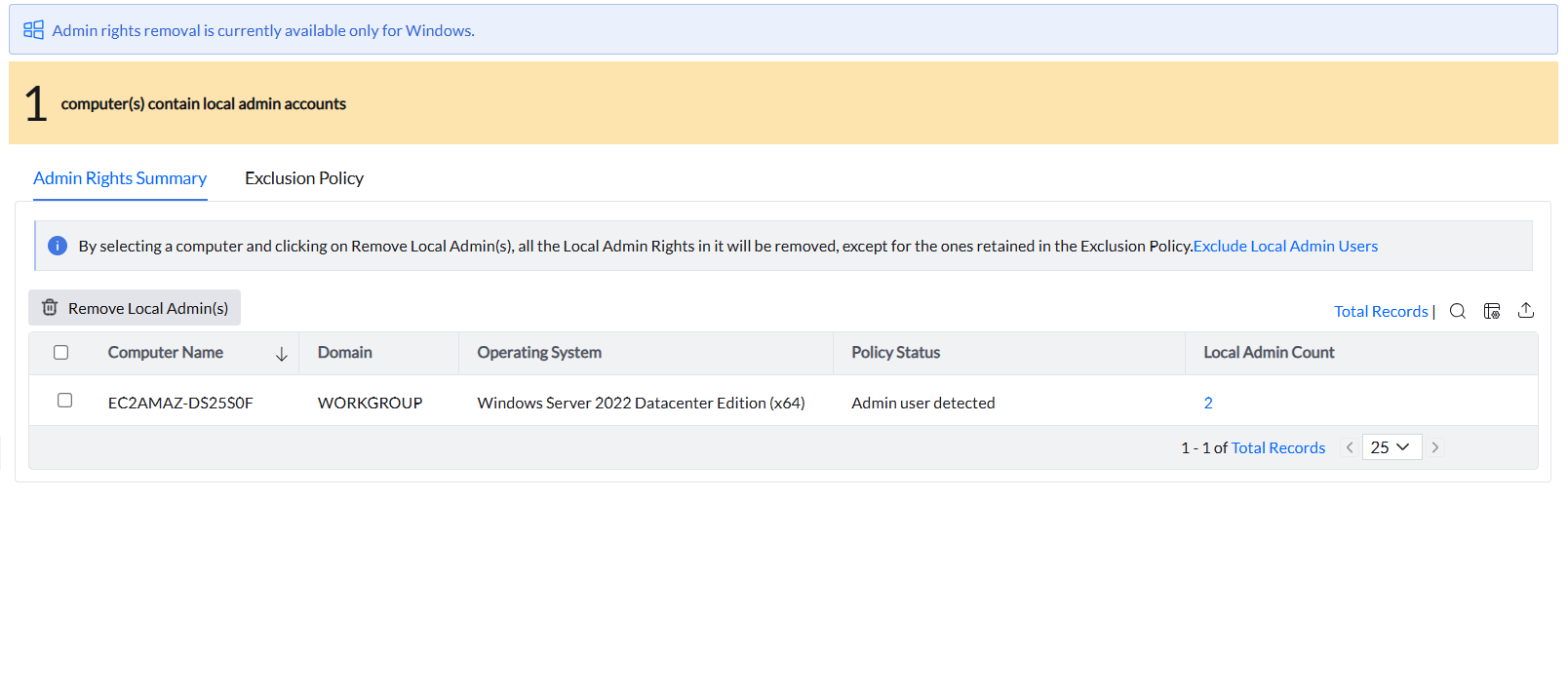
Selecting a computer and clicking Remove Local Admin removes all local admin accounts on that machine — except for those explicitly protected by an Exclusion Policy. After removal, create a Privileged Application List and associate it with those devices. This allows the former admins — now running as standard users — to elevate specific approved applications when needed.
- Identify and analyze: The Admin Rights Summary tab lists all local admin accounts found on discovered computers. The Local Admin Count column shows the number of local admin accounts per machine.
- Protect critical accounts: Add accounts that must never be removed to the Exclusion Policy before taking any action.
- Remediate: Remove the remaining unnecessary accounts either manually or automatically.
Exclusions
Exclusion Policy
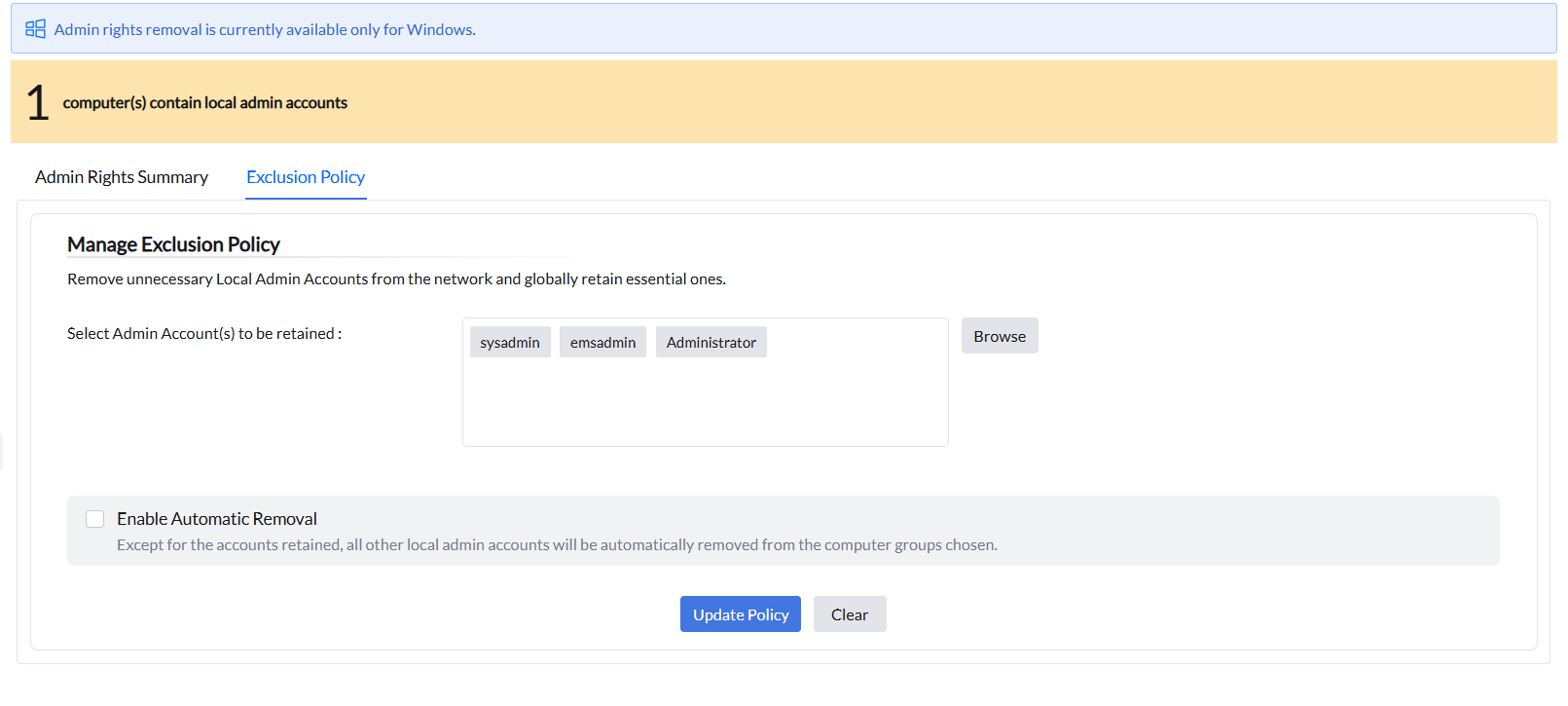
Define which accounts are always retained, regardless of removal actions.
Protect required admin accounts globally
The Exclusion Policy tab lets you create global policies that protect specific admin accounts. Accounts added here are retained on every computer where they are found — regardless of any manual or automatic removal action. The sysadmin can choose to protect their own account, the built-in administrator account, or any other account.
Removal
Remove admin rights
Choose manual removal for targeted action or automatic removal for ongoing enforcement.
Before removing rights to troubleshoot an unexpectedly elevated application, check both the account’s local administrator membership and the Privileged Application List applying to the device. An application-elevation configuration and membership of the local Administrators group are different sources of privilege. Removing account rights is not a substitute for reviewing the intended elevation configuration.
Manual removal of admin rights
After completing the Exclusion Policy, select the computers to modify in the Admin Rights Summary tab and click Remove Local Admin(s). Admin privileges for all local admin accounts on those computers will be removed during the next refresh cycle — except for those protected by the Exclusion Policy.
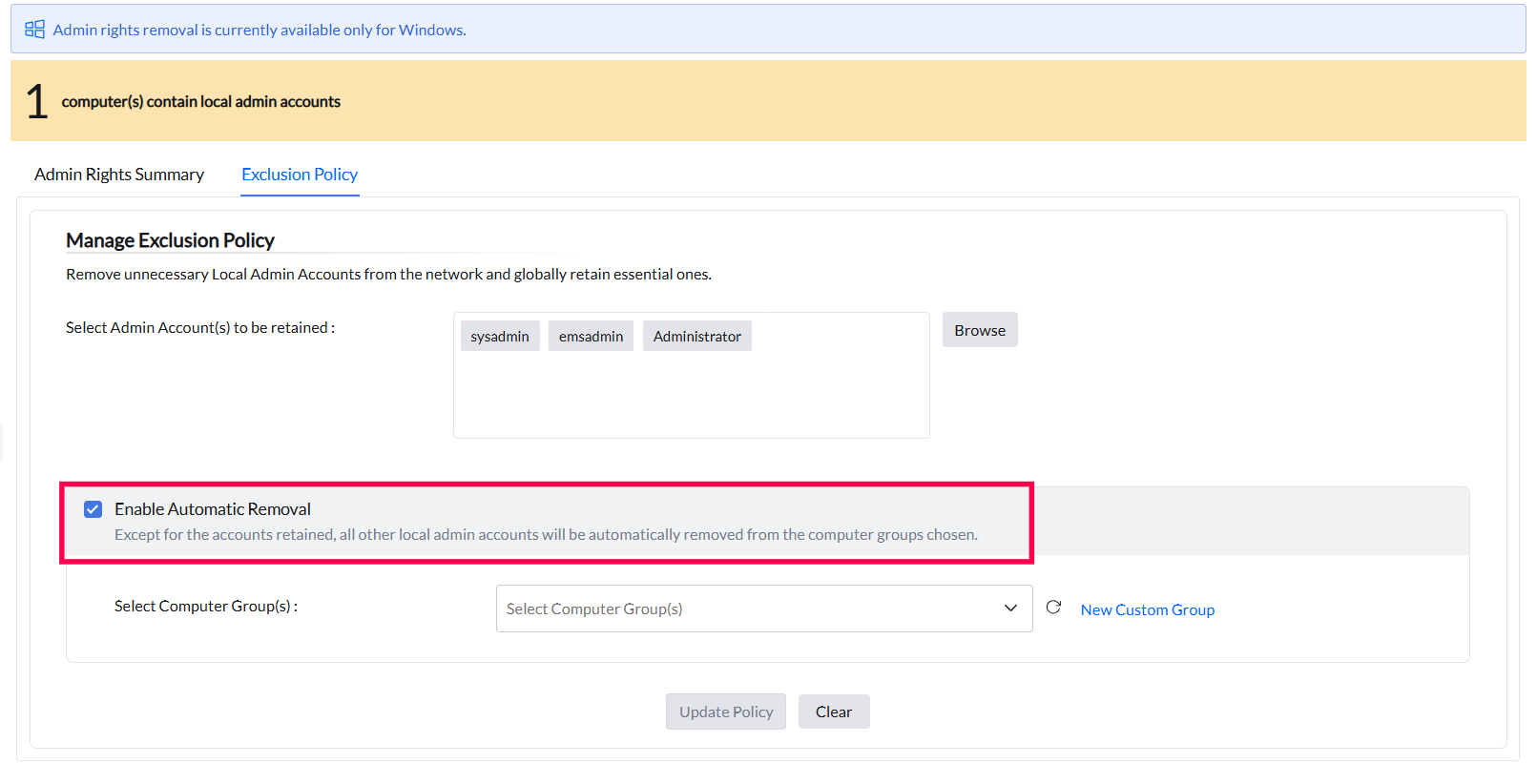
Automatic removal of admin rights
Enabling Automatic Removal removes all non-excluded admin accounts from the selected computer groups during the next 90-minute refresh cycle. Enforcement continues after this cycle. New unauthorized accounts are removed automatically.
Application Control detects and manages only local admin accounts. If you need to check whether a user belongs to specific domain security groups or organizational groups, use the Active Directory Users and Computers (on your domain) — for domain group membership.
For the bulk local-administrator membership report steps, see the Removal of Admin Rights FAQ. Review the System Group Users and Custom Report options available in your environment. A membership report identifies account rights; it does not perform the removal action described on this page.