Privilege Management Policy Deployment
Associate a Privileged Application List with device groups, deploy the policy, and monitor elevation events from the console.
Setup
Configure Privilege Management
Link the Privileged Application List to the device groups that need controlled elevation access.
Deploy the EPM policy
After creating the Privileged Application List, associate it with the appropriate custom groups to deploy it. This limits elevated access to authorized users and approved applications.
When multiple custom groups associate the same Privileged Application List, they use the same configured application selection and elevation settings. Group association does not create a separate list for each group. Confirm the intended impact across the associated devices before changing the list.
- Go to Application Control → Privilege Management.
- To allow self-elevation, enable the toggle for Enable users to elevate applications manually.
- To configure elevated privileges for all allowed applications or specific ones, enable Configure specific application to run with elevated privileges and build the application list.
- If required, enable Auto Elevation to elevate applications automatically without user prompts.
- Under Application Control > Deployment, open Deploy Policy and select the custom group containing the target computers. Associate the Privileged Application List as required, deploy the policy and verify the deployment result.
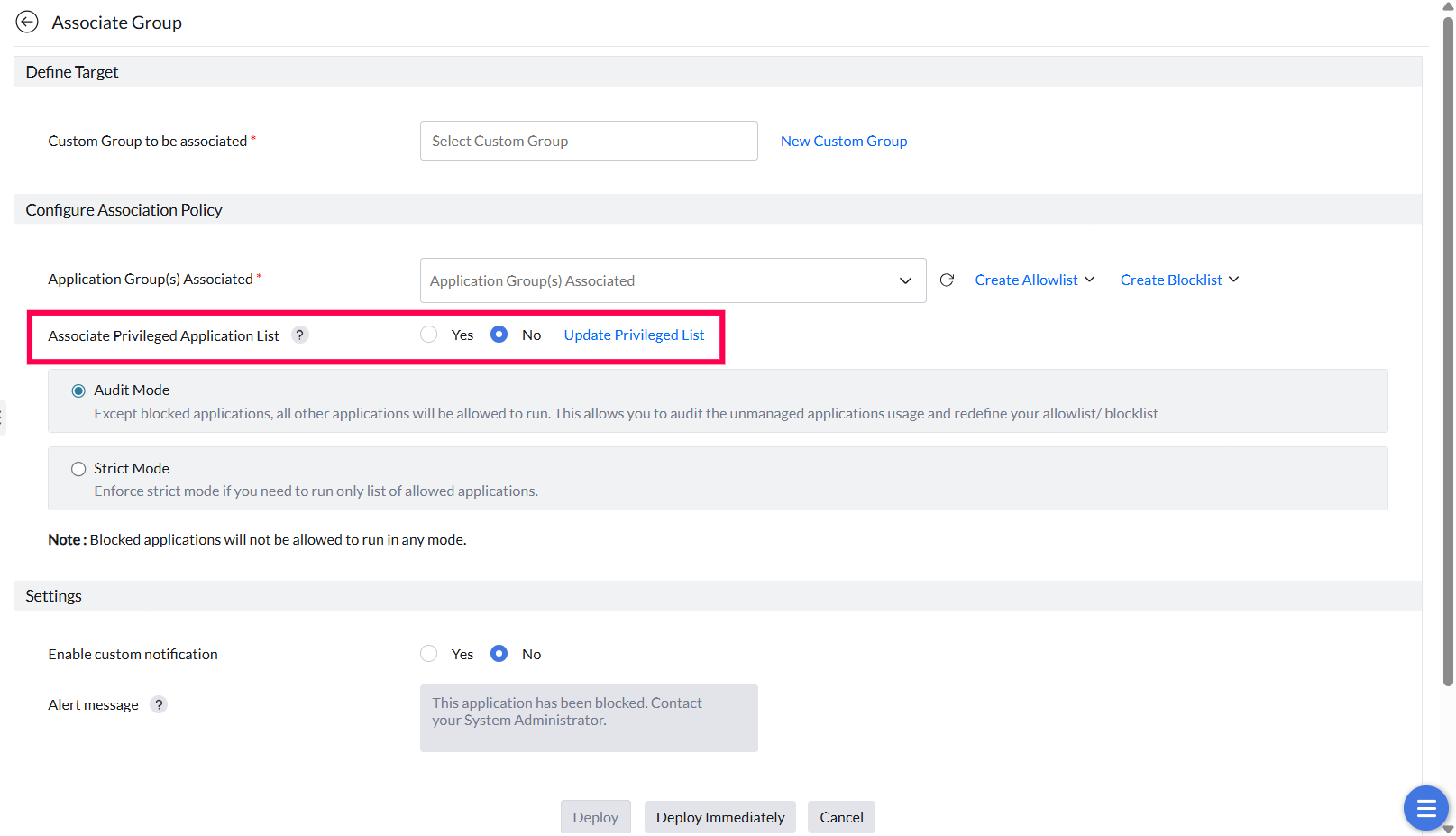
- Click Yes to Associate the Privileged Application List with the chosen custom group.
The custom group targets computers. Associating the permanent Privileged Application List does not restrict each application to one named user on those computers. Eligible standard users can use the configured elevation workflow. Use Application Elevation JIT when temporary access must select a Windows user.
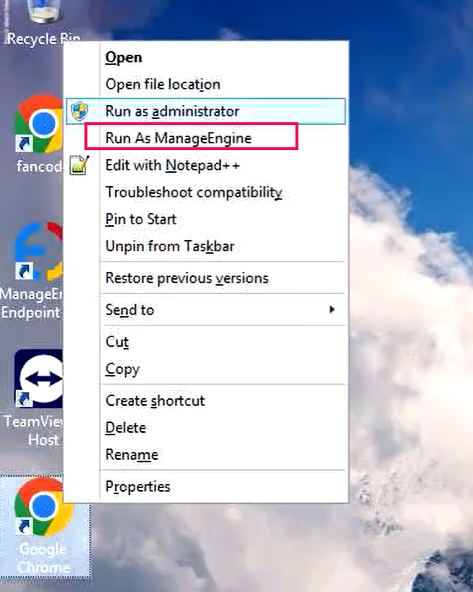
After association, users on the target devices can right-click an application's .exe and choose Run as ManageEngine to execute it with elevated privileges — without entering admin credentials.
Lifecycle
Revoke application privileges
Remove elevated access when it's no longer needed and review the full audit trail.
Deleting a policy
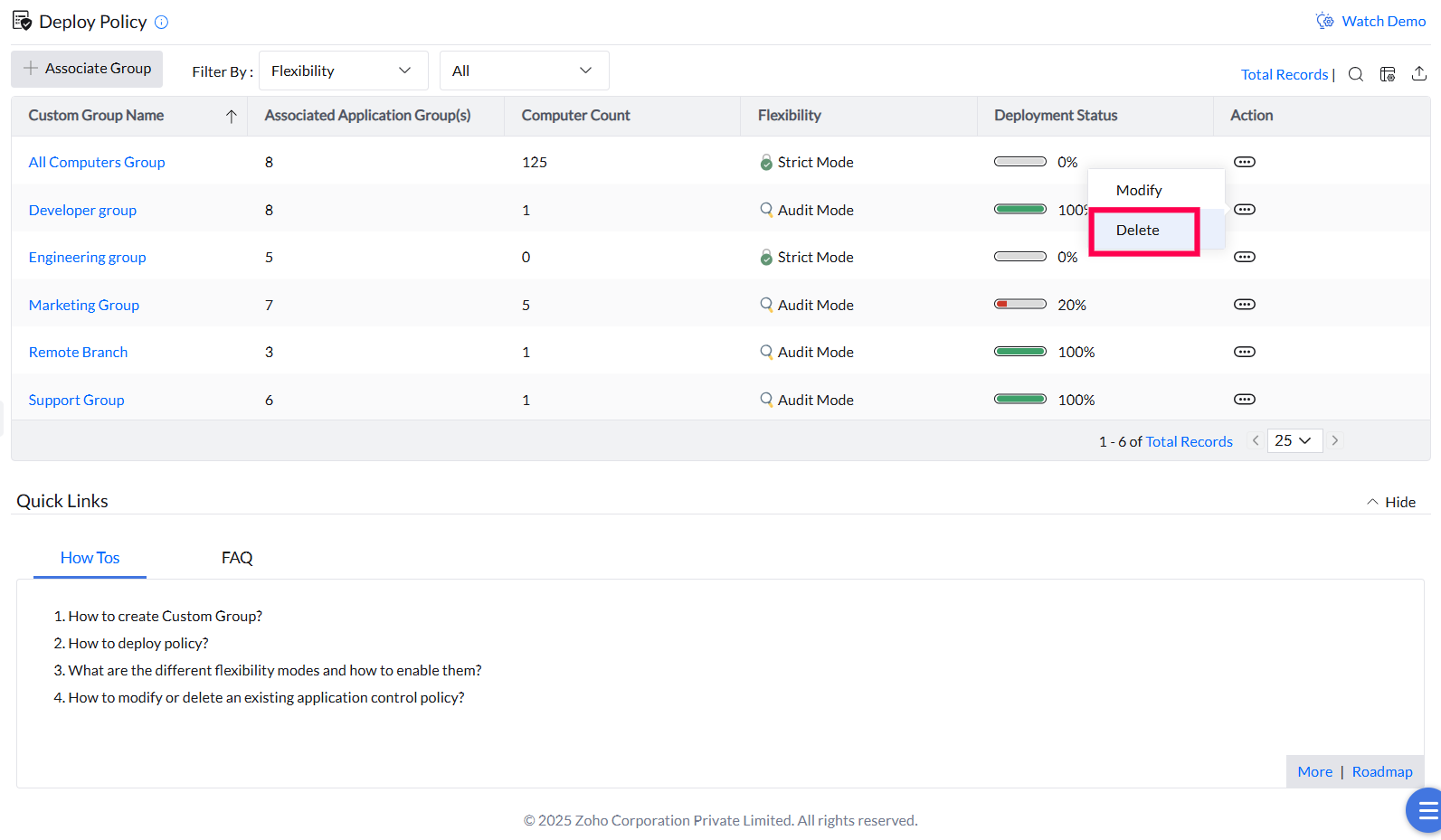
Delete a policy when it is no longer needed to prevent misuse of elevated privileges. This removes the elevation association from the affected custom groups.
Application Elevation Events
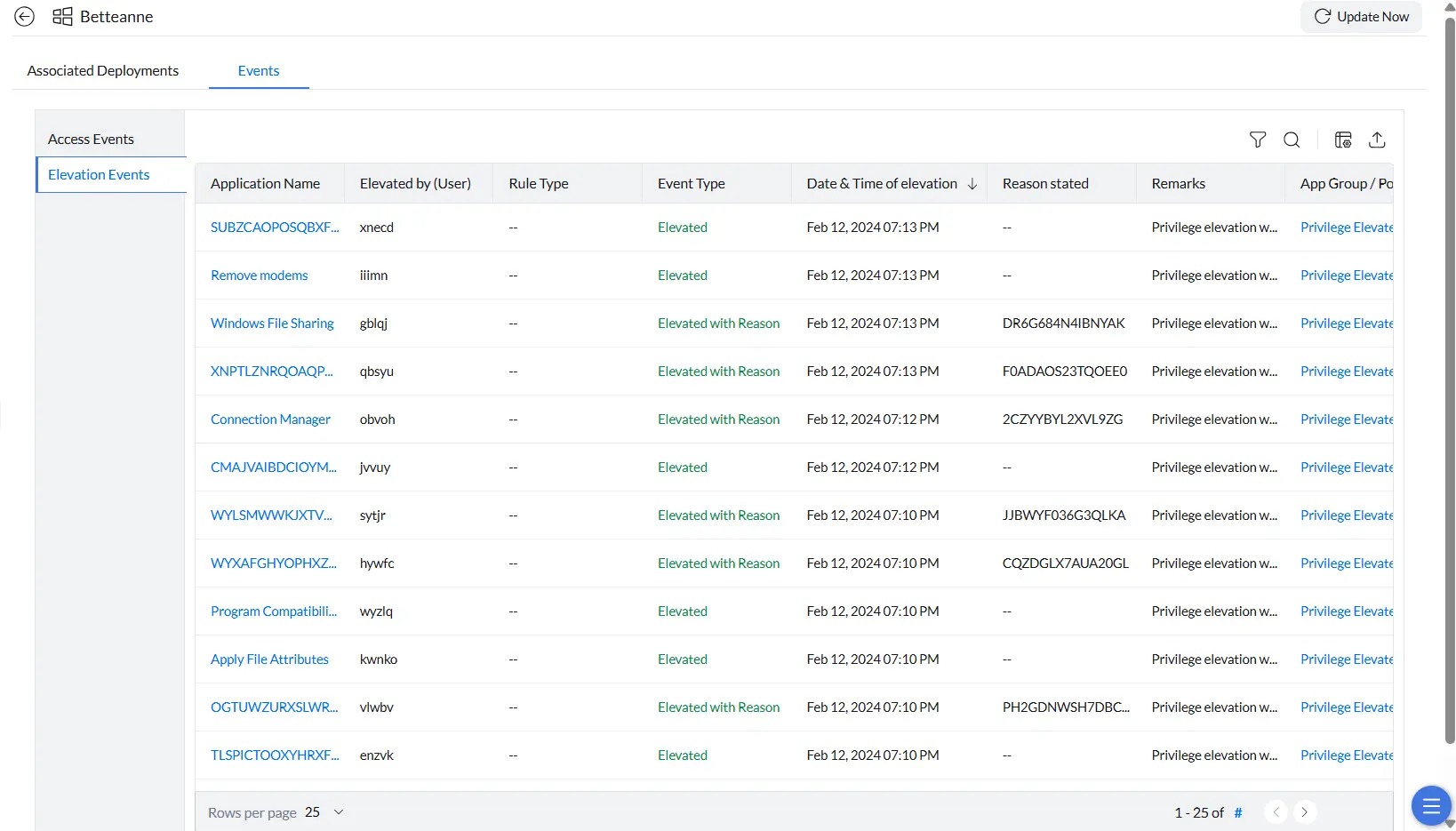
The Elevation Events view provides a detailed audit trail of every application elevated by users on a managed endpoint. Use it to monitor privilege activity and verify that elevated access is being used appropriately.
View elevation events
- Go to Systems and select the target machine.
- Open the Events tab and select Elevation Events from the left panel.
- Click Update Now in the top-right corner to get the latest events from the endpoint.
Each event record includes the application name, the user who performed the elevation, event type, date and time, the justification provided (if required), remarks, and the associated elevation policy.