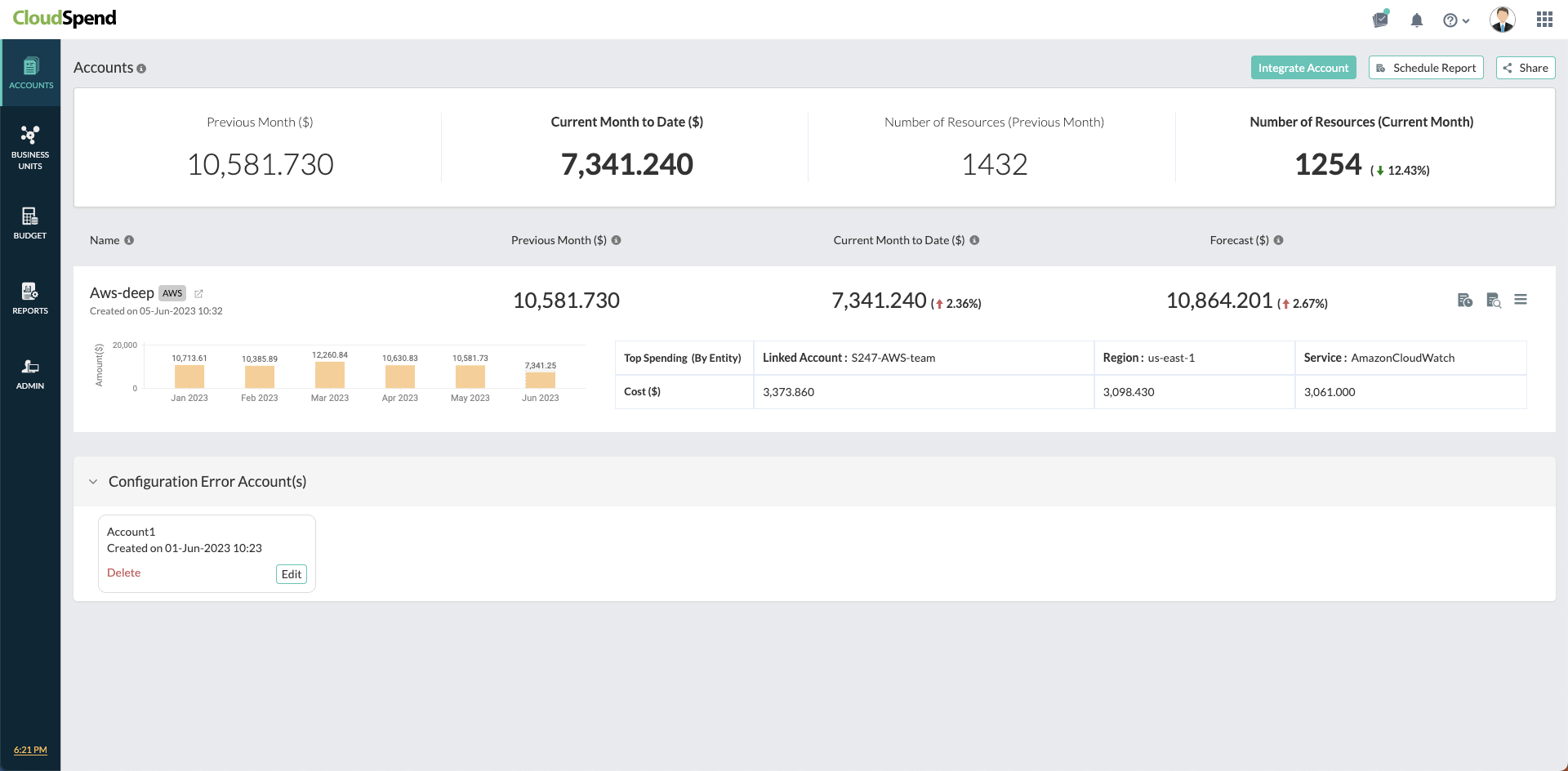
Integrate Amazon Web Services Account with CloudSpend
Integrating your AWS account with CloudSpend provides a comprehensive view of your cloud spending.
Connecting an AWS account with CloudSpend
AWS GovCloud (US) integration
AWS GovCloud (US) usage and billing are managed through a linked standard AWS (commercial) account.
To integrate GovCloud account in CloudSpend:
- Complete Stages 1 to 3 using the linked standard AWS account, not the GovCloud account.
- Create the IAM role, data export, and account connection in the standard account as usual.
Connecting your AWS account with CloudSpend is a three stage process:
- Stage 1: Enable programmatic access
- Provide CloudSpend programmatic read-only access to specific AWS services including Amazon S3, Data exports, IAM and Organizations.
- Stage 2: Configure data exports
- Create data exports for an existing or new S3 bucket. If you're already publishing the export to a S3 bucket, skip to Stage 3.
- Stage 3: Connect AWS account
- Sign in to the CloudSpend console and configure the Integrate AWS Account page.
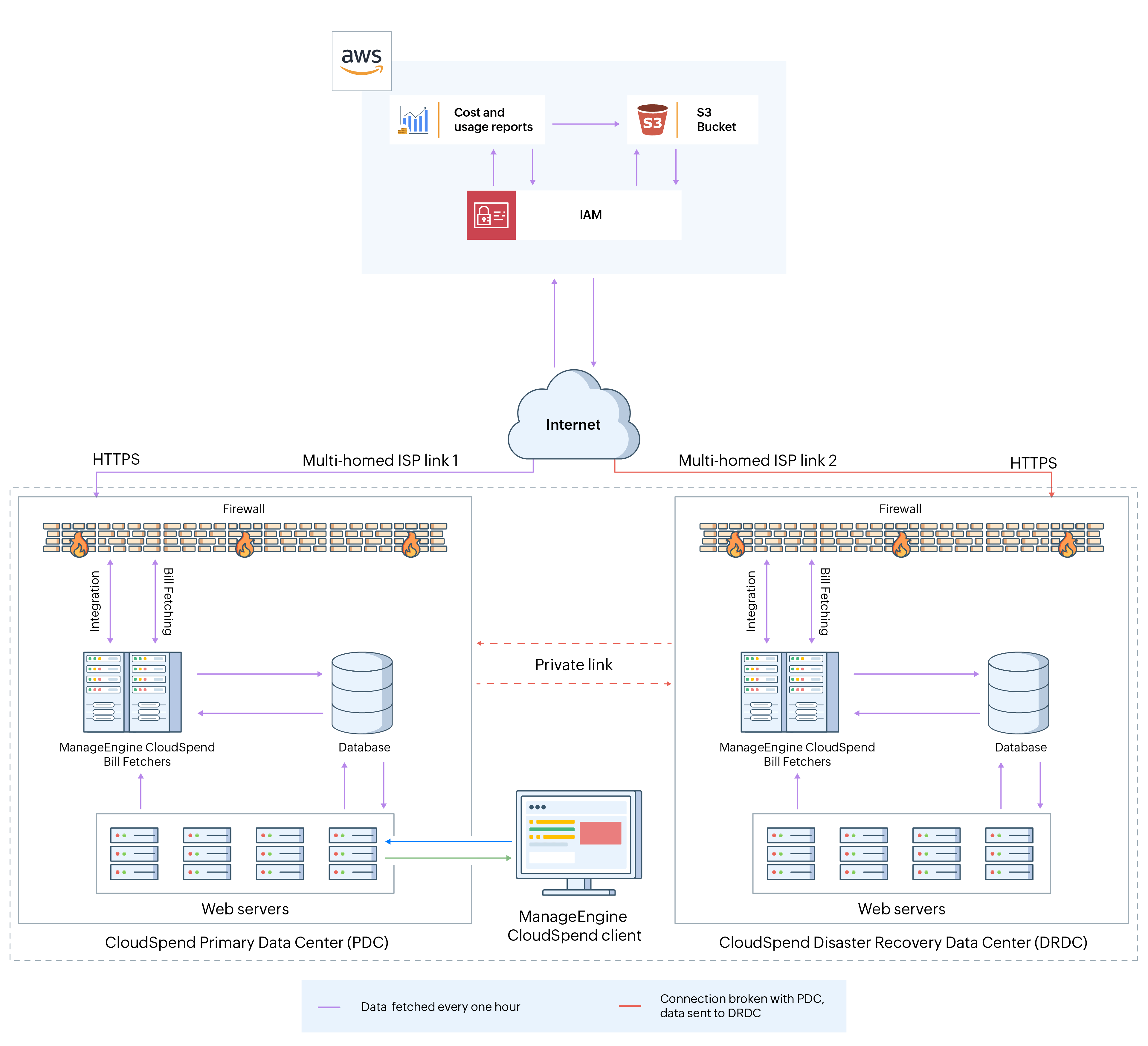 CloudSpend-AWS integration architecture
Enable programmatic access (Stage 1)
You can provide CloudSpend programmatic access to your AWS resources using two ways. You can create a cross-account IAM Role and establish a trust relationship between your AWS account and CloudSpend's AWS account.
Between the two, IAM Role is recommended as there is no sharing of security credentials. Also when you delegate permissions using Roles, you can designate the AWS accounts that are allowed to assume the role, thereby safeguarding your account from unauthorized access.
We're deprecating IAM user based access to new users. So if you're existing users, you can switch to IAM role based access.
IAM role based access
The following section will walk you through the IAM Role creation process:
Get your External ID
- Open the CloudSpend web console and sign in.
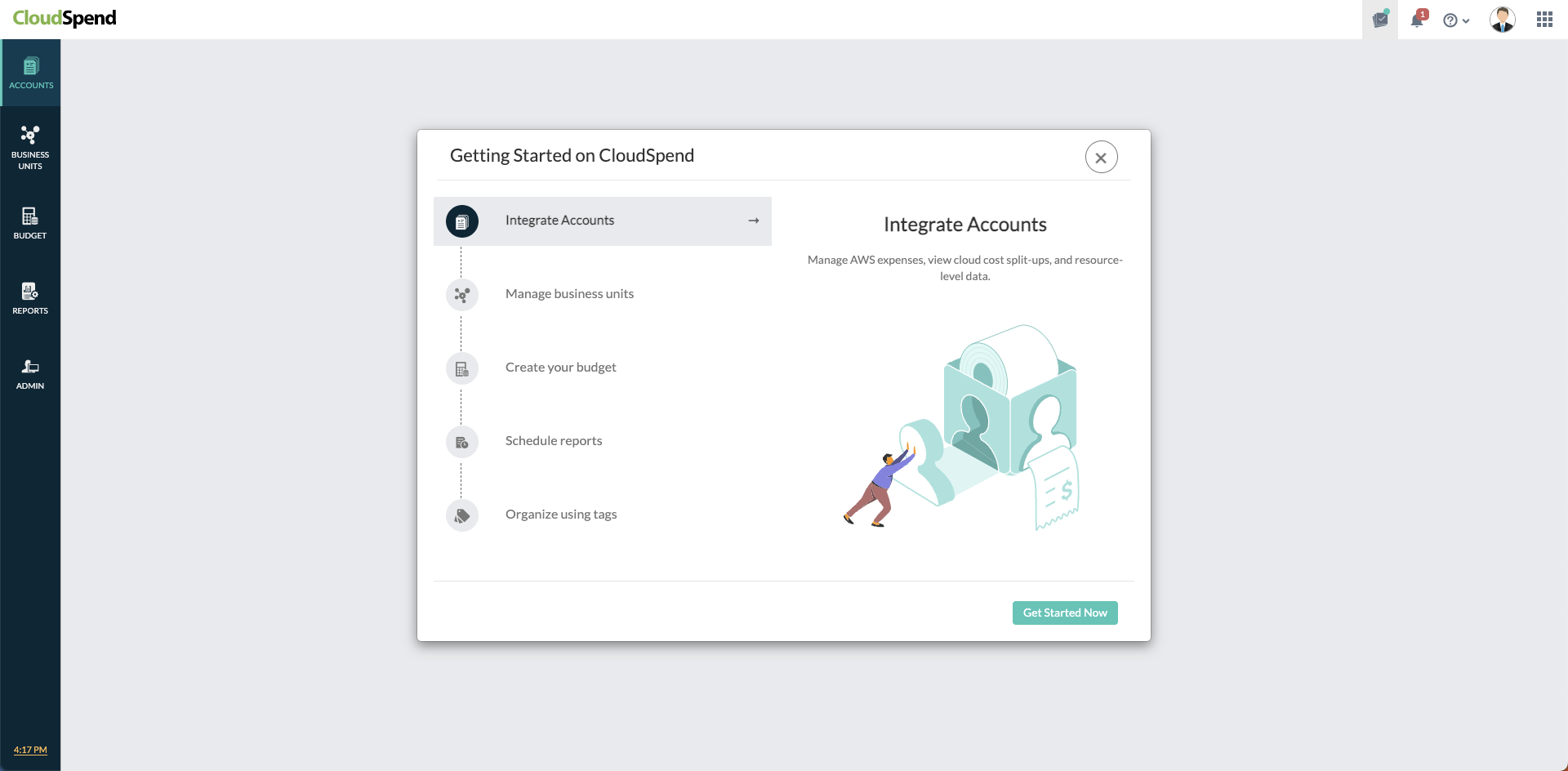
When you open the CloudSpend console for the first time, you'll land on an on-boarding carousel highlighting the features of the app. You can read and understand how the app can help you, or you can choose to skip.
Click Integrate AWS Account. In the Integrate AWS Account page, provide a Display Name, and choose IAM role as the Access Type. Copy the Account ID and External ID and save the value in a notepad for the AWS IAM Role creation step. Also, keep this browser tab open.
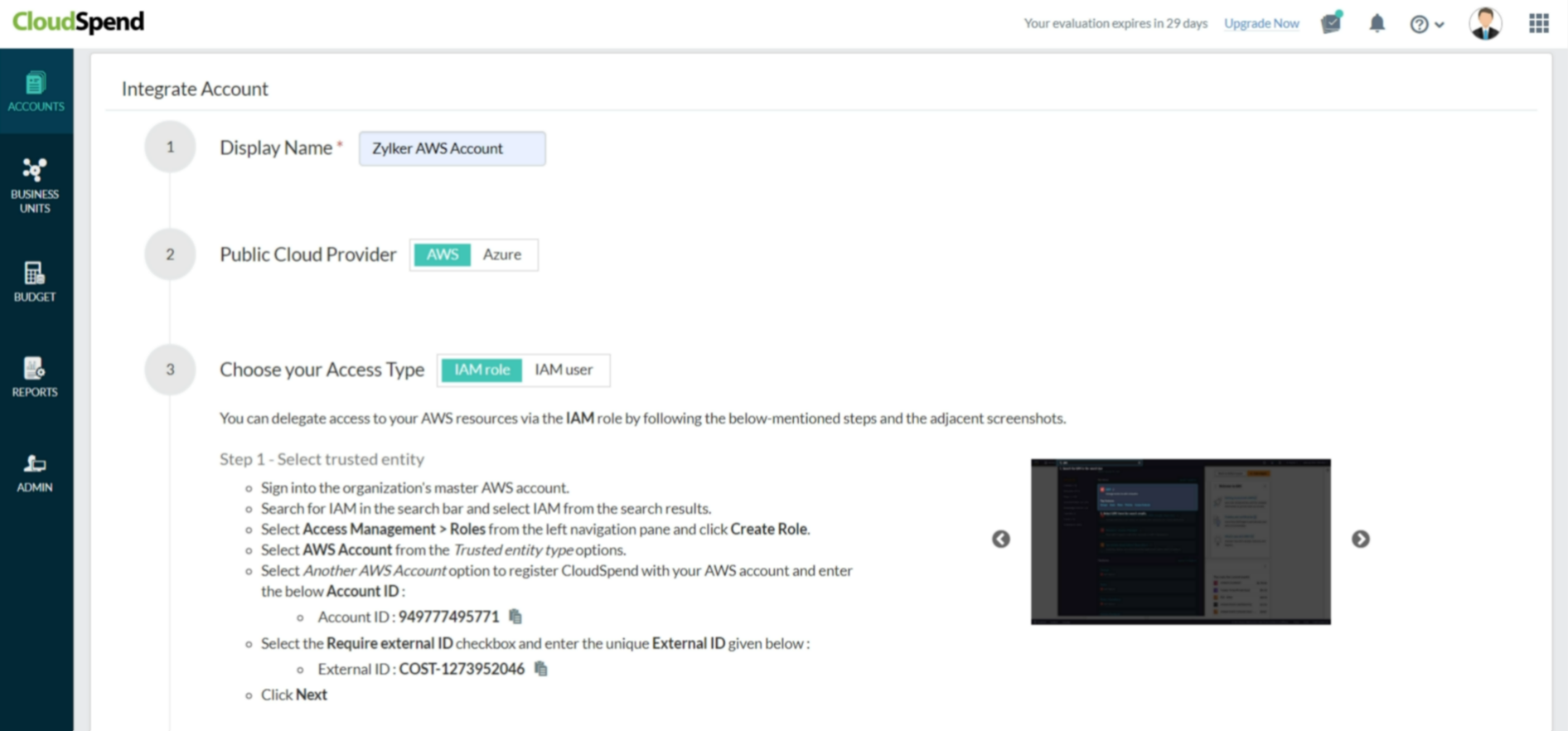
The External ID is an alpha-numeric key unique to your account. The key gets regenerated every time you refresh the Integrate AWS Account page. So, please make sure you use the correct key during IAM Role creation.
Create a custom policy
Ensure that you have the required policies for CloudSpend. If not, create your own policy before you create an IAM role. To do so, follow the steps mentioned below:
- Navigate back to the AWS IAM console.
Select Access Management > Policies from the left navigation pane.
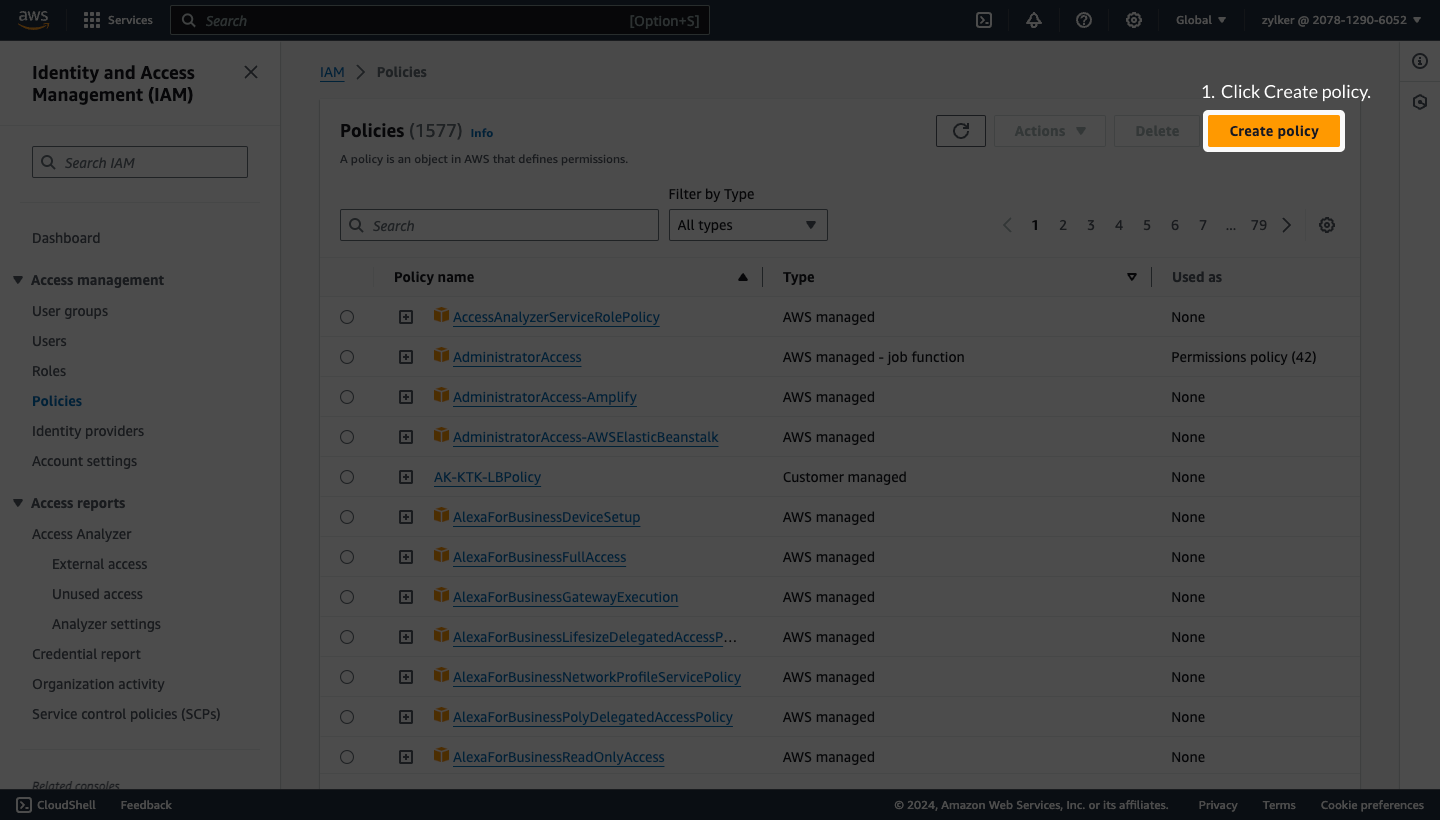
- Click Create policy.
- Choose the JSON tab and delete the existing JSON policy snippet.
Copy and paste the JSON policy shown below in the JSON tab.
{
   "Version":"2012-10-17",
   "Statement":[
      {
         "Sid":"VisualEditor0",
         "Effect":"Allow",
         "Action":[
            "organizations:ListRoots",
            "s3:GetObjectVersionTagging",
            "organizations:DescribeAccount",
            "organizations:ListChildren",
            "s3:GetObjectAcl",
            "organizations:DescribeOrganization",
            "s3:GetObjectVersionAcl",
            "organizations:DescribeHandshake",
            "s3:GetBucketWebsite",
            "s3:GetBucketNotification",
            "s3:GetReplicationConfiguration",
            "s3:ListMultipartUploadParts",
            "organizations:ListAccountsForParent",
            "organizations:ListHandshakesForAccount",
            "s3:GetObject",
            "iam:GetUserPolicy",
            "s3:GetAnalyticsConfiguration",
            "organizations:ListOrganizationalUnitsForParent",
            "s3:GetObjectVersionForReplication",
            "cur:DescribeReportDefinitions",
            "s3:GetLifecycleConfiguration",
            "s3:GetBucketTagging",
            "s3:GetInventoryConfiguration",
            "s3:ListBucketVersions",
            "s3:GetBucketLogging",
            "s3:ListBucket",
            "s3:GetAccelerateConfiguration",
            "s3:GetBucketPolicy",
            "organizations:DescribePolicy",
            "s3:GetObjectVersionTorrent",
            "s3:GetEncryptionConfiguration",
            "organizations:ListCreateAccountStatus",
            "s3:GetBucketRequestPayment",
            "organizations:DescribeOrganizationalUnit",
            "s3:GetObjectTagging",
            "s3:GetMetricsConfiguration",
            "organizations:DescribeCreateAccountStatus",
            "organizations:ListPoliciesForTarget",
            "s3:ListBucketMultipartUploads",
            "organizations:ListTargetsForPolicy",
            "s3:GetBucketVersioning",
            "organizations:ListAWSServiceAccessForOrganization",
            "s3:GetBucketAcl",
            "organizations:ListPolicies",
            "organizations:ListHandshakesForOrganization",
            "organizations:ListAccounts",
            "s3:GetObjectTorrent",
            "s3:ListAllMyBuckets",
            "s3:GetBucketCORS",
            "organizations:ListParents",
            "iam:GetUser",
            "s3:GetBucketLocation",
            "s3:GetObjectVersion",
            "bcm-data-exports:ListExports",
            "bcm-data-exports:GetExport"
         ],
         "Resource":"*"
      }
   ]
}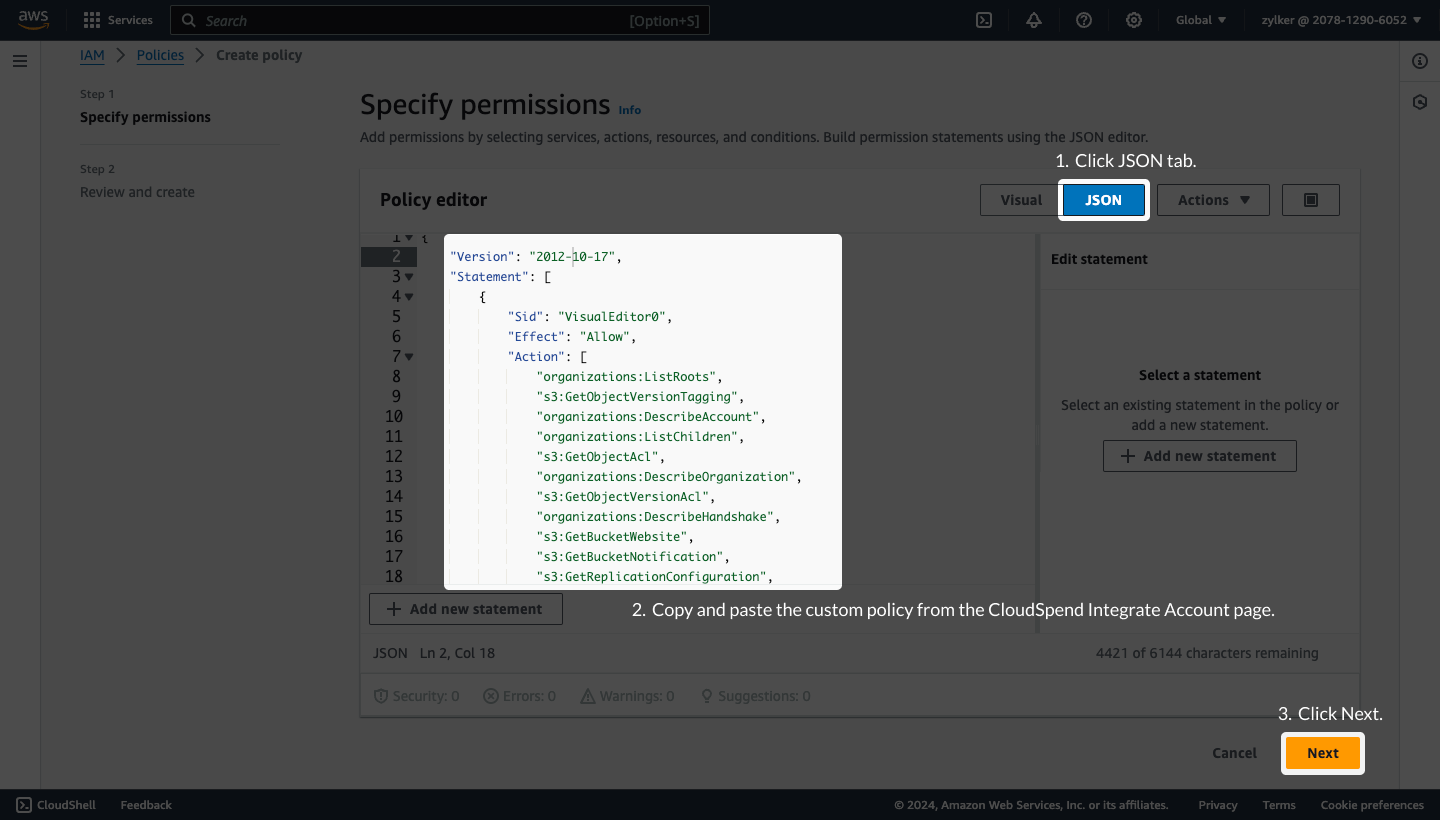
- Click Next.
In the Review and create page, enter the Policy name and Description.
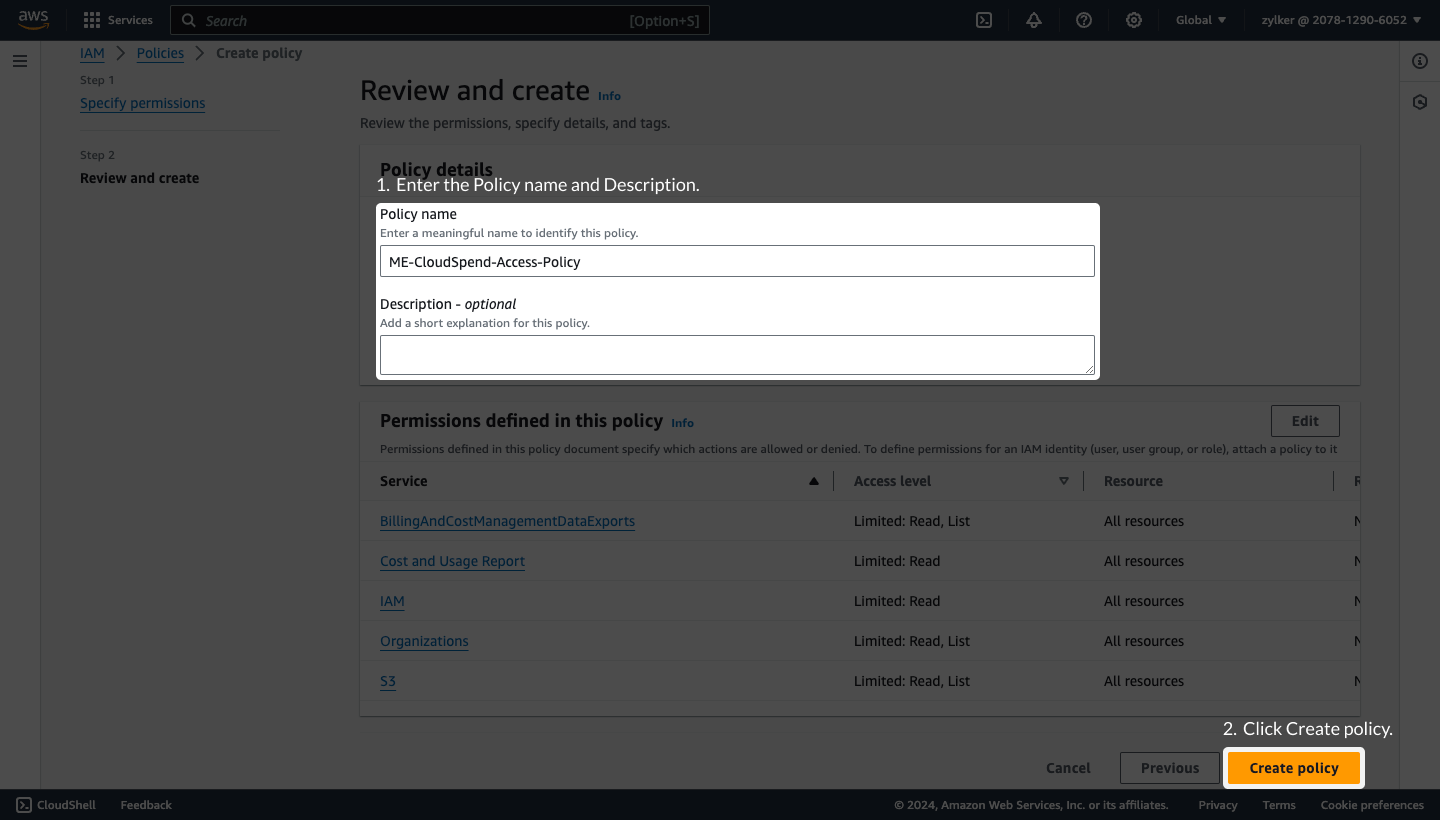
- Click Create policy.
- Follow the steps mentioned in the Step 1: Select trusted entities, Step 2: Add permissions , and Step 3: Name, review, and create sections below for creating a cross-account IAM role.
Create an IAM role
To create an IAM role follow the below mentioned steps:
Step 1: Select trusted entity
- Log in to the AWS Management Console and open the AWS IAM console.
Select Access Management > Roles from the left navigation pane.
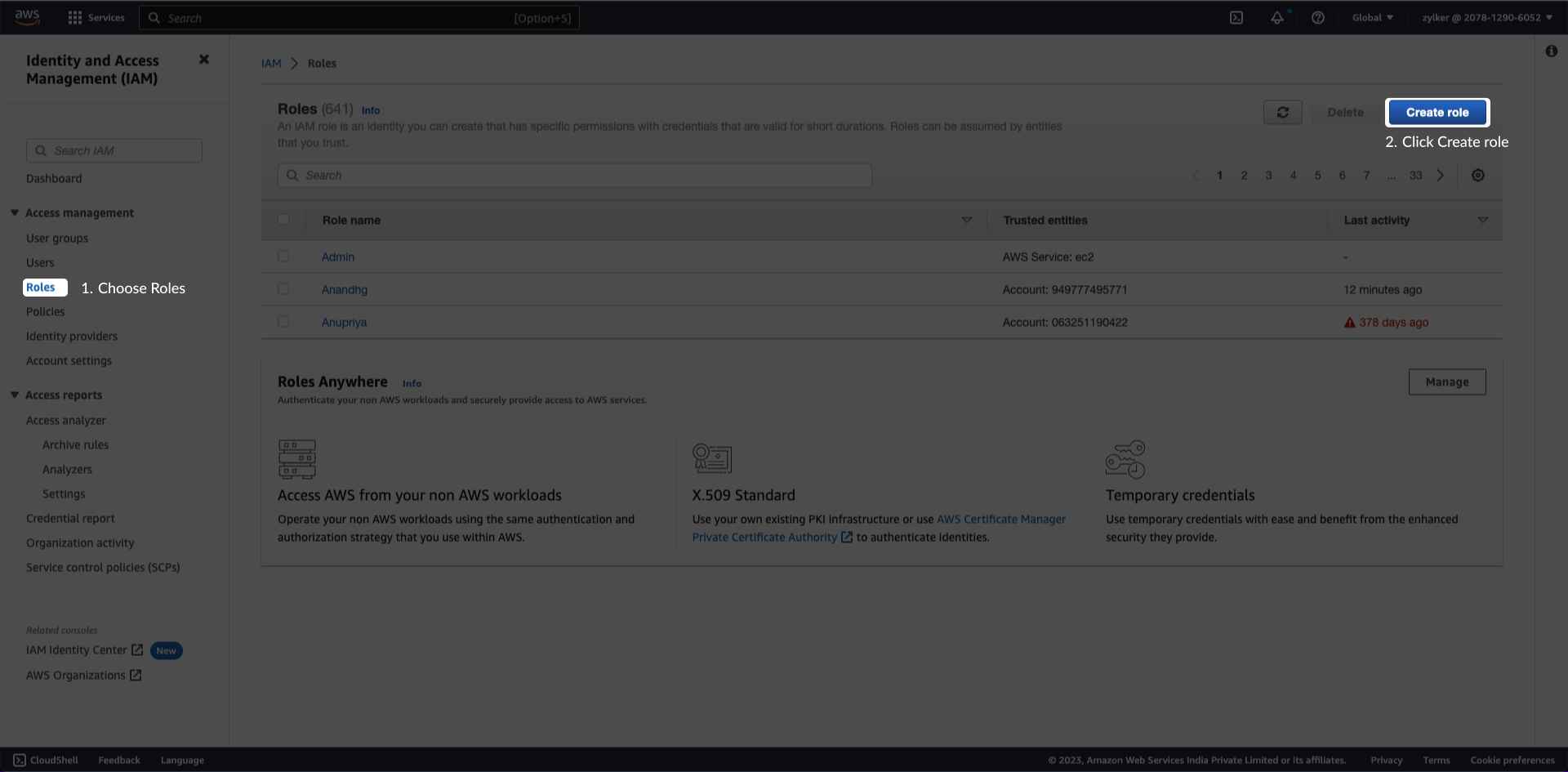
- Click Create Role.
- Select AWS Account from the Trusted entity type options.
- Select Another AWS Account option.
- Enter Site24x7's AWS account ID in the Account ID field displayed in the Integrate AWS Account page.
- Check the Require external ID box.Note: Ensure that the box next to Require MFA is unchecked.
Enter the unique External ID displayed in the Integrate AWS Account page.
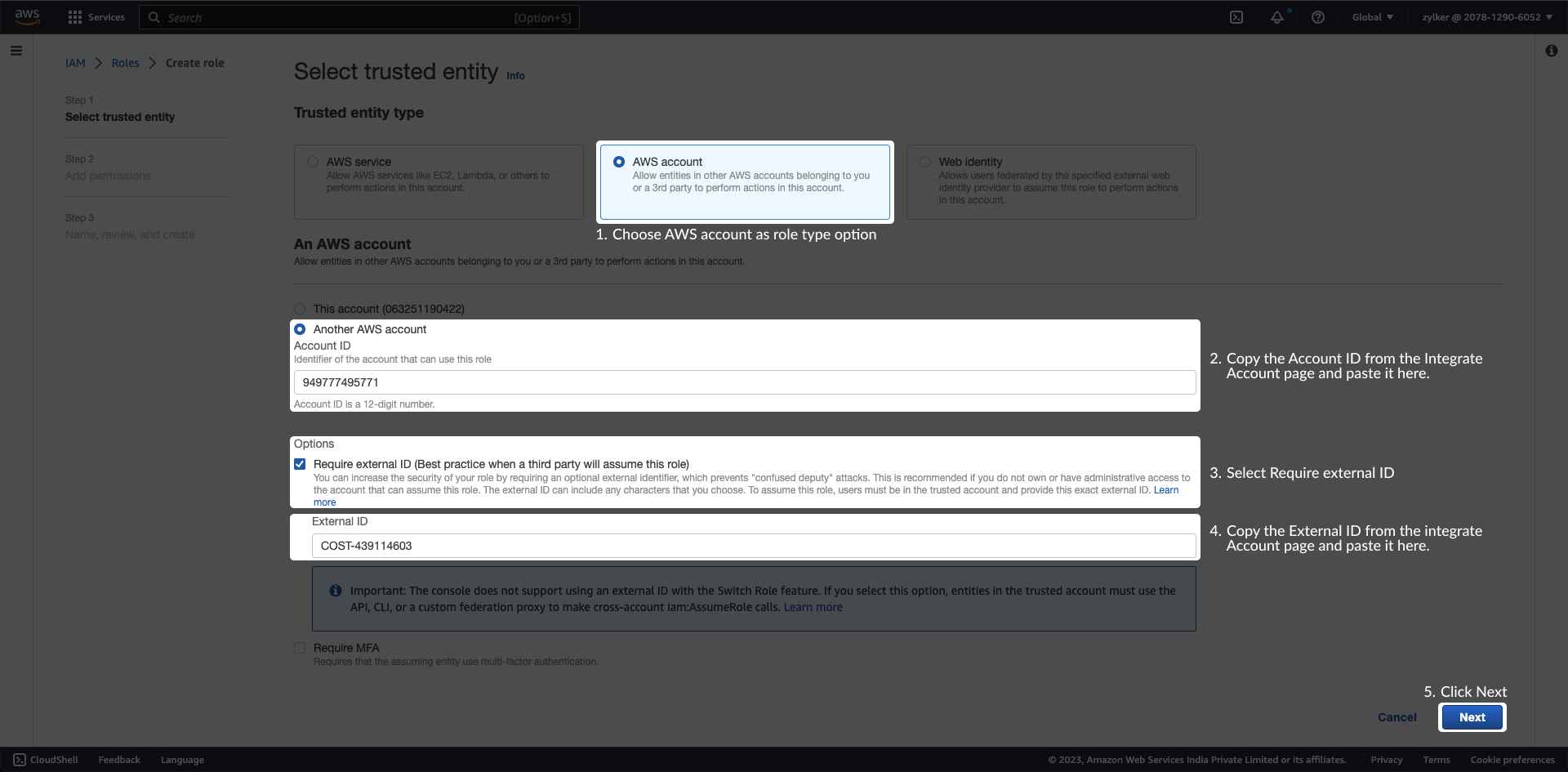
- Click Next.
Step 2: Add permissions
Site24x7 requires ReadOnly access to your AWS services and resources.
In the Add permissions page, search and select the policy you created above. You can also search for and select ReadOnlyAccess which is the AWS managed - job function policy as required.
If you wish to monitor the usage metrics of your Kinesis Video Streams, ensure that you also select AmazonKinesisVideoStreamsReadOnlyAccess.
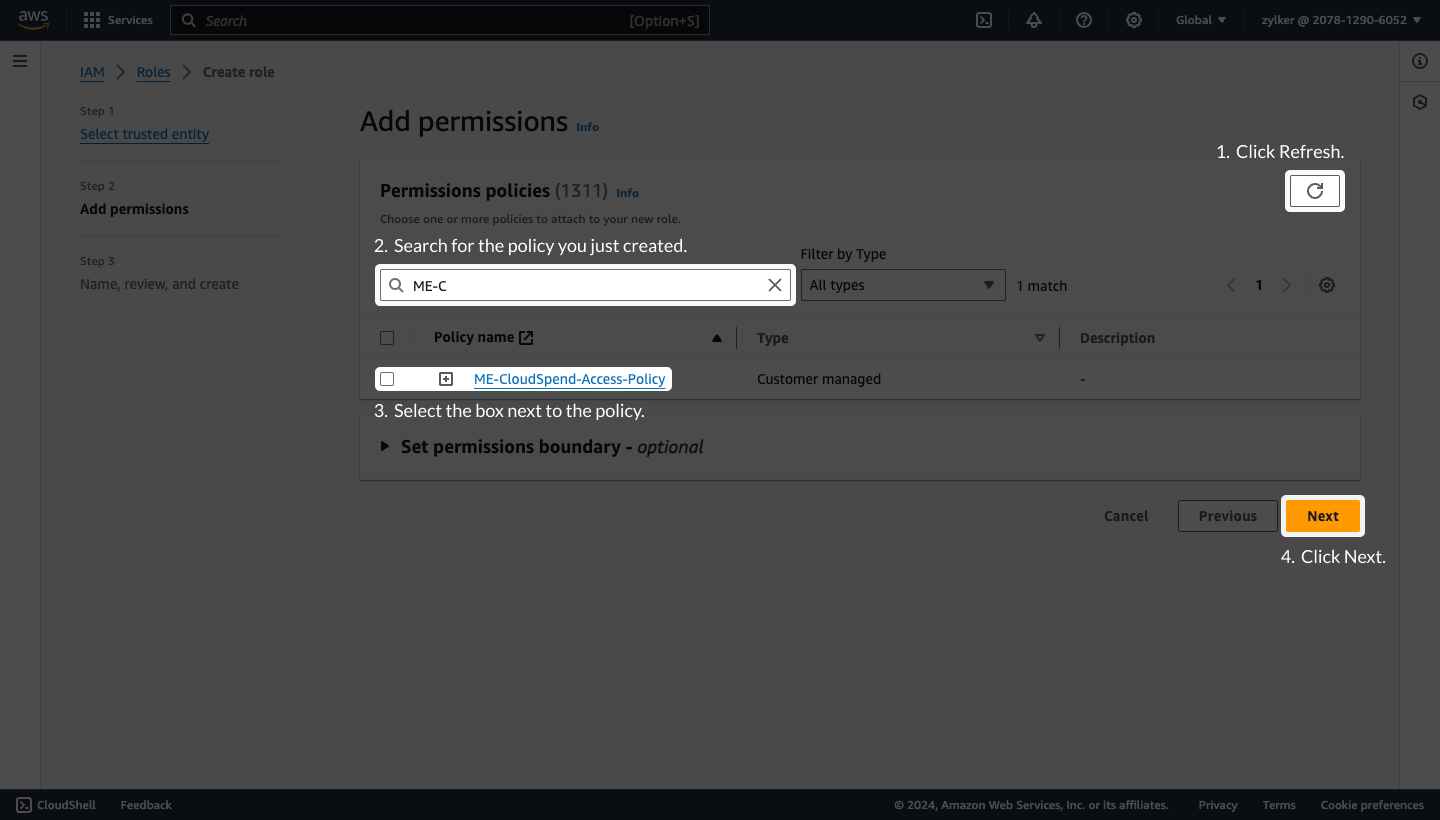
- Click Next.
Step 3: Name, review, and create
- Enter the Role name and Description.
Review the details configured in Step 1: Select trusted entity and Step 2: Add permissions.
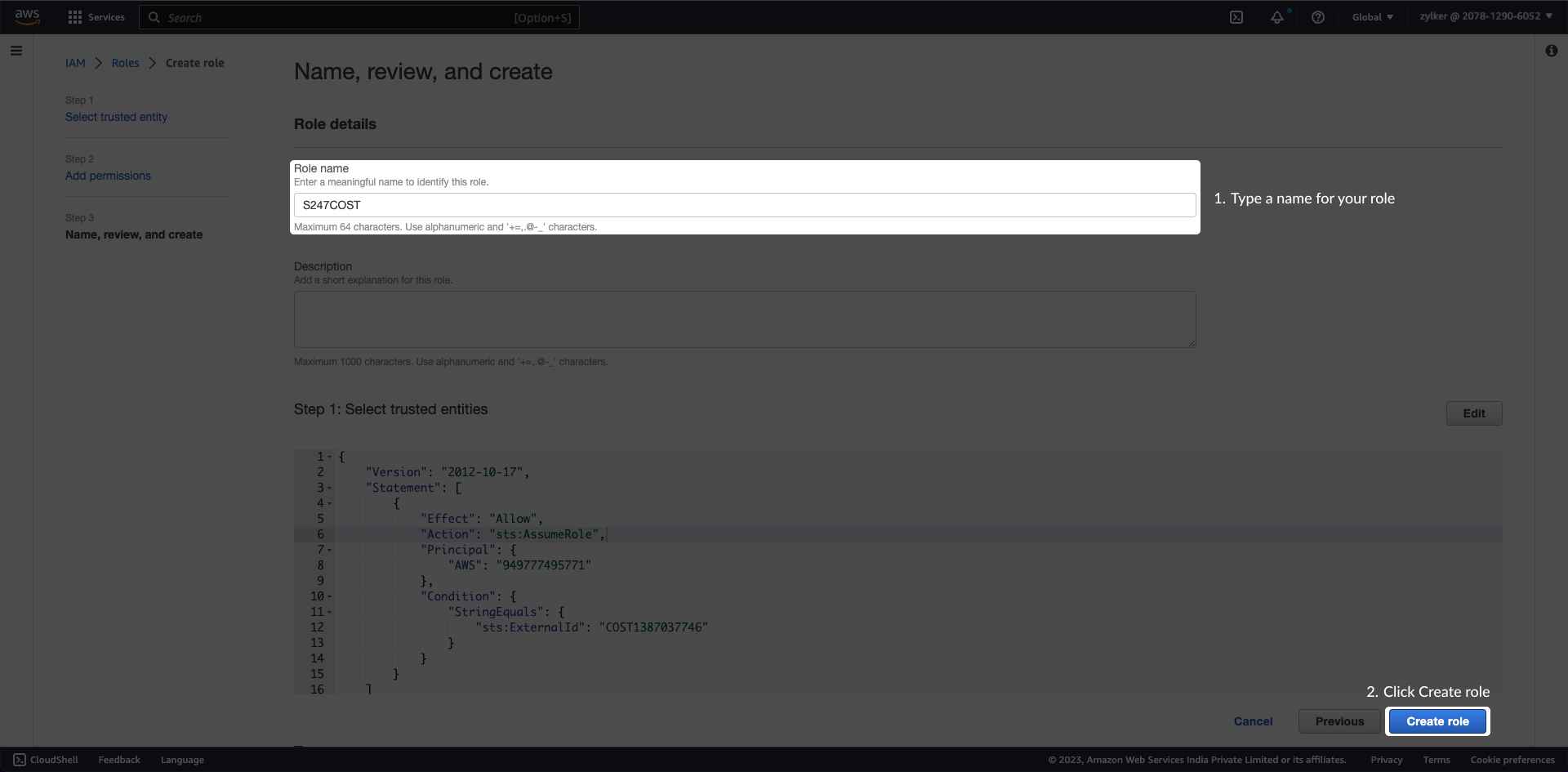
- Click Create Role. Once done, an ARN role will be created for the IAM role you created.
Copy Role ARN
- Go to IAM > Roles page.
- Click the refresh button.
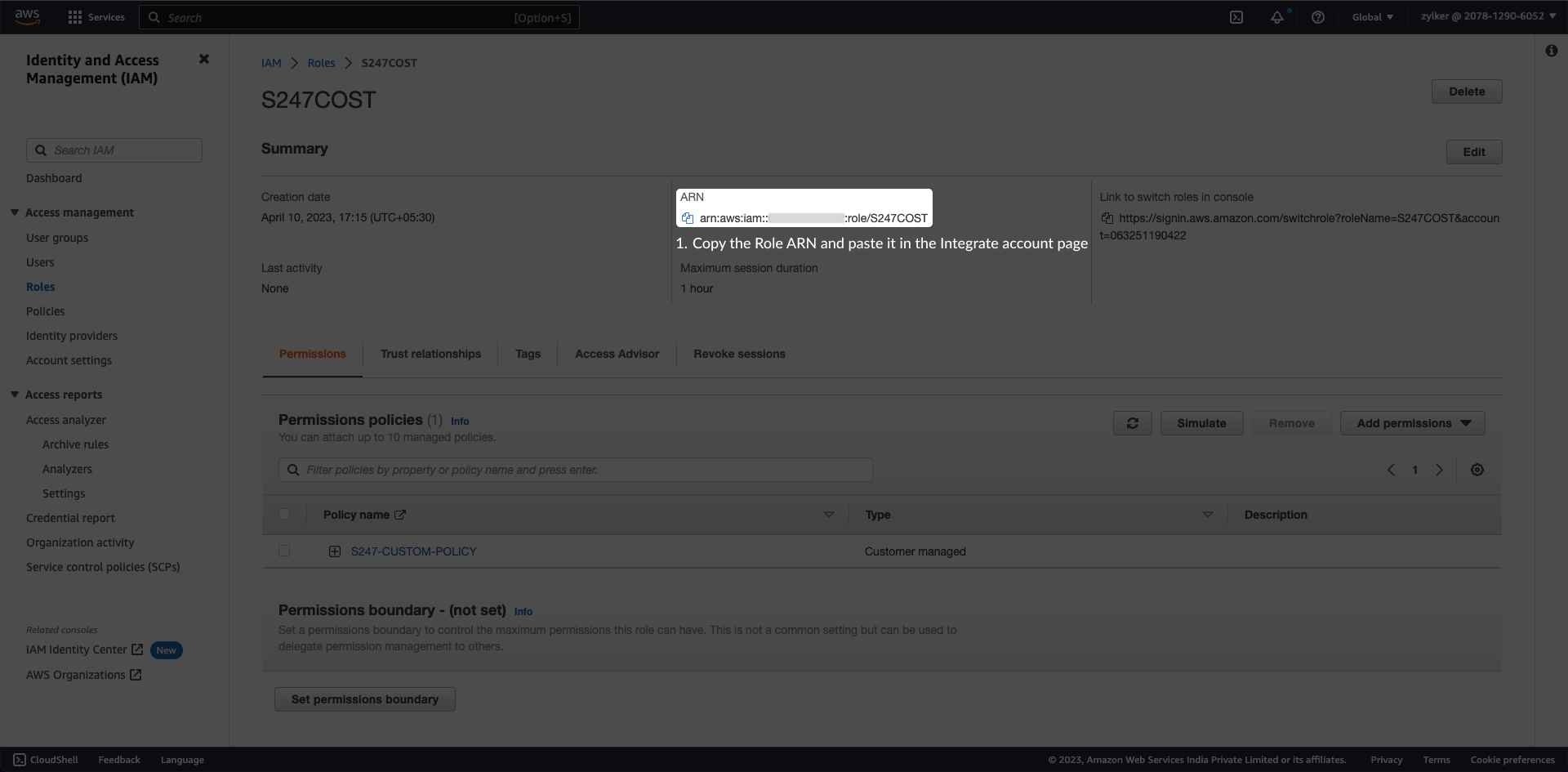
- Search the role name that you created and click the role name hyperlink.
Copy the ARN details from the Summary section and paste it in the CloudSpend>Integrate Account> Role ARN field.
IAM User based access (deprecated)
The following section will walk you through the AWS IAM user creation process:
Select Access Type
Sign in to the AWS Management Console and open the IAM console.
If you're using the consolidated billing feature in AWS Organizations to bring multiple member accounts under a master account then sign in to the AWS management console of the master account. If you're running multiple standalone accounts (choose to have each account receive a bill) then login to the AWS account you want to integrate with CloudSpend.
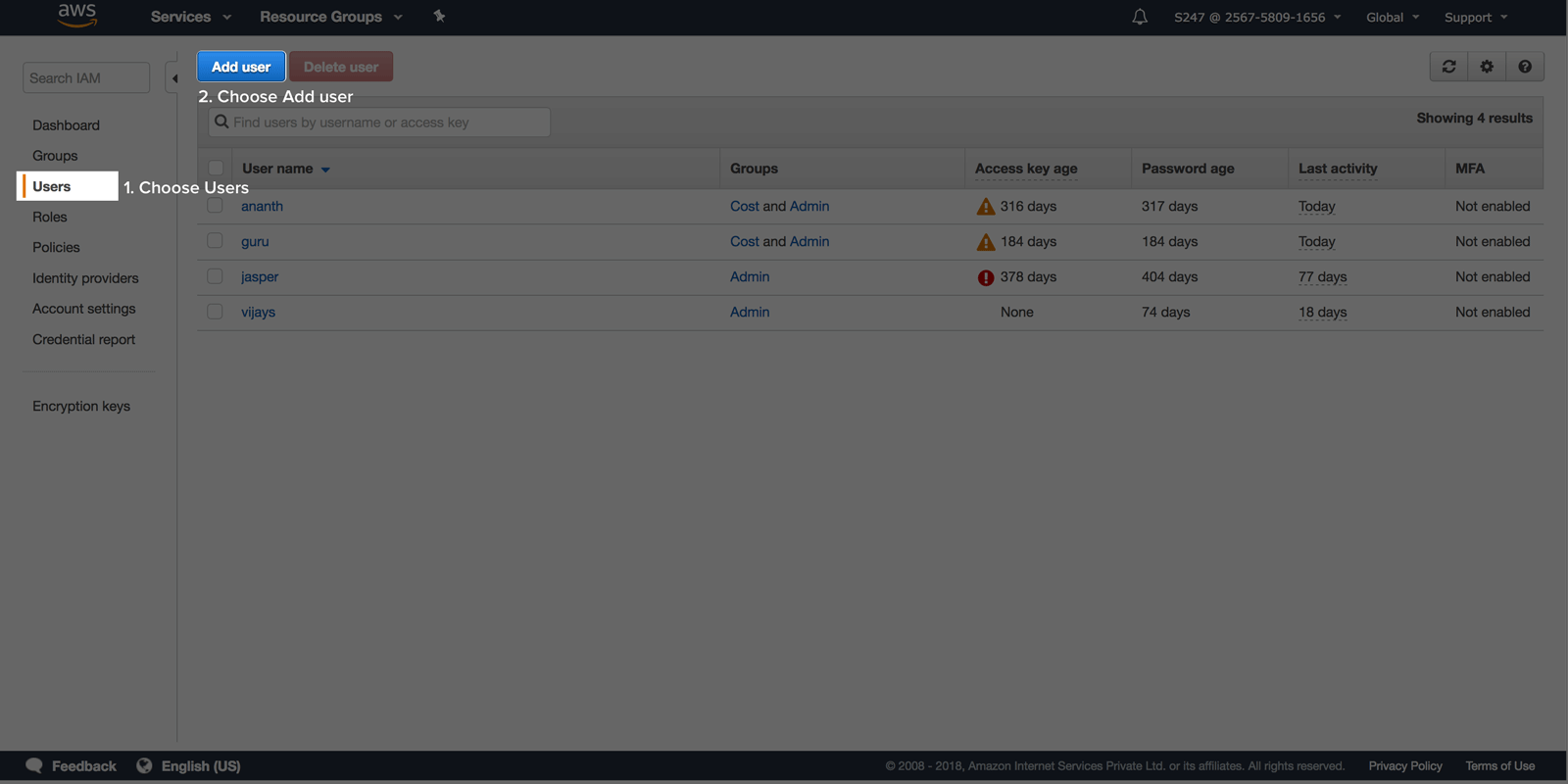
In the navigation pane, click Users and then click Add user.
- For user name, type a meaningful name.
Select Programmatic access as the type of access.
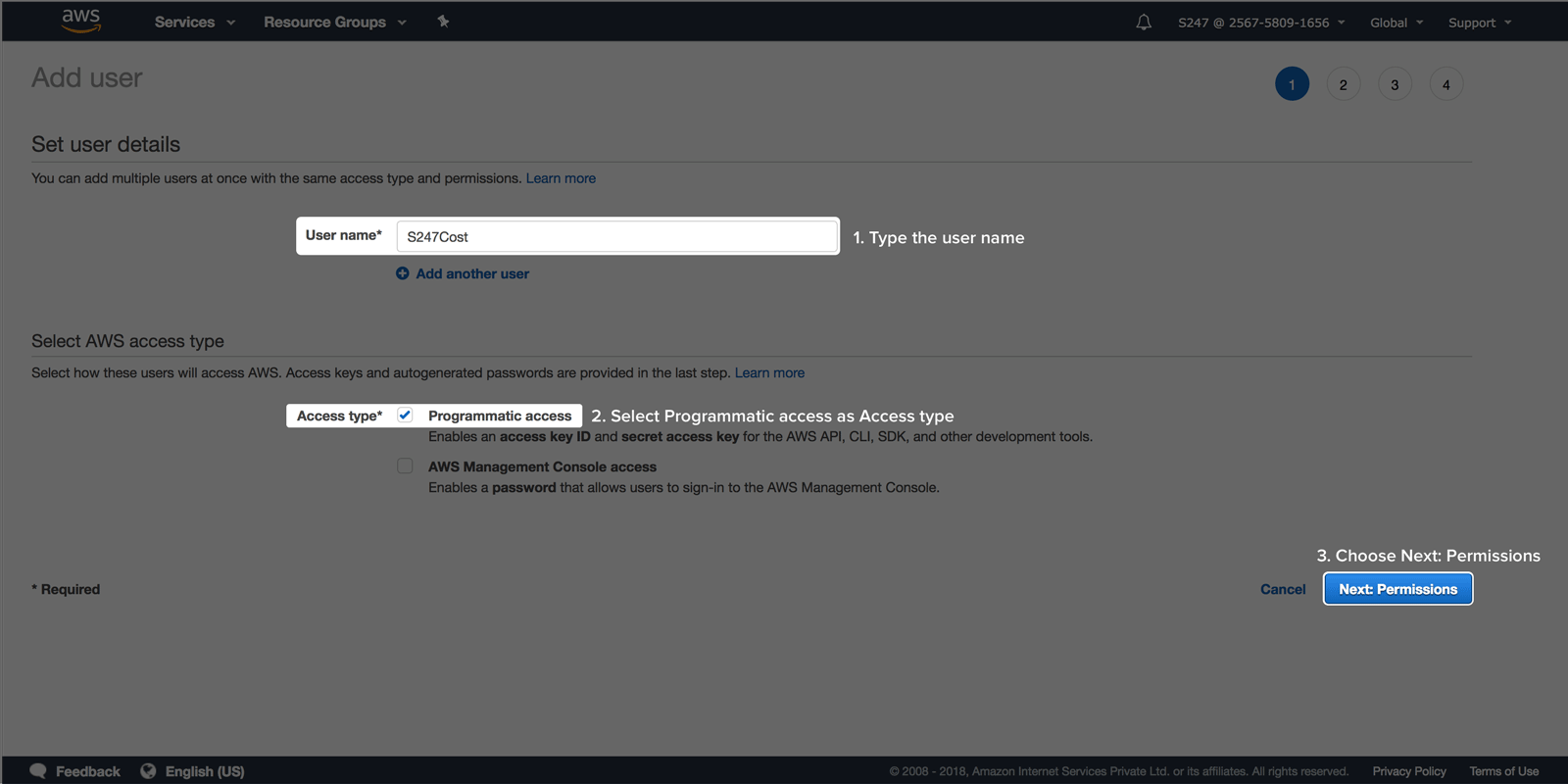
- Click Next: Permissions.
Assign permissions
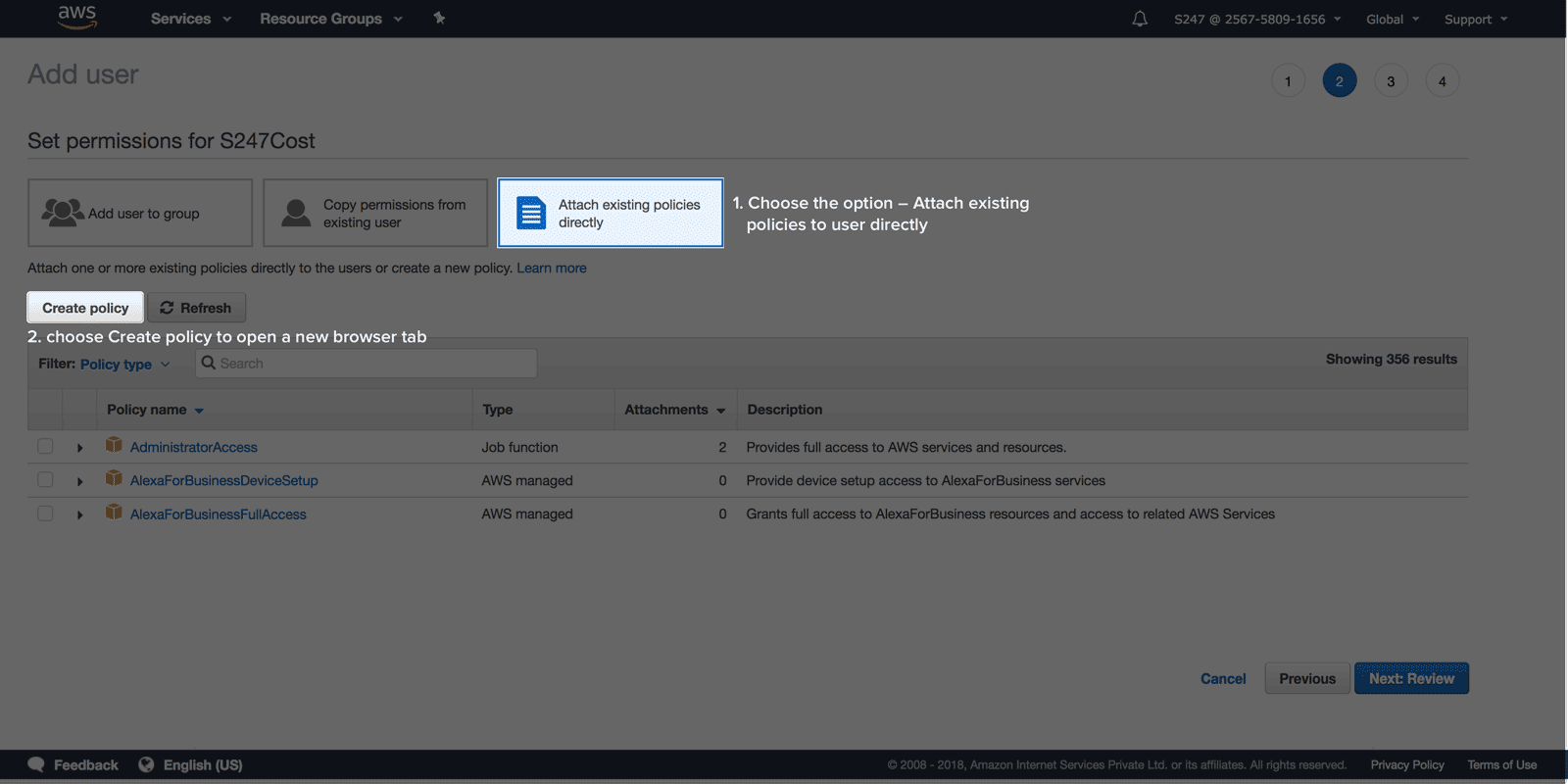
In the Set permissions window, choose the option Attach existing policies to user directly and click Create policy to open a new browser tab.
Choose the JSON tab. Copy the custom policy shown below and paste it in the editor.
{
   "Version":"2012-10-17",
   "Statement":[
         {
            "Sid":"VisualEditor0",
            "Effect":"Allow",
            "Action":[
               "organizations:ListRoots",
               "s3:GetObjectVersionTagging",
               "organizations:DescribeAccount",
               "organizations:ListChildren",
               "s3:GetObjectAcl",
               "organizations:DescribeOrganization",
               "s3:GetObjectVersionAcl",
               "organizations:DescribeHandshake",
               "s3:GetBucketWebsite",
               "s3:GetBucketNotification",
               "s3:GetReplicationConfiguration",
               "s3:ListMultipartUploadParts",
               "organizations:ListAccountsForParent",
               "organizations:ListHandshakesForAccount",
               "s3:GetObject",
               "iam:GetUserPolicy",
               "s3:GetAnalyticsConfiguration",
               "organizations:ListOrganizationalUnitsForParent",
               "s3:GetObjectVersionForReplication",
               "cur:DescribeReportDefinitions",
               "s3:GetLifecycleConfiguration",
               "s3:GetBucketTagging",
               "s3:GetInventoryConfiguration",
               "s3:ListBucketVersions",
               "s3:GetBucketLogging",
               "s3:ListBucket",
               "s3:GetAccelerateConfiguration",
               "s3:GetBucketPolicy",
               "organizations:DescribePolicy",
               "s3:GetObjectVersionTorrent",
               "s3:GetEncryptionConfiguration",
               "organizations:ListCreateAccountStatus",
               "s3:GetBucketRequestPayment",
               "organizations:DescribeOrganizationalUnit",
               "s3:GetObjectTagging",
               "s3:GetMetricsConfiguration",
               "organizations:DescribeCreateAccountStatus",
               "organizations:ListPoliciesForTarget",
               "s3:ListBucketMultipartUploads",
               "organizations:ListTargetsForPolicy",
               "s3:GetBucketVersioning",
               "organizations:ListAWSServiceAccessForOrganization",
               "s3:GetBucketAcl",
               "organizations:ListPolicies",
               "organizations:ListHandshakesForOrganization",
               "organizations:ListAccounts",
               "s3:GetObjectTorrent",
               "s3:ListAllMyBuckets",
               "s3:GetBucketCORS",
               "organizations:ListParents",
               "iam:GetUser",
               "s3:GetBucketLocation",
               "s3:GetObjectVersion",
               "bcm-data-exports:ListExports",
               "bcm-data-exports:GetExport"
            ],
            "Resource":"*"
         }
      ]
   }
Click Review policy.
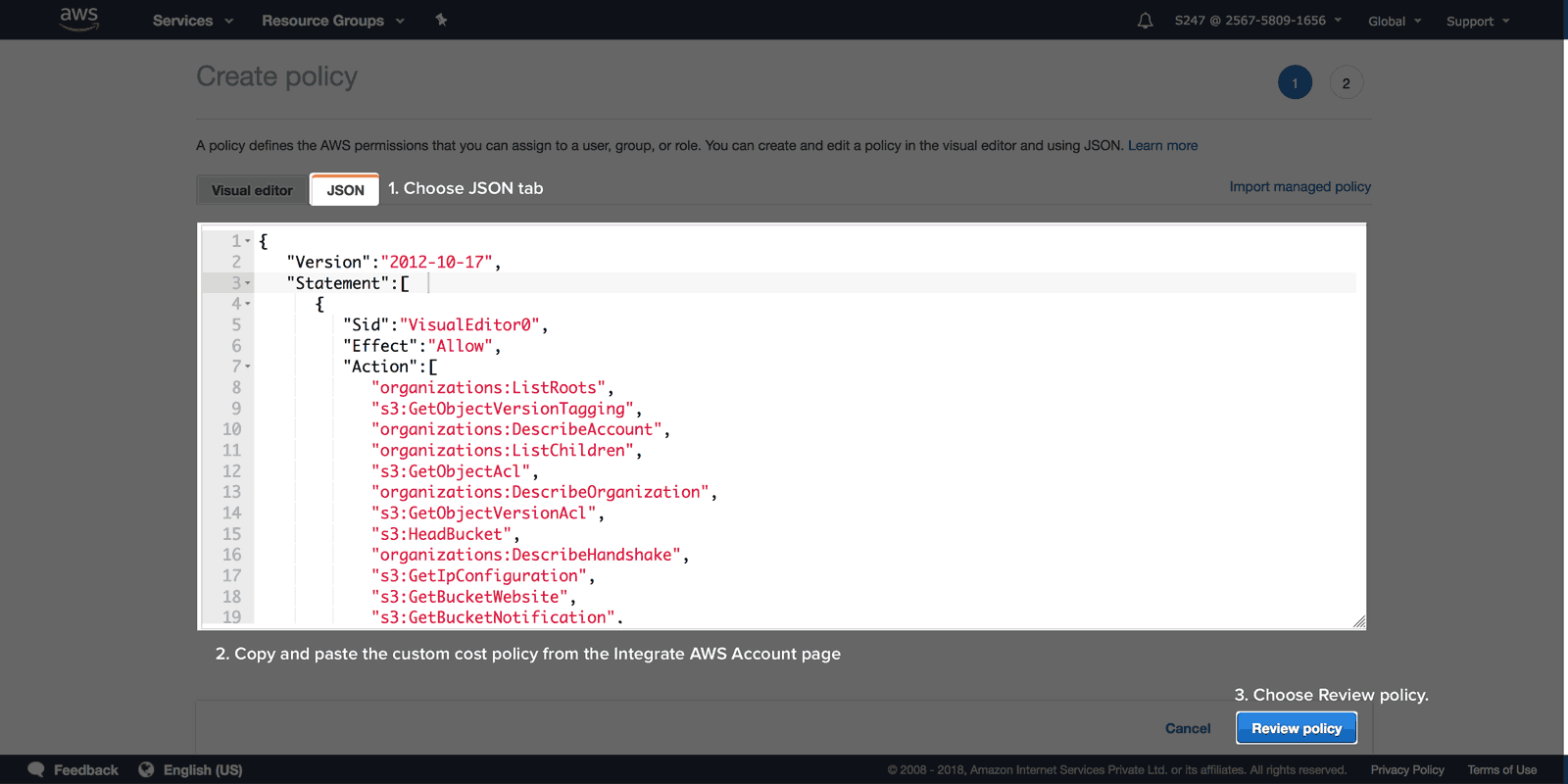
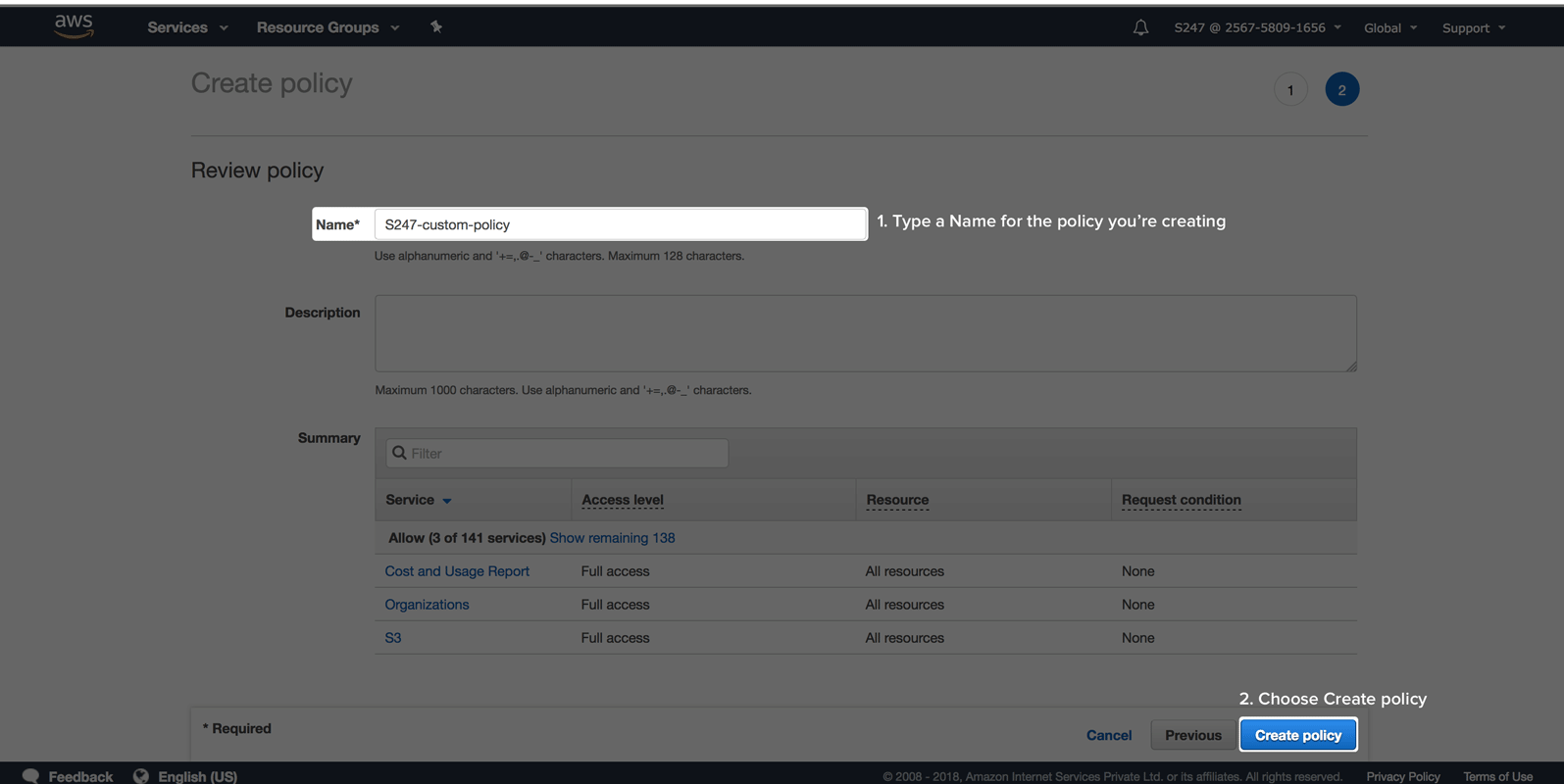
On the review page, type a name and a description for the policy you're creating. Evaluate the permissions granted, if everything looks satisfying click Create policy.
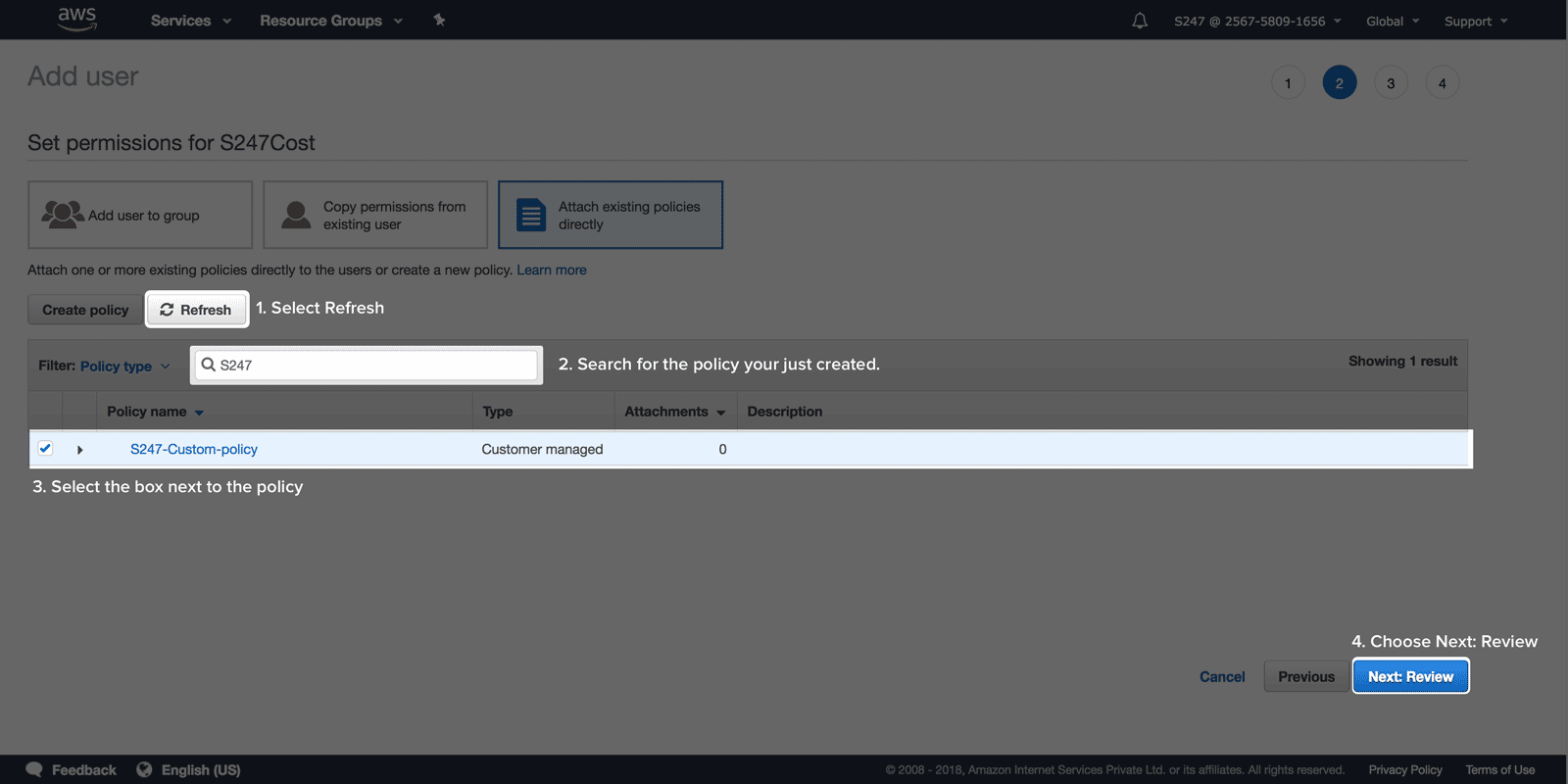
- Back in the Set permissions page, select Refresh, type the name of the policy you just created in the search box to filter the list.
Select the check box next to the name of the policy. Click Next: Review.
Download credentials
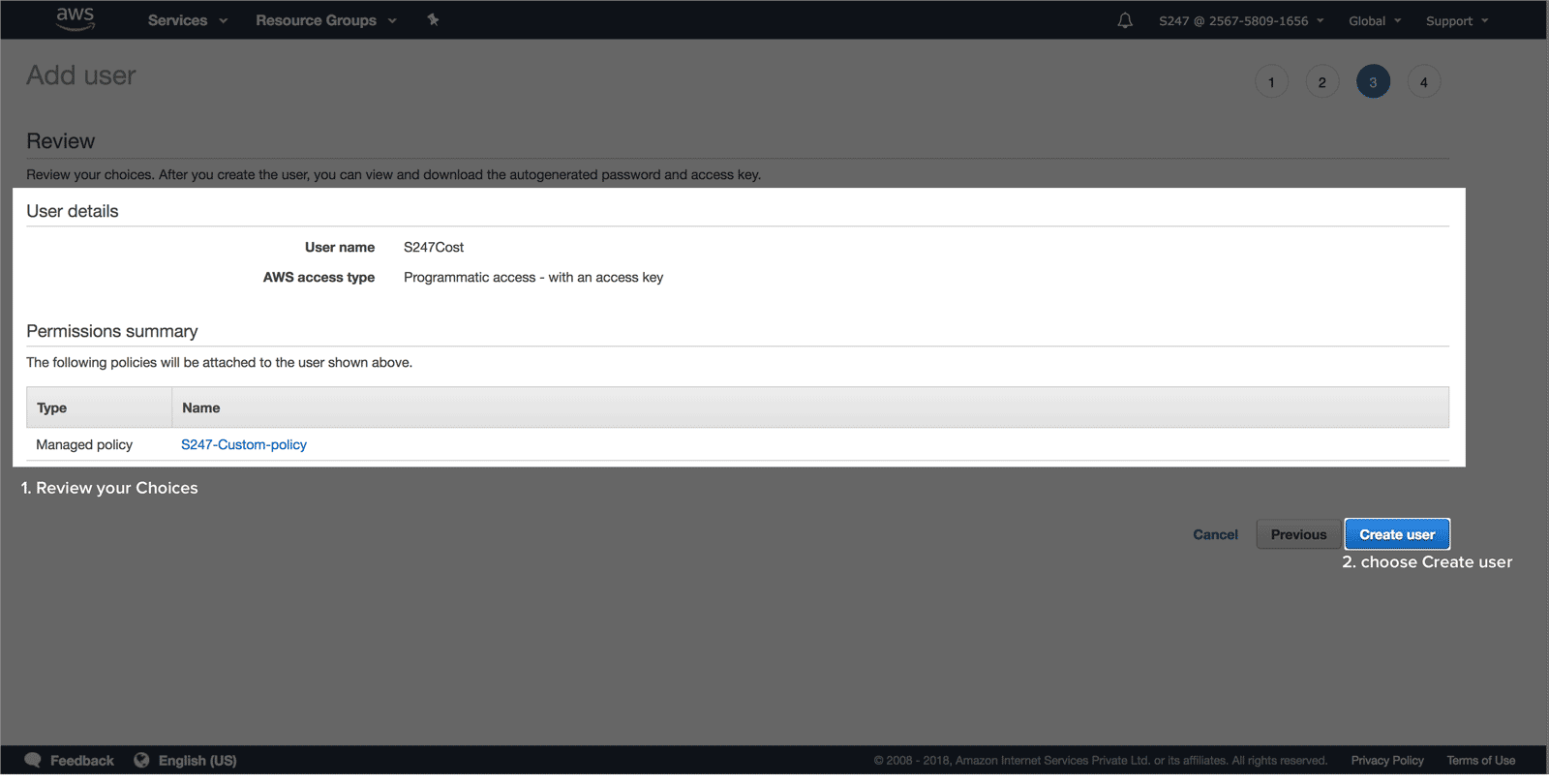
Review user details and permissions. If everything is in order click Create user.
Choose Download.csv and save the file in a secure location. (This is the only opportunity you will get to view or save the security credentials.)
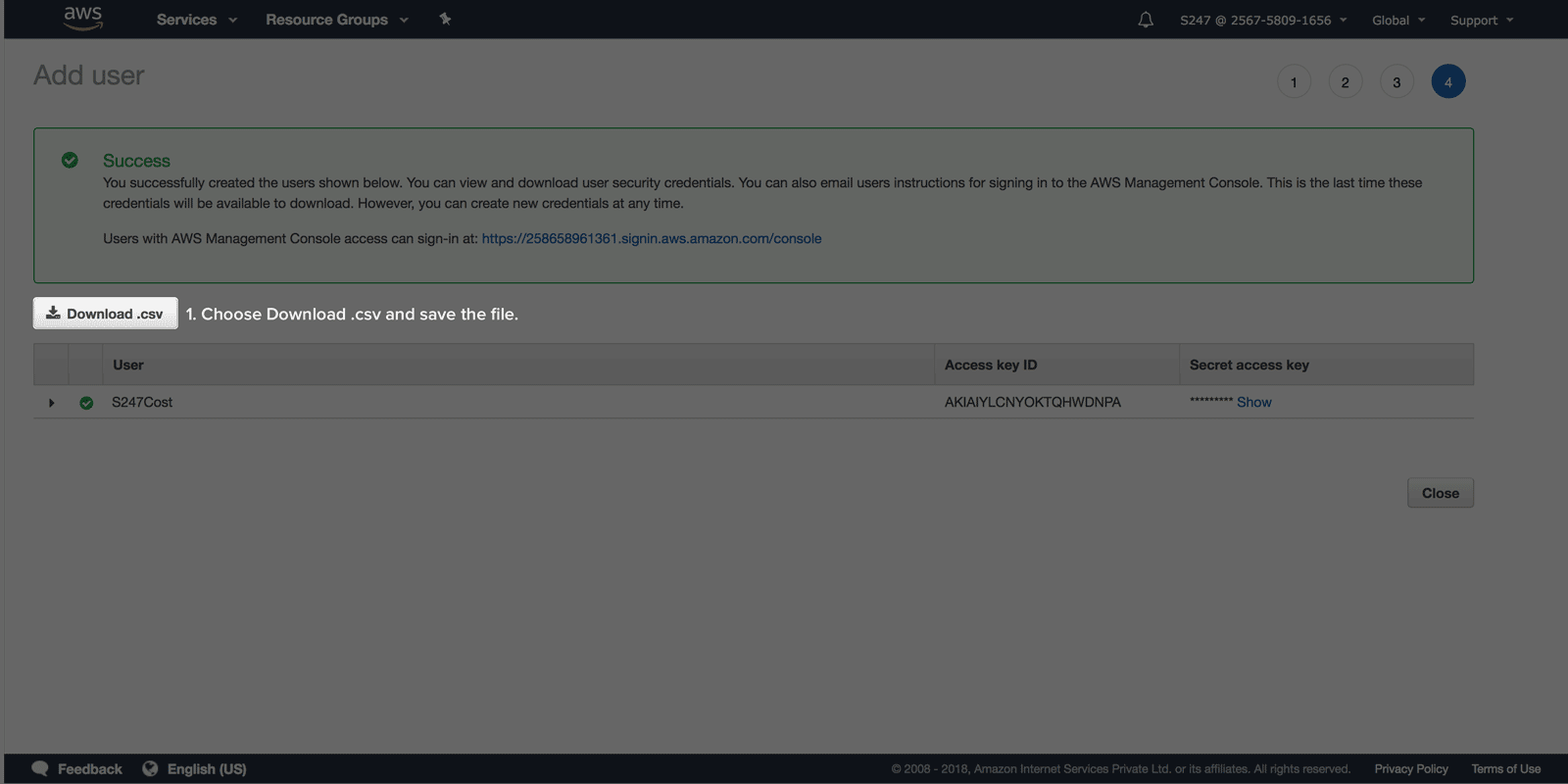
- Open the file, copy the secret access key and access key ID and save it to a notepad for Stage 3.
AWS CloudFormation stack based access
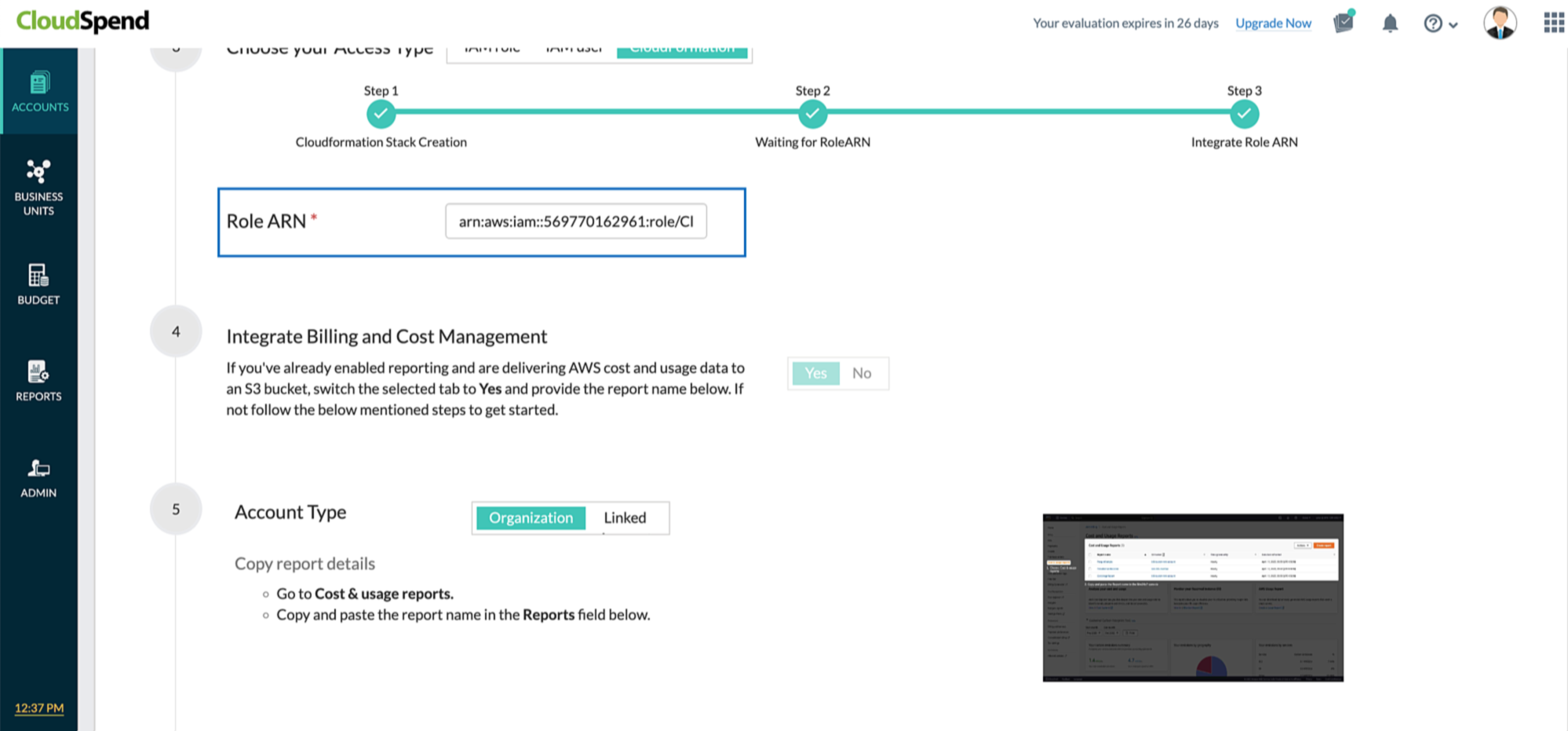
CloudSpend uses an AWS CloudFormation template to generate an IAM role, so that you can seamlessly integrate your AWS account with CloudSpend. Enabling access to your AWS environment automatically creates an IAM role using the CloudFormation template.
The following section will walk you through the IAM Role creation process using CloudFormation stack:
- Open the CloudSpend web console and sign in.
- When you open the CloudSpend console for the first time, you'll land on an on-boarding carousel highlighting the features of the app. You can read and understand how the app can help you, or you can choose to skip.
- Click Integrate Account.
- In the Integrate Account page, provide a Display Name, and select AWS as the Public Cloud Provider.
- Select CloudFormation as the Access Type.
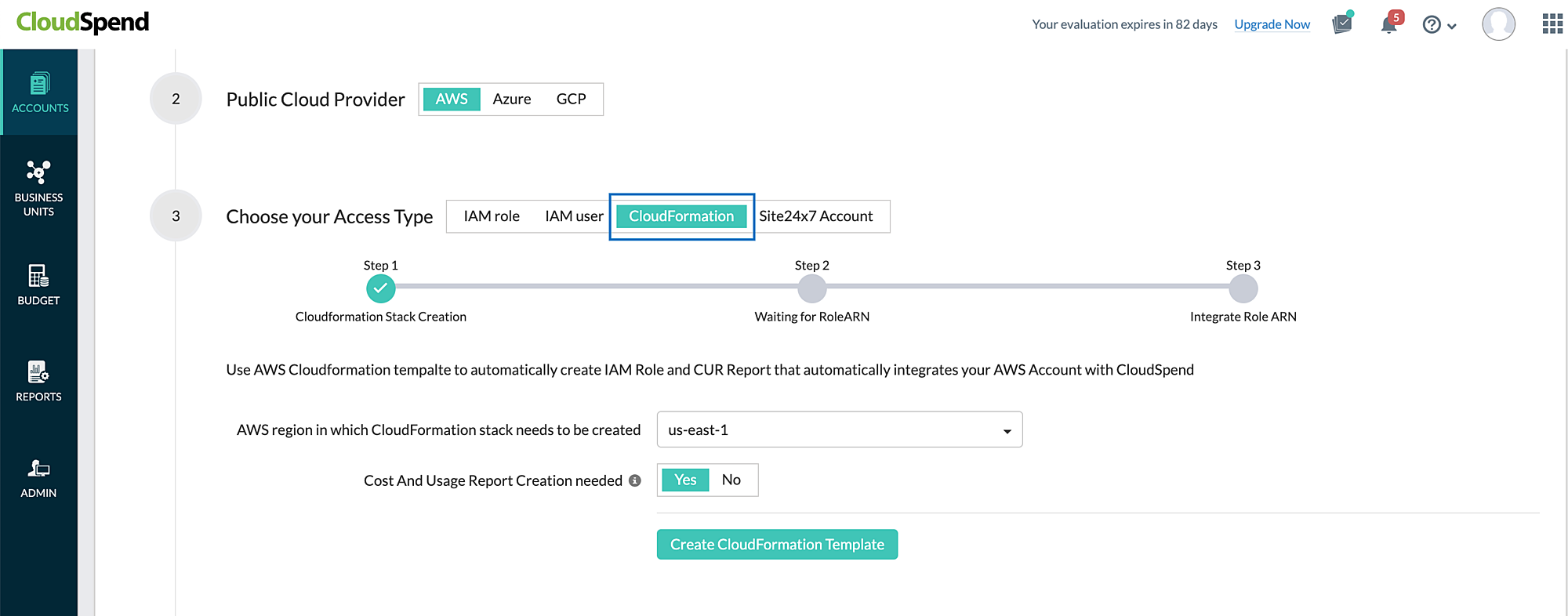
- Select the AWS regionin which CloudFormation stack needs to be created.
- The Cost and Usage Report creation needed option is set to Yes by default. Toggle this option to No, if the Cost and Usage Report (CUR) is already created in your AWS account to avoid duplicate report creation.
- Click Create CloudFormation Template. You will be redirected to the AWS console.
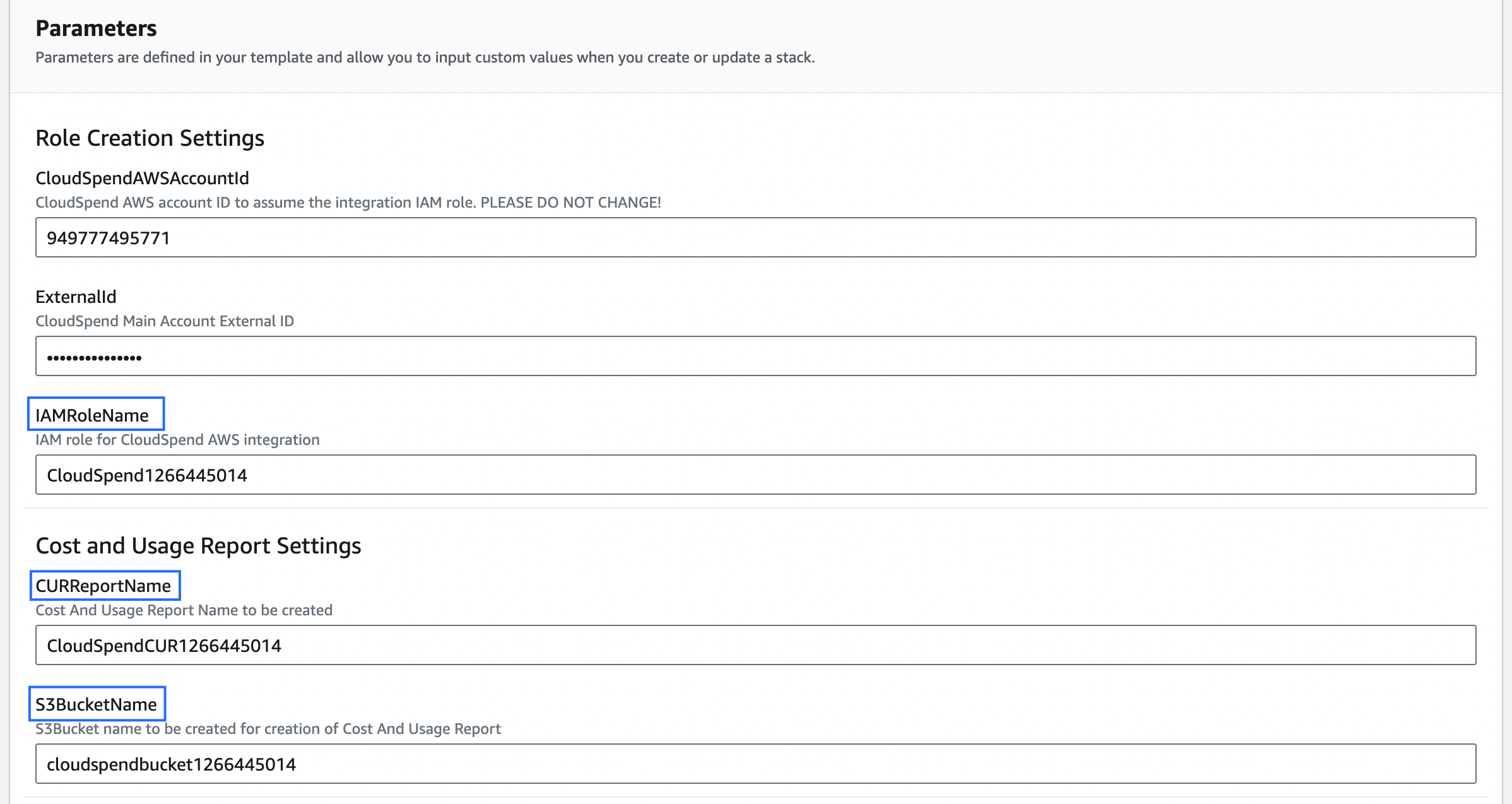
- In the AWS console, you can edit the IAMRoleName, CURReportName, and S3BucketName if required.
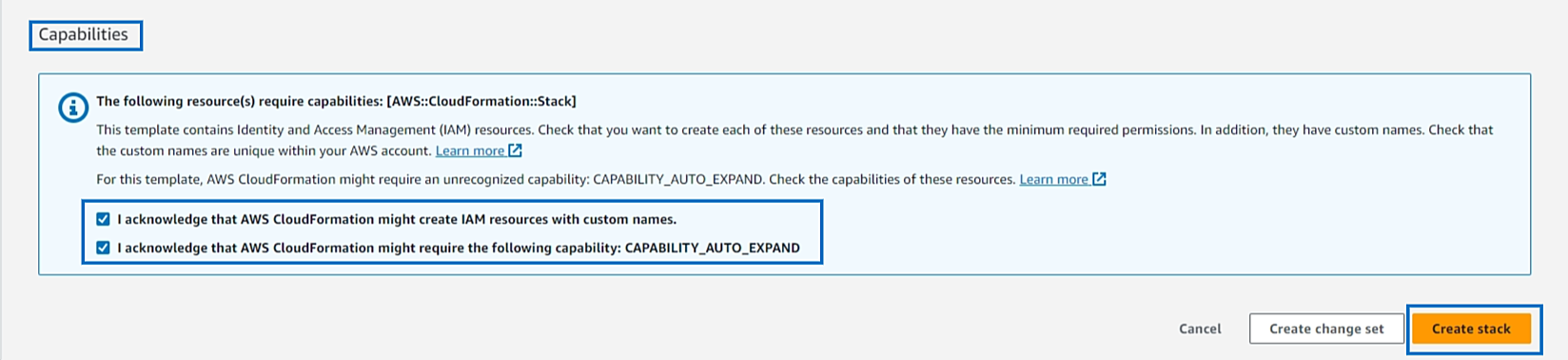
- Select the acknowledgement check boxes at the bottom of the Capabilities section and click Create stack. The IAM role template will be created via the stack after CloudSpend receives the Lambda API call.
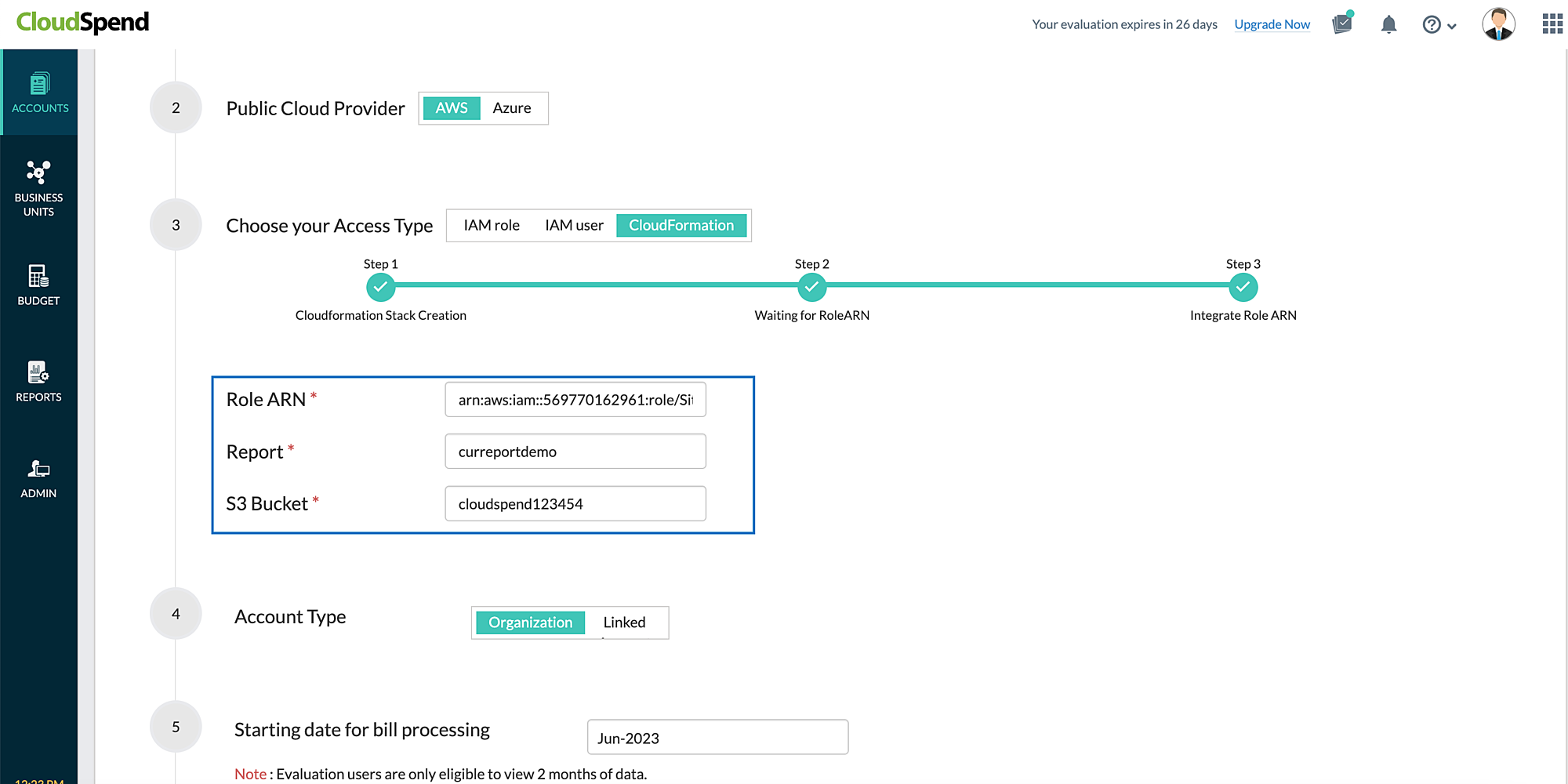
- After creating the IAM role, the CloudFormation stack sends the role ARN to CloudSpend via the Lambda function. If the Cost and Usage Report creation needed option is set to Yes then CloudSpend creates S3 Bucket and CUR Report in AWS via Lambda function. As a result, the report and S3 Bucket details are also fetched along with the role ARN details and the Role ARN, Report, and S3 Bucket fields will be displayed and auto-filled in the CloudSpend Integrate Account page.
Configure data exports (Stage 2)
AWS Data Exports enables you to create exports of the Cost and Usage Report (CUR) 2.0 or Legacy Cost and Usage Reports.
CloudSpend supports master and linked accounts. If you're using the consolidated billing feature in AWS Organizations, then create the data export at master account level. However, if you wish to view the cost and usage details at the linked account level, you have to create the data export for the respective linked account.
Exports are delivered on a recurring basis to an Amazon S3 bucket. To deliver the exports to an existing or new S3 bucket, follow the steps mentioned below. If you're already publishing the export to a S3 bucket, skip to Stage 3.
Creating a Data export
To create an AWS data export in an S3 bucket, follow the steps below to get started.
- Sign in to the AWS console.
- Select Billing and Cost Management.
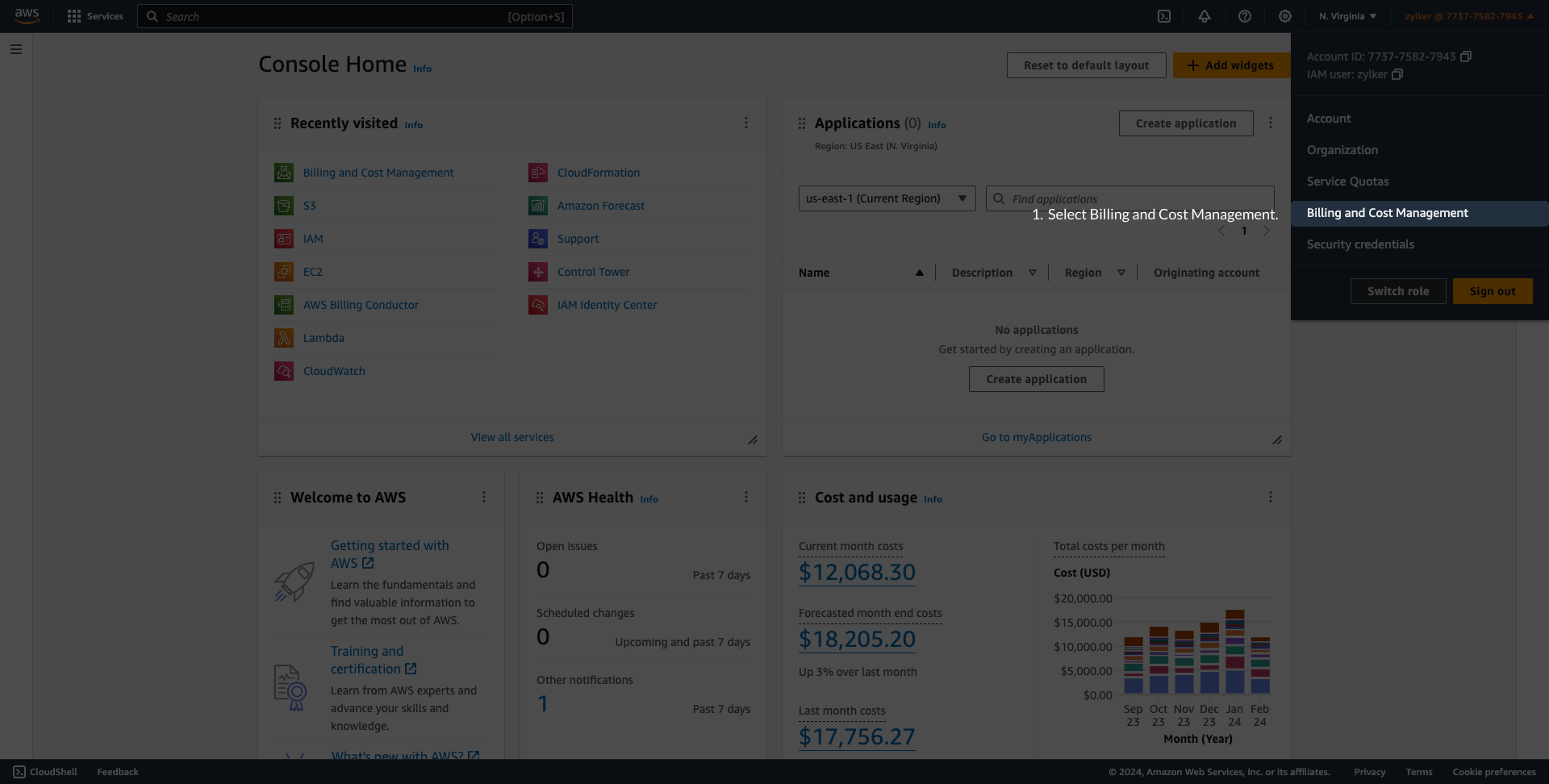
- Select Data Exports in the left navigation pane and click Create.
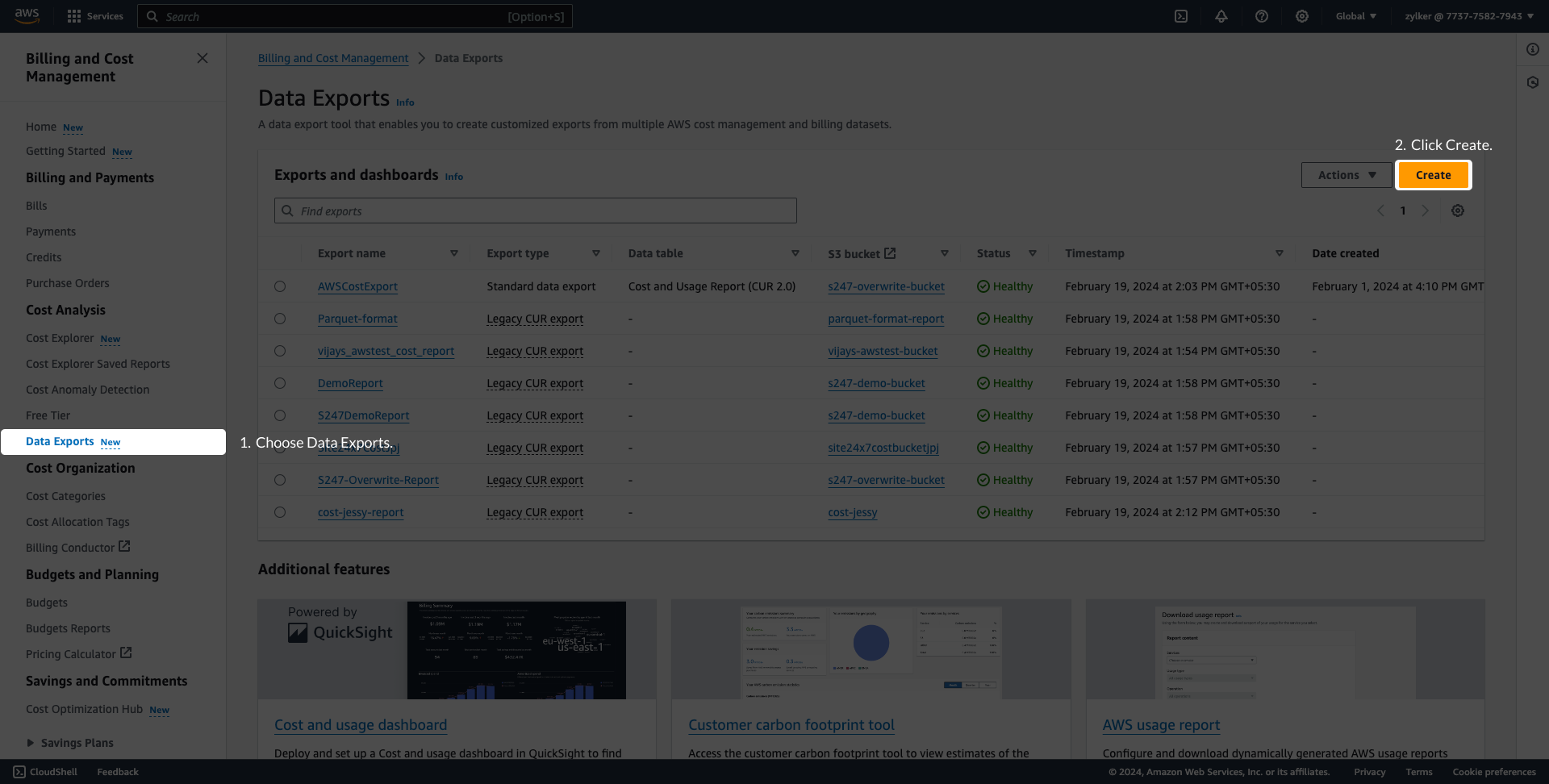
- On the Create page, under Export type, choose Standard data export or Legacy CUR export.
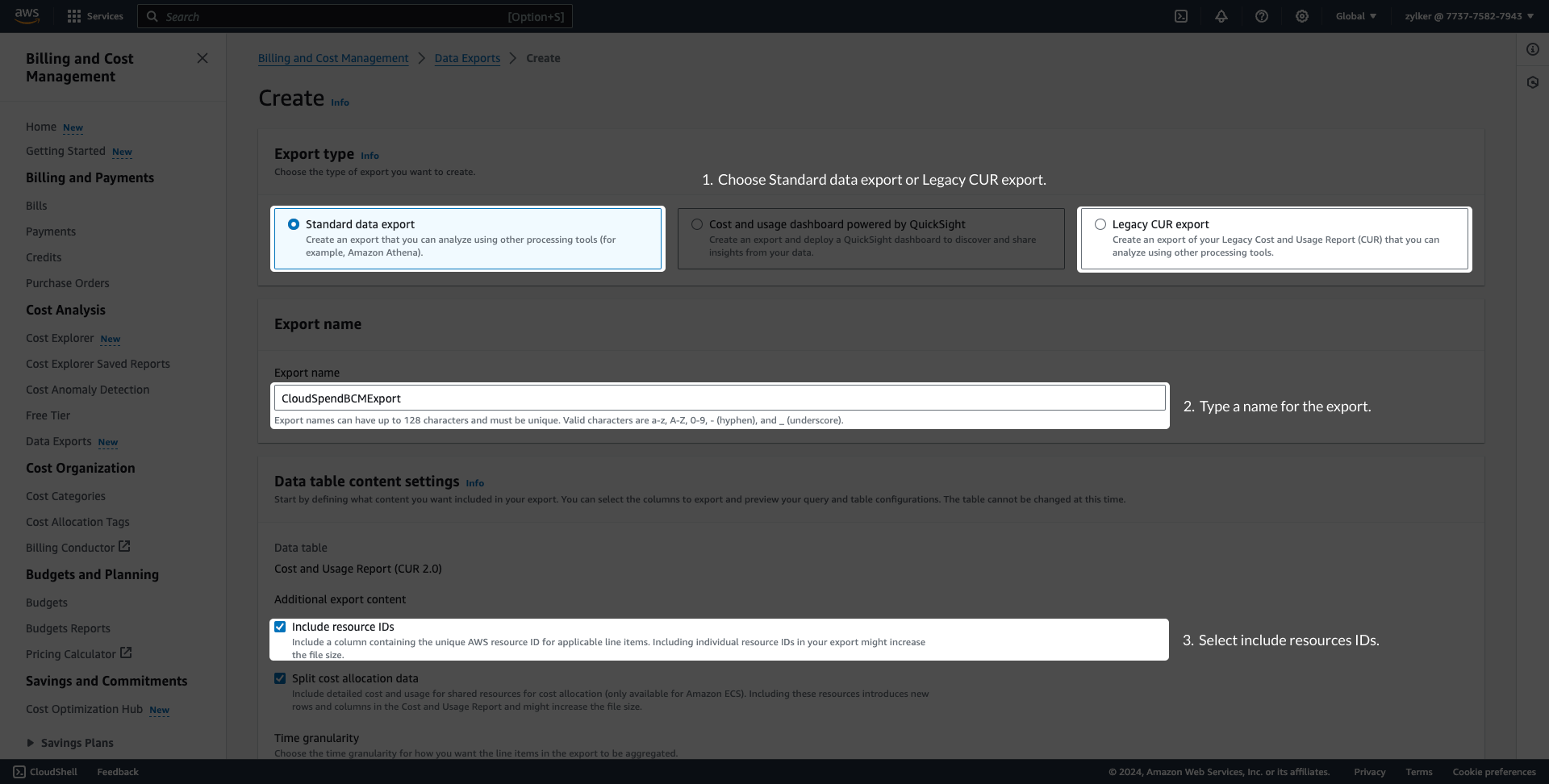
- Enter a name for your export name in the Export name field and save this name for later use.
- Select the Include resource IDs checkbox under Additional exportcontent.
- For Standard data export, set the Time granularity as Hourly and keep the Columnselection list at default. Under Data export delivery options, select Compression type and file format as gzip - text/csv. Choose the File versioning as Overwrite existing data export file.

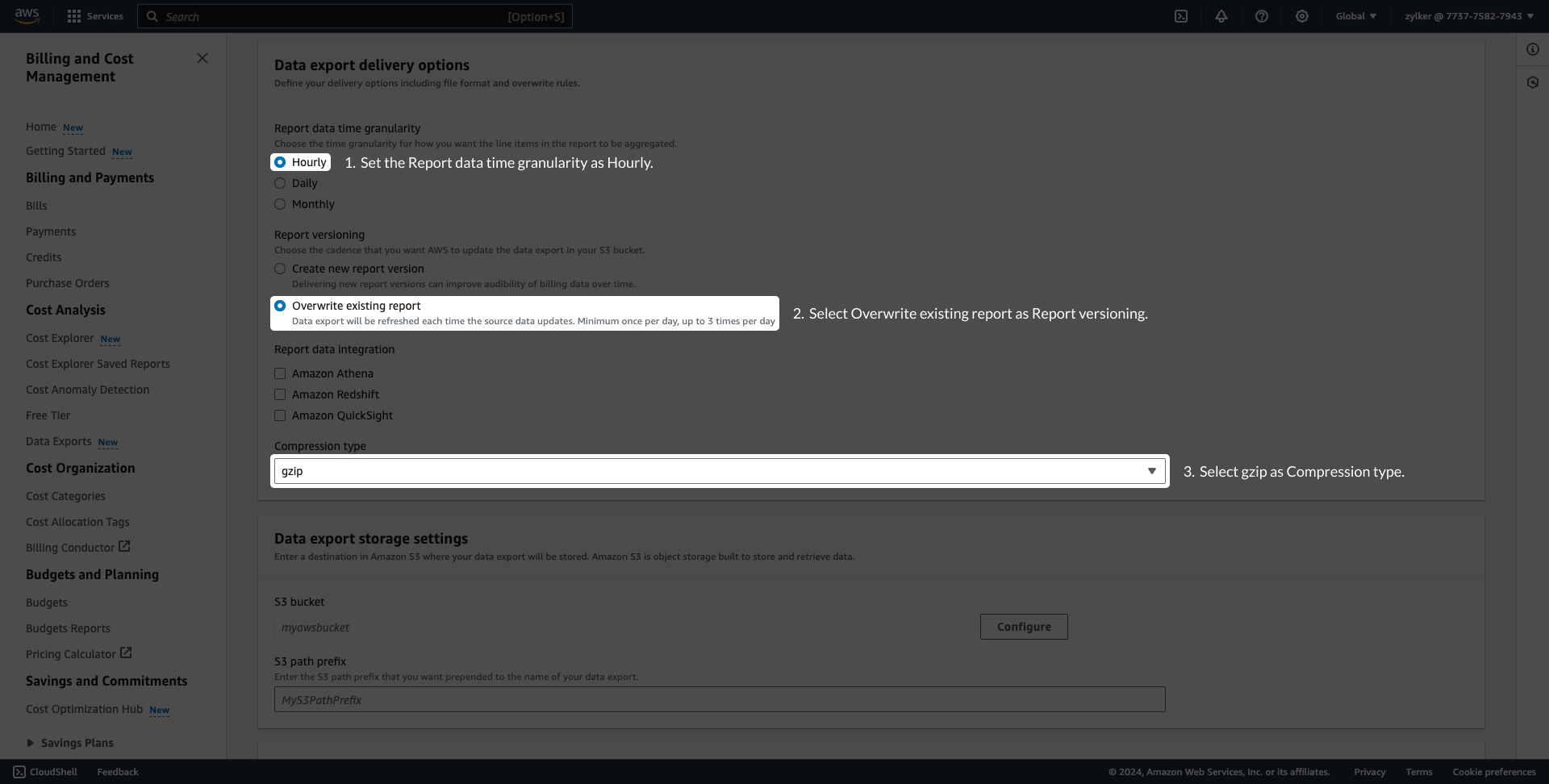
- For Legacy CUR export, set the Report data time granularity as Hourly and select the Overwrite existing report option for Report versioning. Select gzip as Compression type.
- For Standard data export, set the Time granularity as Hourly and keep the Columnselection list at default. Under Data export delivery options, select Compression type and file format as gzip - text/csv. Choose the File versioning as Overwrite existing data export file.
- To configure the S3 bucket, click Configure under Data export storage settings. You can either create a S3 bucket or configure an existing S3 bucket.
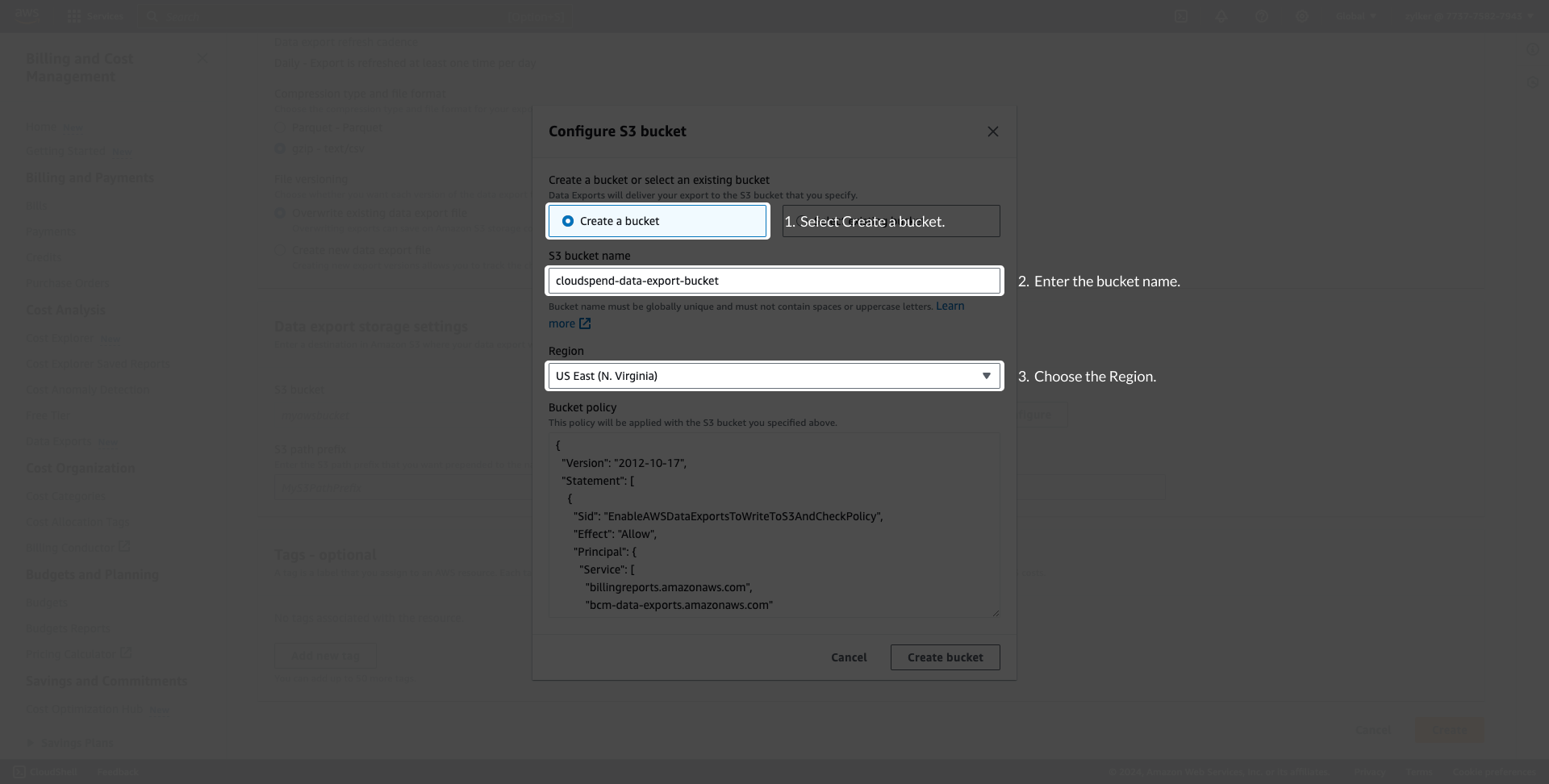
- Choose Create a bucket to create a new S3 bucket. Provide a S3 bucket name, choose the Region, and click Create bucket.
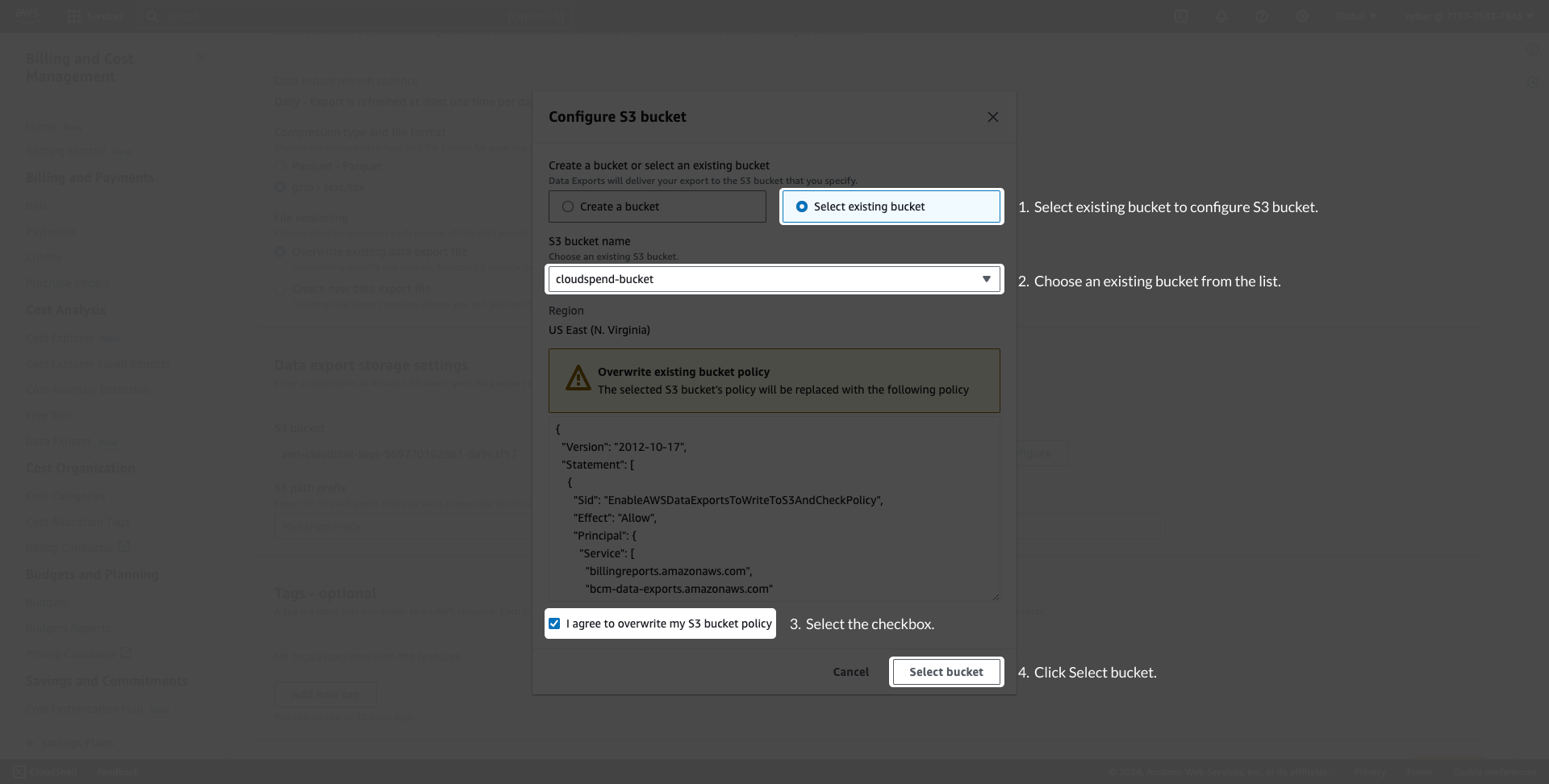
- Choose Select existing bucket to configure an existing S3 bucket, and select the required S3 bucket from the S3 bucket name list. Select the I agree to overwrite my S3 bucket policy checkbox and click Select bucket.
- Choose Create a bucket to create a new S3 bucket. Provide a S3 bucket name, choose the Region, and click Create bucket.
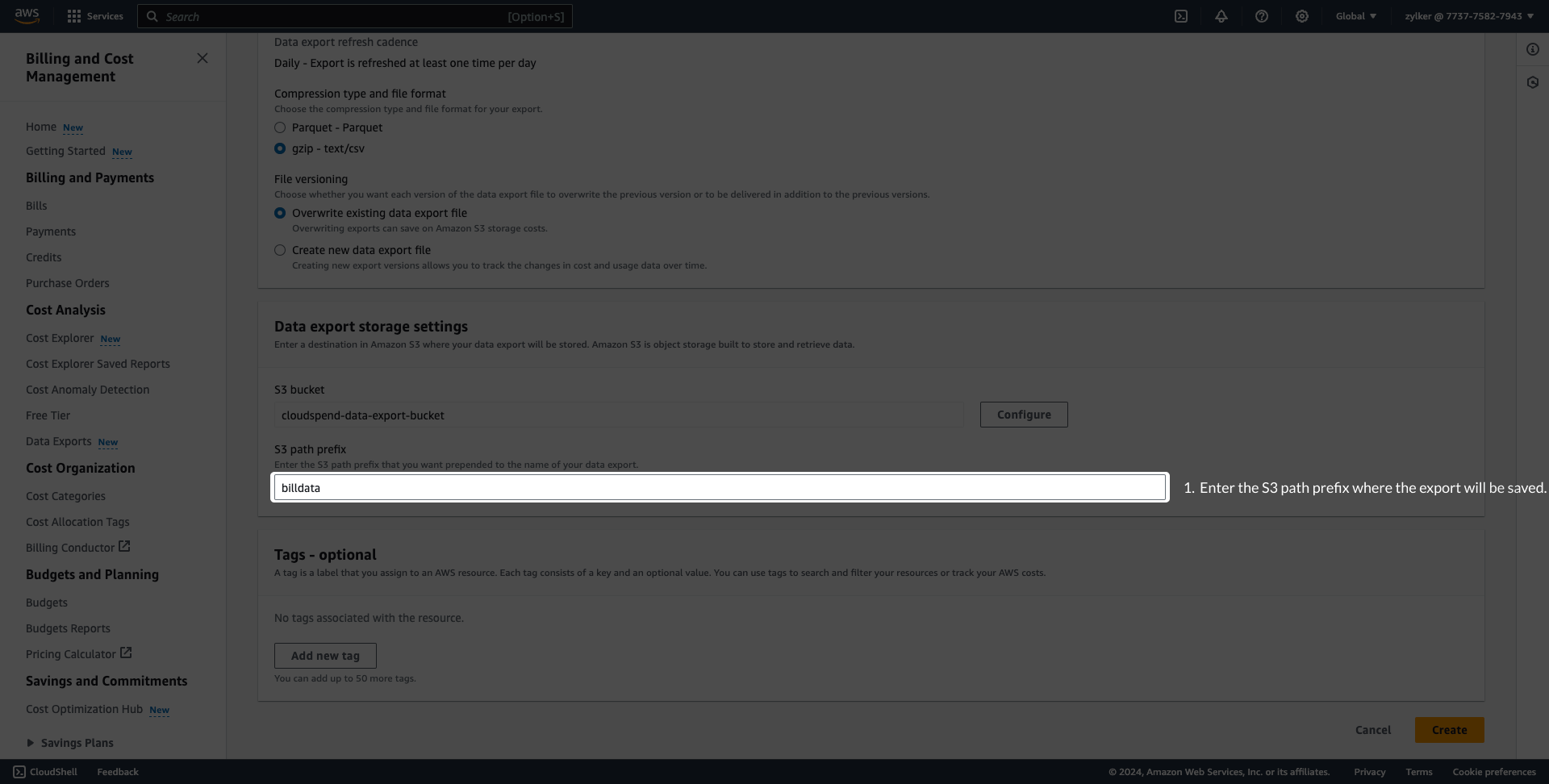
- Enter the S3 path prefix. Save the S3 bucket name and S3 path prefix for later use.
- Click Create.
Connect AWS account (Stage 3)
Configure the Integrate AWS account page
- If you've created an IAM Role, navigate back to the open CloudSpend console browser tab (the same tab where you copied the External ID and Account ID) and paste the Role ARN in the appropriate field.
- If you've automatically created an IAM role with CloudFormation template, then the Role ARN, Report, and S3 Bucket fields will be auto-filled. You will have to enter the export name in the Export Name field manually when the Cost and Usage Report creation needed option is set to No.
- If you've created an IAM user, sign in to the CloudSpend web console and click Integrate Account. Enter a Display Name, and choose IAMuser as the Access Type. Copy and paste the Access key ID and Secret Access Key in the appropriate field. (This method is deprecated.)
- If you've chosen Organization as Account Type, then copy and paste the name of the export you already created in the Export name field. In case of Linked Accounts,copy and paste the Export name, S3 bucket name and path prefix which you created in the Creating a data export section above.
- The Start Date for Bill Processing determines the start date from which bills will be processed. Choose an appropriate starting date as per your requirement.
- Click Save.
Connecting a Site24x7 account with CloudSpend
Connect your Site24x7 account directly with CloudSpend by:
- Provide a Display Name, and choose your access type as Site24x7 Account in the Integrate Account page. In the drop-down below, pick the Site24x7 AWS account to be integrated.
- Create a new cost policy in the AWS management console.
- Whether your Site24x7 account has an IAM user or an IAM role, attach a cost policy by following the respective set of steps on the Integrate Account page.
- Follow the steps in Stage 2 and Stage 3 from connecting an AWS account to complete the process of integrating a Site24x7 account with CloudSpend
Connecting a MSP account with CloudSpend
Connect your Site24x7 MSP account directly with CloudSpend by:
- Provide a Display Name, and choose your access type as Site24x7 Account in the Integrate Account page.
- Choose the MSP customer from the drop-down, and in the next drop-down, pick the Site24x7 AWS account associated with the customer that needs to be integrated.
- Create a new cost policy in the AWS management console.
- Whether your Site24x7 account has an IAM user or an IAM role, attach a cost policy by following the respective set of steps on the Integrate Account page.
- Follow the steps in Stage 2 and Stage 3 from connecting an AWS account to complete the process of integrating a Site24x7 account with CloudSpend
Support for Linked Accounts
You can now leverage the cloud cost management tool for your linked accounts in AWS by choosing the Account Type as "Linked Account" in the Integrate account page. When you select a linked account, in addition to specifying the report name, specify the S3 bucket name and bucket prefix (if configured) to store the reports.
Support for Parquet format
The CloudSpend AWS cost supports Parquet and GZIP file formats. For cost accounts parsed from the Parquet format report, the user-defined tags with camel case, colon, and hyphen will be replaced with an underscore and follow lower casing.
See the below table for examples:
| Tag name in GZIP file type | Tag name in Parquet file type |
| autoscaling:groupName | autoscaling_group_name |
| cloudformation:id | cloudformation_id |
| CreatedBy | created_by |
| Environment-type | environment_type |
The system-generated tags will not have any changes.
Configuration Error Accounts
You can now easily view the errors in configuring your CloudSpend account, like Invalid report name or Expired roles in the Configuration Error Account(s) section. Choose to either edit or delete the configuration error and rectify the errors for all accounts from a single view.