Analyzing Lease and Lease History
There are two types of leases available in DDI Central: DHCP or dynamic leases and Static leases.
DHCP Leases
To access these DHCP lease records:
- Navigate to the DHCP module. Select the Lease menu from the left inner menu bar.
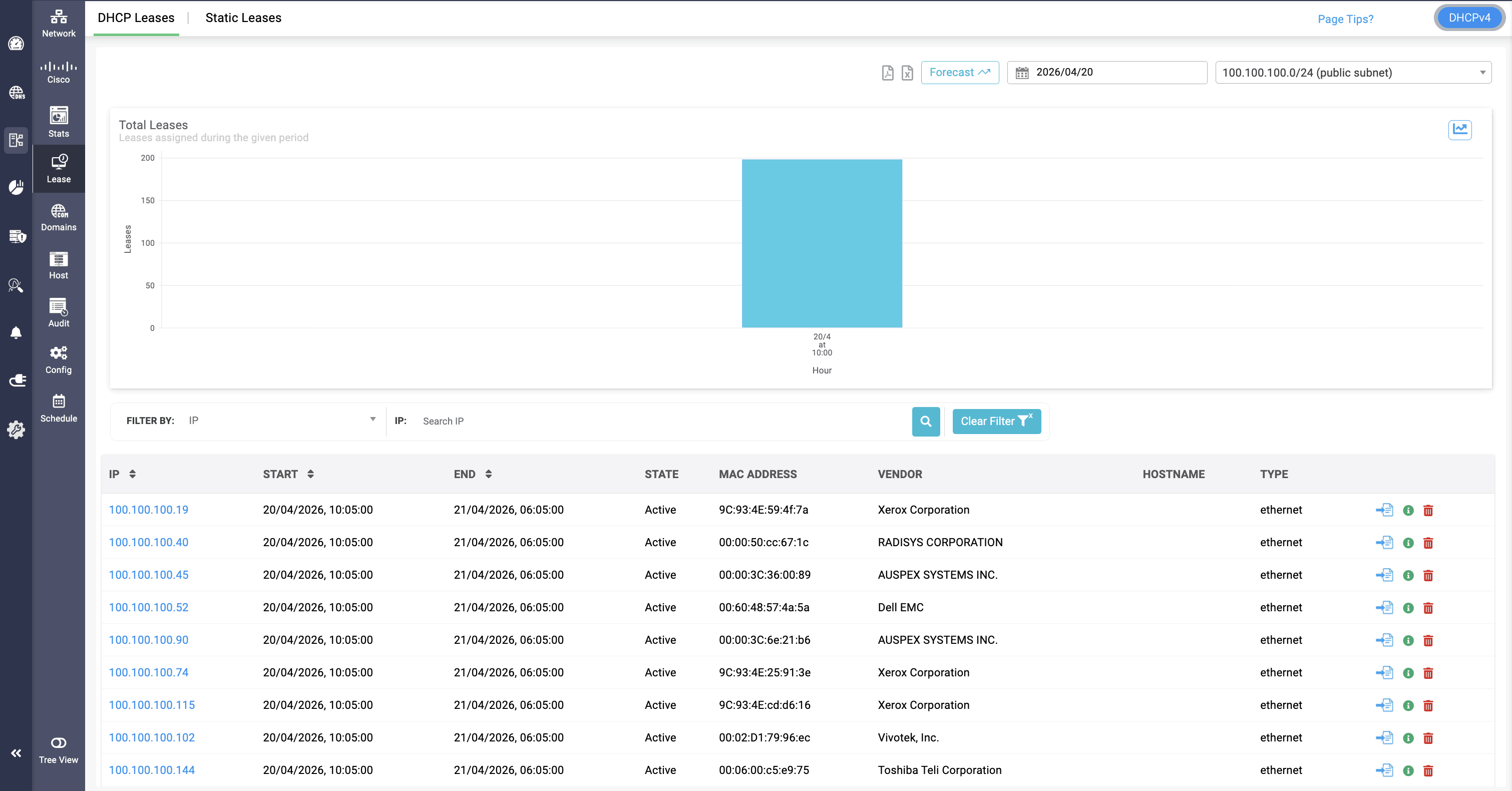
- The Lease page appears with the DHCP leases tab selected, displaying a visual snapshot of the lease volume for that subnet along a particular timeline, the list of IP addresses leased by the DHCP server from a specific subnet at that period of time, the total lease duration, the current availability state of the IP, the MAC address and the manufacturer details of the host device associated with the IP during the lease period and the type of connection.
- You can select the relevant subnet from the dropdown in the top right corner to view the leases within the selected subnet and adjust the timeline using the drop down calendar to visualize and list the leases from a specific point of time.
- You can also click on the red Delete icon at the extreme right end to delete leases from both the DHCP lease file and the DDI Central's database. By doing this, the same lease will not be reassigned to that particular user; instead, the user will receive a random DHCP lease from the relevant subnet.
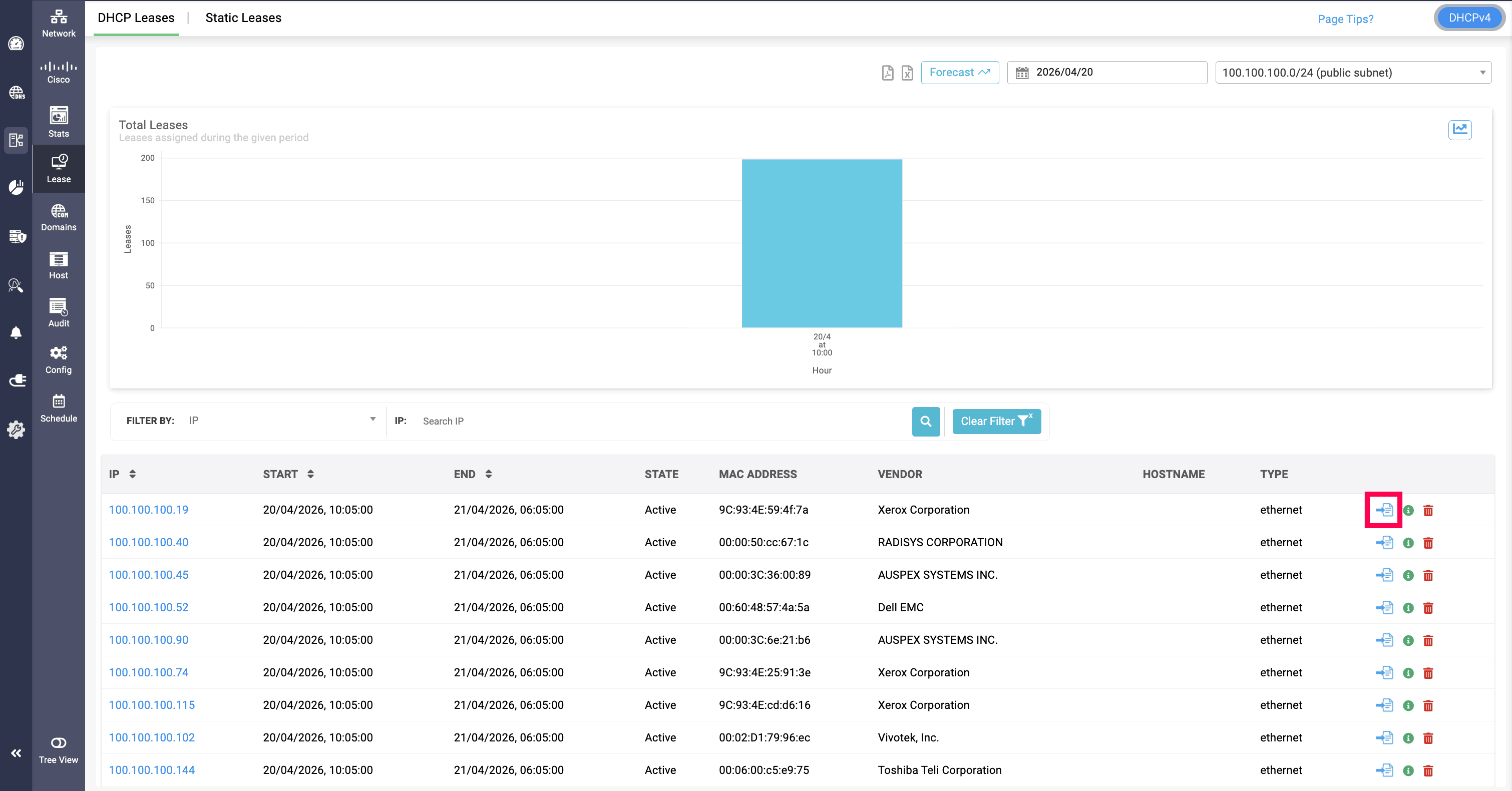
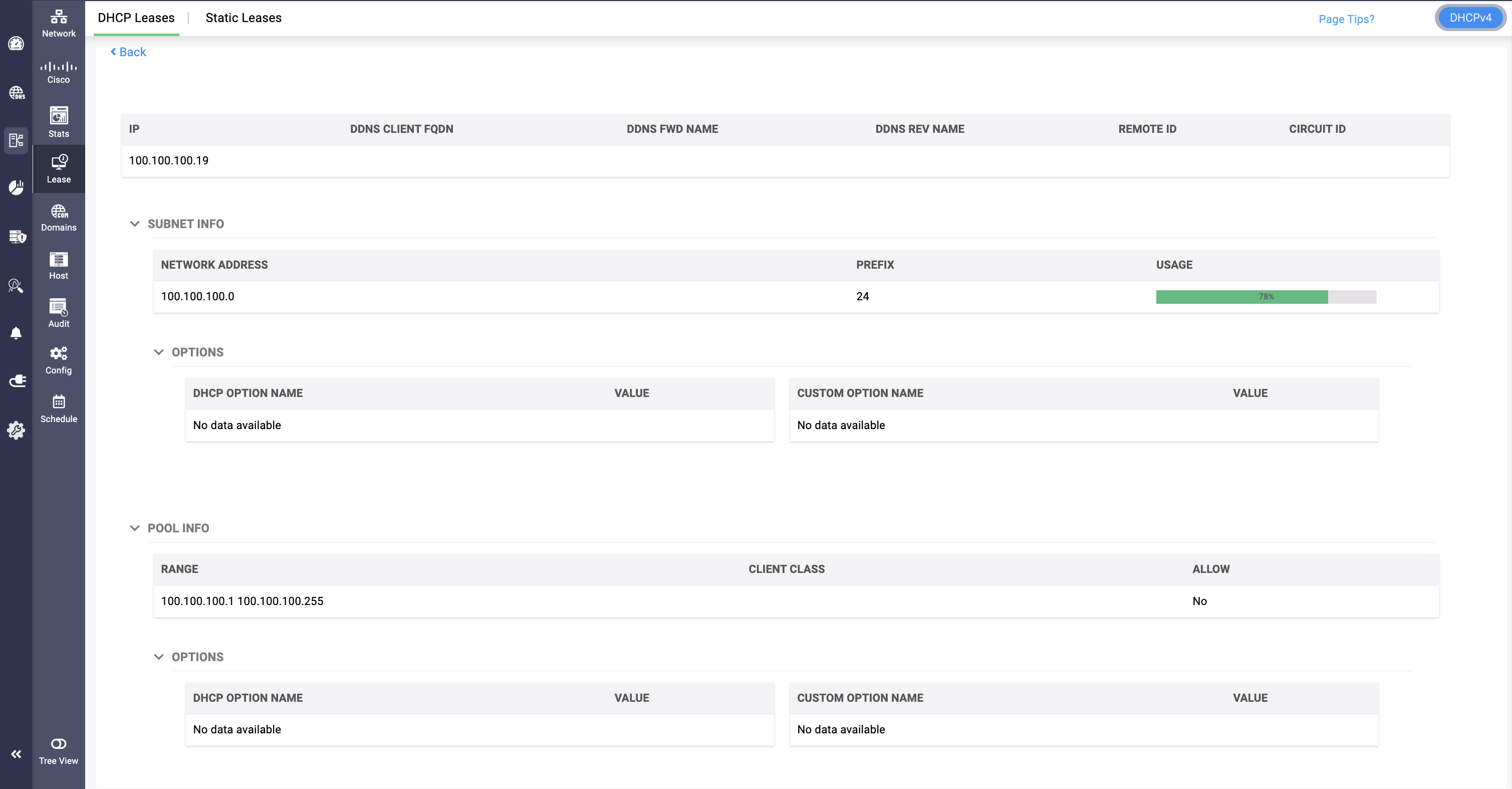
- A green info button is also available at the extreme right end. Clicking on it, A popup window will appear, displaying comprehensive lease details, as shown in the screenshot below to give you additional information regarding the selected active IP lease quickly at a glance.
- DDNS Client FQDN: Displays the DDNS Client FQDN associated with the lease along side the forward and reverse mappings (PTR record) with the lease.
- Subnet information: Displays the subnet's network address, the subnet prefix length and a rich visualization of the subnet's usage.
- DHCP options: Displays assigned DHCP or custom options and their values.
- Address pool information: Shows the IP allocation range for the lease. By using the green info button, admins can quickly assess DHCP configurations, IP allocations, and subnet usage, improving overall network visibility and management efficiency.
- By using the green info button, admins can quickly assess DHCP configurations, IP allocations, and subnet usage, improving overall network visibility and management efficiency.
Special Note: IPv6 Lease Metadata in DDI Central
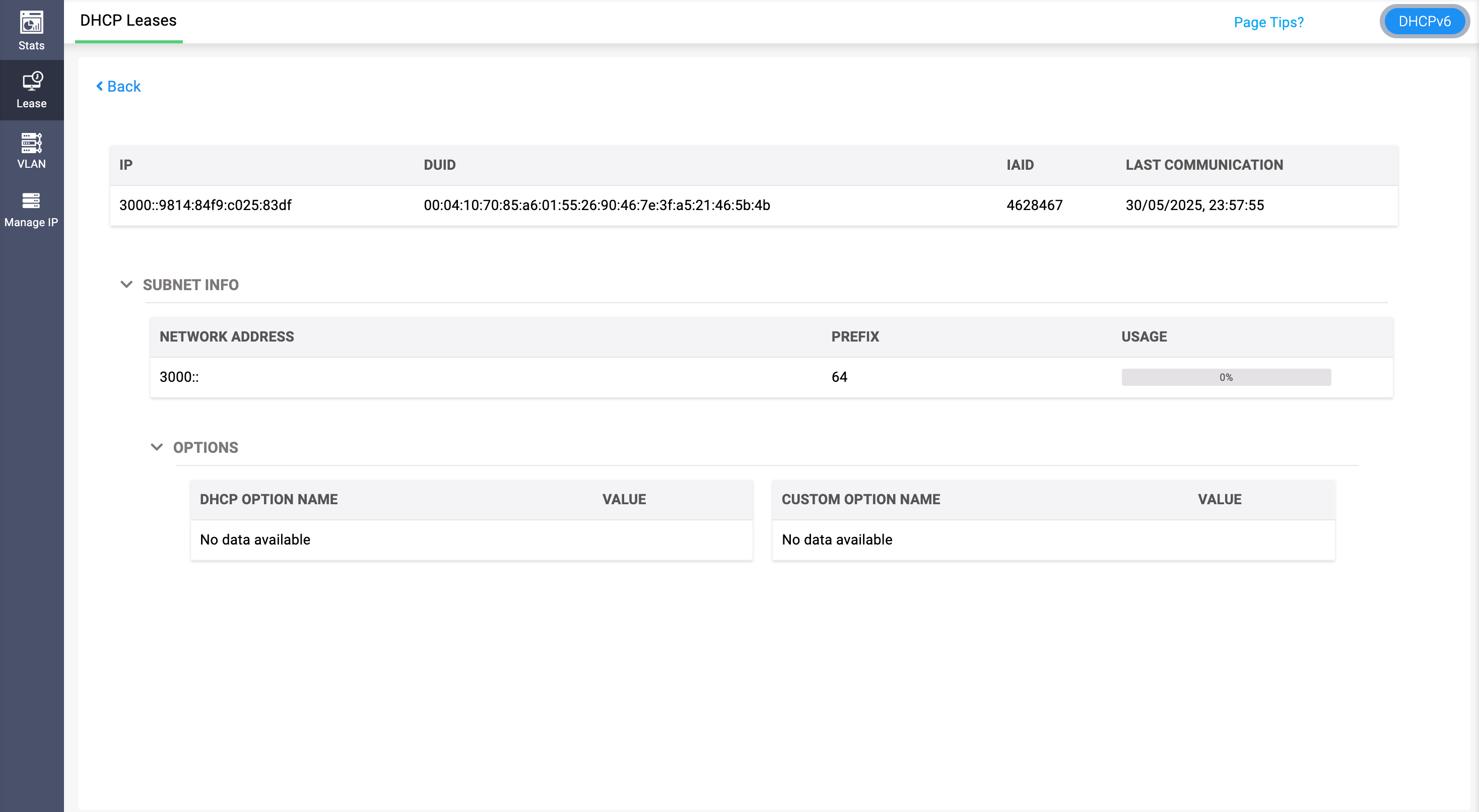
When managing DHCPv6 leases in DDI Central, a special case applies when you click “More Info” (on the far right of a specific lease entry).
For IPv6 leases, DDI Central displays additional protocol-specific metadata, including:
- DUID (DHCP Unique Identifier): A globally unique identifier assigned to the client device.
- IAID (Identity Association Identifier): Used to differentiate multiple interfaces or address requests by the same device.
This metadata is shown alongside standard lease details such as:
- Assigned IP address
- Subnet name and prefix
- IP Usage statistics
- DHCP options and custom options
This view helps admins correlate IPv6 clients more accurately, especially in multi-interface or stateful DHCPv6 environments.
This feature is visible only for IPv6 leases and aids in debugging, compliance tracking, and lease-level analytics.
Static Leases
Static leases, also known as fixed or reserved IP addresses, refer to the assignment of a specific IP address to a device within a network that does not expire or renew. This practice is particularly useful for devices that are permanent fixtures of the network and require consistent addressing for reliable operation and easy access.
For instance, servers often have static IPs due to their critical role in network functionality, whereas client devices like smartphones can operate effectively with dynamic IPs. Static leases are meant for essential corporate devices like routers, printers, and Security Cameras. Static leases are often managed or maintained in a spreadsheet.
To enable network administrators to import, centralize, and simplify the management of all static leases along with the other dynamic leases, DDI Central allows admins to directly create new static subnets for a DHCP server directly from the DDI Central UI. And then it helps them easily import the active static subnet leases that they manage in a spreadsheet already created on the DHCP server. These static leases can be imported into DDI Central in two ways:
- By clicking the Import button available in the DHCP-> Network-> Static Subnet page, or
- By clicking the Import button available in the IPAM-> Lease-> Static Leases page
- Static Subnet
- Static Lease
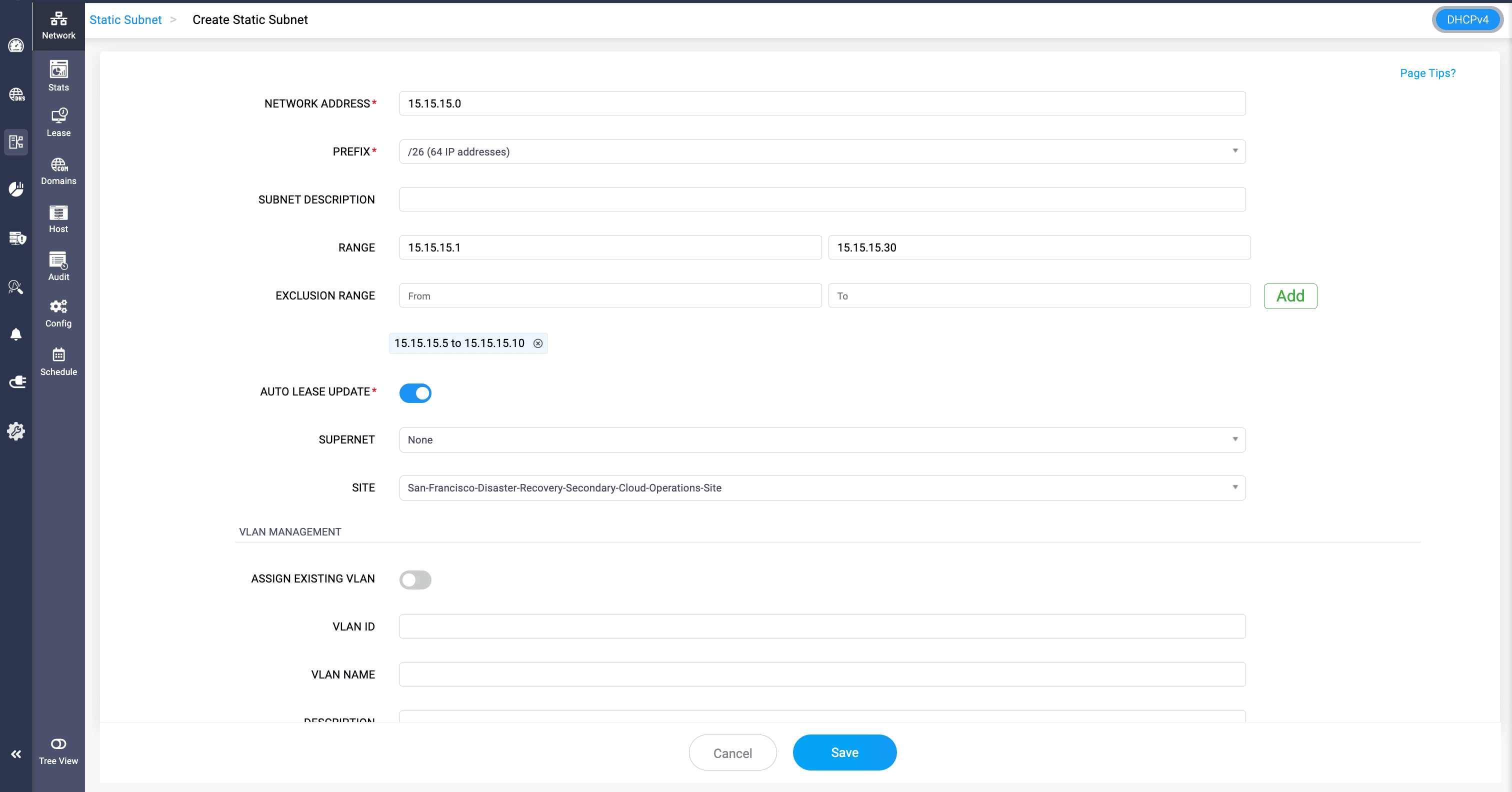
Enable Auto Lease Update to automatically check the status of statically assigned IP addresses within the subnet. DDI Central periodically performs ping checks on these IP addresses to determine whether they are currently active (reachable) or down (unreachable) and updates their status accordingly.
This helps administrators track the availability of manually managed static IP addresses without having to verify them individually.
Importing static subnet leases without defining a static subnet
DDI Central enables you to directly import static leases without creating and defining the IP address space for your static subnet.
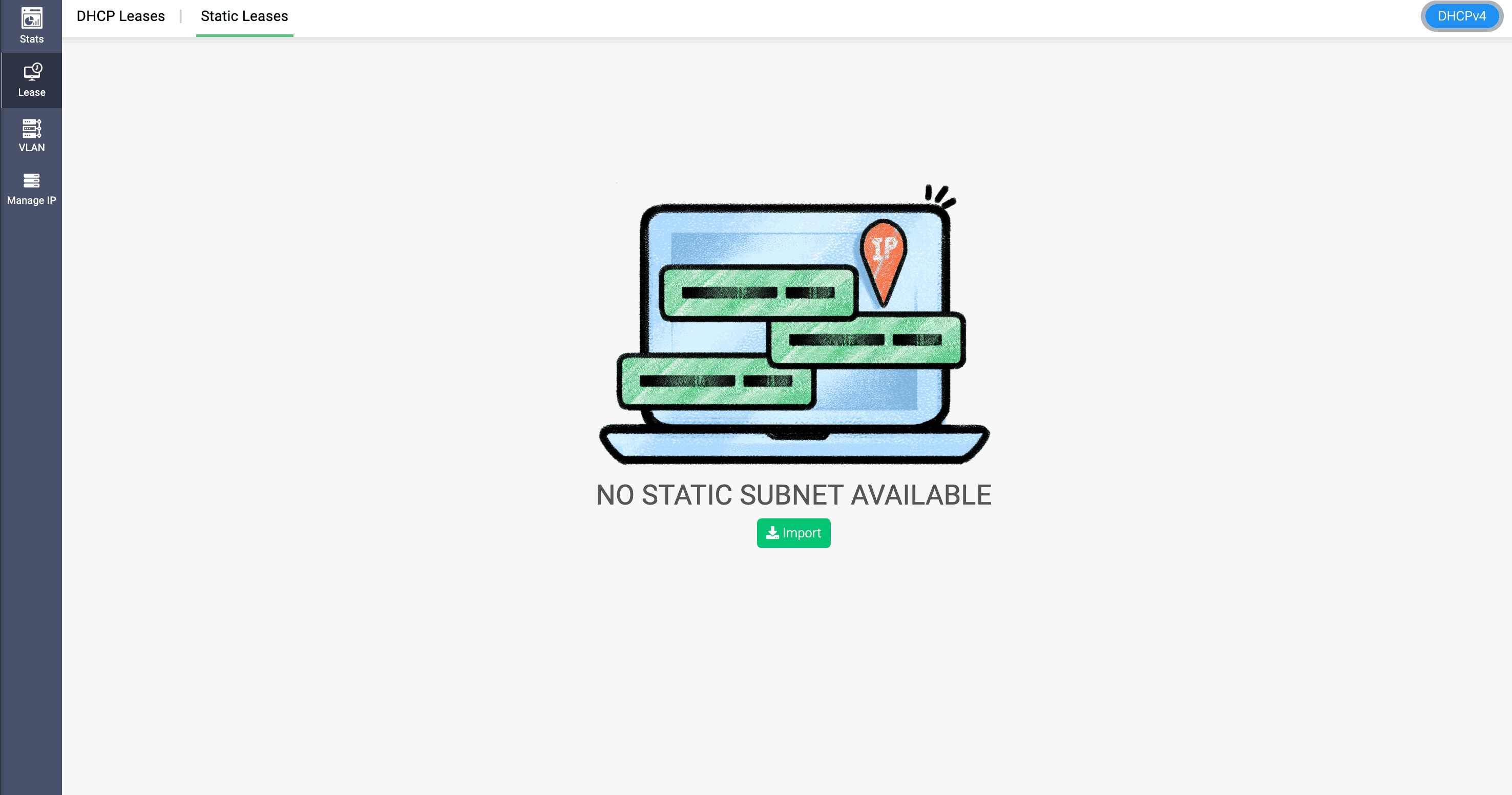
To import the static leases without a defined static subnet within DDI Central Select IPAM->Lease. On the Lease page, navigate to the Static Leases tab, which will be empty. Just click on the Import button as shown below.
Importing static subnet leases along with a static subnet
On the other hand, when importing static leases with a static subnet already defined under the DHCP->Network page, the columns, including the network address, can be in any order. DDI Central just imports the columns as respective fields and displays the data in the spreadsheet under the corresponding fields on the Static Leases page.
As you update the leases, ensure that the updates adhere to the column order defined in the spreadsheet; a mix-up in the order may lead to errors or prevent the import of static leases into DDI Central. The field configuration for static leases derived from the spreadsheet is cluster-specific. Ensure that the columns in all spreadsheets used for importing static leases maintain the same order as the file used for the initial import.
DDI Central also allows the following actions once static leases are imported:
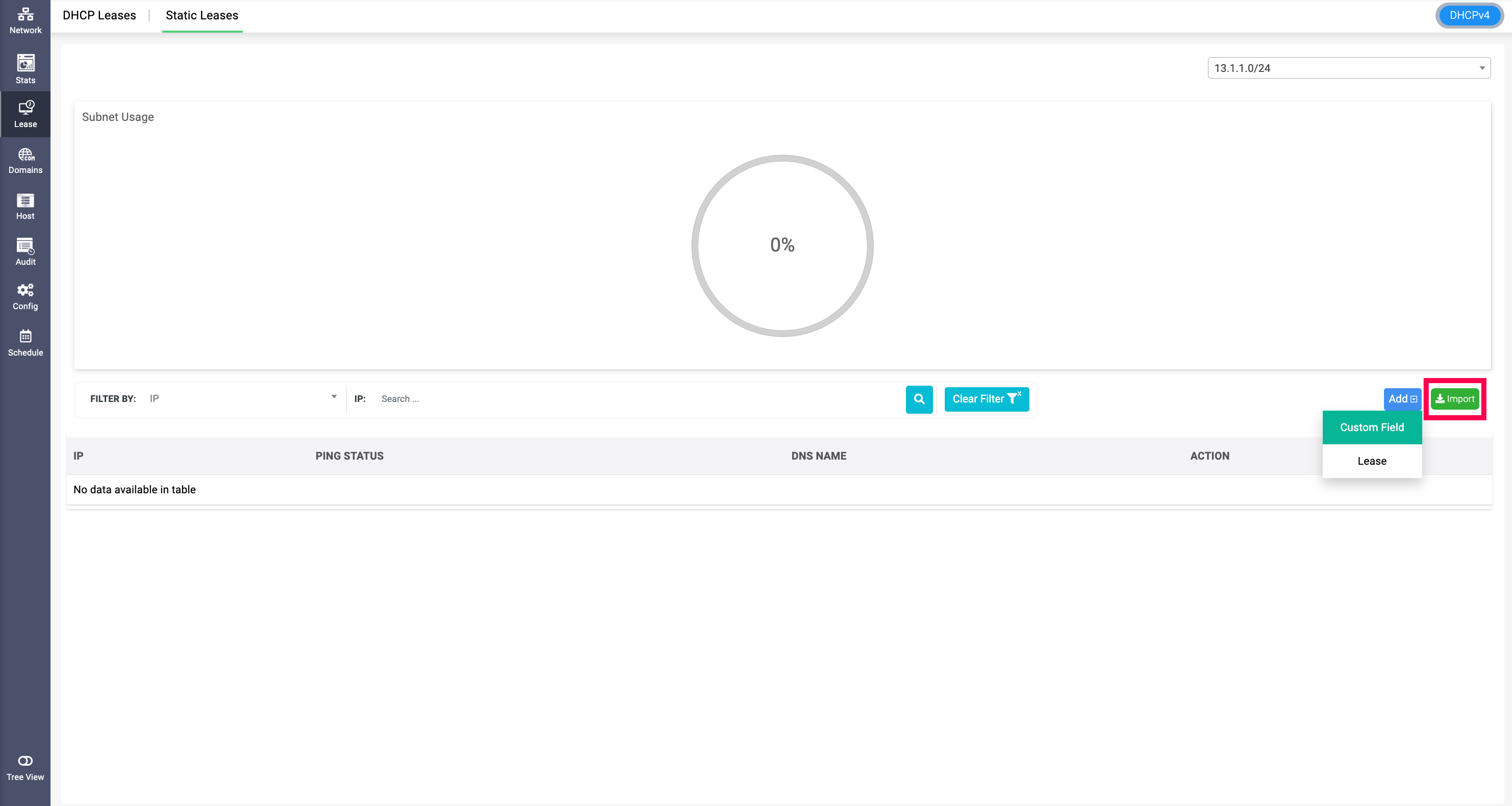
- Click on the Add button and then select Custom field from the menu that appears to add a custom field, which will be appended to the fields already imported along with the spreadsheet.
- You can add new leases individually using the 'Add' button and then select Static Lease from the menu that appears to add a new static lease directly from the DDI Central console. All the fields defined in your spreadsheet file during the first import will appear as form fields, where you must enter all the values one by one and click 'Save'.
- You can also edit the column label directly from the UI, by just hovering around it and click the edit button at the right end of each label.
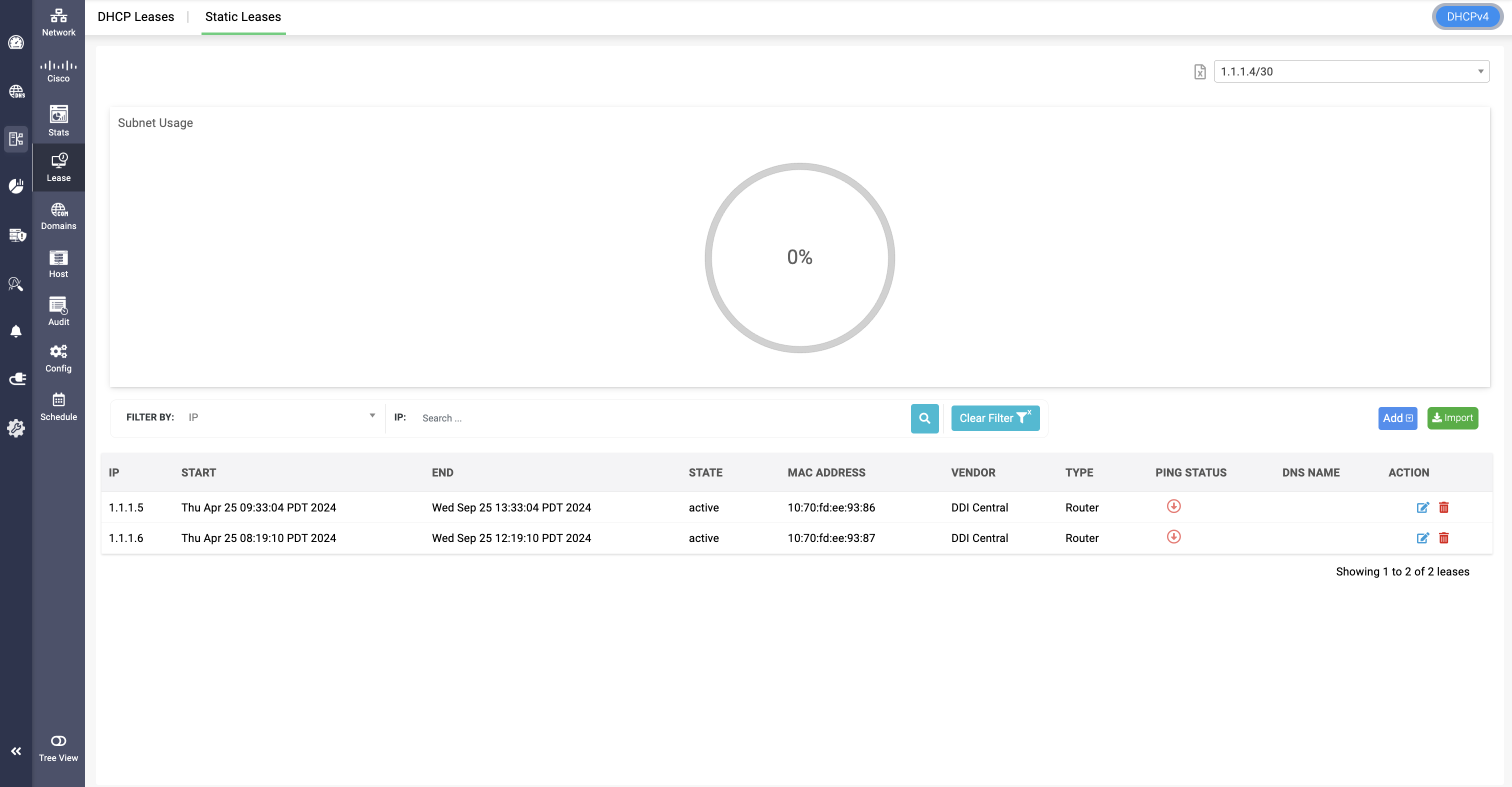
Once you start managing your static leases directly within DDI Central without using a spreadsheet, and if you need to export these static leases for further analysis or report generation, click on the small gray Spreadsheet icon located near the subnet dropdown list box in the top right corner of the page. This allows you to export and download your up-to-date static leases as a CSV file.
Managing statically provisioned IP addresses is crucial for network administrators, but maintaining visibility over their real-time status can be challenging.
To address this, DDI Central automatically pings all IPs under a static subnet to determine their status, whether a static IP is actively leased or available. It displays whether an IP is actively leased (reachable) with a green UP status or unavailable (unreachable) with a red down status.
Monitors all IPs under a static subnet to prevent unused or conflicting allocations with the DHCP provisioned subnets and their IPs .This ensures precise accountability, minimizes IP conflicts, and enhances network efficiency by providing a live status update of all statically assigned addresses.
To create a custom column, Select Custom Field option in Add dropdown field, and enter the column name and default value to be displayed. These can be edited in the Edit Subnet page.


Here's the sample file for reference:
Analyzing the DHCP lease history
Click on an IP address to probe through the lease history of that particular address.
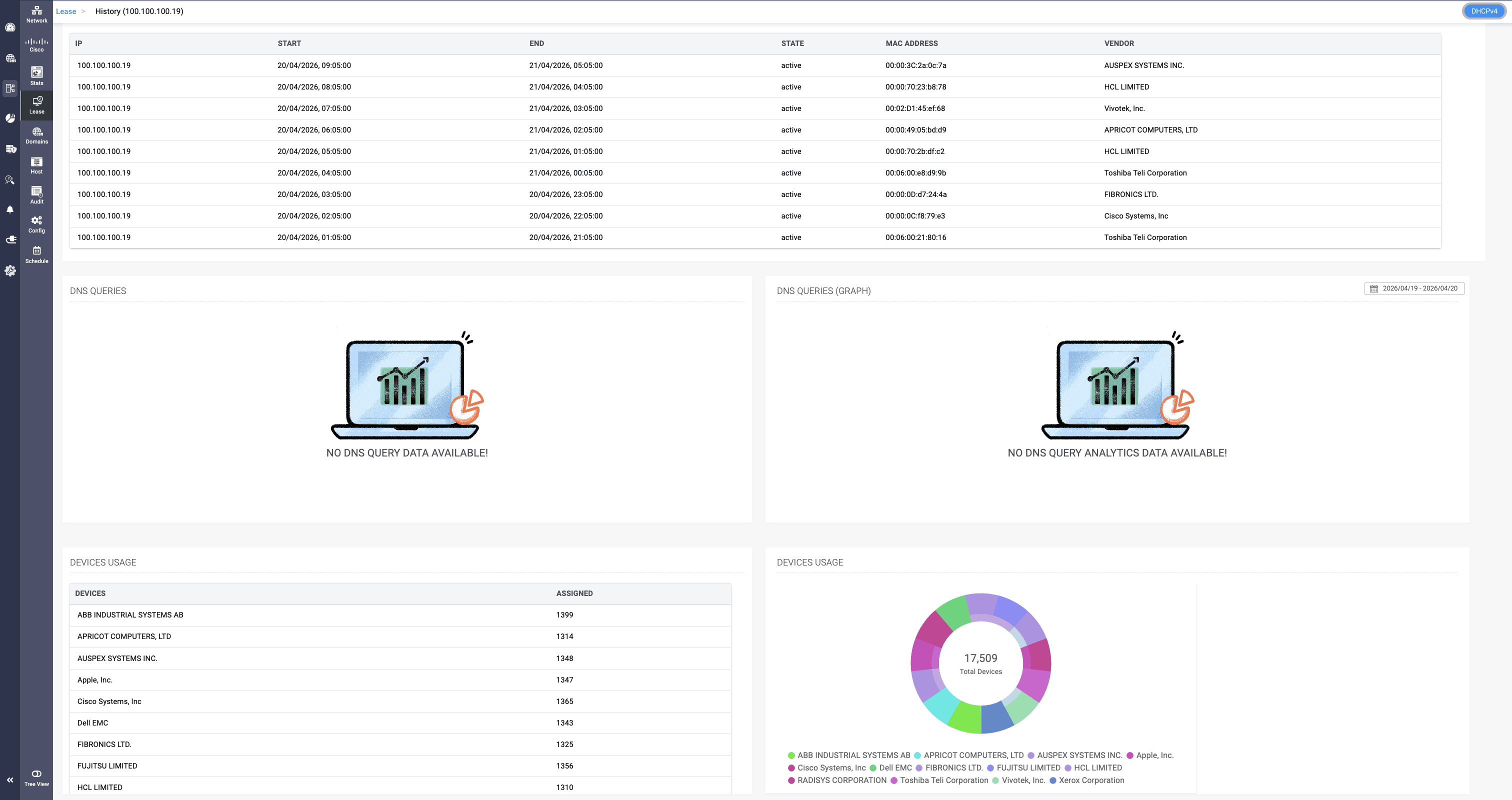
The History page for the IP address appears displaying the following sections:
DNS Relations
The DNS relations section displays a list of domain name records that was previously leased with the selected IP address. It includes information such as the type of record, the exact Fully Qualified Domain Name (FQDN) linked to the record, and the root domain of the record.
History
The history section provides a comprehensive audit trail detailing the evolution of the IP over time. It includes information on the host, identified by its MAC address and the manufacturer of the host device to which the IP was leased and the duration of that lease. Additionally, it records the type of connection and precisely indicates the availability state of the IP during the entire span of the lease.
DNS Queries
The DNS Queries provides two sections to help you quantify and visualize the query volume handled by the IP during its association with various FQDNs.
The section on the left, lists a historical overview of the total query volume to each specific FQDNs when the IP was associated with them.
Additionally, the section on the right helps you visualize, in the form of line graphs, the hourly query volume handled by the IP when it was associated with different domain names along a custom time frame. To analyze these hourly readings more accurately, make sure you select a custom time frame from the drop down calendar at the left corner within the same section.
Endpoint Integration
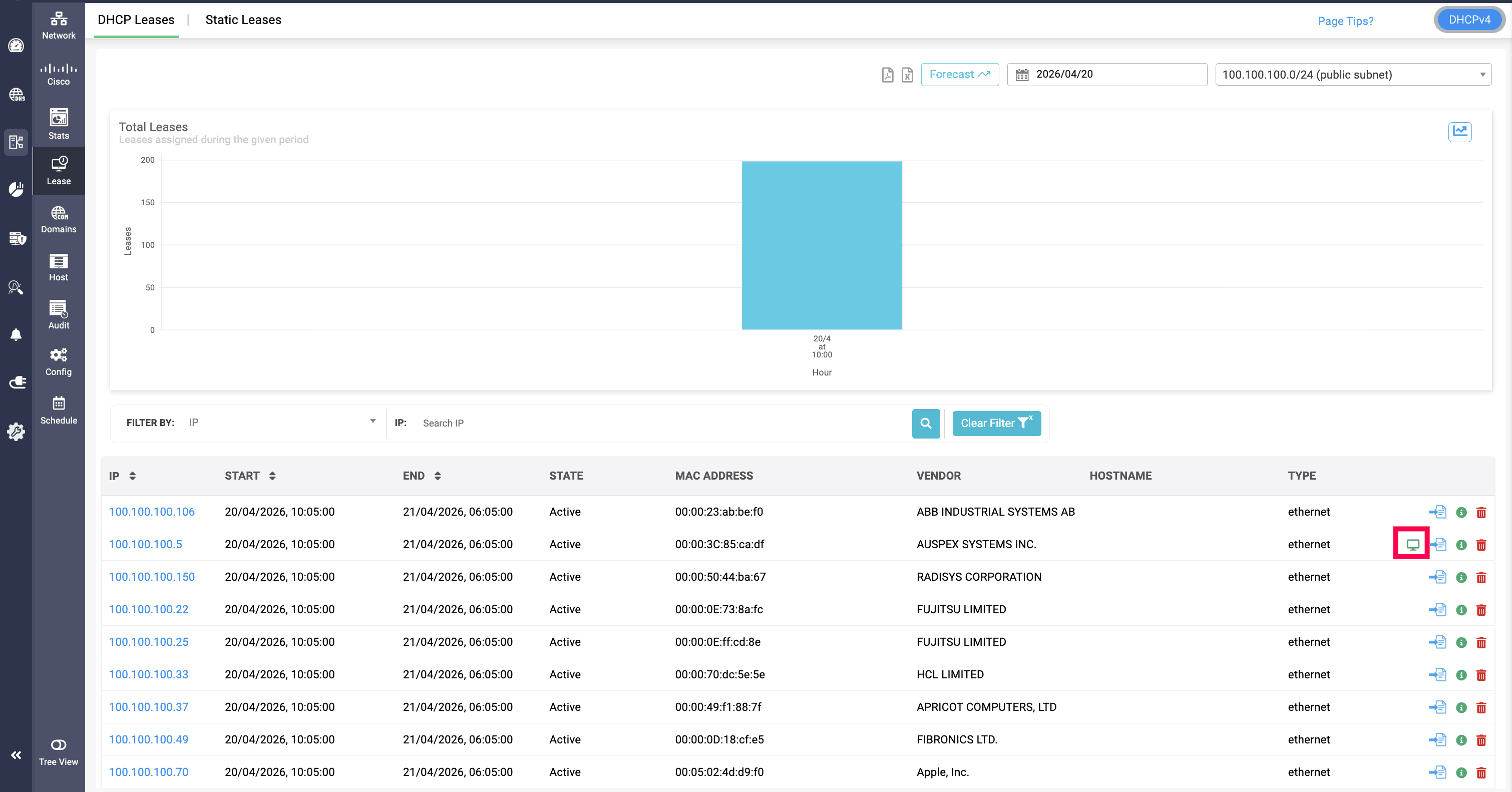
After successfully setting up Endpoint central integration, Go to IPAM->DHCP Lease page.
A Monitor icon appears in the DHCP lease data table alongside the Delete and Additional Info icons. This indicates that the device to which IP got leased has its data fetched from Endpoint central.