Configuring LDAP in DDI Central
What is LDAP authentication?
Lightweight Directory Access Protocol (LDAP) is a core authentication protocol designed for directory services. Traditionally, LDAP has served as a database for storing information involving user identities like:
- Users
- User attributes
- Group membership privileges and more.
LDAP continues to play a key role in identity and access management (IAM). Modern security enhancements ensure that data is encrypted during transit, and insecure authentication methods vulnerable to interception are blocked.
Active Directory Federation Services
Active Directory Federation Services (AD FS) provide single sign-on capabilities to organizations that are utilizing AD Directory Services (AD DS). It allows those with an Active Directory account to use that account on applications that are outside the boundaries of their Active Directory or applications that don’t rely on Active Directory accounts for authentication at all like DDI Central.
By creating a federation (the sharing of identity information), the user can be authenticated via his company’s Active Directory and can then be authenticated to DDI Central with a claim. All a DDI Central admin has to do is configure DDI Central to trust the incoming claims.
During an LDAP authentication process, the credentials the user enters via DDI Central, are compared to those entries stored within the LDAP directory database. If they match, the user is authenticated and granted access to DDI Central.
Active Directory Lightweight Directory Services
Active Directory Lightweight Directory Services (AD LDS) is a LDAP—based directory service similar to AD DS.
It’s designed to be used with directory-enabled applications, and it’s especially handy for an organization that may want to establish a directory of user accounts, but keep that directory separate from the organization’s AD DS infrastructure. It can be used as an identity provider with AD FS for both authentication and the generation of claims to web applications like DDI Central that can be configured to understand federation by following the steps below.
Configuring LDAP and LDAPS in DDI Central
Get into the Settings module and select the Auth menu. On the Auth page, navigate to the LDAP tab and click the Configure LDAP button.
On the Configure LDAP window that appears, Follow the steps below for setting up LDAP (Lightweight Directory Access Protocol) within DDI Central.
LDAP
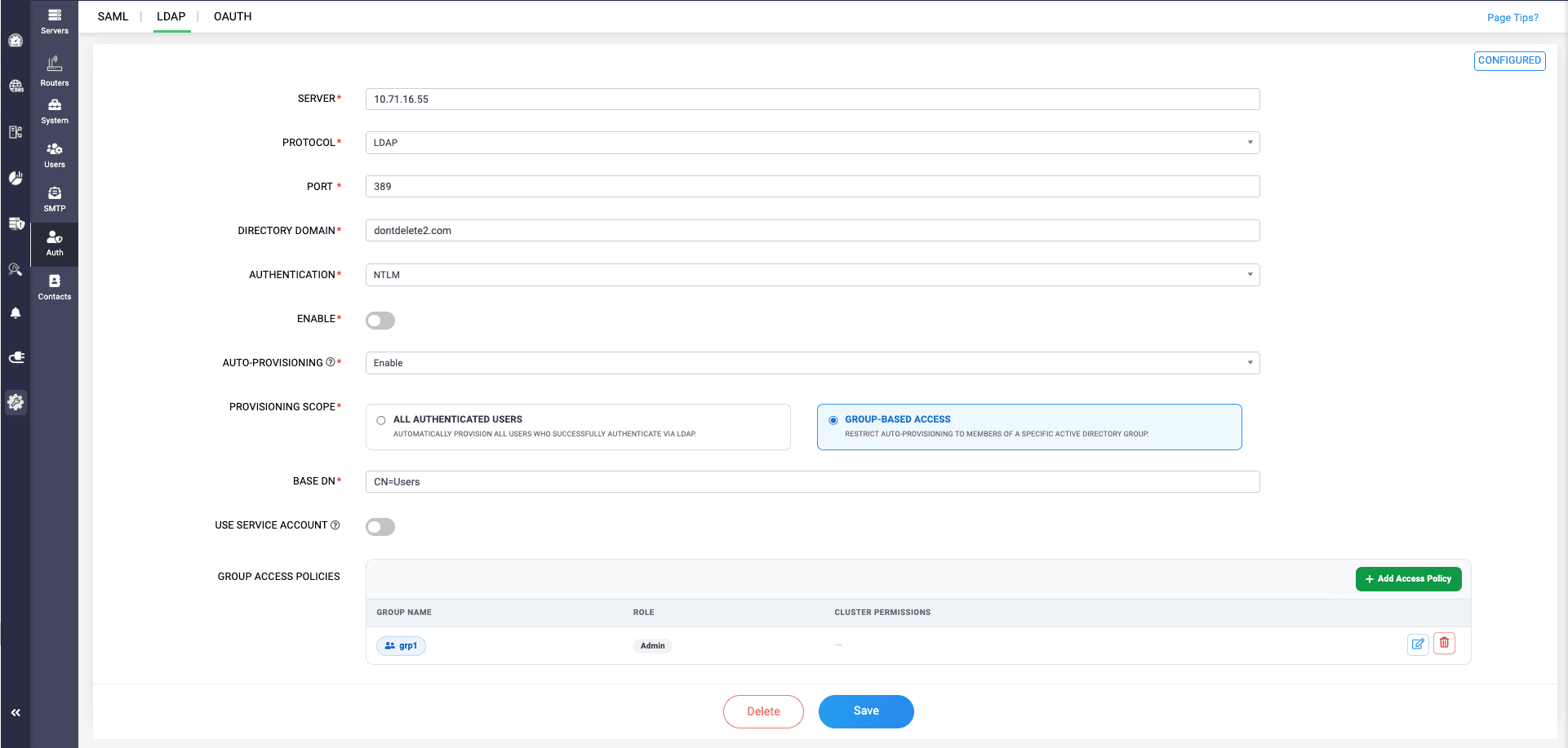
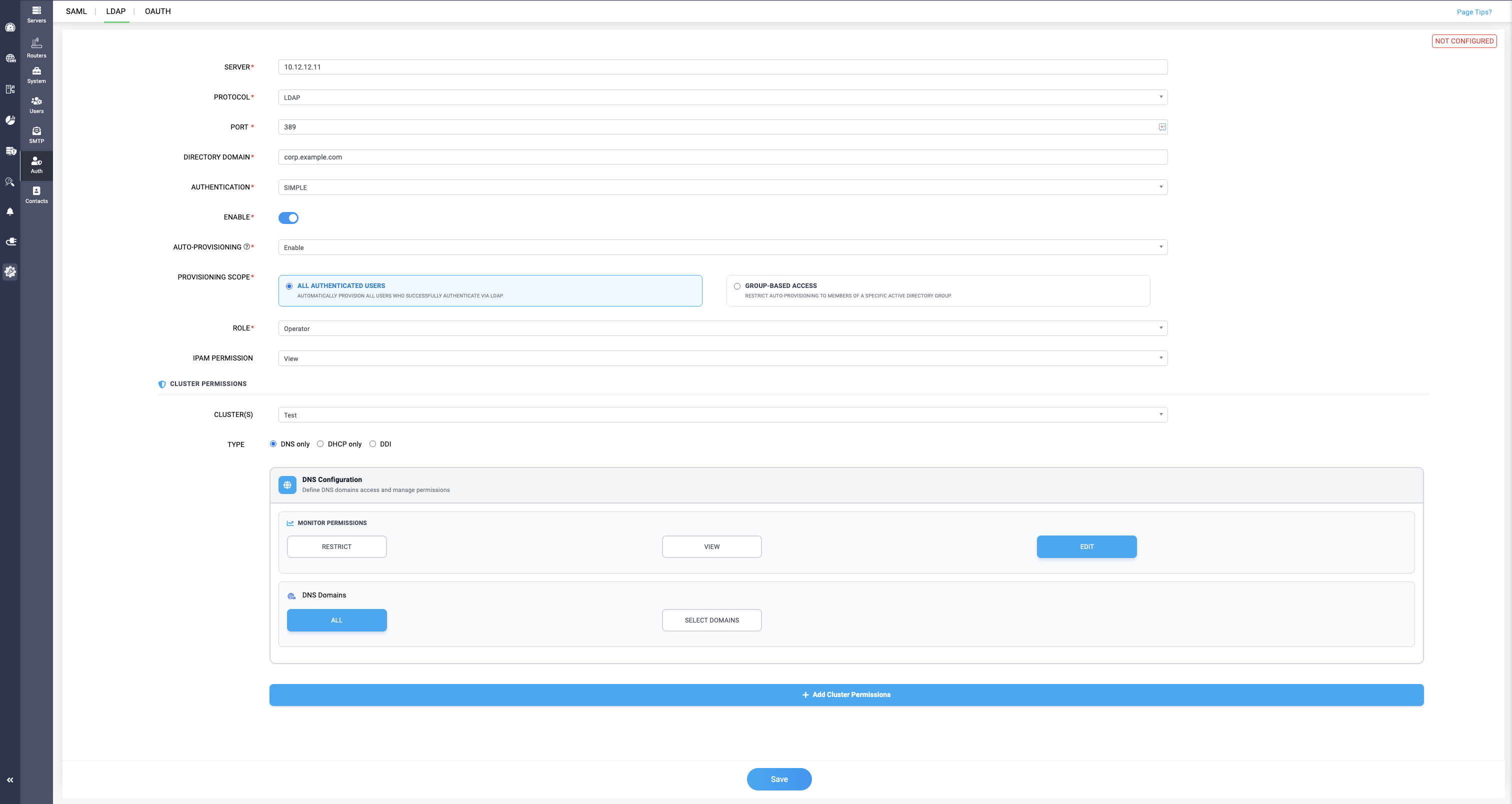
- SERVER: Enter the hostname or IP address of the LDAP server that the application will connect to for authentication purposes.
- PROTOCOL: Select the protocol used for the LDAP connection. In this case, LDAP is selected, which indicates that the connection will not be encrypted unless LDAPS (LDAP over SSL) is chosen.
- PORT: Specify the port number that DDI Central uses to connect to the LDAP server. The default port for LDAP port is 389 and LDAPS is 636, depending on your setup.
- DIRECTORY DOMAIN: Enter the Active Directory domain name associated with the LDAP server. This domain is typically the directory in which user accounts and resources are organized.
- AUTHENTICATION: Select the authentication method that will be used when connecting to the LDAP server based on the security requirements of your network infrastructure. In the dropdown, you can see two options:
- SIMPLE: This is the most basic authentication method, which typically involves straightforward credentials like username and password in plaintext without additional security layers.Note: On choosing Simple as the authentication method, make sure to enter the username in the following format: username@domainname
- NTLM: NTLM (NT LAN Manager) is a suite of Microsoft security protocols that provides authentication, integrity, and confidentiality to users. It is more secure than SIMPLE as it involves hashing and challenge-response mechanisms.Note: On choosing NTLM as the authentication method, make sure to enter the username in the following format: domainname//username
Enabling Auto provisioning field fetches the user credentials from the LDAP server and uses them to create users in the DDI Central application server, and with this Just in time user creation, when the users from LDAP server try to access DDI application, they can easily be identified and permitted.
Automated user creation means no need of admin's manual intervention for creating all the LDAP server users one by one in the DDI application server.
- ALL AUTHENTICATED USERS:
This allows the admin to grant one single role type to all the users getting added in the application server. This will be helpful for implementing one time role configuration for all the users.
Make sure to configure the right role permissions for the users in the LDAP when you are choosing this provisioning scope option.
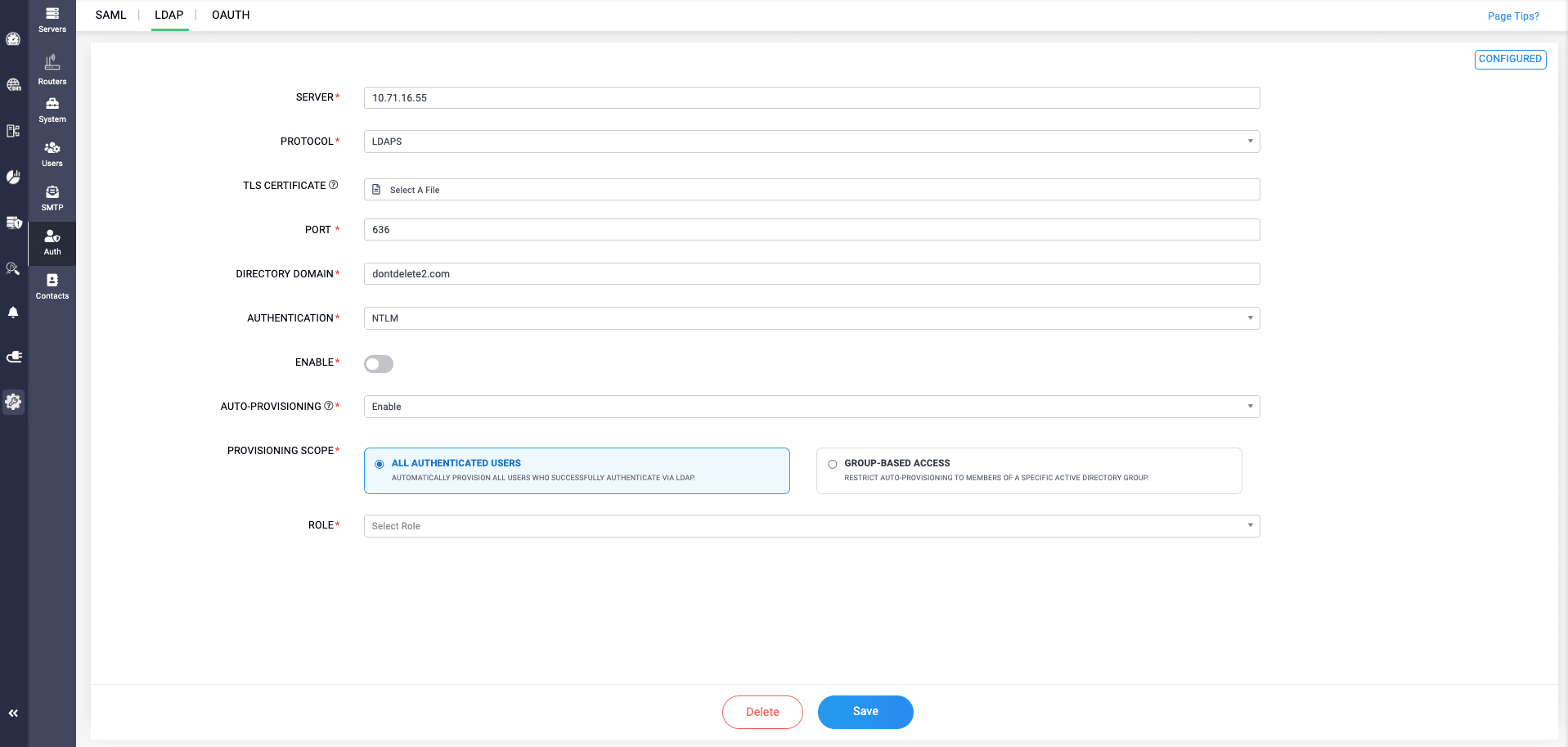
Selecting the Operator and Guest role allows network admins to configure IPAM and CLUSSTER permisions for the selected user.
- GROUP-BASED ACCESS:
This allows network admins to configure auto provisioning for specific user groups in the Active Directory. Group-based access granting helps in assigning network permissions to only the selected groups and restrict to users outside the group.
It also helps with simplifying the user selection in the Active Directory, rather than going through a bulk number of user details for specific access granting.
Under the Group-Based Access option, we have:
- BASE DN:
Provide the LDAP syntax and the folder name for selecting the user group. There are two LDAP syntaxes to be used: CN(Canonical Name) and OU(Organizational Unit).
Ex: CN=Users
- SERVICE ACCOUNT: Provide the credentials of an account with higher privileges for verifying users and user groups through LDAP by enabling the toggle button and entering the credentials in the Service Account Username and Password fields.
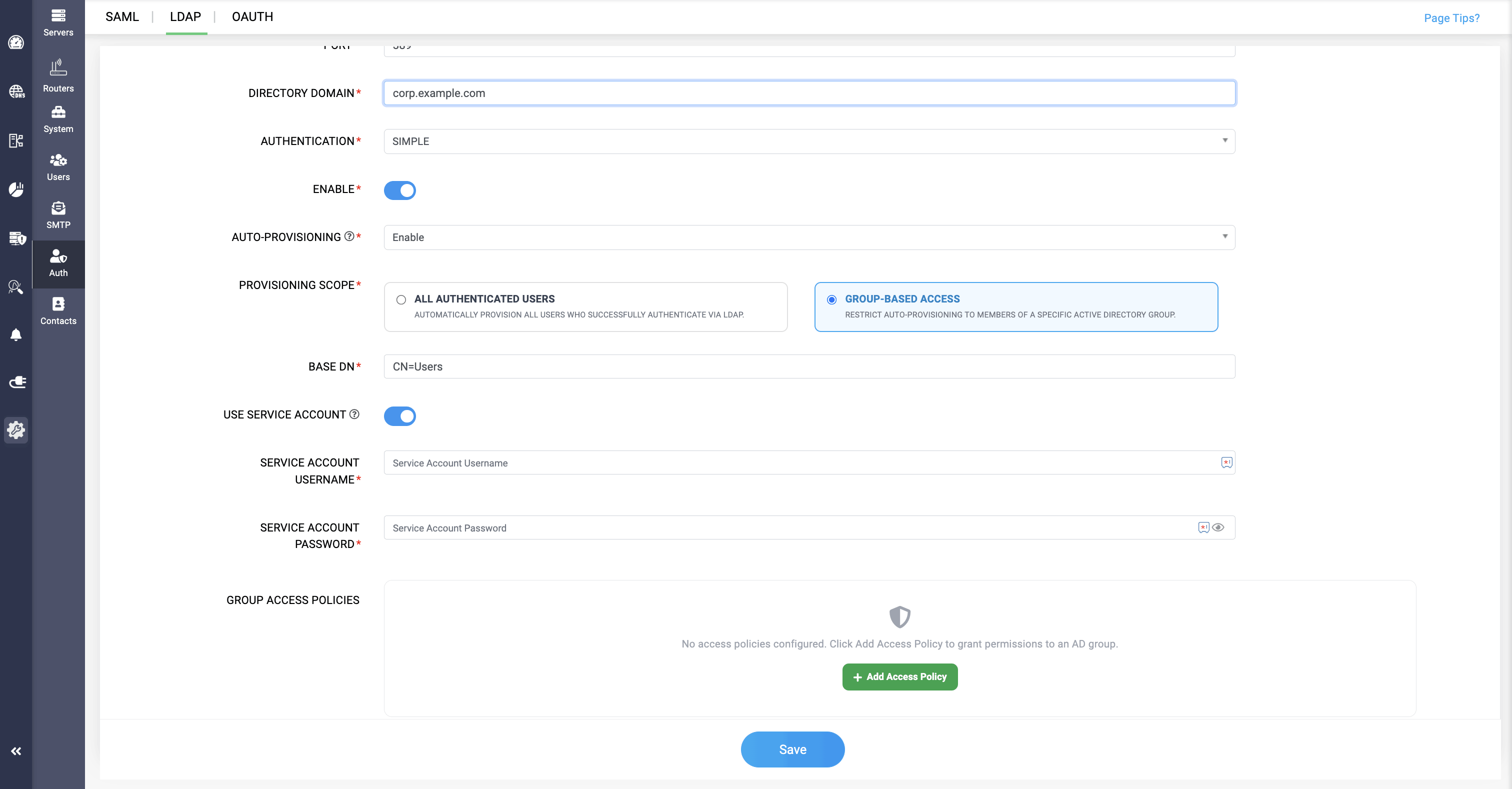
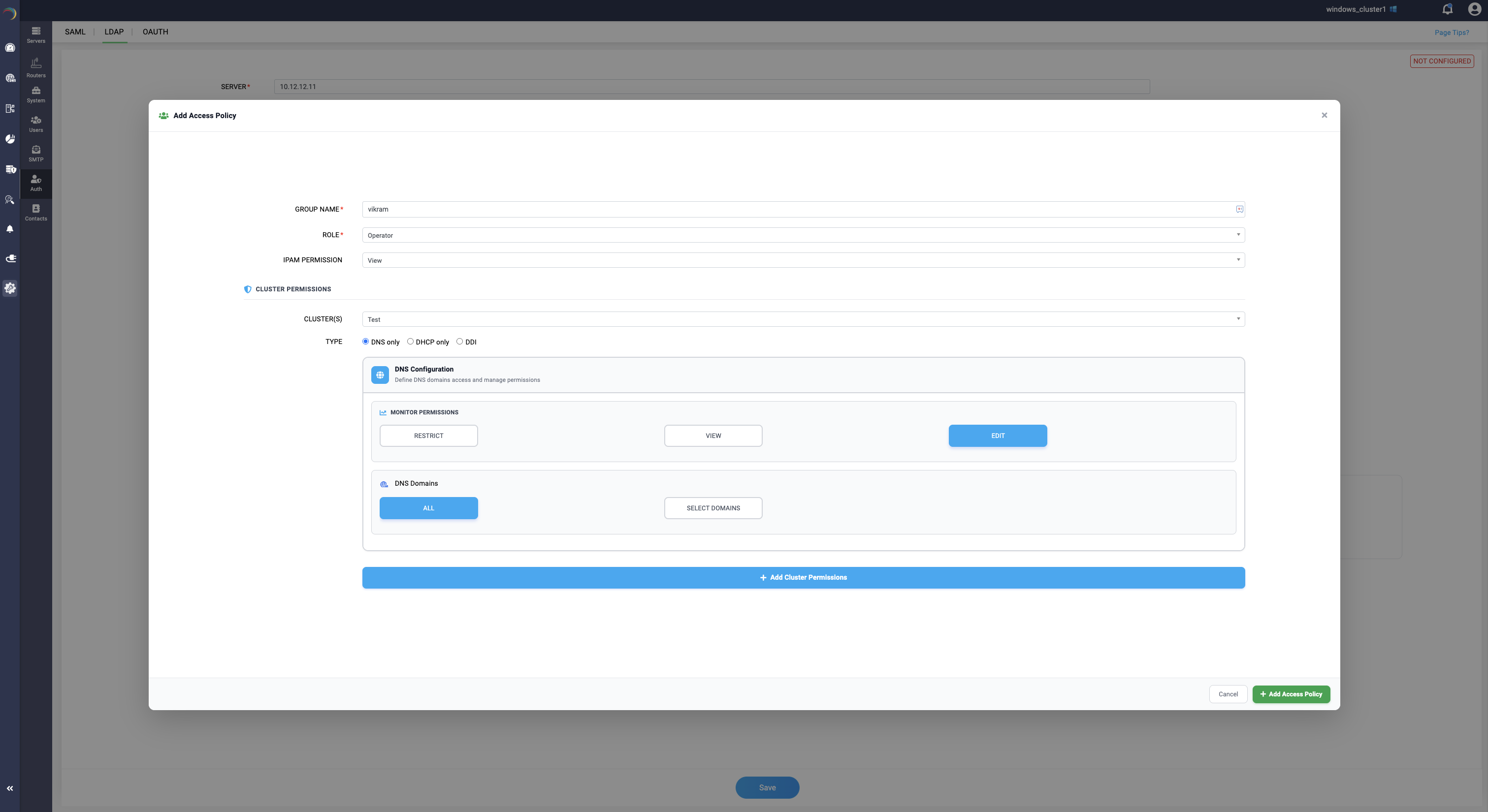
- GROUP ACCESS POLICIES: Here, you can add and configure the access policy for the selected group by providing the group name and assigning a role: Admin, Operator, Guest, or Audit. Selecting the Operator and Guest role gives you control over configuring IPAM and CLUSTER permissions for the user group.
LDAPS
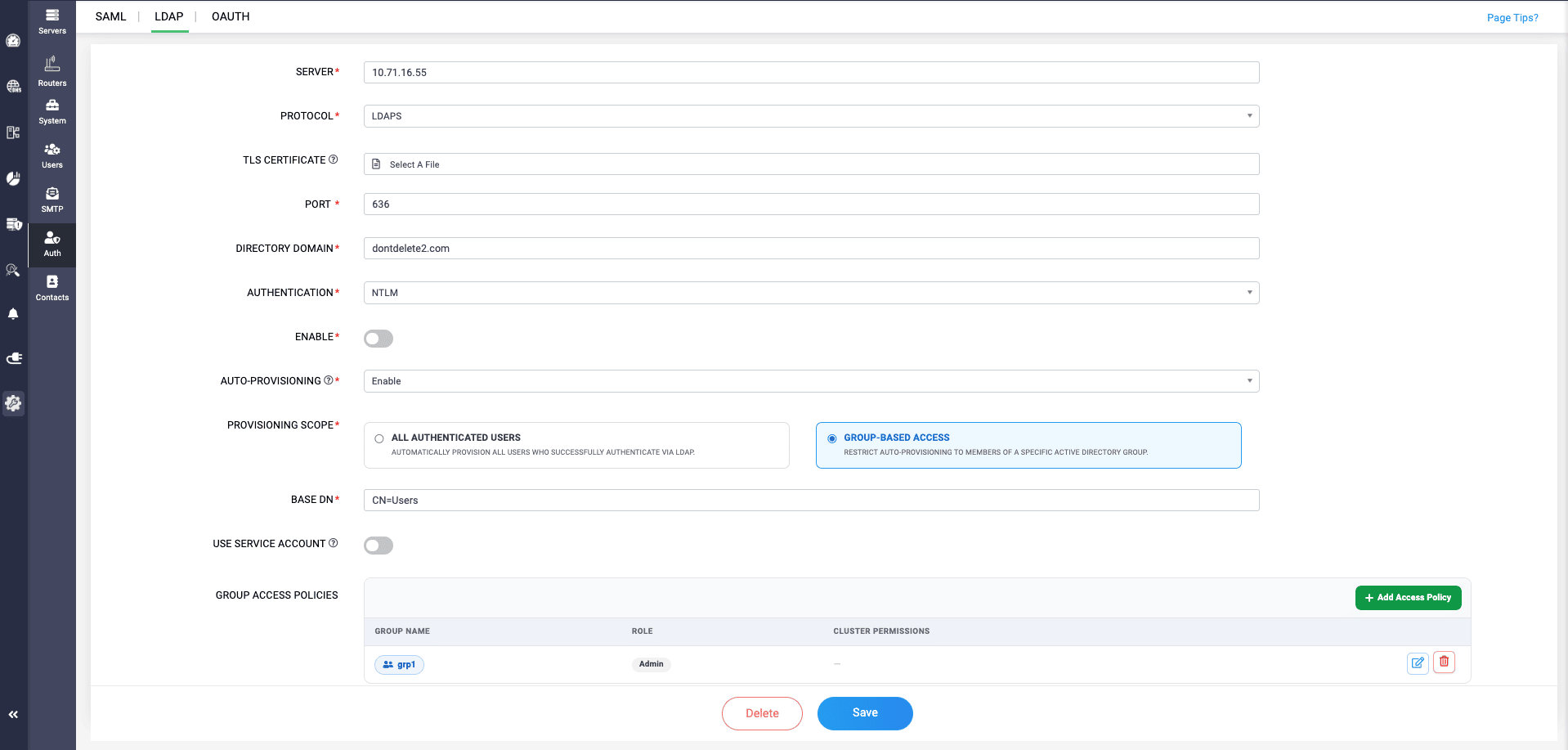
For LDAPS, all the fields of LDAP are applicable to this one, except there's an extra field called TLS certificate.
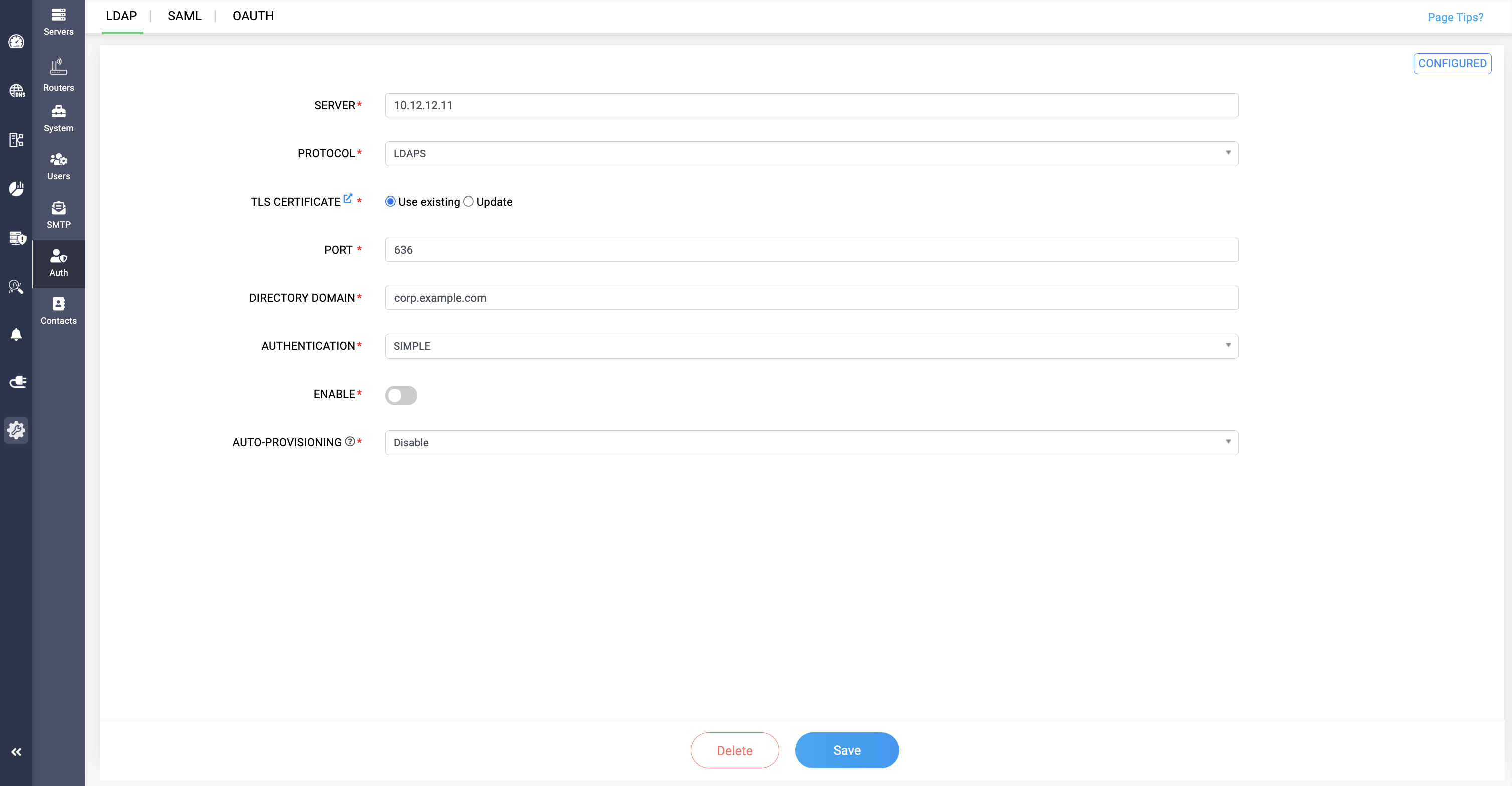
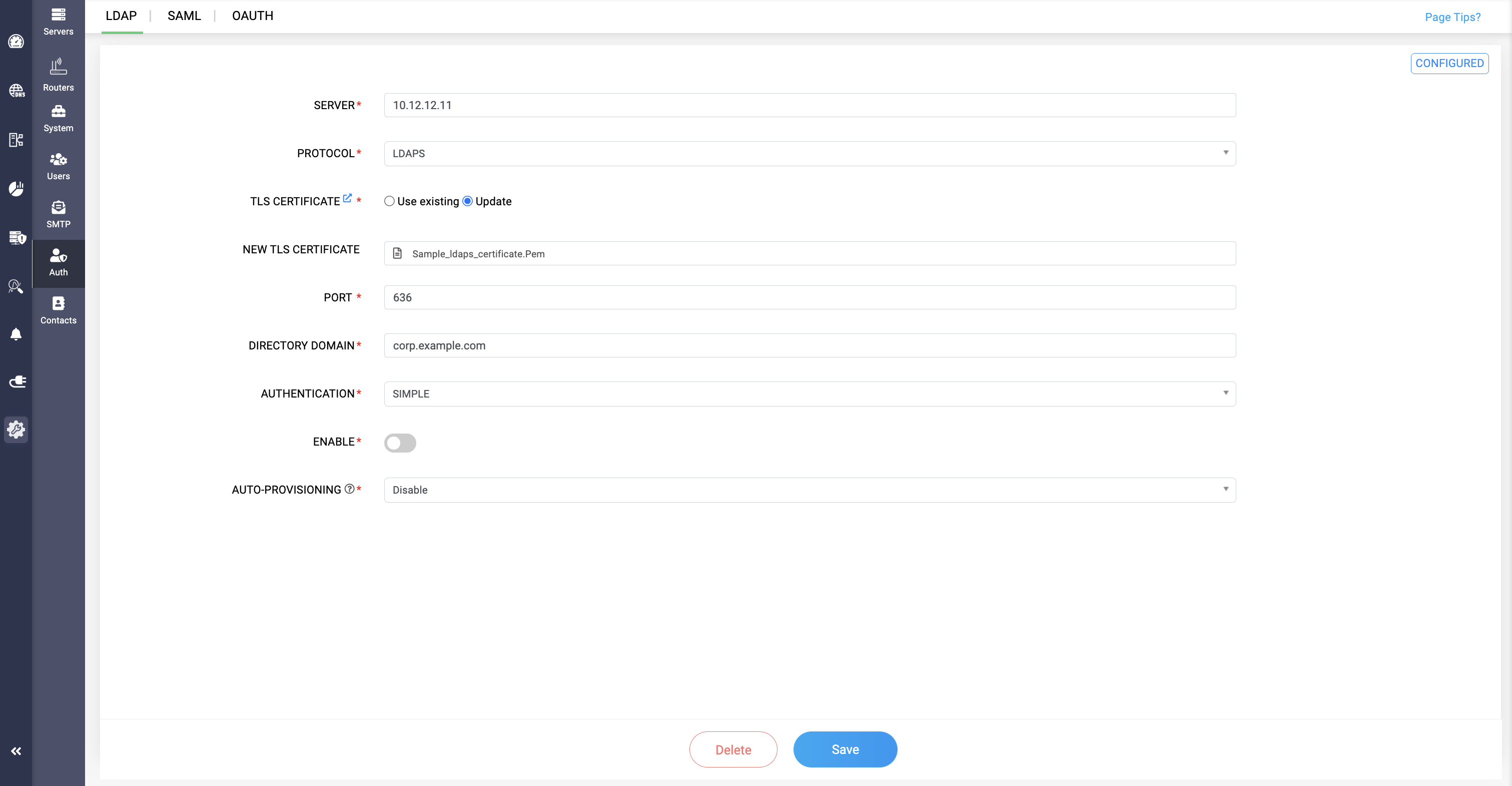
TLS CERTIFICATE: Here, you need to provide the TLS certificate in .pem file format, you can use existing certificate or you can upload a new one. This TLS certificate is needed to authenticate and verify the server where LDAP is configured.
Click Save to activate the LDAP configuration settings after all required fields have been filled in.
These configurations enable DDI Central to authenticate users against the specified LDAP server with the chosen level of security, making it effortless for you to use centralized directory services like Active Directory Federation Services (AD FS) for your distributed Microsoft network infrastructure.
Info: You can also add an extra layer of security to user accounts by coupling LDAP credentials with with time-sensitive codes from any TOTP-enabled authenticators.Both LDAP and LDAPS configurations can also be edited to make changes, and here for LDAPS, the TLS cetfificate has two options to select: Use existing and UpdateSelect the Use exisitng option if you want to use the already uploaded TLS certificate, or select the Update option if you want to use a new TLS certificate, and provide the new TLS certificate in the NEW TLS CERTIFICATE