Adding AD domains in DDI Central
DDI Central's Windows Microsoft version, with the new release, now facilitates the flexibility of creating Active Directory domains within the application. DNS records of the domains gets stored inside AD database and will get replicated in all the domain controllers in the network.
The DNS record files will be stored as AD objects instead of traditional text files.This makes it possible for multiple domain controllers to hold and manage the same zone. Network admins can utilize AD to allow domain-joined devices to register and update the DNS records data.
To create an AD domain in DDI Central:
- Click on the "Add Domain" button to create a new domain.
- Provide the details for the domain creating:
Note: AD cannot be enabled for existing domains in the network; they can only be enabled while creating a domain.

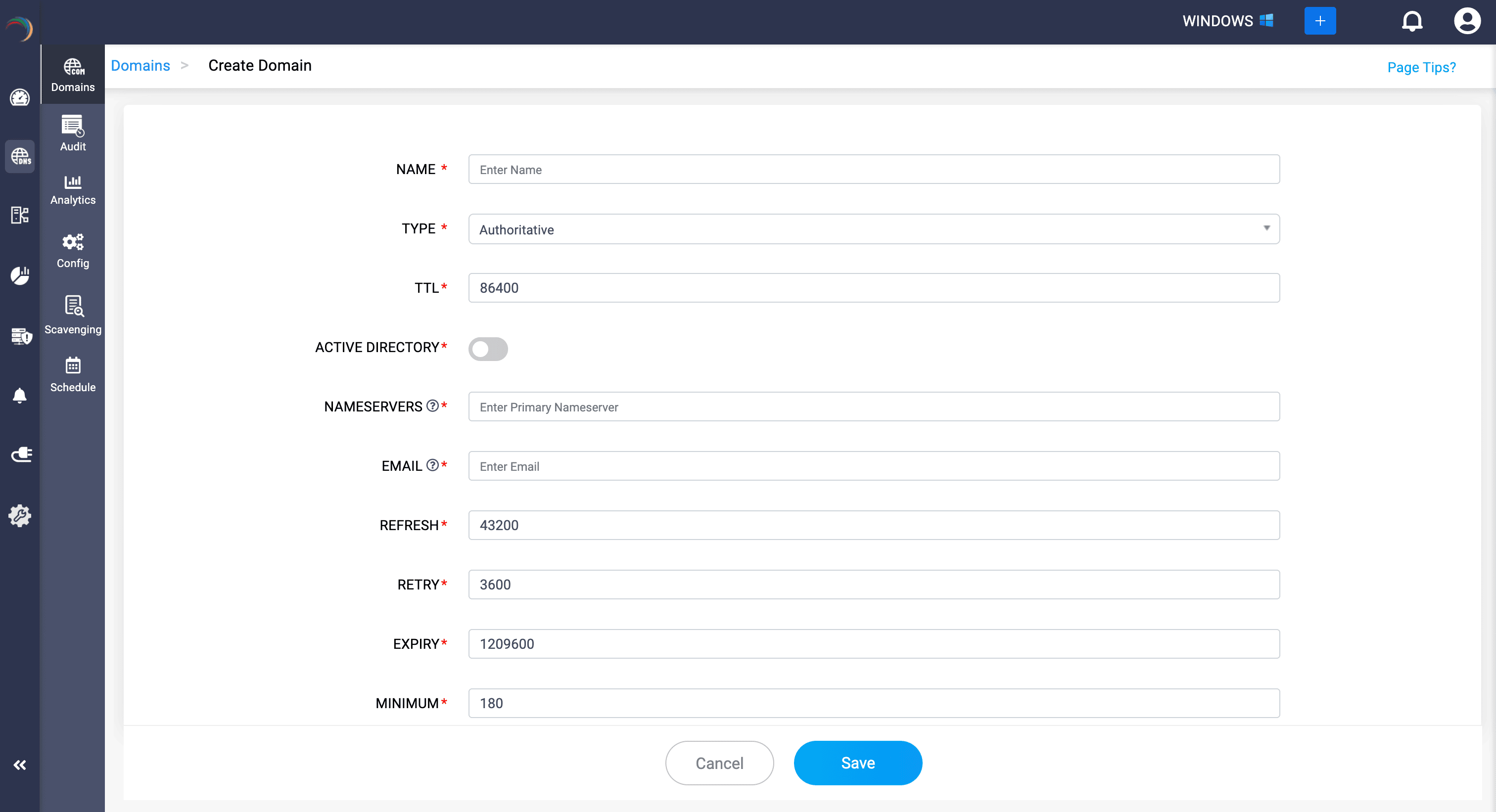
- NAME: Name the new domain name you wish to create or manage.
- TTL (Time to Live): Specifies the resolving servers how long to cache information about the domain before querying for it again. Specified in seconds, and the default value is set to 86400.
- NAMESERVERS: Enter the nameserver that has the authority to resolve queries and providing responses to queries for this domain.
- EMAIL: Enter the email address of the domain administrator or the personnel responsible for managing the DNS zone.
- REFRESH: Specified in seconds, tells secondary nameservers how often to check with the primary nameserver for updates.
- RETRY: Incase the secondary nameserver fails to reach the primary, this value specifies how long it should wait before retrying.
- EXPIRY: Determines the duration, in seconds, for which a secondary nameserver will attempt to contact the primary nameserver. After this period, if no response is received, the secondary nameserver will consider the data stale and cease responding to queries with it.
- MINIMUM: Specifies the minimum TTL that tells the resolving servers how long to remember that a particular record does not exist.
- PRIMARY: Specifies the primary DNS server for the zone. In a primary-secondary setup, the primary server is where the zone records are originally created and managed.
- SECONDARY: Specifies secondary DNS servers. These servers get their zone data from the master server through zone transfers.
- SCOPE LIST: Enter a scope name and click the blue add(+)b button in the right end after each entry to create a Zone Scope for the domain name.Note: Define only as many zone scopes as necessary to meet your network's requirements. Regularly review and clean up unused or redundant zone scopes.
DDNS: Dynamic DNS automatically creates records and updates records with IP address that are leased out via a designated DHCP servers.
Note: It has become common practice for users to enter a nameserver that bears the same name as the domain under which it is configured. DDI Central now requires users to establish an appropriate A or AAAA record that can provide an authoritative answer for the nameserver before allowing it to be used with the domain name. For example, when configuring the domain 'clouddns.com' with a nameserver such as 'ns1.clouddns.com', DDI Central prompts you to first create an authoritative address record, either A or AAAA, for 'ns1.clouddns.com' within the domain.

- REPLICATION SCOPE: Replication scope defines the limit for the AD DNS zones replication process in the network, i.e., how many domain controllers can get copies of AD DNS zones through replication. There are two options in this field:
- Forest: The DNS zone will be replicated to all domain controllers running DNS across every domain within the entire Active Directory database.
- Domain: The DNS zones will be replicated only to the domain controllers in the same domain and only if those DCs are also running the DNS Server role.
- DYNAMIC UPDATE: Dynamic update is the ability for a device to register and update DNS records automatically without the need for manual input by admins. There are three options in this field:
- None: Dynamic updates will be disabled in the zone. All DNS records must be added manually by an administrator.
- Non secure and Secure: Both unauthenticated (non secure) and authenticated (secure) devices can perform dynamic DNS updates.
- Secure: Only authenticated, domain-joined devices can update their own DNS records. Prevents unauthorized devices from registering or changing DNS entries.


Note: Active Directory (AD) integration can only be enabled on DNS zones hosted by servers that were designated as the Primary Domain Controller (PDC) during AD zone creation.
