DDI Windows bulk server import
DDI Central Windows bulk server import facilitates importing multiple servers with their credentials and details into the application at a single time, without the need to add each server manually.
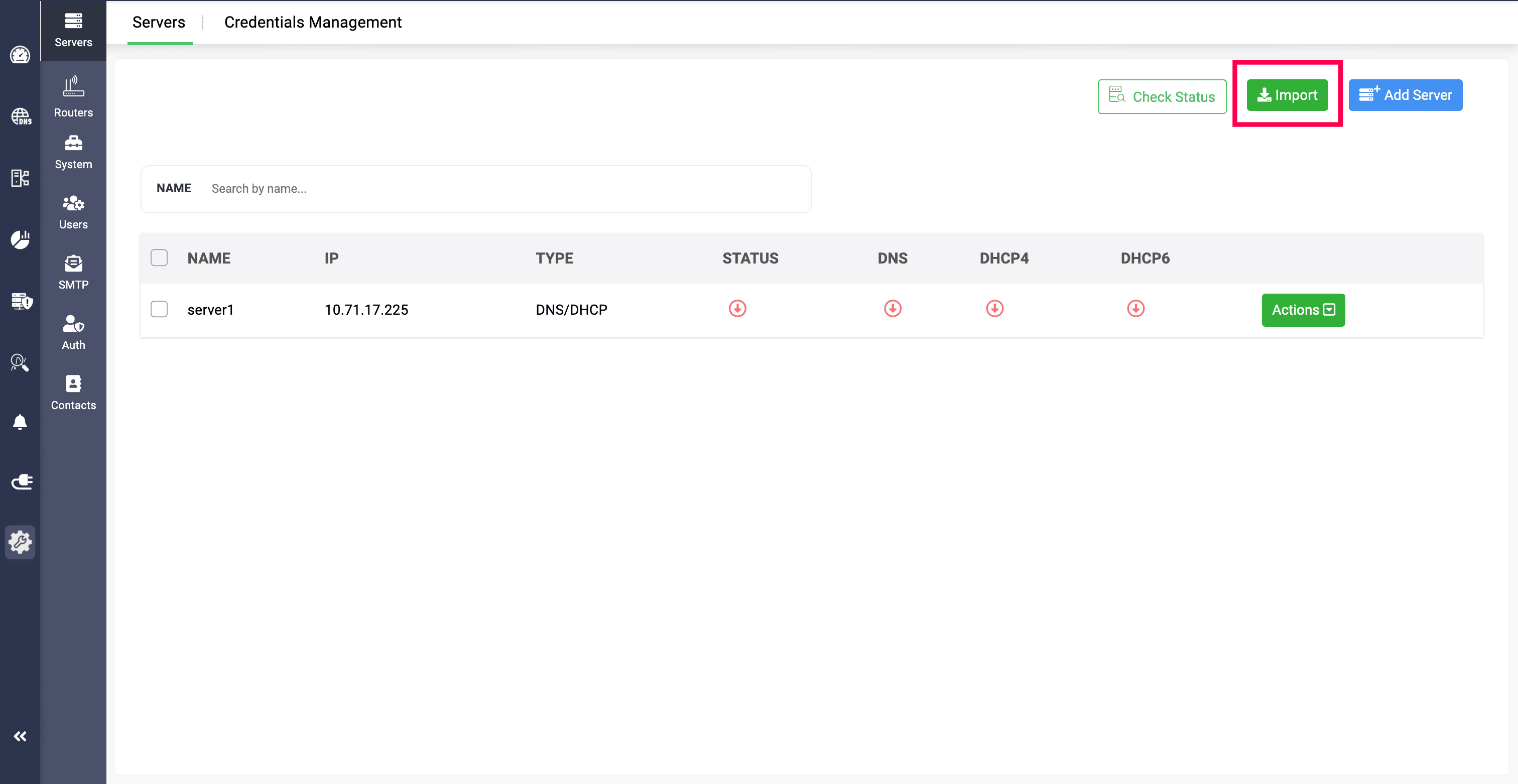
Network admins need to provide all the server details, credentials and the name of credentials in sheets and upload it in CSV format.
If the credential is already added in the application with a name given, you just need to provide the credential's name in the file. DDI Central will then detect and identify credential using the name, then they will be signed in to import them.
Or, you can simply provide the credentials in the file, and the application will be using them to sign in and import them.
Agent based and Agentless Bulk Import:
Large volumes of Windows servers that have Node Agent installed or WinRM configured can be imported in bulk through CSV or XLSX file import options.
When clicked on the Import option in the Servers section, the Select Import Type menu displays on screen. Select the import type based on your needs:
- If you have Windows Node Agent installed in your existing DNS/DHCP servers, select Agent-based.
- If you have WinRM setup configured in your existing DNS/DHCP servers, select Agentless.
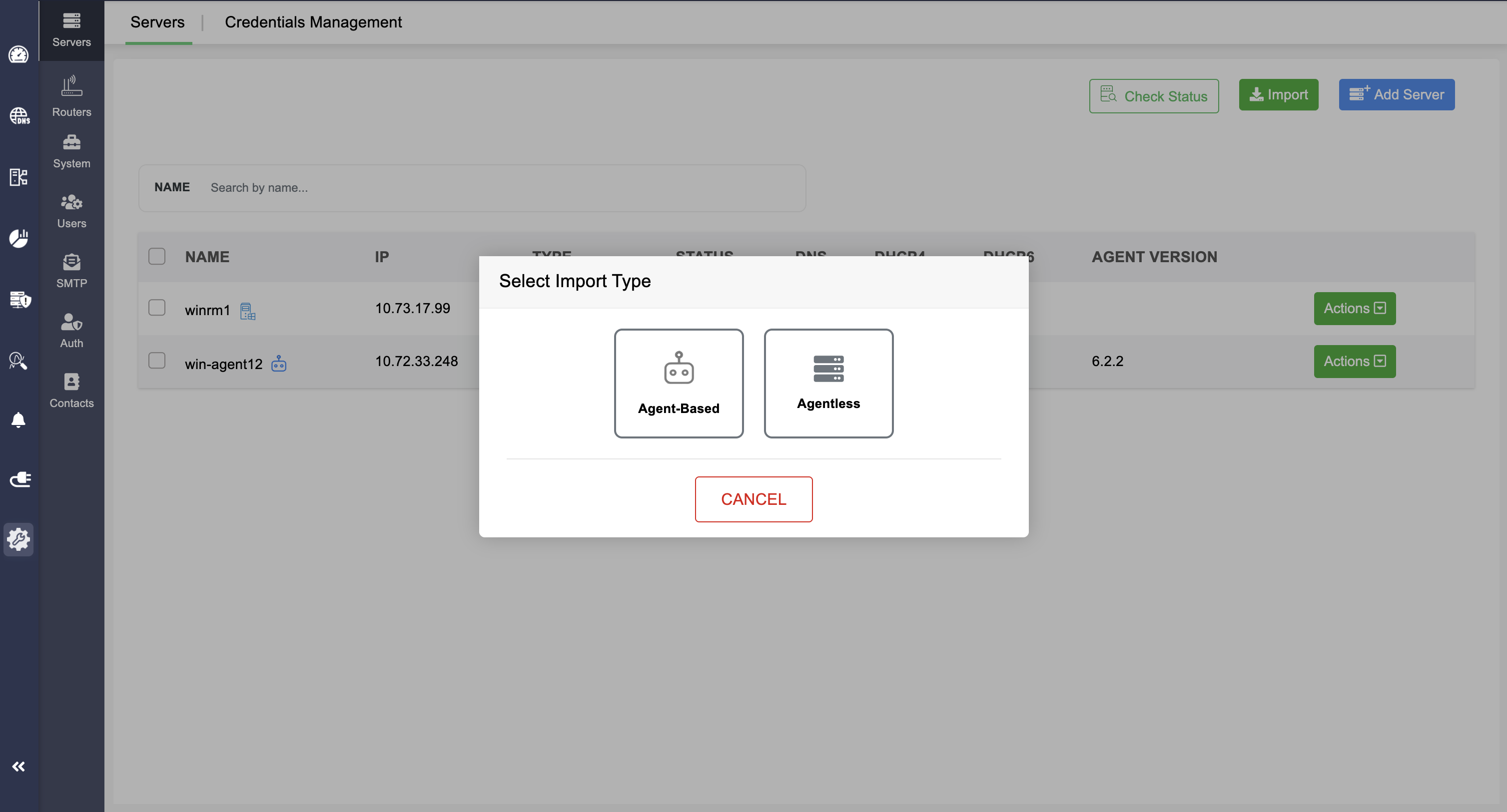
Note: Even if you are importing a large volume of normal Windows DNS/DHCP servers without Agent or WinRM setup, you have to select any one of these options.
Here are the sample files for reference:
Note: The import speed is determined based on the total number of servers in the import file.
Also, it is important to note that the servers need to be available and reachable during the import process.