Steps to configure SAML SSO for Blackbaud
About Blackbaud
Blackbaud is a cloud-based software company that provides nonprofit organizations with solutions for fundraising, financial management, CRM, and analytics to help them maximize their social impact.
The following steps will help you enable SSO for Blackbaud software from Identity360.
Prerequisites
- The MFA and SSO license for Identity360 is required to enable SSO for enterprise applications.
- Log in to Identity360 as an Admin, Super Admin, or Technician with a role that has Application Integration and Single Sign-on permissions.
- Navigate to Applications > Application Integration > Create New Application, and select Blackbaud from the applications displayed.
Note: You can also find Blackbaud from the search bar located at the top.
- Under the General Settings tab, enter the Application Name and Description.
- Under the Choose Capabilities tab, select Single Sign-on and click Continue.
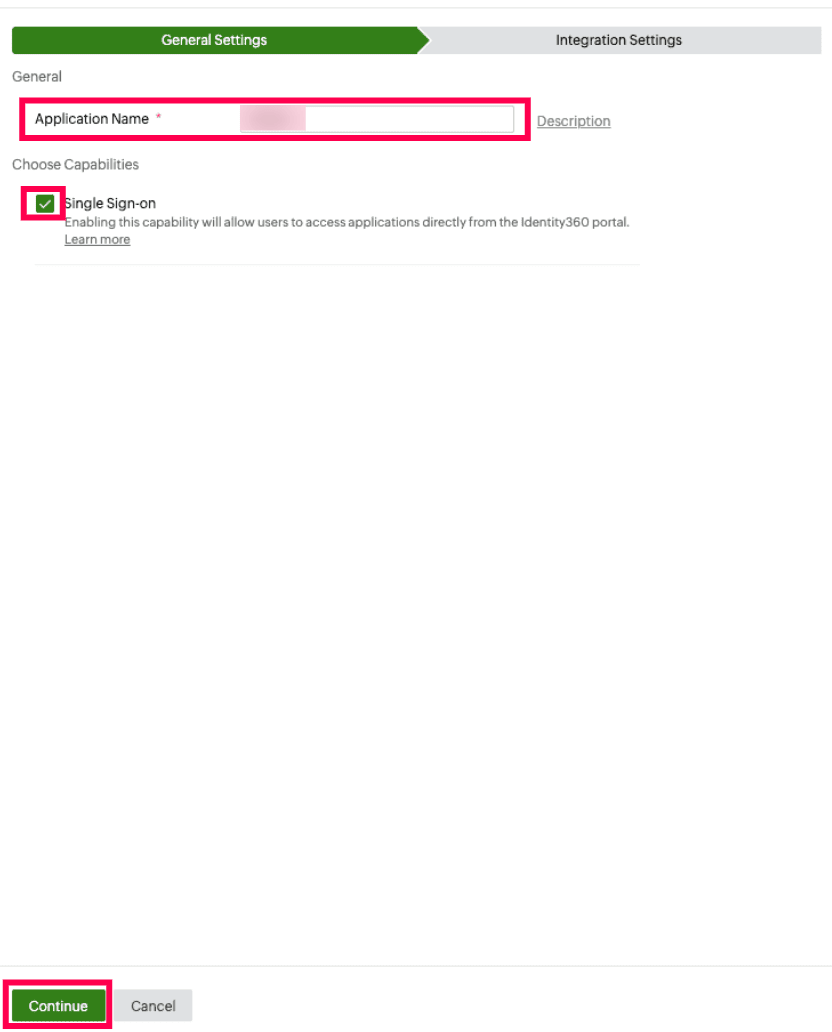 General Settings of SSO configuration for Blackbaud
- Under Integration Settings, navigate to the Single Sign On tab, click IdP Details. Copy the Metadata value, which will be used later during the configuration in Blackbaud.
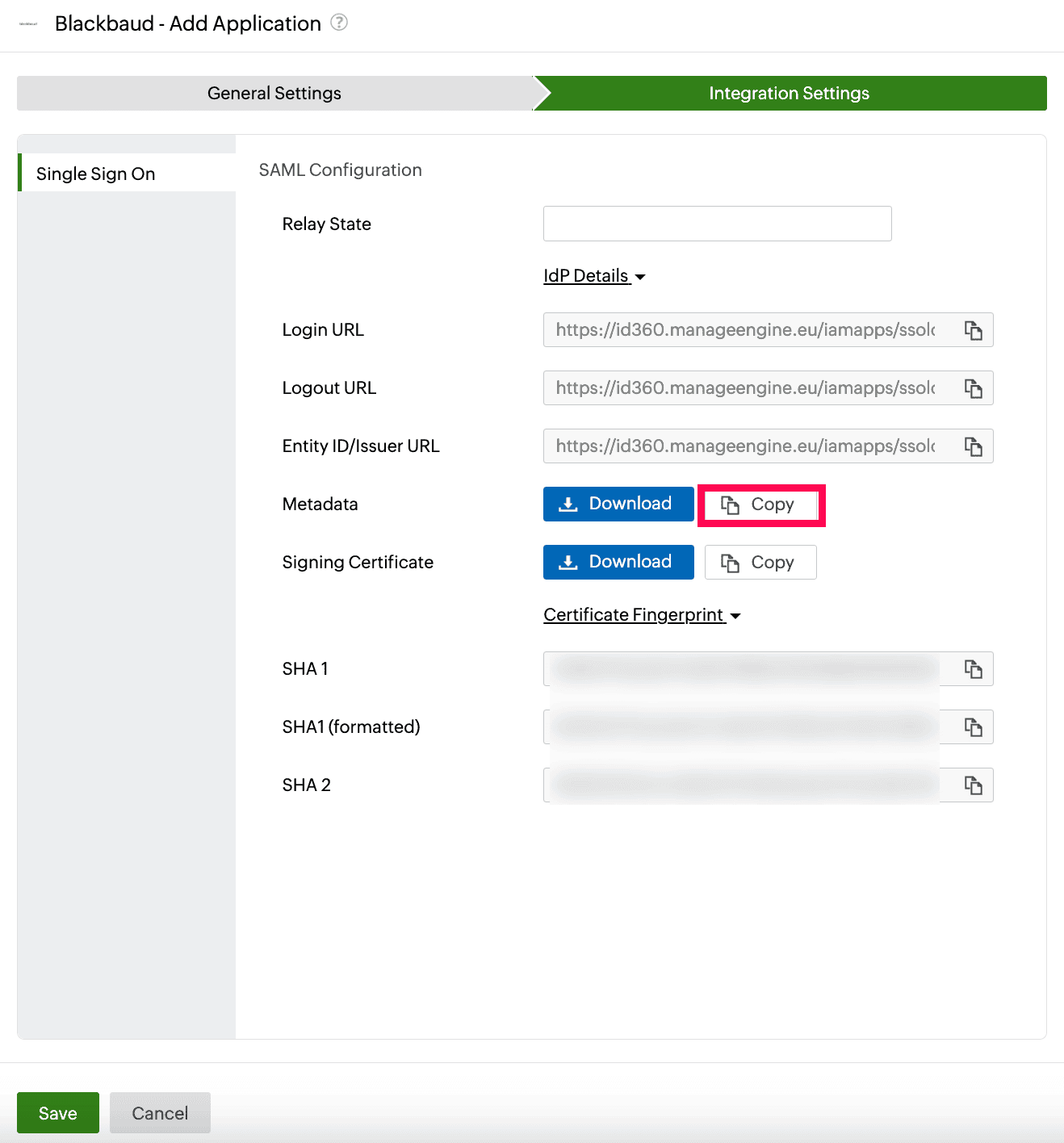 Integration Settings of SSO configuration for Blackbaud.
Blackbaud (service provider) configuration steps
- Log in to Blackbaud as an administrator.
- In Security, select Authentication.
- Under New single sign-on (SSO) on the Authentication settings page, select Manage SSO settings.
- On the Single sign-on page, select SAML 2.0.
- Under Claim your email domains, select Claim domains or Edit claimed domains to identify the email domains that your organization uses. This allows you to properly recognize and redirect members to your identitity provider (IdP) when they sign in. For instructions, see Claimed Email Domains.
- Under Configure your connection, click Get started.
- Under Enter your connection details on the Connection tab of the Configure SAML 2.0 connection screen, enter details for your organization's connection.
- In the Connection name field, enter Identity360.
- In the Metadata type field, select Metadata XML, and paste the metadata value copied in step 6 of prerequisites.
- Leave the Sign SAML requests field unchecked.
- Under Confirm how your IdP identifies the following, specify the below details.
- In the NameID field, enter assertionSubjectName.
- In the Email address field, enter Email.
- In the First name field, enter FirstName.
- In the Last name field, enter LastName.
- Select I acknowledge these settings require 24 hours to take effect.
- Select Save and continue.
- When you save your configuration settings, test mode is automatically turned on. At least one user must successfully sign in using test mode before you can enable your SSO connection.
Note: To verify that your organization can use Identity360 to sign in to Blackbaud solutions, click
Learn about testing SSO under
Test connection.
Copy the URL under
Blackbaud ID redirect, and then test your connection in a private or incognito browser. For more information, see
Test Mode.
- To complete the connection, select Turn on SSO under Turn on. Then on the Connect your SAML 2.0 SSO screen, select Connect with SAML 2.0.
Note: After you turn on SSO, users are redirected to Identity360 when they sign in to their Blackbaud IDs with one of your claimed domains.
Identity360 (identity provider) configuration steps
- Switch to Identity360's application configuration page.
- Enter the Relay State parameter, if necessary.
- Click Save.
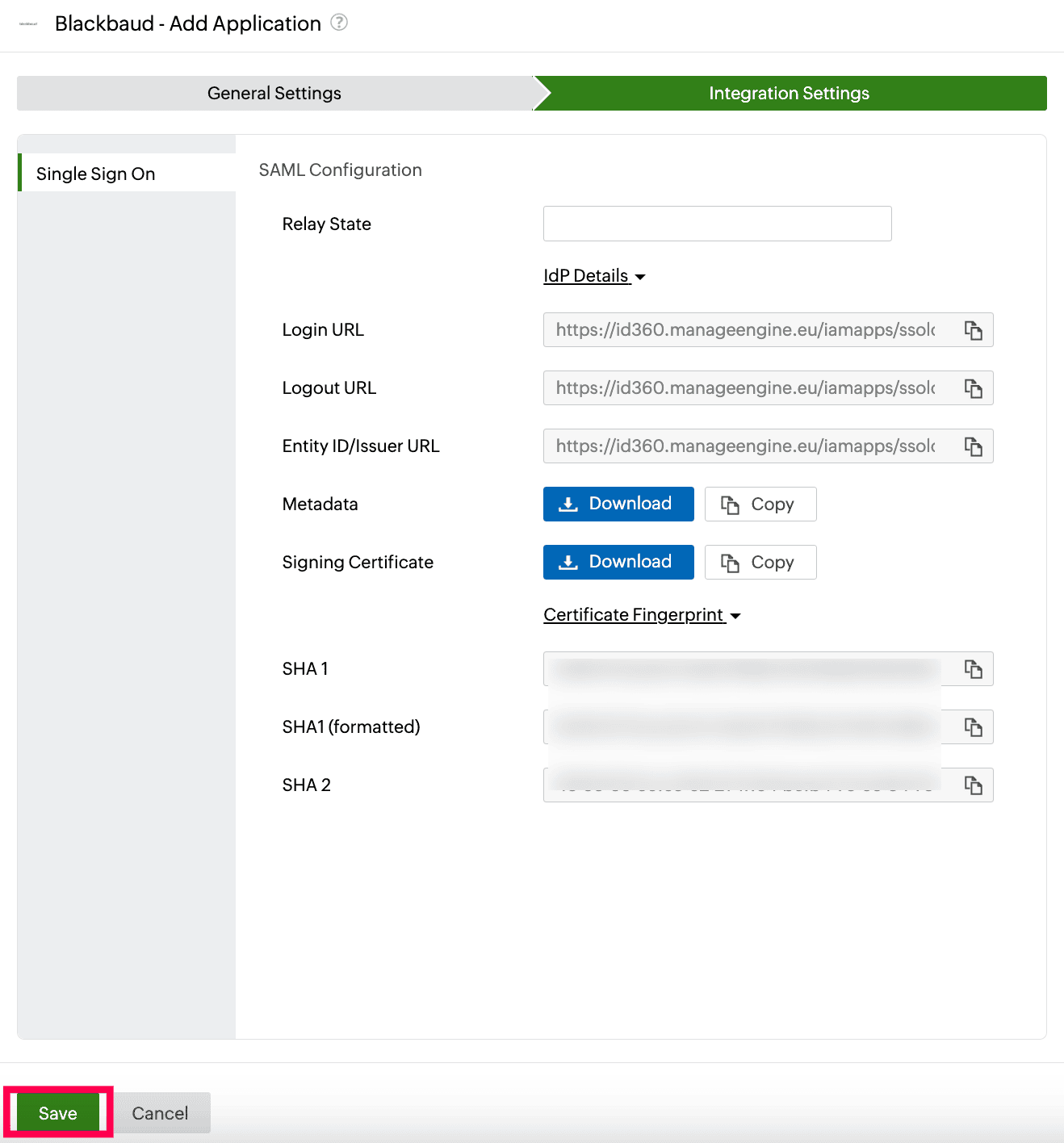 Integration Settings of SSO configuration for Blackbaud.
- To learn how to assign users or groups to one or more applications, refer to this page.
Your users will now be able to sign in to Blackbaud through the Identity360 portal.
Note: For Blackbaud, only SP-initiated flow is supported.
Steps to enable MFA for Blackbaud
Setting up MFA for Blackbaud using Identity360 involves the following steps:
- Set up one or more authenticators for identity verification when users attempt to log in to Blackbaud. Identity360 supports various authenticators, including Google Authenticator, Zoho OneAuth, and email-based verification codes. Click here for steps to set up the different authenticators.
- Integrate Blackbaud with Identity360 by configuring SSO using the steps listed here.
- Now, activate MFA for Blackbaud by following the steps mentioned here.
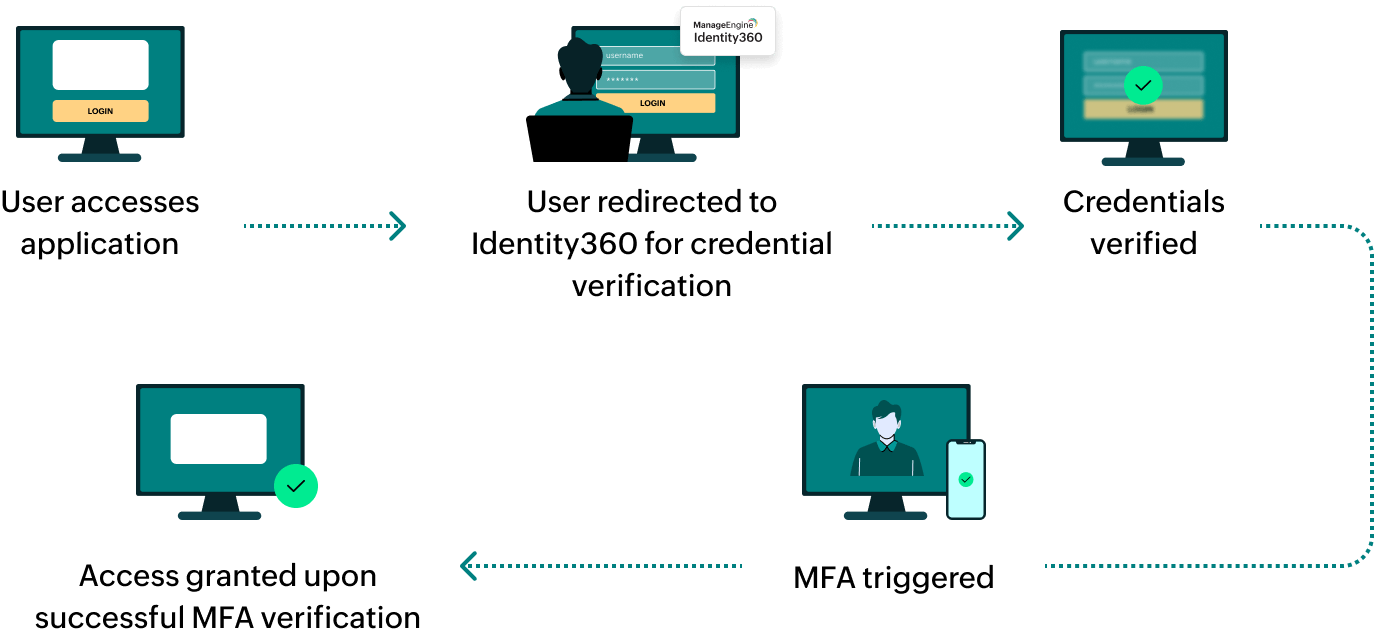
How does MFA for applications work in Identity360?