Installing Key Manager Plus Agent in Endpoints via Windows GPO
This document details the steps needed to install the Key Manager Plus Agent in multiple endpoints using Windows Group Policy Objects (GPO). Download the powershell script to trigger the installation from here and extract the script files. Ensure the below SHA256 value upon downloading the powershell script file:
ca91f8d0849097e15ebfd4274f6c008202f6d8a388867d4390f465ebb06bab7c
1. Prerequisites
- If you already have agents installed in the endpoints, follow these steps to uninstall the agents. This script will uninstall both the obsolete C++ and C agents.
- Create a Domain with all the target machines that need to be included in the GPO to be the endpoints where the agent is to be installed.
- Navigate to the Key Manager Plus installation directory, open the system_properties.conf file, set the system property pki.agent.SingleInstallKey.validMin=60 and restart the Key Manager Plus service. Where 60 is the agent Install Key validity time in minutes (The maximum allowed value is 60).
- Now log in to the Key Manager Plus web interface and download the agent ZIP. The Install Key is embedded in the ZIP file; ensure it is stored in a safe and secure location.
2. Steps to Create a GPO in the Domain and add Target Machines
- Open the Server Manager and navigate to Tools >> Group Policy Management from the top right corner.
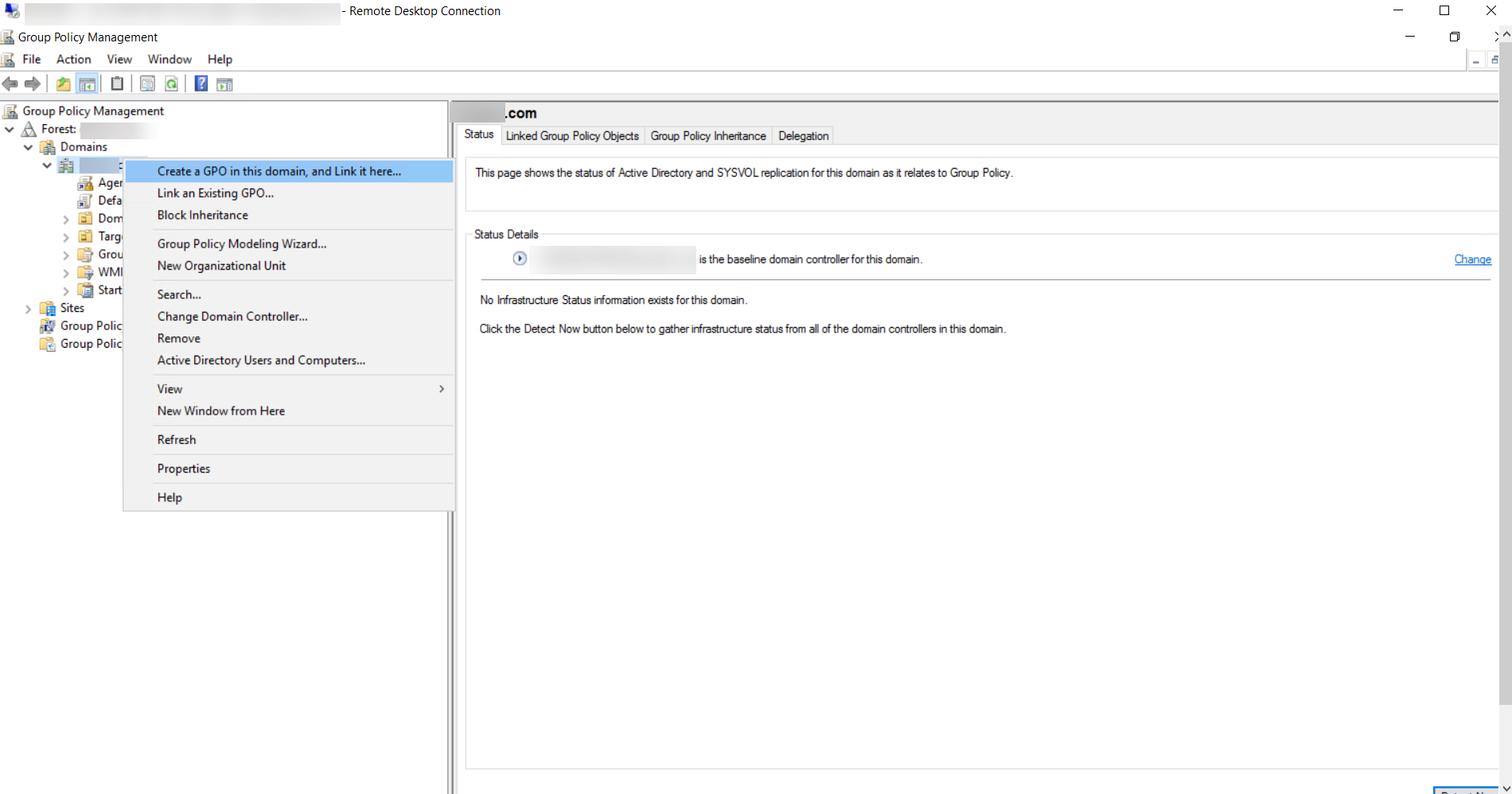
- Right-click the domain name, click Create a GPO in this domain, and Link it here...
- Provide a name for the new GPO, for example, AgentGPO. Now, click the newly created GPO under Scope >> Security Filtering, and click Add. In the Select User, Computer, or Group window, enter the target machine names or the name of the group that contains all the target endpoints or the names of the target machines individually, and click OK.
- Switch to the Delegations tab. Right-click the group you added and provide full access permission as shown below.
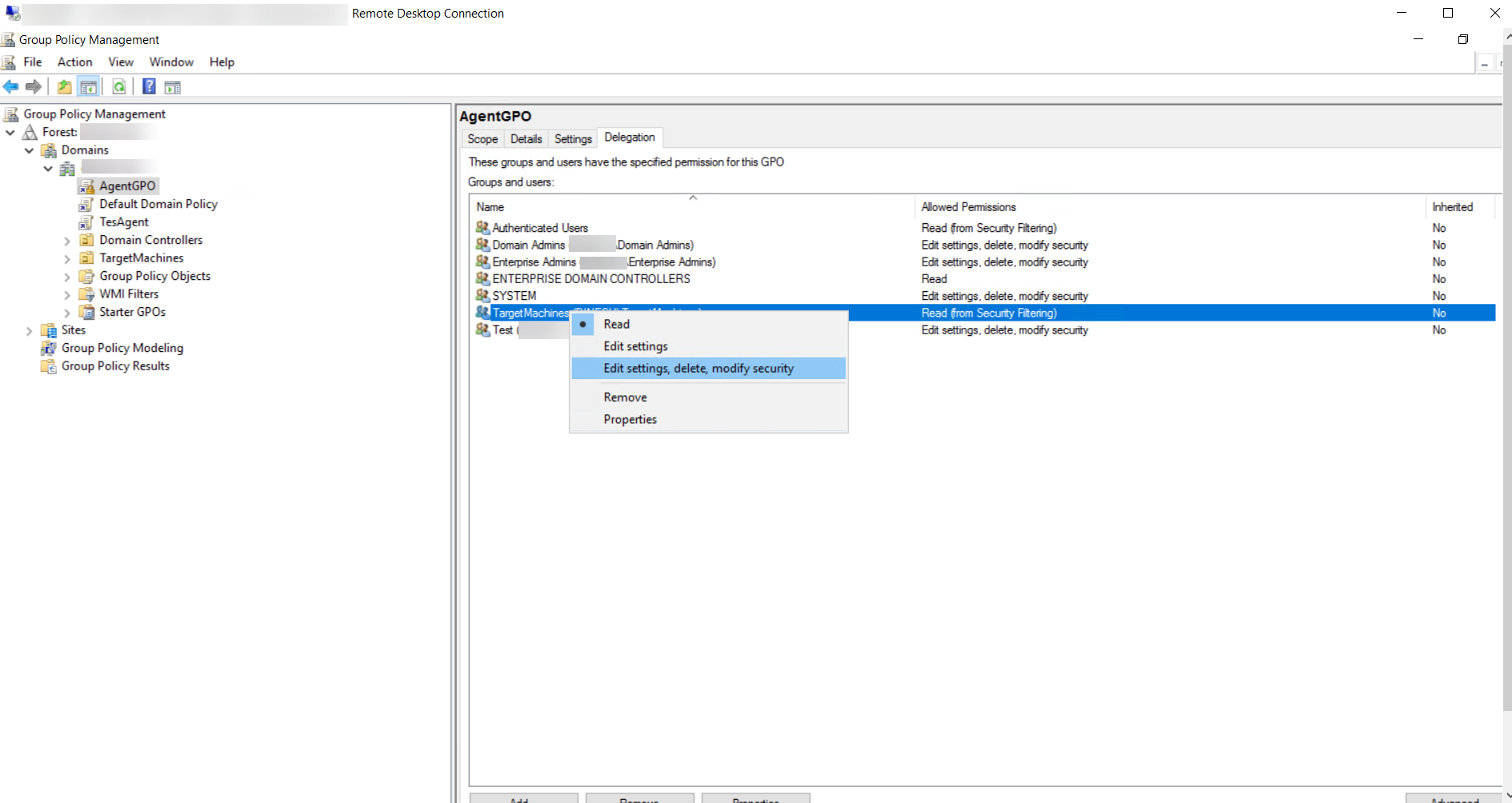
You have successfully created a Group Policy and added the target machines where the Key Manager Plus agent is to be installed.
3. Steps to Add the Installation Script and Agent Installation Zip in the GPO
- Now right-click the GPO name from the left pane and click Edit settings, delete, modify security. The Group Policy Management Editor window will open.
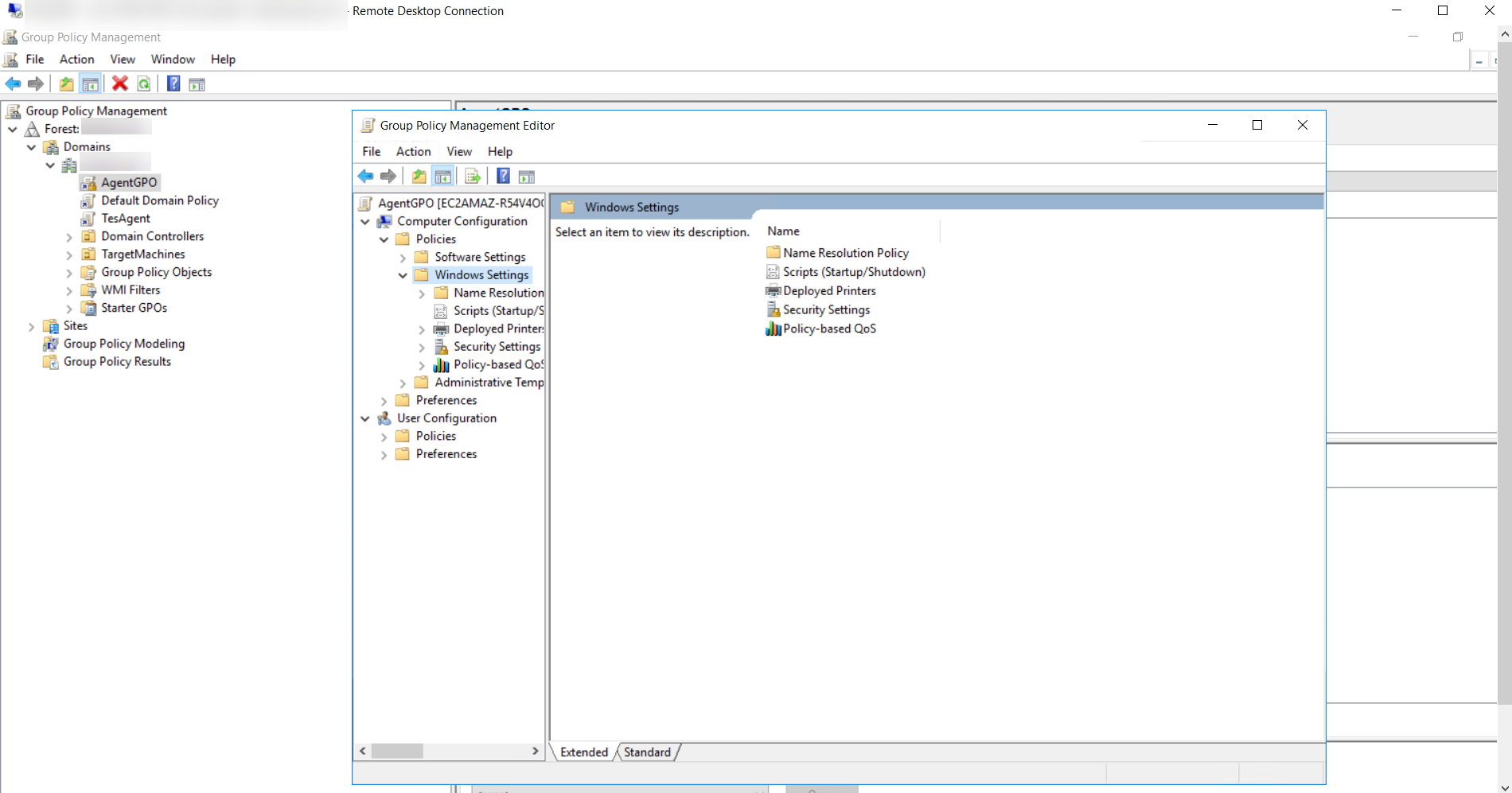
- Navigate to the Policies >> Windows Settings folders. Double-click Scripts. In the Scripts window, click Startup and then click Properties.
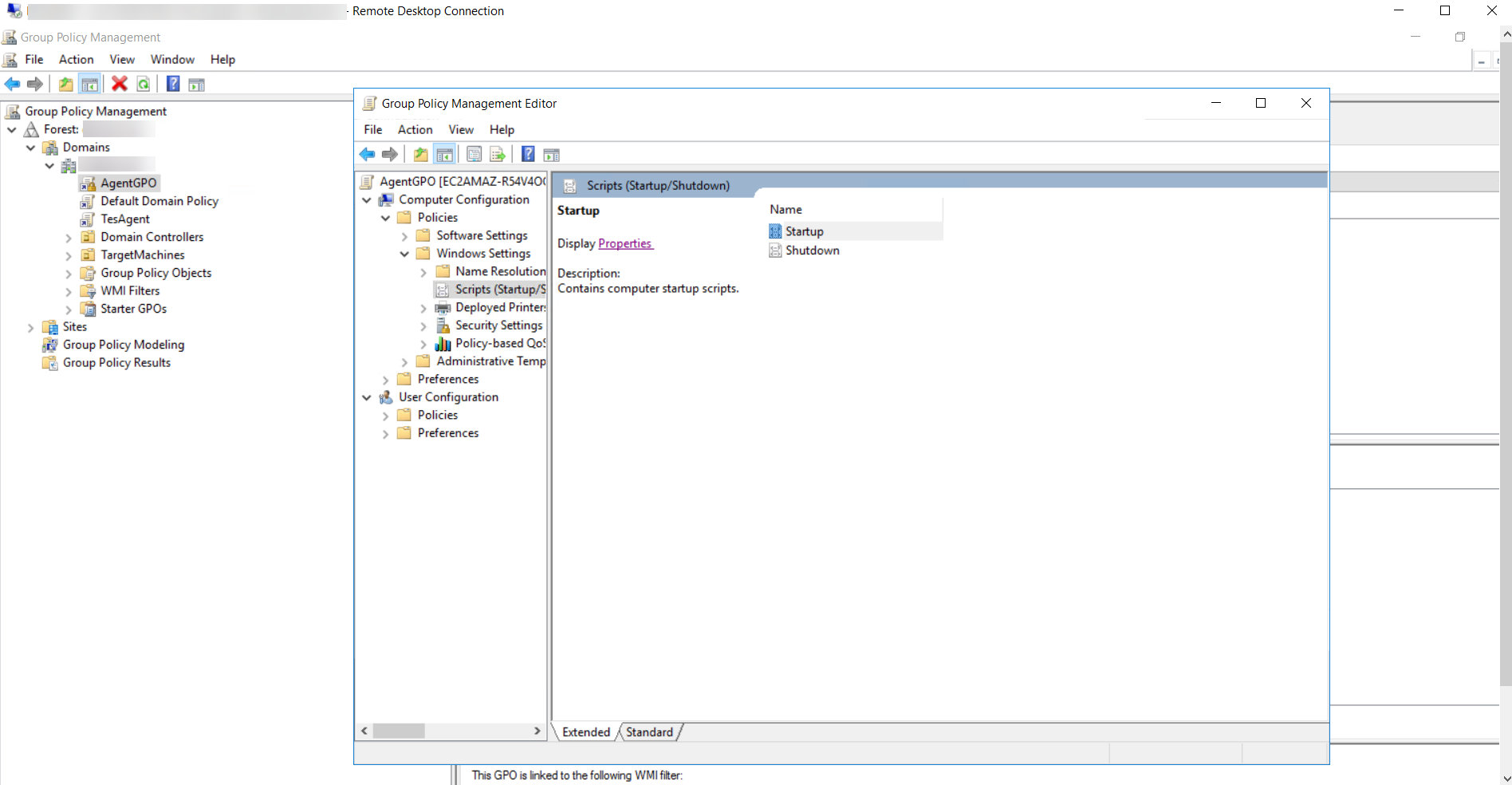
- Switch to the PowerShell Scripts tab and click Show Files. The network directory will open. Now, copy the path of the network location.
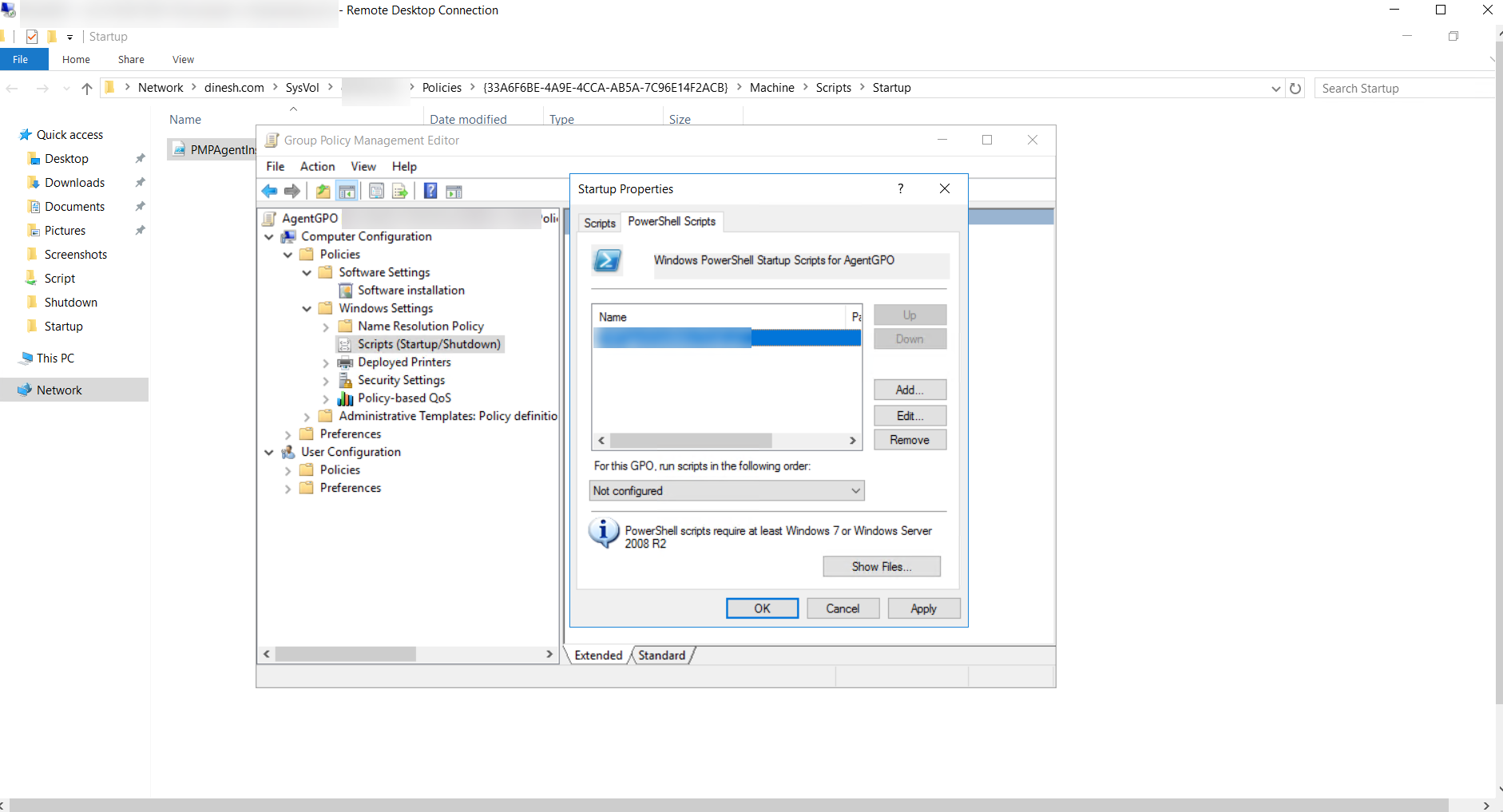
- Open the extracted KMPAgentGPO powershell script in an editor and do the steps as follows:
- Add the network location path copied in the previous step as the source variable. For example: "\\zylker.com \SysVol\zylker.com\Policies\{33A6F6BE-4A9E-4CCA-AB5A-7C96E14F2ACB}\Machine\Scripts\Startup\KMPAgentInstaller.zip"
- Add a desired destination path, for example: c:\Temp. This is the location where the agent zip will be extracted and installed in the target endpoints, so ensure that this path is available in all the target machines.
- Now, paste the KMPAgentGPO PowerShell script file and the Agent installation zip in the GPO network location.
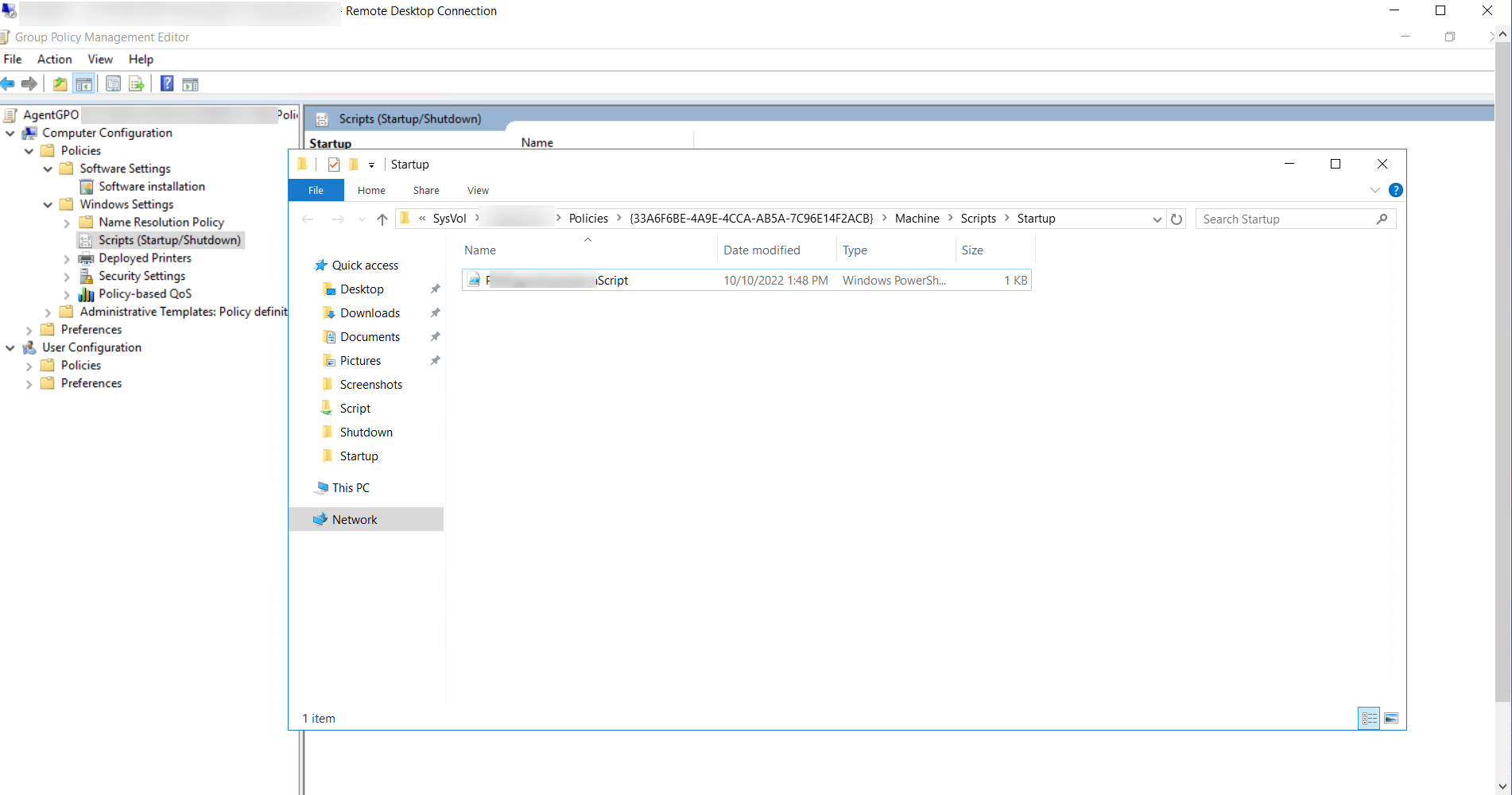
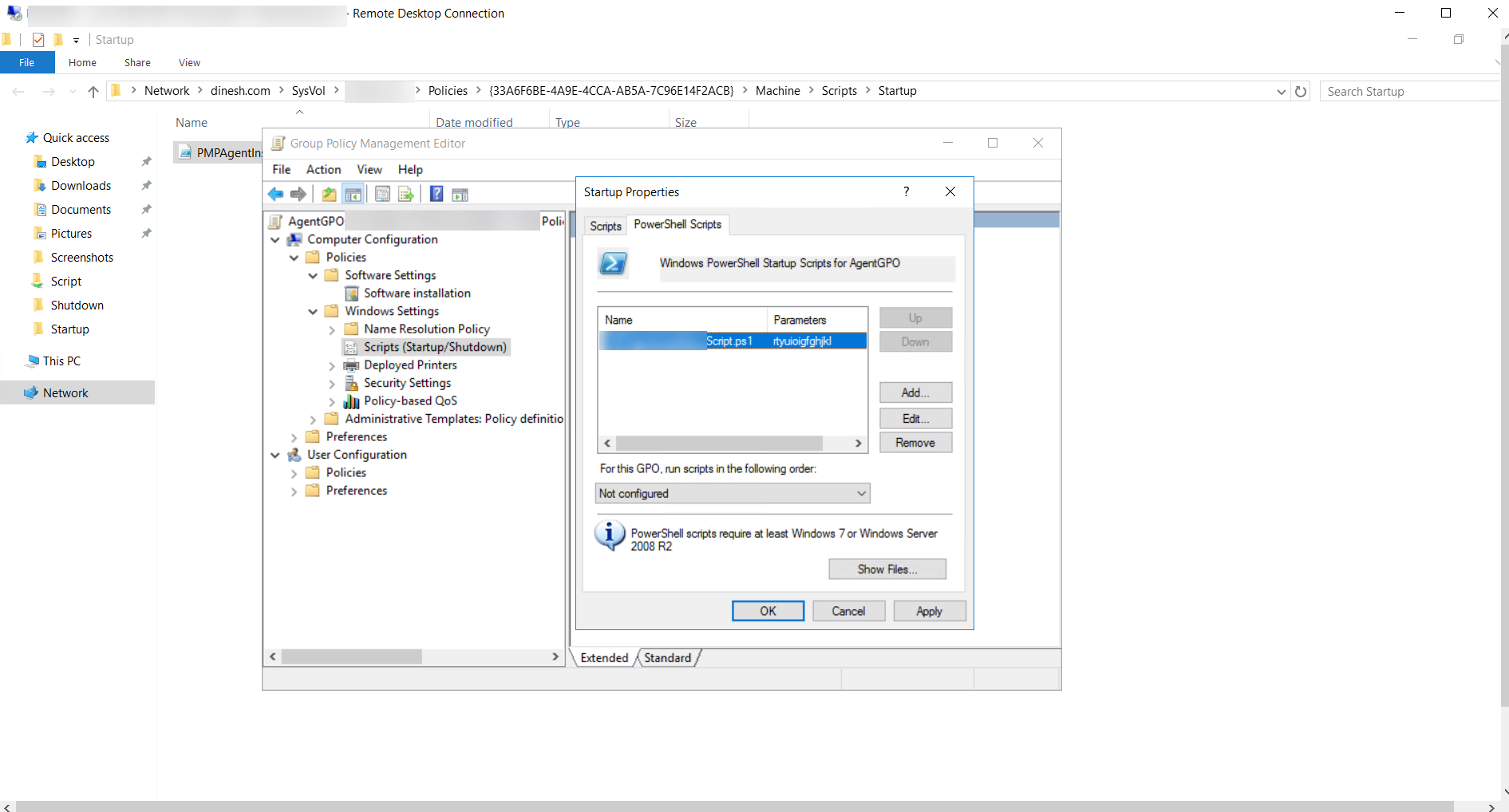
- Click Add and add the KMPAgentGPO.ps1 file name under Script Name. Click Apply and OK again to save the settings.
- In the Group Policy Management Editor, navigate to the Administrative Templates >> System and open Group Policy.
- Under the Group Policy folder, right-click Specify workplace connectivity wait time for policy processing.
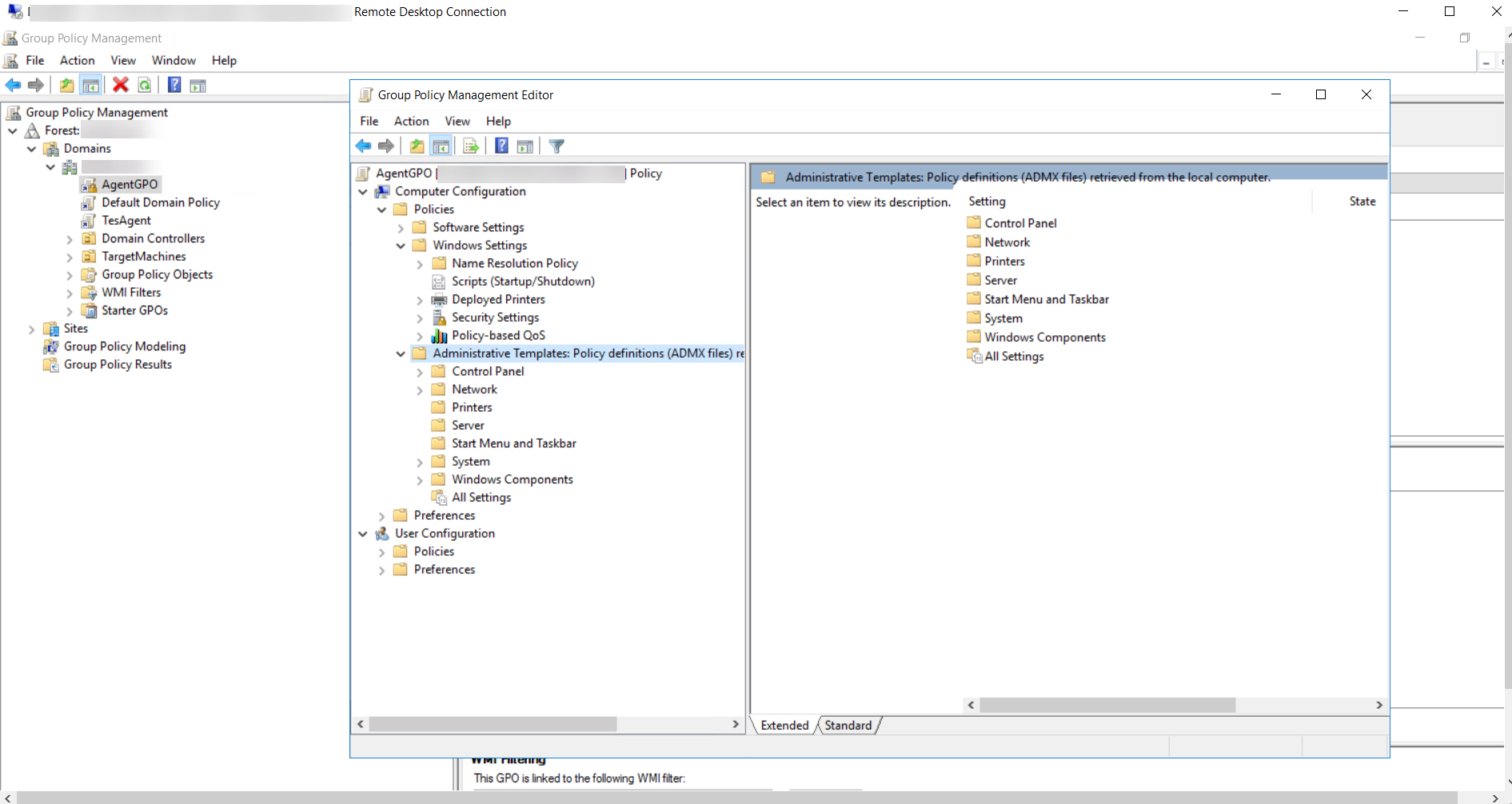
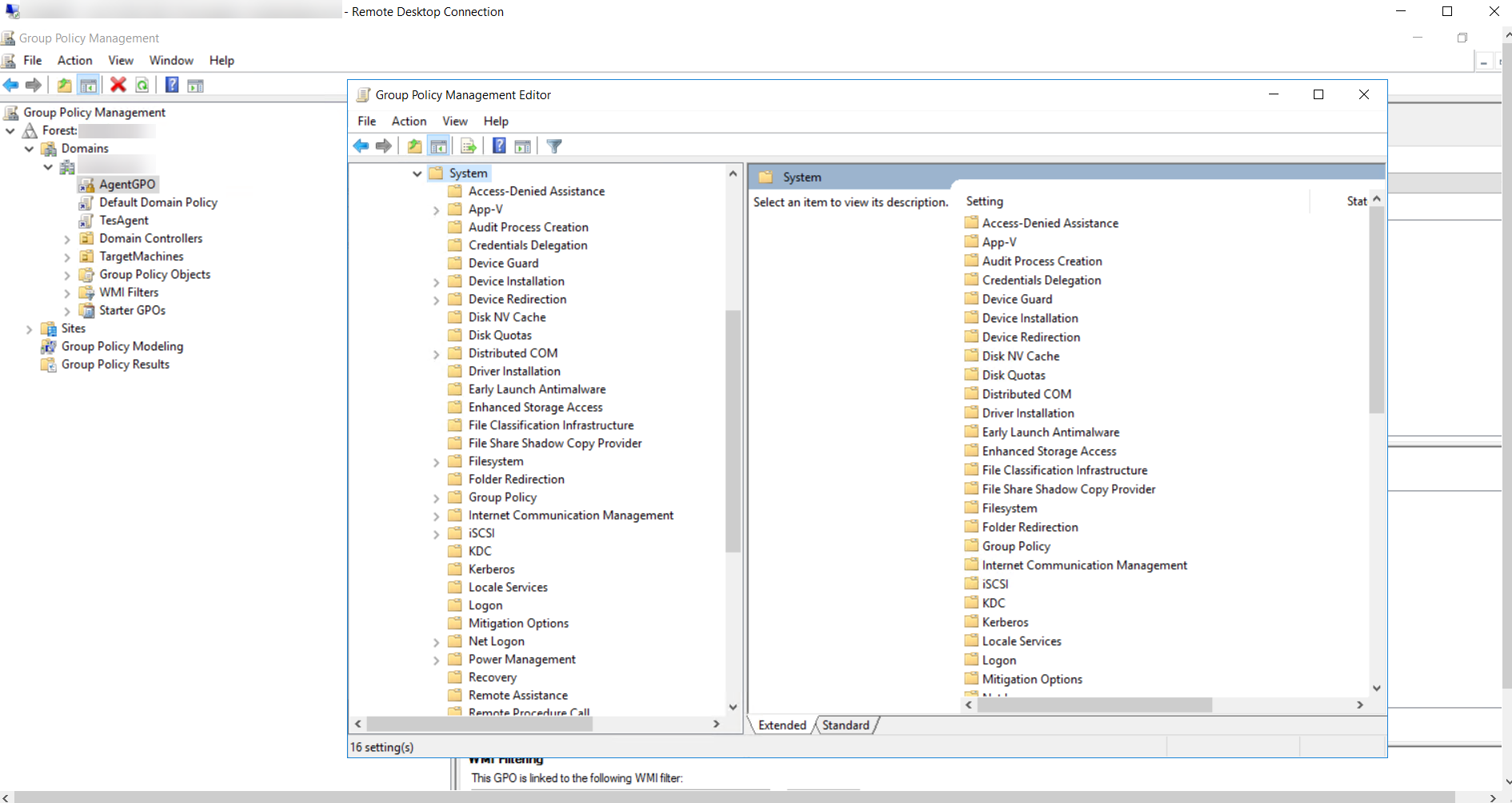
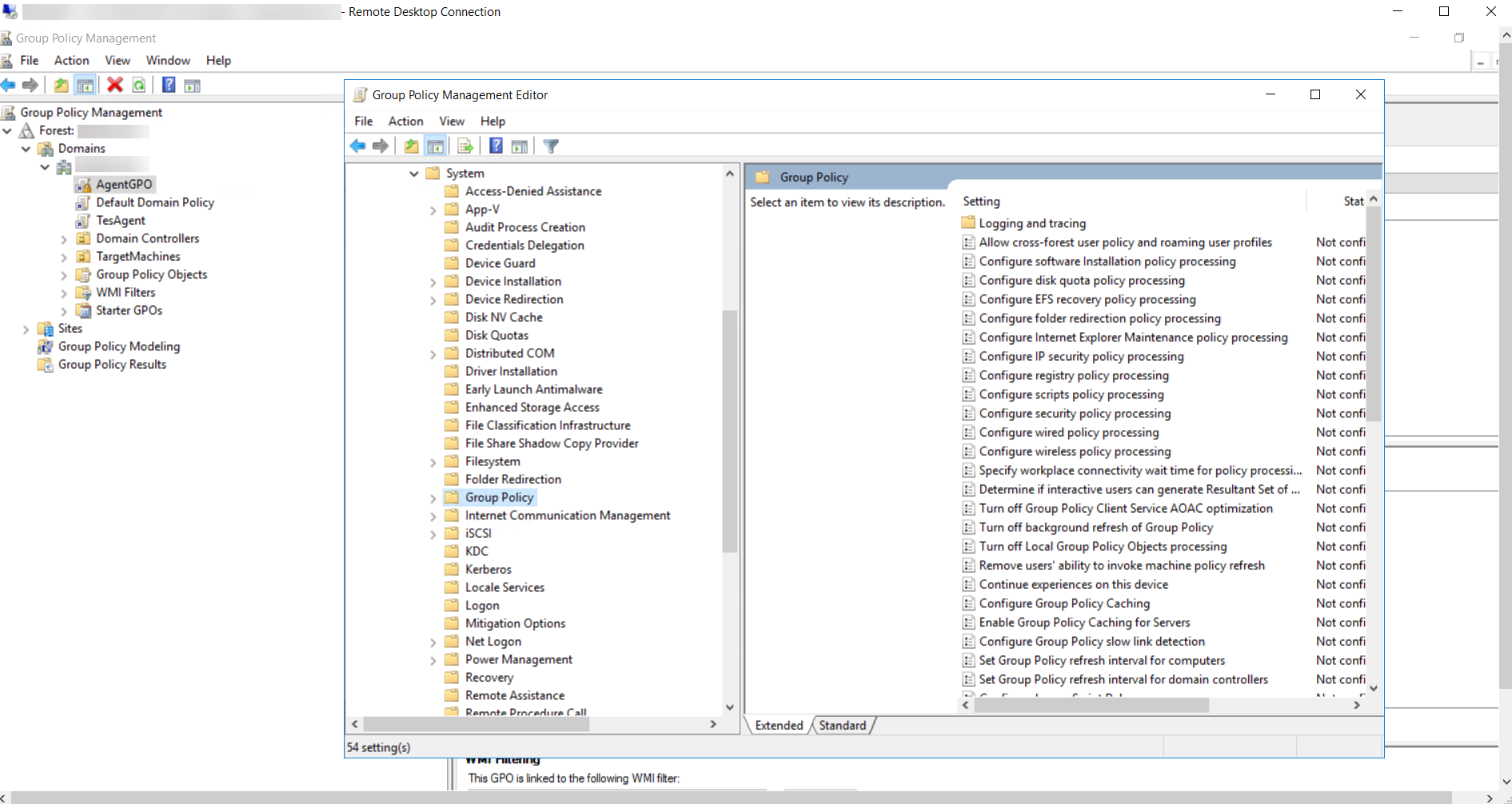
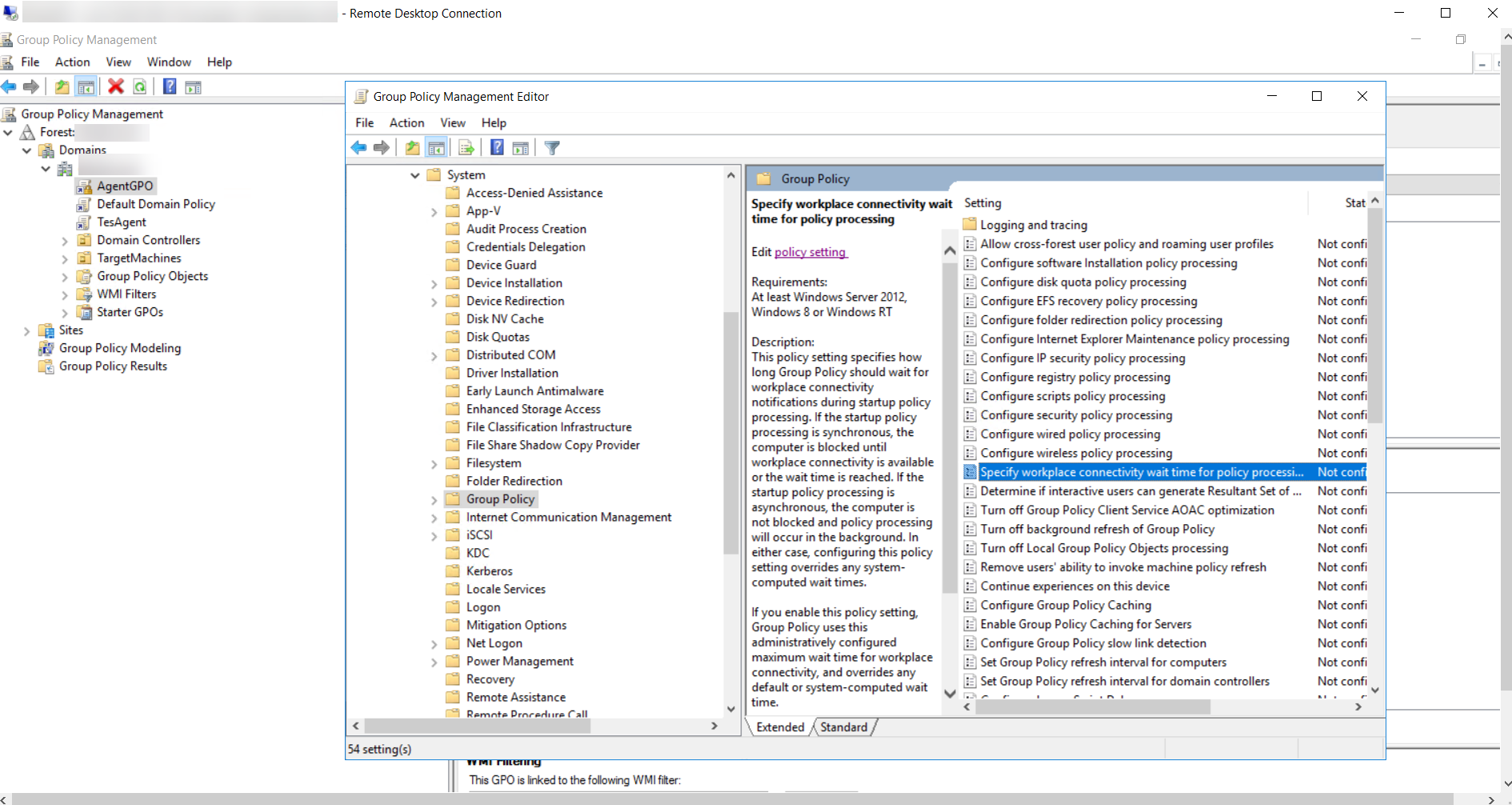
- From this window, click the Enabled option. Enter the Amount of time to wait as 120 seconds. Click Apply and click OK to save the settings.
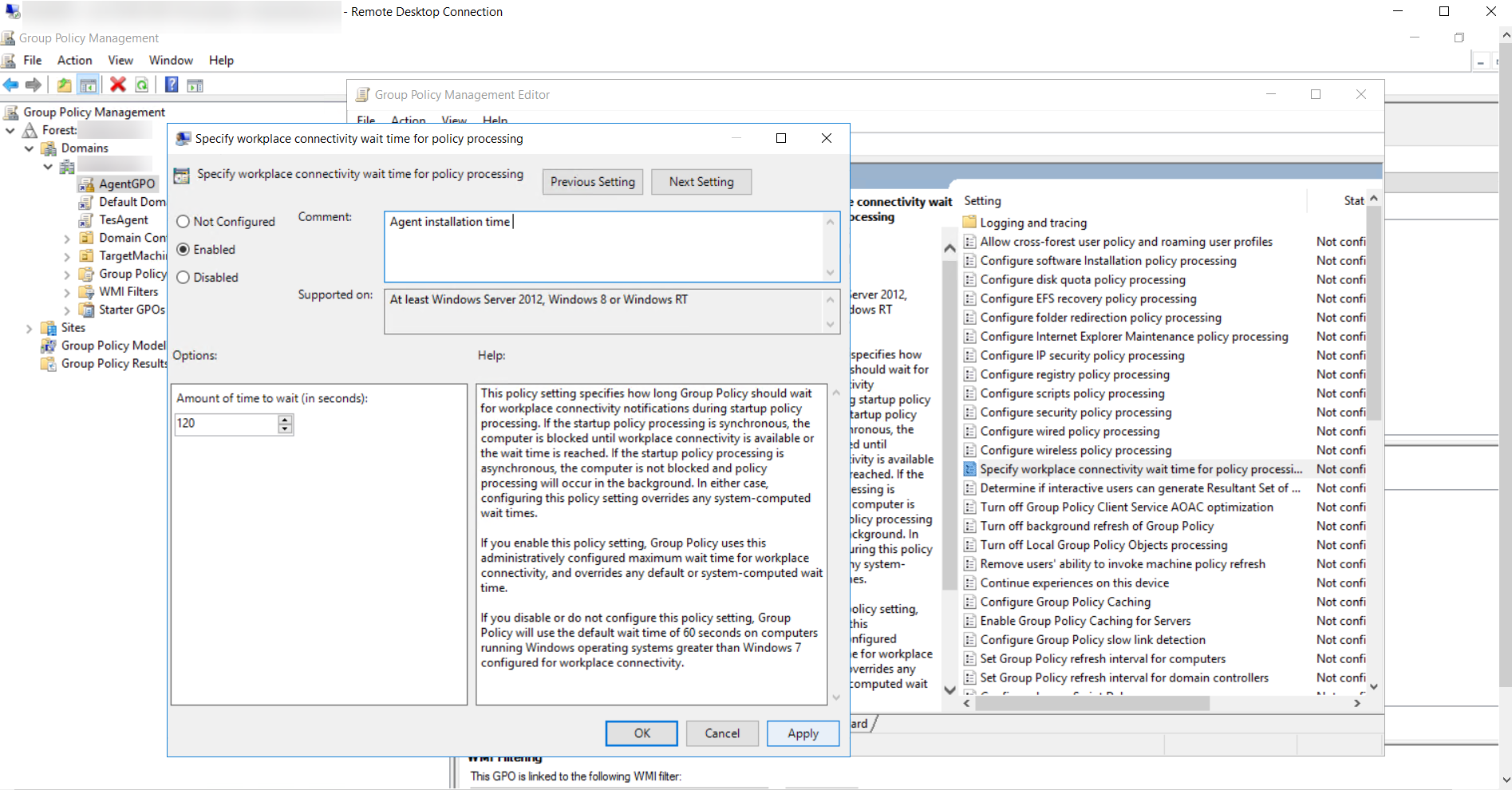
- The GPO will be applied. Once you restart all the target endpoints, the Key Manager Plus Agent PowerShell script will be invoked, and the agent will be installed in the target machines.
- After successful installation of the agent, disable the startup script for the GPO you created (AgentGPO in this example). This will ensure that the script is not invoked every time the target machines are restarted.
4. Troubleshooting Steps
Ensure that the AgentGPO has a higher precedence than the other GPOs. This is to make sure that the other GPOs don't override the permissions of the AgentGPO.
To check this, click the GPO name, right-click the Enforced option, and check if it is enabled.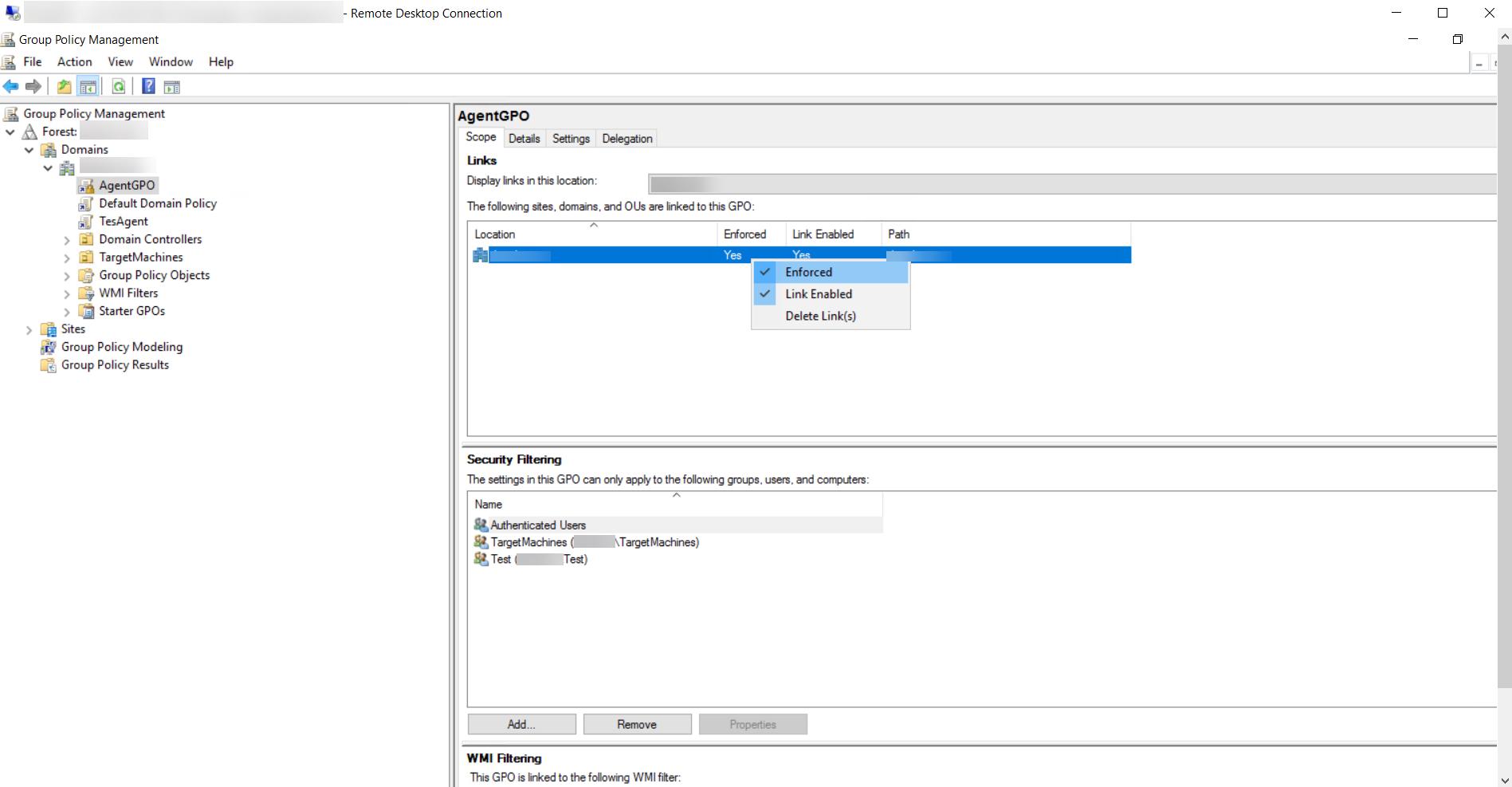
4. Uninstalling the Agent in Endpoint
If the Key Manager Plus agent was deployed using the GPO method, you can uninstall it by executing the predefined batch script included in the installation package. Follow the below steps to uninstall the agent from the endpoints:
- Navigate to the agent installation directory on the target machine. By default, it is located at
C:\Program Files (x86)\ManageEngine\KMPAgent - Locate the script named uninstall.bat within this directory.
- Right-click on uninstall.bat and select Run as administrator to initiate the uninstallation process.
The script will remove the Key Manager Plus agent from the system. Once complete, the agent and all associated files will be uninstalled.