
General logon settings and password policy
Last updated on:
In this page
Overview
The logon settings module helps you secure user access with options like CAPTCHA, account lockout, password reset visibility, and password policies. It includes six sub-tabs—General, Password Policy, Two-Factor Authentication, External Authentication, Allow/Restrict IPs, and Smartcard Authentication—allowing you to customize authentication and strengthen account protection.
Logon settings
- In the product console, navigate to the Settings tab and click on Logon settings listed under Admin Settings as shown in the below image.
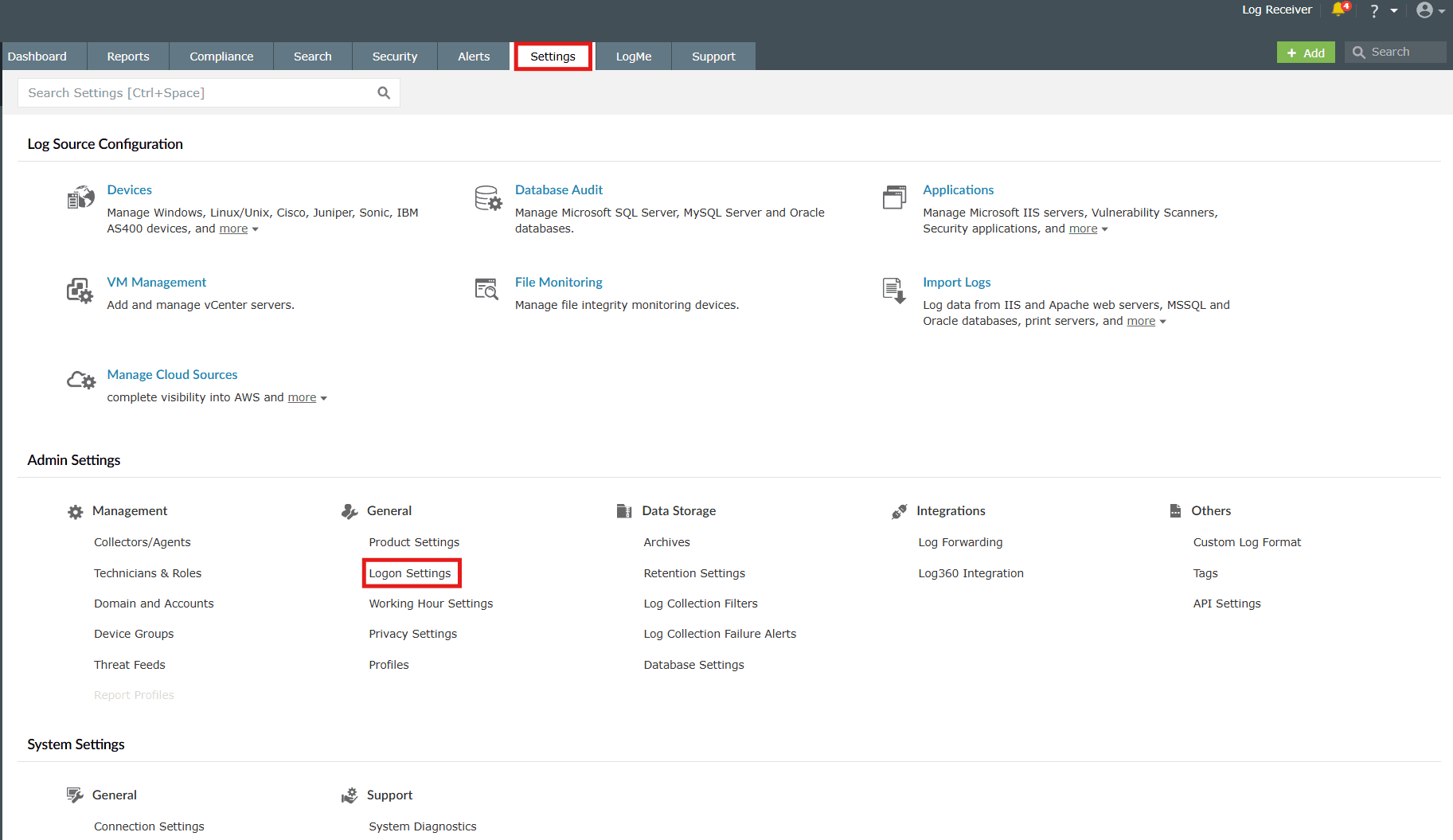
Image 1: Logon settings via the settings tab - You will be taken to the Logon Settings module.
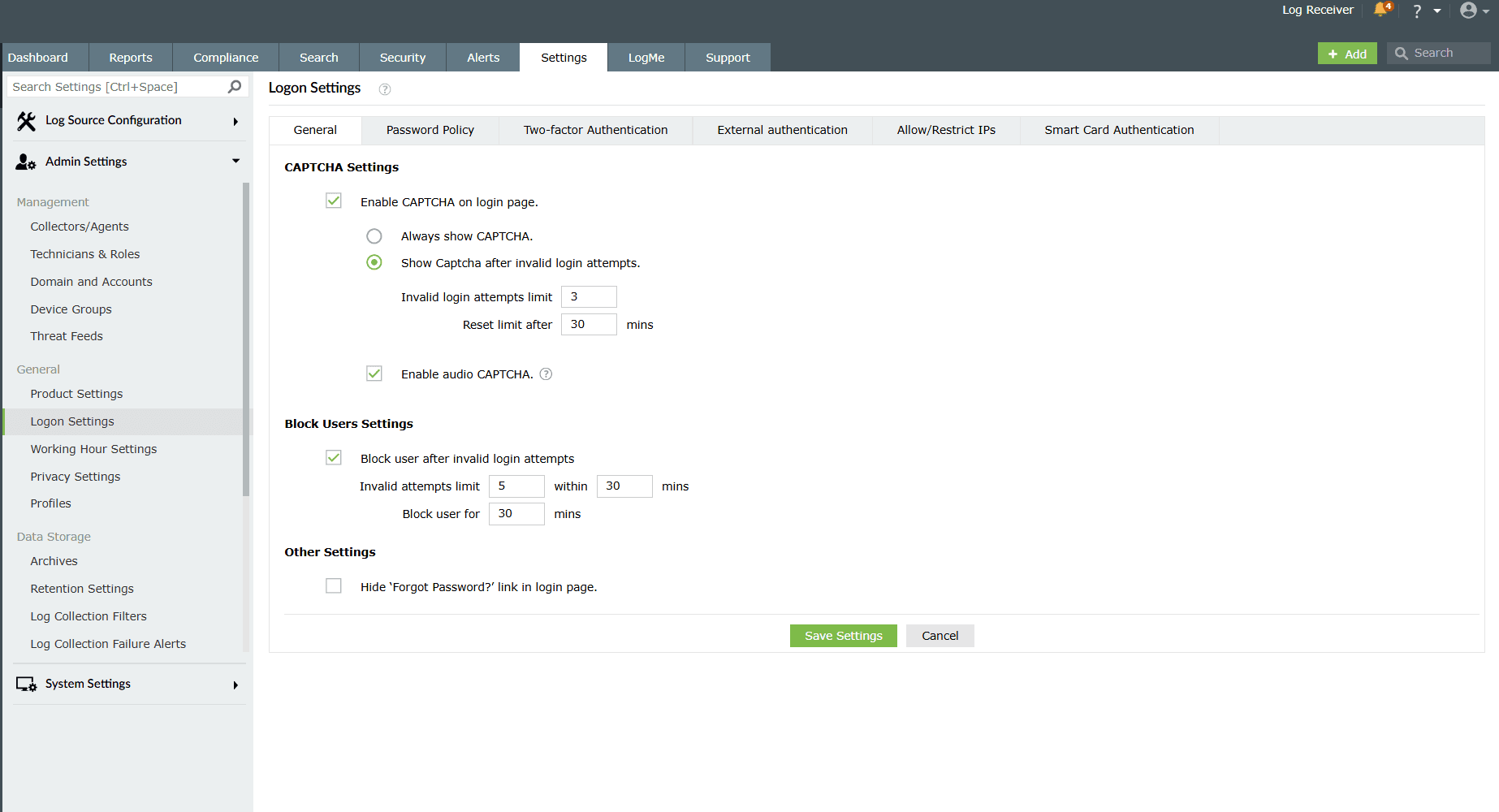
Image 2: General logon settings via the settings tab
The Logon Settings module further contains 6 sub-tabs:
- General
- Password Policy
- Two-factor Authentication
- External authentication
- Allow/Restrict IPs
- Smart Card Authentication
Read further to learn more about these logon settings.
General logon settings
This setting provides options to manage login security features like CAPTCHA, account lockout, and password reset visibility.
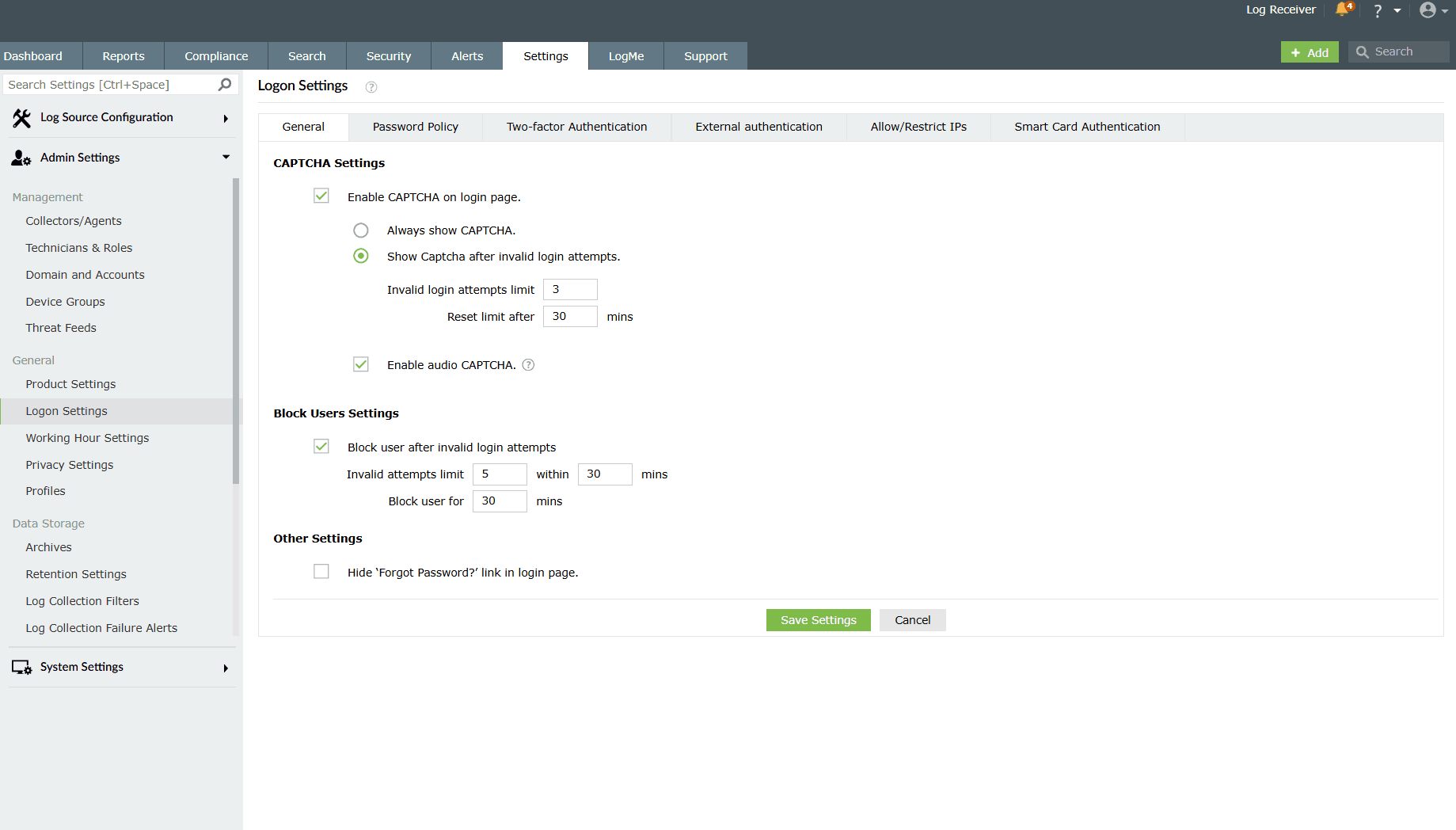
The General sub-tab contains the below configurations:
1. CAPTCHA settings
Shows a CAPTCHA challenge during login to prevent automated access attempts. This setting- Enable CAPTCHA on login page, is enabled by default. Click on the checkbox to empty it and disable this setting.
With the CAPTCHA enabled, you can choose to either-
- Always show CAPTCHA: Displays CAPTCHA for every login attempt, regardless of success or failure history. Or,
- Show CAPTCHA after invalid login attempts: Displays CAPTCHA only after a set number of failed login attempts. You can set the requirement for CAPTCHA to the user by configuring the Invalid login attempts limit (default value is 3)-set the number of invalid login attempts limit after which a CAPTCHA verification will be required for the user to login and a time interval for Reset limit after (default value is 30 mins)-set a time interval in minutes for the corresponding invalid logon attempts.
- Enable audio CAPTCHA: This is an additional optional configuration which is also enabled by default. When audio CAPTCHA is enabled, only digits will be shown in the CAPTCHA image. If a browser doesn't support audio CAPTCHA, then the default CAPTCHA image (with letters and digits) will be shown.
2. Block Users settings
This setting- Block user after invalid login attempts, is enabled by default. Click on the checkbox to empty it and disable this setting. This option locks the account for a set time if failed login attempts exceed the configured limit. In this setting, you can configure the number of invalid login attempts from a user within a period of time, after which the user will be automatically blocked for a certain period of time. You can set the values for the same under:
- Invalid attempts limit: A numeric value (default value is 5)
- Within: Value in minutes (default value is 30 mins)
- Block user for: Value in minutes (default value is 30 mins)
3. Other settings
This setting- Hide 'Forgot Password?'' link in login page, is disabled by default. If you want to hide the "Forgot Password?" link in the login page, then enable this setting by clicking on the empty checkbox. When enabled successfully, this setting removes the password reset link from the login page for added security.
After all the necessary configurations are made, click on Save Settings. Upon successful completion of action, the below pop-up appears.

Password Policy logon settings
This setting defines rules for password strength, change frequency, and reuse restrictions to enhance account security.
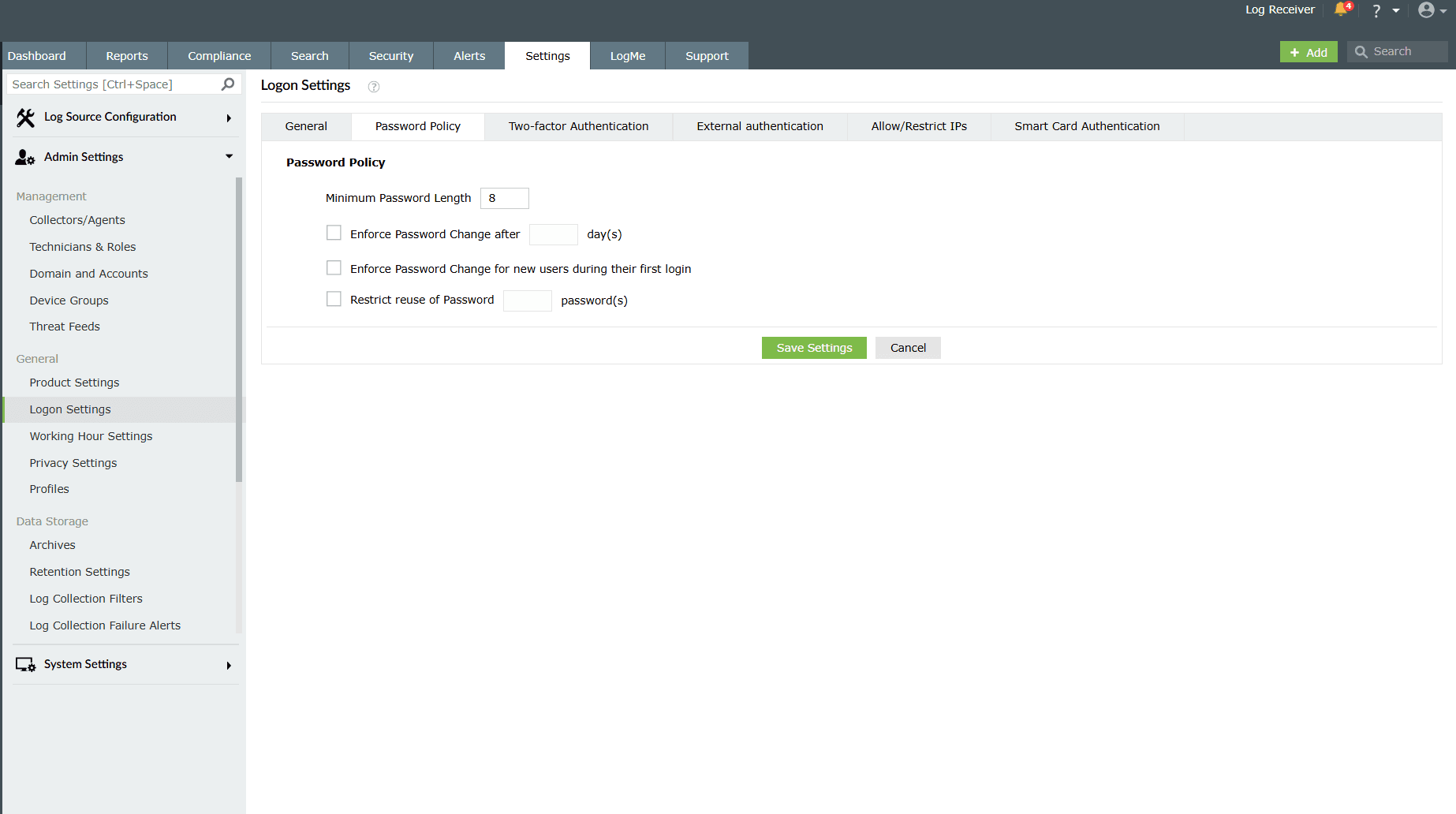
The Password Policy sub-tab contains the below configurations:
- 1. Minimum Password Length: Specifies the minimum number of characters required in the password. The default value is set to 8 characters.
- 2. Enforce Password Change after: Requires users to change their password after a set number of days. Enter the desired value in days to enable this option. This setting is disabled by default. Click on the empty checkbox to enable this setting.
- 3. Enforce Password Change for new users during their first login: Forces new users to change their password upon first login for better security. This setting is disabled by default. Click on the empty checkbox to enable this setting.
- 4. Restrict reuse of Password: Prevents users from reusing the specified number of their most recent passwords. Enter the number of passwords to restrict in the provided field. This setting is disabled by default. Click on the empty checkbox to enable this setting.
After all the necessary configurations are made, click on Save Settings. Upon successful completion of action, the below pop-up appears.

Read also
This document explained how to configure CAPTCHA, block users after invalid login attempts, and hide the “Forgot Password?” link, and set password rules like length, expiry, and reuse restrictions. For more understanding, refer to the below help documents: