
SNMP Traps port management
Last updated on:
In this page
Overview
The SNMP Trap listener port management capability allows you to configure and control how SNMP traps are received from devices that are added for monitoring. This includes setting up trap destination ports, enabling or disabling the SNMP Trap listener ports, editing port values, and managing SNMP credentials for various protocol levels (V1, V2c, V3). This helps maintain secure and accurate log ingestion from SNMP-supported devices.
Configuring a device to send SNMP traps
- In the product console, navigate to the Settings tab and click on Listener ports listed under System Settings as shown in the below image.
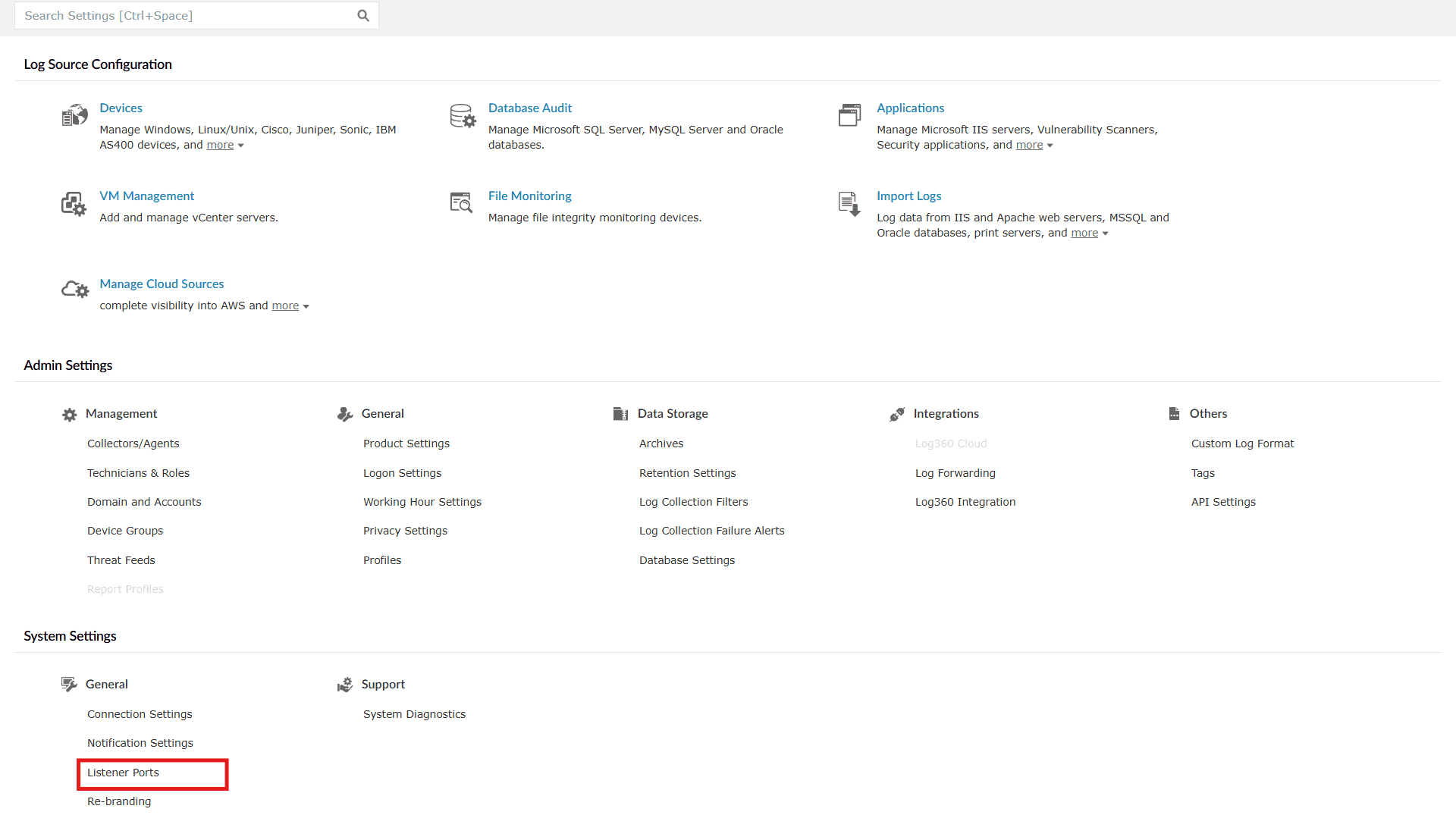
Image 1: SNMP Traps listener ports configuration via the Settings tab - You will be taken to the Listener Ports segment. You can find the fields listed under Manage SNMP Traps Listener Port, as highlighted below.
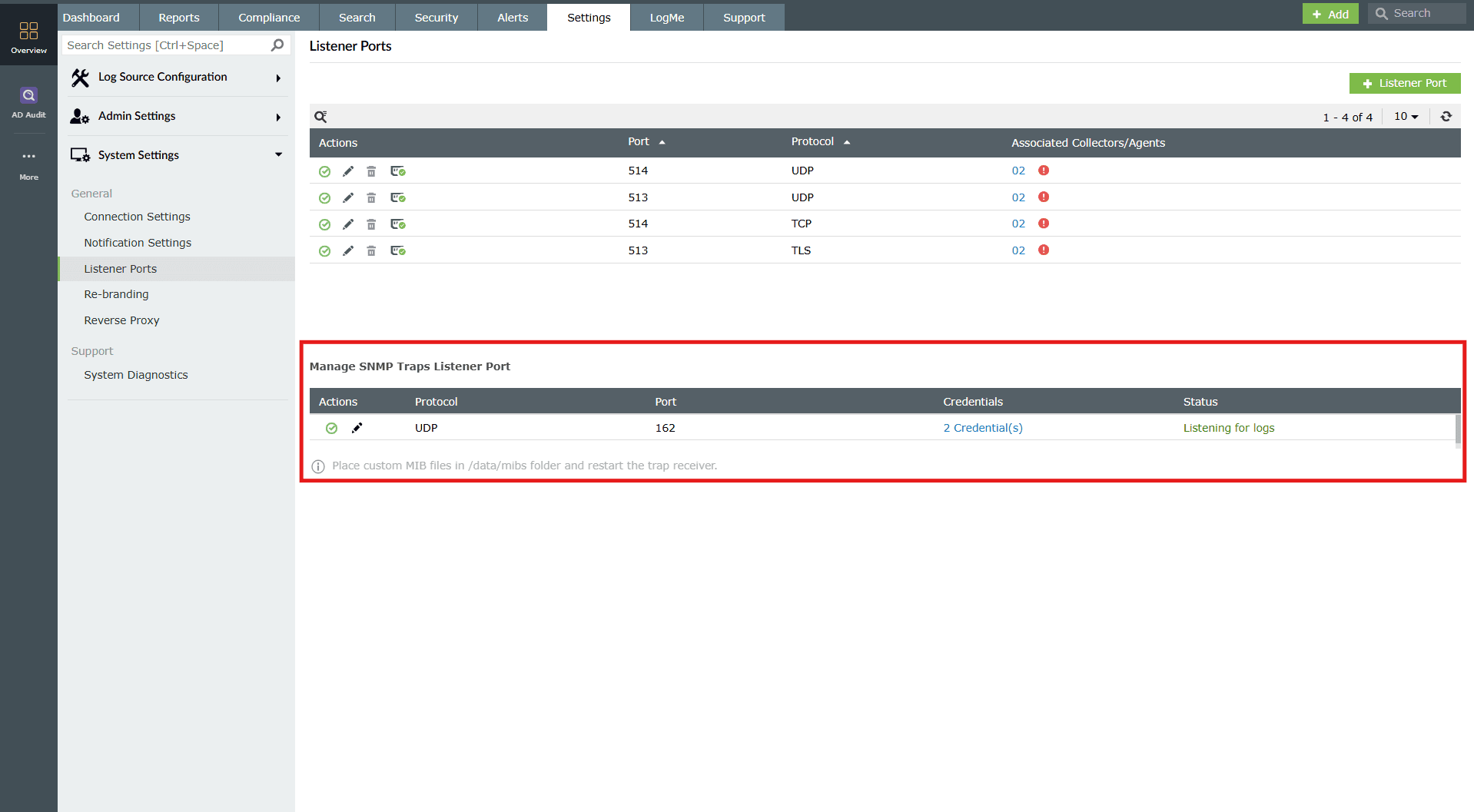
Image 2: Managing SNMP Traps ports under the listener ports configuration - In your device settings configuration, set the trap destination host address to the IP address or the hostname of the corresponding product's server.
- Set the trap destination port to 162 or to the SNMP port configured in the product—Log360, EventLog Analyzer, and Log360 Cloud.
- Specify the SNMP credentials that are already configured.
- Save the configuration.
Manage SNMP Trap listener ports
Enable/disable SNMP Trap listener port
Enabling an SNMP Trap listener port
- Click on the currently disabled icon
 under the Actions column to enable the port.
 - As soon as you perform this action, the icon indicates that the port is now enabled
 and the below pop-up message appears briefly.

Disabling an SNMP Trap listener port
- Click on the currently enabled icon under the Actions column to disable the port.
- As soon as you perform this action, the icon indicates that the port is now disabled and the below pop-up message appears briefly.

Edit SNMP Trap listener port
To edit the port using which Log360 listens to SNMP traps:
- Click on the Edit icon under the Actions column to edit the respective SNMP Trap port. The Edit SNMP Trap listener Port pop-up appears as shown below.

- Enter the desired port number and click on Update.
- Upon successfully enabling, the below pop-up appears. The edits are instantly made, and you can see the updated configuration in the console.

Updating credentials for SNMP Trap
- Click on the Credentials button under the Credentials field. The SNMP Trap - Credentials Table pop-up appears.
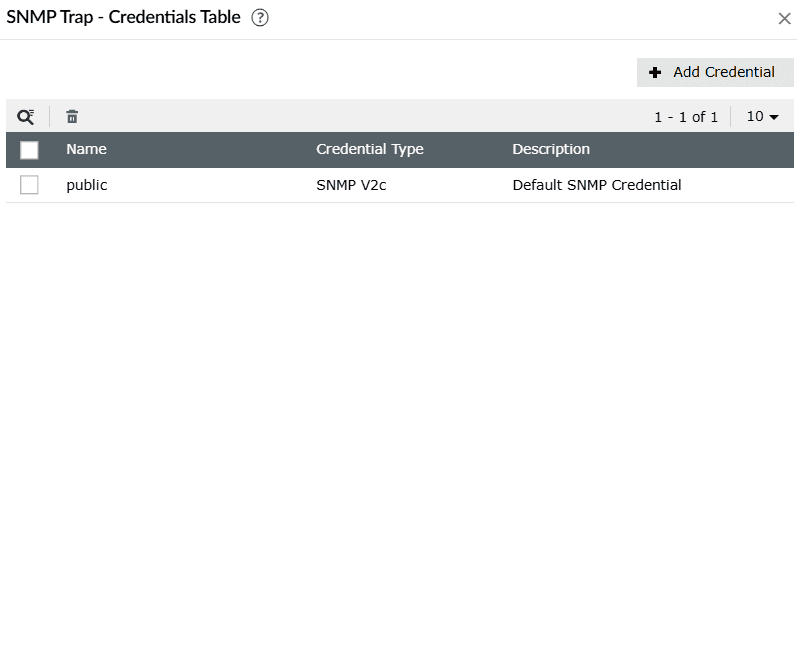
- Click on the Add Credential button to add a new SNMP credential. The Add SNMP Credentials pop-up appears as below.
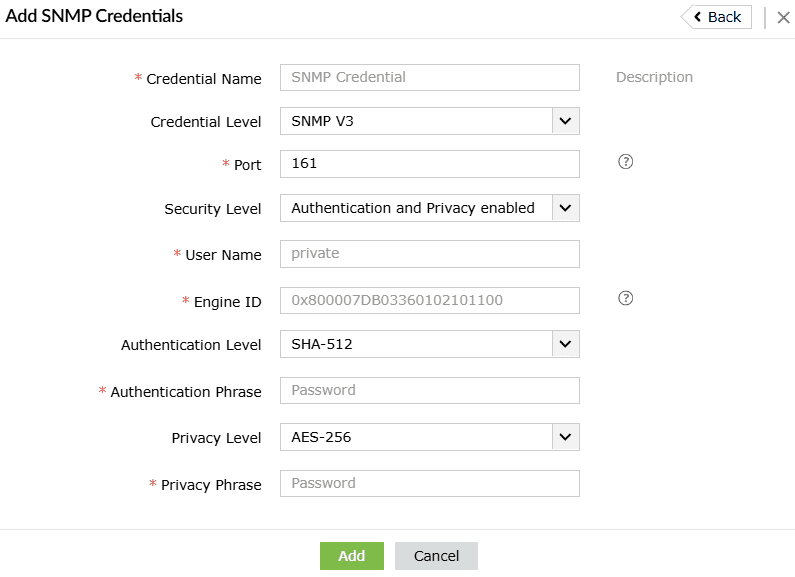
- Fill in the required fields
- Enter the Credential Name for SNMP Credential.
- Select the required Credential Level.
- Enter the desired Port number. This port will only be used by the workflow and syslog device discovery modules.
There are two different cases based on the Credential Level you have chosen.
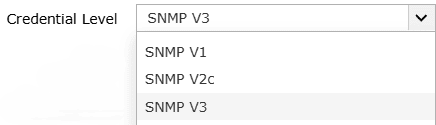
Case 1: If the required Credential Level is chosen as either V1 or V2c
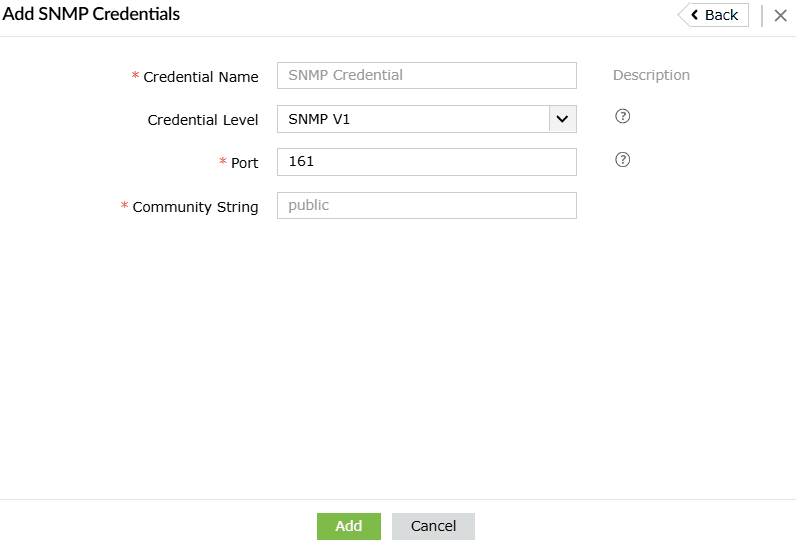
The SNMP V1/V2C will also require you to provide the Community String for SNMP Trap and discovery.
Case 2: If the required Credential Level is chosen as V3
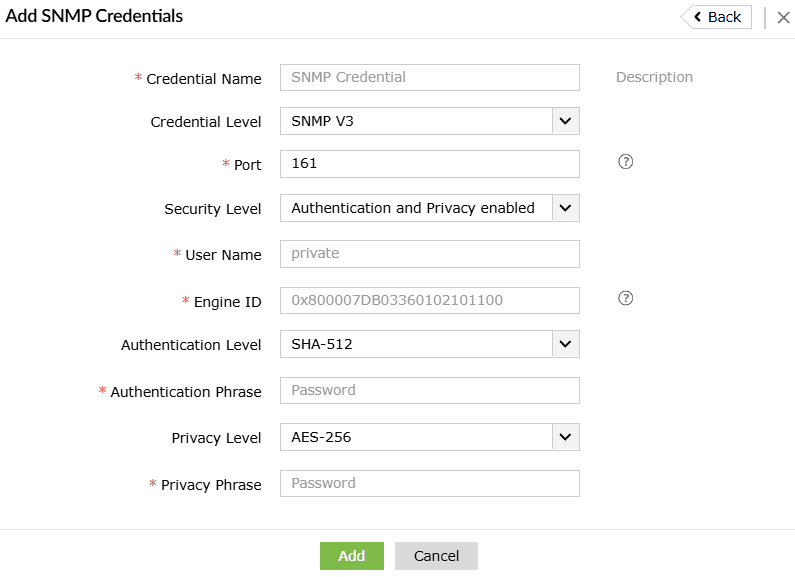
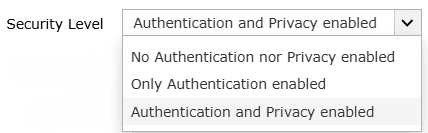
- Choose a Security Level from the drop-down.
- Enter the User Name.
- Enter the Engine ID. This will be used for trap collection and sending traps in workflows.
- Select the SNMPV3 credential's Authentication Level.
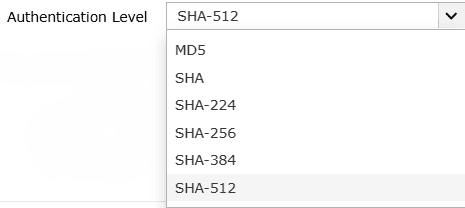
- Enter the Authentication Phrase for SNMPv3 credential.
- Select the SNMPV3 credential's Privacy Level.
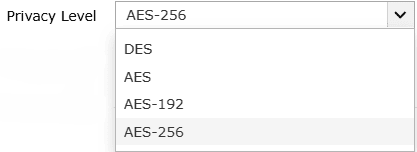
- Enter Privacy Phrase for SNMPv3 credential.
- After filling all the required fields, click on Add.
- Upon successful completion of the action, the below pop-up appears.

When a device not added to the product's server starts sending SNMP traps to the product, it will automatically be listed under Other Devices in Settings > Configuration > Manage Devices. Additionally, it will be listed under General Applications as SNMP Trap Application.
The credentials added here can be used when discovering devices via Settings > Configuration > Manage Devices > Syslog Devices and credentials added while discovering devices can be used for SNMP trap collection.
Read also
This document covered how to configure SNMP Trap listener ports, enable or disable port access, and update SNMP credentials in Log360. For more on network device integration and log ingestion methods, refer to the following page: