
Viewing and managing compliance reports
Last updated on:
In this page
Overview
This page explains how to view and manage compliance reports. You can view comprehensive audit data, export reports, and analyze device and user activity for detailed compliance insights.
Steps to view and manage compliance reports
- Log in to your Log360 account.
- Navigate to the Compliance tab.
- Under the configured compliance mandates, click View Reports for the compliance standard you want to review.
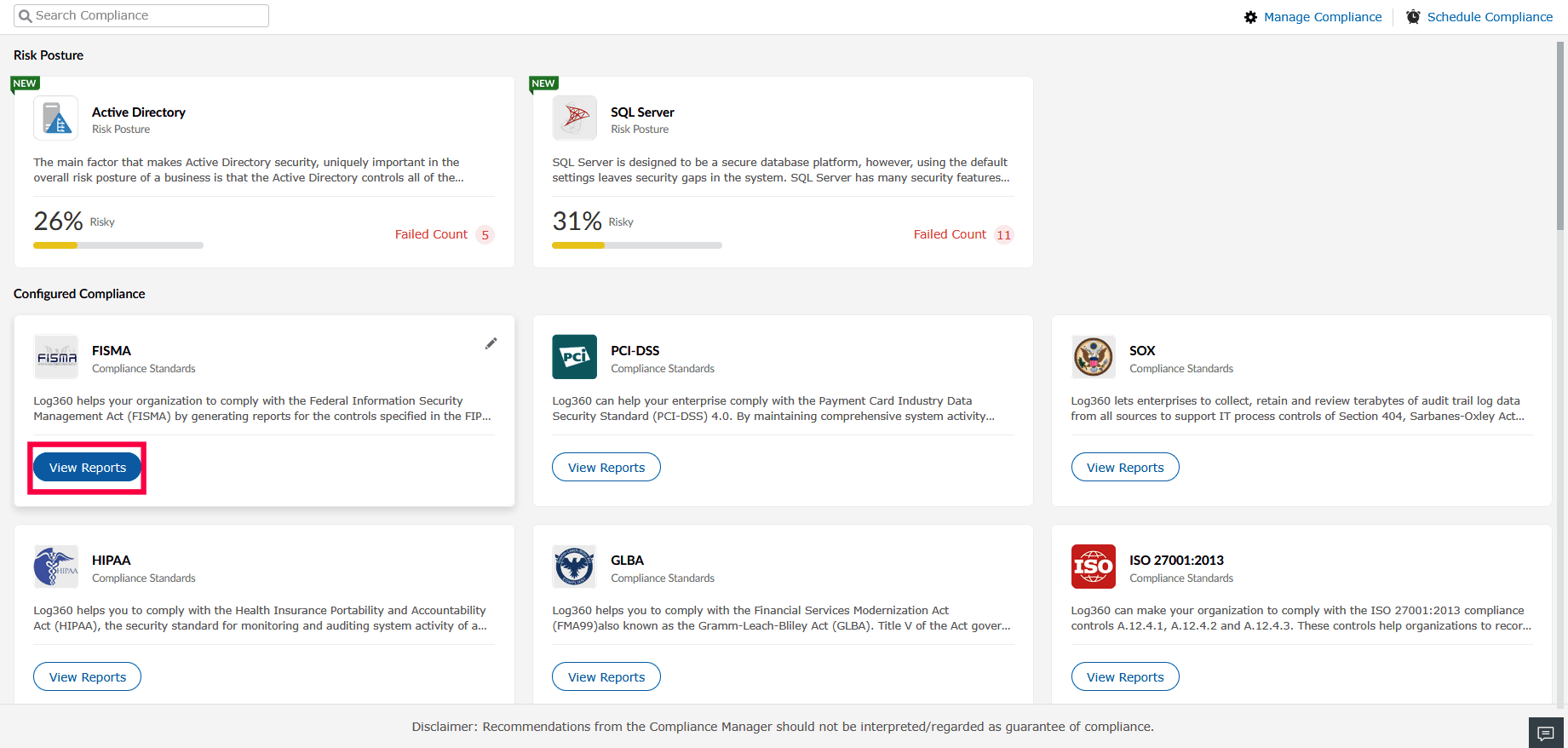
Figure 1: Viewing reports - The reports page displays a list of categories with detailed audit reports.
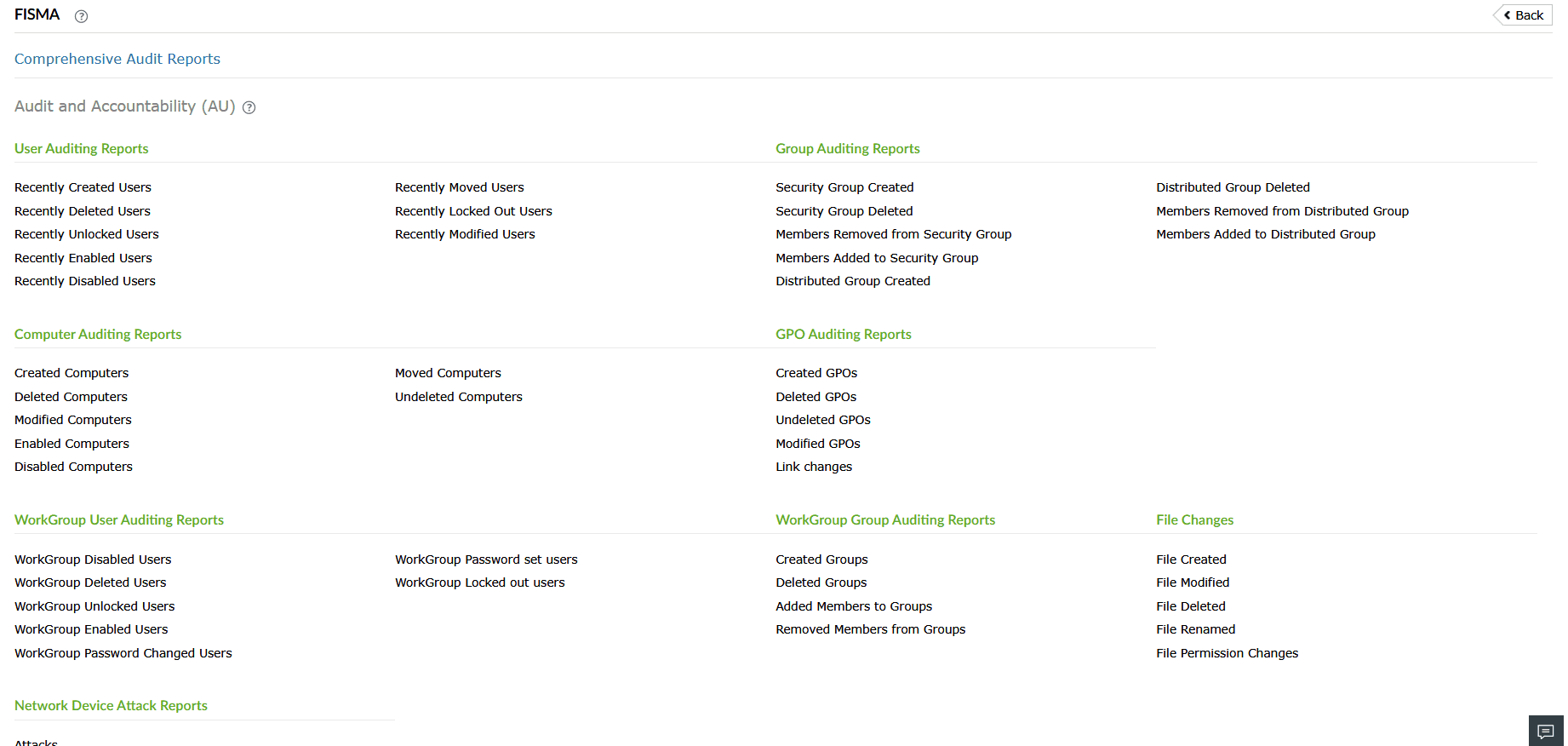
Figure 2: Viewing reports - To view detailed audit reports, click Comprehensive Audit Reports at the top of the page.
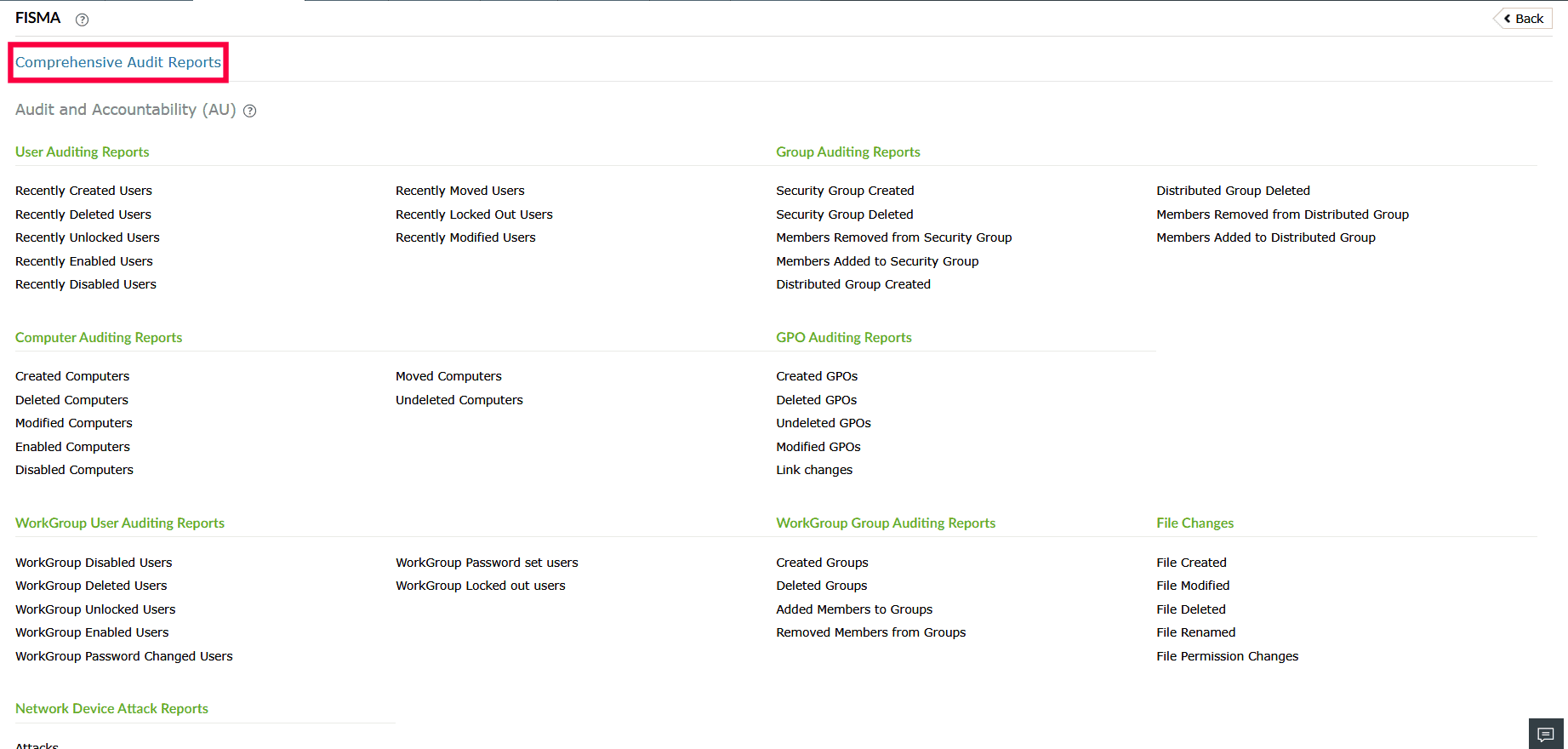
Figure 3: Viewing Comprehensive Audit Reports - To export reports for the selected compliance mandate, click Export As in the top-right corner.
Figure 4: Exporting reports - In the export window, use the Export drop-down to choose the reports you want to export:
- All Reports
- All Overview Reports
- Currently Viewed Reports
- Select Reports
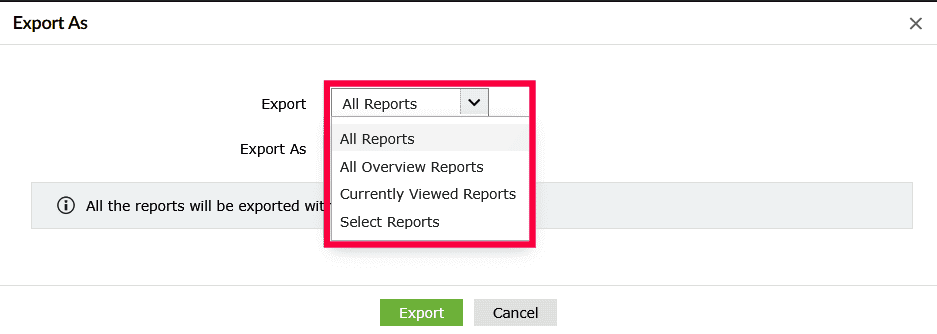
Figure 5: Exporting reports - From the Export As drop-down, choose the file format (PDF or CSV) and then click Export to download the reports.
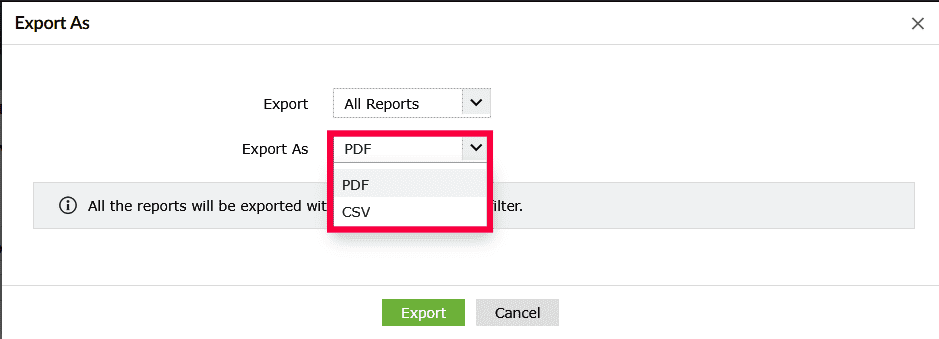
Figure 6: Exporting reports - To check past export history, click the
 icon.
icon. - Select a report from the list to view its details.
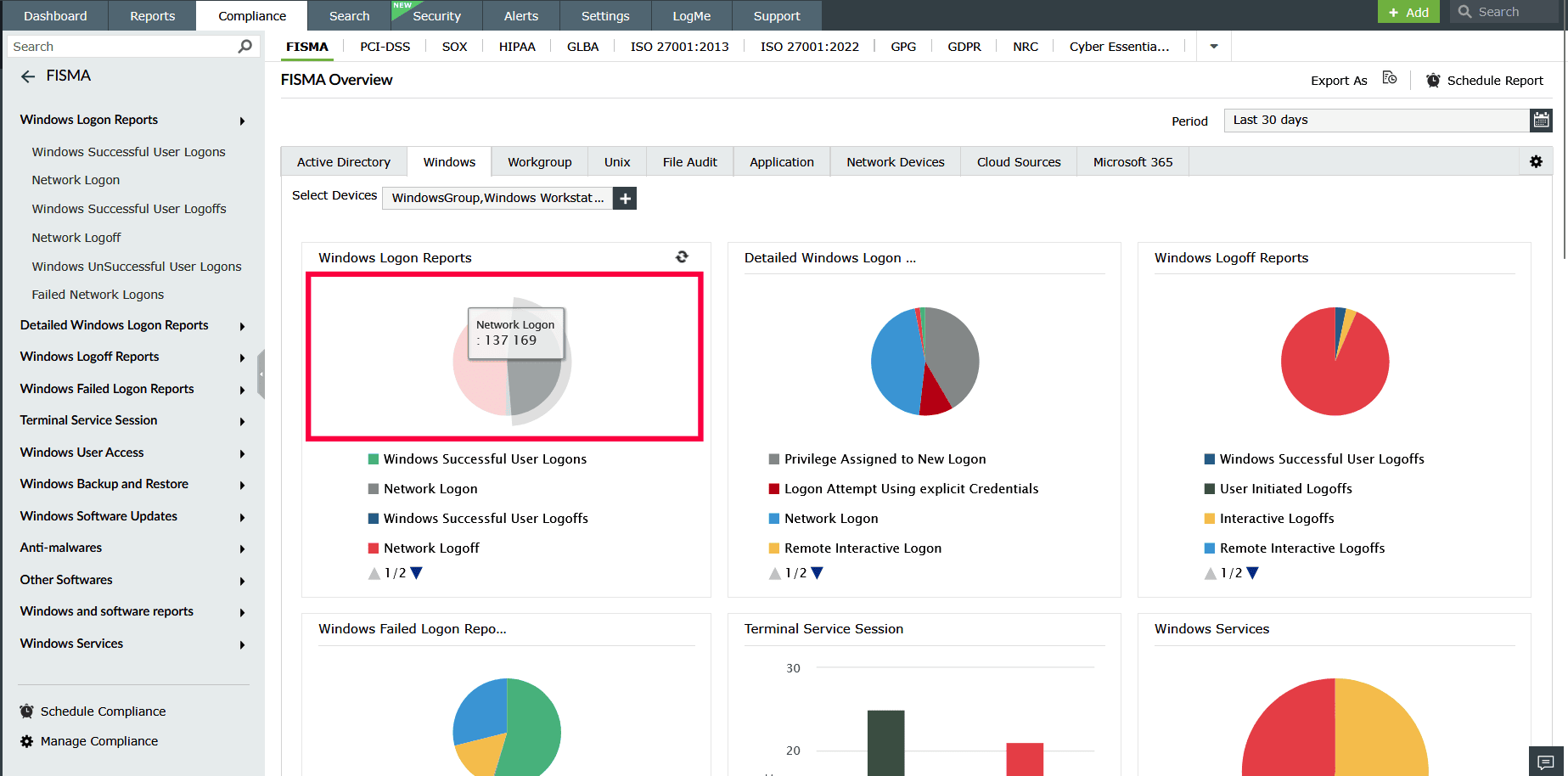
Figure 7: Selecting a report - To download the selected report, click Export As, choose the format (PDF or CSV).
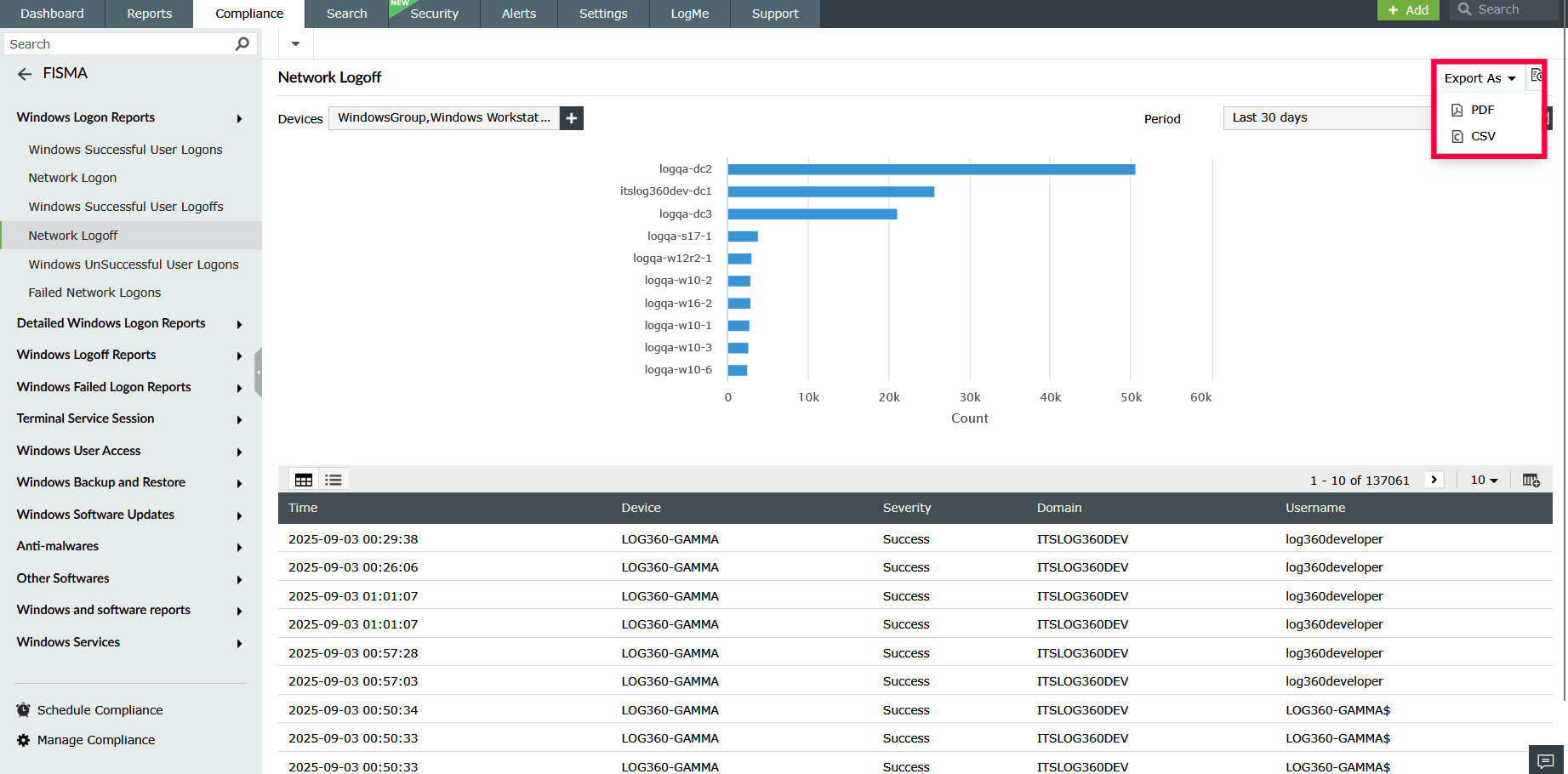
Figure 8: Exporting a report - Use the
 icon to locate a specific report.
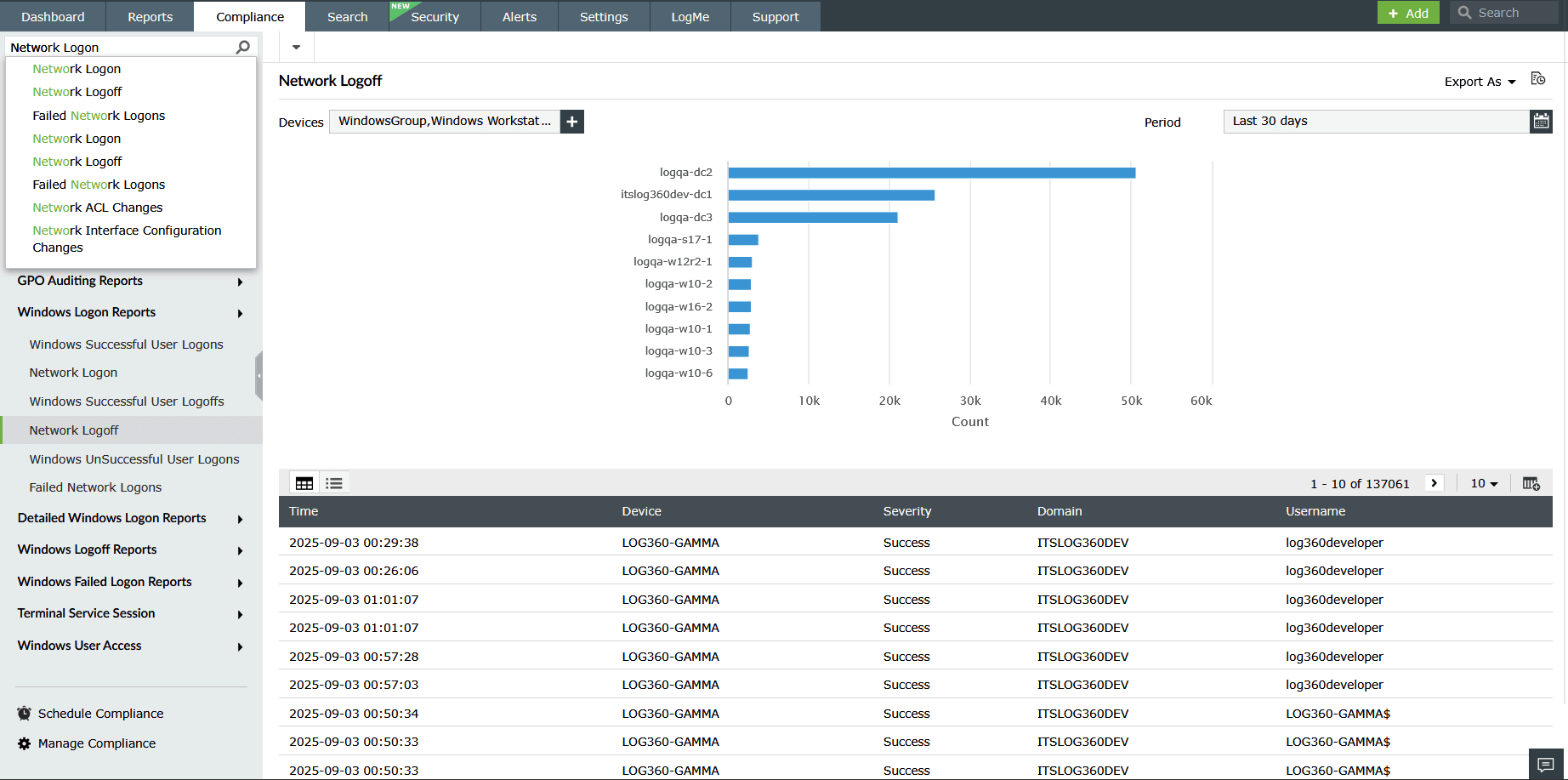
Figure 9: Searching for a report - In the report window:
- Click the
 icon to add or remove columns in the report view. From the list, select the required checkboxes and click Apply to add or remove columns.
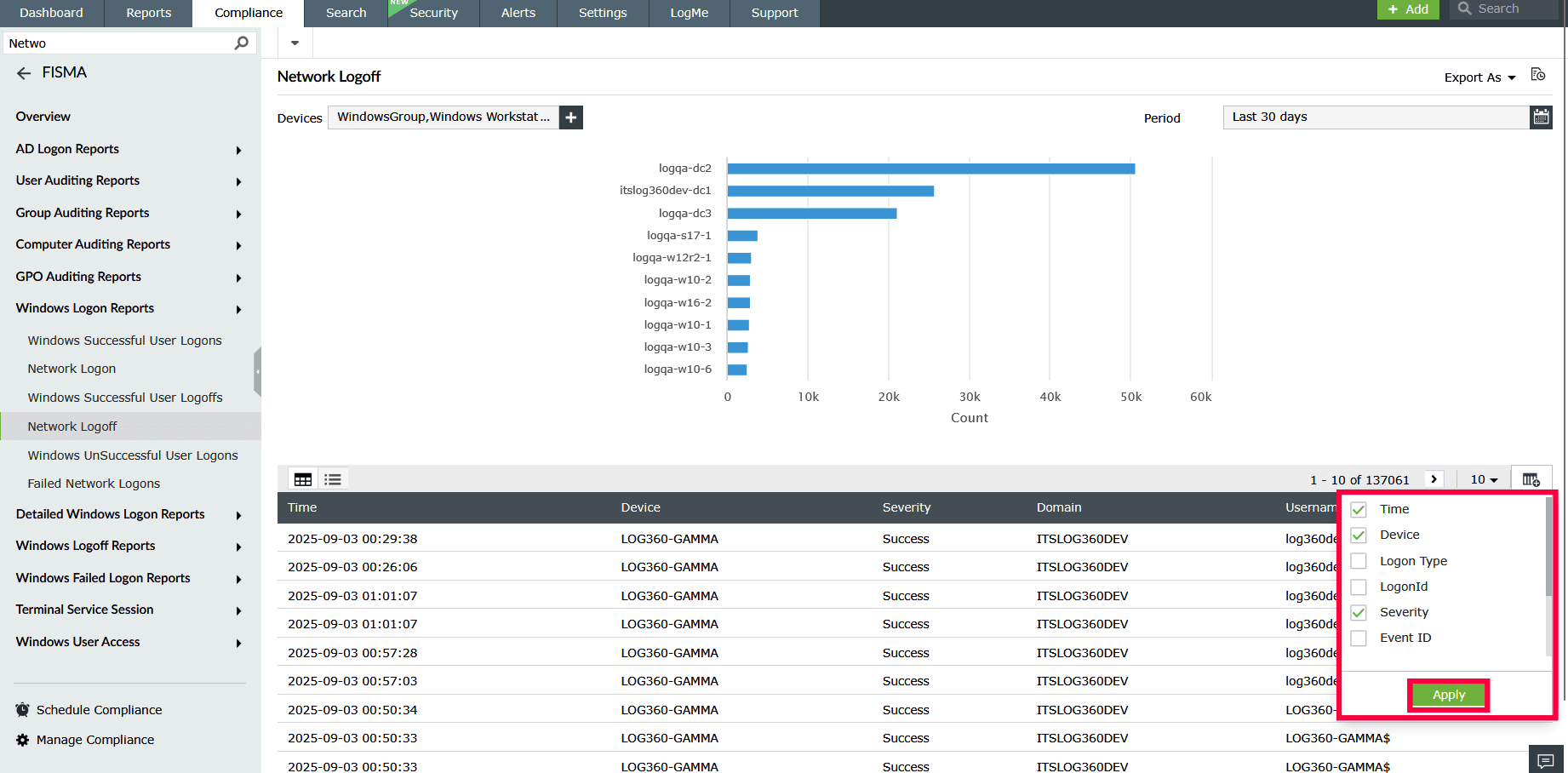
Figure 10: Adding/ removing columns - Hover over the Device column and select a device.
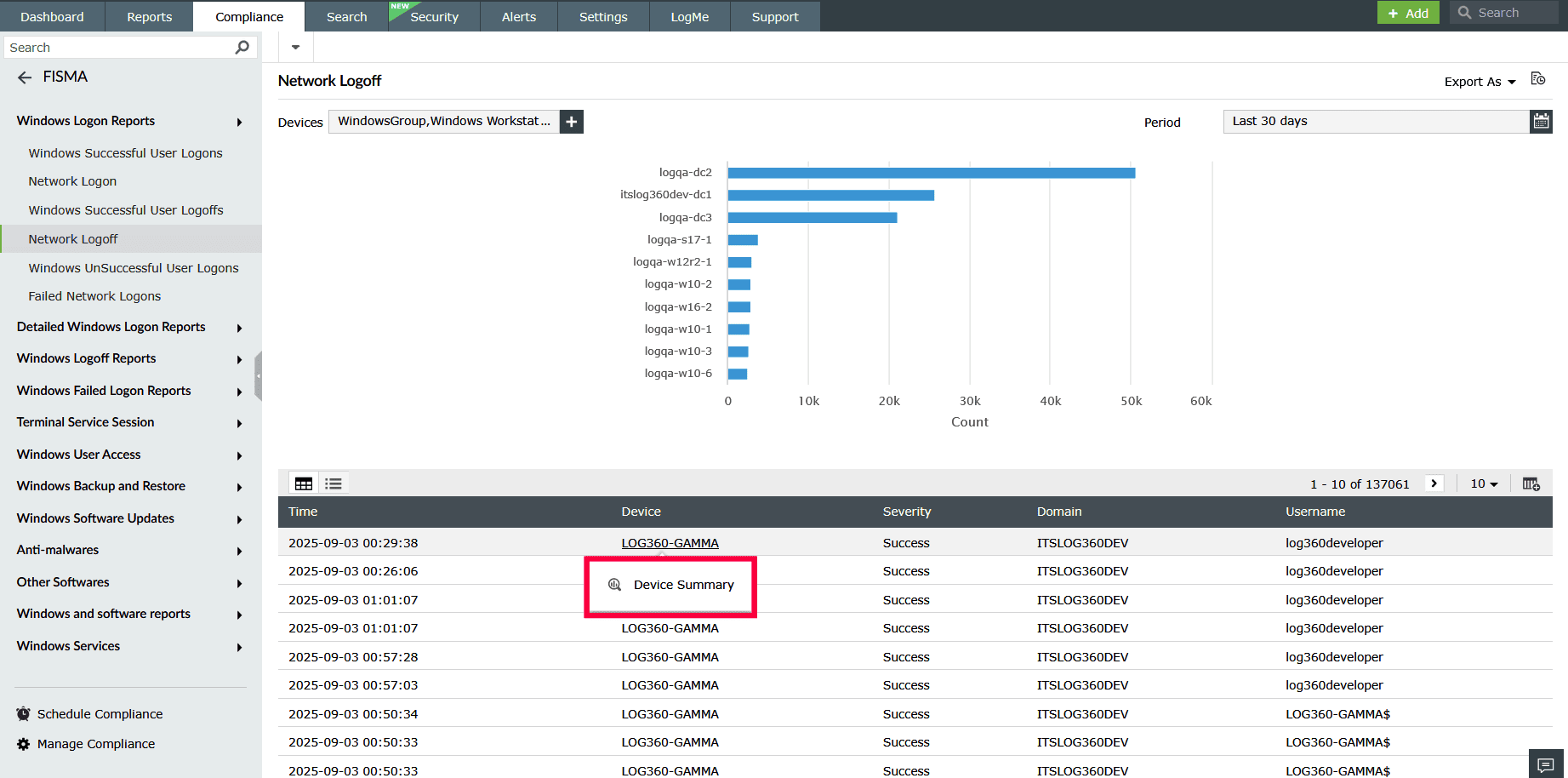
Figure 11: Viewing device summary - Click Device Summary to view the device overview.
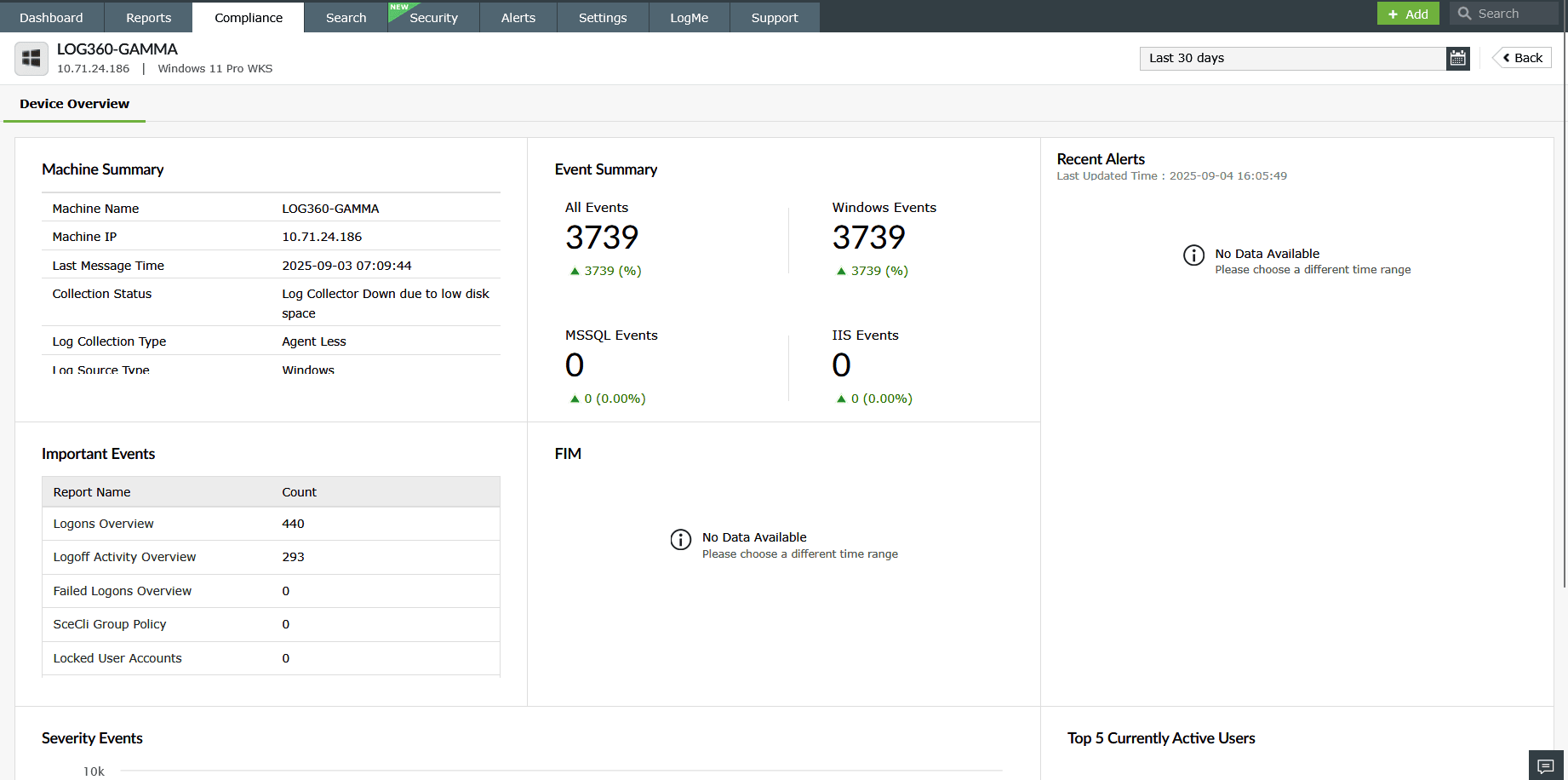
Figure 12: Viewing device overview - Hover over the User Name column and select a user.
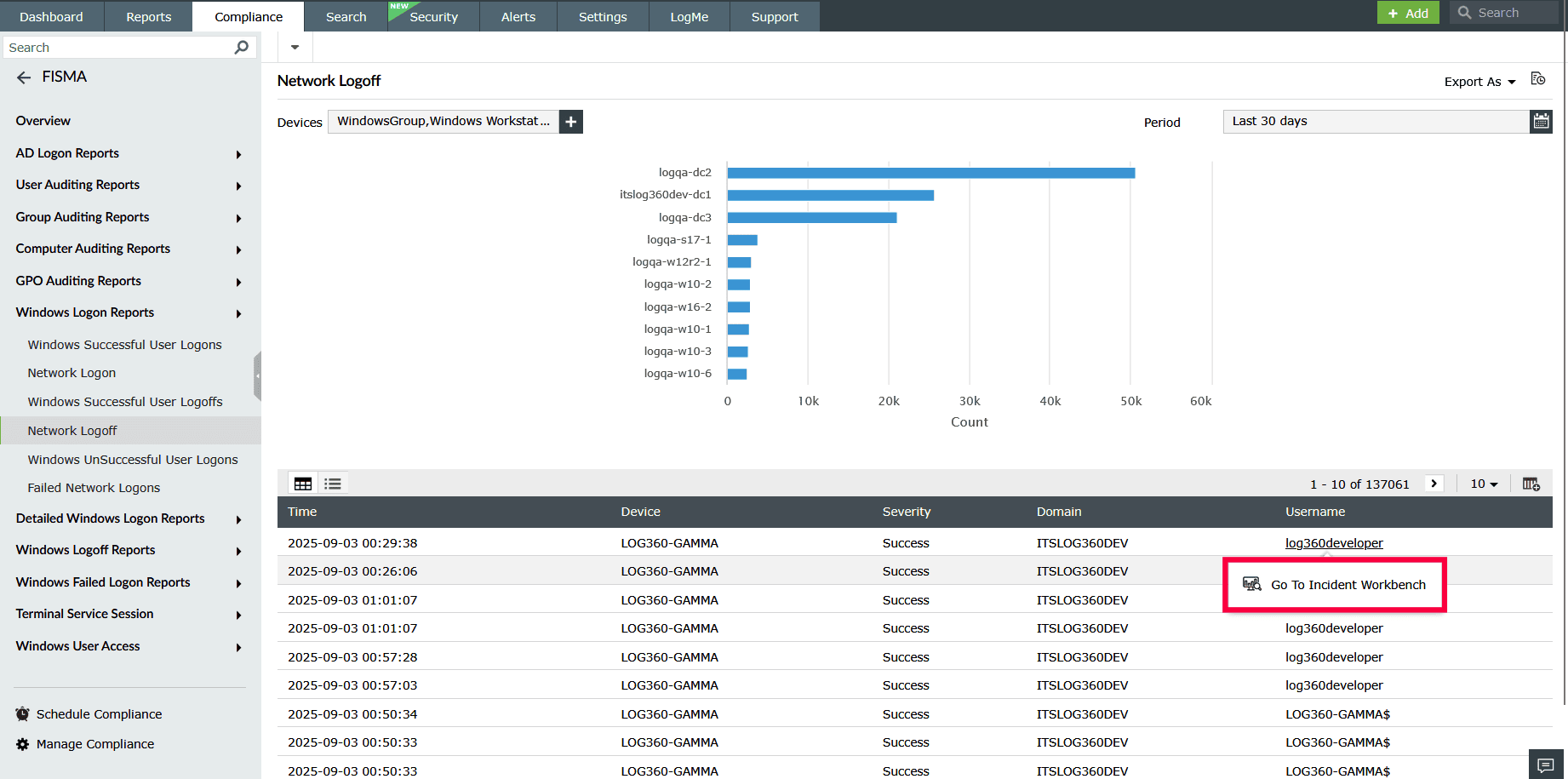
Figure 13: Viewing user activity - Click Go to Incident Workbench to analyze user activity in detail.
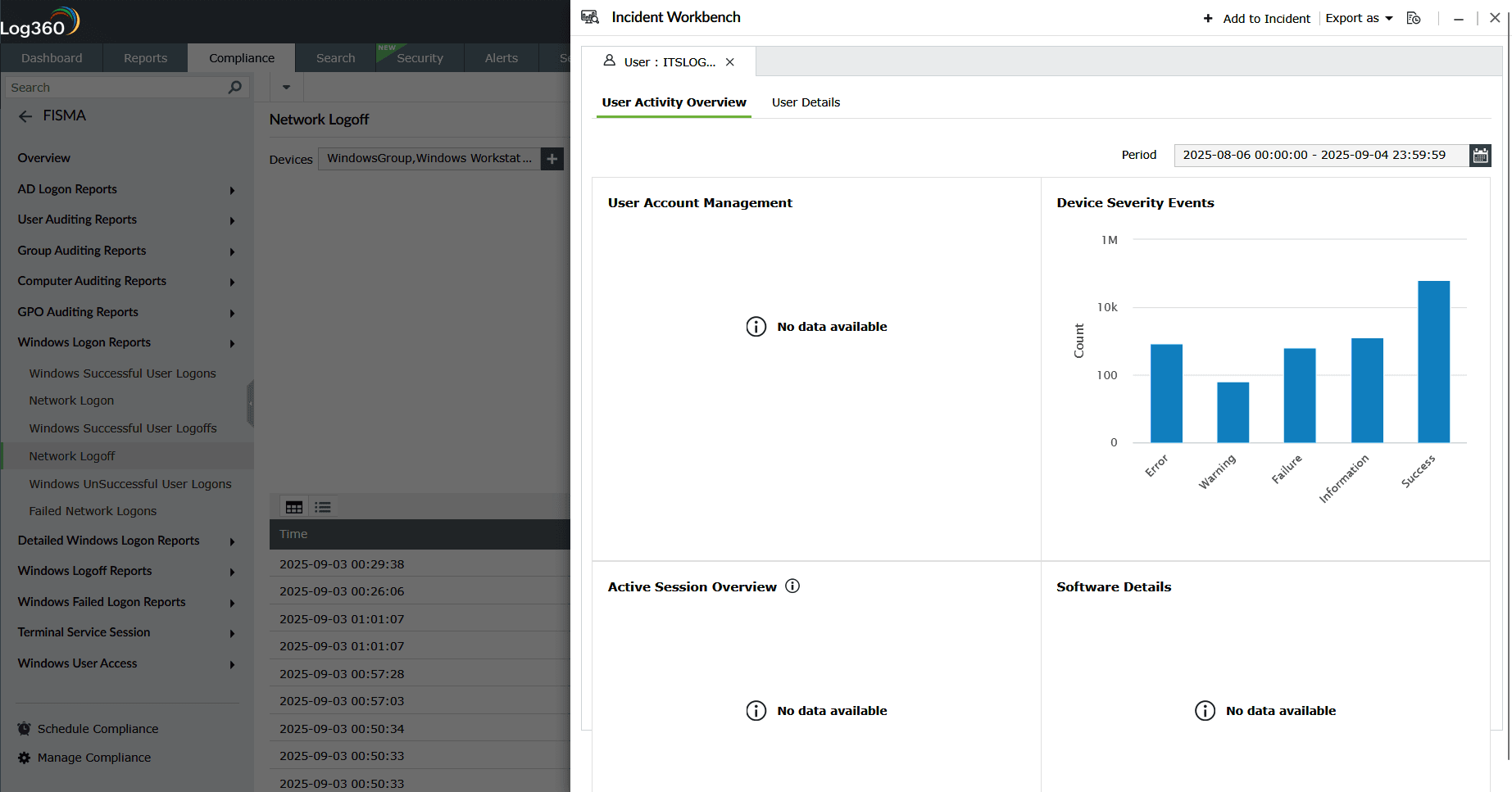
Figure 14: Viewing user activity and details
- Click the
Read also
This document explained how to view and manage compliance reports, access comprehensive audit data, export reports, and analyze device and user activity. To learn how to schedule compliance and manage compliance schedulers, refer to the following articles: