Automatic Microsoft 365 tenant configuration
You can add a new tenant to be used in M365 Security Plus with the necessary permissions to explore all of its features by following the steps below:
- Log in to M365 Security Plus as an administrator. The default username and password are admin and admin respectively.
- Choose the Tenant Settings option found in the top-right corner.
- If you are configuring your first tenant, click Configure using Microsoft 365 Login. Otherwise, choose Add Tenant, then click Configure using Microsoft 365 Login.
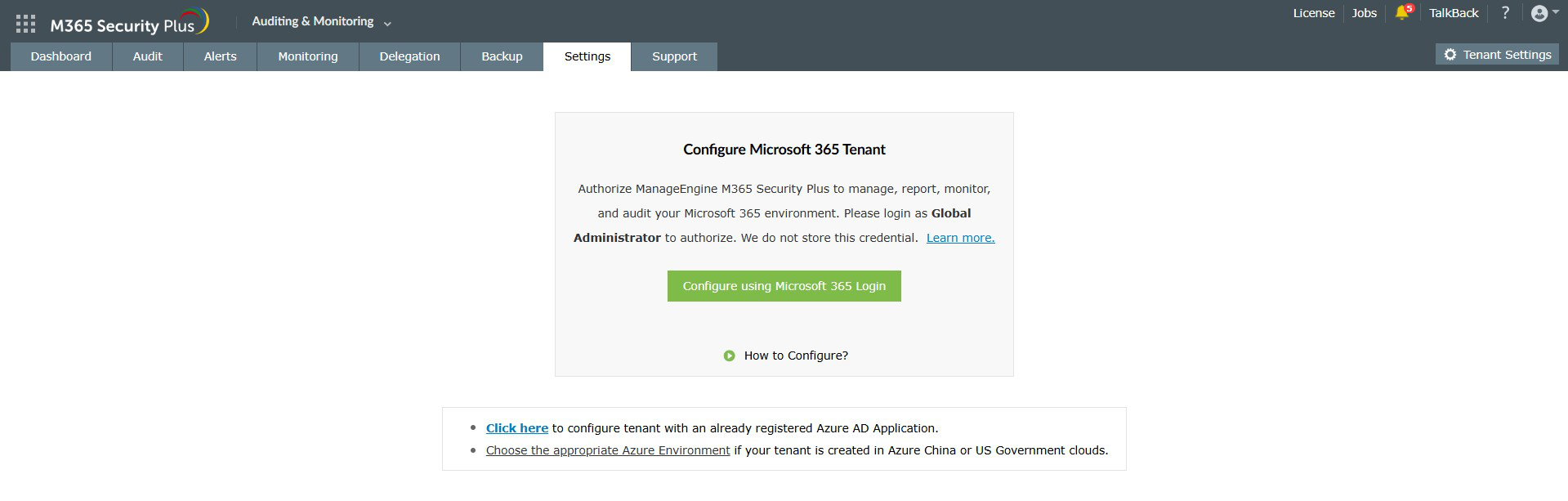
- Click Proceed in the pop-up that appears.
- You will be redirected to the Microsoft 365 login portal where you will have to sign in with the appropriate credentials. Since this process does not take place within M365 Security Plus, the credentials entered will not be stored in the product database.
- Click Accept.

- An application for M365 Security Plus will be created automatically. You will now see a page that displays the list of permissions the application needs. Please note down the application name, which is shown at the top. You will need this later.
- Go through the list and click Accept.
Note: If you do not want to provide all the required permissions, please configure your tenant manually. You can also choose to configure your tenant now and modify the permissions later.
- You will now be redirected to the M365 Security Plus console, where you can see that REST API access is enabled for the account you configured. If REST API access is not enabled, you have to do it manually.

Steps to modify a Microsoft 365 tenant
Once you have added a Microsoft 365 tenant, you can modify its details or delete it using the following options in the Actions column of the desired tenant:
- To set your preferred tenant as the default option for your actions in M365 Security Plus, click the default tenant
 icon.
icon.
- To refresh a tenant and fetch the most recent configurations, click the refresh
 icon.
icon.
- To edit an existing tenant, click the edit
 icon.
icon.
- To delete a Microsoft 365 tenant, click the delete
 icon.
icon.
- To troubleshoot a tenant for connectivity or configuration issues, click the troubleshoot
 icon.
icon.
Don't see what you're looking for?
-
Visit our community
Post your questions in the forum.
-
Request additional resources
Send us your requirements.
-
Need implementation assistance?
Try onboarding
 ADManager Plus
 ADAudit Plus
 ADSelfService Plus
 AD360
AD360
 Previous Topic