# Viewing Device Information
## Overview
The **Inventory details** provides a comprehensive overview of each enrolled device, allowing admins to effectively monitor and manage their device fleet.
**Visibility into your device estate:** Gain a complete view of all managed devices within your organization, including device status, user details, and ownership information.
**Granular Information:** Access detailed information about device hardware, operating system versions, installed apps, security settings, restrictions, geo-location, and certificates. This ensures comprehensive monitoring of device health and compliance.
**Troubleshooting:** Quickly diagnose device performance issues, monitor alerts, and identify any potential problems. This enables admins to address concerns in real-time and enhance the operational efficiency of the device fleet.
**Remote Actions:** Perform remote actions such as locking, wiping, or restarting devices, ensuring you can take immediate control when needed, especially in case of lost or compromised devices.
**Reporting:** Schedule and generate reports based on the device details to track device performance, security compliance, and usage. These reports can be shared with your teams for better operational management and decision-making.
## Accessing Device Details
Admins can view detailed device information from several locations within the ME MDM Admin Console. The following are the different areas where device details can be accessed:
### Inventory Tab
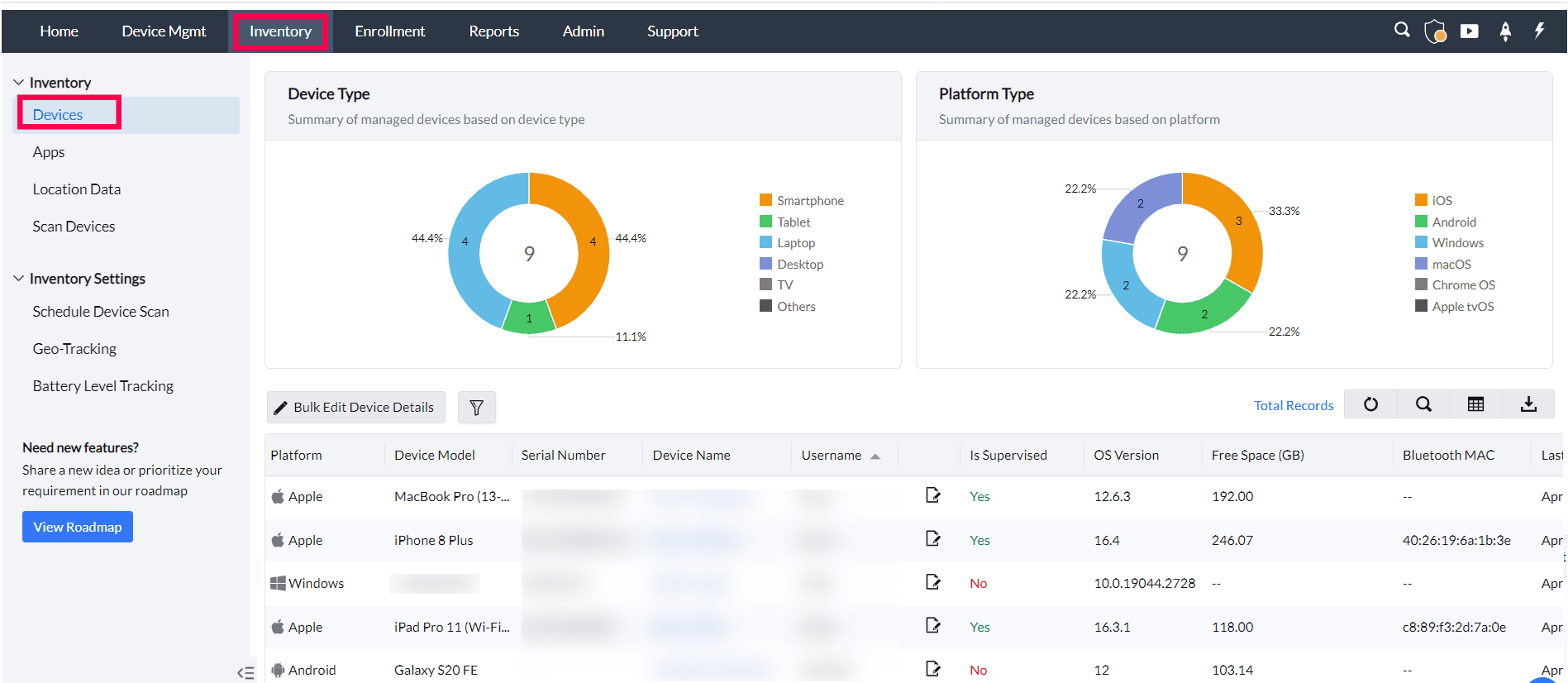
- Navigate to the Inventory tab.
- Click on the Devices section to display a list of all managed devices.
- Select the device name to view its detailed information, including hardware, software, and status.
### Enrollment Tab
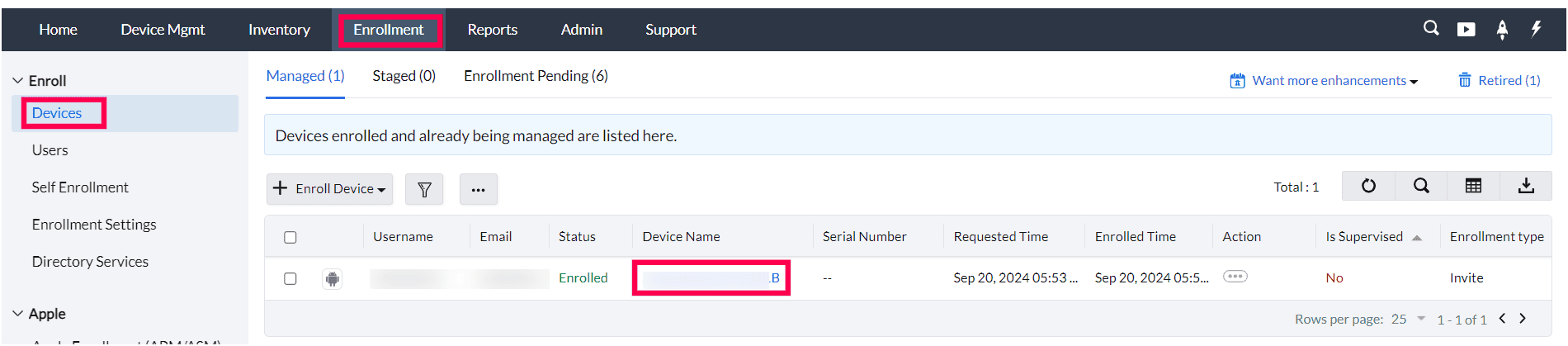
- Navigate to the Enrollment tab.
- Click on Devices to see a list of all enrolled devices.
- Select the device name to access detailed enrollment information and device attribute
### Device Management Tab
- Navigate to the Device Mgmt tab.
- Click on the Groups & Devices and select Devices to display the list of managed devices.
- Click on the device name and choose the View Device Details option (accessible via the arrow icon next to the device name) to view comprehensive device details, including installed apps, certificates, restrictions, and more.

## Device Details Summary
To view the detailed information about a device, click on the **Device Name** in the MDM Console. The section is organized into several tabs, each providing specific details about the device:
1. **Summary:** General information and statistics about the device.
2. **Device:** Detailed device-specific information.
3. **Installed Apps:** List of all applications installed on the device.
4. **Certificates:** Information about certificates installed on the device.
5. **Restrictions:** Policies and restrictions applied to the device.
6. **Alerts (Applicable only for Android):** Notifications and alerts for the device will be enabled only after an alerts policy is created.
7. **Geo-Tracking:** Location and tracking details for the device, if enabled.
8. **Security Settings (Applicable only for MacBook):** View details on the device's FileVault Encryption Status and Firmware Password under the Security Settings tab.
9. **User Accounts (Applicable only for MacBook):** Access user account details such as Username, Login Time, and Secure Token status.
10. **Threats (Applicable only for Windows):** View detected security threats on the device, including malware and vulnerabilities.
### List of Device Attributes
The attributes tracked in the Device Details section vary by platform. Refer to the relevant OS section below to view the attributes applicable to your devices.
#### Android
#### iOS
#### Windows
#### MacOS
#### Chrome
In corporate Samsung devices running Android 10.0 or later enrolled using [Enrollment via Invites](https://www.manageengine.com/mobile-device-management/help/enrollment/enroll_android_devices.html#Enrolling_Devices) method, the ME MDM app cannot access the device's identifiers such as IMEI, serial number, etc. You can enroll the device as [Device Owner](https://www.manageengine.com/mobile-device-management/help/android_for_work/mdm_android_for_work_introduction.html#Device_Owner) or [Profile Owner](https://www.manageengine.com/mobile-device-management/help/android_for_work/mdm_android_for_work_introduction.html#Profile_Owner) to collect the device ID, IMEI, etc. MDM cannot fetch IMEI, Serial number from Android 12 devices that are enrolled as Profile Owner, as per Android's Privacy policy. Only UDID is used for device identification.
For Knox-supported devices, additional details such as the Knox status, Container status, and Knox version will be displayed. You can view all installed apps within both the Knox container and the device itself. Additionally, any restrictions will be listed separately for the device and the Knox container.
### Audit Logs
The **Audit Logs** tab provides a detailed record of all actions and changes performed on the device within the MDM console. This helps administrators track activity for compliance, troubleshooting, and accountability.

#### Key Features
- **Date Range Filters:** Select a predefined period (e.g., last day, week, or month) or define a custom range to view relevant logs.
- **Module Type Filters:** Narrow logs to specific modules such as *Enrollment, Geofencing, Profile Management, App Management, Announcements, Certificates, Security Settings, OS Update Management*, and more. Selecting **All** displays every logged activity.
- **User Filter:** Use the **User dropdown** to filter audit logs by the administrator who performed the action. By default, it shows *All* users, but you can select specific users to isolate their activity. This helps in quickly identifying who made specific changes.
#### Log Entry Details
Each entry in the Audit Logs table includes:
- **Type:** The event type of the action (e.g., Info, Warning, Error).
- **Remarks:** A short description of the action performed (e.g., device enrolled, policy applied, announcement sent).
- **Module:** The MDM module where the action occurred.
- **Event Time:** The exact timestamp when the action took place.
## Monitor Device Restrictions
Restrictions in ME MDM allow administrators to enforce policies on enrolled devices, ensuring compliance with organizational security and operational standards. These restrictions can control access to features like cameras, app installations, data sharing, and more. Restrictions can vary based on the platform (iOS, Android, Windows), device ownership (corporate or personal), and specific user groups.
### Applying Restrictions Profile
Admins can configure restrictions by navigating to the [Profiles](https://www.manageengine.com/mobile-device-management/help/profile_management/mdm_profile_management.html) section in the ME MDM console and assign them to individual devices or device groups. These restrictions are pushed over-the-air (OTA) during device synchronization with the MDM server, ensuring seamless enforcement without requiring physical access to the device.
### Monitor the Restriction
Admins can view the current restriction status of a device by navigating to the Device Details page, where the "Restrictions" tab lists all applied policies. This includes details such as disabled features (e.g., camera, app installations), allowed or blocked apps, and enforced data-sharing restrictions. The device regularly sends updates to the MDM server to confirm compliance with these restrictions, and any changes made to the restriction settings are communicated back to the MDM console in real-time or during scheduled sync intervals.
## Last Contact Time
**Last Contact Time** is the most recent timestamp when an enrolled device communicated with the MDM server. This helps administrators identify inactive devices, verify policy sync status, and monitor how responsive devices are.
If a device has not reported in within the expected timeframe, it may be inactive, offline, or experiencing connectivity issues.
### Update Behavior by Platform
For Android, iOS/iPad OS, and macOS devices, Last Contact Time is updated based on the conditions below:
| OS | Last Contact Time update behavior |
|---|---|
| Android | Updated every 6 hours.
Additionally updated when any of the following events occur:
- A manual sync is triggered from the ME MDM app
- A policy is associated with the device
- Geo-tracking is configured with movement-based tracking (for example, after 100 meters of movement)
- Battery level tracking is configured at a defined interval (for example, every 30 minutes) |
| iOS/iPadOS/macOS | Updated when any of the following events occur:
- A manual sync is triggered from the ME MDM app
- A policy is associated with the device
- Geo-tracking is configured with movement-based tracking (for example, after 100 meters of movement)
- Battery level tracking is configured at a defined interval (for example, every 30 minutes) |
**Where it appears:** The Last Contact Time value is displayed in the **Device Details Summary** and as a column in the **Inventory devices list**.
## Device Health
**Device Health** checks the health and authenticity of critical hardware components on managed Apple devices, so admins can catch failing or non-genuine parts (a replaced camera, an aftermarket display, or a swapped Face ID module, for example) directly from the Devices inventory, instead of physically inspecting or opening each device. This is especially useful when auditing devices before redeployment or resale, investigating a user-reported hardware issue, or tracking down unauthorized repairs across a large fleet.
Device Health is applicable to Apple devices only: iPhone and iPad, supervised, running iOS 27 or later.
### Supported Components
Seven hardware components are checked on each managed device, covering the parts most commonly affected by third-party repairs or component swaps:
- Baseband
- Camera
- Display
- Face ID
- Near Field Communication (NFC)
- Touch ID
- Ultra Wideband (UWB)
Each component is checked individually and reports one of the following statuses:
| Status | Description |
|---|---|
| Genuine | The component is genuine and functioning as expected. |
| Non-Genuine | The device reports that this component was replaced with a part that isn't an authentic Apple component, a sign of a third-party repair. |
| Issues Found | MDM couldn't retrieve the component's status during the last check. This usually clears up on the next scan. |
| Not Applicable | The component isn't applicable to this device model, so no status is reported. |
### Device Health Column in Devices Inventory
A **Device Health** column in the Devices inventory table gives a quick, at-a-glance summary for every device, so admins can spot devices with hardware problems while scanning the entire list, rather than opening each device individually. Hover over the status to see how each of the seven components is reporting, without leaving the inventory view.

| Status | Color | What it means for the device |
|---|---|---|
| Genuine | Green | All 7 components are genuine. No action needed. |
| Non-Genuine | Orange | One or more components were replaced with a non-genuine part. Worth a closer look before reissuing or trusting the device with sensitive use. |
| Issues Found | Red | One or more components returned an error during the last check. Re-check after the device's next scan. |
| Not Applicable | Gray | This device's platform doesn't support Device Health reporting, so no summary status is shown. |
## Real-Time Device Updates
In ME MDM, the device information displayed in the View Device Details section is regularly updated to ensure that admins have access to accurate and current data. The system relies on two primary methods to keep device information up to date: scheduled scans and real-time updates from devices.
### Based on Scheduled Scans
- **Scheduled Device Scans:** ME MDM allows administrators to configure periodic scans for enrolled devices. These scans are automatically initiated at set intervals, such as daily or weekly, depending on the organization’s preferences.
- **Data Collected During Scans:** During these scheduled scans, the system collects a wide range of device data, including hardware details, installed applications, security settings, network configurations, and any changes in compliance with assigned profiles and restrictions.
- **Update Frequency:** Admins can adjust the scan frequency according to organizational needs. For example, critical devices might be scanned more frequently, while other devices can be scanned at longer intervals.
- **Offline Devices:** If a device is offline during a scheduled scan, the information will be updated the next time the device connects to the network and syncs with the MDM server.
### Real-Time Information Updates from Device
- **Push Notifications for Critical Events:** ME MDM uses push notifications to receive real-time updates from enrolled devices. This allows the system to report critical changes instantly, such as security incidents, new app installations, or modifications in device settings.
- **Automatic Sync During Policy Changes:** Whenever an admin makes changes to policies, profiles, or restrictions, the device is prompted to sync with the MDM server immediately, ensuring that any updates are reflected in the View Device Details page without delay.
- **Instant Reporting of Actions:** Real-time data updates also include the results of actions initiated by the admin, such as wiping a device, locking it, or installing a new app. The device reports back to the MDM server once the action is completed.
- **Location Tracking and Geo-Tracking:** If geo-tracking is enabled, the device sends location updates in real-time, which are displayed under the Geo-Tracking section of the device details.
**Keeping Device Information Accurate:** By combining scheduled scans and real-time data syncing, ME MDM ensures that admins always have the most up-to-date information about each managed device. This system allows for timely troubleshooting, policy enforcement, and effective device management. For more details on managing scan settings and real-time updates, refer to the [Device Scanning Configuration](https://www.manageengine.com/mobile-device-management/help/asset_management/mdm_scan_devices.html) section of the Help Guide.
## Managing and Updating Device Attributes
The View Device Details page in ME MDM allows admins to manage and update various attributes associated with each device. Maintaining accurate and up-to-date information is crucial for effective device management, asset tracking, and reporting. This section outlines how to modify device details, including individual and bulk modifications. For Windows phones, macOS devices, and [Supervised iOS](https://www.manageengine.com/mobile-device-management/how-to/mdm-supervised-devices.html) devices running iOS 7 or later, the updated device name in the server will also be reflected to the device.
### Device Name
To change the device name, navigate to the View Device Details page, click on the Device Name, and then click the pencil icon to edit. Enter the new name that accurately reflects the device’s usage or assignment, and click "Save" to apply the changes. Keeping the device name up-to-date facilitates easier identification and tracking, particularly in environments with a large number of managed devices.
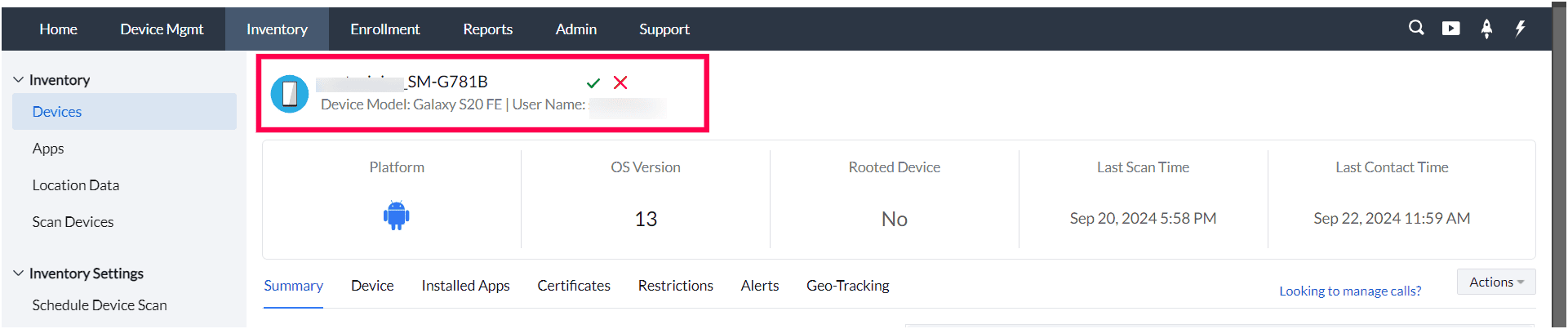
When a device is enrolled in Mobile Device Manager Plus (MDM), the Device Name is initially fetched from the device itself. Here is how the device name functions across different platforms:
- **Android Devices:** If an admin changes the device name of an Android device, the modification will only be visible in the **Device Details of the ME MDM app**.
- **iOS Devices:** When the admin updates the device name of an iOS device in the MDM console, the new name will appear in the enrolled device settings->About->General->Name for the **supervised** devices.
- **Windows Devices:** Any changes made to the device name of a Windows device in the MDM console will not be reflected on the Device.
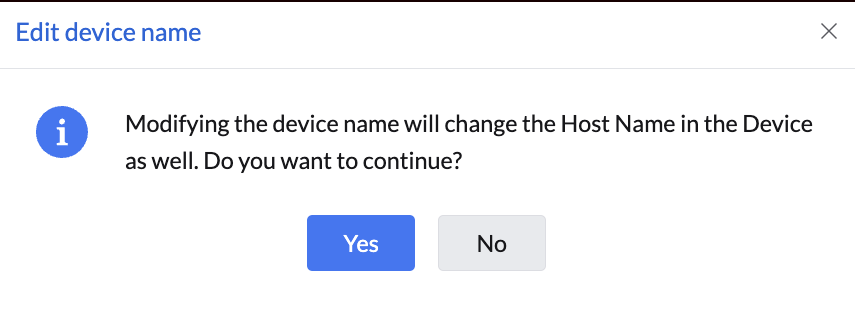
- **macOS:** If the admin modifies the device name on a macOS device, a confirmation prompt will appear stating, "Modifying the device name will change the Host Name on the device as well. Do you want to continue?" If the admin clicks "Yes," both the **Device Name** and **Host Name** will be updated.
### Modifying Device Details
Admins have the ability to modify various device attributes directly within the MDM server. The following details can be updated:
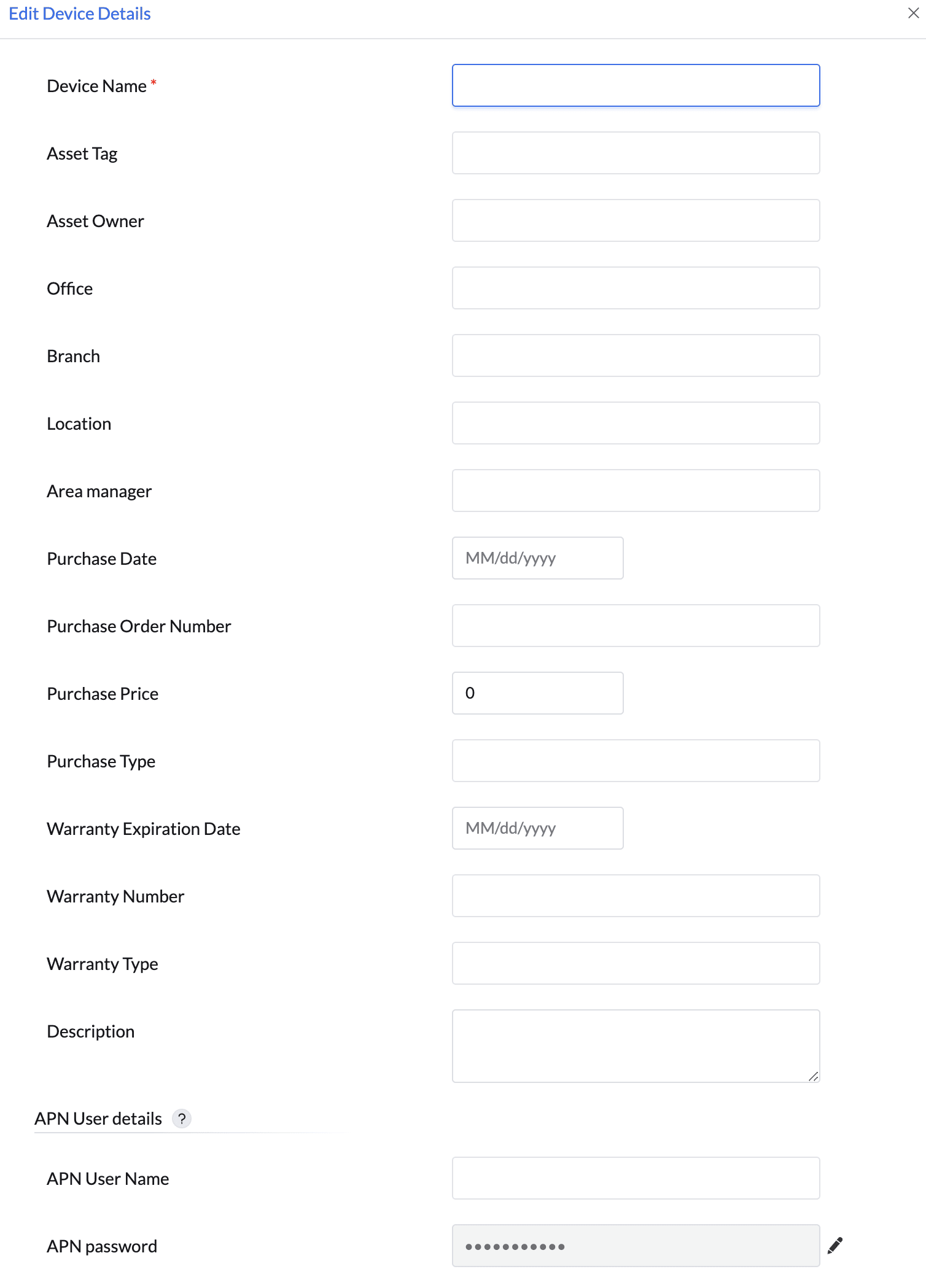
Device Name, Asset Tag, Asset Owner, Office, Branch, Location, Area Manager, Purchase Date, Purchase Order Number, Purchase Price, Purchase Type, Warranty Expiration Date, Warranty Number, Warranty Type, Description, APN User Details, APN User Name, APN Password
To modify these details:
### For Single Devices
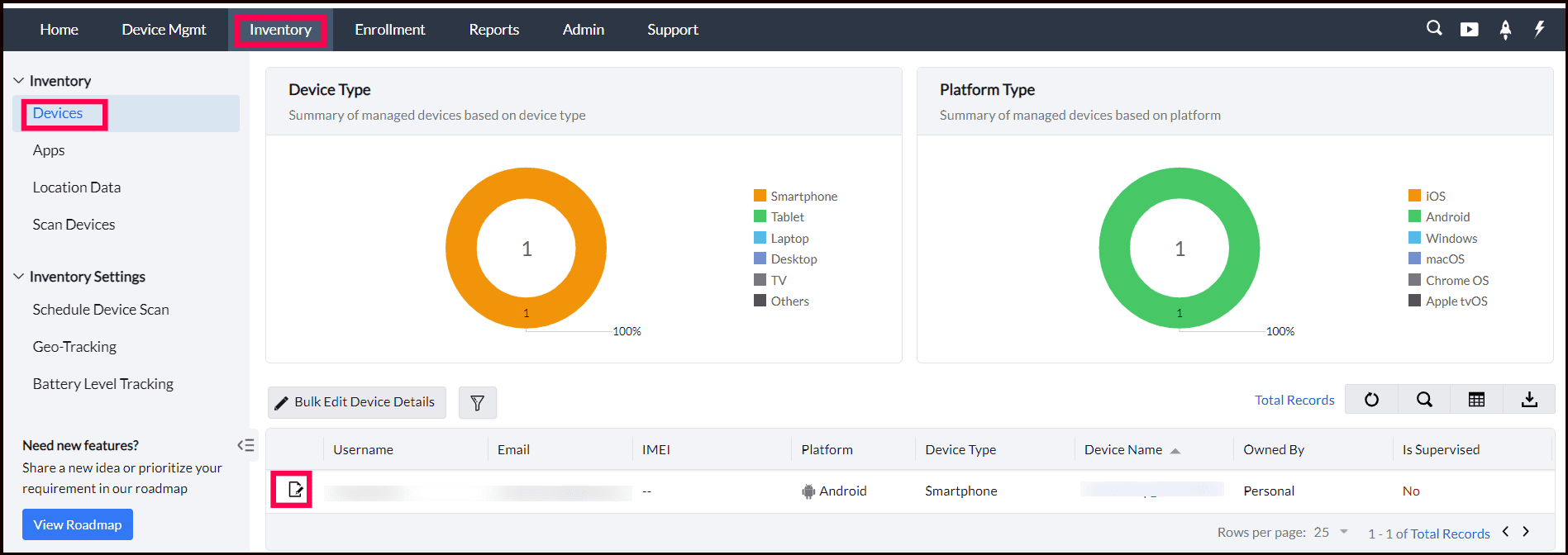
- Navigate to the Inventory section and locate the device. Click on the Edit icon next to the device name to modify the details. Enter the new information, and click Save to apply your changes.
### For Bulk Device Modifications
For efficiency, admins can also modify device details in bulk. This feature is particularly useful for managing large fleets of devices with similar attributes. To perform bulk modifications:
- Go to Inventory > Devices > Bulk Edit Device Details.
- Create [(Sample CSV)](https://workdrive.zohoexternal.com/external/bc3a74df634f11b96090b3e02ff24cdb94a2e0f7674bc324632dbce0f7224186/download?directDownload=true) and upload a .csv file containing the device details to be modified, including the IMEI or Serial Number of each device.
- You can add or modify details in bulk, which will be reflected in the MDM server.
- After uploading the file, click Save to apply the changes.
**Note:**
1. The CSV file can contain the following fields:
DEVICE_NAME,IMEI,SERIAL_NUMBER,UDID,ASSET_TAG,ASSET_OWNER,DESCRIPTION,OFFICE,BRANCH,LOCATION,AREA_MANAGER,PURCHASE_DATE,PURCHASE_ORDER_NUMBER,PURCHASE_PRICE,PURCHASE_TYPE,WARRANTY_EXPIRATION_DATE,WARRANTY_NUMBER,WARRANTY_TYPE,APN_USER_NAME,APN_PASSWORD
2. Either IMEI or SERIAL_NUMBER or UDID is mandatory to identify the device.
3. The first line of the CSV is the column header, and the columns can be in any order.
4. Blank column values should be comma separated.
5. If the column value contains comma, it should be specified within quotes.
Only devices enrolled in MDM can have their details modified. Once the changes are saved, the details are successfully updated.
## Reports for Analysis and Decision-Making
Device Inventory page in ME MDM is not only essential for monitoring individual devices but also serves as a critical resource for generating comprehensive reports that aid in analysis and decision-making. This section outlines how to leverage device details to create meaningful reports that can enhance organizational efficiency and inform strategic decisions.
### Export from the Devices List
Admins can export device details from the Inventory Detailed page by customizing the columns using the column chooser option. These exports can be generated in PDF, XLSX, and CSV formats.
### Pre-Defined Reports
Admins can also export pre-defined reports available in the Reports section, including App reports, Hardware reports, Enrollment reports, Location reports, Security reports, Telecom expense reports, and more.
### Scheduled Reports
Admins can schedule reports to be generated automatically at specified times and sent directly to the designated admin email addresses. Additionally, column ordering can be customized to meet specific requirements. For more information, visit our [Reports](https://www.manageengine.com/mobile-device-management/help/reports/reports.html) Guide.
## FAQ
1. **Why is the phone number not detected for my device?**
The phone number might not be detected if there is no SIM card installed or if the phone number status on the device is "Unknown". Refer to our KB article on [Phone number is not detected](https://www.manageengine.com/mobile-device-management/kb/mdm-phone-number-not-detected.html) for detailed troubleshooting steps.
2. **Why is my tablet displayed as a smartphone in the MDM inventory?**
ManageEngine MDM classifies devices as either **Smartphone** or **Tablet** based on the [Android recommended method](https://developer.android.com/training/multiscreen/screensizes) for determining screen size. Android uses the **smallest width (sw)** qualifier to differentiate device types:
- Devices with a smallest width of **600dp or greater** are classified as **Tablets**.
- Devices with a smallest width **below 600dp** are classified as **Smartphones**.
This classification is determined by the device hardware and the Android system itself. MDM reads the device-reported screen configuration values through standard Android APIs and does not independently decide the device type. If a device that you expect to be a tablet is showing as a smartphone, it means the device itself is reporting a smallest width below 600dp.
**Why does this happen?**
- Some manufacturers classify their devices differently based on internal display configuration.
- The screen resolution (in DPI) and smallest dp value may vary between devices of the same model depending on firmware or regional variants.
- This is a device-specific classification, not an MDM limitation.
3. **Does Last Contact Time indicate the last successful communication from the device to the MDM server?**
Yes. Last Contact Time is updated only when the device successfully communicates with the MDM server. It represents the most recent successful device-to-server communication.
4. **Does Last Contact Time indicate the last communication attempt initiated by the server, regardless of whether the device responded?**
No. Last Contact Time does not represent server-initiated communication attempts. When an MDM scan is initiated, the server attempts to contact the device. If the device receives the request and successfully responds, the scan completes successfully. In this case, both Last Scan Time and Last Contact Time are updated. If the device does not respond, only the scan attempt is recorded, and Last Contact Time is not updated.
5. **Can Last Contact Time be updated even if a server-initiated scan fails?**
Yes, in certain scenarios. A server-initiated scan depends on platform notification services to wake the device:
a. APNs for Apple devices
b. FCM for Android devices
c. WNS for Windows devices
If these notification services are unavailable or encounter issues, the server may be unable to reach the device, causing the scan request to fail. However, device-to-server communication does not rely on these notification services. If the device later communicates with the MDM server on its own (for example, during a scheduled check-in or another background communication), Last Contact Time is updated to reflect that successful communication, even though the earlier server-initiated scan was unsuccessful.
## What's Next?
### Associate Profile / Apps
Assign the necessary profiles and applications to the enrolled devices to ensure they have the required configurations and software. For detailed instructions, refer to our [Profile](https://www.manageengine.com/mobile-device-management/help/profile_management/mdm_profile_management.html) and [App Management](https://www.manageengine.com/mobile-device-management/help/app_management/mdm_app_management.html) Help Guide.
### Configure Tracking
Admins can configure various tracking options to enhance device management and monitoring.
- [Location Tracking](https://www.manageengine.com/mobile-device-management/help/security_management/location_tracking.html)
- [Telecom Expense Management](https://www.manageengine.com/mobile-device-management/help/asset_management/mdm_telecom_expenses_mgmt.html)
- [Battery Tracking](https://www.manageengine.com/mobile-device-management/help/asset_management/mdm_battery_level_tracking.html)