Last updated: August 13, 2026
Chrome integration with MDM using G Suite
This guide explains how to integrate G Suite with MDM to enable Chromebook enrollment and management. It covers the prerequisites — including required Google Workspace license tiers (Enterprise Standard, Enterprise Plus, or Education Plus) — and walks through two key steps: configuring Chrome Management Partner Access in the Google Admin Console and completing the G Suite integration in MDM using your domain credentials or OAuth Client ID and Client Secret. After integration, organizational units and users sync automatically from Google Admin Console to the MDM server.
Pre-requisites:
- To manage Chrome OS devices in MDM, you need to have either Enterprise Standard or Enterprise Plus or Education Plus (for schools/universities) Google workspace license.
- Verify the Workspace Admins licenses in the Google Admin Console under Billing > Subscriptions.
- To Purchase or Upgrade the licence, Follow Google’s official licensing guide. These licenses enable MDM integration for bulk enrollment, policy enforcement, security controls, and auto-syncing, so Chromebooks added in Google Admin instantly reflect in the MDM Console.
Procedure
Step #1: Configure Google Admin Console
- Login to Google Admin Console, with your admin credentials and select Devices.
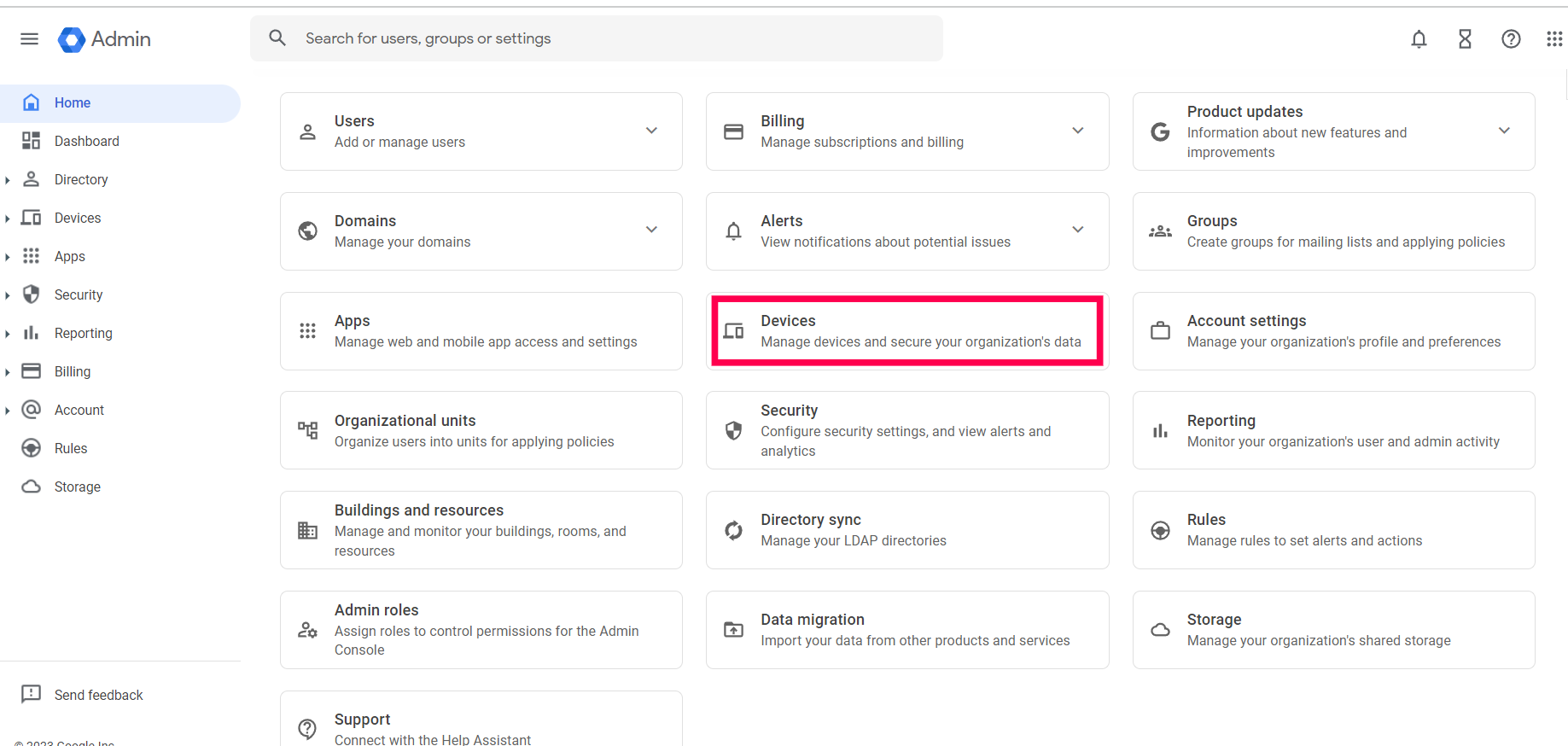
- The chrome device has not been added previously, Click Start Trial under the Chrome Devices option. Once enrolled in the trial, navigate back to the devices page.
- Select Chrome -> Apps & extensions -> Users & browsers, from the left pane.
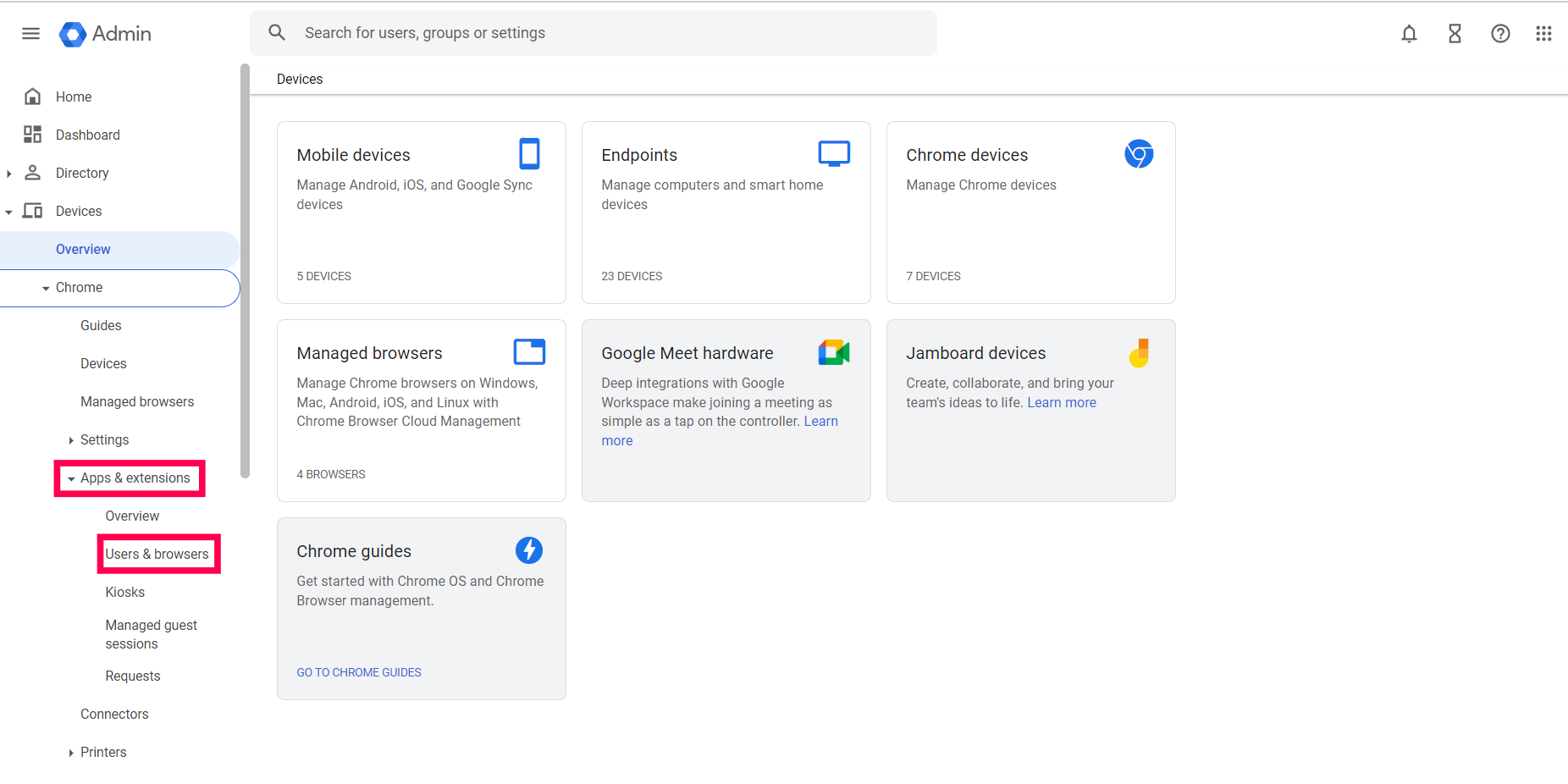
- Now, ClickSettings from the dropdown menu. Under User & Browser settings navigate to Chrome Management - Partner Access. Select Enable Chrome Management - Partner Access and agree to the given Terms and Conditions.
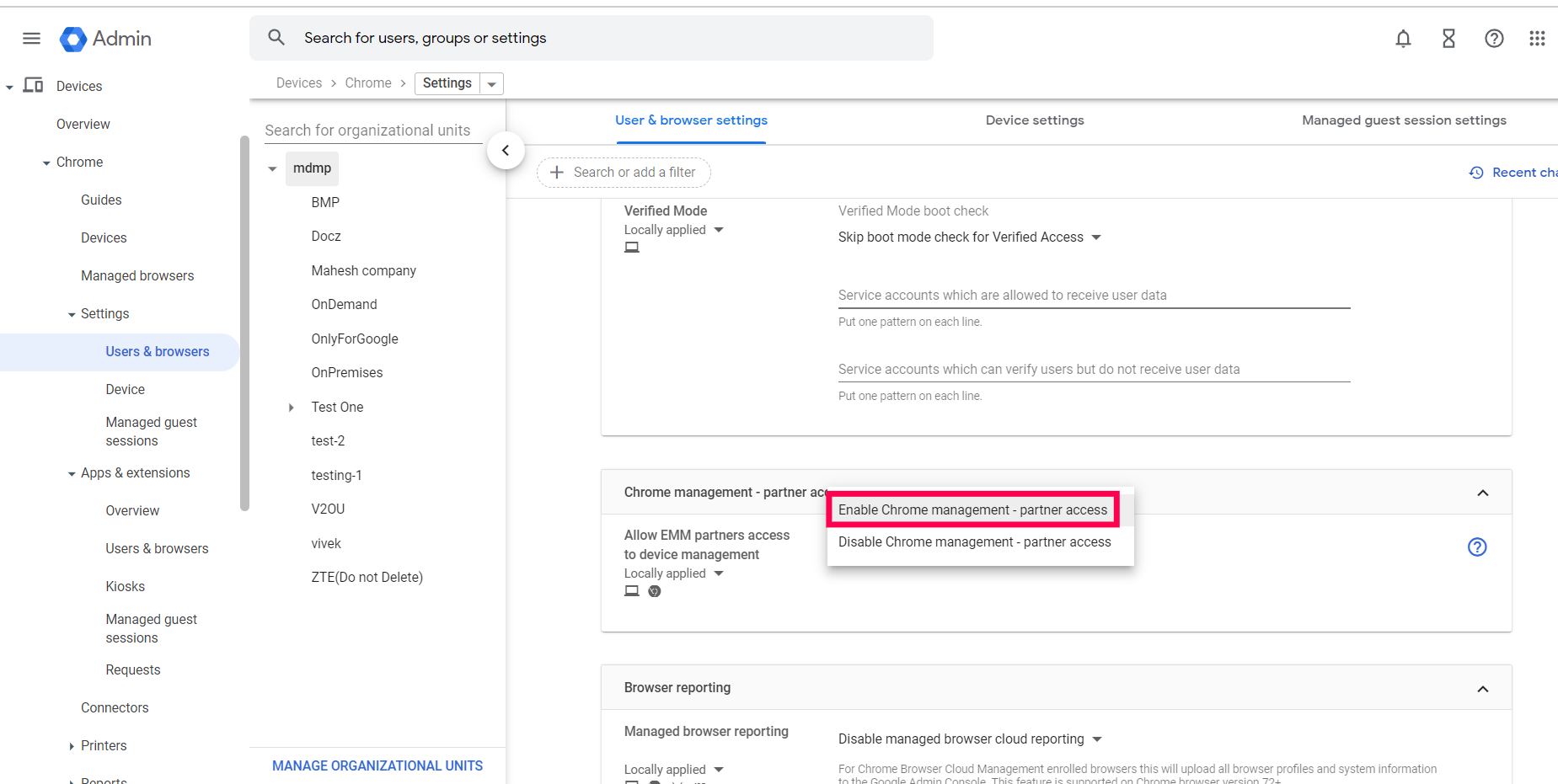
- ClickSave to save the user settings.
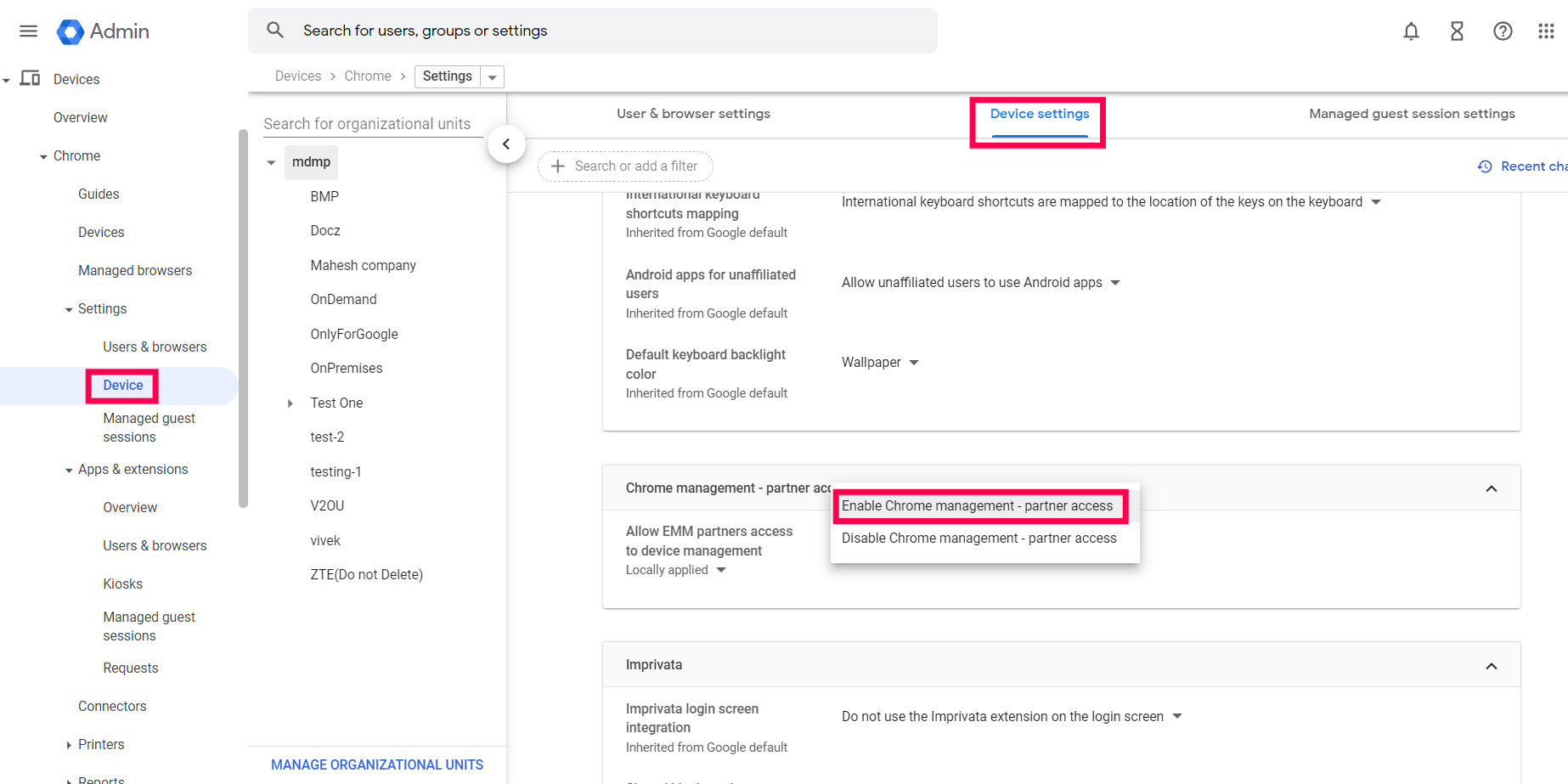
- Now, ClickDevice Settings and navigate to Chrome Management - Partner Access. Select Enable Chrome Management - Partner Access and agree to the given terms and conditions.
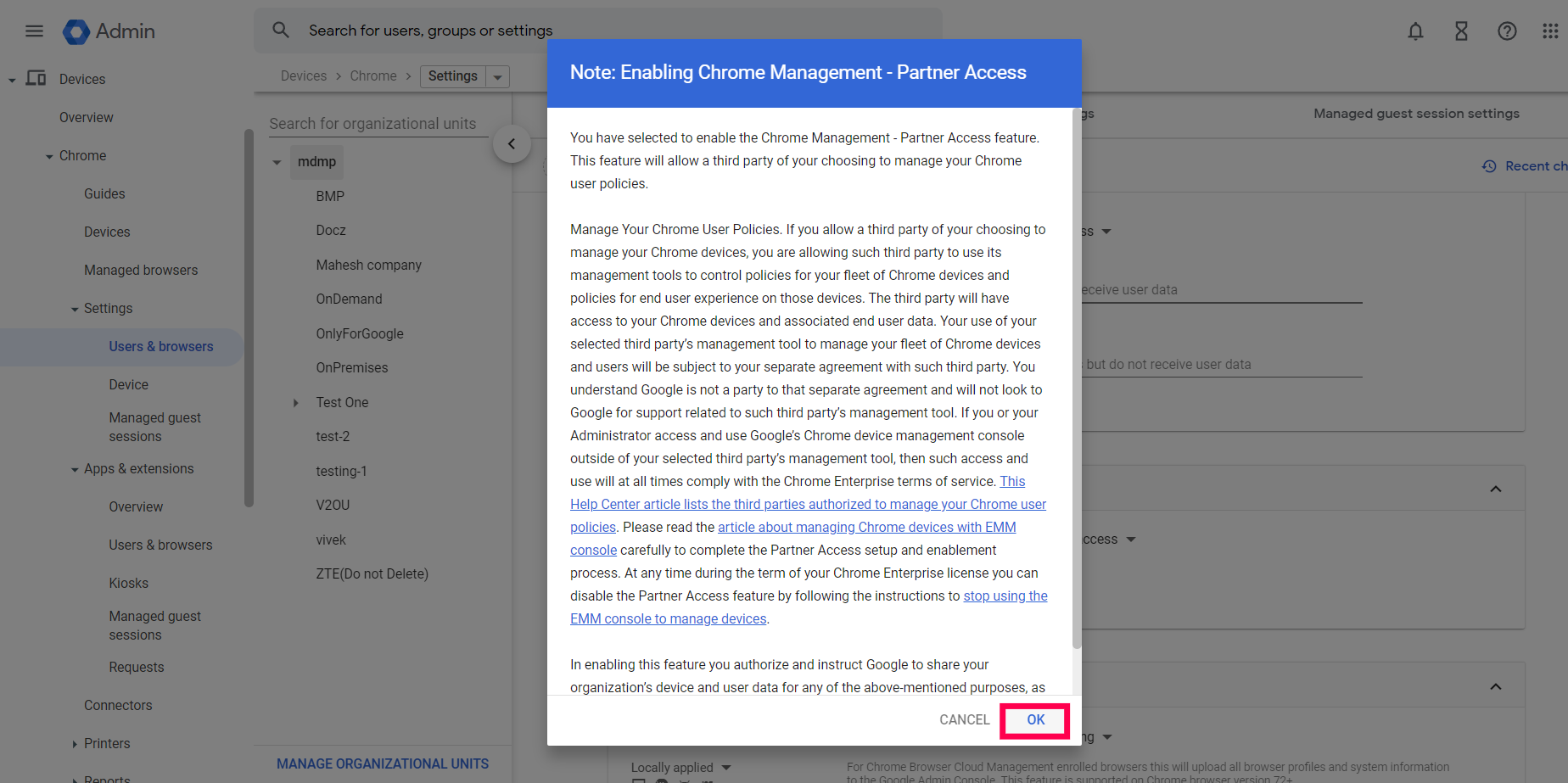
- ClickSave to save the device settings.
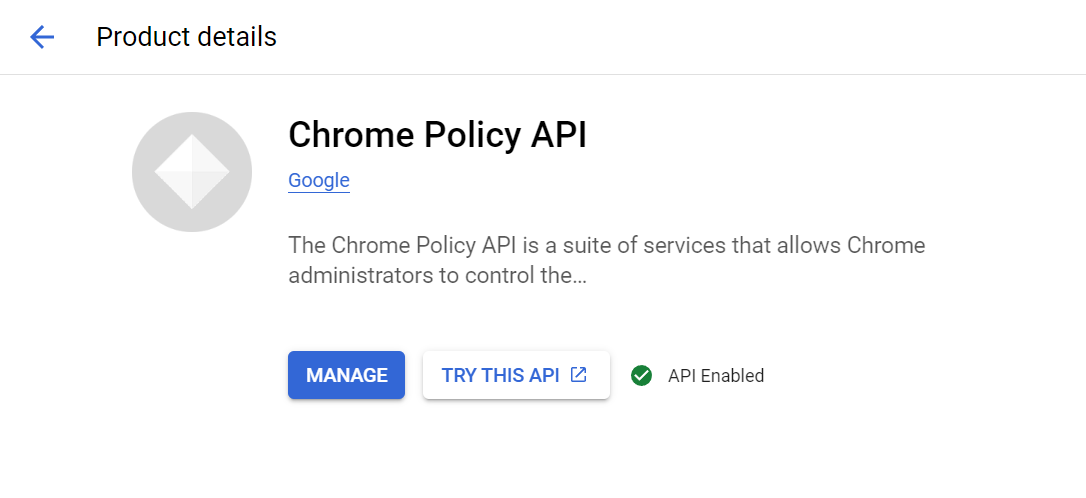
- To enable Chrome Policy API, login to Google Cloud Console using your admin account.
- Go to API & Services > Library .
- In the search bar, type Chrome Policy API to check if it is enabled.
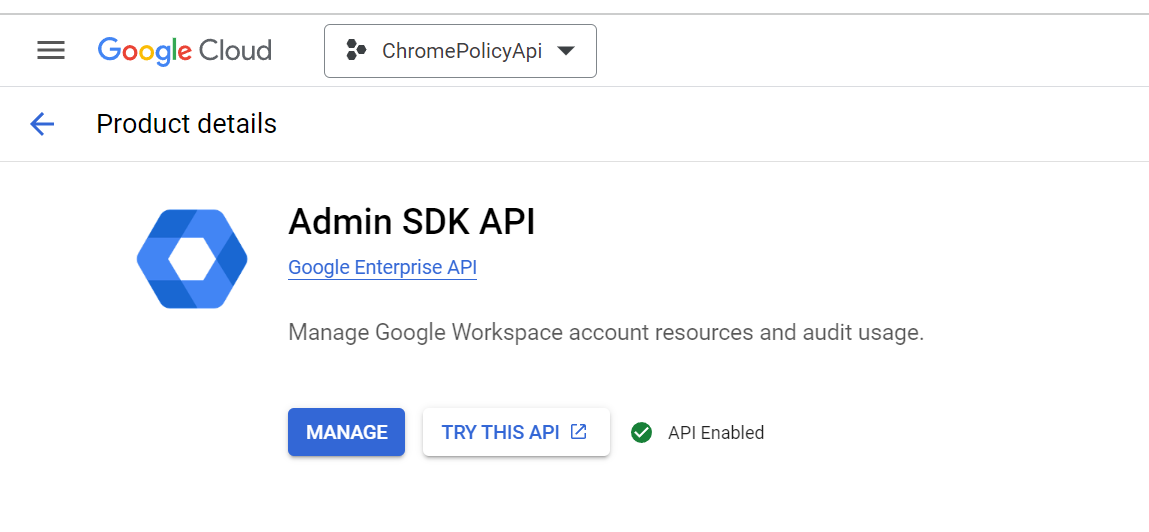
- In the search bar, type Admin SDK API to check if it is enabled.
Step #2: Integrate with MDM
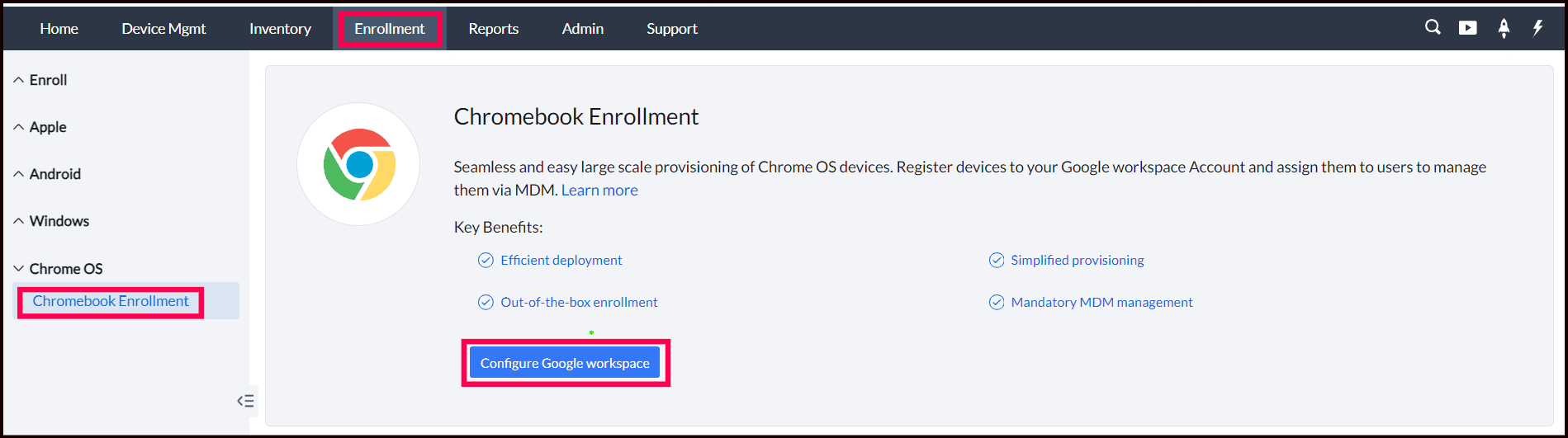
- On the MDM server, Click the Enrollment tab from the top menu and select Chromebook Enrollment, present under Chrome OS .
- If you've already integrated G Suite in Android Enterprise you can go directly to step 3. If not, ClickConfigure Now and provide the domain registered with G Suite as well as the domain admin account.
- In case of MDM On-Premise, if OAuth is not configured, you will get an error message saying "OAuth App details are not yet configured".
- Clickhere to configure OAuth. You will be prompted to enter the Client ID and Client Secret. How to obtain Client ID and Client Secret?
- Once you have entered the Client ID and Client Secret, ClickIntegrateto complete Chrome integration using G Suite. You can now enroll Chromebooks using MDM.
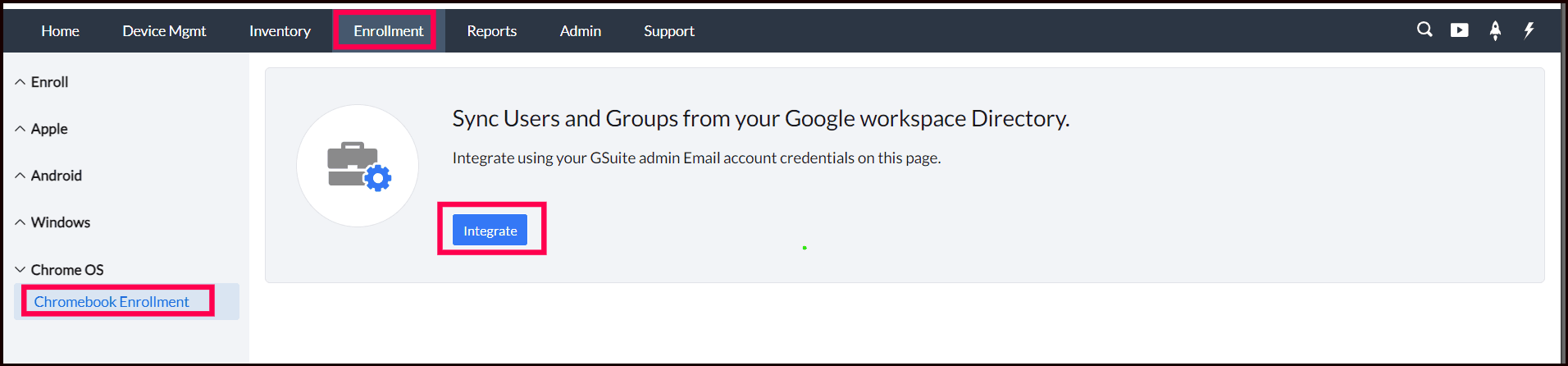
Note: After integration, all the org units and users will be synced from the Google Admin Console and will be displayed in our MDM server.
How to obtain Client ID and Client Secret
- Log in to the Google Console with your G Suite admin account.
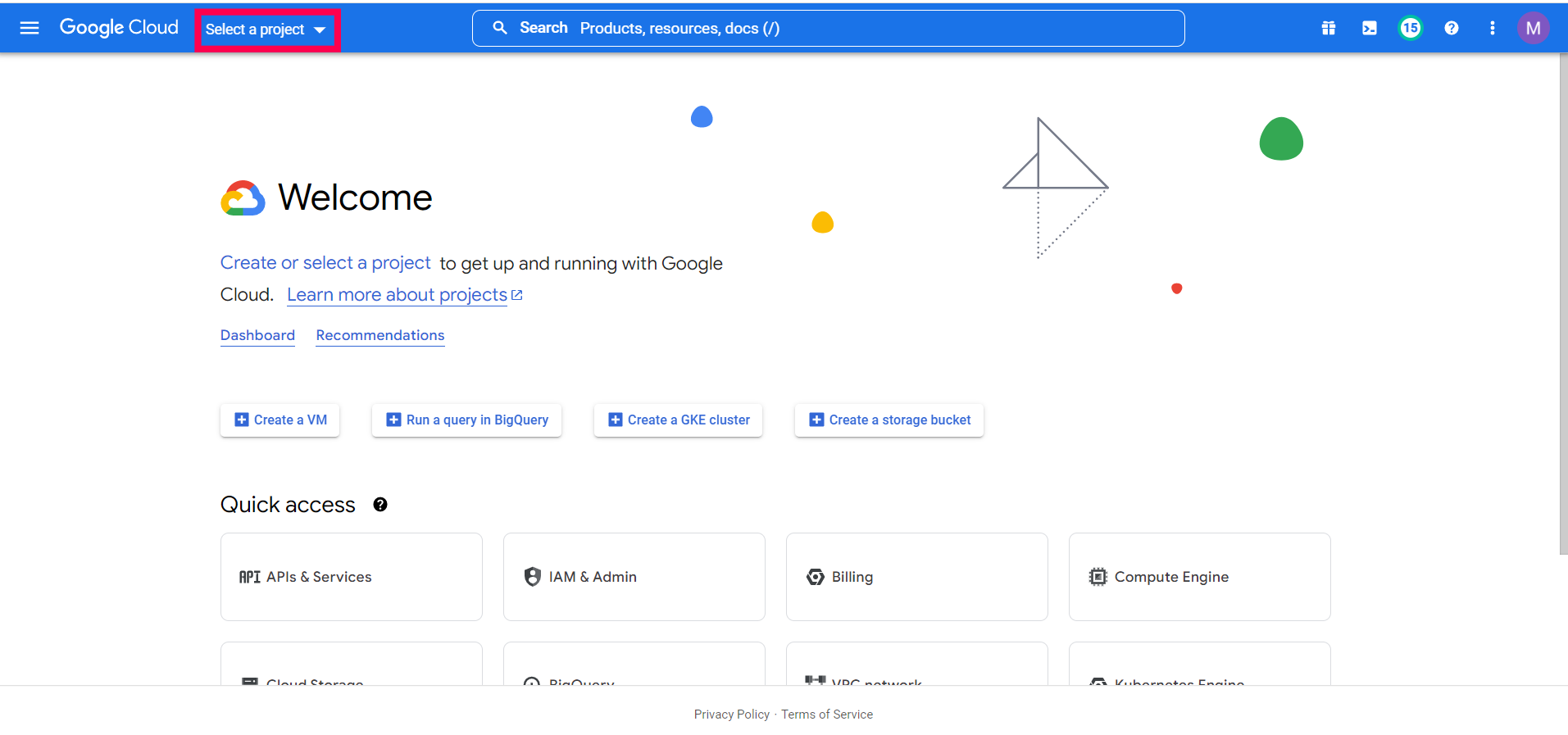
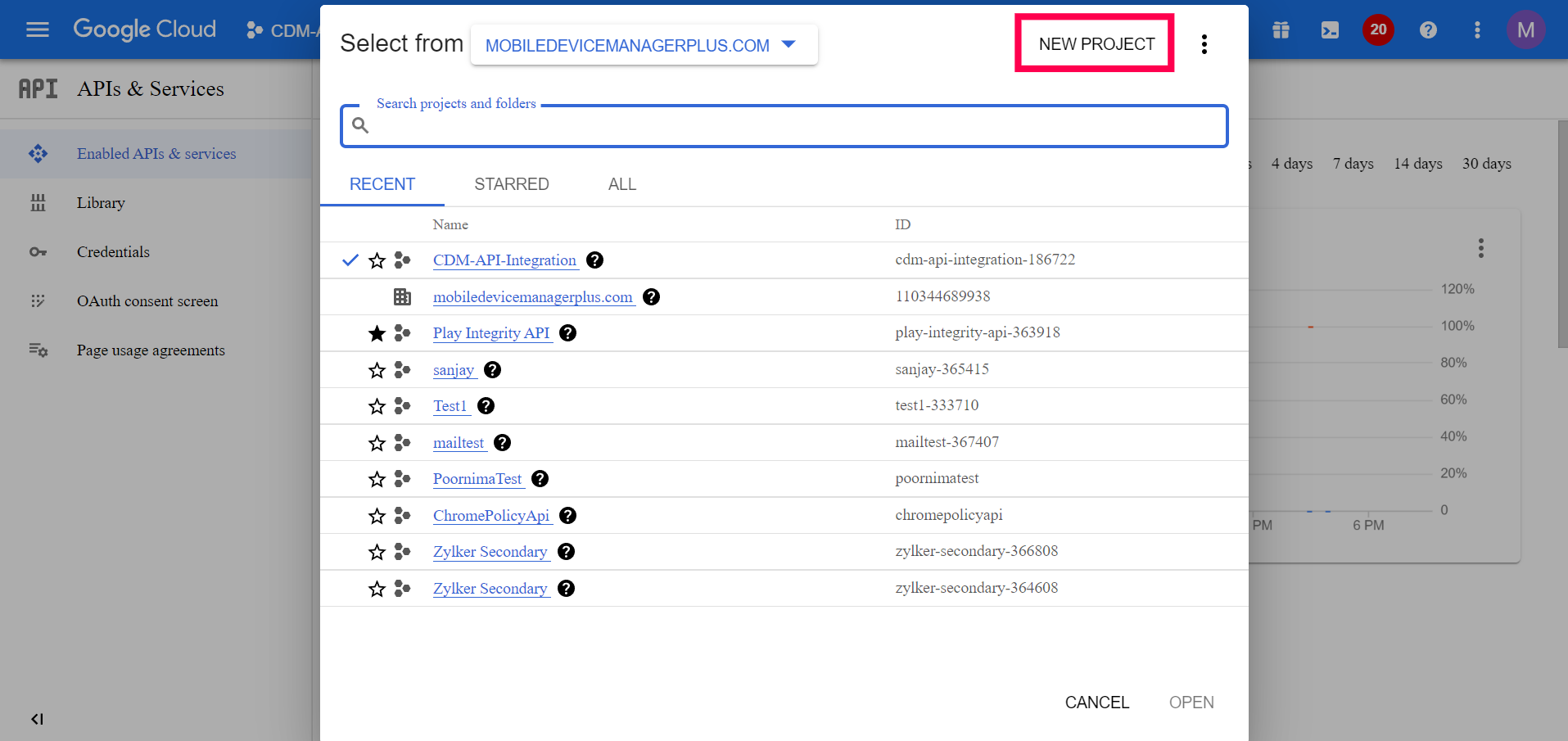
- ClickSelect Project -> New Project and enter the required details.
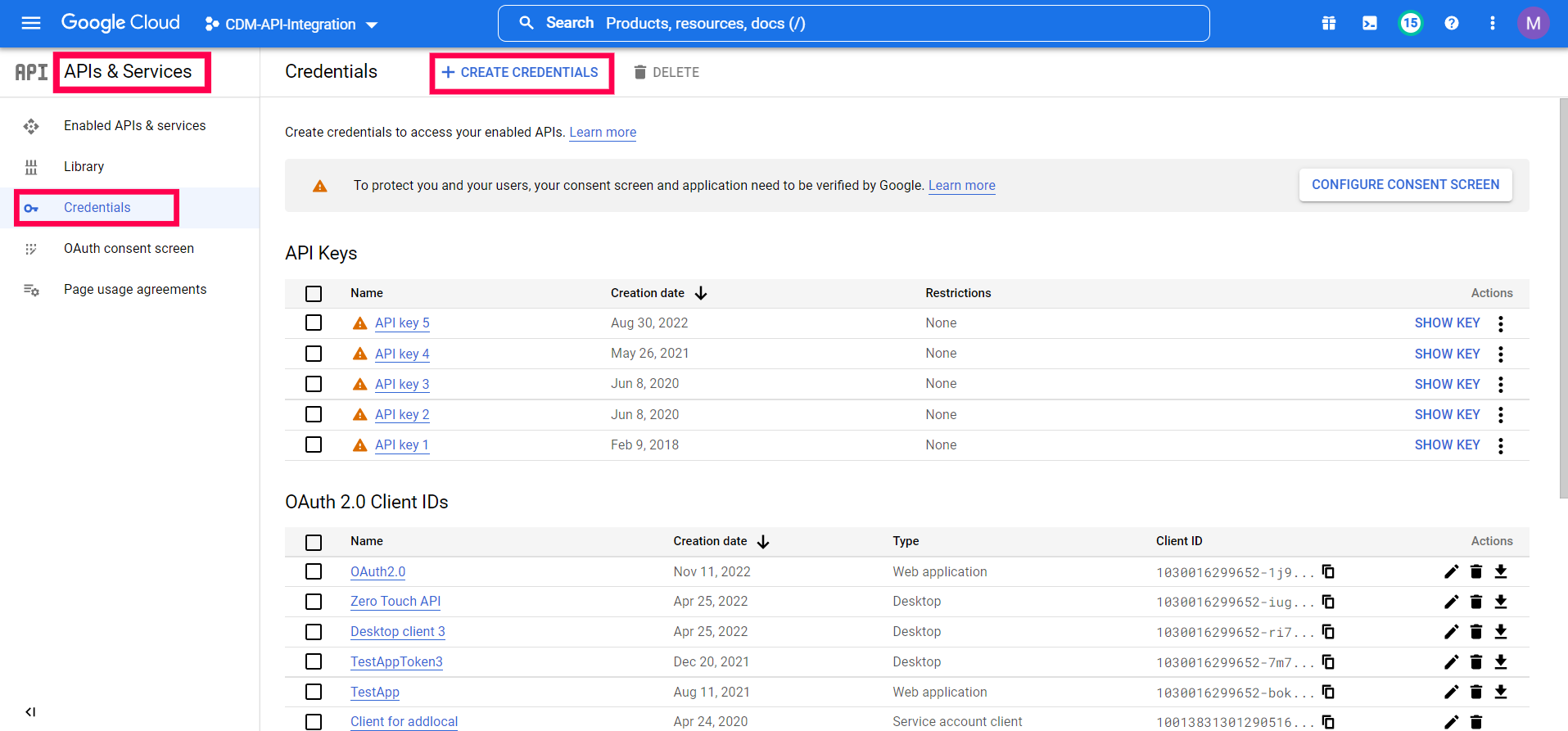
- Navigate to APIs & services -> Credentials -> Create Credentials -> OAuth Client ID.
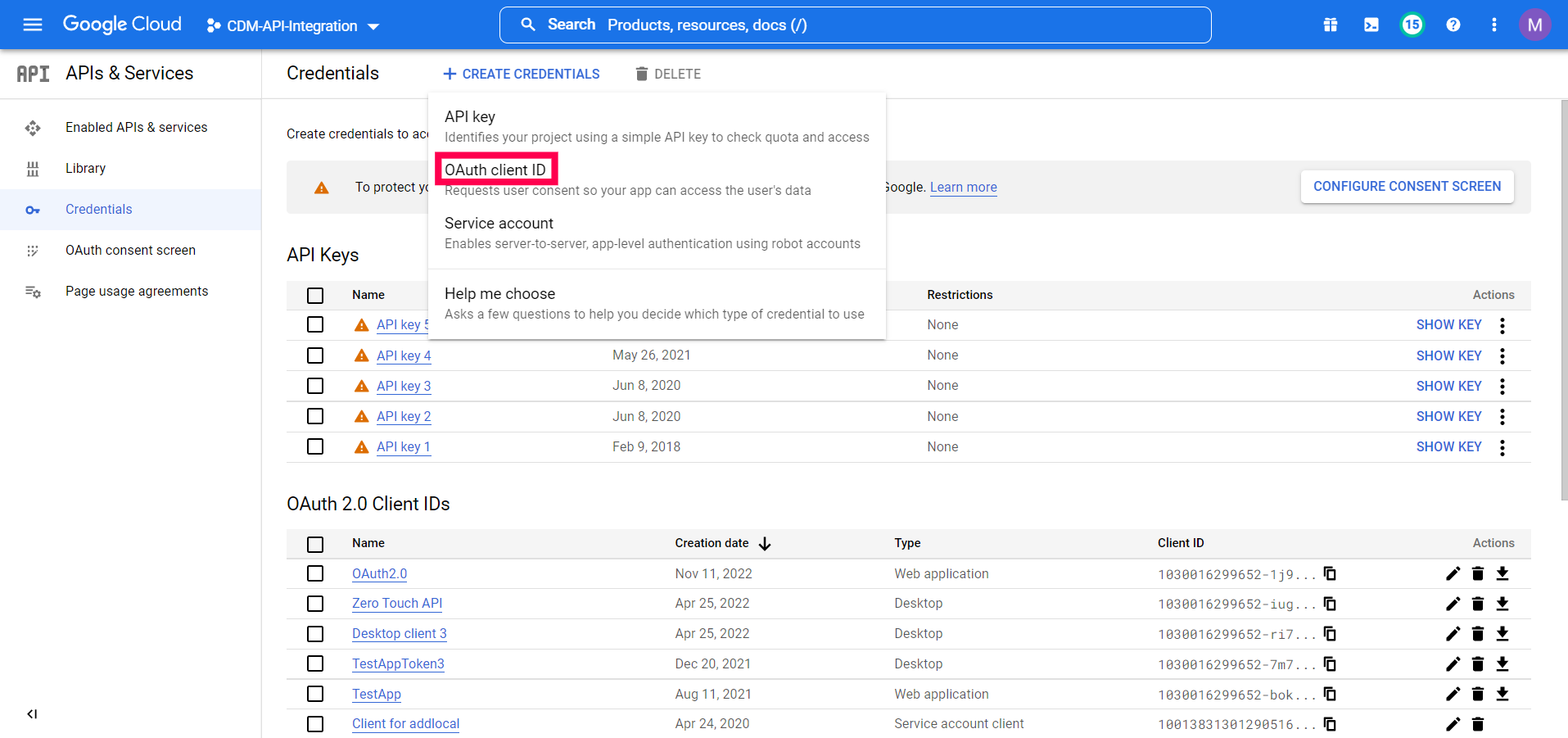
- If you are configuring OAuth Authentication for the first time, you have to set up your OAuth Consent Screen.
- On the left panel, ClickOAuth Consent Screen, and choose the User Type as Internal.
- ClickCreate. You will now have to enter the app name, support email and developer contact information and ClickSave and Continue.

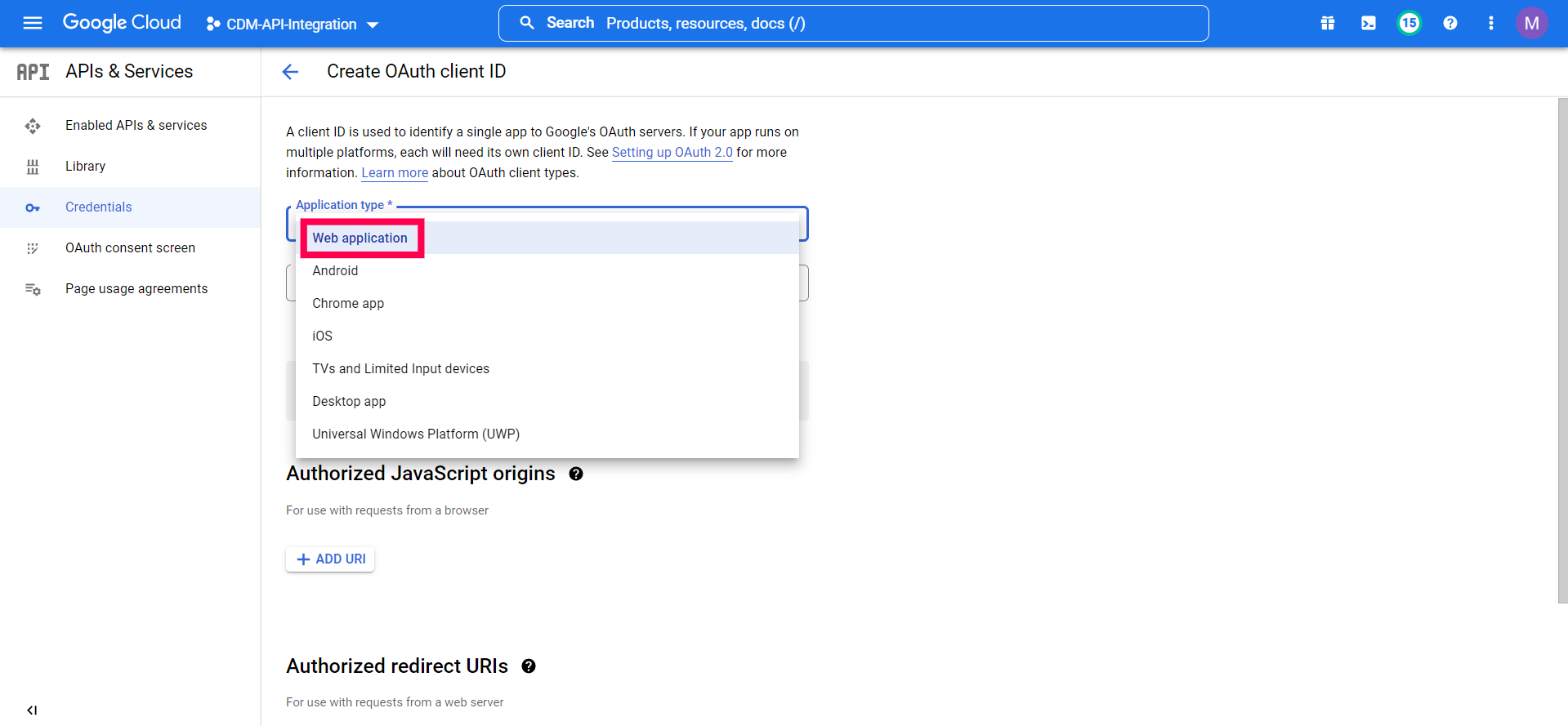
- Now navigate to APIs & services -> Credentials -> Create Credentials -> OAuth Client ID. Select Web Application as the Application type.
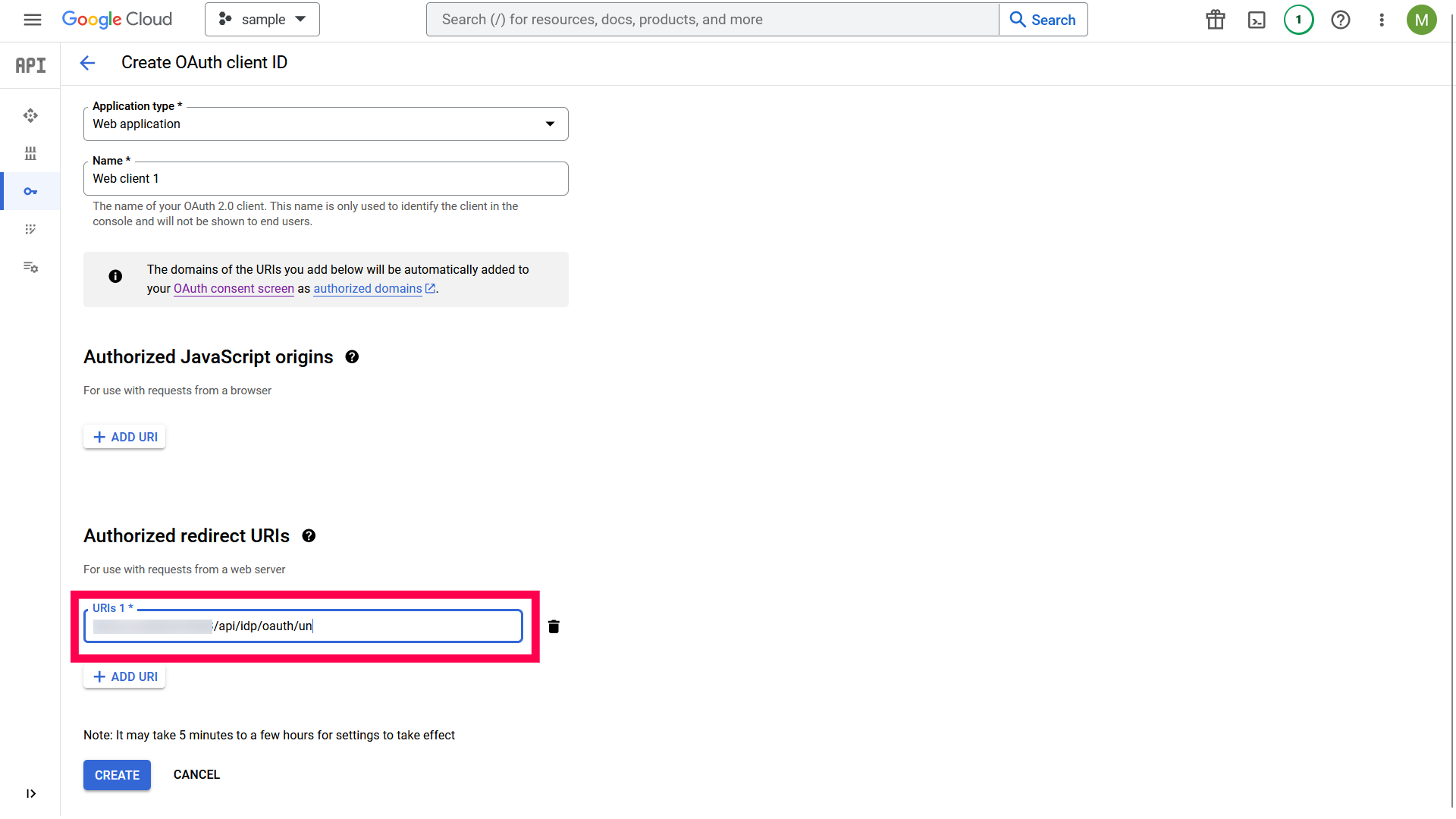
- Enter https://www.manageengine.com/ems/OAuthAuthorization.html as Authorized redirect URIs and ClickCreate.
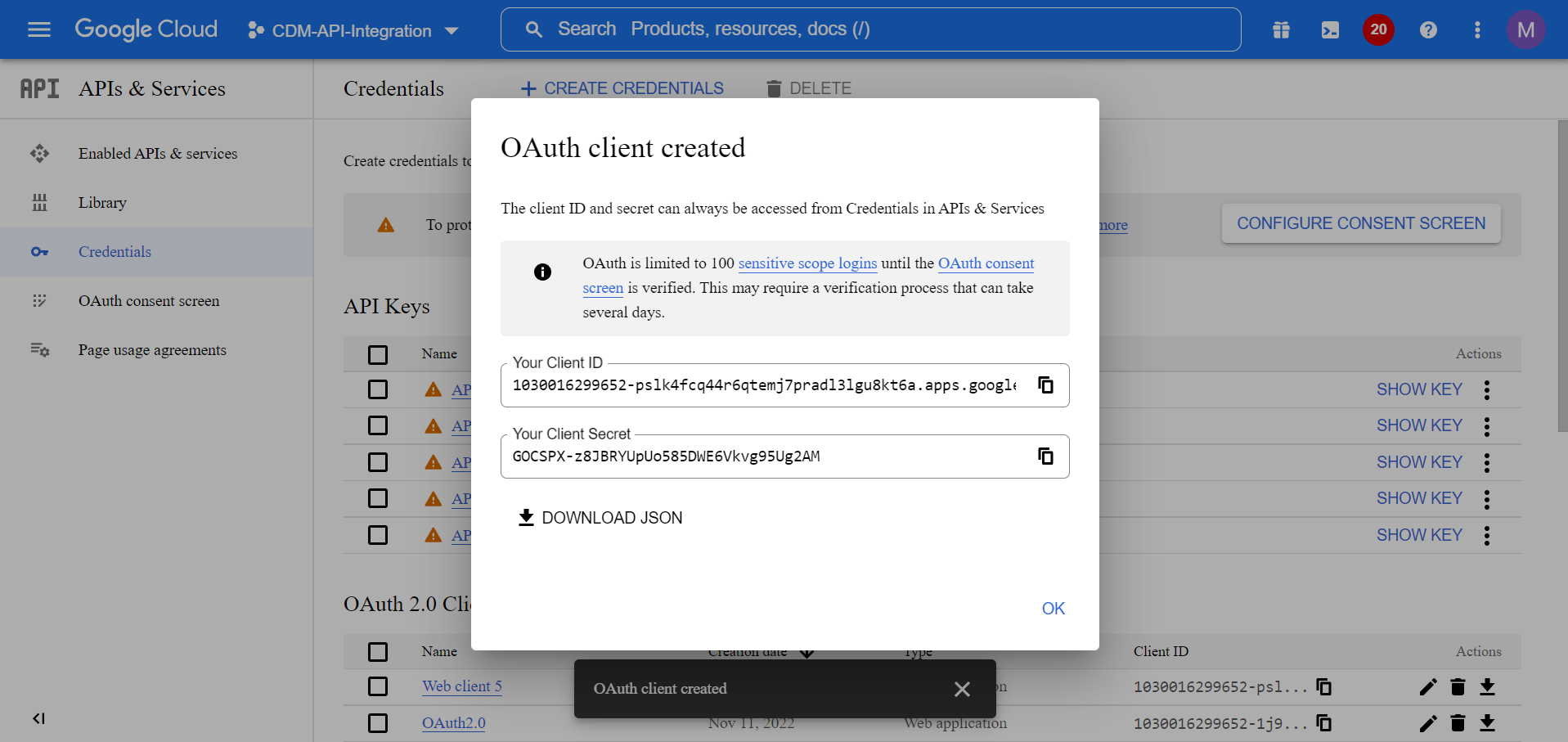
- A new set of Client ID and Client Secret will be generated which is to be copied and pasted back on the MDM server.
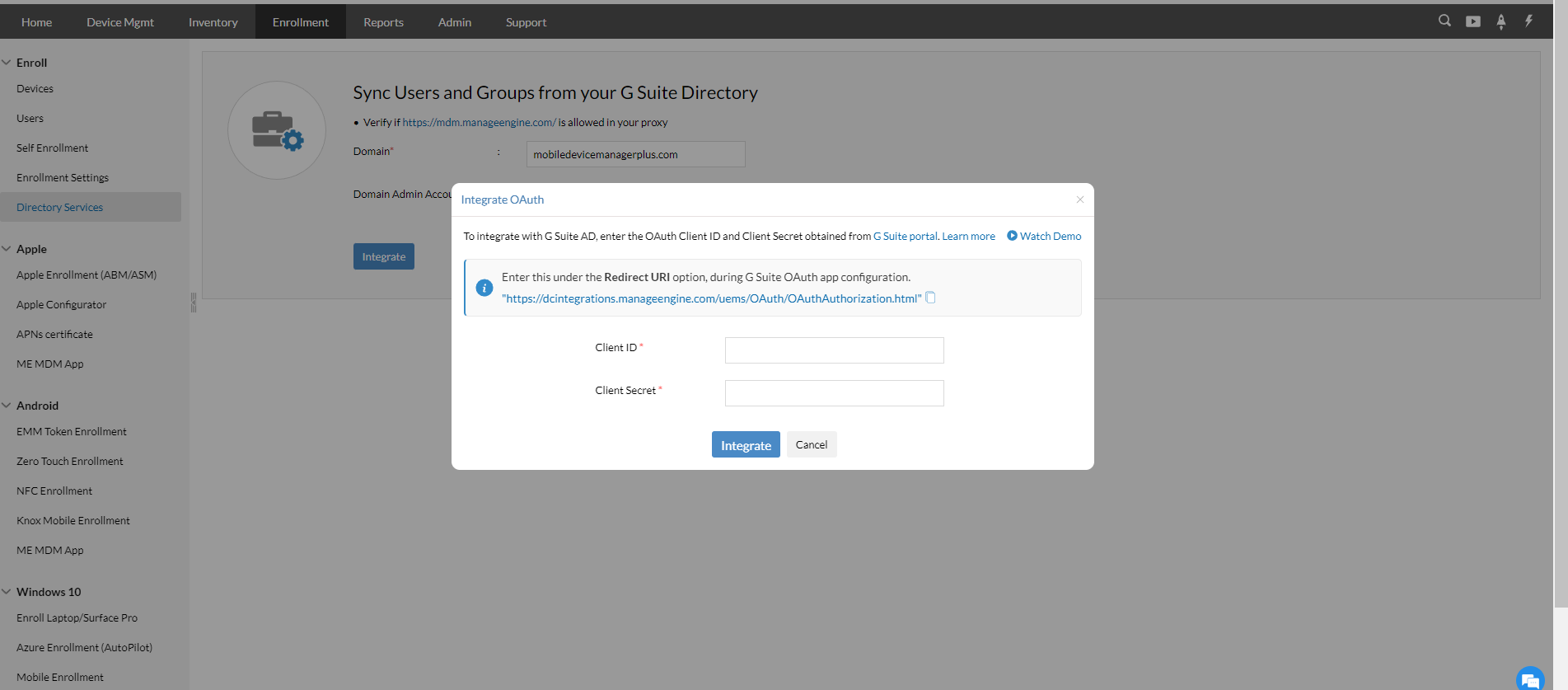
- Once you have entered the Client ID and Client Secret, ClickIntegrate.
Now the OAuth will be successfully configured on the MDM server.
Troubleshooting tips
Unable to see the Device management options
Confirm your license tier supports Chrome OS management (e.g., Upgrade to Enterprise Standard).
unable to apply policies
Check if the Chromebook’s organizational unit (OU) has the correct license assigned.
Unable to Integrate G Suite with MDM
If you are unable to integrate G Suite with MDM, follow the steps mentioned below:
- You have to sign in into the account which is already integrated and remove the access. To do so,
- Go to this page and log in to the account.
- In case of MDM Cloud, Select Manageengine MDM and for On-Premise, select the app name which you have created on the Google Admin Console. Now ClickRemove access.
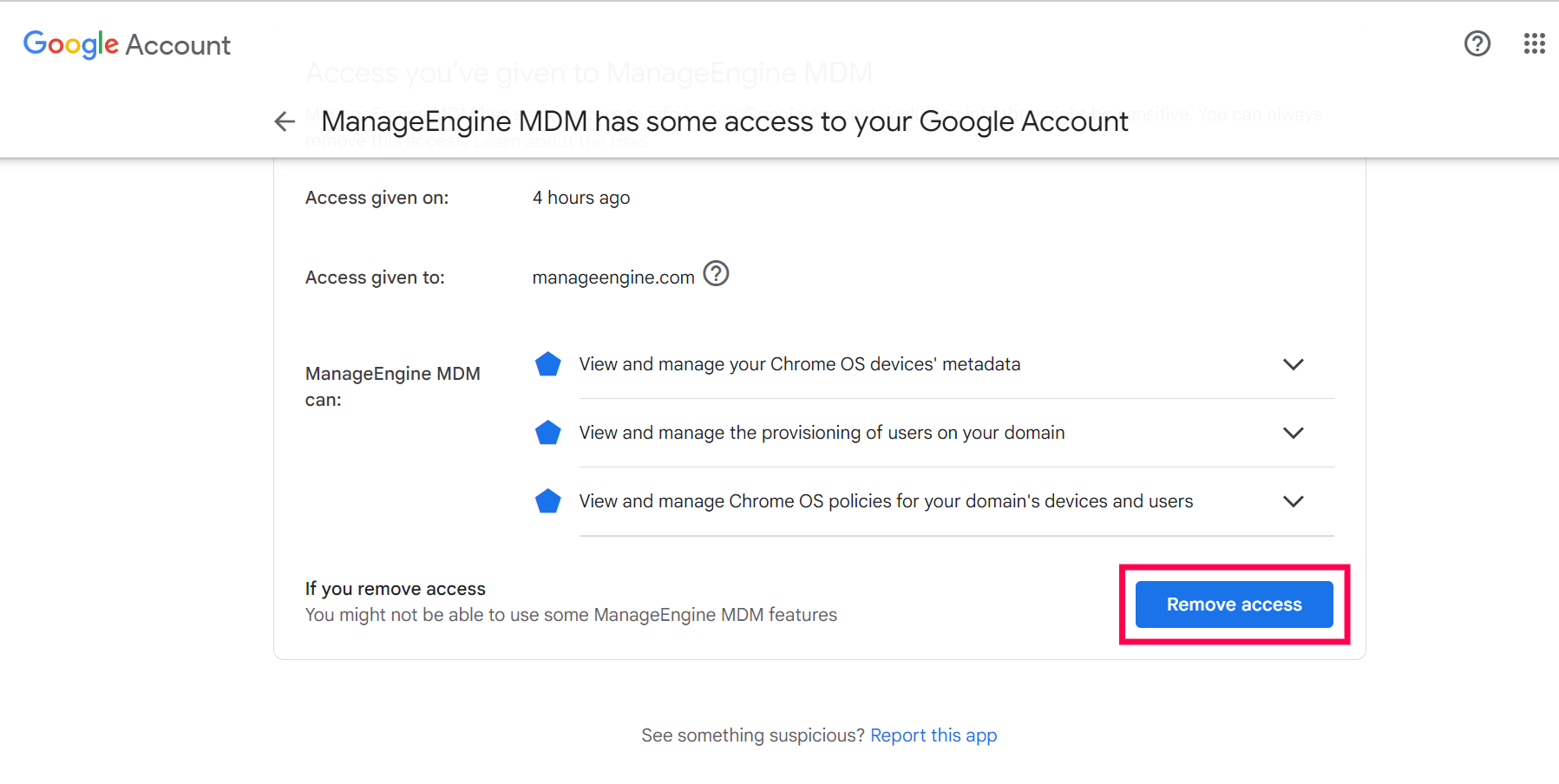
Now the G Suite will get successfully integrated with MDM.
Frequently Asked Questions
What Google Workspace license is required to manage Chrome OS devices in MDM?
You need an Enterprise Standard, Enterprise Plus, or Education Plus (for schools/universities) Google Workspace license to manage Chrome OS devices in MDM.
Why can't I see the Device management options in Google Admin Console?
This usually means your license tier doesn't support Chrome OS management. Confirm your license supports it, or upgrade to Enterprise Standard.
Why aren't policies being applied to Chromebooks after integration?
Check if the Chromebook's organizational unit (OU) in Google Admin Console has the correct license assigned.
How do I re-integrate G Suite with MDM if the integration fails?
Sign in to the account already integrated and remove its access via the Google Account permissions page, then repeat the Chrome Policy API and Admin SDK API setup steps and integrate again.