Last updated: August 14, 2026
Manage Enrollment Invite
This page provides a comprehensive guide to managing enrollment invitations in ManageEngine MDM. It covers three key tabs in the MDM console: the Managed tab, which displays successfully enrolled devices and available device actions; the Enrollment Pending tab, which tracks invitations awaiting user acceptance and enables admins to resend or cancel invites; and the Staged tab, which lists pre-configured devices ready for deployment. Admins can also perform bulk actions, monitor invitation validity (7-day limit), and manage device reassignment or deprovisioning.
On this help page, you will find a comprehensive overview of the Managed, Staged, and Enrollment Pending tabs, which are essential for efficiently managing devices and invitations following the enrollment process. After sending out enrollment invites, admins will land on this page to track and manage the status of devices, ensuring a seamless onboarding experience. Each tab provides specific functionalities: the Managed tab displays devices that have successfully enrolled, the Staged tab shows devices awaiting configuration, and the Enrollment Pending tab lists invitations that have yet to be accepted. For detailed guidance on the enrollment process, please refer to our Enrollment Process Guide.
Managed Tab
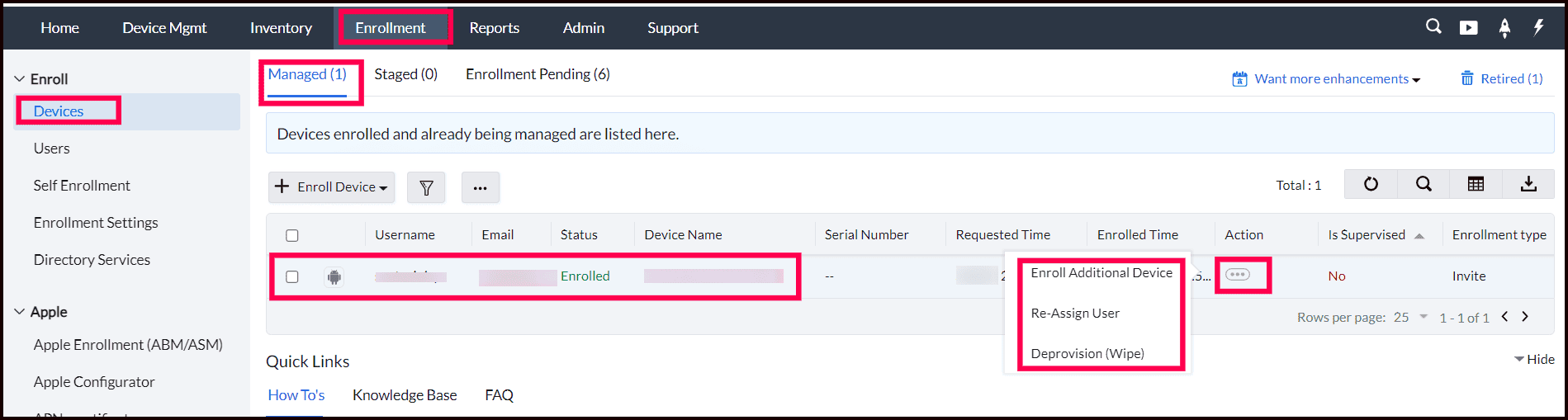
The Managed tab in MDM Console provides a comprehensive view of all devices that have been successfully enrolled and are currently being managed in MDM. This tab is essential for administrators to monitor, control, and perform actions on registered devices.
Device Overview
- Displays a list of all managed devices, including key information such as device name, platform (Android, iOS, macOS), user details, and enrollment status, etc.
- Allows quick identification and access to any device within the organization’s network.
Device Status
- Enrolled: Once the enrollment process is completed successfully, the device status will be marked as "Enrolled."
- Unmanaged: The status will change to "Unmanaged" if the MDM profile is removed from the device.
Device Actions
- Enroll Additional Devices: This action allows admin to send another enrollment invitation to the same user for additional devices they may have. If a user needs to enroll more than one device, such as a new phone or tablet, you can initiate a new enrollment request for these additional devices. This process involves sending out an enrollment invitation that includes instructions and a link for the user to complete the enrollment, ensuring that all their devices are properly managed in MDM.
- Re-Assign User: This action allows admin to reassign an enrolled device from one user to another. If a device is being transferred from one employee to another, or if user responsibilities change, you can update the device’s user assignment to reflect these changes. This process ensures that the new user receives the appropriate access, settings, and configurations specific to their role or department, maintaining proper management and security for the device.
Deprovision (Wipe):This action is used to completely remove a device from management, which can be performed in two ways:
- Revoke MDM: This option removes the device’s management profile, effectively severing its connection to the MDM and erasing all corporate data and configurations. The device will no longer be under management, but it will retain its current state, including any personal data that was not removed.
- Factory Reset Device: This option performs a full factory reset on the device, returning it to its original state as if it were newly purchased. This process erases all data, apps, and settings, including those configured by the MDM. It is typically used when a device is being retired or repurposed.
To learn more about deprovision, Visit our Deprovision guide for more details.
Enrollment Pending Tab
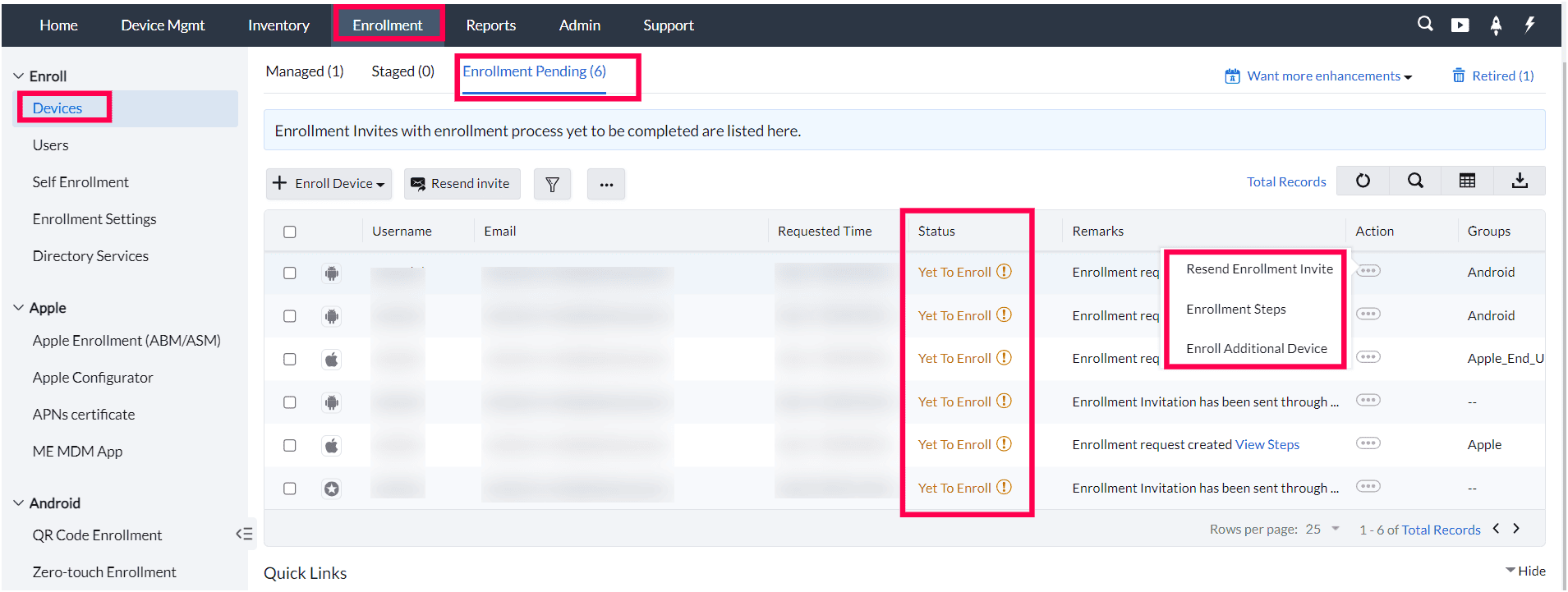
The Enrollment Pending tab in the MDM console is designed to help administrators manage and track devices that have been sent an enrollment invitation but have not yet completed the enrollment process. This tab provides visibility into which devices are awaiting user action and allows the admin to take follow-up actions if necessary.
Overview of Pending Devices
- The Enrollment Pending tab displays all devices for which enrollment invitations have been sent but where the users have not yet completed the enrollment process.
- Devices are listed with relevant information such as the user’s name, device type (e.g., Android, iOS), and the date when the enrollment invitation was sent.
Enrollment Invite Status
Each entry in the Enrollment Pending tab provides essential details about the device invitations that have been sent. This includes the Device Type icon, indicating whether the device is Android, iOS, macOS, Windows, or another platform. Additionally, you'll find the User Name associated with the device invitation, the Email to which the invitation was sent, and the Requested Time, which shows the date the enrollment invitation was issued. The status of the invitation is also displayed, along with any Remarks that may provide further context. Finally, the Actions column offers options for managing the invitation, and the Groups section indicates the device's assigned group for better organization and management.
Actions Available for Pending Devices
The Enrollment Pending tab offers several actions to manage the pending enrollments:
- Resend Enrollment Invite: Admins can resend the enrollment invitation to users who have not yet completed the process. This option is particularly useful for users who may have missed the initial invite or need a reminder.
- Enrollment Steps: Admin can view the Enrollment steps in the MDM console and use it for troubleshooting issue.
- Enroll Additional Device: Admin can send an Additional invitation to an user for enrolling multiple devices.
Bulk Actions
In scenarios where multiple devices have pending enrollments, admins can perform bulk actions:
- Bulk Resend Invitations: Admins can resend invites to multiple users simultaneously by selecting the pending invitations and clicking on the "Resend invite" tab.
- Remove Request: Admins can cancel enrollments for multiple devices in one action, simplifying the management process. Select the list of pending invitations you want to remove, Click the elipsis, and select "Remove Request" to remove enrollment invitations in bulk.
Enrollment Invitations Validity
The enrollment invitations are valid only for 7 days. Administrators needs to resend the invitation once it gets expired.
Use Cases
- Tracking enrollment progress: Admins can monitor the status of pending devices to ensure users are following through with the enrollment process.
- Proactive follow-up: If a device remains in pending status for an extended period, admins can resend the invitation or follow up with users to complete the enrollment.
- Clearing unused invites: For devices that are no longer required to be enrolled, admins can quickly cancel pending enrollments to maintain an organized dashboard.
Staged Tab
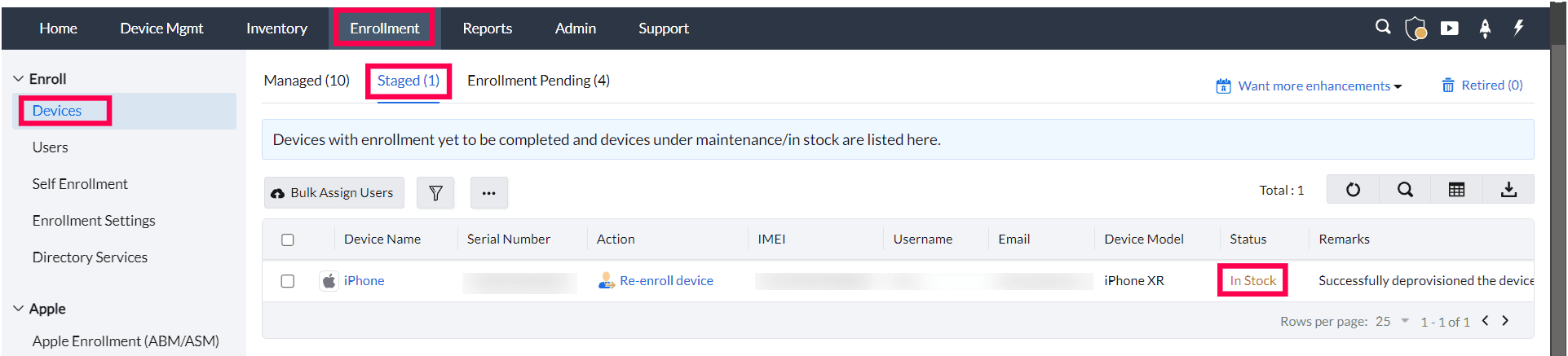
The Staged tab in the MDM Console provides administrators with a centralized location to manage devices that have been pre-configured for enrollment but are not yet fully enrolled in the system. The staging process allows admins to prepare devices in advance, ensuring that they are ready to be quickly enrolled when needed. This is particularly useful for large-scale deployments or when devices are being set up in batches.
Staged Devices
- Displays a list of devices that have been pre-staged for enrollment but are awaiting the final enrollment process.
- Information such as device name, serial number, platform type (iOS, Android, macOS, etc.), username, email, device name, Status and IMEI is displayed for easy management.
Actions on Staged Devcies
- Remove staged devices if they are no longer required for enrollment.
- Bulk Assign or Re-Enroll Device the device to a different user or group if necessary.
Use Cases
- Pre-configuring bulk device deployments: Staging devices before distributing them to employees or students allows for rapid, streamlined enrollment, reducing the time needed to configure each device manually.
- Managing BYOD and COPE setups: Admins can pre-stage devices for users not yet part of the directory, especially in Bring Your Own Device (BYOD) and Corporate-Owned Personally Enabled (COPE) environments.
- Simplifying large-scale roll outs: Schools or organizations deploying hundreds of devices can benefit from pre-staging, as it reduces post-distribution setup effort.
Help Resources
Troubleshooting Page
Encountering issues? Our Troubleshooting page is your go-to resource for resolving common problems quickly and effectively. Whether you're facing device errors, enrollment challenges, or configuration issues, our detailed guides and solutions are designed to help you get back on track with minimal hassle.
How-To Page
Looking for detailed guidance on using ManageEngine MDM features? Our How-To page offers clear, step-by-step instructions on various tasks and processes. From setting up devices to configuring profiles and managing applications, find all the information you need to perform actions efficiently and effectively.
FAQ Page
Got questions? Our FAQ page provides answers to the most frequently asked questions about ManageEngine MDM. Explore topics related to device management, enrollment procedures, and system features.