Last updated: August 14, 2026
Managed Google Play Setting-up - Troubleshooting Tips
This page provides troubleshooting tips for IT administrators who encounter issues while configuring Managed Google Play with the MDM console. It covers common setup errors such as incorrect Android Enterprise configuration details, invalid or insufficient Google Workspace admin credentials, OAuth scope misconfigurations, enterprise account conflicts, device activation loops in the ManageEngine MDM Self Service app, and network connectivity issues preventing the MDM server from reaching required domains — along with their causes and step-by-step resolutions.
The Managed Google Play Setting-up - Troubleshooting Tips provides IT administrators with some common issues encountered while configuring and integrating Managed Google Play with the MDM console.
1. Incorrect details for configuring Android for Work. Retry entering the required values as explained here.
Reason: One or more configuration details entered for Android Enterprise are incorrect or incompatible with your Google Workspace (wrong admin, domain, token, or JSON file).
Resolution: Retry the setup using the correct Google Workspace super-admin and domain, generate a new token if needed, and follow the configuration steps.
2. The entered Domain Admin Account does not have Admin privileges for the domain specified!
Reason: The provided domain account is not a super admin account in the Google Workspace domain. Only accounts with super admin privileges can configure Android Enterprise.
Resolution: Use a valid domain account with super admin privileges for the specified domain. Refer here to identify super admin accounts.
3. Verify the entered Domain Admin Account!
Reason:
- Entered domain account is invalid.
- The account does not exist in the specified Google Workspace domain.
- There is a typo in the email address.
Resolution:
- Make sure you are entering a valid Google Workspace admin account from the correct domain.
- If you are unsure, log in to Google Admin Console using the same account to confirm its validity.
4. You have already signed up with this enterprise.
Reason: The particular account might be bound to another EMM provider
Resolution:
- Open https://play.google.com/work > Navigate to Admin Settings > Click the ellipses icon next to Organization Information.
- Choose Delete Organization and confirm by clicking on delete in the next step.
- On the MDM console, retry configuring Managed Google Play using Google Account.
5. Client is unauthorized to retrieve access tokens using this method, or client not authorized for any of the scopes requested.
Reason: This error occurs when the required OAuth scopes are not assigned to the Client ID in the Google Admin Console under Domain-wide Delegation.
Resolution: Need to add the scope for client id under domain wide delegation following the steps mentioned here.
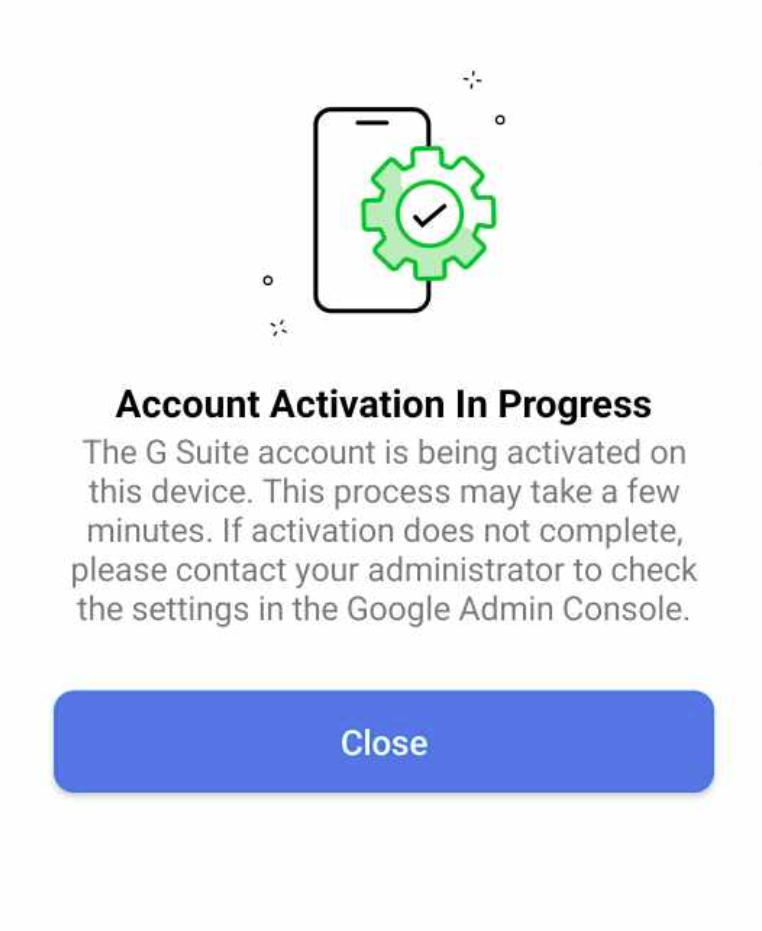
6. Device Activation in Progress screen shown in ManageEngine MDM Self Service app.
Reason:
- On adding a Google Workspace(G Suite) user account in device, Account Activation required notification is shown in device. On clicking the screen, it directs to Device Activation in progress page in ManageEngine MDM Self Service app and loops continuously.
- This could be due to incorrect Google-workspace settings.
Resolution:
- Turn off "Mobile Management" in Google Workspace Admin console
- Navigate to Devices > Mobile and Endpoints > Expand Settings > Select Universal.
- Click General > Mobile management
- Change to Turn off and save.
- Disable Third-party Android mobile management
- Navigate to Devices > Mobile and Endpoints > Expand Settings > Third-party integrations
- Click Android EMM
- Uncheck Enable third-party Android mobile management and save.
Note: The changes will be reflected in the devices in a few minutes. Then, re-add the work account in the device.
7. Unable to reach https://mdm.manageengine.in. Verify network and ensure the domain is allowed-list
Reason: MDM server not able to reach the mentioned url from the machine. This could be due to Misconfigured proxy settings, Incorrect network configuration, or Firewall or security policies blocking access to the required domains.
Resolution:
- Check url accessibility via browser : On the server-installed machine browser, open https://mdm.manageengine.in
- Check url accessibility via Command prompt: Navigate to Command Prompt on the server-installed machine and run the following command:
curl -v https://mdm.manageengine.in
If the connection is successful: You will see a response like HTTP 200 OK, confirming that the URL is accessible and not blocked.
If the connection fails: You will see an error message or timeout, which indicates the network configuration is blocking access. Review and update firewall rules, proxy settings, and allow list policies. Check if any recent changes to network or proxy settings were made.
Frequently Asked Questions
Why does Managed Google Play show "You have already signed up with this enterprise"?
This happens when the Google account is already bound to another EMM provider. Delete the existing organization from the Google Play admin settings, then retry configuring Managed Google Play with that account on the MDM console.
What account is required to configure Android Enterprise with Google Workspace?
You need a Google Workspace domain account with super admin privileges. Accounts without super admin access can't complete the configuration.
Why does the Self Service app (previously ME MDM app) keep showing "Device Activation in Progress"?
This loop is usually caused by incorrect Google Workspace settings. Turn off Mobile Management and disable third-party Android mobile management in the Google Workspace Admin console, then re-add the work account on the device.
How do I check whether the MDM server can reach mdm.manageengine.in?
Open https://mdm.manageengine.in in a browser on the server-installed machine, or run curl -v https://mdm.manageengine.in from a command prompt. An HTTP 200 OK response confirms the URL is reachable; an error or timeout points to a proxy, firewall, or network configuration issue.