Last updated: August 14, 2026
Contacts Sync
This page explains how to configure Contacts Sync on managed iOS devices using the CardDAV policy in MDM. It covers all CardDAV profile settings, including account host name, port, principal URL, and SSL options, and shows how dynamic variables (%email% and %username%) automatically map per-user credentials during enrollment. The page also covers contact synchronization via Exchange ActiveSync, explains why the Global Address List does not sync automatically to the native Contacts app, and describes how users can manually search for and add Active Directory contacts.
You can sync all vital contacts on the managed devices, using your CardDAV account details.
Policy Description
| PROFILE SETTINGS | DESCRIPTION |
|---|---|
| CardDav | |
| Account Display Name | Name to be displayed on account |
| Account Host Name | The CardDav host name or IP address |
| Port | Port to be used for connection |
| Principal URL | The principal URL for the CardDav account |
| Account User Name | The CardDav user name (%username% / %email%) will get the appropriate user name/email address, mapped to the device |
| Account Password | The CardDav password |
| Use SSL | Enabling SSL connection |
Dynamic Variables:
The below mentioned dynamic variables are retrieved from the data, that has been provided while enrolling the device.
- %email% - will get the appropriate email address, mapped to the device
- %username% - will get the appropriate user name, mapped to the device
Sync Contacts via Exchange ActiveSync Policy
You can sync contacts from the end user's Exchange account using the Exchange ActiveSync policy. However, it's important to understand that the Global Address List (GAL) will not sync directly to the iPhone’s native Contacts app.
Accessing the Global Address List (GAL):
Although the Global Address List (GAL) will not automatically sync, users can still search for Active Directory (AD) contacts in the native Contacts app and manually add them.
- Tap “Exchange Global Address List” in the contacts app
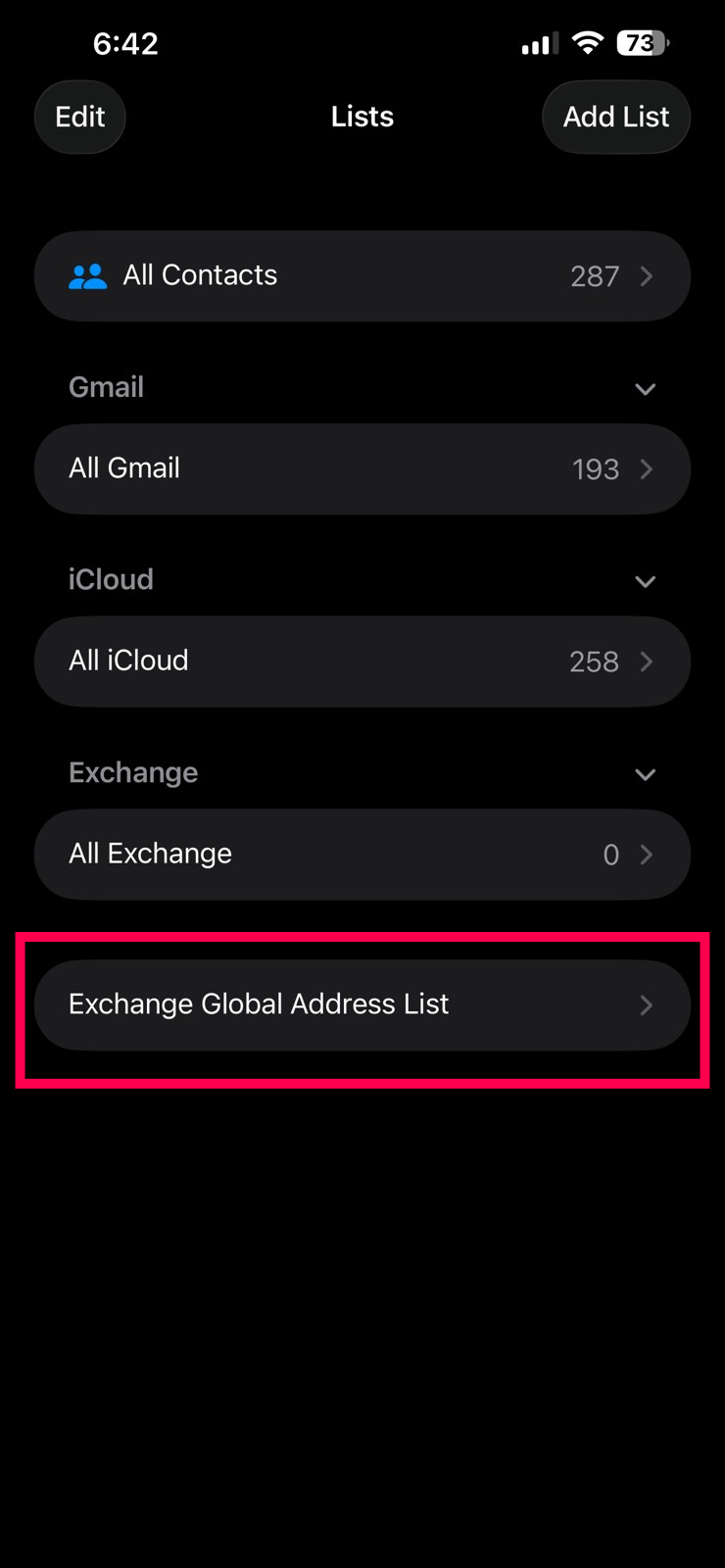
- When the search screen appears, search by last name or first name.
- Select the desired contact from the results and add it to the device’s contacts.
Frequently Asked Questions
- Will the Exchange Global Address List (GAL) sync automatically to the iPhone's Contacts app?
No. When contacts are synced from an end user's Exchange account using the Exchange ActiveSync policy, the Global Address List (GAL) does not sync directly to the iPhone's native Contacts app.
- How do I look up a colleague from the Global Address List on an enrolled device?
Tap "Exchange Global Address List" in the Contacts app, search by the contact's first or last name, then select the desired result to add it to the device's contacts.
- What do the %email% and %username% dynamic variables do in a CardDAV profile?
These variables are retrieved from the data provided while enrolling the device: %email% maps the appropriate email address and %username% maps the appropriate user name, so you don't need to configure a separate CardDAV profile for each user.