Last updated: July 24, 2026
How to create Custom Configuration profiles using ProfileCreator?
This guide explains how to use ProfileCreator on a Mac to build Custom Configuration profiles for policies not natively supported by Mobile Device Manager Plus, producing .mobileconfig or .plist files. Administrators create a new profile, provide a name (later overridden by the MDM profile name), choose and configure the desired policy—optionally using dynamic variables—then save the profile. The resulting XML file is then associated with managed devices through MDM's Custom Configuration profile workflow.
Description
Mobile Device Manager Plus (MDM) uses profiles as a mode to apply policies/configurations to managed devices. MDM supports an extensive set of policies which can be configured and associated with your managed Apple devices. However, with the support for Custom Configuration profiles, you can also configure policies which are currently not supported by MDM. Custom Configuration profiles can be created using third-party tools like ProfileCreator or Apple Configurator, and can be associated with your managed devices using Mobile Device Manager Plus. Follow the steps given below.
- Supported files are:
- .mobileconfig
- .plist
Steps
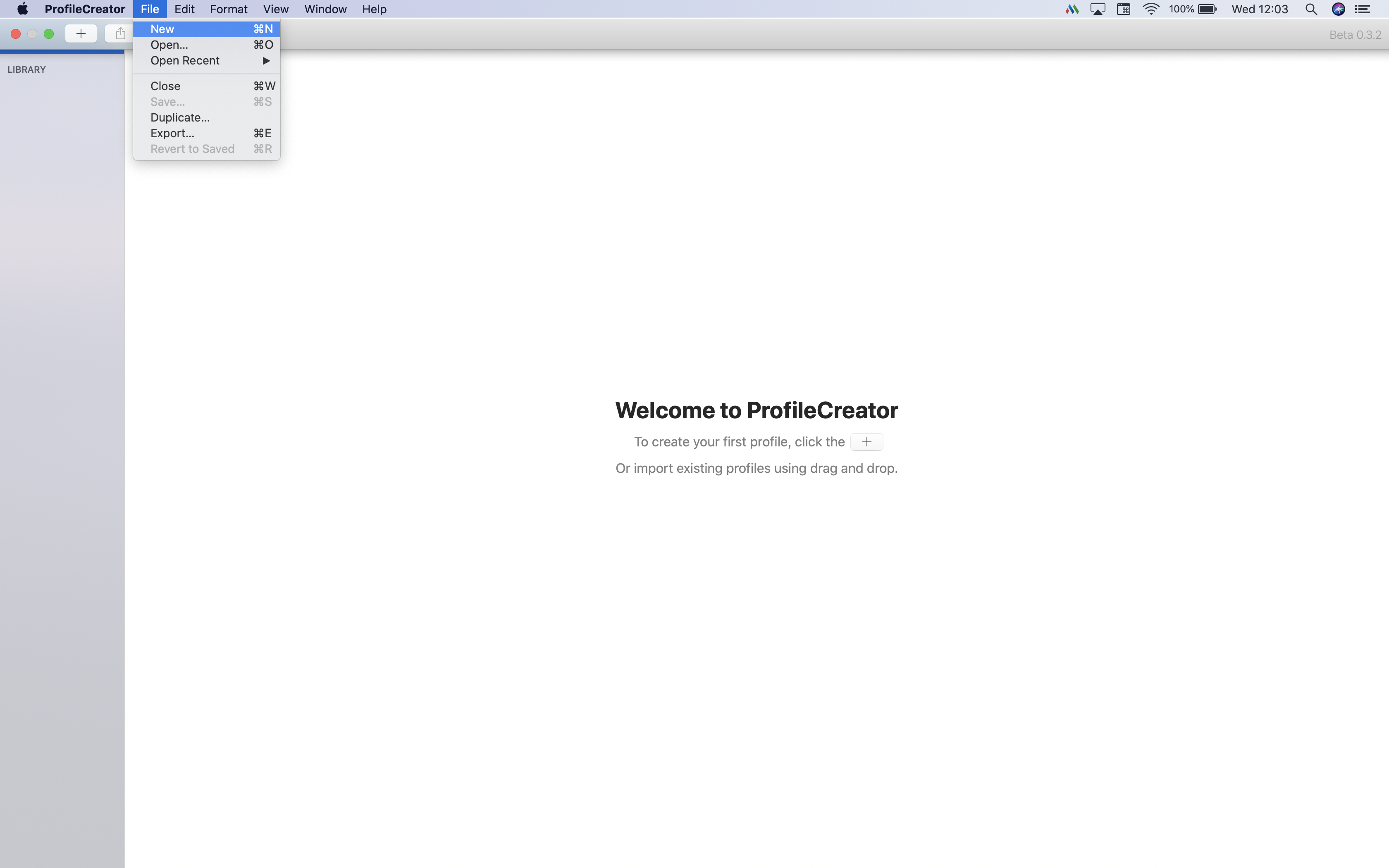
On a Mac machine, open ProfileCreator and go to File -> New.
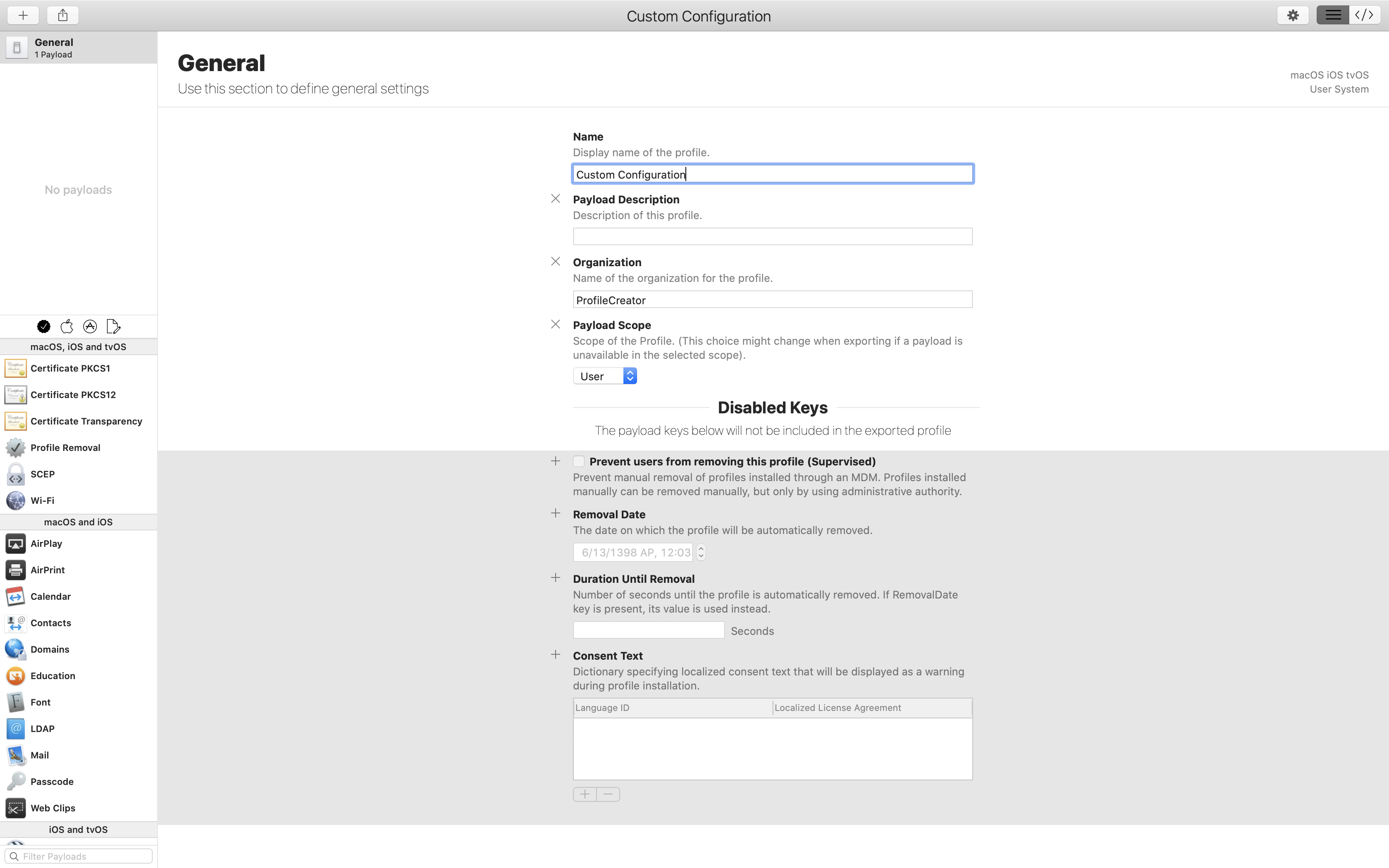
Under the General section, provide the Name of the profile, which is a mandatory field. However, MDM will override this and replace it with the profile name which you subsequently specify on the MDM console.
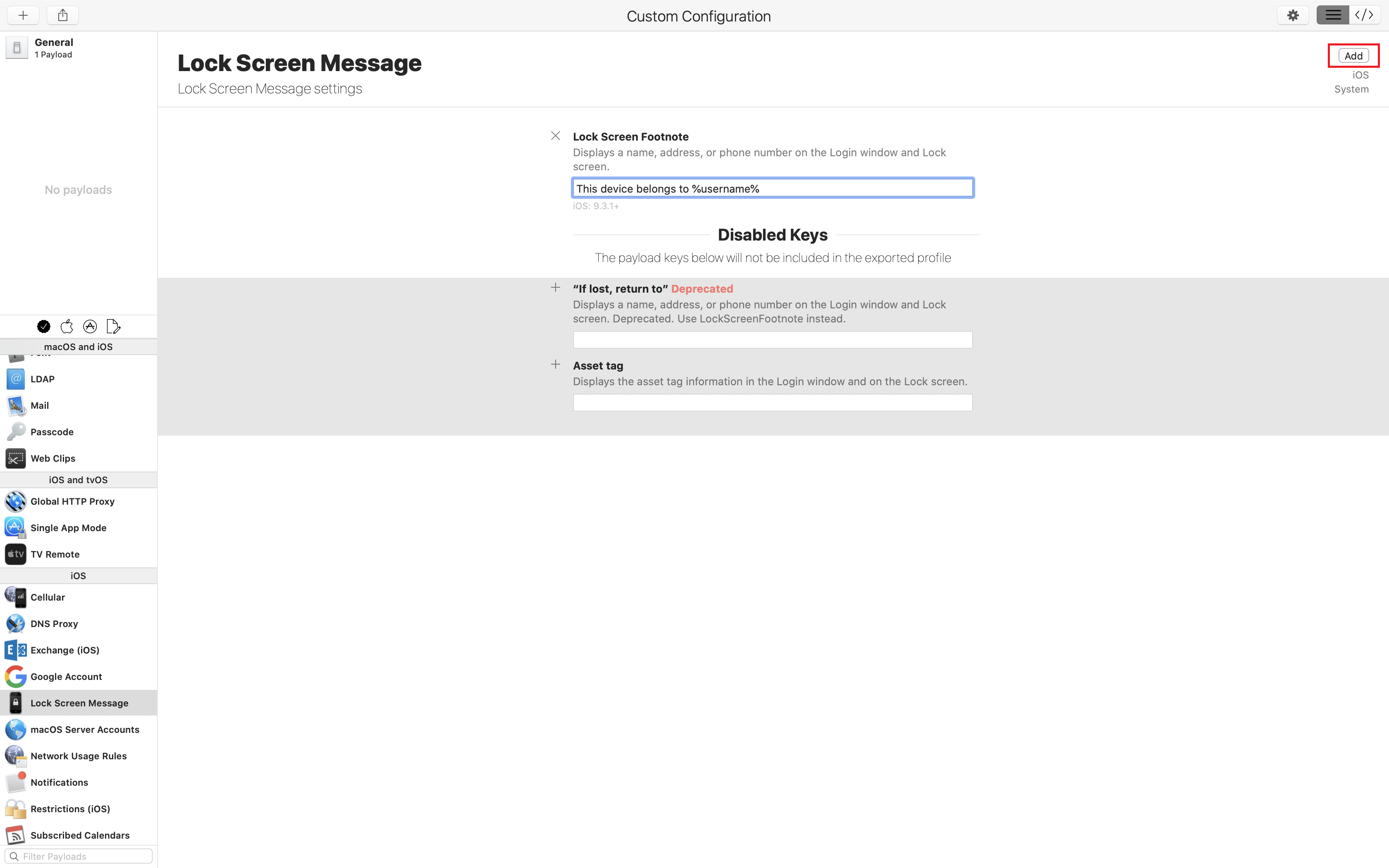
On the left pane, select the policy you want to configure in the custom profile. Here, we have configured a lock screen message involving the use of dynamic variables; to facilitate user-specific configurations, MDM supports the use of dynamic variables. Click here to know more about the supported dynamic variables and their purposes.
Now, configure the policy according to your requirements and click on Add. To configure multiple policies within a single profile, repeat this step.
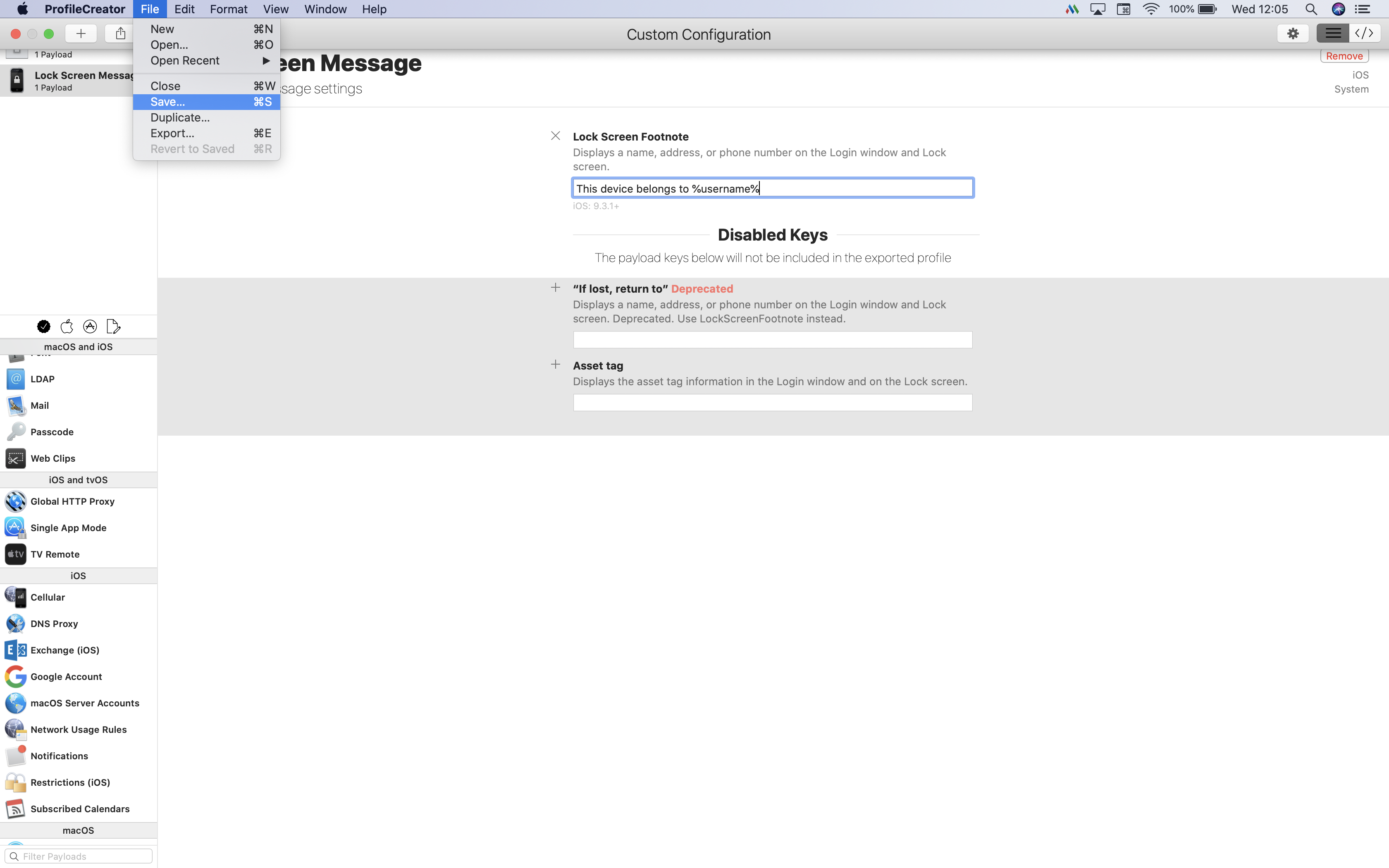
NOTE: It is recommended to configure Custom Configuration profiles only to distribute policies unavailable in MDM.Once done, click on File and Save the profile.
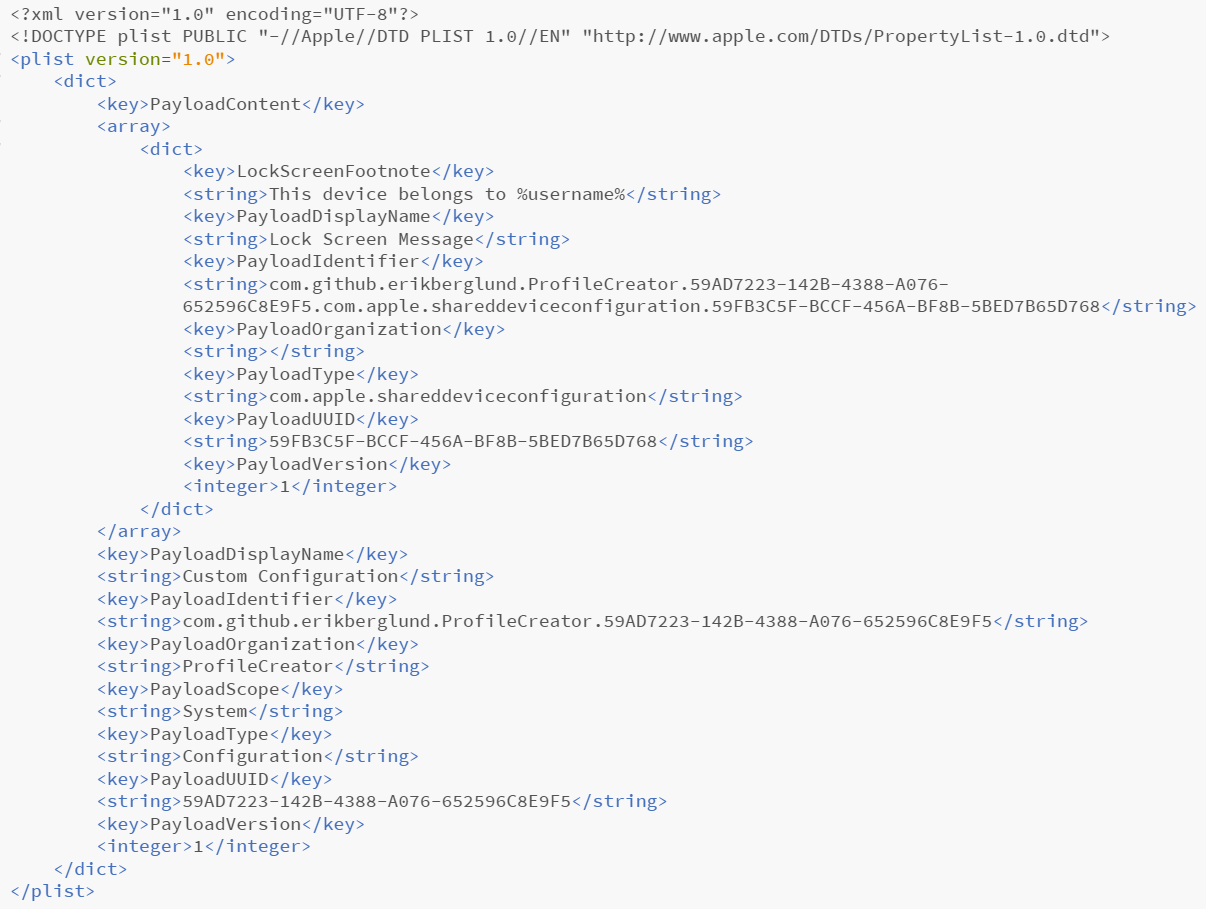
The following is the preview of the created XML file.
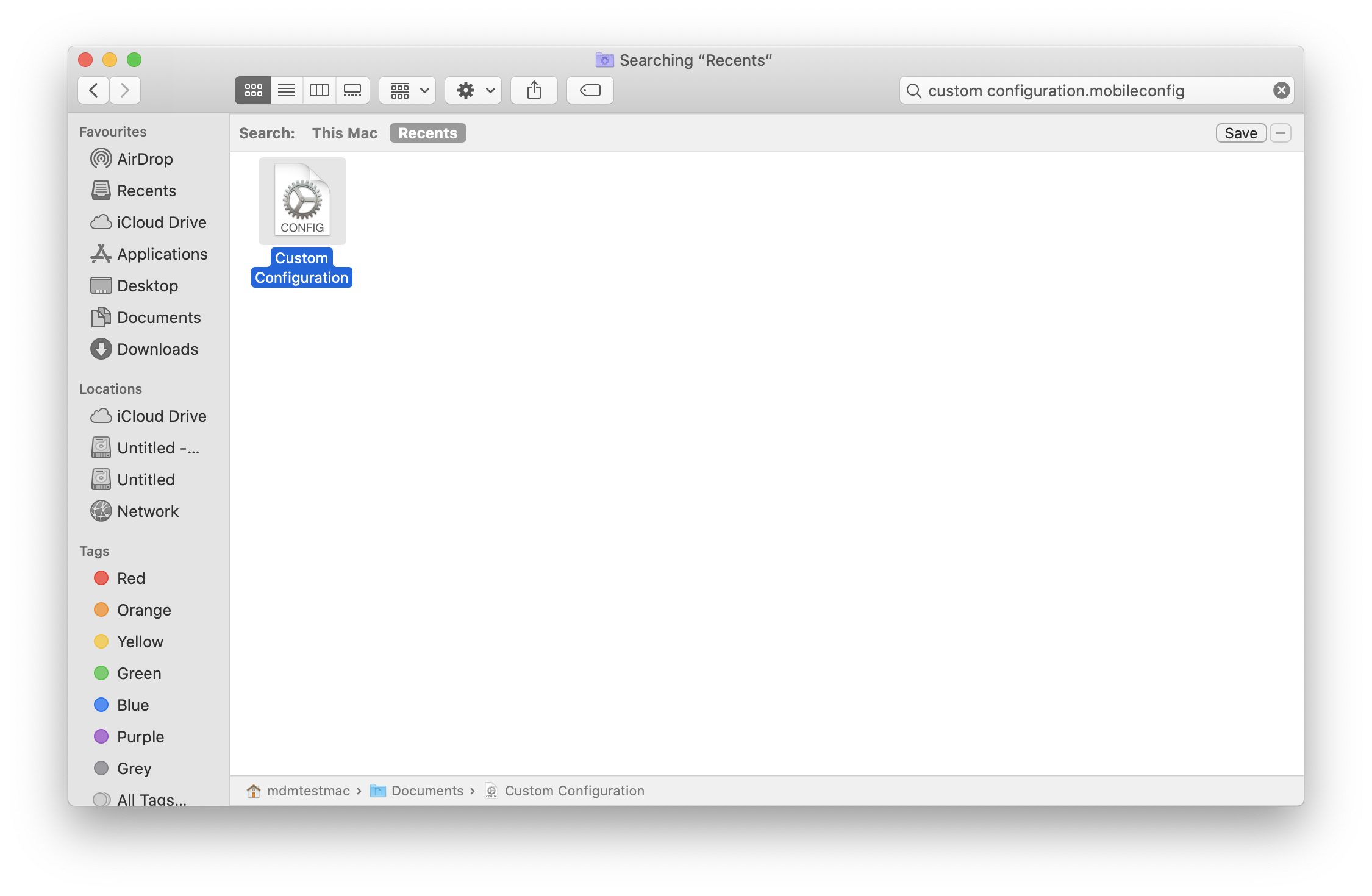
Find the Custom Configuration XML file and follow the steps given here to associate the it with your managed devices using MDM.
For steps to create Custom Configuration profiles using Apple Configurator, click here.
Frequently asked questions
Why would I use ProfileCreator instead of a policy already built into Mobile Device Manager Plus?
ProfileCreator lets you build Custom Configuration profiles for policies that aren't natively supported by MDM. It's recommended only for settings unavailable in the MDM console, since natively supported policies can be configured directly there.
What file formats does a Custom Configuration profile created in ProfileCreator produce?
ProfileCreator saves the profile as a .mobileconfig or .plist file, which you then upload and associate with managed devices through MDM's Custom Configuration profile workflow.
Does the profile name I enter in ProfileCreator matter?
Not really. MDM overrides whatever name you enter in ProfileCreator's General section and replaces it with the profile name you specify on the MDM console.