Last updated: July 24, 2026
How to identify 32-bit iOS apps?
Since iOS 11 and later no longer support 32-bit apps and Apple provides no built-in way to identify them, this guide explains a workaround: on a device running iOS 10.3, check Settings > General > About > Applications, where App Compatibility lists all installed 32-bit apps that will stop working after upgrading. Alternatively, distributing an app to a device on iOS 11 or later and seeing a compatibility warning confirms it is a 32-bit app; affected apps should be updated by their developers or kept on devices restricted to iOS 10.3 or earlier.
Description
With iOS devices running iOS 11 or later versions no longer supporting 32-bit apps, you cannot use MDM to distributed and/or install 32-bit iPhone apps or 32-bit iPad apps. Apple currently doesn't provide any method for identifying such apps. However, there is a workaround for identifying 32-bit apps using the device.
Steps
- On an iOS device running 10.3, click on Settings and select the option General.
- Click on About and select Applications.
- Under the section App Compatibility, a list of apps will be shown. These are the 32-bit apps which will be no longer compatible on iOS devices running iOS 11.0 or later versions.
In case your organization is exceedingly dependent on such apps, you should notify the developers involved to upgrade the apps. The other way is to have the devices run the compatible OS version i.e. 10.3 or lesser versions by restricting OS updates as explained here.
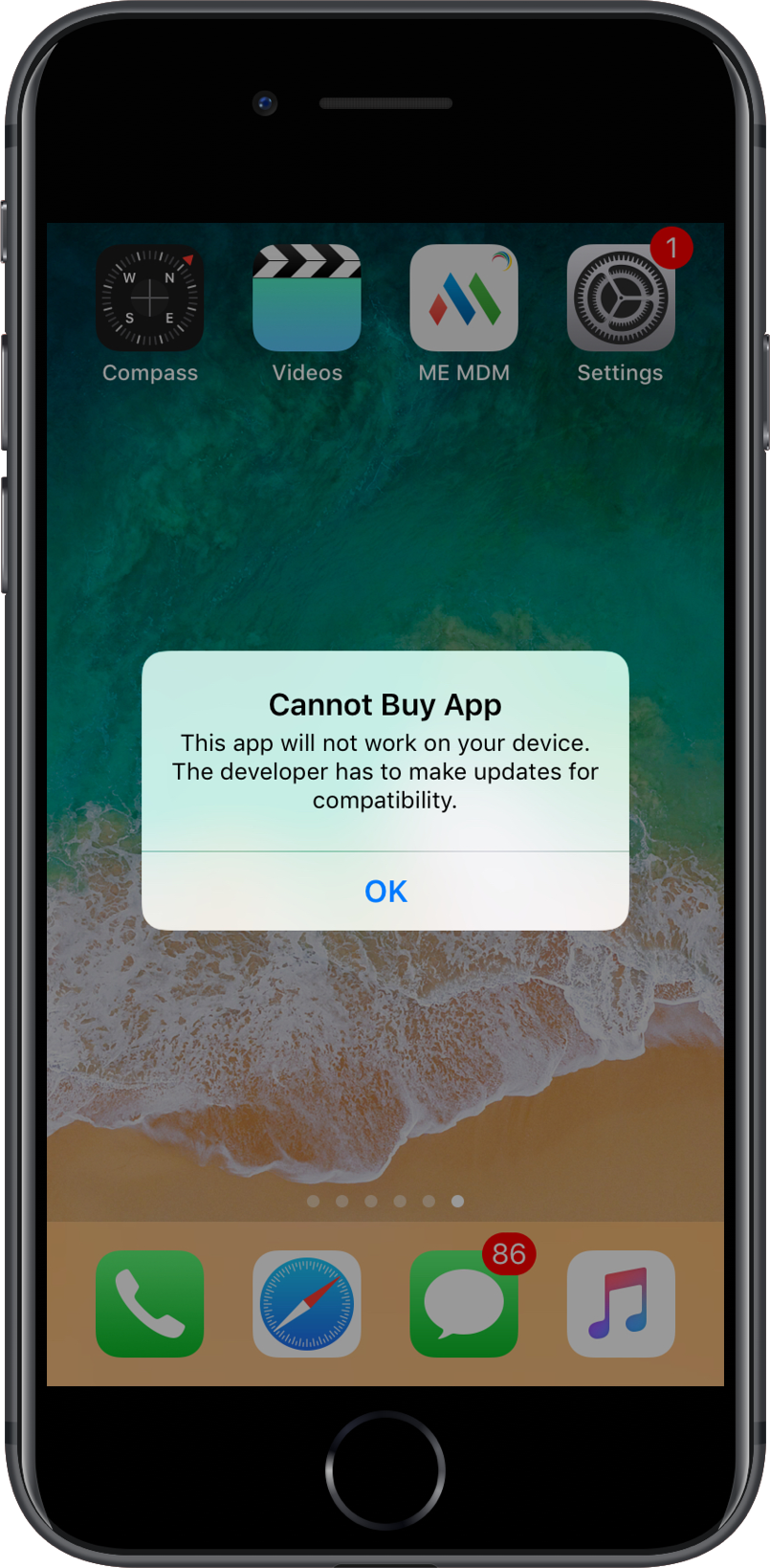
If you do not have such a device, distribute the particular app to an iOS device running 11.0 or later versions. If the following message is shown, then the app is a 32-bit app.
Frequently asked questions
How can I tell which of my apps are 32-bit since Apple doesn't provide a way to check?
On a device still running iOS 10.3, go to Settings > General > About > Applications - the App Compatibility list shows every 32-bit app that will stop working once the device is upgraded to iOS 11 or later.
What if I no longer have a device running iOS 10.3?
Distribute the app to a device running iOS 11 or later; if a compatibility warning message appears when installing it, the app is a 32-bit app.
What should I do about apps identified as 32-bit?
Notify the app's developer to release a 64-bit update, or keep the affected devices on iOS 10.3 or earlier by restricting automatic OS updates until the app is updated.