Last updated: July 24, 2026
How to migrate from an Android Enterprise account to another?
This guide explains how to migrate from a test Android Enterprise account to an official enterprise account without recreating the setup from scratch. Admins log into the Play for Work portal, invite a new (preferably corporate) admin account, accept the invitation, then delete the old account. Syncing Play Store apps in MDM afterward fetches the updated admin account, and the new admin must re-accept the Managed Google Play terms of service.
Description
After using a test account to try out the Android for Work features, you might want to shift to the official enterprise account for proper management. Instead of creating a new account from the beginning, you can simply migrate to your enterprise account. Follow the steps given below to migrate your account.
Steps
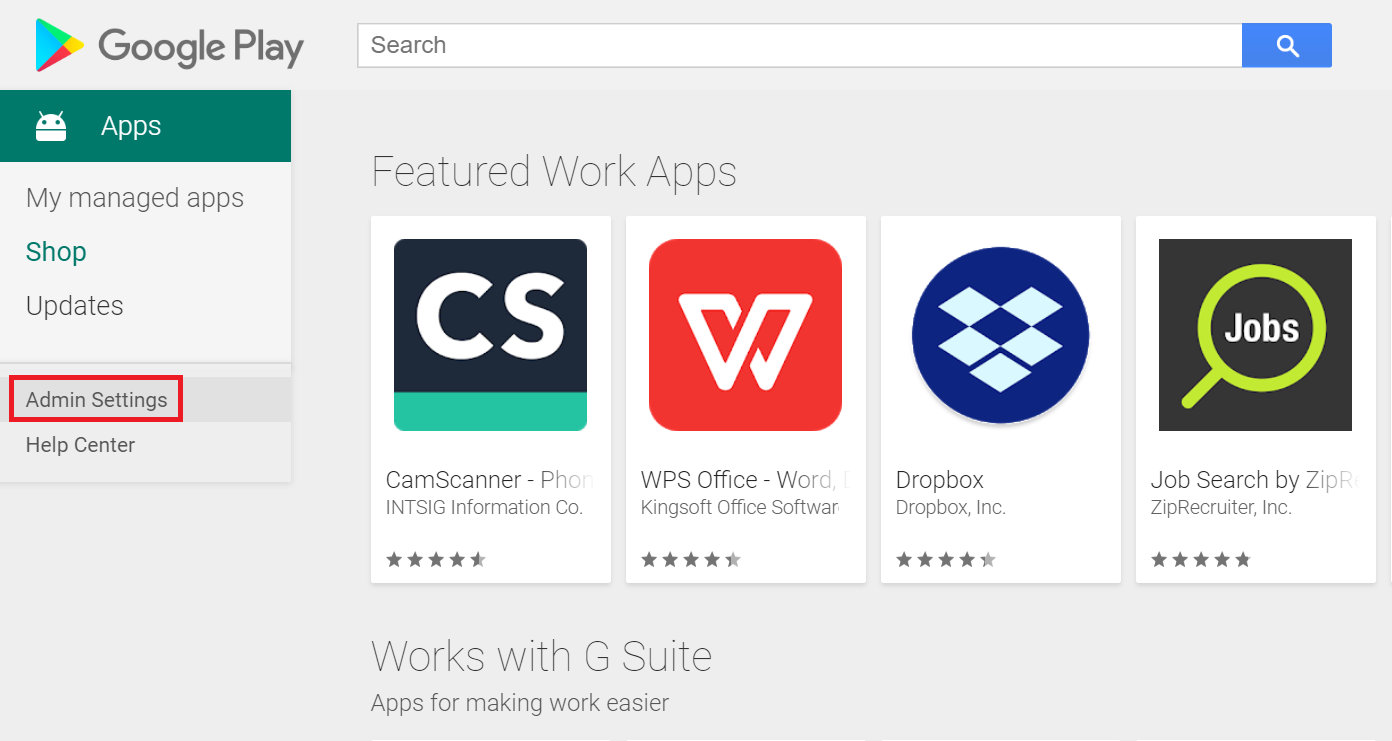
- Log into the Play For Work portal with the Google account previously used for configuring AFW and go to Admin Settings.
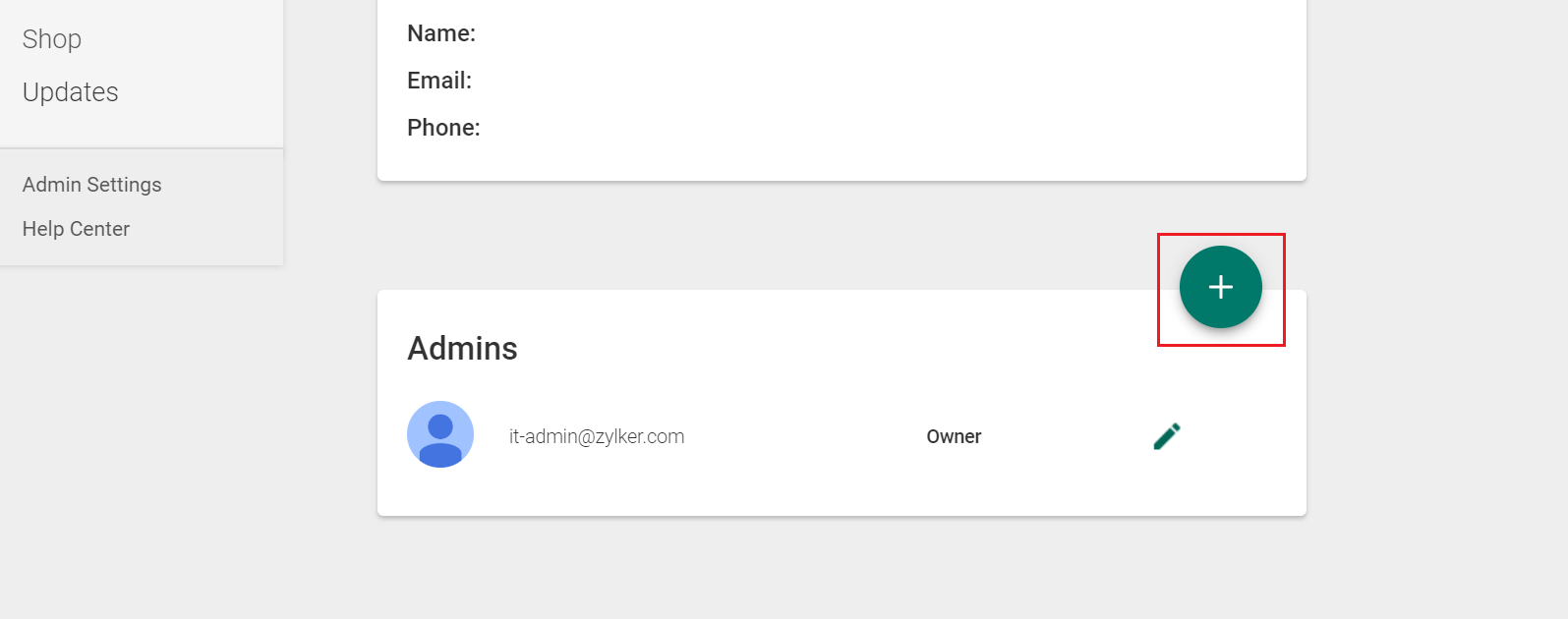
- At the bottom, click on the + button next to Admins to add a new user.
- Enter the new account and click on Invite. It is recommended to use a corporate account than a personal one.
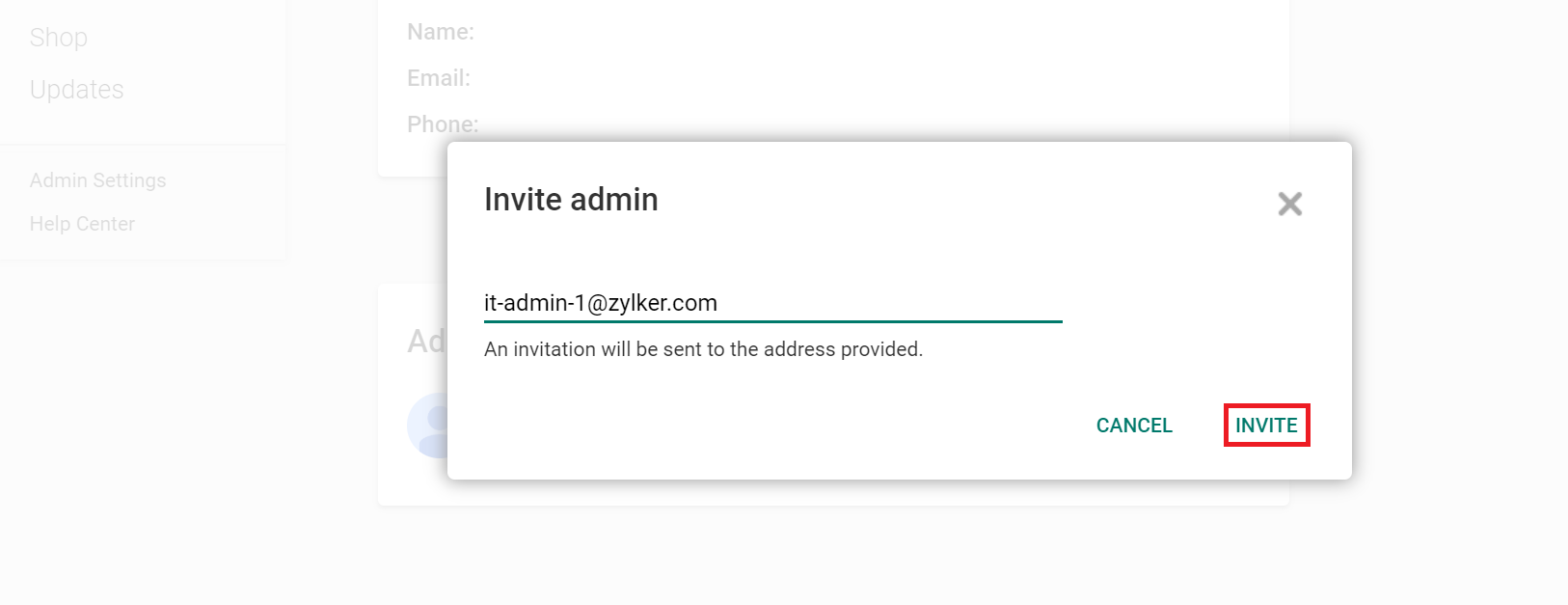
An invitation email will be sent to the specified email ID, and the Admin must accept this invitation to begin the admin account migration process.
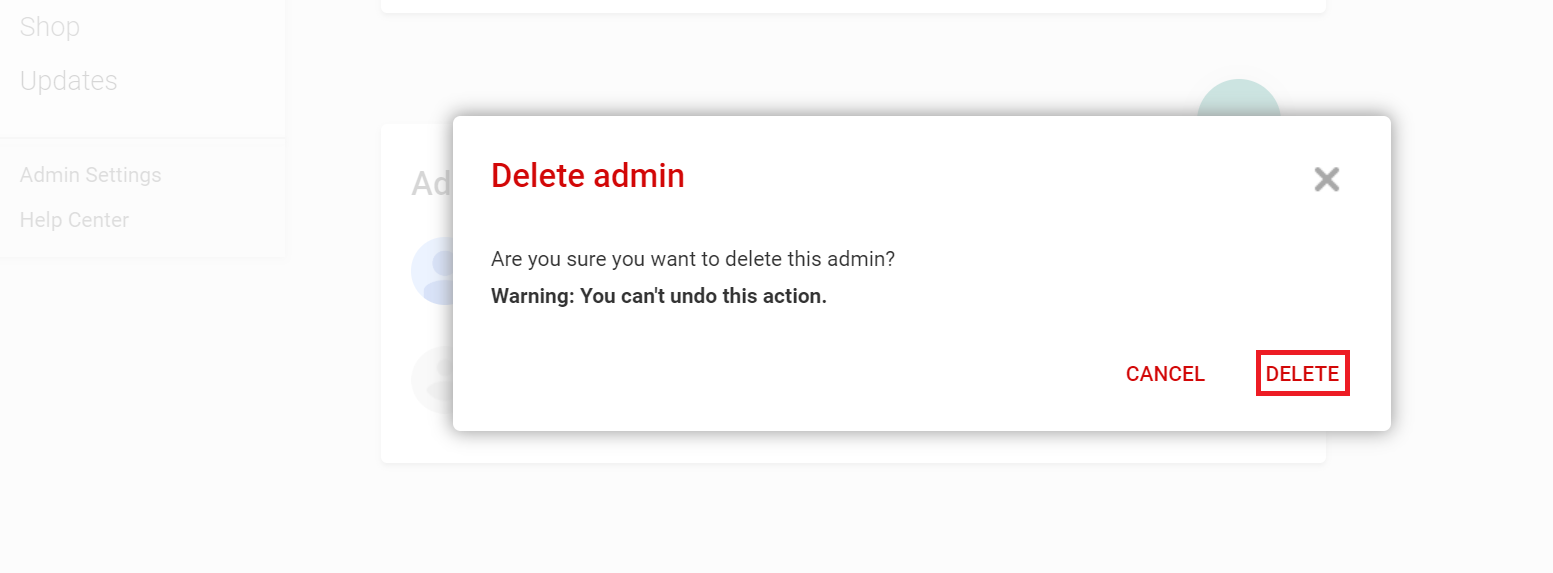
- You can choose to Delete the previously used Google account, under Edit admin.
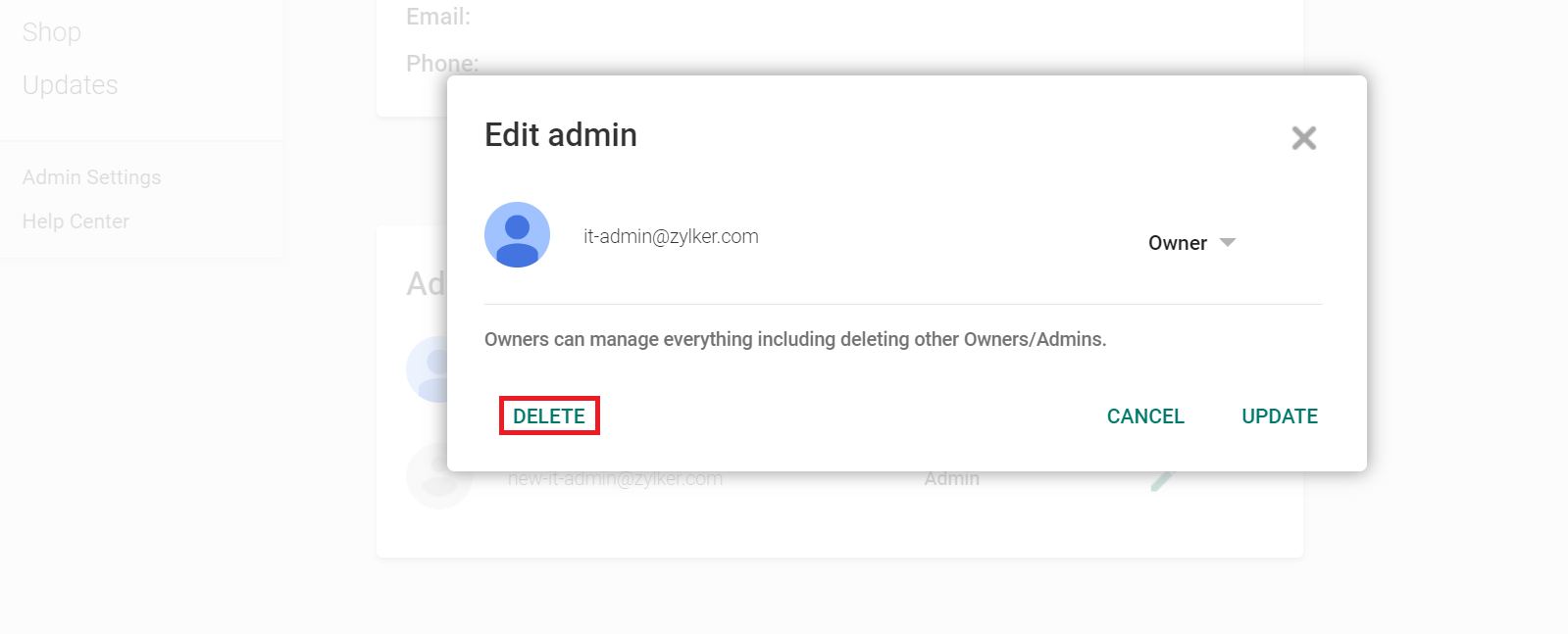
- Confirm action by choosing Delete again to ensure the previous account is removed.
Navigate to MDM > App Repository > Sync Apps > Sync Playstore Apps. This will fetch the latest updated admin account.
Note: When Managed Google Play Admin account is migrated to a different user, the Managed Google Play terms of service need to be accepted again by the new user.
Frequently asked questions
Why would I need to migrate to a new Android Enterprise account?
If you used a test account to try out Android for Work features, you'll eventually want to shift to your official enterprise account for proper long-term management, without having to recreate the AFW setup from scratch.
How do I add the new admin account during migration?
In the Play For Work portal, go to Admin Settings, click the + button next to Admins, enter the new (preferably corporate) account, and click Invite. The invited admin must accept the invitation to begin the migration.
What happens after I sync apps in MDM following the migration?
Navigating to Device Mgmt > App Repository > Sync Apps > Sync Playstore Apps fetches the newly migrated admin account, and the new admin must re-accept the Managed Google Play terms of service.