Last updated: July 24, 2026
How to obtain iOS device logs using Console application in Mac machines?
This guide explains how to obtain iOS device logs using the Console application on a Mac to help MDM support troubleshoot issues. Connect the device via USB, select it under Messages in Console, reproduce the issue so it gets logged, then select and copy the relevant log entries, paste them into a text file, save it, and email the file to MDM support.
Description
In certain cases, MDM support technicians might require the logs of the managed devices to troubleshoot issues. You can obtain iOS device logs using Console application as explained below:
Steps
- On a Mac machine, go to Spotlight search (Command+Space) and search for Console. Select Console application from the search results.
- Connect the device whose logs are to be taken, via USB.
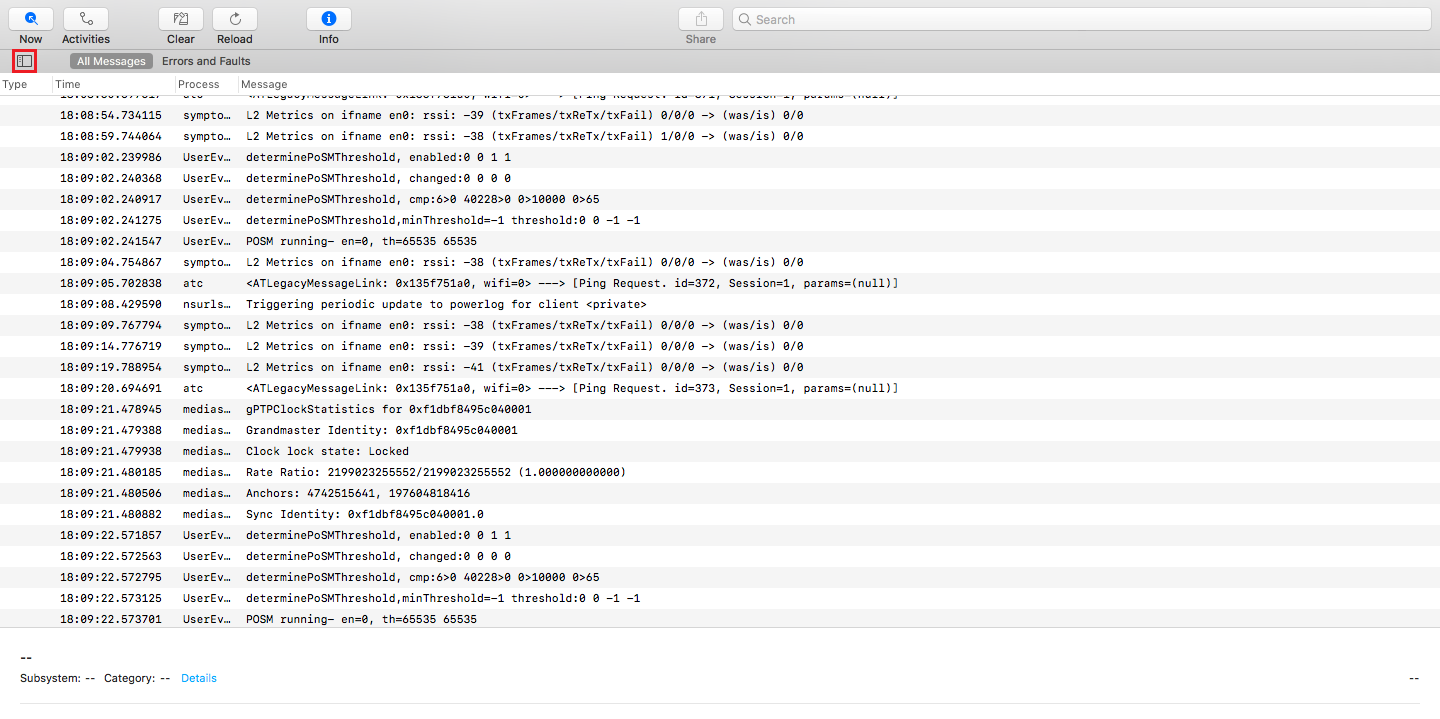
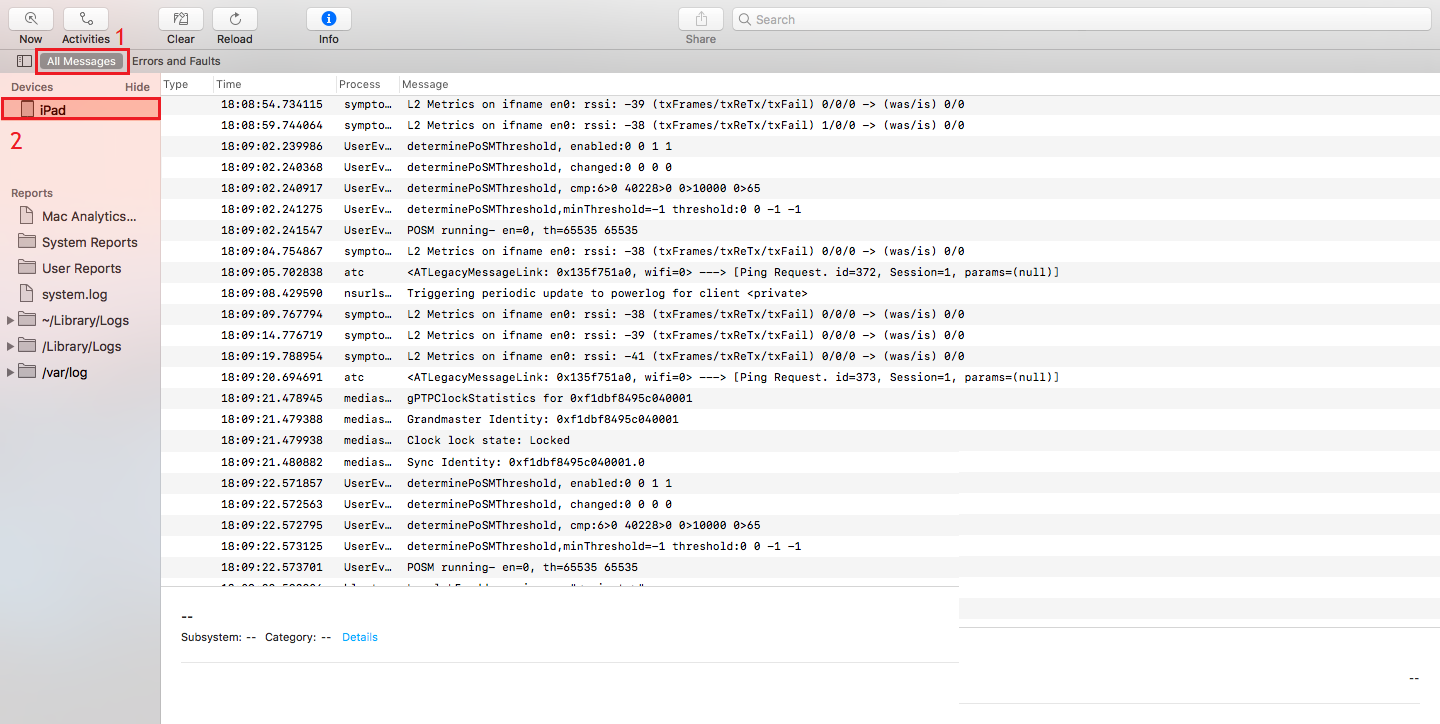
- Once opened, click on the button next to Messages as shown below to expand the left pane. Once done, click on Messages and select the device which has been connected.
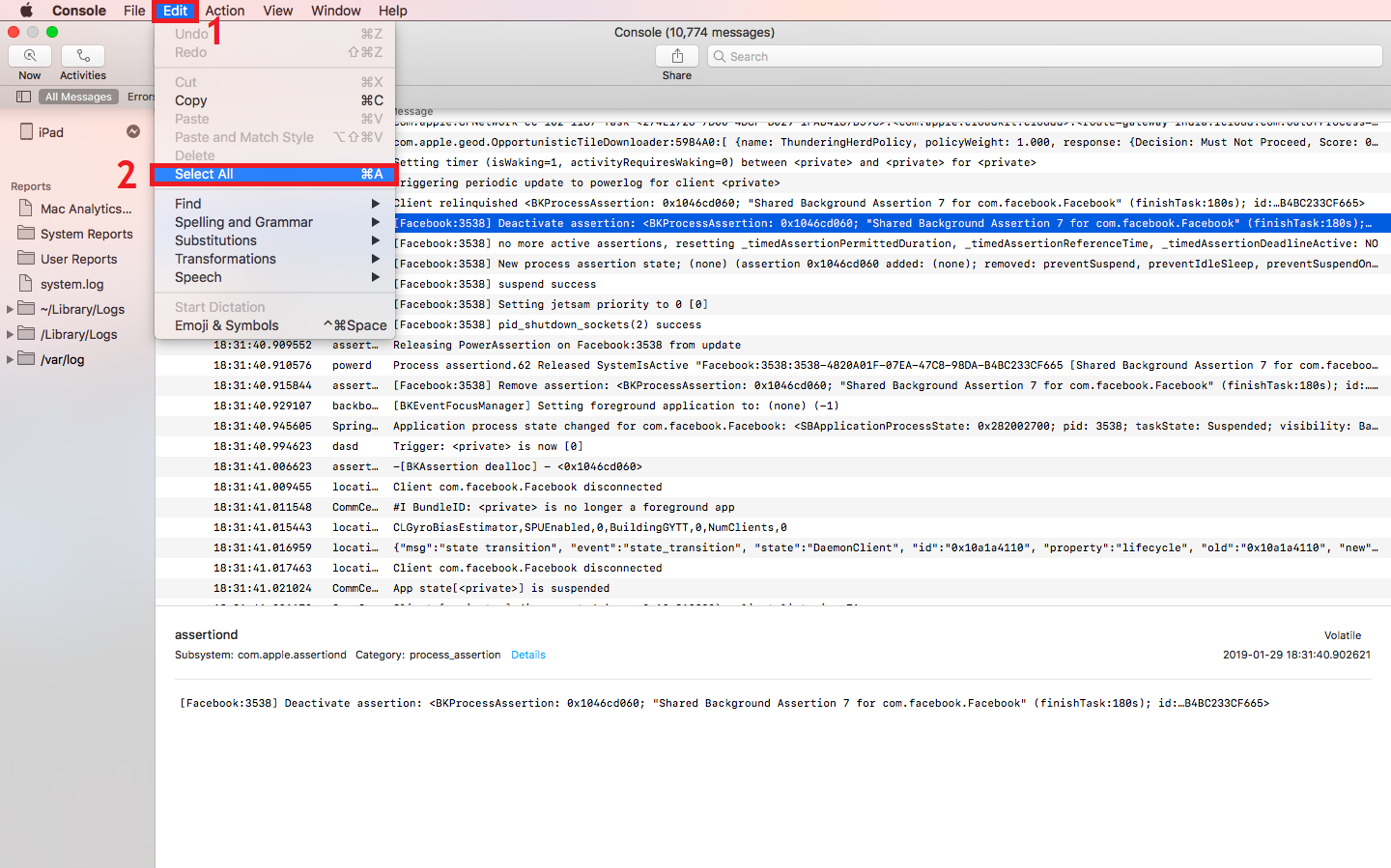
- Now reproduce the issue as the application logs the entire activity. Once done, click on one of the log entries and then click on Edit and then click on Select All from the dropdown.
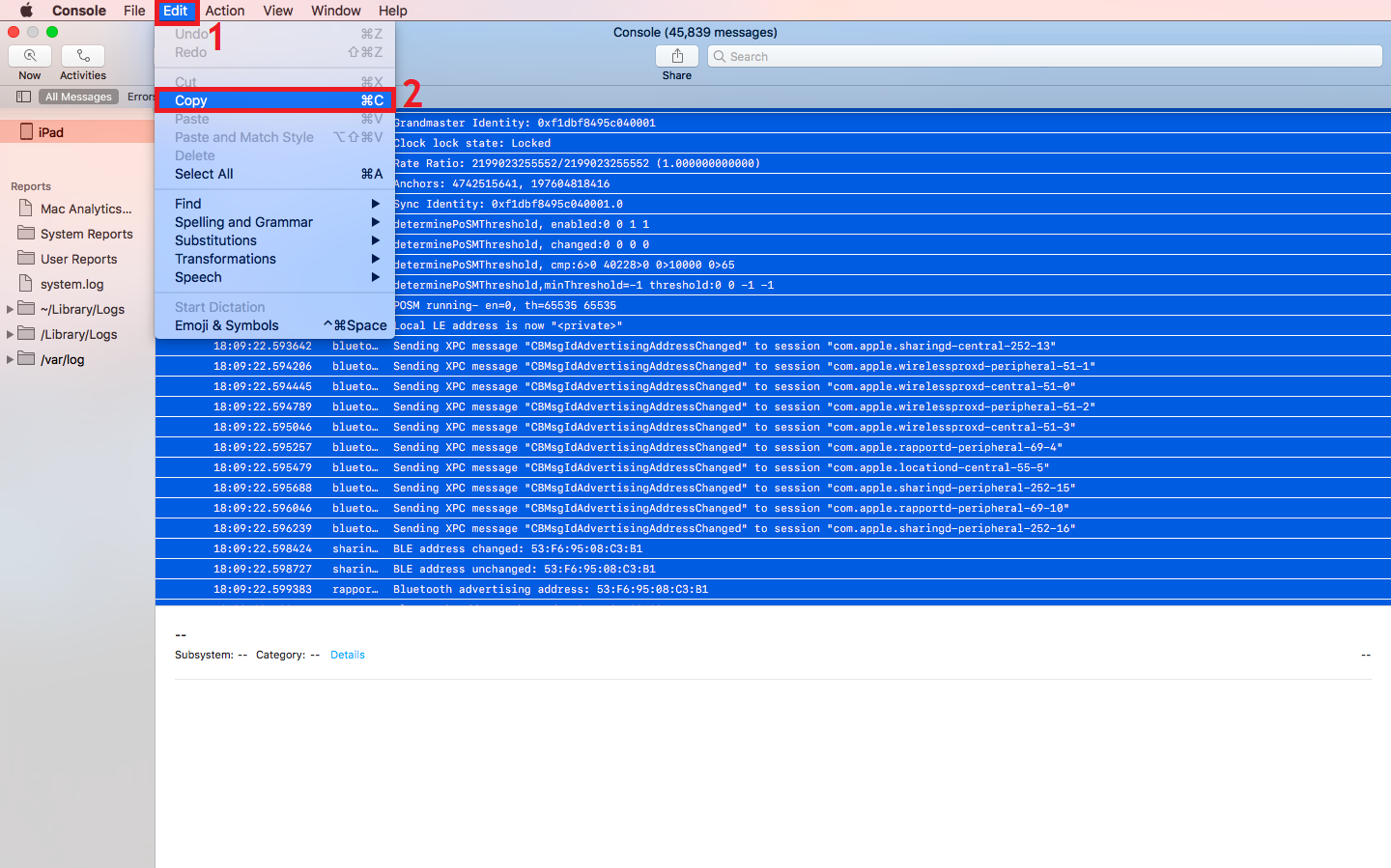
- Once the requisite log entries are selected, click on Edit again and select Copy.
- Now open a new text file and paste the copied contents.
- Once done, Save the file and mail the same to MDM Support team(mdm-support@manageengine.com) or MDM Cloud Support team(mdmcloud-support@manageengine.com)
Frequently asked questions
Where do I find my connected iOS device in the Console app?
Expand the left pane next to Messages, click Messages, and select the device you connected via USB.
How do I capture log entries for a specific issue I'm troubleshooting?
Reproduce the issue on the device while Console is open so it gets logged, then click a log entry, choose Edit > Select All, and Edit > Copy to grab the relevant entries.
Where do I send the saved log file?
Paste the copied entries into a text file, save it, and email it to the MDM Support team (mdm-support@manageengine.com) or the MDM Cloud Support team (mdmcloud-support@manageengine.com).