Last updated: July 24, 2026
How to Validate and Secure NDES Certificate Template Permissions?
This guide helps administrators validate and secure the NDES certificate template used for issuing SCEP certificates to mobile devices. It covers identifying the template via the Windows registry, reviewing its Security tab to ensure only the NDES service account has Enroll permissions, restarting IIS to apply changes, auditing issued certificates to confirm they were requested only by the NDES account, revoking any unauthorized certificates, and confirming the AD CS template review in the MDM console.
Overview
When integrating ADCS certificate templates into MDM to deploy user certificates to mobile devices, it is important to review the PKI deployment and certificate template permissions to ensure that certificates are issued only for authorized purposes and through authorized sources. The following steps will help validate that your existing ADCS certificate templates are securely configured.
Identify the Template Used by NDES
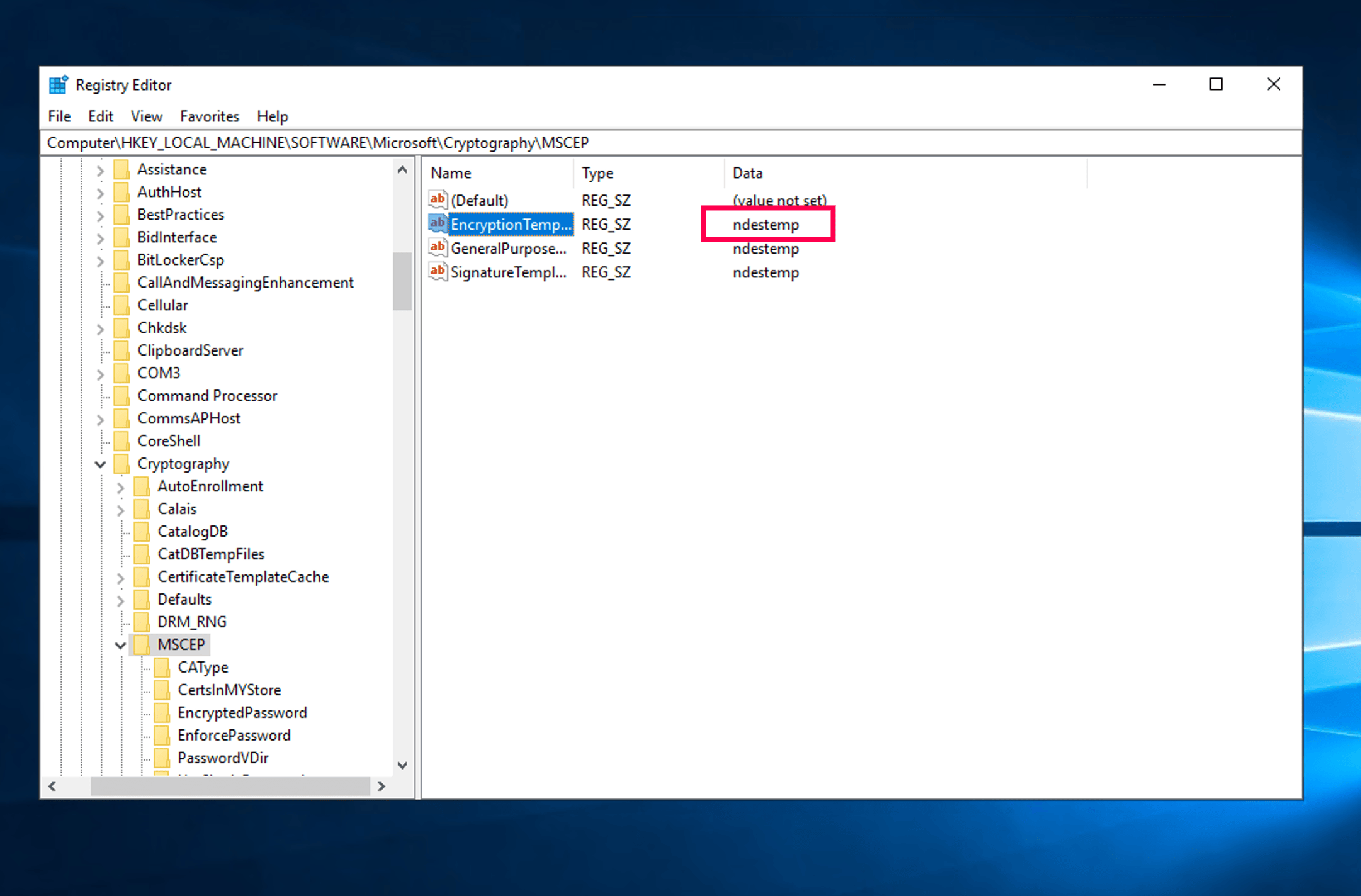
- Open Registry Editor (
regedit.exe) and navigate to:HKEY_LOCAL_MACHINE\SOFTWARE\Microsoft\Cryptography\MSCEP - Check the values for EncryptionTemplate, GeneralPurposeTemplate, and SignatureTemplate.
- Note the template name listed under the Data column (e.g., ndestemp).
Open the Certificate Templates Console and Locate the Template
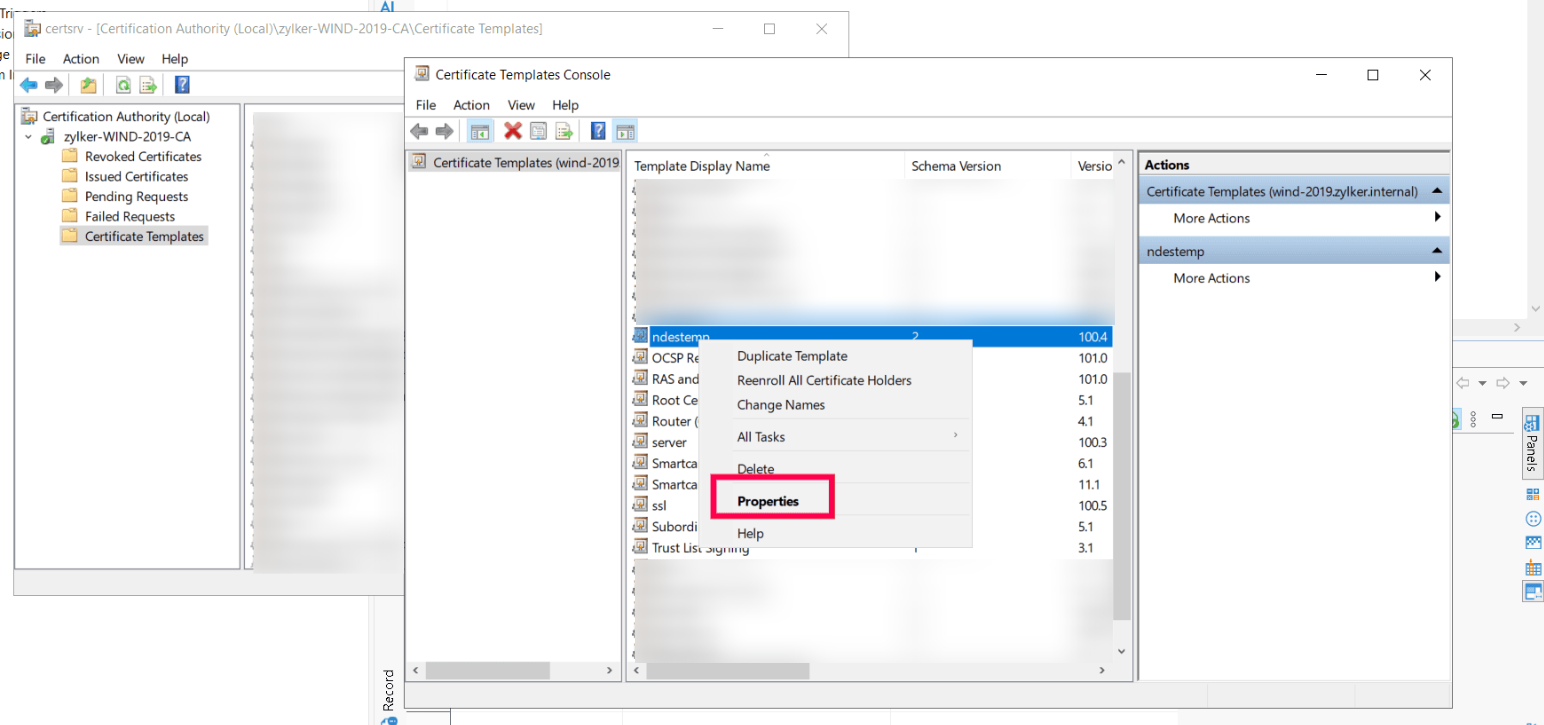
- Open the Certification Authority console (
certsrv.msc). - Right-click Certificate Templates and select Manage.
- Locate the template name identified from the registry, right-click it, and choose Properties.
Validate Security Permissions
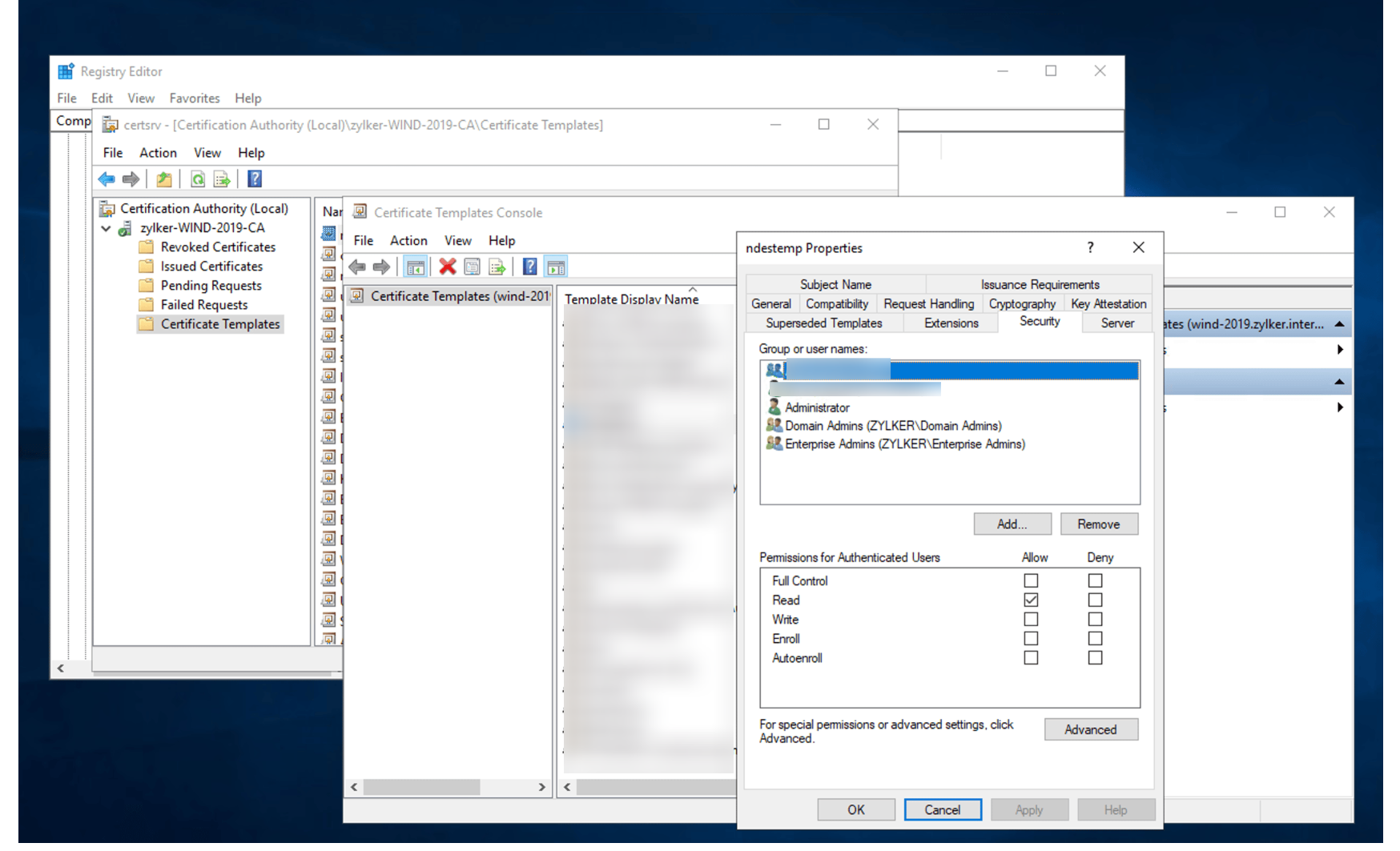
- Open the Security tab.
- Review all Group or user names and ensure:
- Only the NDES service account has Enroll permissions.
- Broad groups do not have Enroll permissions (e.g., Domain Users, Authenticated Users, or other large groups).
- Administrative groups have only the minimum required permissions (typically Read).
- Remove or uncheck any unnecessary Enroll / Autoenroll permissions.
Apply the Updated Permissions
- Click Apply, then OK.
- Close the Certificate Templates management window.
Restart IIS to Apply Changes
- Open Command Prompt or PowerShell as Administrator.
- Wait for IIS to restart successfully, then verify that SCEP/NDES is accessible again.
For more information on securing NDES certificate templates, refer to the official Microsoft documentation .
Audit Issued Certificates for the NDES Templates
After confirming that the NDES template is correctly configured and restricted, audit the Certification Authority to ensure certificates are issued only to the NDES service account.
Open the Certification Authority Console
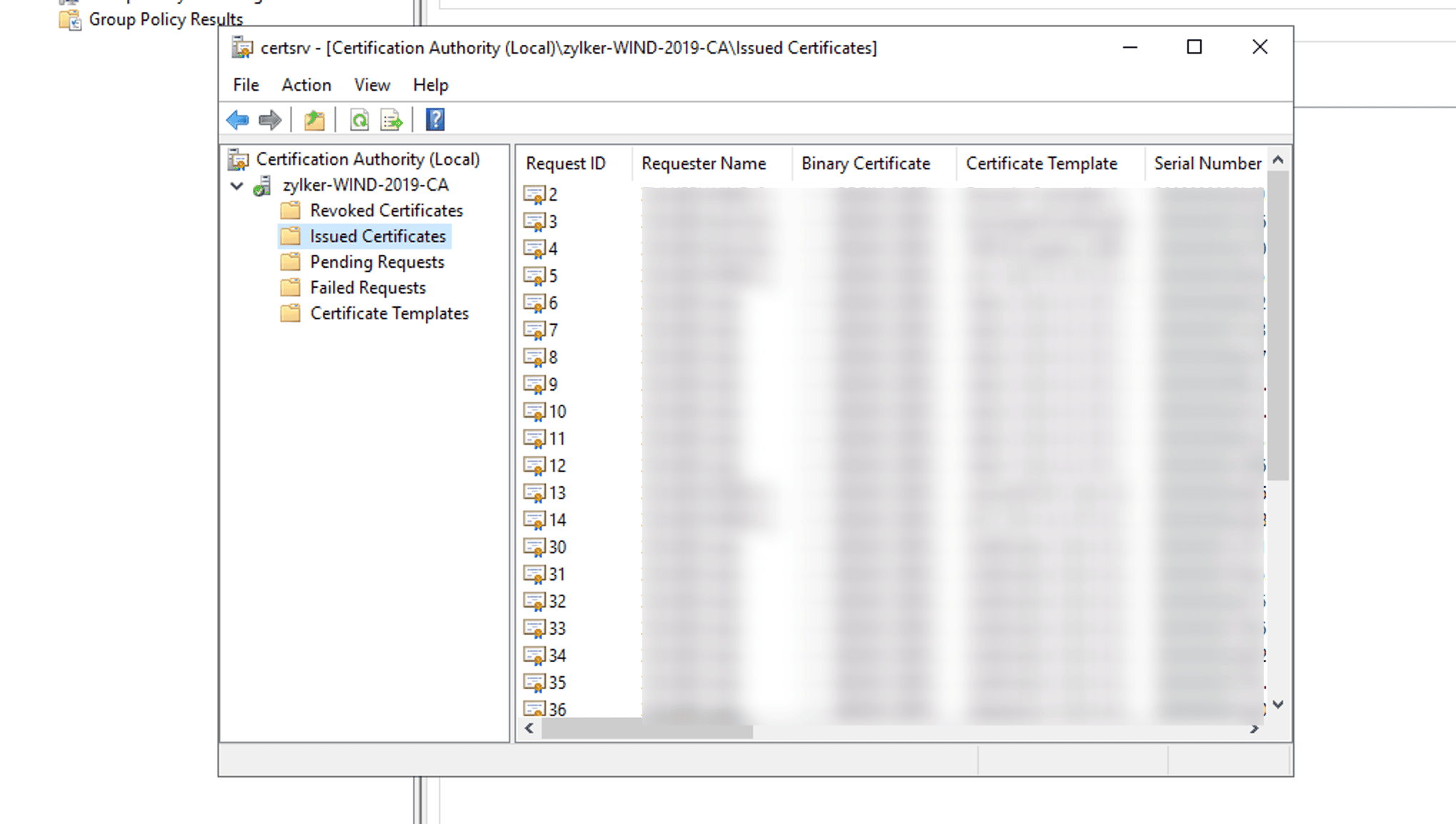
- Launch certsrv.msc on the CA server.
- Expand the Certificate Authority node.
- Select Issued Certificates.
Validate the Requester Account
For each certificate issued using the NDES template:
- Check the Requester Name column.
- Ensure it matches the NDES service account (e.g., DOMAIN\ndes).
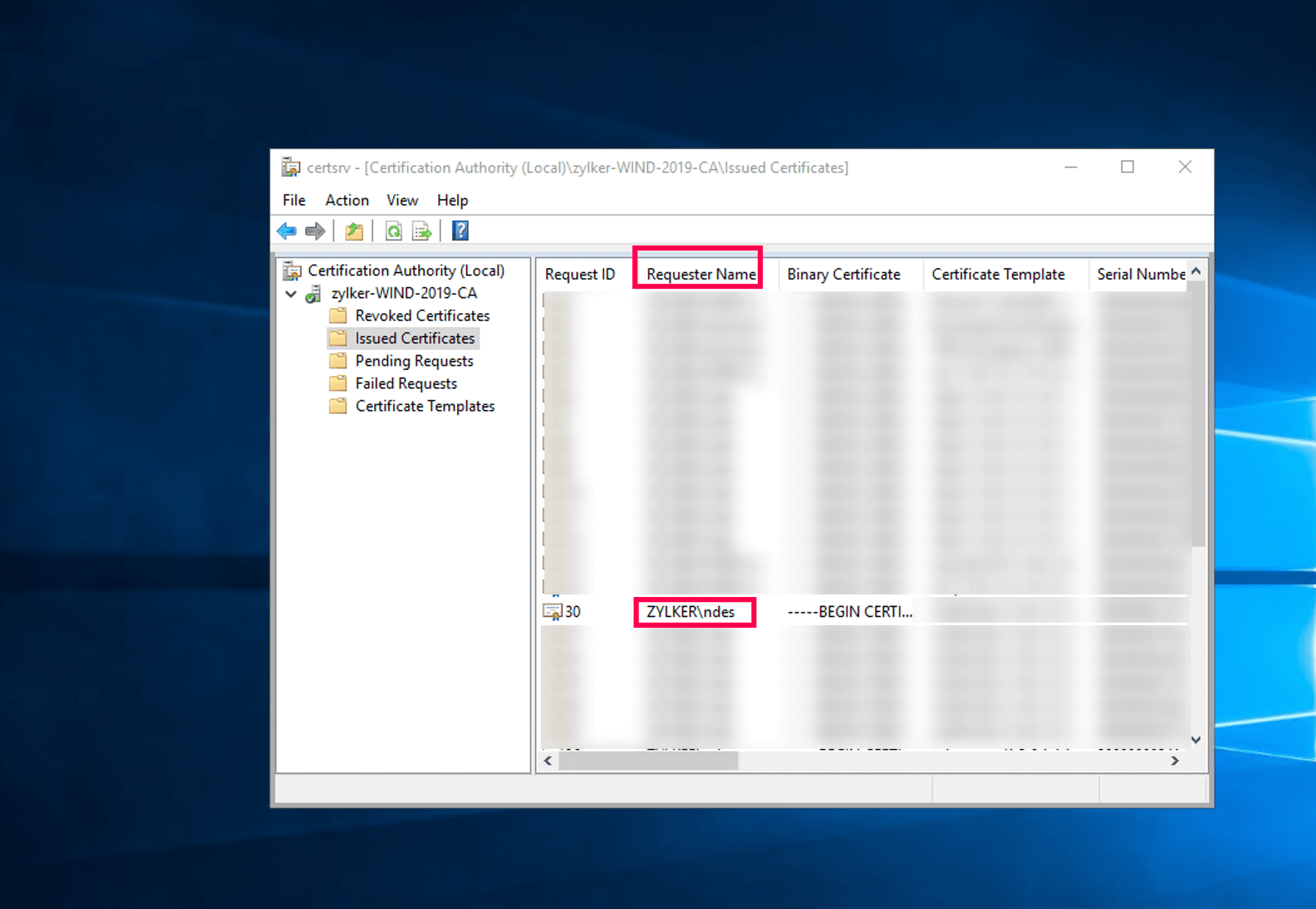
If certificates were requested by any users other than the intended NDES account, then the template permissions are overly permissive. Investigate and address immediately.
Revoke Unintended Certificates
If any unissued certificates are found:
- Right-click the certificate entry.
- Choose All Tasks → Revoke Certificate.
- Select a revocation reason (e.g., Unspecified).
- Confirm.
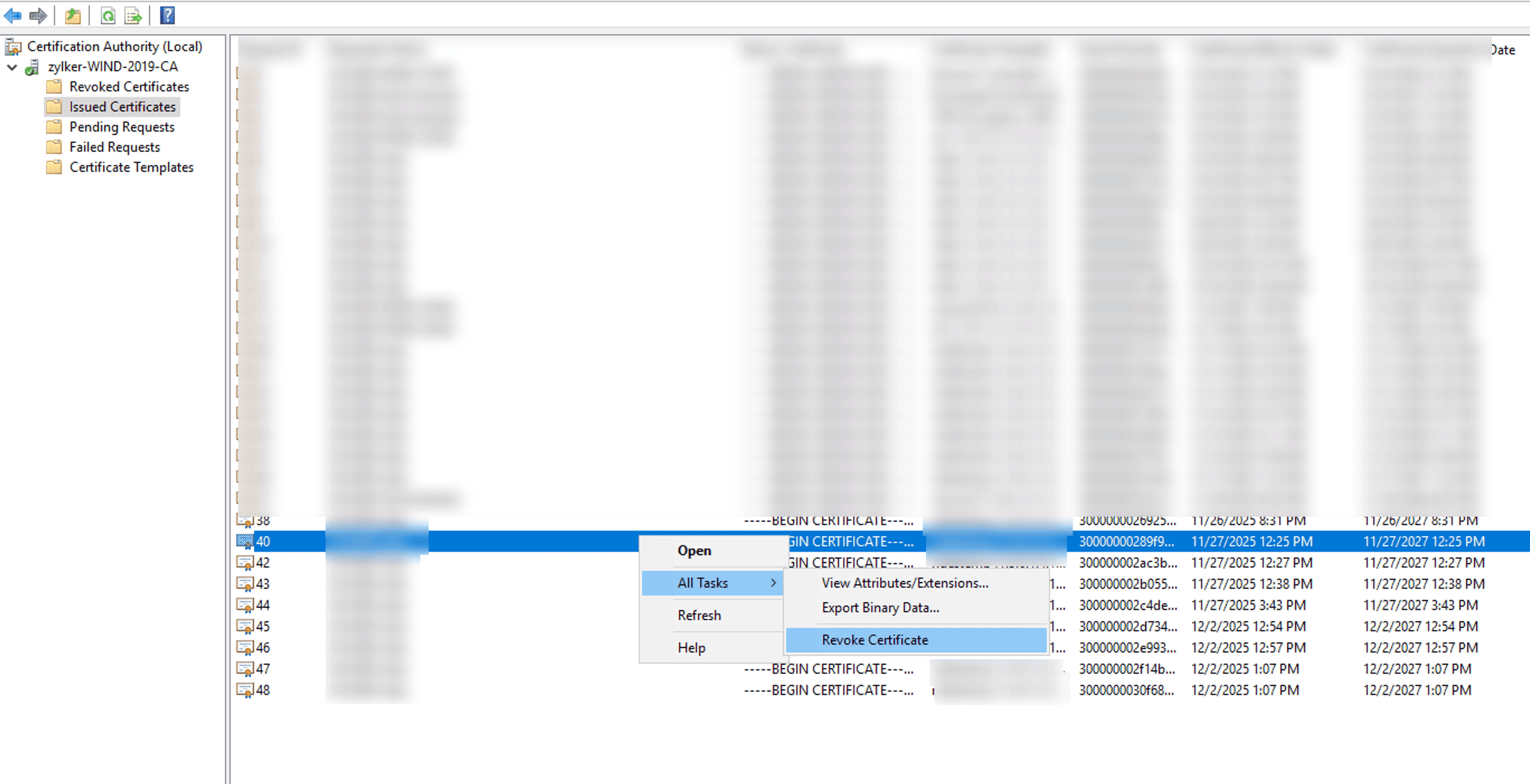
This prevents unauthorized certificates from being used for authentication or enrollment.
Review AD CS Template Configuration
Review the AD CS certificate template permissions configured for the SCEP protocol to ensure they align with the recommended security settings. Once the review is complete, proceed to the CA server configuration to confirm the review.
Steps to confirm the AD CS certificate permission configuration
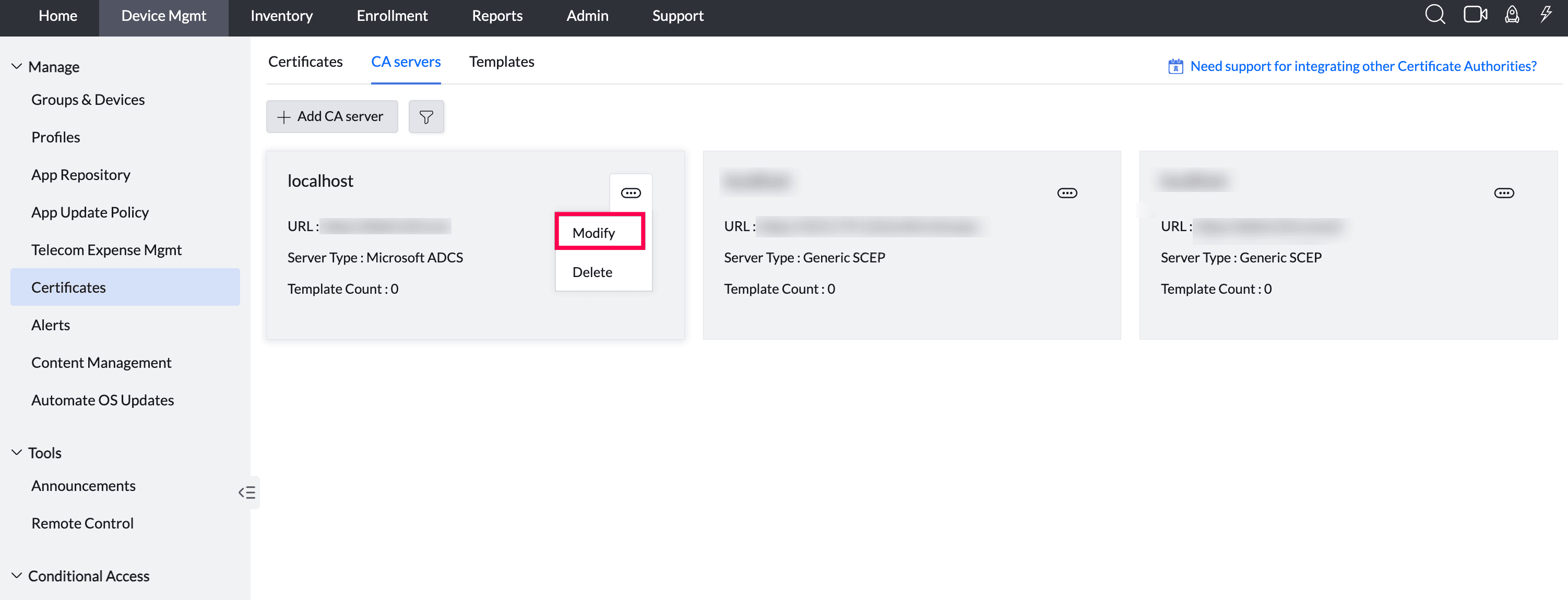
- In the MDM console, navigate to Device Mgmt > Certificates > CA Servers. Locate the configured Microsoft ADCS server, click the More actions (⋯) icon, and select Modify.
On the Modify page, the AD CS Validation Consent checkbox is displayed for confirming the review.
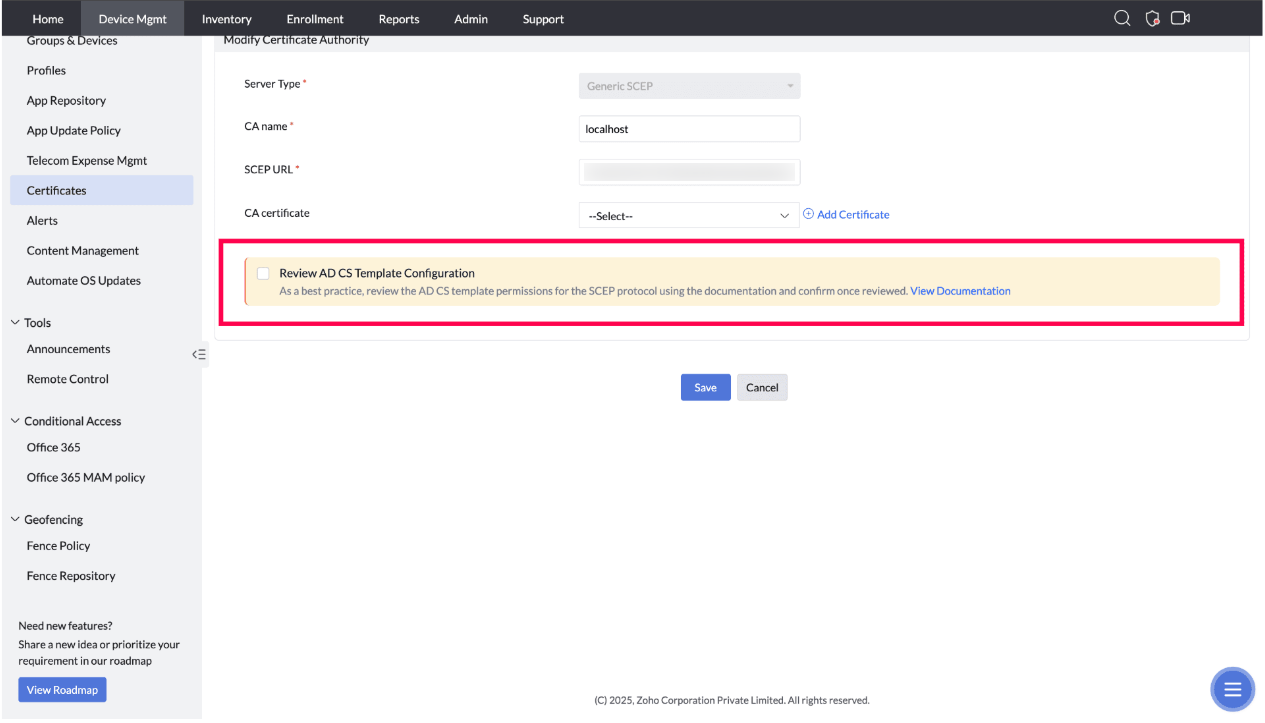
Select the AD CS Validation Consent checkbox to confirm that the AD CS template review has been completed, and then click Save.
Frequently asked questions
How do I find out which certificate template NDES is using?
Open Registry Editor (regedit.exe) and check HKEY_LOCAL_MACHINE\SOFTWARE\Microsoft\Cryptography\MSCEP for the EncryptionTemplate, GeneralPurposeTemplate, and SignatureTemplate values - the Data column shows the template name (e.g., ndestemp).
How do I make sure only the NDES service account can enroll using this template?
Open the template's Properties in the Certificate Templates console, review the Security tab, and ensure only the NDES service account has Enroll permissions - remove Enroll/Autoenroll access from broad groups like Domain Users or Authenticated Users, then restart IIS to apply the change.
How do I confirm no unauthorized certificates were issued from this template?
In the Certification Authority console, check Issued Certificates and verify the Requester Name matches the NDES service account for every certificate issued from the template; revoke any certificate requested by anyone else and choose a revocation reason.