Last updated: July 24, 2026
How to use MS-SQL database in Mobile Device Manager Plus?
This guide explains how to configure Mobile Device Manager Plus to use an MS-SQL database (2005 or later), completed before starting the MDM server. On the SQL Server machine, it covers enabling the SQL Browser service and TCP/IP in SQL Server Configuration Manager, then on the MDM server, running changeDBServer.bat to select SQL Server, specify the host and instance, choose Windows or SQL Server authentication, enable NTLM, and migrate existing data if applicable.
Mobile Device Manager Plus extends support for using MS-SQL database for storing the configuration and data. MDM supports MS-SQL database from the 2005 edition.
The steps for configuring MDM to utilize MS-SQL database is explained below:
NOTE: Do not start the MDM server before configuring the database.
Changing database to MS SQL
In the machine where MS-SQL Server is installed,
- Click Start --> Run and type services.msc.
- Ensure SQL Browser service has been started. If not, start the service.
- Open the SQL Server Configuration Manager from the Start menu.
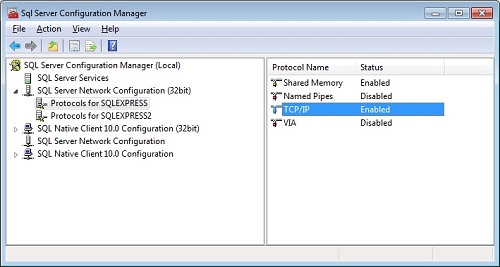
- Expand SQL Server Configuration Manager (Local) and navigate to SQL Server Network Configuration.
- Select the instance on which you want to run the database and check if TCP/IP ports are enabled. If not, right-click on TCP/IP and enable it.
- Select SQL Server Services from the left pane, right-click the instance and choose Restart.
Migrating data to MS SQL database
In the machine where MDM Server is installed,
- Navigate to the folder where Mobile Device Manager Plus is installed and click on the bin folder. Open changeDBServer.bat as Administrator.
- Select Database Type as SQL Server.
- Specify the Host Name where SQL Server is installed.
- From the list of available instances, select the instance on which you wish to run the database.
- You can choose to authenticate the database connection either using Windows Authentication or SQL Server Authentication. Choose the required authentication and provide the credentials.
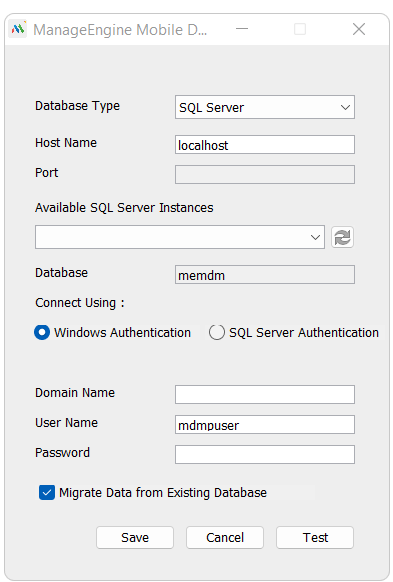
- Select the check box to enable NTLM authentication.
- If it is an existing installation of MDM, ensure the check box Migrate data from existing database is selected and If it is a fresh installation of MDM, ensure the check box Migrate data from existing database is not selected.
- Click Test to check whether a connection could be established with the given credential.
- Click Save to save and complete the SQL Server Configuration. It may take a few minutes to configure the settings on the SQL Server, in case of an existing installation of MDM depending on the database size.
- Once the database is migration has been fully completed, start Mobile Device Manager Plus.
- In case of a fresh MDM installation, open Microsoft SQL Server Management Studio and go to Mobile Device Manager Plus database.
- Right click on memdm folder and select Properties. Under the section Maintenance and select the option SQL_Latin1_General_CP1_CI_AS for Collation.
NOTE: During migration, if there is an Authentication Error, verify the specified credentials.(Do not take a back up of the database again.)
Frequently asked questions
Which versions of MS-SQL does Mobile Device Manager Plus support?
MDM supports MS-SQL database from the 2005 edition onward.
What do I need to enable on the SQL Server machine before configuring MDM to use it?
Make sure the SQL Browser service is started (via services.msc), then open SQL Server Configuration Manager, enable TCP/IP for the instance you want to use, and restart that instance's SQL Server Services.
How do I point an existing MDM installation to the MS-SQL database?
On the MDM server, run changeDBServer.bat (as Administrator) from the bin folder, select SQL Server as the database type, specify the host name and instance, choose Windows or SQL Server Authentication with the required credentials, enable NTLM authentication, and select Migrate data from existing database before testing the connection and saving.
What should I do if I get an Authentication Error during the database migration?
Verify the credentials you specified for the SQL Server connection. Do not take another backup of the database while resolving the error.