Last updated: July 24, 2026
Unable to download intermediate certificate automatically
Problem
You are getting the error Intermediate certificates can't be downloaded automatically while importing SSL certificates.
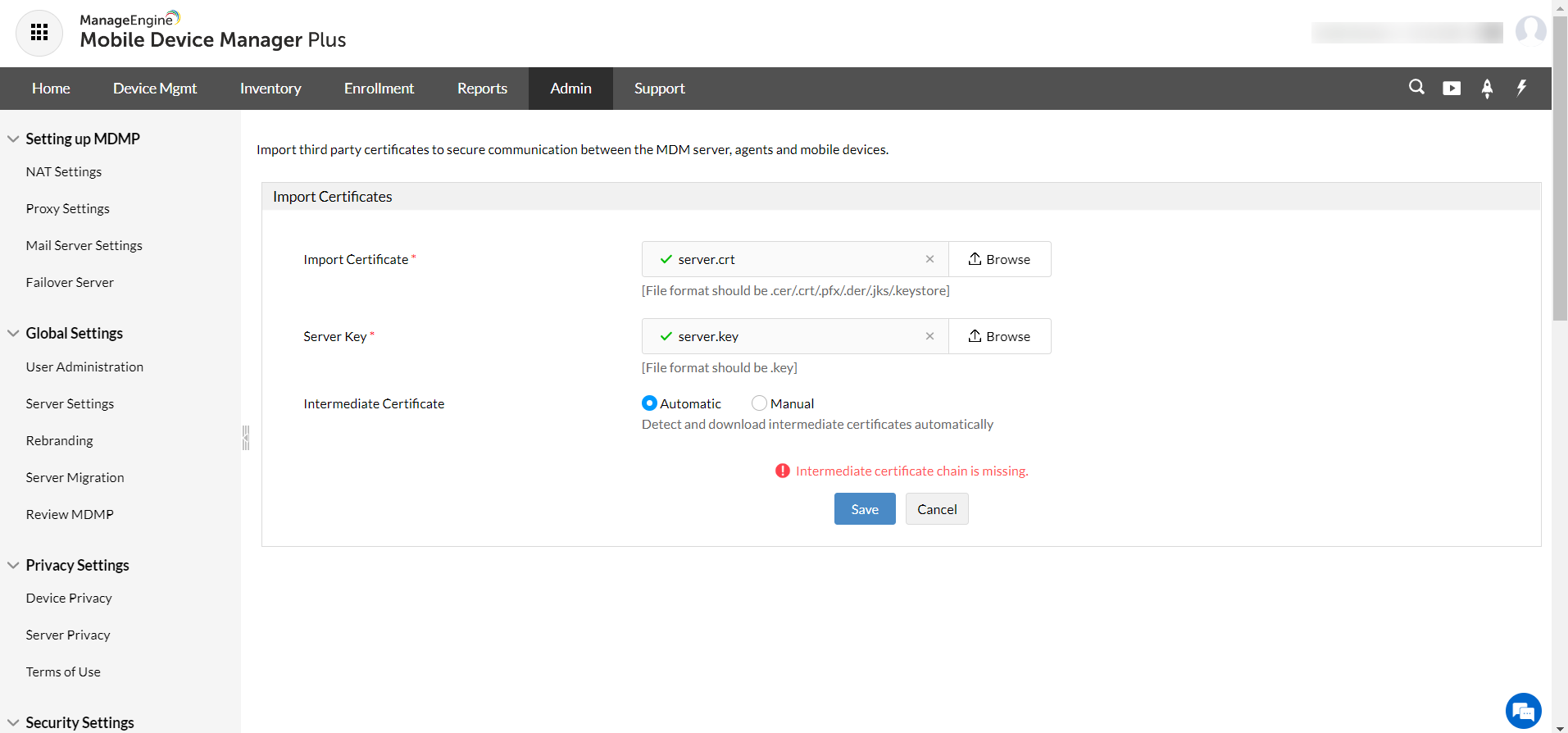
Follow the steps below to solve this problem:
- Open .cer or .crt file depending upon your certificate extension.
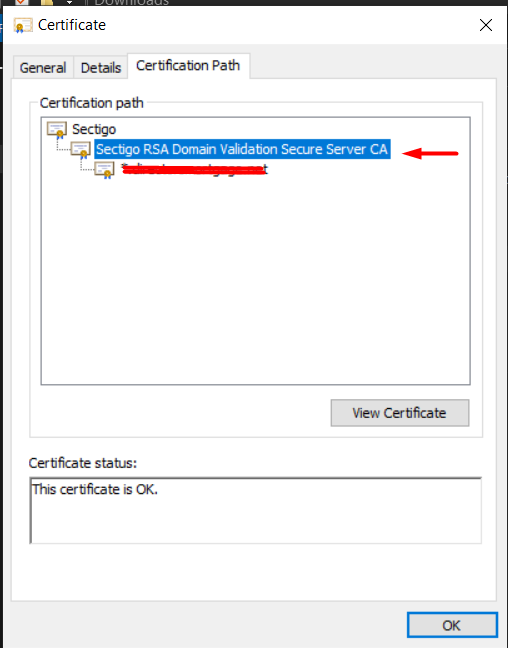
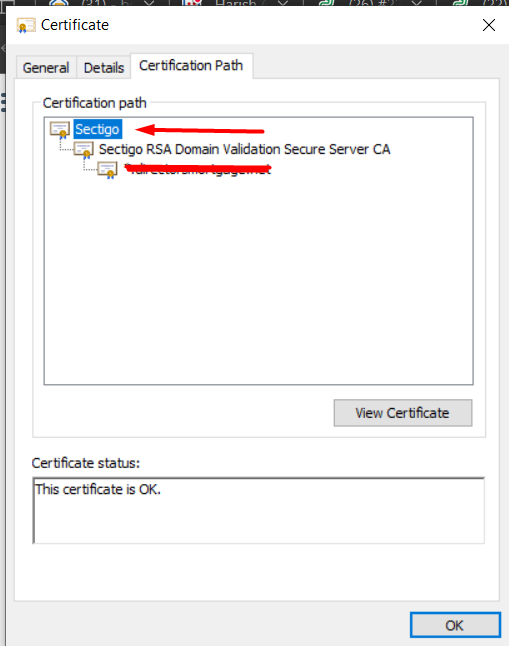
- Go to the Certification Path ->click on the Intermediate Certificate.
- You can see the certificates embedded in a tree structure. The parent certificate is the root certificate and the child is the intermediate certificate.
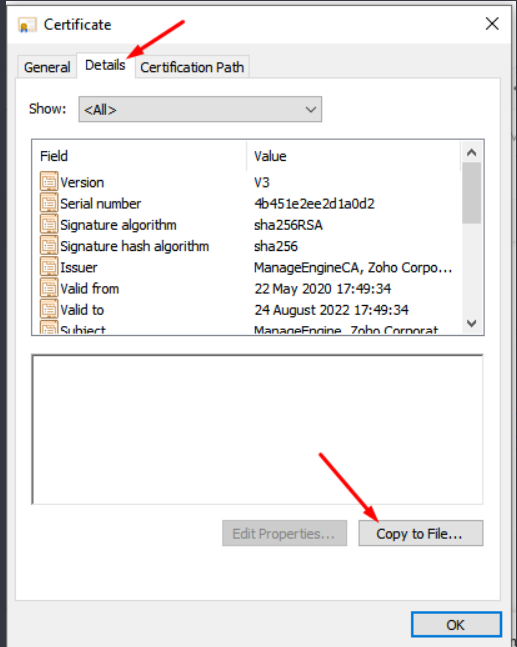
- Double click on the intermediate certificate to open it. Once the intermediate certificate is open, please go to the Details tab -> Copy to file to open the Certificate Export Wizard.
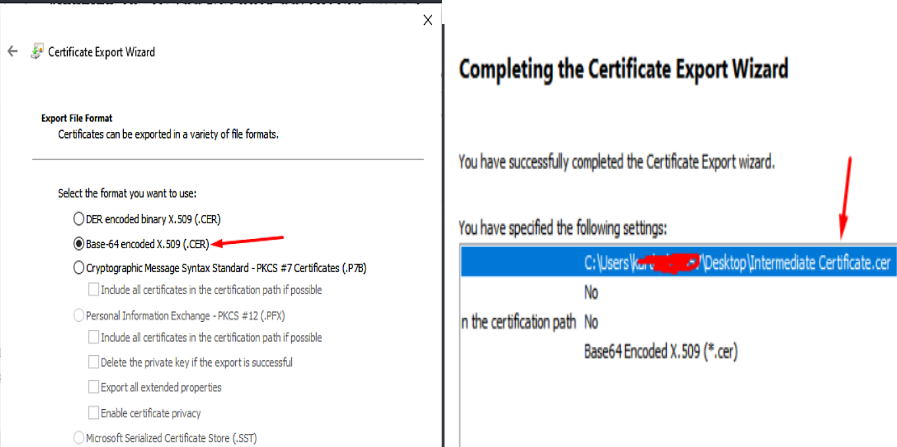
- Click on Next and under Select the format you want to use, choose base-64 encoded x.509 and save it as intermediate certificate.cer.
- Follow steps 3&4 for root certificates as well and save as rootcertificate.cer.
For example, In the screenshot given below : Root Certificate - Sectigo & Intermediate Certificate - Sectigo RSA Domain validation Secure Server CA.
Now that you have the private key, root certificate and the intermediate certificate:
- Login to Mobile Device Manager Plus console.
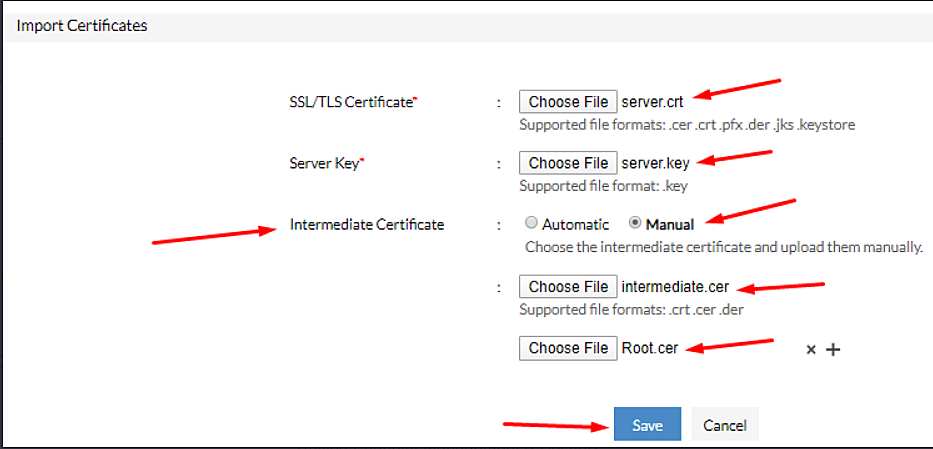
- Navigate to Admin-> Security Settings -> Import SSL Certificates->Click Upload.
- Upload the root certificate and enter the server key.
- Under Intermediate Certificate, Choose Manual and upload the saved intermediate certificate.
- Click Save.
Now you can automatically download the intermediate certficate. If the issue still persists, contact support.