Screen pinning on Android devices allows users to lock a specific app to the screen, making all other apps inaccessible until the device is unpinned. This is useful for everyday scenarios like handing your phone to someone briefly. However, if you are an IT admin looking to lock down devices across your organization, screen pinning has real limitations. This guide covers everything you need to know, from enabling it on stock Android, Samsung, and Pixel devices, to understanding when MDM-based Kiosk Mode is the better choice.
This Android Screen Pinning guide covers:
- What is Screen Pinning on Android?
- Android versions that support Screen Pinning
- Benefits of Screen Pinning Android devices
- How to enable and use Screen Pinning on Android
- When to use Screen Pinning, common use cases
- Limitations and security risks of Android Screen Pinning
- Can Screen Pinning be bypassed?
- Screen Pinning vs Kiosk Mode: which one should you use?
- Beyond Screen Pinning: lock Android devices with Mobile Device Manager Plus
What is Screen Pinning on Android?
Android screen pinning is a built-in app-pinning feature that locks a chosen app to the device screen and prevents users from accessing other apps or device functions. It is also referred to as Android app pinning or, informally, Android Guided Access, a term borrowed from the equivalent feature on Apple iOS devices.
When a device is pinned, the user can only interact with the pinned app. Exiting requires holding specific navigation buttons and, if configured, entering a PIN, pattern, or password. Screen pinning is available on all Android devices running Android 5.0 and above, which in practice means every modern Android phone or tablet in use today.
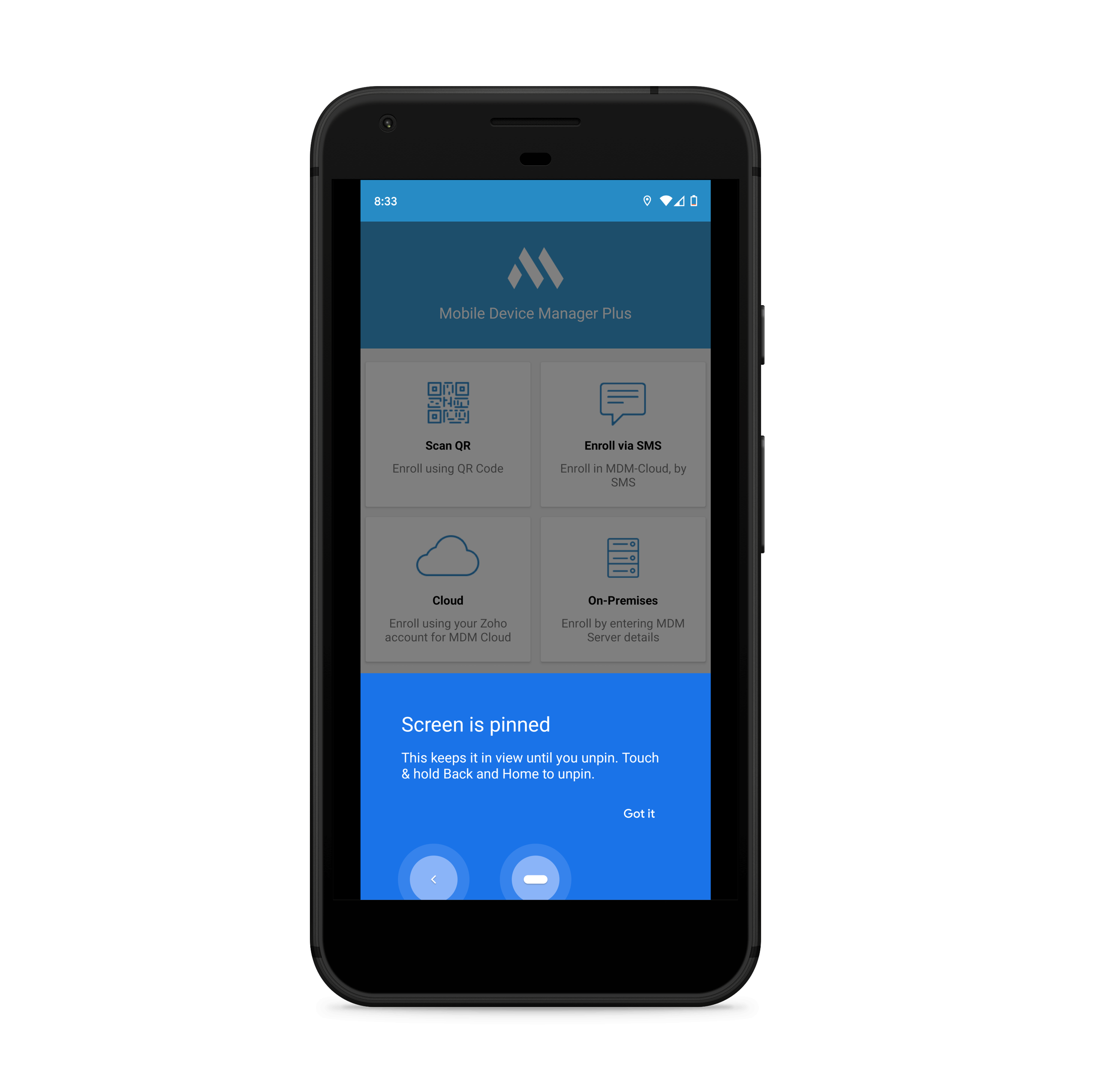
If the user no longer wants the device to run in Screen Pinning mode, they can exit by holding the Back and App Overview buttons simultaneously for a few seconds. If a password or PIN is set, the user will be prompted to enter it before the device exits Screen Pinning mode.
Requirements: Android Versions That Support Screen Pinning
Screen Pinning was introduced in Android 5.0 (Lollipop) and has been available on every Android version since. As of 2026, this covers Android 12, 13, 14, and 15, all actively supported versions. There is no upper version ceiling; the feature carries forward with each release, though the menu path and UI vary slightly by manufacturer and Android version.
| Android Version | Support Status | Navigation Style |
|---|---|---|
| Android 5.0 - 8.1 (Lollipop - Oreo) | Supported (legacy) | 3-button only |
| Android 9 - 11 (Pie - Red Velvet Cake) | Supported | 3-button or 2-button |
| Android 12 - 15 (Snow Cone - Vanilla Ice Cream) | Supported (current) | Gesture or 3-button |
Note: Devices running Android 4.x and below do not support Screen Pinning. These are no longer in active commercial use.
Benefits of Screen Pinning Android Devices
Screen pinning is a practical tool for a range of everyday and light-business situations:
- Free and built-in. No software installation or subscription required.
- Instant to set up. Takes under a minute to enable and pin an app.
- Works across sectors. Useful in hospitality, retail, healthcare, and education for basic shared-device scenarios.
- Keeps users focused. Prevents accidental navigation away from the intended app.
- Protects personal data. When handing your phone to someone, pinning ensures they stay within one app.
- Supports PIN protection. Optional PIN, pattern, or password adds a layer of security on exit.
How to Enable and Use Screen Pinning on Android
How to Enable Screen Pinning on Stock Android
The path varies slightly by Android version. On Android 12 and above:
- Open Settings.
- Tap Security & Privacy.
- Tap More security & privacy (on some builds, tap Advanced).
- Tap App Pinning and toggle it on.
- Enable Ask for unlock pattern before unpinning to require a PIN on exit.
On Android 9 to 11, the path is: Settings - Security - Advanced - Screen Pinning.
How to Enable Screen Pinning on Samsung Phones (One UI)
Samsung's One UI places the setting in a different location from stock Android. On One UI 6 (Android 14) and above:
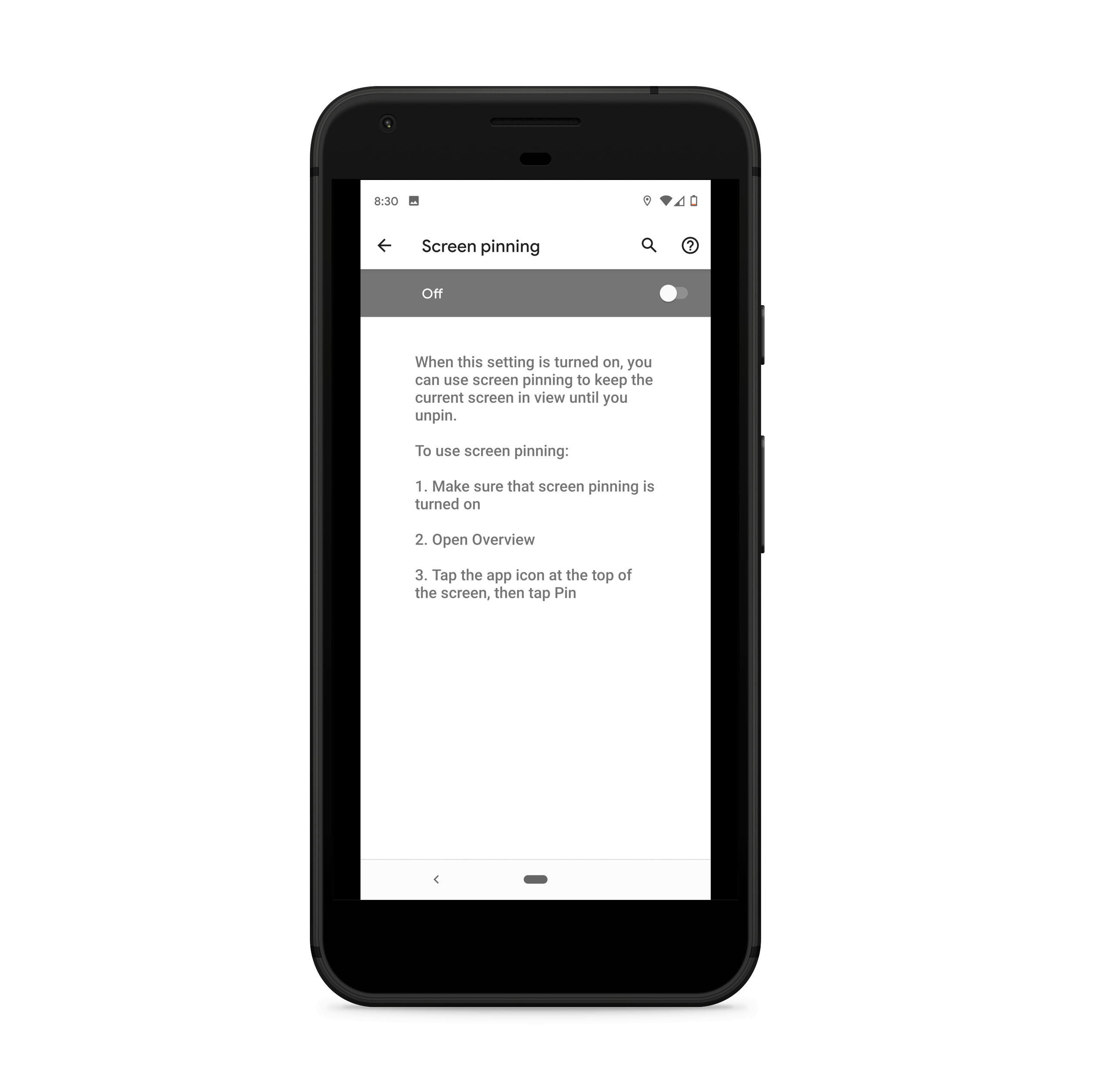
- Open Settings.
- Tap Security and Privacy.
- Tap Other security settings.
- Tap Pin windows and toggle it on.
- Enable Ask for PIN before unpinning if required.
On One UI 4 to 5, the path is: Settings - Biometrics and Security - Other Security Settings - Pin windows.
How to Enable Screen Pinning on Google Pixel
Pixel devices run close to stock Android, so the steps match stock Android. On Android 14 and 15:
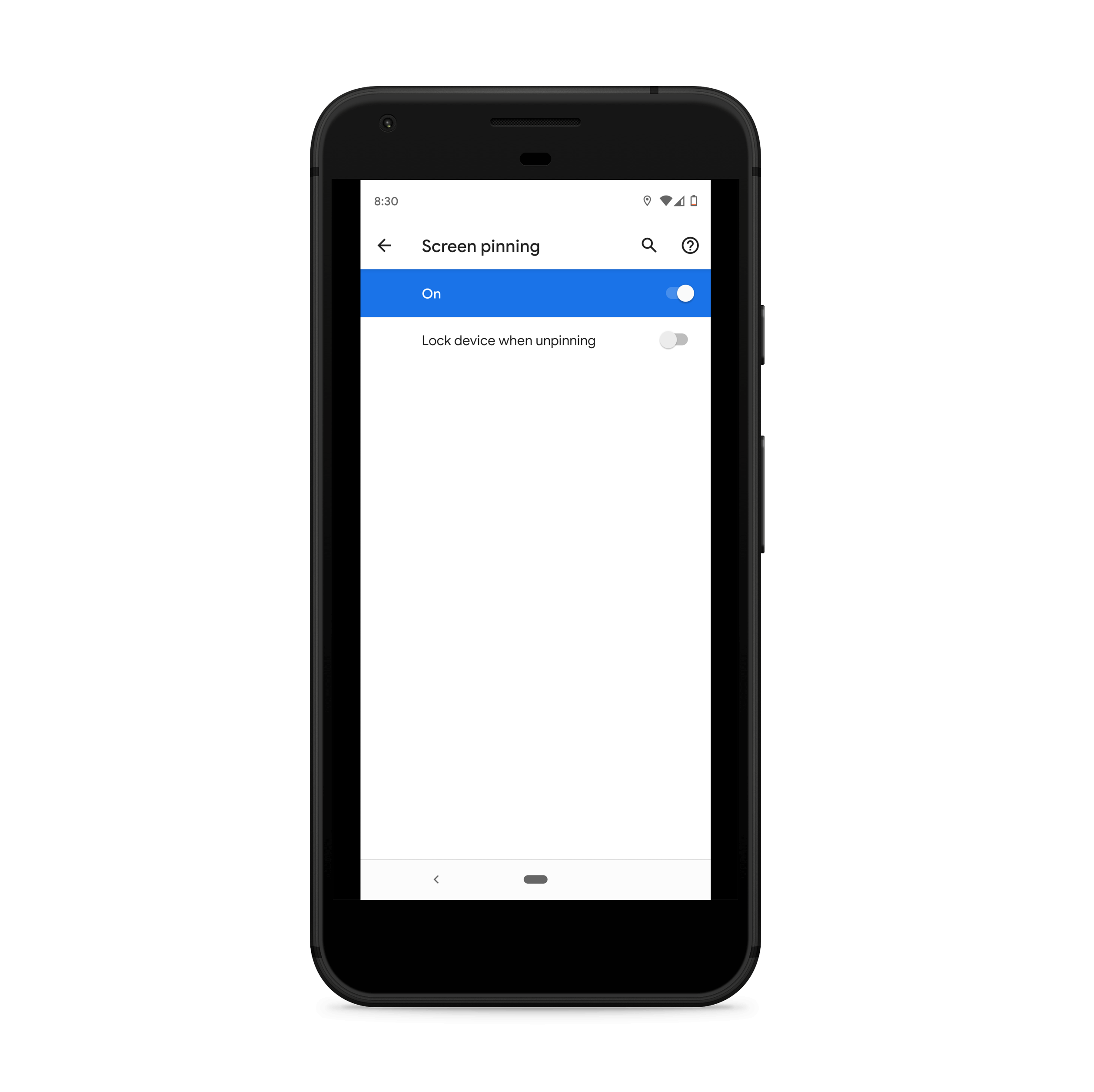
- Open Settings.
- Tap Security & Privacy.
- Tap More security & privacy.
- Tap App Pinning and toggle it on.
How to Pin an App to the Screen
How you pin depends on your device's navigation style. To check: Settings - System - Gestures - System Navigation.
Gesture Navigation (default on Android 10 and above):
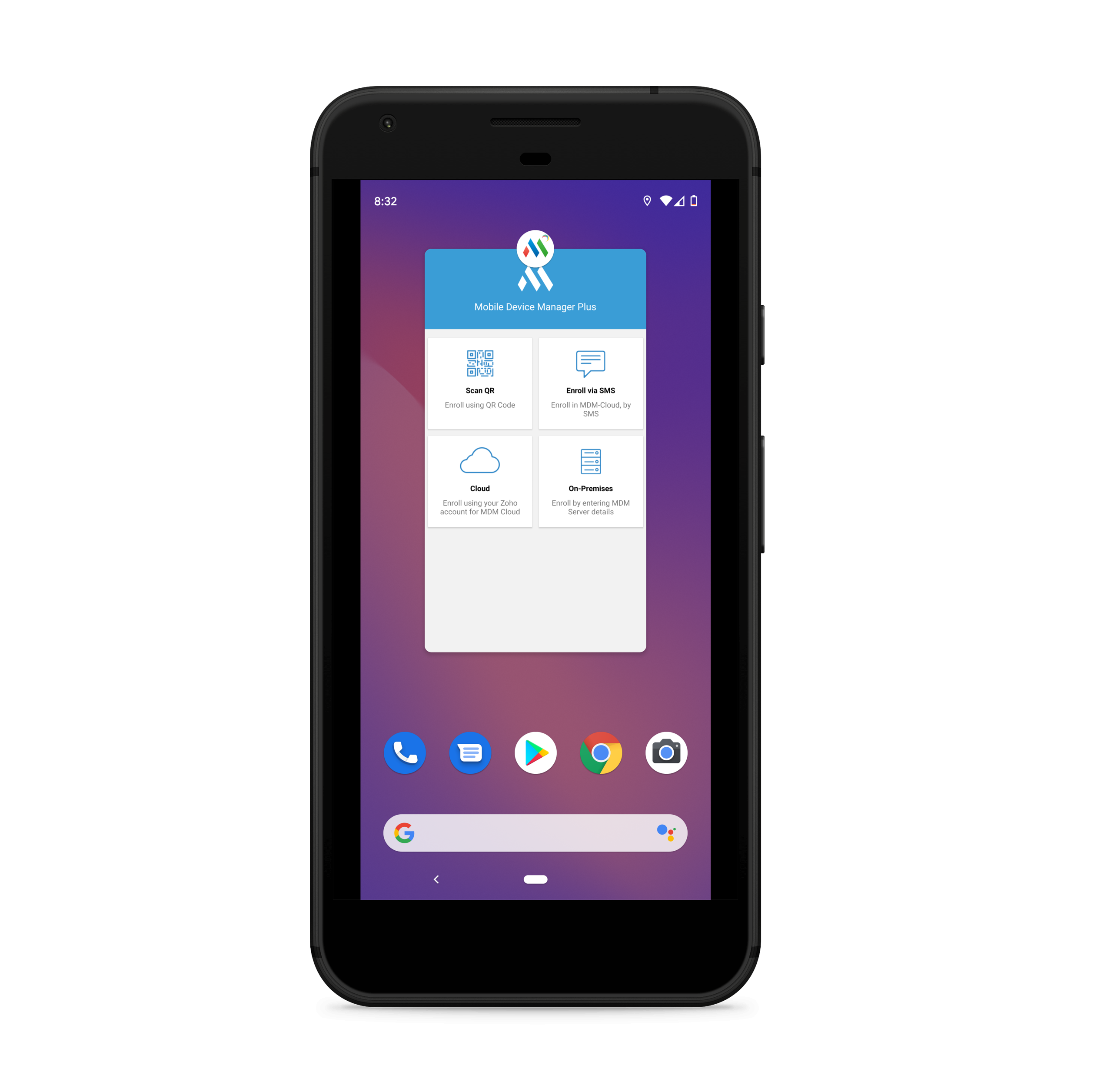
- Open the app you want to pin.
- Swipe up slowly from the bottom and hold briefly to open the Recents screen.
- Tap the app's icon at the top of the app card.
- Tap Pin.
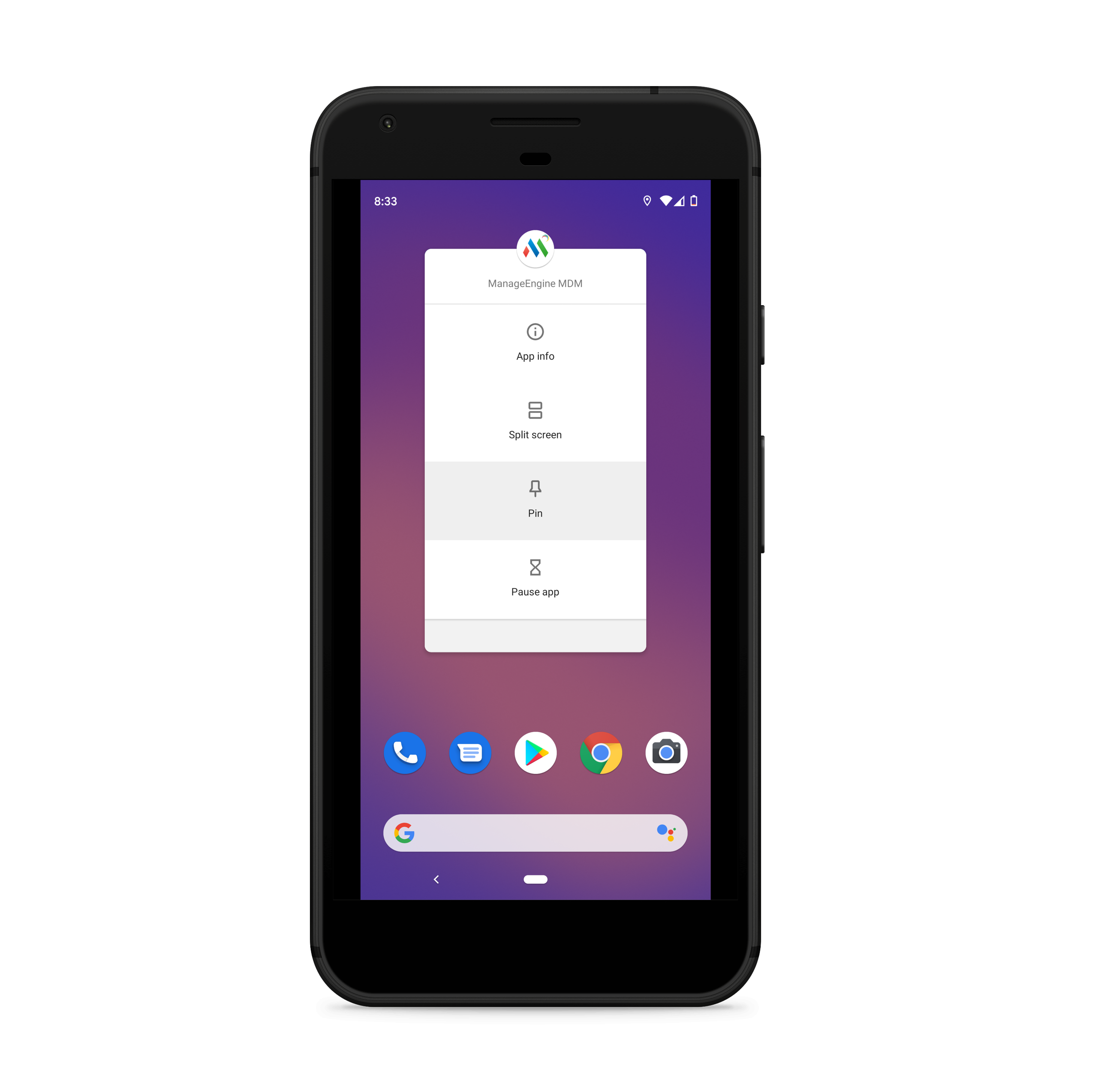
- Open the app you want to pin.
- Tap the Recents button (the square icon).
- Swipe up on the app card to reveal the Pin option at the bottom right.
- Tap Pin.
3-Button Navigation (Back, Home, Recents buttons):
How to Unpin an App on Android
Steps for unpinning apps on Android devices depends on how the system navigation is set up on the device. To verify the system navigation settings, on the Settings app navigate to System - Gestures - System navigation.
For unpinning apps on Android devices, follow any of the given steps based on the available settings:
| Navigation Style | How to Unpin |
|---|---|
| Gesture navigation | Swipe up and hold from the bottom |
| 2-button navigation | Touch and hold both the Back and Home buttons |
| 3-button navigation | Touch and hold both the Back and Overview (Recents) buttons |
If you had configured a PIN, pattern or password, you'll have to enter it to remove the screen pinning and successfully unpin the screen.
6. Where is Screen Pinning Located in Android Settings?
The menu path differs by manufacturer. Use the search bar in Settings and type "pin" if you cannot find it manually.
| Device / OS Version | Settings Path |
|---|---|
| Stock Android 12 and above | Settings - Security & Privacy - More security & privacy - App Pinning |
| Stock Android 9 to 11 | Settings - Security - Advanced - Screen Pinning |
| Samsung One UI 6 (Android 14+) | Settings - Security and Privacy - Other security settings - Pin windows |
| Samsung One UI 4 to 5 | Settings - Biometrics and Security - Other Security Settings - Pin windows |
| OnePlus / OxygenOS | Settings - Security - Screen Pinning |
| Xiaomi / MIUI | Settings - Passwords & Security - Screen Pinning |
When to Use Screen Pinning, Common Use Cases
Screen pinning works well for short-term, personal, or low-stakes situations:
- Handing your phone to a childKeep them inside a single app like YouTube Kids without access to messages or other content.
- Letting someone make a callPin the dialer so they cannot browse contacts or open other apps.
- Demos and product presentationspin a specific app so your audience only sees what is relevant.
- Small-scale point-of-saleA sole trader using a personal phone as a payment terminal can temporarily pin the payment app.
- Shared phones in low-risk environmentsFront desk phones or shared tablets where a full MDM deployment is not available.
For anything requiring sustained lockdown, remote management, or multi-device deployment, screen pinning is not the right tool.
Limitations and Security Risks of Android Screen Pinning
While Screen Pinning on Android devices seems like a lucrative option for provisioning single purpose devices, it also has a few disadvantages.
- Exit instructions are shown on screenWhen a device is pinned, Android displays a notification with the exact steps to unpin. Without a PIN set, any user can exit in seconds.
- Manual process at scaleEvery device must be pinned individually. If a device restarts or exits pinning mode, an admin must pin it again manually.
- Apps within apps are accessibleIf the pinned app contains links to external browsers or other apps, users can sometimes navigate outside the pinned experience.
- Notification panel can be accessedThe pinned app can be moved to the background, potentially exposing the notification panel and corporate data.
- No remote managementScreen Pinning cannot be monitored, enforced, or disabled remotely. There is no admin dashboard or policy control.
- Restart bypasses pinningIn most cases, restarting the device exits Screen Pinning mode entirely.
Can Screen Pinning Be Bypassed? (And How to Prevent It)
Yes. Android intentionally makes Screen Pinning easy to exit, since it is designed as a user convenience feature, not a security control. The exit method is displayed on screen when pinning is activated, so any user who reads the prompt can unpin the device.
Common bypass methods:
- Holding the Back and Recents buttons simultaneously (3-button nav) exits pinning mode.
- Swiping up and holding (gesture nav) exits pinning mode.
- Restarting the device disables pinning entirely.
- Accessing external links within the pinned app can open other apps without unpinning.
Steps to reduce bypass risk:
- Always set a PIN, pattern, or password that the device user does not know.
- Disable lock screen notifications to prevent data exposure.
- Avoid pinning apps that contain external links or share buttons.
- Use a device without a visible restart option if possible.
Important: If preventing bypass is a hard requirement for your use case, Screen Pinning is not sufficient. MDM-based Kiosk Mode is the appropriate solution.
Screen Pinning vs Kiosk Mode: Which One Should You Use?
| Feature | Screen Pinning | MDM Kiosk Mode |
|---|---|---|
| Who controls it | End user | IT admin via MDM policy |
| Setup | Manual, per device | Centrally configured, bulk deployed |
| User can exit | Yes (with or without PIN) | No, enforced at policy level |
| Survives device restart | No | Yes |
| Remote management | No | Yes |
| Hides notification bar | No | Yes |
| Blocks hardware buttons | No | Yes (configurable) |
| Supports multiple apps | No, single app only | Yes |
| Cost | Free, built-in | Requires MDM license |
| Best for | Personal, temporary use | Enterprise device deployments |
Use Screen Pinning when the need is temporary and personal, handing your phone to someone, running a quick demo, or setting up a single shared device informally.
Use MDM Kiosk Mode when devices are deployed for a business purpose, managed at scale, or need to stay locked reliably without user intervention.
Beyond Screen Pinning: Lock Android Devices with Mobile Device Manager Plus
ManageEngine Mobile Device Manager Plus is an enterprise MDM solution that gives IT admins centralized control over device lockdown, going far beyond what Screen Pinning can offer. Instead of manually pinning apps on each device, admins configure Kiosk Mode once and push it to any number of devices instantly.
How MDM Plus Replaces and Extends Screen Pinning
Android Kiosk Mode provides organizations additional benefits over the in-built Screen Pinning, including:
Cross-platform support In addition to Android devices, Mobile Device Manager Plus allows admins to lock down Apple and Windows 10 or above devices to a single app or a set of apps.
Bulk provisioning of devices Admins can provision devices in Kiosk Mode with no manual intervention. Admins can simultaneously add multiple devices to Kiosk Mode with the help of Groups.
Support for Store and enterprise apps With Mobile Device Manager Plus, devices can be provisioned into Kiosk Mode with either title="Create App Repository with Store and enterprise apps" Store apps or enterprise apps that are developed in-house. In addition to apps, devices can also be locked to web shortcuts or webclips with limited browser access.
Automated installation of apps When devices are provisioned in bulk, there might be times when the app is not available on the device when Kiosk Mode is enabled. With Mobile Device Manager Plus, you can automate the distribution of the Kiosk provisioned apps to reduce user intervention.
Custom settings app By default when a device is locked into Kiosk Mode, the users will not have access to the Settings app or any other device functionality. Kiosk Mode also hides the Notification Bar on devices. This means basic settings such as volume control, wi-fi and brightness will also be inaccessible.
With Mobile Device Manager Plus, admins can select and allow users to control the basic settings with the help of a custom settings app. Only the settings selected by the admin will be available in the custom settings app for the users.
Remote troubleshooting Single purpose devices are mostly unattended when used as self-service kiosks. In such cases, Mobile Device Manager Plus allows Android devices to be remotely controlled without any user intervention. This allows admins to resolve any issues without coming in contact with the device.
Admins can also temporarily disable Kiosk Mode using remote chat commands to resolve issues and enable Kiosk Mode after completing the remote troubleshooting session.
Home Screen Layout Customization Since Kiosk devices are intended for self-service, offering an easily navigable home screen layout can improve user experience with the devices. Depending on the frequency of usage, you can arrange the apps and web shortcuts on the home screen and the Dock, to maintain consistency across your organization. You can add multiple pages and organize apps in folders to declutter your home screen.
Additional security In addition to serving as self-service kiosks, devices provided to contract or remote employees are also provisioned in Kiosk Mode. Such remote devices are more vulnerable to loss or theft. To protect data on lost devices, Mobile Device Manager Plus supports Lost Mode which allows admins to locate, lock and wipe lost or stolen devices.
Provisioning Single-Purpose Devices with Android Enterprise (COSU)
Android Enterprise includes a dedicated enrollment mode called COSU, Corporate Owned, Single Use, designed specifically for organizations deploying devices for one fixed purpose, such as a retail kiosk, delivery scanner, or healthcare check-in terminal.
COSU devices are locked down at the OS level from the moment of enrollment. Users cannot access the home screen, install apps, or change device settings unless an admin explicitly permits it. There is no on-screen exit prompt. The device simply runs the approved app or apps.
Mobile Device Manager Plus supports Android Enterprise COSU enrollment with:
- Zero-touch enrollment and QR code provisioning for silent, hands-free setup at scale.
- Automatic app push at enrollment, no user action required.
- Full device lockdown enforced at the policy level, not dependent on user behavior.
- Remote management, diagnostics, and wipe from a central admin console.
COSU is the enterprise-grade answer to what Screen Pinning attempts at a personal level. For any organization deploying dedicated-purpose devices, Android Enterprise COSU through MDM Plus is the recommended approach.
Learn more about the steps to provision devices into Kiosk Mode.
Try Mobile Device Manager Plus as an alternative to Android Screen Pinning, free for 30 days!