# Automation using Configlets | v12 | Network Configuration Manager Help
## Automation Using Configlets & Scripts
- [Overview](#overview)
- [Benefits of Configlets & Scripts](#what-are-benefits-of-configlets--scripts)
- [How do Configlets & Scripts Work?](#how-do-configlets--scripts-work)
- [Creating Configlets & Scripts](#creating-configlets)
- [Practical Applications](#practical-applications-of-command-line-script-execution)
- [Scheduling Configlets](#scheduling-configlets)
- [Managing Configlets & Scripts](#managing-configlets--scripts)
## Overview
> **Note:** Custom templates in Old UI is renamed as 'Configlets' in New UI
Quite often, there arises a need to carry out changes to the running configuration of devices and at times, same set of changes need to be applied to multiple devices. Though network administrators can very well edit the configuration manually, the task can prove to be arduous due to the volume of changes and the repetitive nature of the work. You would require a [network automation tool](https://www.manageengine.com/network-configuration-manager/network-automation-tool.html) to quickly resolve mundane tasks. Network Configuration Manager provides a simple solution for this by way of 'Configlets', 'Scripts' and 'Advanced Scripts'.
## What are benefits of Configlets & Scripts?
- The Configlets help in automating repetitive and time-consuming configuration tasks. All that you need to do is to create a small Configlet containing the required commands and then execute the Configlet for carrying out repetitive tasks for many devices, many times.
- The Configlets can also be scheduled for execution at a any point of time in future. This helps in executing the tasks without the intervention of the administrators.
- Configlets are very helpful for carrying out a partial configuration change to devices at one go.
- The Configlets enable the network administrator to apply the changes to multiple devices at one go. Also, the Configlets provide the benefit of carrying out exact changes with precision.
## How do Configlets & Scripts Work?
As the name itself implies, Configlets are the ones defined and created by the users themselves in accordance with their needs. A configlet contains the commands (provided by the user) to be executed on the device. A configlet can be created to configure any feature on a device. For instance, you can create a configlet to configure IGRP on a Cisco router.
The real power of a configlet lies in reusing the configlet across multiple devices for bulk configuration updates. For example, a single configlet could be used for changing the passwords of multiple devices many times. Similarly, a configlet for firmware upgrade could be used many times for many devices.
To enhance the reusability of a configlet, **Configlet Variables** are defined. A configlet variable is a placeholder for a value. It can be specified when the configlet is uploaded to the device. After creating the configlet, when you wish to upload the changes to a particular device or a number of devices, you just need to provide the values for the configlet variables. Everything else is automatically taken care of by Network Configuration Manager.
> **Note:** Creating 'Configlet Variables' is optional. You may create configlet variables if you want to enhance the reusability of the configlet.
### Types of Configlets in Network Configuration Manager
Configlets offered by Network Configuration Manager are of two types:
1. **File Transfer Mode** – for uploading a partial configuration change to a device/devices through TFTP.
2. **Script Execution Mode** – commands are executed on the CLI console one after another. Script execution is divided further into:
- Simple Script Execution
- Advanced Script Execution
The following table provides information about each type of configlet and when to use them:
| File Transfer Mode | Simple Script Execution | Advanced Script Execution |
|---|---|---|
| File Transfer mode is for uploading a partial configuration change to a device/devices through TFTP.
**Example:** - Enabling TELNET service
- Changing SNMP Community
- Forwarding Syslog messages
- Changing the interface
In general, for carrying out changes to existing configuration, this mode could be used. | To execute a single command on the CLI console.
**Example:** Synchronizing Running & Startup Configurations using:
`copy running-config startup-config`
**Other Examples:** - Changing Passwords
- Updating NTP Server Entries
- Getting 'show version' output
| To execute a series of inter-connected commands on a device in command line. Used when execution changes prompt, takes time, or requires fine-grained control.
**Example:** Backing up current IOS image to TFTP server.
```xml
copy flash:/$SOURCE_FILE_NAME tftp
$TFTP_SERVER_IP
$DESTINATION_FILE_NAME
```
**Other Examples:** - Uploading OS images / firmware upgrade
- Configuring banner message
- Resetting passwords of HP ProCurve and Extreme Summit devices
- Deleting files from flash
|
## Creating Configlets
### To Create Configlets
1. Go to **"Config Automation" >> "Configlets" >> "All Configlets"** and click **"Add"** at the top right.
2. Provide a name in the **Name** field and details in the **Description** field.
3. Select the mode: **TFTP**, **Command Line**, or **Advanced Script Execution**.
See guidelines on [creating advanced scripts](#guidelines-for-advanced-script-execution-mode).
4. In **Configlet Content**, enter configuration commands. Use `$` to create a variable.
Example:
```
snmp-server community $COMMUNITY RO
```
5. Specify values for the Configlet Variables when uploading.
6. Click **Save**.
### Guidelines for 'Advanced Script Execution Mode'
Commands must follow specific syntax:
| Purpose | Syntax |
|---|---|
| Enter command | `xyz`
Example:
`copy startup-config tftp` |
| Specify prompt | `xyz`
Note: If prompt is not given, default prompt will be used. |
| Specify timeout | `copy startup-config tftp`
Default timeout: 30 seconds |
| Avoid ENTER after response | `y`
Default suffix is ENTER |
| Confirmation prompt | `xyz` |
| No response expected | `banner $DELIMITING_CHAR` |
| Append hostname & timestamp | `$File_Name_` |
| Delay next command | `reload` |
## To apply changes using Configlets
1. Go to **"Config Automation" >> "Configlets" >> "All Configlets"**.
2. Click **Upload** (File Transfer) or **Execute** (Script/Advanced Script).
3. Enter values for Configlet Variables:
- Same value for all devices
- Different value per device using a text file
**Format for text file:**
```
RESOURCE,,
```
Example:
```
RESOURCE,PASSWORD
192.168.1.1,abcd
de-host,dced
```
- `RESOURCE` column is mandatory and must be first.
- File is erased after execution.
4. Click **Preview** to verify configuration.
5. Select specific devices or device group.
6. Optionally enable/disable configuration backup.
7. Click **Upload/Execute**.
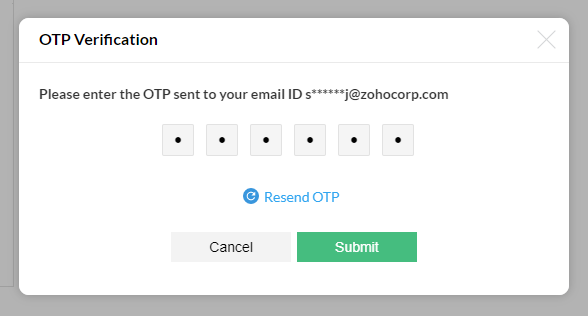
If [Two Factor Authentication (TFA)](https://www.manageengine.com/network-configuration-manager/help/two-factor-authentication.html) is enabled, enter the 6-digit OTP.
> **Note:**
> 1. Command line script execution is not supported for devices with protocol 'SNMP-TFTP'.
> 2. Execution output visibility depends on user role.
## Practical Applications of Command Line Script Execution
### Changing Passwords
```
configure terminal
enable password xxxx
exit
```
### Getting 'show version' output
```
show version
```
### Updating NTP server entries
```
configure terminal
ntp server x.x.x.x
exit
```
### Synchronizing Running & Startup Configurations
```
copy running-config startup-config
```
or
```
copy startup-config running-config
```
Few more examples are available on our [website](https://www.manageengine.com/network-configuration-manager/troubleshoot.html).
## Some Practical Applications of Advanced Script Execution
### Uploading OS images
```xml
copy tftp: flash:
$TFTP_SERVER_IP
$SOURCE_FILE_NAME
$DESTINATION_FILE_NAME
y
```
### Backing up IOS image to TFTP
```xml
copy flash:/$SOURCE_FILE_NAME tftp
$TFTP_SERVER_IP
$DESTINATION_FILE_NAME
```
### Configuring Banner Message
```xml
conf t
banner $DELIMITING_CHAR
$BANNER_LINE_1
$BANNER_LINE_2
$DELIMITING_CHAR
end
```
### Resetting Passwords of HP ProCurve Devices
```xml
conf t
password manager
$PASSWORD
$PASSWORD
end
```
### Deleting a file from flash
```xml
delete flash:/$FILE_NAME
$FILE_NAME
y
```
## Scheduling Configlets
All three types of Configlets can be scheduled for future execution. Refer to the [section under schedules](https://www.manageengine.com/network-configuration-manager/help/adding-schedules-v12.html#Scheduling_configlets).
## Managing Configlets & Scripts
### To view/edit a configlet
1. Go to **"Config Automation" >> "Configlets" >> "All Configlets"**.
2. Click the configlet name, make changes, and click **Save**.
### To remove a configlet
1. Go to **"Config Automation" >> "Configlets" >> "All Configlets"**.
2. Select the configlet(s) and click **Delete**.