Adding Syslog Rules
Syslog is a client/server protocol that sends event notification messages to the syslog receiver. These event notification messages (usually called syslog messages) help in identifying the authorized and unauthorized activities like installing software, accessing files, illegal logins etc. that take place in the network. In OpManager Syslog rules help notify you if some particular syslog messages such as kernel messages, system daemons, user-level messages, etc. are sent by the devices. Learn More about syslog monitoring in OpManager.
Apart from the predefined syslog rules you can also add any number of syslog rules. Here are the steps to add a syslog rule:
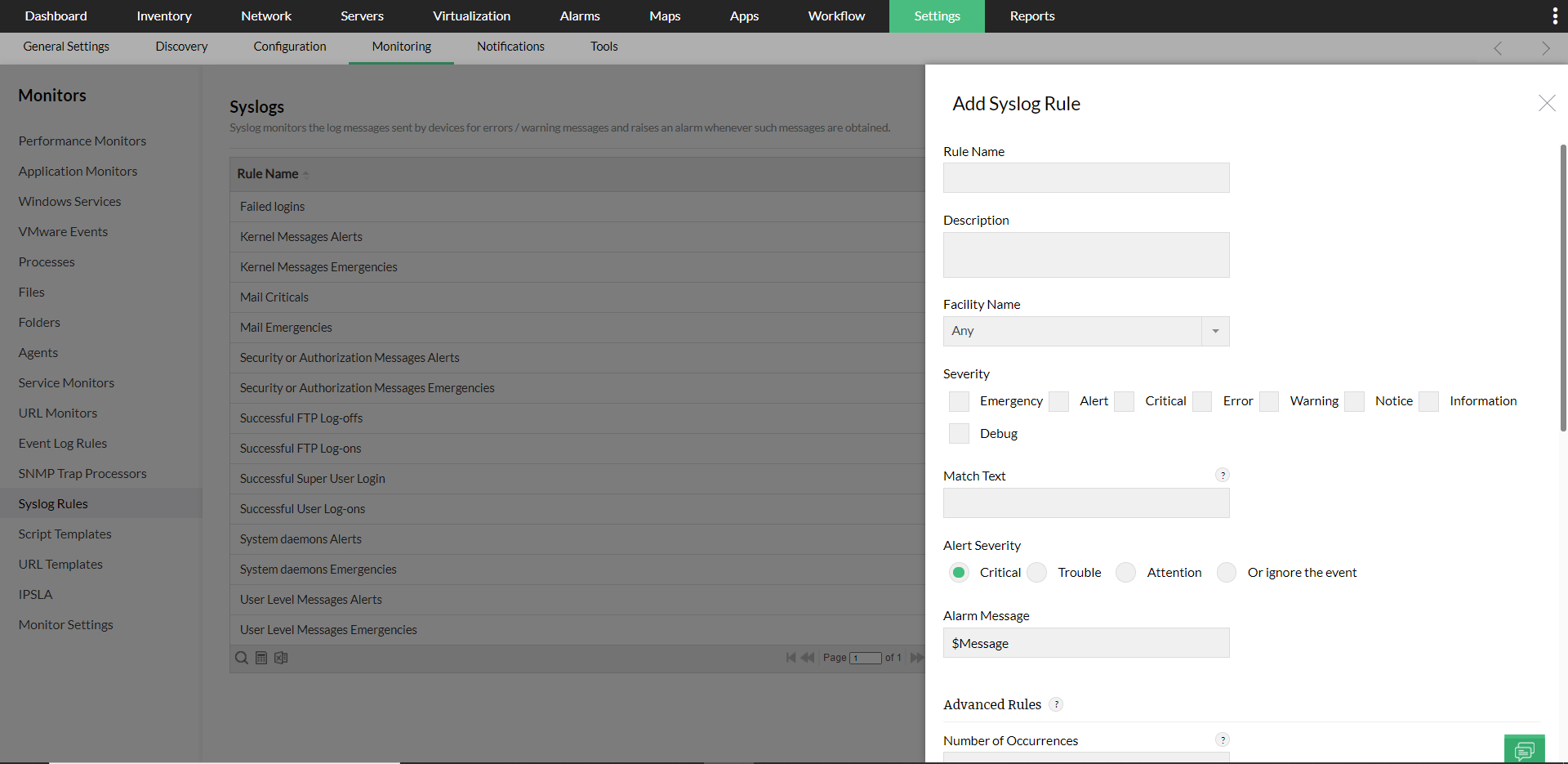
- Go to Settings → Monitoring → Syslog Rules.
- Click on Add New. Add Syslog Rules page opens.
- Enter a unique Rule Name.
- Enter a brief Description about the rule.
- Select a Facility. Facility refers to the application or the OS that generates the syslog message. By default "Any" is selected.
- Select the required Severity.
- Match Text: Enter the text that needs to be verified for matching. Note: Regex is supported for this field.
- Select the Alarm Severity.
- Enter the Alarm Message.
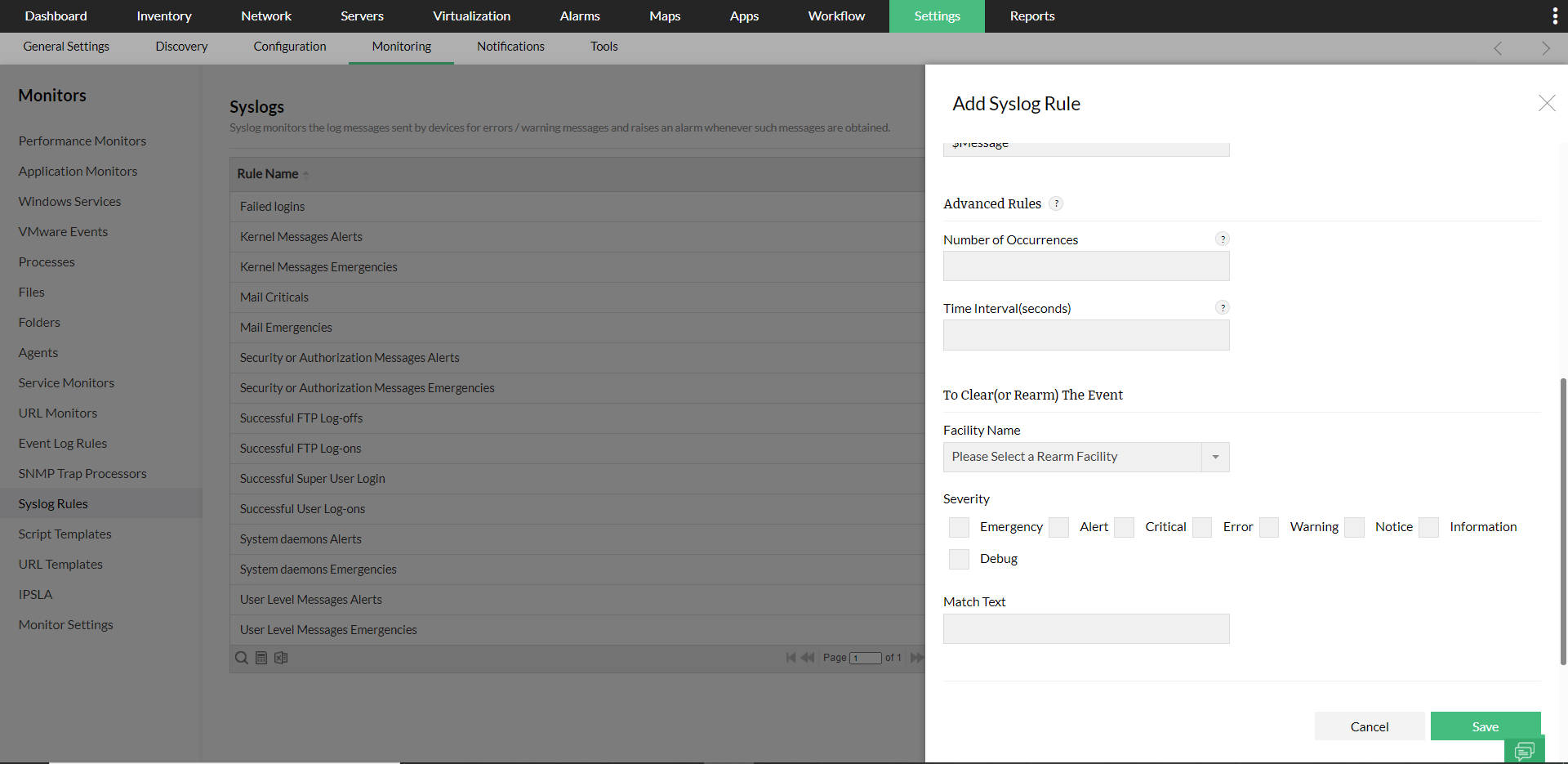
- Click the Advanced button to configure advanced (threshold) rules. This is optional.
- Number of Occurrences: Enter the number of consecutive times OpManager can receive syslog messages from a device before raising an alert.
- Time Interval (seconds): Enter the time interval that should be considered for calculating the number of occurrences.
- To clear or rearm the event:
- Select the Facility Name.
- Select the Severity.
- Enter the Match Text for clear condition.
- Click Save.