Alarm correlation rule in OpManager
OpManager's alarm correlation rule helps you pre-define multiple criteria bound together by conditional filters and raise alerts for the same. This helps you with noise reduction amidst alarms and events. Instead of applying multiple monitors for multiple devices of different priorities, you can configure an alarm correlation rule and associate it to your desired devices.
Note: The Alarm Correlation Rules feature has been renamed as Custom Alarm Rules , from version 12.9.120.
Click here to know more.
To configure an alarm correlation rule,
- Go to Settings -> Configuration -> Alarm Rules -> Alarm Correlation Rules
- Now, click on the "Add correlation rule" option in the top-right corner of the table. Now follow the below four steps to proceed with the configuration.
Step I. Configuring scope for the correlation rule
Step II. Selecting the criteria for the correlation rule
Step III. Specifying the time window for the correlation rule
Step IV. Configuring the alarm trigger for correlation rule
Step I. Configuring scope for the correlation rule
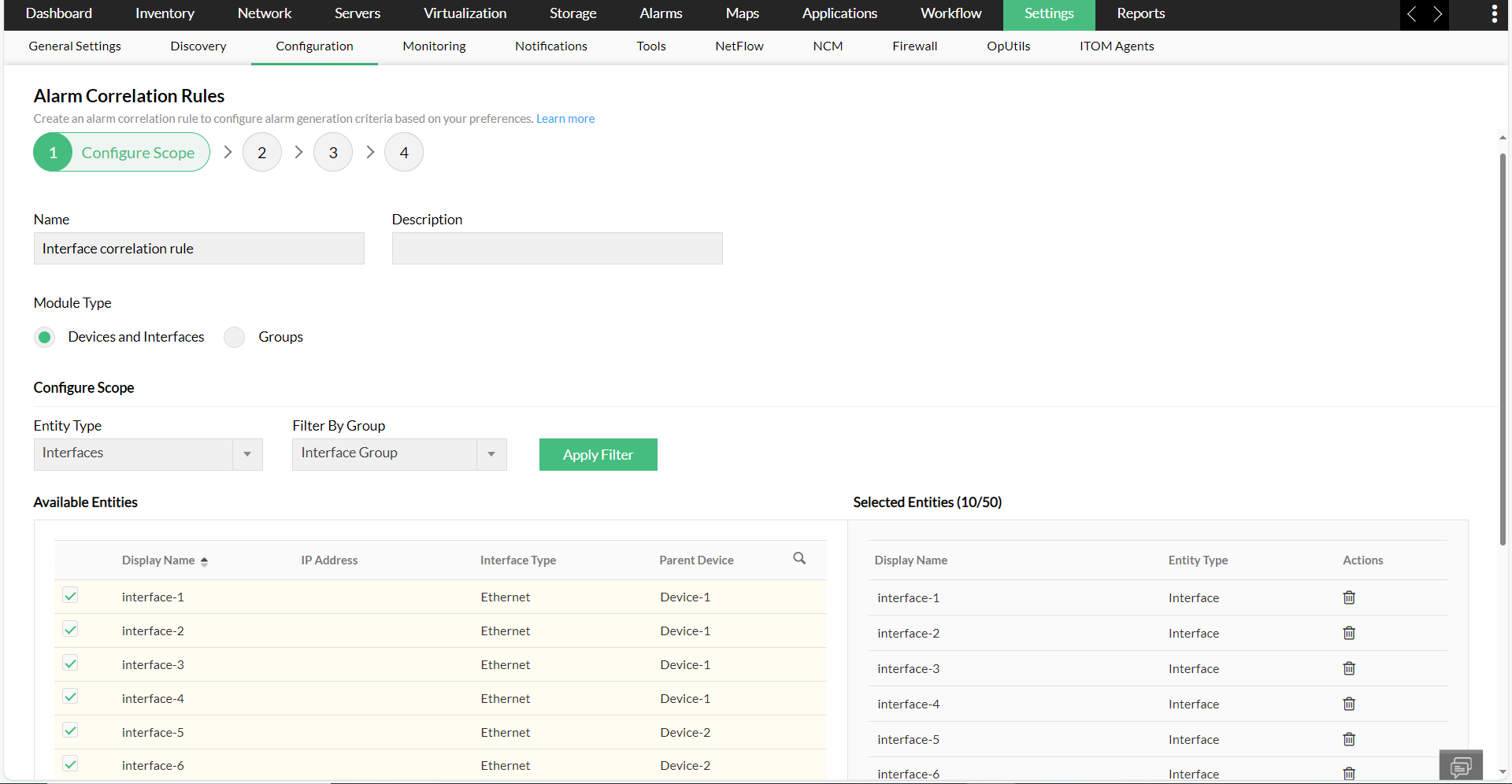
- In the alarm correlation rule page, enter the name and description of the correlation rule.
- Select the module type.
- If you had selected devices and interfaces as the module type, use the drop-down box below to filter out the devices or interfaces to which you need the alarm correlation rule to be applied to. You can filter out the devices based on their entity type, device category, and the groups to which they belong to.
- If you had selected Groups as the module type, you can use the below drop-down to filter out the devices or interfaces group.
- Once the filter has been set, click on the "Apply Filter" option.
- Now, select the respective devices or interfaces or group and click on "Next".
Step II. Selecting the criteria for correlation rule
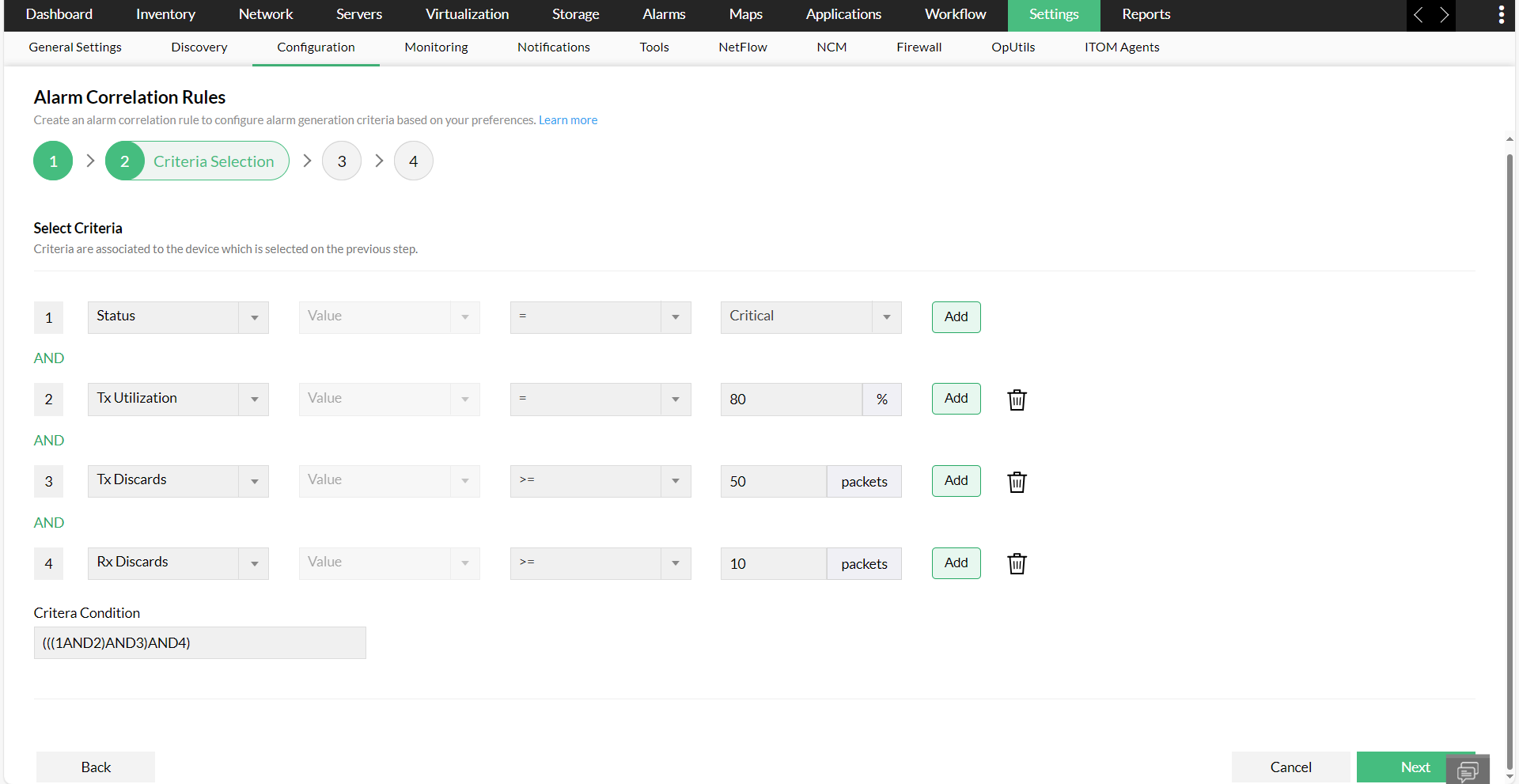
Now, under this page, select the criteria based on which the alarm correlation rule must be triggered.
- Choose the respective monitor, condition, and value. Now that a criterion has been added, you can also configure multiple criterion for the same alarm correlation rule. Just click on the "Add" button to add another criterion.
- You can also configure logical condition for these criteria (AND or OR). You can edit it under the "Criteria Condition" field, or by simply clicking on the logical condition below each criteria.
- Once done, click on "Next".
For example, consider that your organization relies a lot on remote VPN connections established through WAN miniport interfaces, for employees to remotely access corporate resources. So you might need to monitor all aspects of your interfaces such as their status, traffic utilization, transmit and receive discards (Tx and Rx discards).
So instead of adding interfaces individually you can configure the following monitors.
Step III. Specifying the time window for the correlation rule
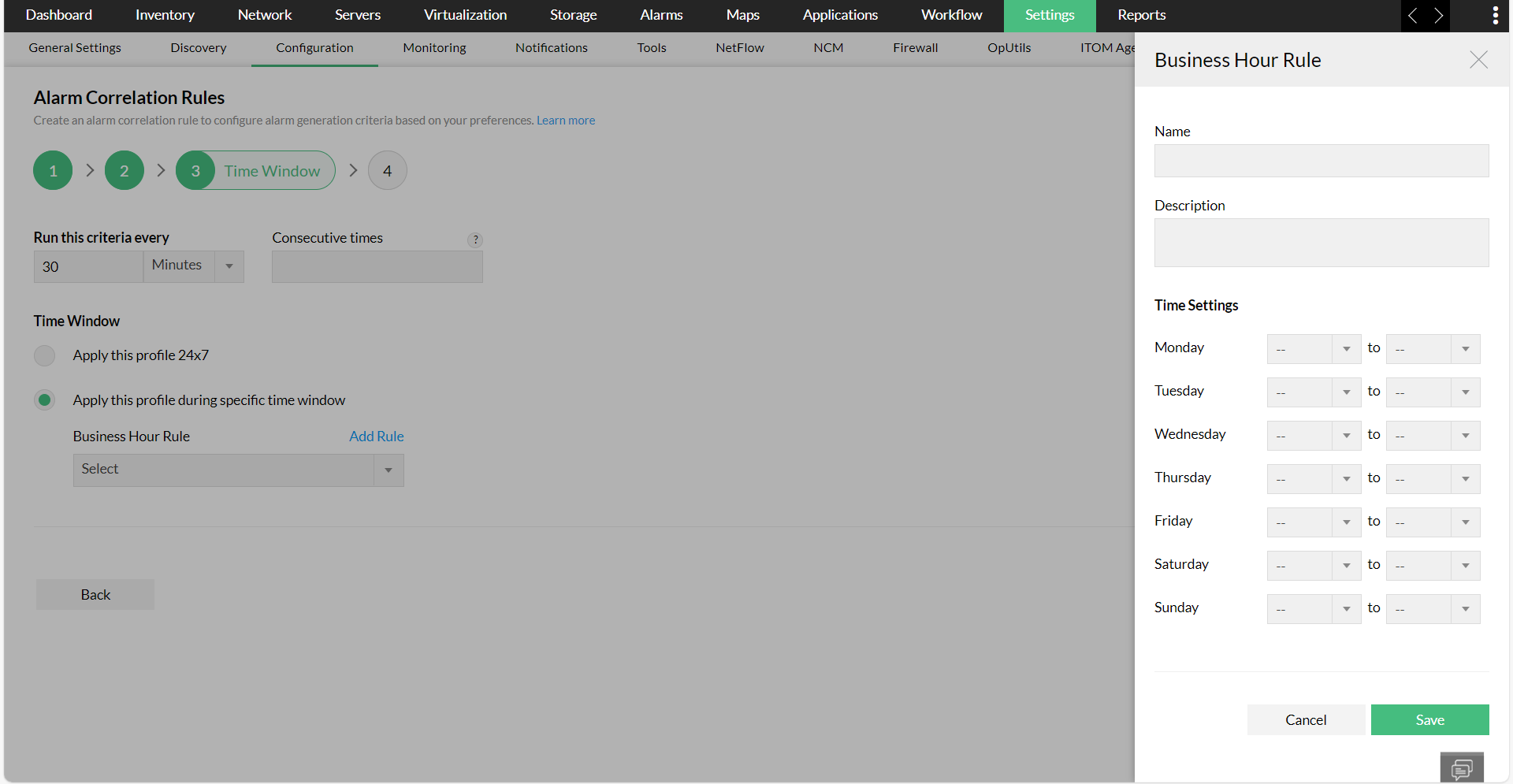
Now, under the respective fields, enter the following information.
- Run this criteria every: Select the time interval at which the criteria must be run.
- Time window: You can either choose to apply this correlation rule 24/7, or apply it only during the selected business hour rule. Click on the "Add Rule" option if you need to add a new business hour rule.
- Click on "Next".
Step IV. Configuring alarm trigger for the correlation rule
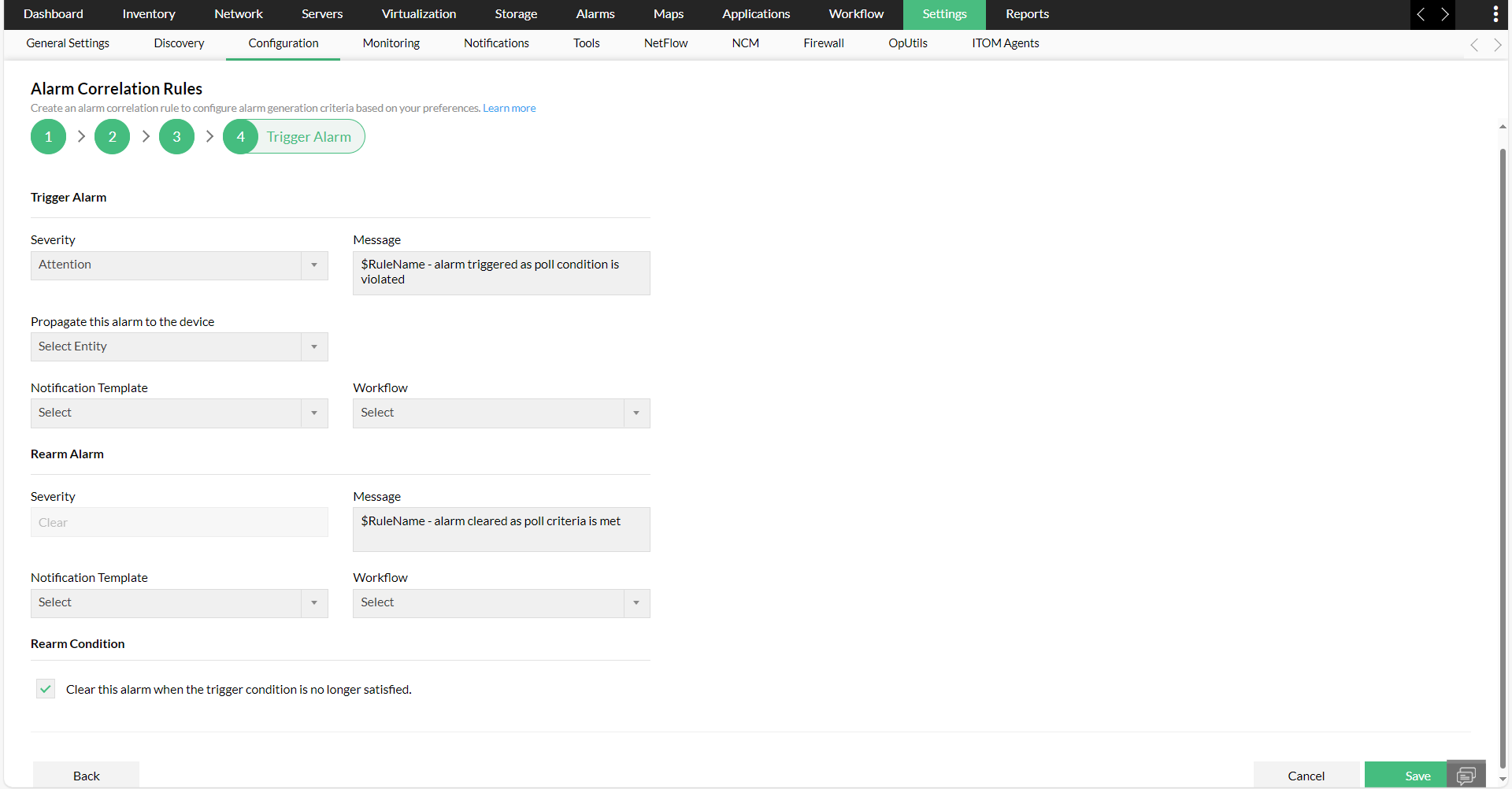
Now, configure the trigger actions to be performed.
1. Trigger Alarm
- Severity: Choose the severity with which the alarm correlation rule must be triggered.
- Message: Customize the message that will be displayed when the alarm is triggered.
- Propagate this alarm to this device: Select the device to which the alarm must be associated to. However, this option is not mandatory.
- Workflow: Select the workflow that must be initiated, when the alarm is triggered. Using workflow, you can automate the preliminary fault remediation measures that must be taken. You can streamline your troubleshooting efforts and automate your monotonous tasks by configuring workflows.
2. Rearm Alarm
You can configure the rearm settings here by selecting the severity and the corresponding message. You can also configure a workflow, once a device or interface or group has moved to rearm state.
3. Rearm Condition
You can choose to clear the alert, when the criteria is no longer satisfied. You can also configure advanced rearm settings similar to the way you configured the alarm correlation rule criteria.
4. Associate Notification Profile
You can associate a notification profile to this alarm correlation rule, by selecting the respective notification profile from the drop-down box provided under this section.
Kindly note that you can associate a maximum of two notification profiles for each alarm correlation rule.
Now, click on "Save".
The alarm correlation rule has now been configured successfully. You can also edit, copy or delete the correlation rules from Settings -> Configuration -> Alarm Rules -> Alarm Correlation Rules
Know more about fault management in OpManager.