OpManager Capacity Planning Reports
OpManager's Capacity Planning Reports enable IT administrators to effectively manage their infrastructure resources by providing insights into CPU, memory, and disk utilization metrics and enabling proactive capacity planning. This help document will help you navigate OpManager's capacity planning reports. Learn more about OpManager's capacity planning reports.
Report Categories:
OpManager classifies custom planning reports based on the utilization criteria:
- Undersized devices
- Oversized devices
- Idle devices
| Report Name | Description | Available Columns | Available Filters |
|---|---|---|---|
| Idle Interfaces | These are network interfaces that are currently not in use. Monitoring idle interfaces helps in identifying underutilized network resources and reallocating them for better efficiency. | Device Name, Interface Name, Idle, Interface Utilization < 10% | Filter by, Period, Time Window/Business Hour, Idle and Rule |
| Underutilized Interfaces | These interfaces are allocated more resources than they actually need. Identifying underutilized interfaces allows administrators to free up network capacity and optimize bandwidth allocation. | Device Name, Interface Name, Underutilized, Interface Utilization < 30% | Filter by, Period, Time Window/Business Hour, Underutilized and Rule |
| Overutilized Interfaces | These interfaces are heavily used but do not have sufficient resources to handle the load. Overutilization can lead to performance bottlenecks, latency, and packet loss. Addressing this issue involves upgrading network capacity or redistributing traffic. | Device Name, Interface Name, Overutilized, Interface Utilization > 80% | Filter by, Period, Time Window/Business Hour, Overutilized and Rule |
| Overutilized Devices | These are network devices (such as routers, switches, or servers) that are running at or beyond their capacity limits. Overutilized devices may cause network slowdowns and failures, requiring load balancing or hardware upgrades. | Device Name, Overutilized, Memory Utilization > 70%, Disk Utilization > 70%, CPU Utilization > 70% | Filter by, Period, Time Window/Business Hour, Overutilized and Rule |
| Underutilized Devices | These devices have been allocated excessive resources but are not being used effectively. Identifying and optimizing underutilized devices can help in cost reduction and better resource allocation. | Device Name, Underutilized, Memory Utilization < 30%, Disk Utilization < 30%, CPU Utilization < 30% | Filter by, Period, Time Window/Business Hour, Underutilized and Rule |
| Idle Devices | These are network devices that are currently not in use. Monitoring idle devices can help in identifying redundant hardware, reducing operational costs, and improving network efficiency. | Device Name, Idle, Memory Utilization < 10%, Disk Utilization < 10%, CPU Utilization < 10% | Filter by, Period, Time Window/Business Hour, Idle and Rule |
To know more about the Available Filters in various reports of OpManager, Click here.
OpManager's Capacity planning reports:
The Capacity Planning Reports page displays metrics like CPU, disk, and memory utilization for both physical and virtual devices. It is suggested to enable reports for all monitors before proceeding to generate capacity planning reports.
To access a capacity planning report in OpManager,
- Go to Reports -> OpManager reports.
- Click on the Capacity Planning Reports, in the list of reports on the left side of the page.
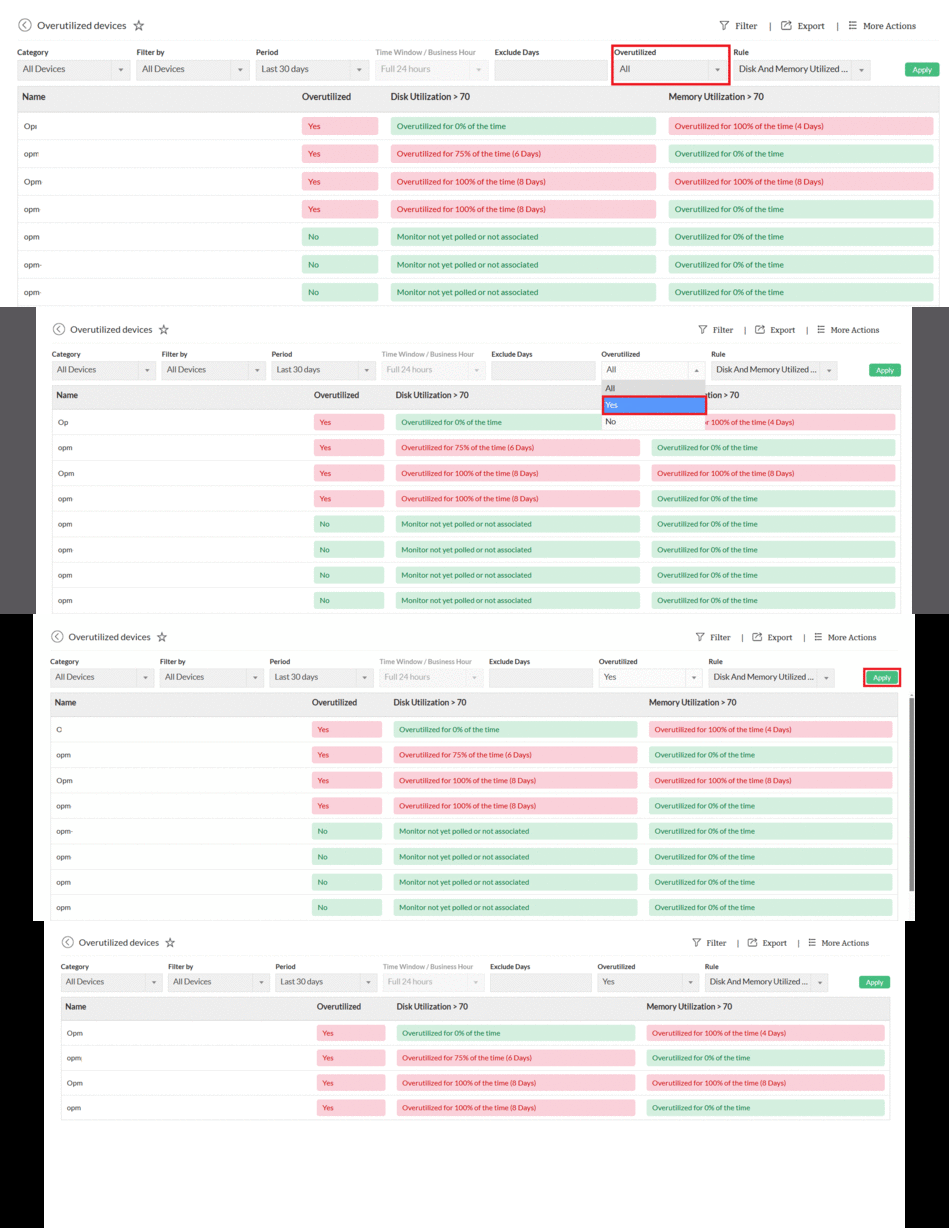
- Select the required report (Overutilized, Underutilized, or Idle devices) to view their capacity planning reports respectively.
- After selecting a report, all devices will be listed. Users can further refine the results by filtering overutilized, underutilized, or idle devices using the dropdown menu at the top.
- OpManager's capacity planning reports also offer a range of filters to view selected devices on specific time periods or during their organizations business hours.
Custom Rule:
The rules for Overutilized, Under Utilized, and Idle devices are predefined by default. If you need the report to be specific, filters can be used.
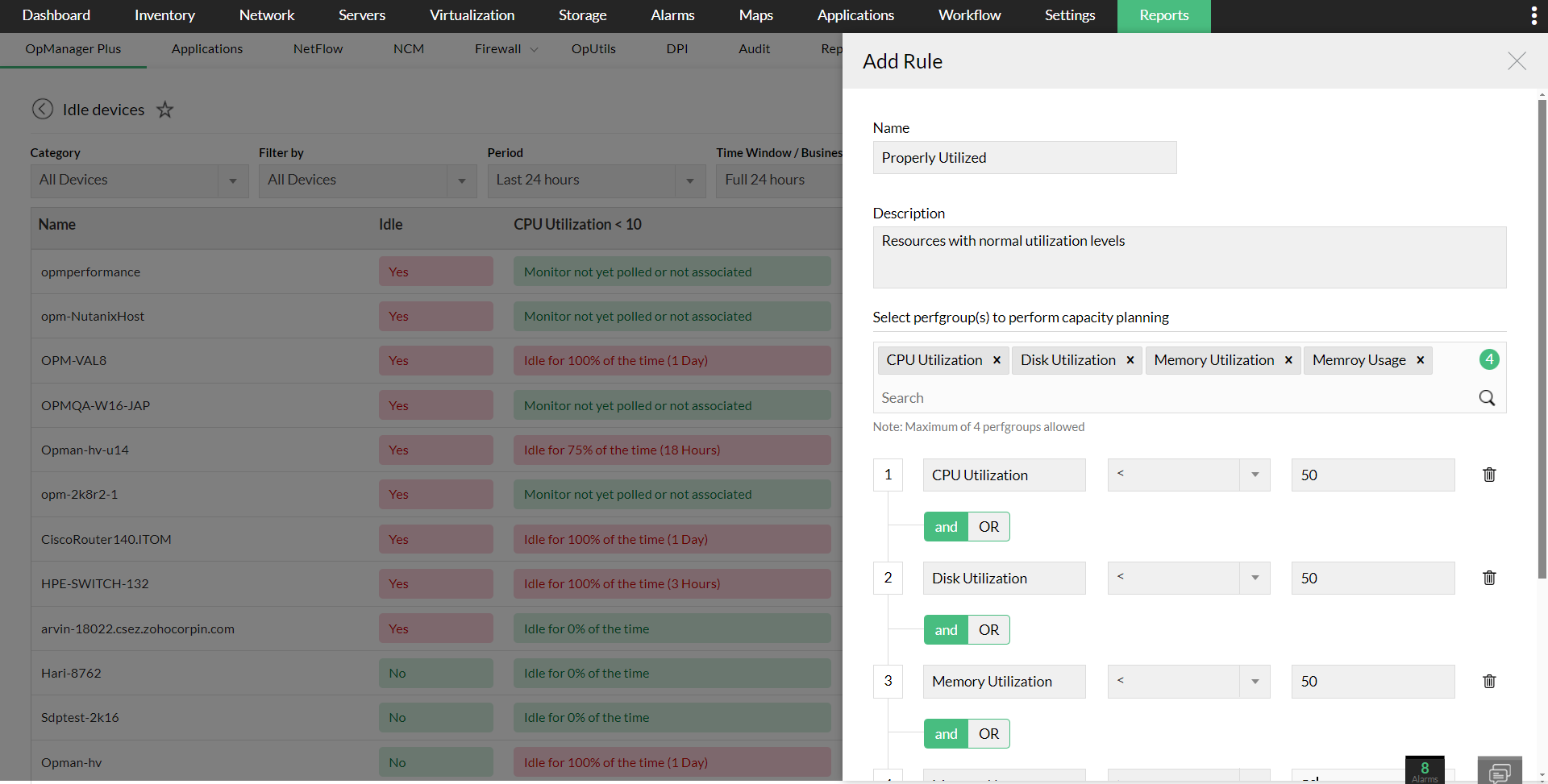
Users can customize the rule to create a custom capacity planning report with upto 4 perfgroups. To assign a new rule,
- Select an Overutilized, Underutilized, or an Idle device report.
- Click on the Filter icon above the report and select Add rule.
- Enter the Name, Description and select the required perfgroups.
- Click Save to save the custom rule.
- Select Apply to assign the rule to a report.
For example,
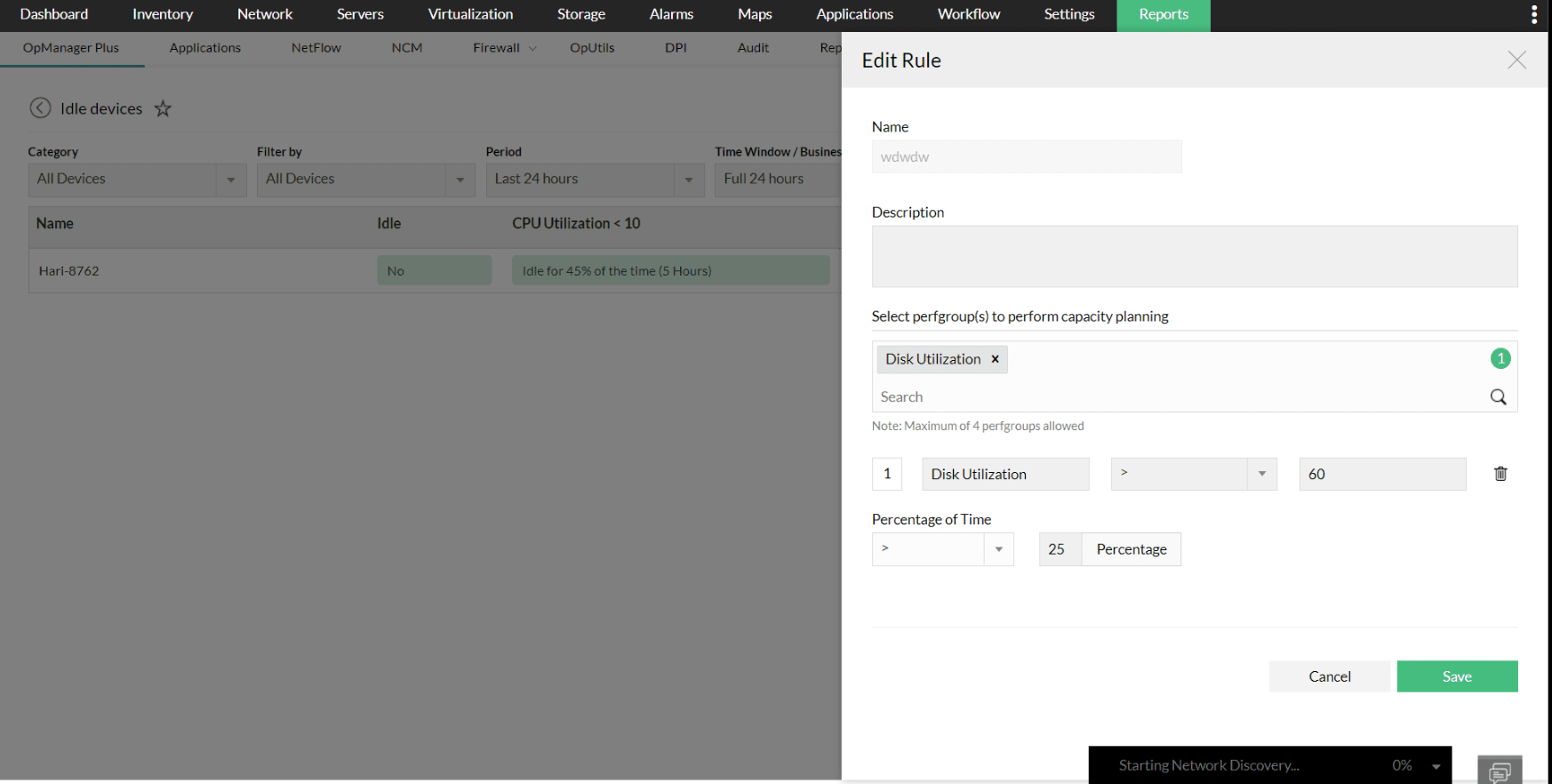
If the user needs a capacity planning report for devices whose Disk utilization is more than 60, for more than 25 percent of the specified time window, the rule should be defined as,
Disk utilization > 60 || Percentage of time > 25
Click Save to create a capacity planning report for devices with more than 60% disk utilization over 25% of the given time.
Note: The values will be taken from hourly and daily archived tables. Learn more.