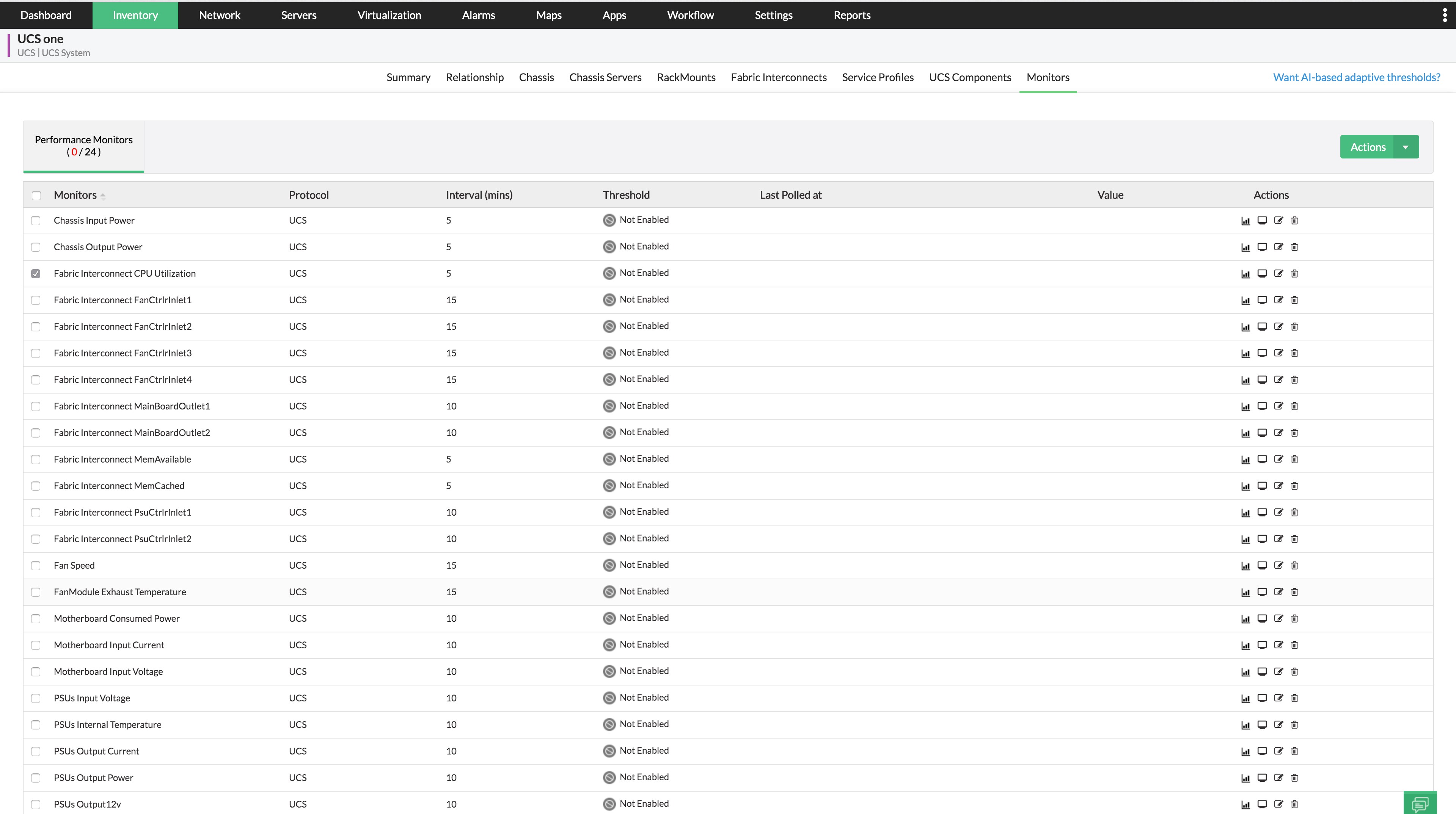
Performance Monitors:
Whenever OpManager discovers UCS devices, UCS performance monitors are automatically associated with them. Thresholds can be set to receive alarms when they are breached.
To set thresholds for a performance monitor,
- Navigate to Inventory → Category → UCS and go to the snapshot page of the device.
- Go to Monitors. Performance monitors would have already been added to the device.
- Select the monitor that you wish to edit.
- Configure the Monitoring Interval, Units, and Threshold Details values and click on Save.
OpManager generates alarms when the configured threshold levels are breached.
Note: You can also configure adaptive thresholds for CPU utilization, Memory Utilization and Response Time monitors globally across OpManager from Settings → Monitoring → Monitor Settings. Learn more about Adaptive Thresholds.