Integrating OpManager with ServiceNow
If you have ServiceNow installed in your network, you can automatically log trouble tickets from OpManager for specific network faults. So, besides the provision to email, sms, or notify fault in other forms, you can also track the faults by logging trouble tickets to ServiceNow. This helps in issue tracking. Furthermore, you can also configure alerts according to the criticality of the situation, and easily manage your IT assets by enabling sync operation, to directly update device details, when new devices are added to your network, or existing devices are reconfigured.

- Pre-requisites for integrating OpManager with ServiceNow
- Configuring ServiceNow settings in OpManager
- Configuring Notification profiles
- Syncing fields for Incidents, events, and CIs from OpManager to ServiceNow
- Syncing Custom Fields from ServiceNow to OpManager
- Improting devices from ServiceNow to OpManager
- ServiceNow CMDB Reports
- Functioning of two-way sync in this integration
- Functionality of ServiceNow Change Request Settings
Pre-requisites for integrating OpManager with ServiceNow
Kindly make sure that the following privileges are available for the users.
- For incident: Admin / Combination of ITIL, ITIL Admin and Personalized choices.
- For event integration: evt_mgmt_operator
Configuring ServiceNow settings in OpManager
Following are the steps to configure the ServiceNow and OpManager Server settings:
- Go to Settings -> General Settings -> Integrations -> ServiceNow and configure the following values:
- Select the Authentication Type as either Basic Authentication or OAuth.
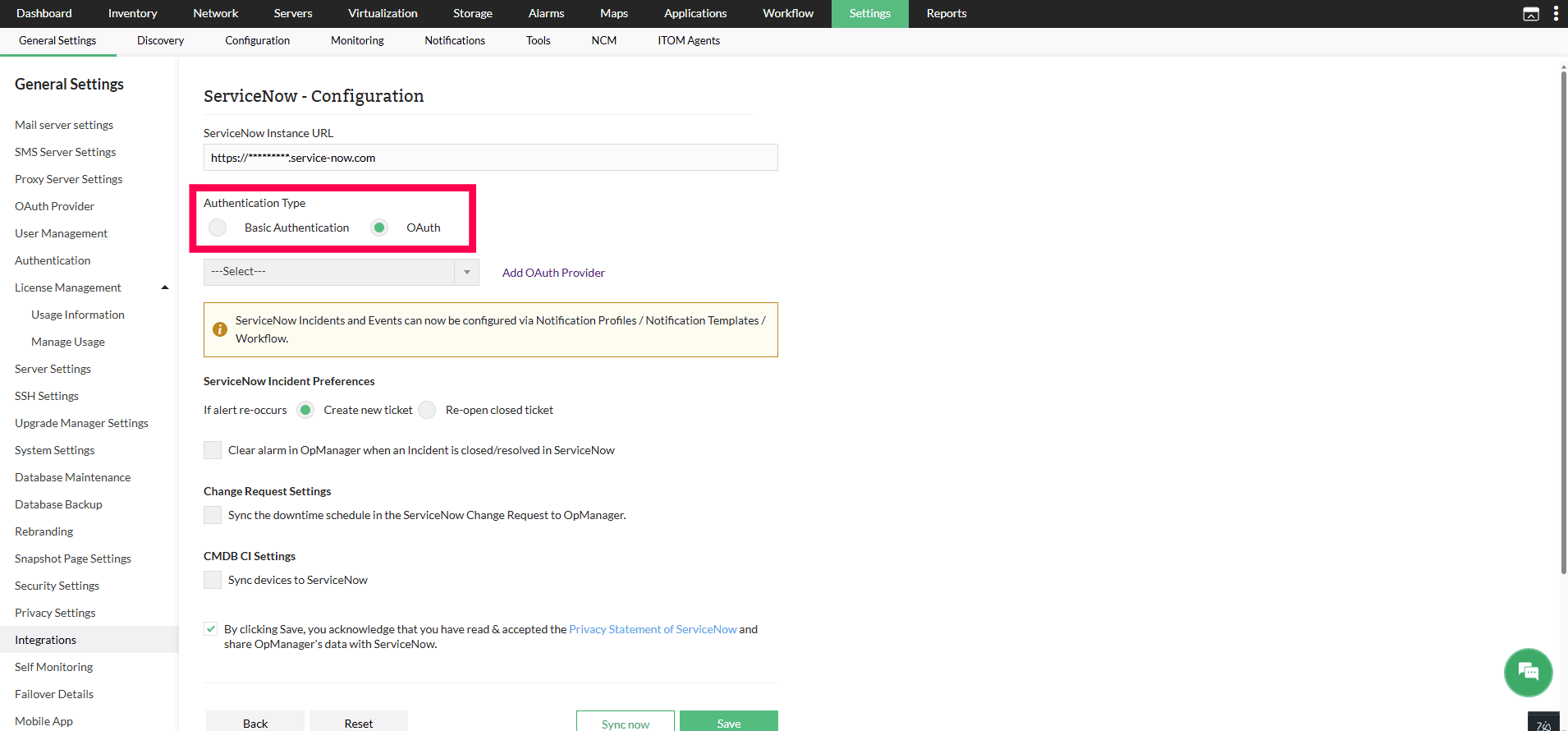
- For Basic Authentication type configure the following:
- Provide the ServiceNow Instance URL (the url of your servicenow account)
- Enter the Username and Password of your ServiceNow account.
- For OAuth Authentication configure the following:
- Provide the ServiceNow Instance URL (the url of your servicenow account)
- Select the OAuth Provider from the dropdown, if OAuth Provider is not configured, click Add OAuth Provider.
- Once the Authentication type is chosen, fill in the required details to complete the configuration.
- For Basic Authentication type configure the following:
- Ticket Settings:
- Create new ticket: Creates a new ticket when an alert re-occurs.
- Re-opened closed ticket: Re-opens the closed ticket when an alert re-occurs.
- Clear alarm in OpManager when an Incident is closed/resolved in ServiceNow:Automatically clears the alarm when the corresponding incident is closed / resolved in ServiceNow.
- MID Server: Select the appropriate MID Server from the dropdown. The MID Server acts as a bridge between OpManager and ServiceNow, enabling secure communication. Ensure that the MID server can reach OpManager over the network. Note: OpManager supports integration with only one ServiceNow instance at a time. Know more.
- Change Request Settings:
- Sync the downtime schedule in the ServiceNow Change Request to OpManager: Enabling this option allows you to sync downtime schedules from ServiceNow Change Requests to OpManager. This ensures that device downtimes in ServiceNow are reflected in OpManager for accurate monitoring. Learn More.
- ServiceNow Event preferences: Enabling this field will allow you to sync alarms from OpManager as events in ServiceNow. Also, kindly note that enabling this event integration will automatically disable the ticketing settings, since OpManager will sync either events or incidents at a a time to ServiceNow.
- CMDB CI Settings:
- Sync devices to ServiceNow: Add existing devices from OpManager to ServiceNow.
- Sync newly discovered devices in future: When new devices are added in OpManager, automatically add them to ServiceNow.
- Remove CI from ServiceNow when a device is deleted from OpManager:Remove a device from ServiceNow when it is removed from OpManager.
- Click on Save to save your configurations and complete the integration process successfully.
- Click on Sync now to sync the Assets from OpManager with ServiceNow using the saved configurations.
Configuring notification profiles
Once the ServiceNow details have been configured in OpManager, proceed with configuring notification profiles to log tickets from OpManager to ServiceNow. With this integration, you can log tickets as either incidents or events for a single user.
- Go to Settings -> Notifications -> Add Profile.
- Now, click on the Log a Ticket option.
- Now, select the ServiceNow tab in the left side.
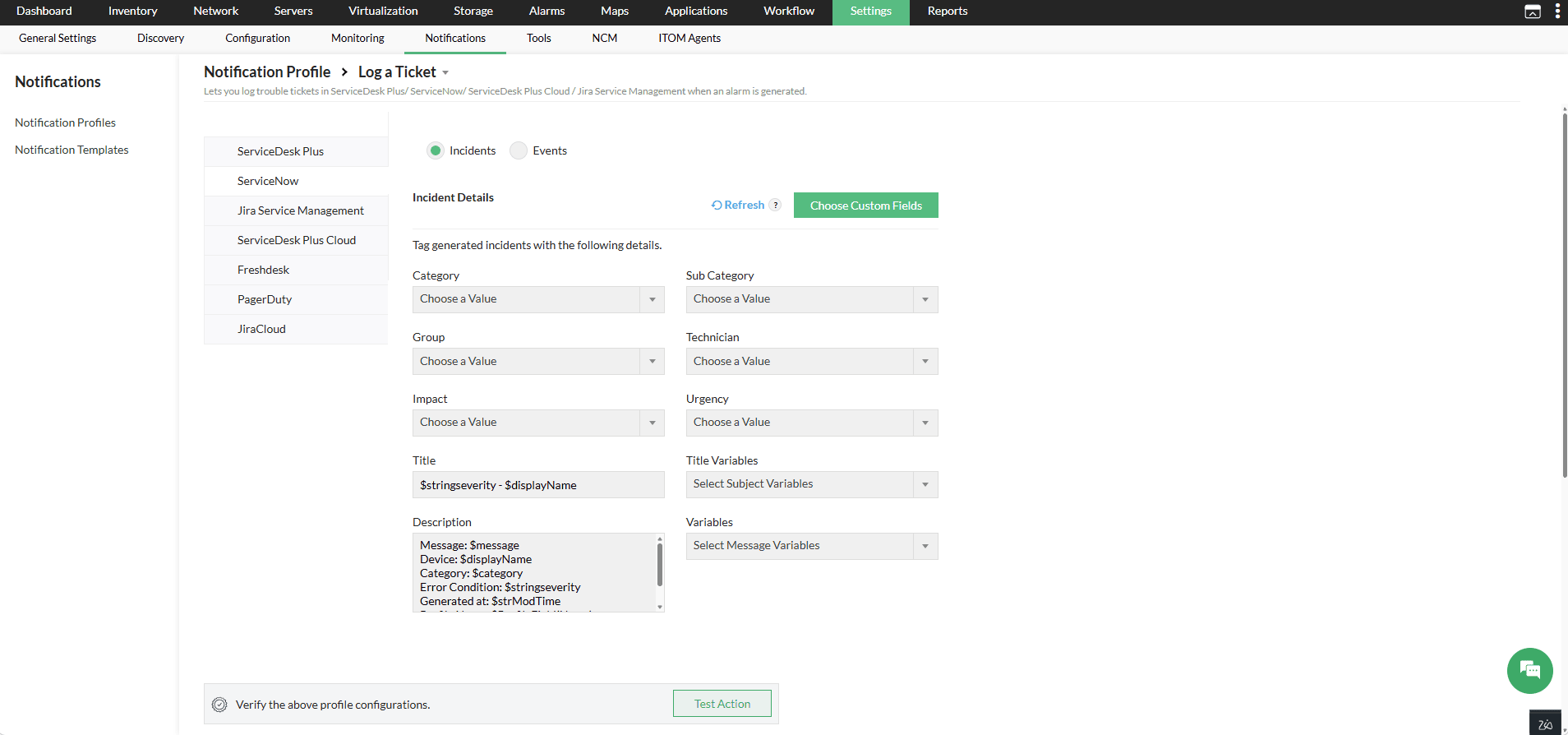
- Select Incidents or Events to log tickets in ServiceNow.
- Under Incident Details, fill in the required fields such as Category, Sub Category, Group, Technician, Impact, etc.
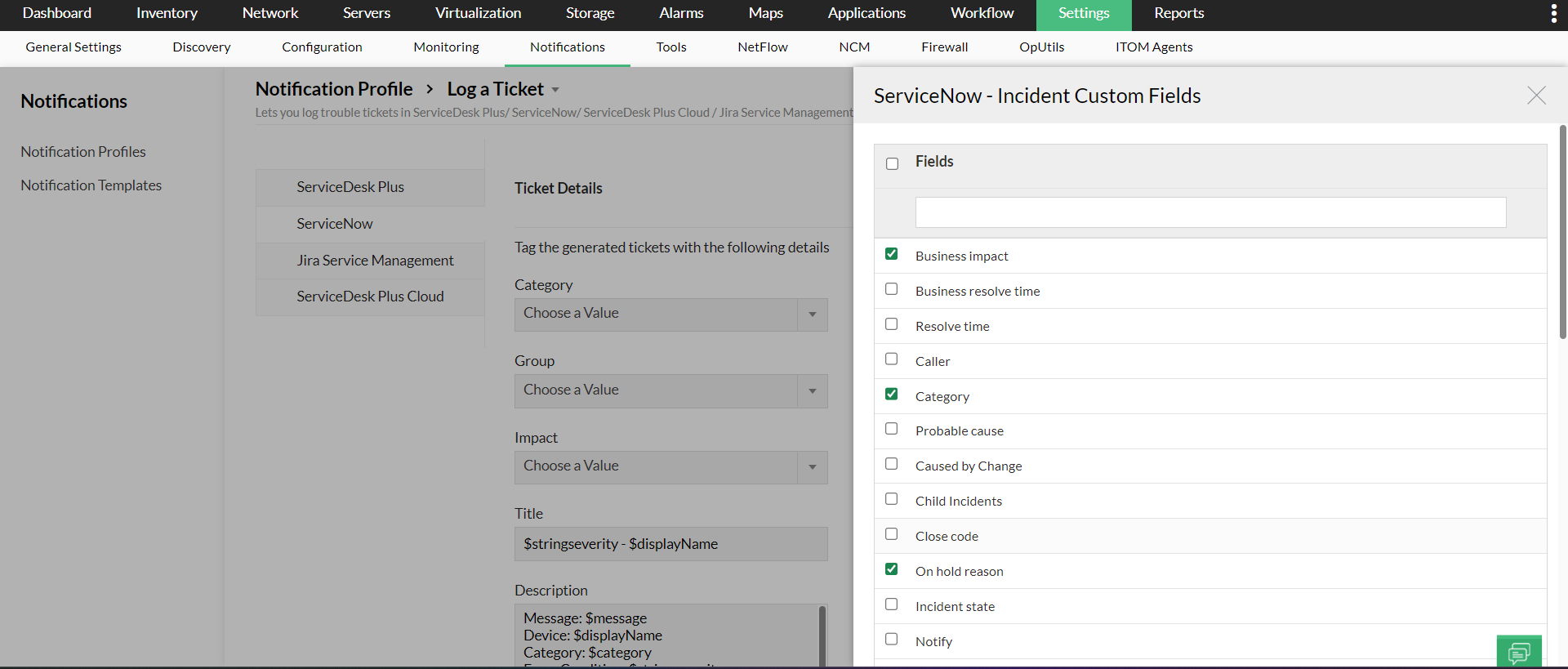
- You can also add custom fields, click on the Choose Custom Fields button available at the top right corner.
- Click Refresh to fetch the latest values of Incident fields, such as Category, Subcategory, Group, and Technician, from ServiceNow. It also fetches any newly added custom fields from ServiceNow and lists them in OpManager.
- You can select the required custom fields from the displayed list.
- The selected custom fields will now be available under the notification profile.
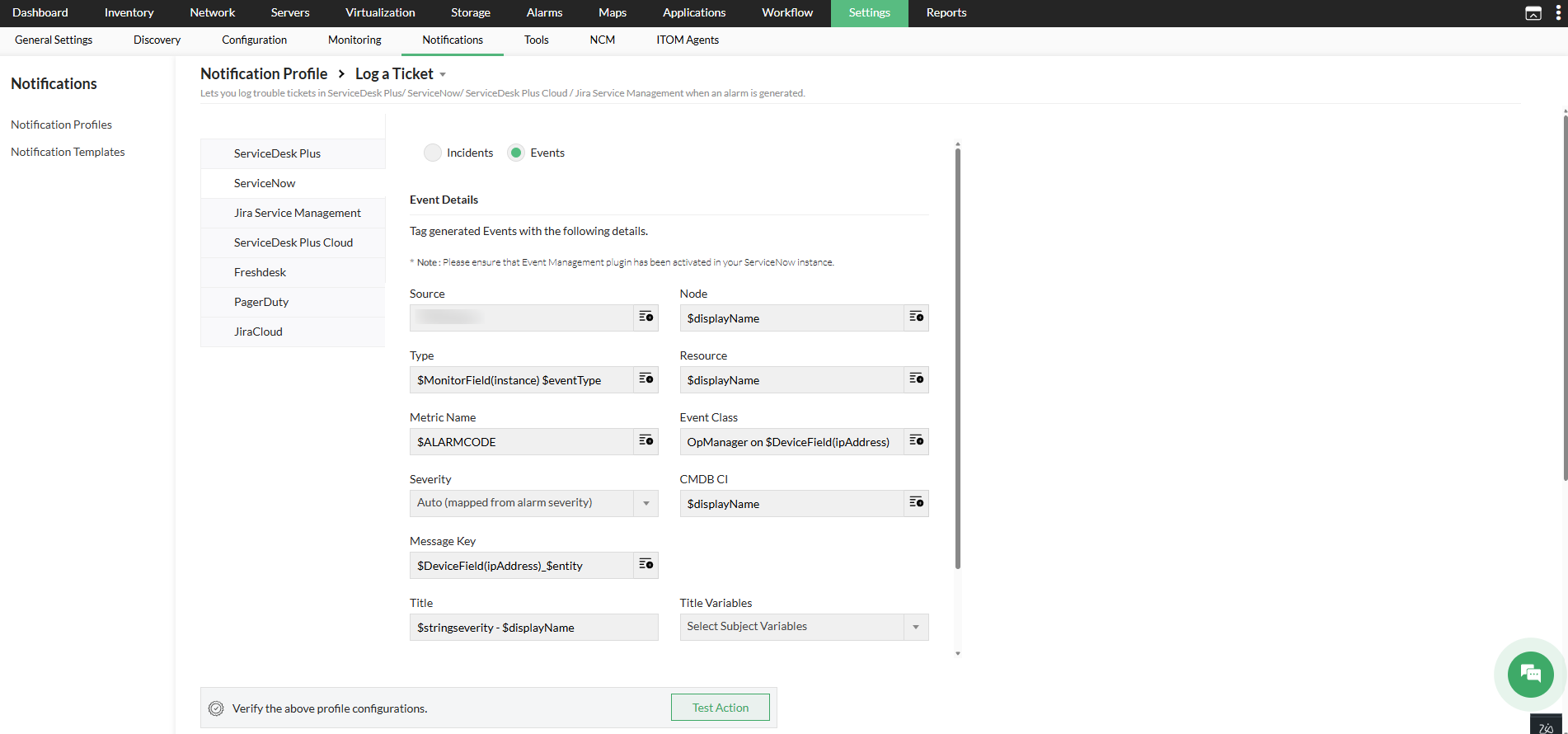
- Under Event Details, fill in the required fields such as Source, Node, Type, Resource, Title, etc
- After providing the details for Incidents or Events, click Test Action to verify the configuration.
- Once verified, click Next to choose a criteria to log the tickets.
- Click here to learn more about choosing criteria, associating devices, applying a time window etc.
- Enter a name for the notification profile, then click Save.
For Incidents:
For Events:
Syncing fields for Incidents, events, and CIs from OpManager to ServiceNow
Syncing fields for Incidents and events from OpManager to ServiceNow
Click here to know about the fields for various incidents and events, that will be synced from OpManager to ServiceNow
Syncing fields for CIs from OpManager to ServiceNow
The devices in OpManager will be constantly synced as CIs to ServiceNow. Click here to know more about the fields for CIs that will be synced from OpManager to ServiceNow.
Syncing custom fields from OpManager to ServiceNow
Users can sync their custom fields from ServiceNow with OpManager. While configuring the respective notification profile for ServiceNow, users can now sync not just the default fields, but the custom fields set by them too. Furthermore, any new custom fields added to the incident table will be automatically synced with OpManager. A scheduler automatically syncs the fields once every four hours. Alternatively, users can also reload their tickets, to view the current custom fields.
Importing devices from ServiceNow
OpManager provides the option to import devices through ServiceNow integration. Click here to learn how to import devices from ServiceNow.
ServiceNow CMDB Reports:
From version 12.8.456 , OpManager users can access a detailed CMDB report specifically for ServiceNow integration. This report offers a clear overview of all devices synced between OpManager and ServiceNow, displaying essential attributes such as the device name and category from OpManager, as well as the corresponding CI name and CI Class in ServiceNow. It also outlines the latest sync activity, timestamp of the most recent update, and the current synchronization status of each Configuration Item (CI).
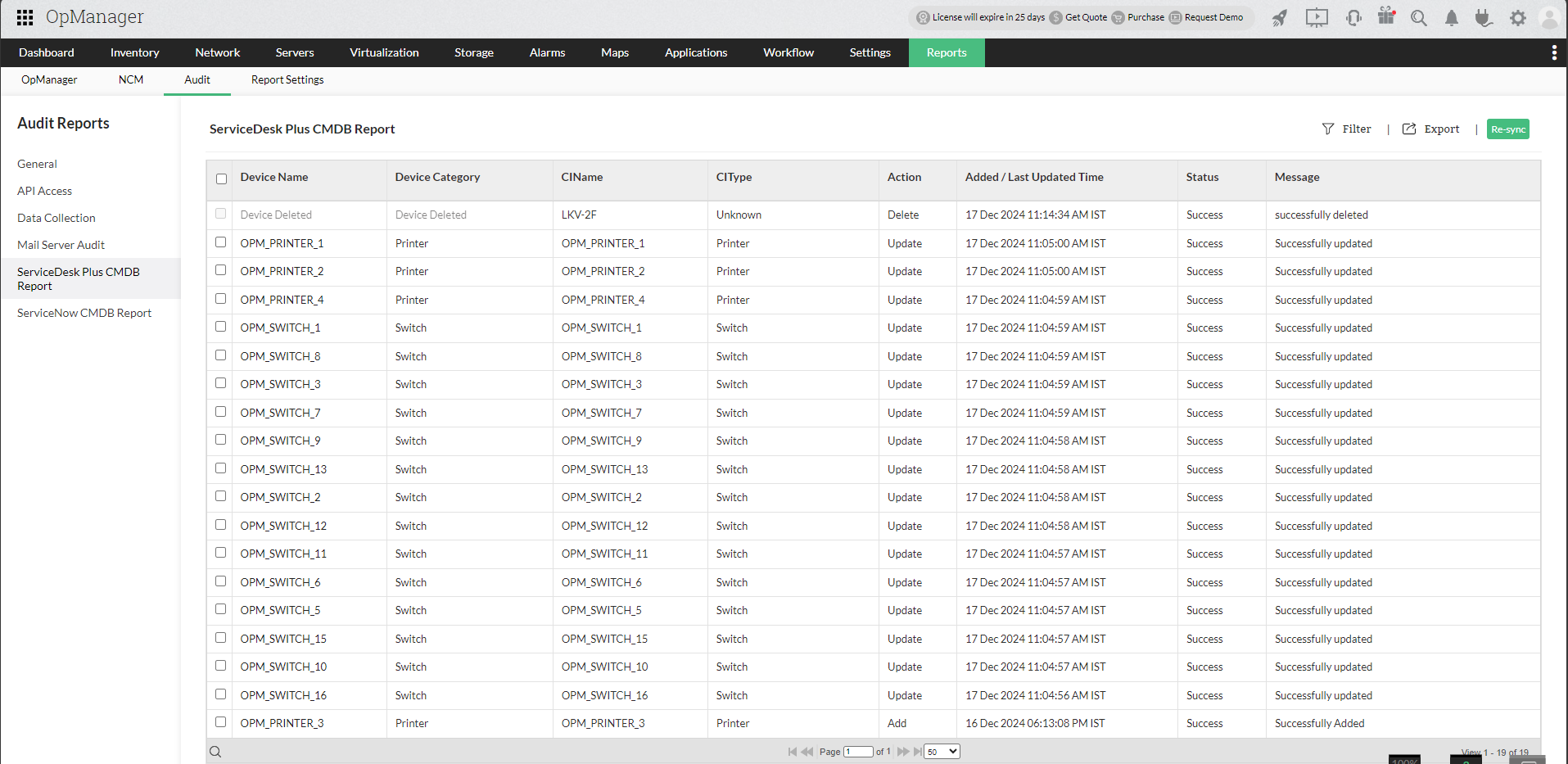
The report enables users to resync individual devices or multiple selected devices from OpManager to ServiceNow in just a few clicks.
Functioning of two-way sync in this integration
The OpManager - ServiceNow integration is carried out by a component called MID Server. The Management, Instrumentation and Discovery (MID) Server is an application that runs either as a windows service or UNIX dameon in your local environment. Any communication from ServiceNow to OpManager takes place via the MID Server. The following is how the process will take place:
- The MID Server is installed on your local network.
- The MID Server polls the External Communication Channel(ECC) queue continuously for a specific time interval which is configurable. (The ECC queue is the connection between MID Server and an instance.)
- MID Server gathers the operation to be carried out from the ECC and implements it.
Kindly ensure the following to enable two-way sync:
- The ServiceNow user carrying out the integration must have admin privileges.
- MID Server must be reachable from OpManager.
Functionality of ServiceNow Change Request Settings
Change Request
A ServiceNow change request records the detailed information about the changes in the device, reason for the change, the priority and risk of the change. Hence when a change request is created, ServiceNow will record the activity of the device mentioned in the request.
Pre-requisities for Change request settings
- The users in both OpManager and ServiceNow must have Admin access for the configuration.
- Ensure the MID Server is reachable from OpManager, as it is required for syncing from ServiceNow to OpManager.
- Change Request Settings should be enabled under ServiceNow configuration page in OpManager.
- The Change Request must contain at least one CI which has been synced from OpManger, and CI sync should be enabled under ServiceNow configuration page in OpManager.
Change Request Downtime Sync to OpManager
When ServiceNow downtime schedules created under Change Requests are synced to OpManager, OpManager automatically recognizes the planned downtimes and ensure that both OPM and ServiceNow will reflect the same maintenance periods.
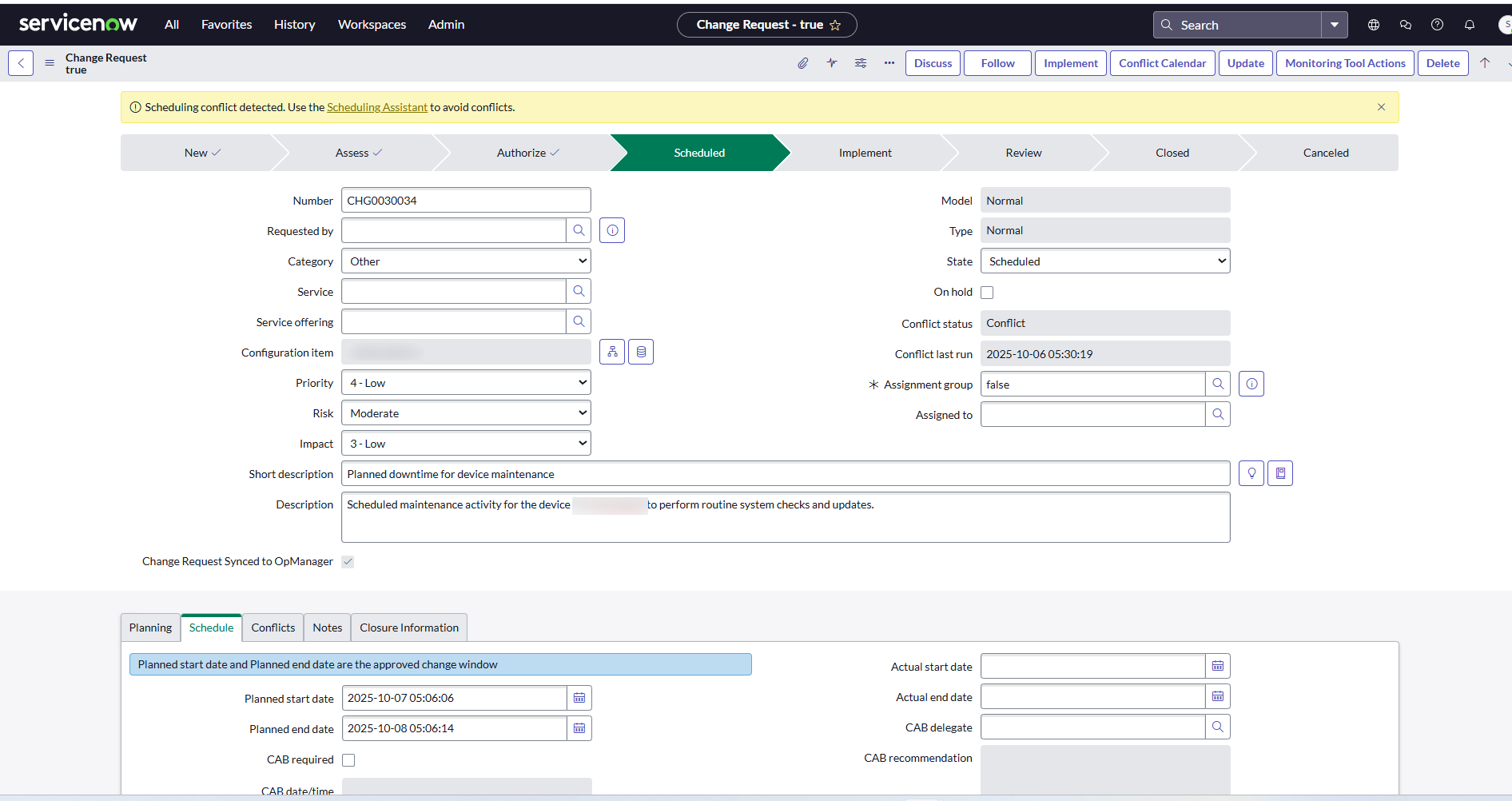
- In Change Request Settings, go to Schedule tab to configure downtime syncing.
- A ServiceNow Change Request syncs to OpManager only when it reaches the "Scheduled" state.
- For first-time Sync, go to Change Request and click on Monitoring Tool Action (top-left) to perform the initial sync.
- After the first sync, the following schedules will sync automatically. If required, use the Monitoring Tool Action button for manual updates if needed.
- Once synced, the “Change Request Synced to OpManager” option will be enabled. You can use this to verify that the Change Request has been synced at least once.
- If any OPM synced CIs are removed from a Change Request, their corresponding downtime schedules will be deleted in OpManager. To restore them, add OPM synced CIs and re-sync using Monitoring Tool Actions.
- If a Change Request is deleted or cancelled in ServiceNow, the related downtime schedule will also be removed from OpManager.
- Any CI conflicts in ServiceNow change request will appear in OpManager after syncing. In ServiceNow, check the Conflict Calendar and resolve them before the next sync.
- If Change Request Settings is disabled in the ServiceNow Configuration page of OpManager, downtime schedule sync will not be performed.
- If the ServiceNow configuration is reset, previously synced downtime schedules will remain in OpManager.
- When a Change Request is On Hold, its downtime schedule is disabled in OpManager and re-enabled once On Hold is removed.
OpManager device downtime schedule UI
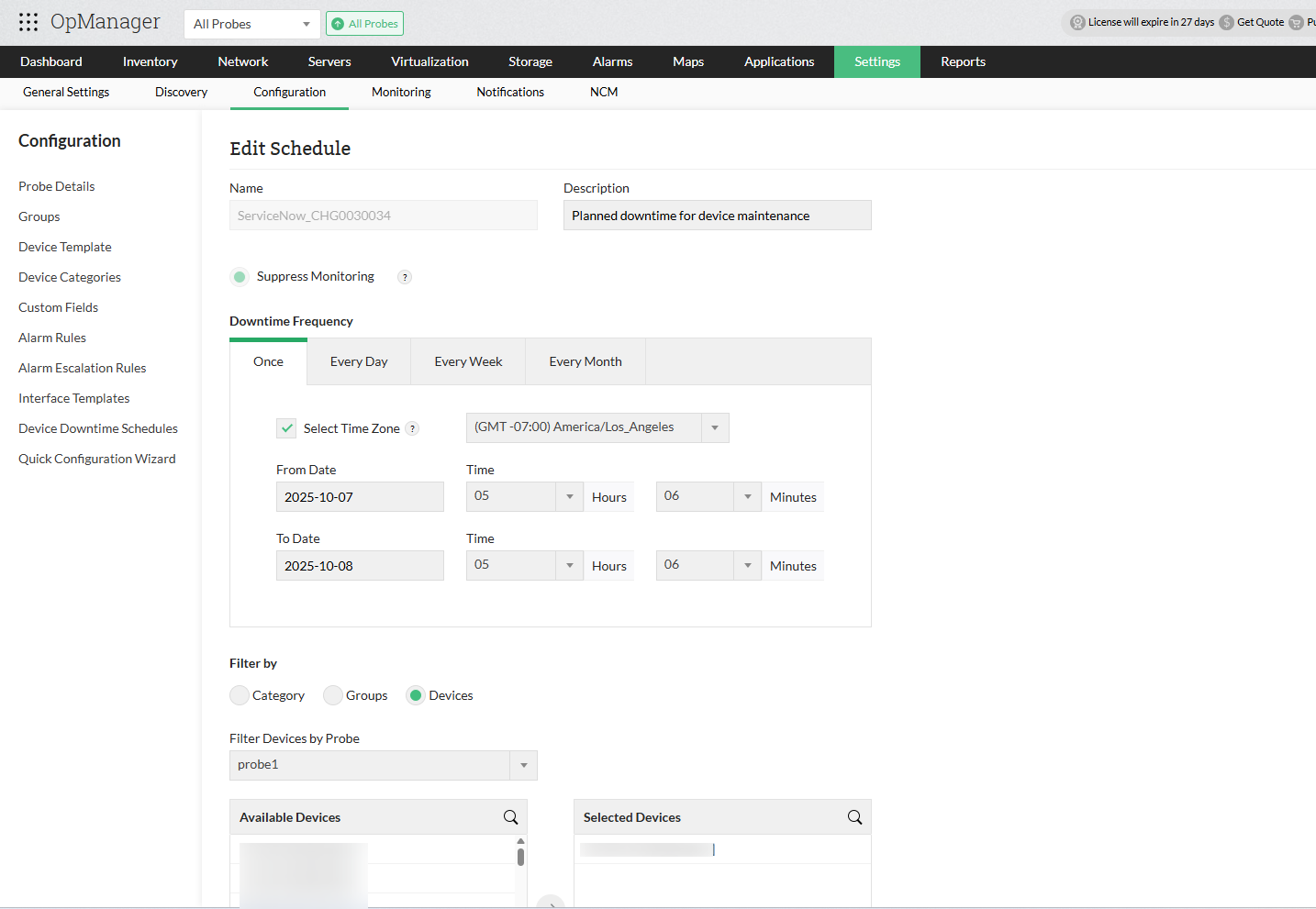
Note: The following are the values that will be synced while integrating ServiceNow downtime schedule to OpManager.
| ServiceNow Field | OpManager Field | OpManager Keys |
| Short Description | Description | scheduleDesc |
| Planned start date | From Date | once_startat |
| Planned end date | To Date | once_endat |
| Configuration Item | Selected Devices | selectedDevices |
| Affected CIs | ||
| Impacted Services/CIs | ||
| Number | Name | scheduleName |
| Servicenow user's zone | Select Time Zone | timeZone |
ServiceNow has now been successfully integrated with OpManager. Learn More about how to leverage this integration.
Know More about the various integrations offered by OpManager