OpManager's Chat Support
OpManager offers two chat support options to help you resolve issues quickly and efficiently: a Chat Support with our support team and the ZIA Chat Support, an AI-powered assistant. Both options are designed to provide instant guidance, whether you need real-time help from a human expert or quick answers through AI.
ZIA Chat Support
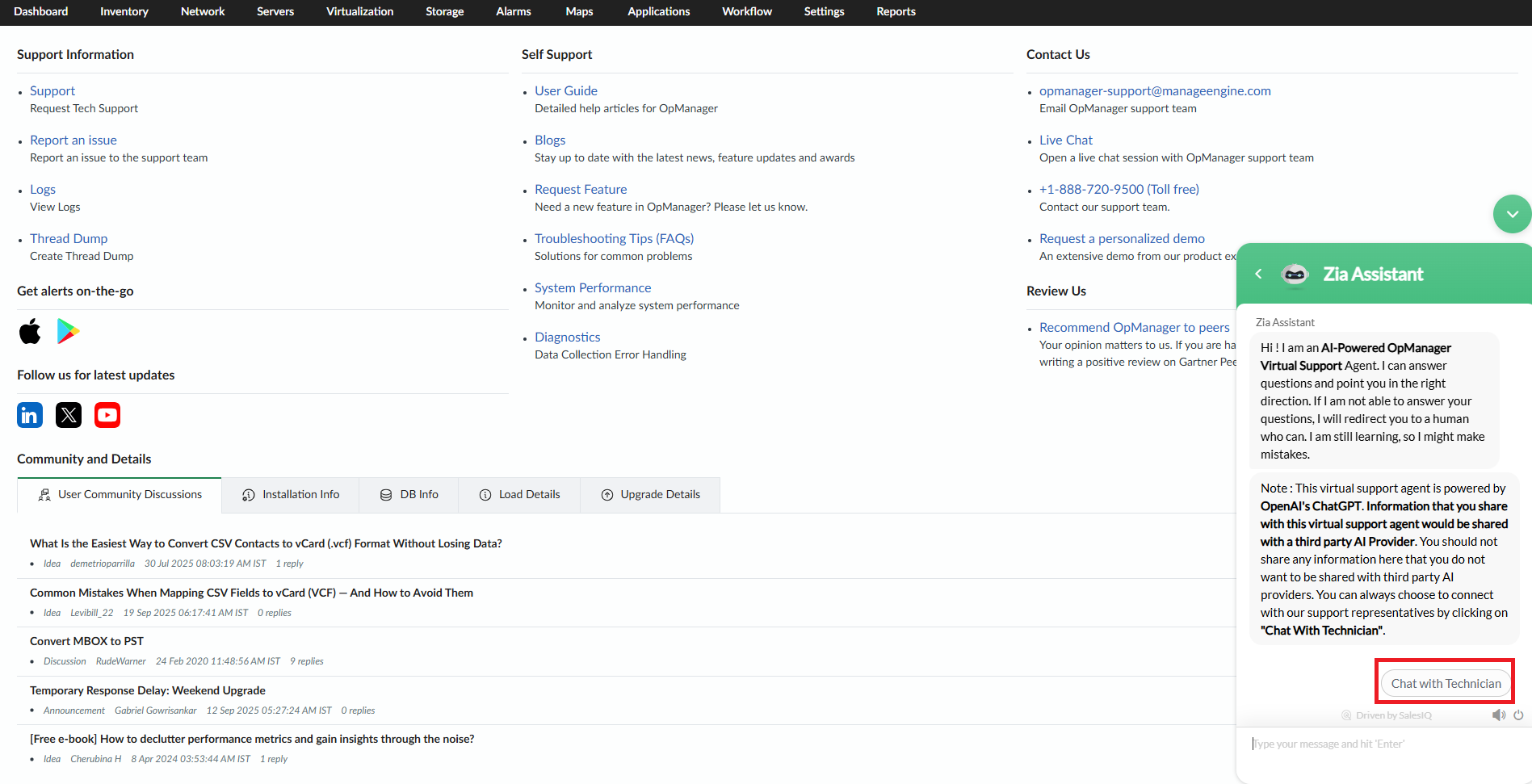
The ZIA Chat Support is an AI-powered assistant that helps you resolve configuration and troubleshooting queries immediately. It leverages OpManager’s extensive repository of help content, including troubleshooting steps, configuration tips, and product information.
Chat Support
The Chat Support feature connects you directly with OpManager’s support team. With just a click, you can start a conversation with our support executive. Chat Support is perfect for complex issues that require human expertise.
Enabling or disabling ZIA Chat Support
To enable or disable Zia Chat Support,
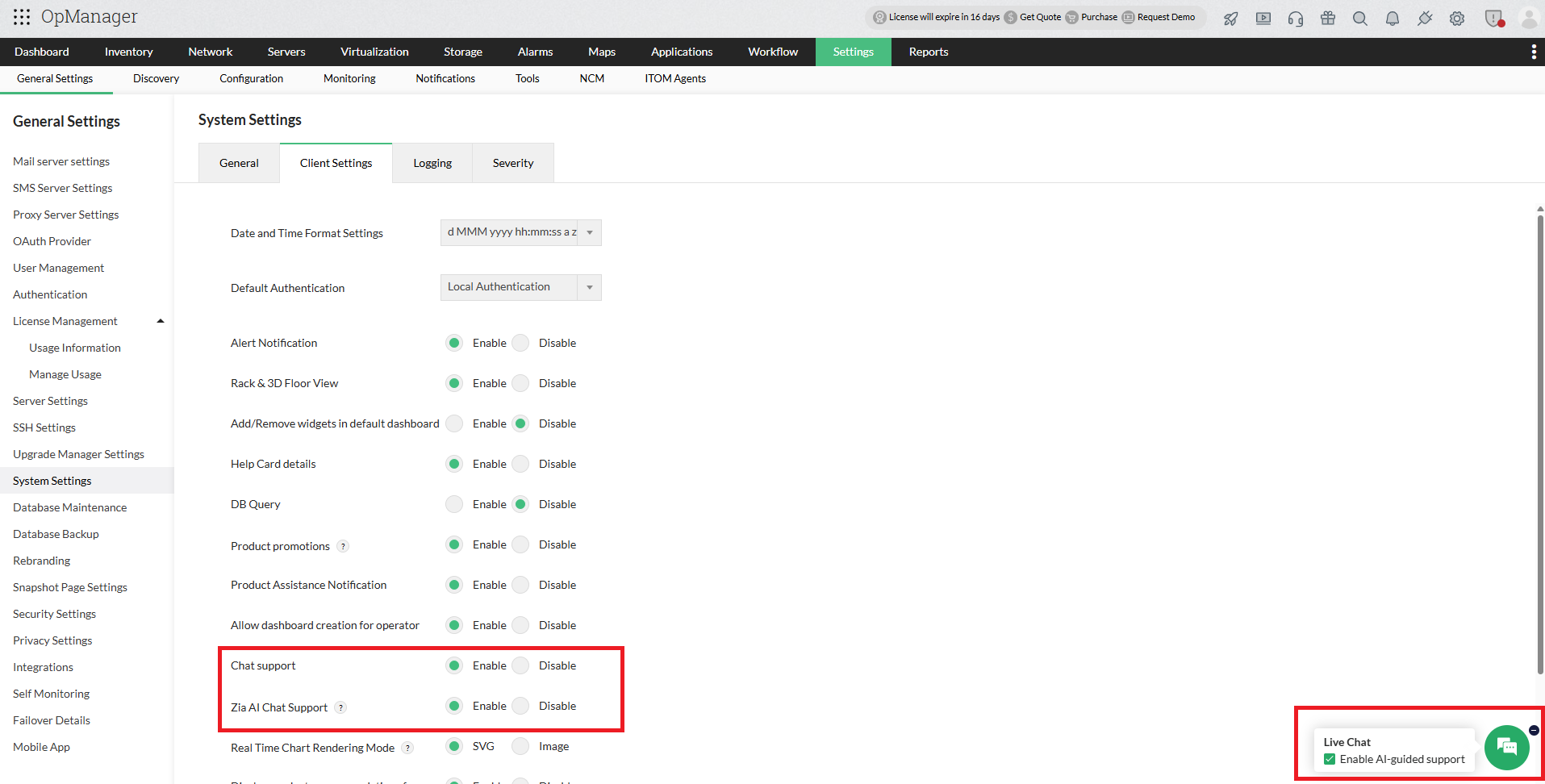
- Go to Settings → System Settings → Client Settings → ZIA AI Chat Support.
- Toggle the option to enable or disable the Chat Support.
- Click Save to apply changes.
- The above setting applies globally to all users in OpManager. Individual users can also disable Zia Chat support for their own roles by hovering over the floating Chat icon at the bottom right and selecting the disable option.
- If Zia Chat Support is enabled, you'll first be connected to the ZIA AI for quick assistance. If needed, you can still reach our live chat support directly from the chat window, by clicking the Chat with Technician option.
Enabling or disabling Chat Support
To enable or disable the Chat feature,
- Go to Settings → System Settings → Client Settings → Chat Support.
- Toggle the option to enable or disable it.
- Click Save to apply changes.
Note that, disabling the Chat support option will remove the chat feature entirely.
How to use Chat Support and Zia Chat Support?
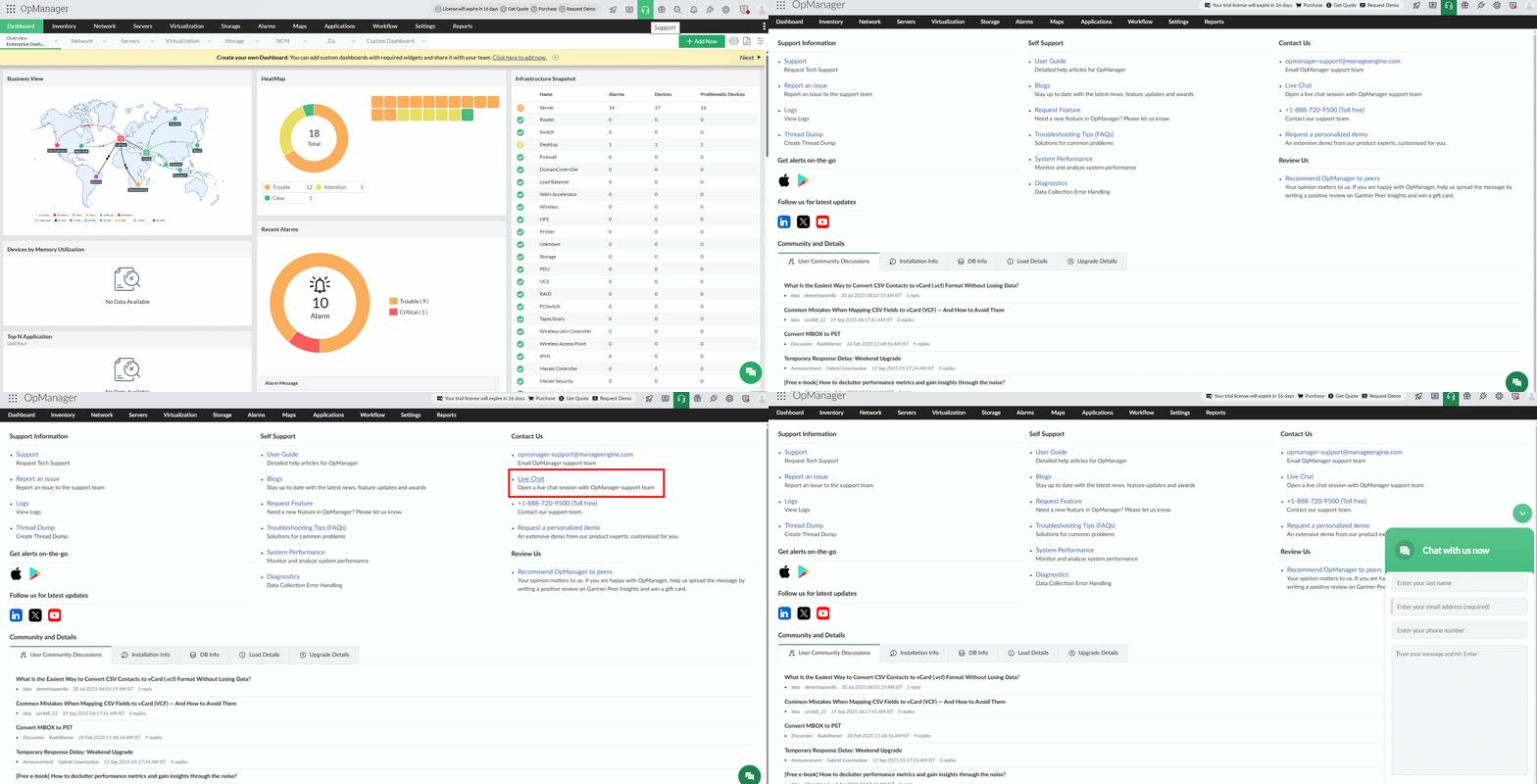
Both Live chat and ZIA chat support are enabled by default in OpManager. To start a chat session:
- Click the Support icon at the top of the OpManager console.
- If ZIA Chat Support is enabled, you’ll be redirected to it automatically. If it’s disabled, you’ll be connected directly to a live support agent.
- Enter your Name, Email, Contact Number, and Message, then click Enter. Your Name, Email, and Contact Number will not be shared with the ZIA AI, but the Message content will be shared.
- To access Chat Support directly, first disable ZIA using the steps above. Then open the Chat Support window, provide your details, and click Enter.
- A support operator will join the Chat Support shortly to assist with your queries.
Note:
- Anything you share with ZIA chat support in the chat session may be logged, so avoid including any personal or sensitive information (PII) in ZIA chat messages.
- ZIA chat support is currently available only for OpManager Professional editions from version 12.8.628.
- Users will be redirected to the ZIA Chat option even if both chat support options are enabled. However, they can still reach a support agent from within the chat whenever needed.
Thank you for your feedback!
