Integrating with PagerDuty
This integration allows OpManager to seamlessly manage network events in a single console. When OpManager detects network alerts, corresponding events are simultaneously logged in PagerDuty. This helps reduce downtime and improves MTBF (Mean Time Between Failures) and MTTR (Mean Time to Repair), thereby ensuring network reliability.
In PagerDuty UI
In OpManager UI
- Configure PagerDuty settings in OpManager
- Configure Notification Profiles
- Configure Notification Templates
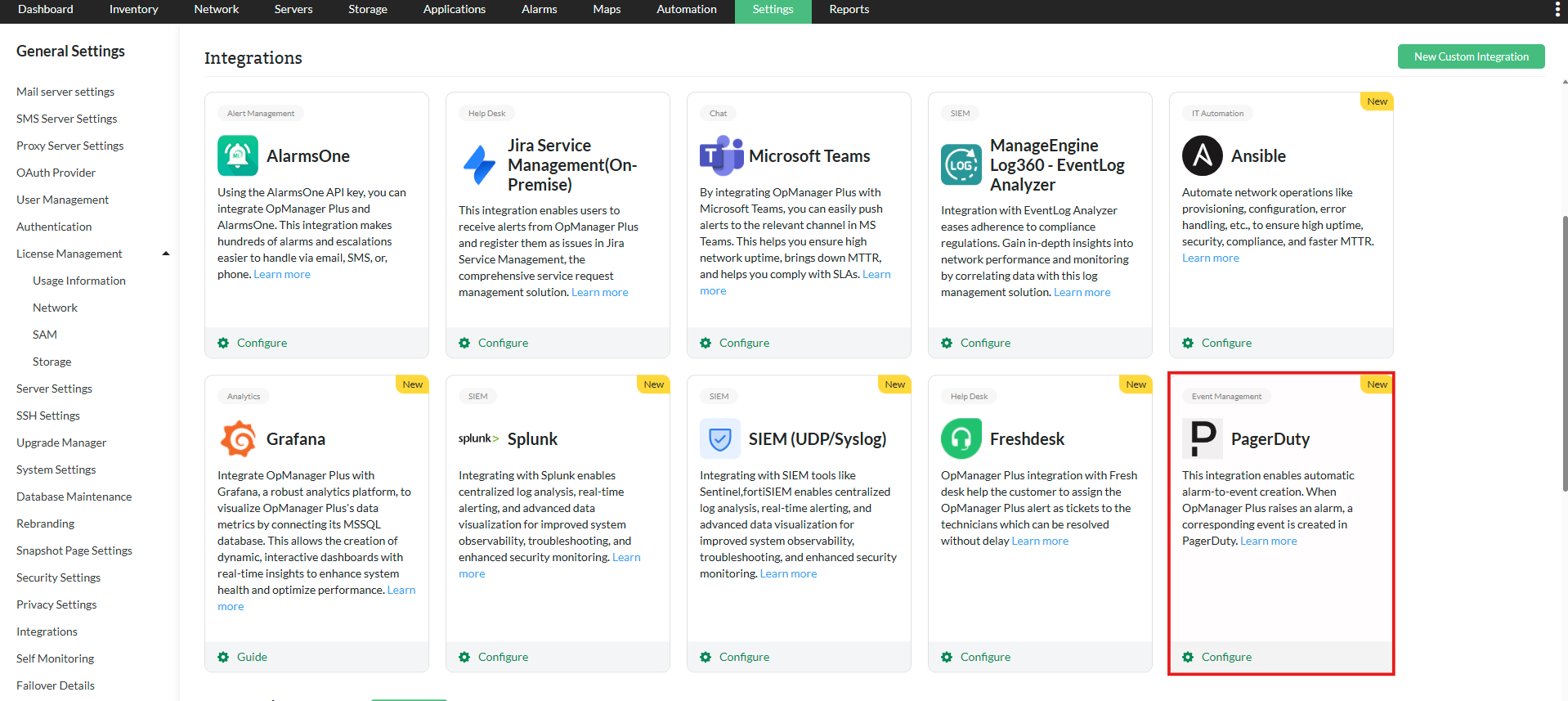
Creating a Service in PagerDuty
To integrate OpManager with PagerDuty, you need an integration key. This key uniquely identifies and links OpManager with your PagerDuty service.
Follow the steps below to create a new service in PagerDuty and generate the integration key:
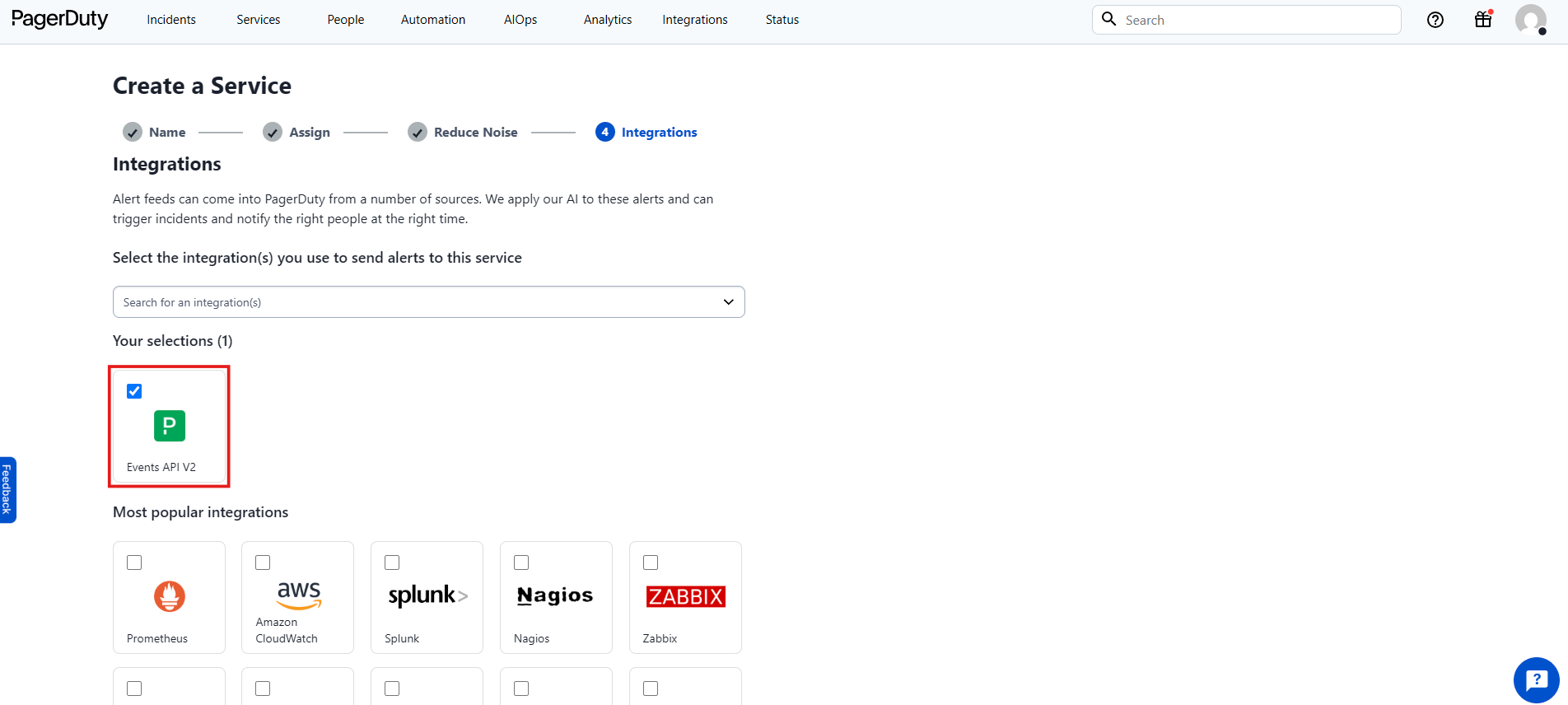
- Log in to your PagerDuty account.
- Go to Services → Service Directory → New Service.
- Enter a name and description for the service.
- Create a new escalation policy or select an existing one.
- Choose your preferred alert grouping and transient alerts options.
- Select Events API V2, then click Create Service.
- Once the service is created, copy the Integration Key.
To copy the integration key from an existing service, follow the steps below:
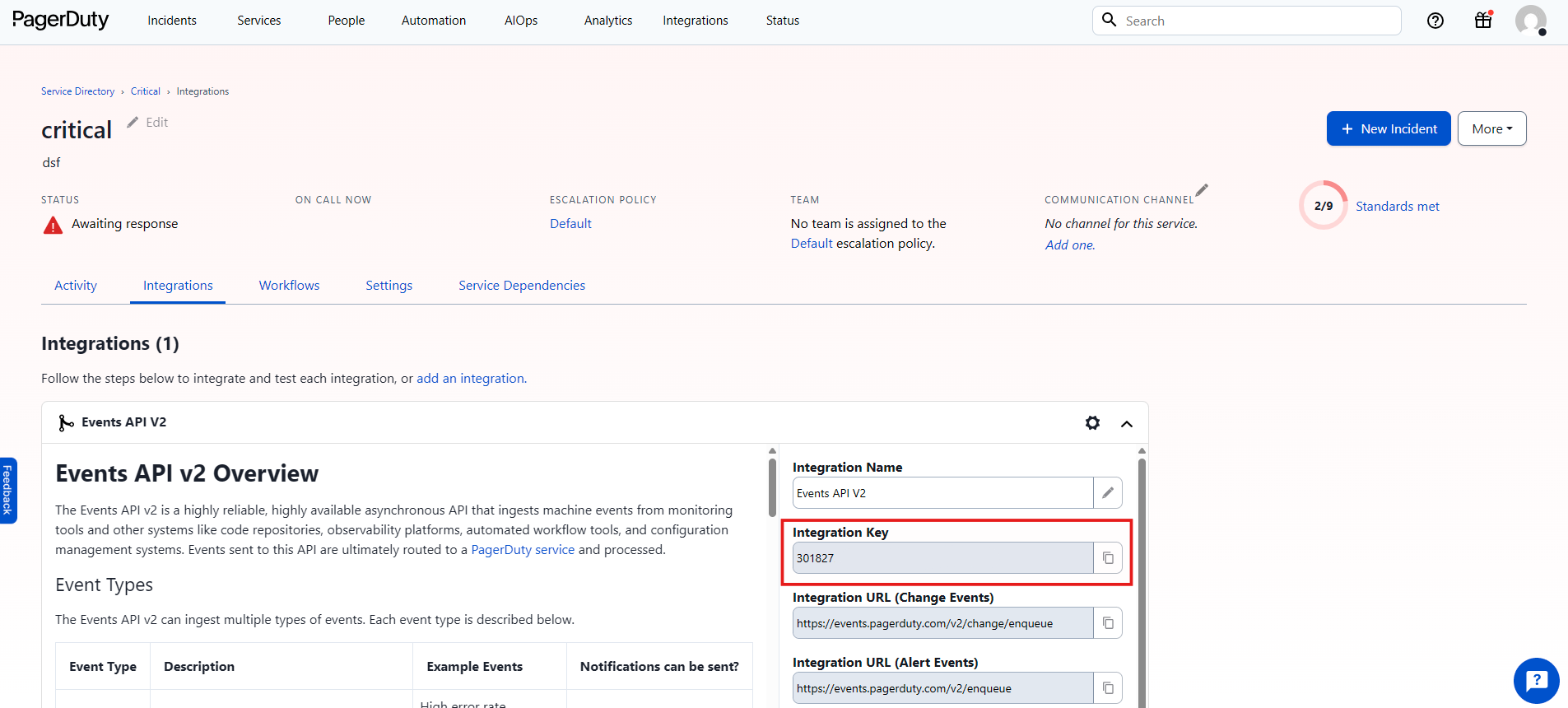
- Log in to your PagerDuty account.
- Go to Services → Service Directory.
- Select the preferred service listed under Total services.
- Click "More" and select View Integrations.
- Click the Events API V2 dropdown.
- Copy the Integration Key.
Configuring PagerDuty settings in OpManager
Once you obtain the integration key from PagerDuty, follow the steps below to complete the integration in OpManager.
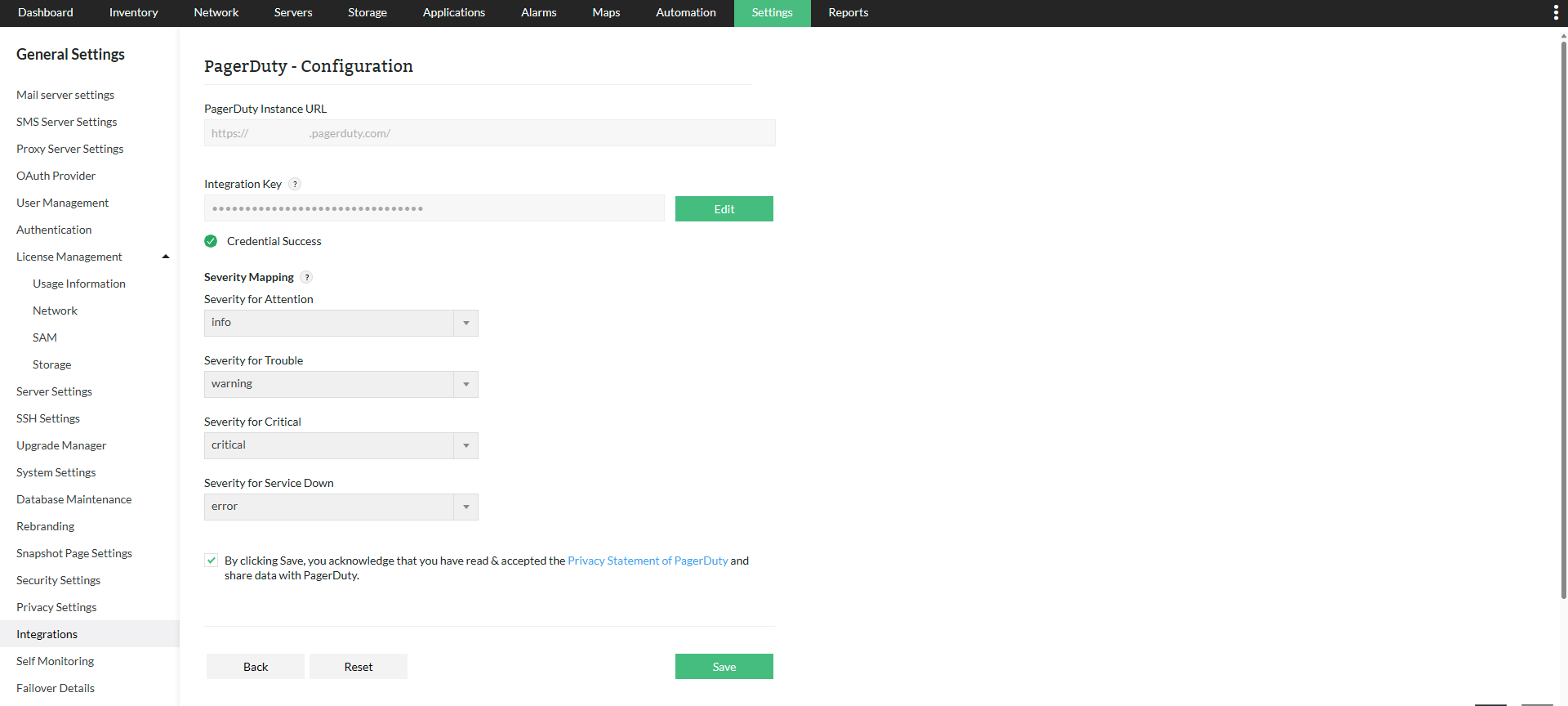
- Go to Settings → General Settings → Integrations → PagerDuty → Configure.
- Enter the PagerDuty Instance URL.
- Paste the Integration Key copied earlier.
- Click Validate to verify the connection.
- In OpManager, under Severity Mapping, select the PagerDuty severity for the corresponding OpManager severity.
- Accept the terms and conditions.
- Click Save.
Configuring Notification Profiles
Once the integration is complete, you can configure Notification Profiles in OpManager to log tickets in PagerDuty.
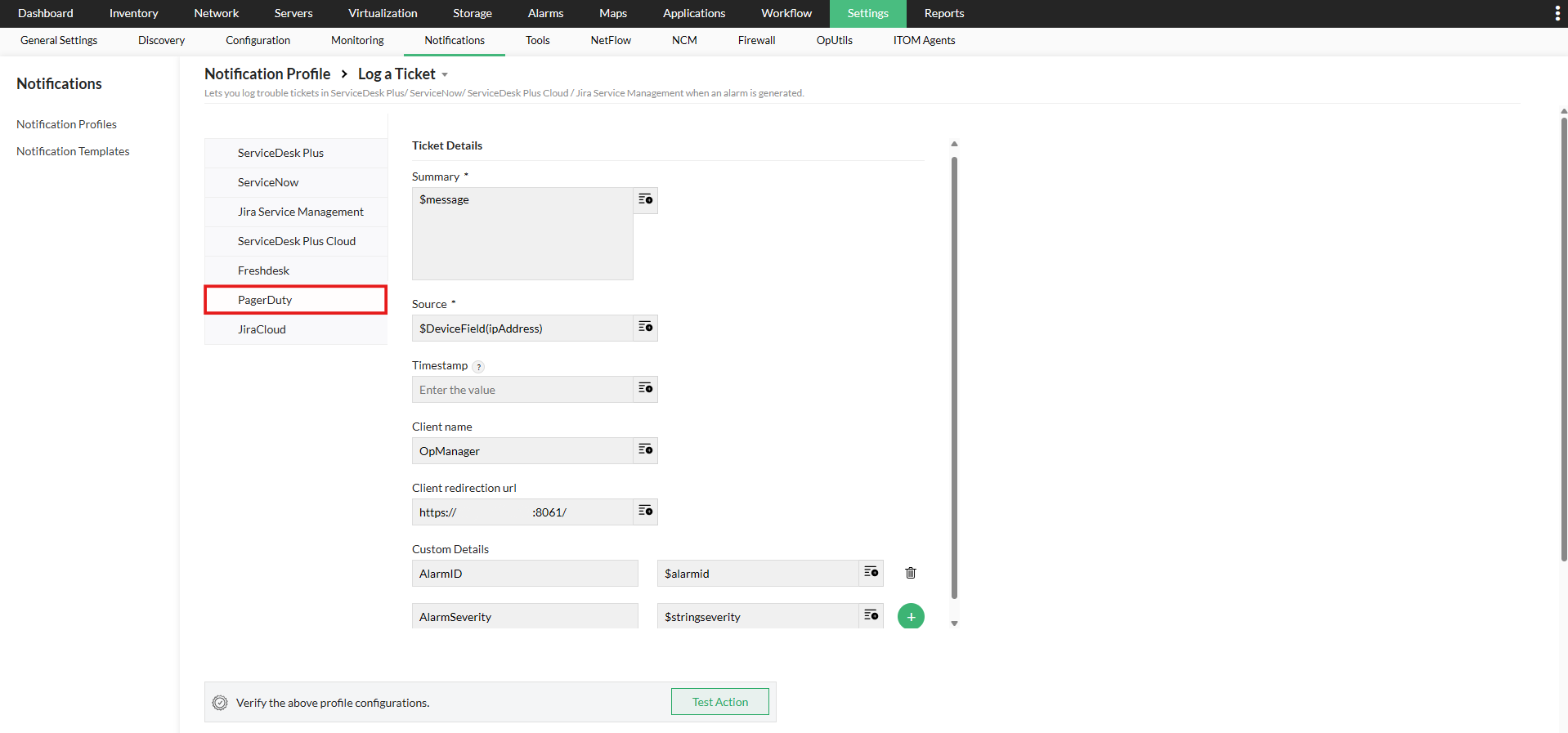
- Go to Settings → Notifications → Notification Profiles → Add.
- Click on the Log a Ticket option.
- Select PagerDuty from the left panel.
- Fill in the required fields such as Summary, Component, Client name, Custom fields, etc., and click Next.
- Click here to learn more about choosing criteria, associating devices, applying a time window etc.
- Enter a name for the notification profile and click Save.
Configuring Notification Templates
To configure Notification templates for PagerDuty integration,
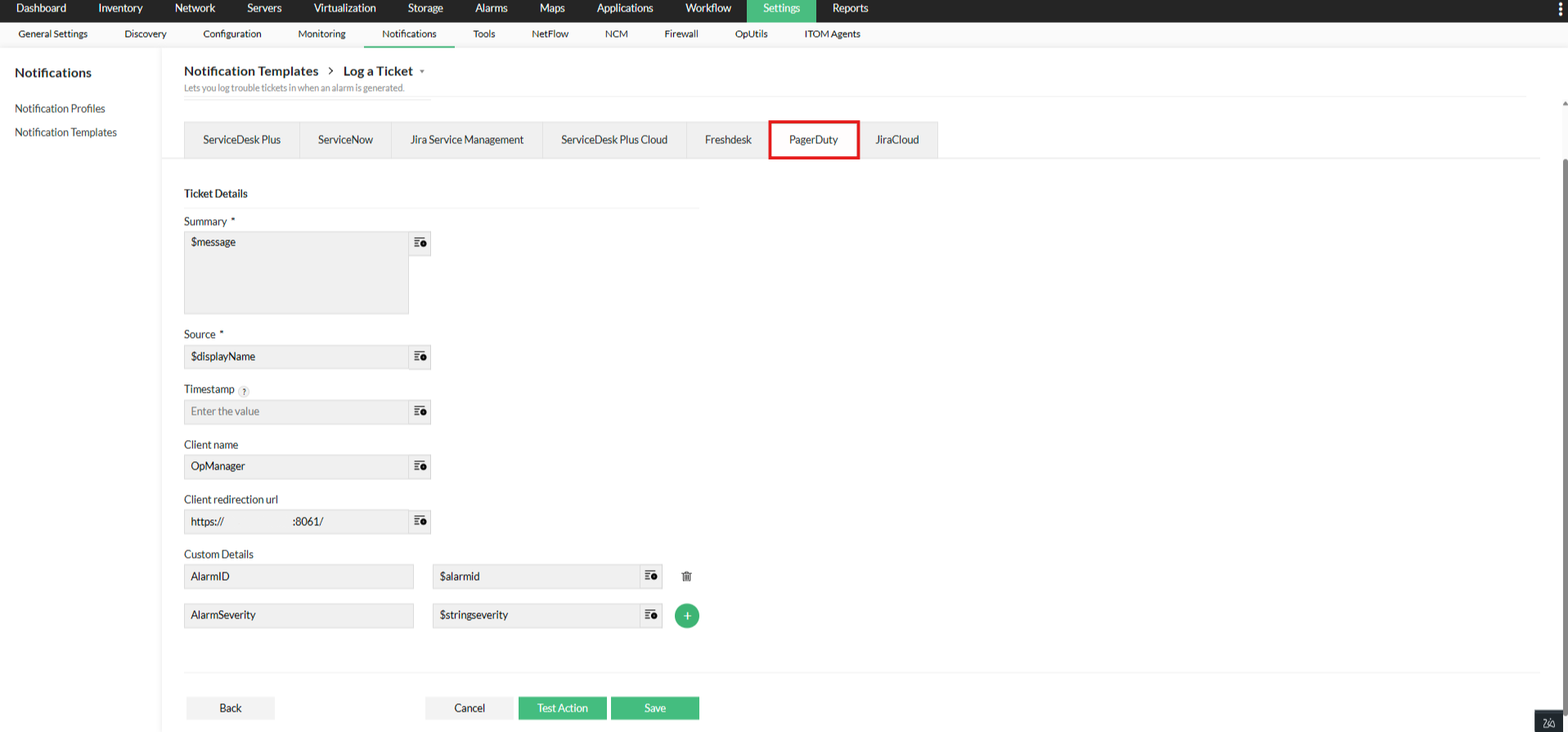
- Go to Settings → Notifications → Notification Templates.
- Select Log a Ticket from the dropdown.
- Choose PagerDuty from the list of available tools.
- Enter the required ticket details.
- Enter a name for the template and click Save.
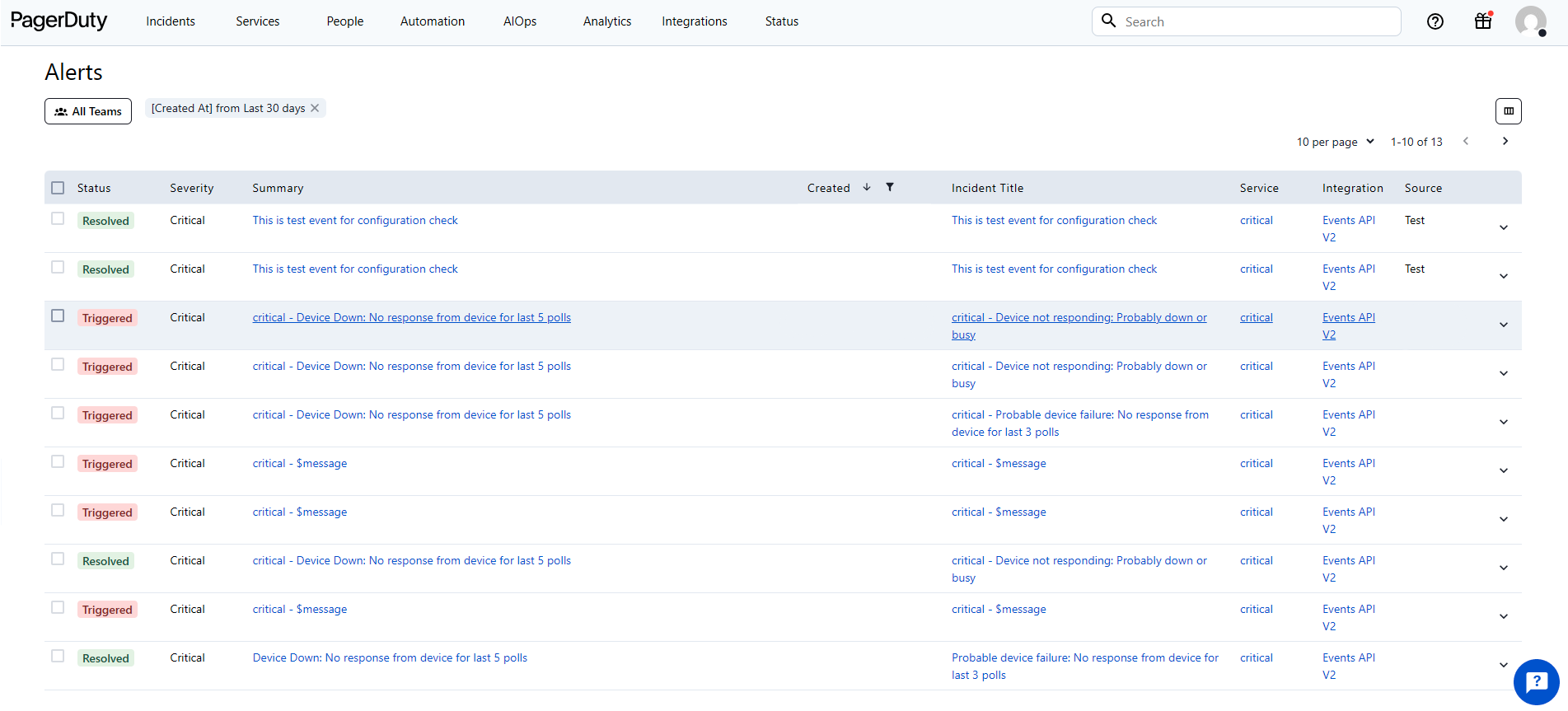
OpManager Alerts in PagerDuty
- The timestamp must be in a valid ISO 8601 format.
- Kindly use the following format: $strModTime(format:yyyy-MM-dd'T'HH:mm:ss,Asia/Kolkata).
- Users can modify the time zone as needed.