Partition Monitors in OpManager
OpManager enable users to monitor free, used, and total space for partitions and mounted partitions across devices. These partition monitors are available over multiple protocols including WMI, CLI, SNMP, and VIWebService. This document covers the steps to add partition monitors in OpManager.
How to add partition monitors?
To add partition monitors to an individual device:
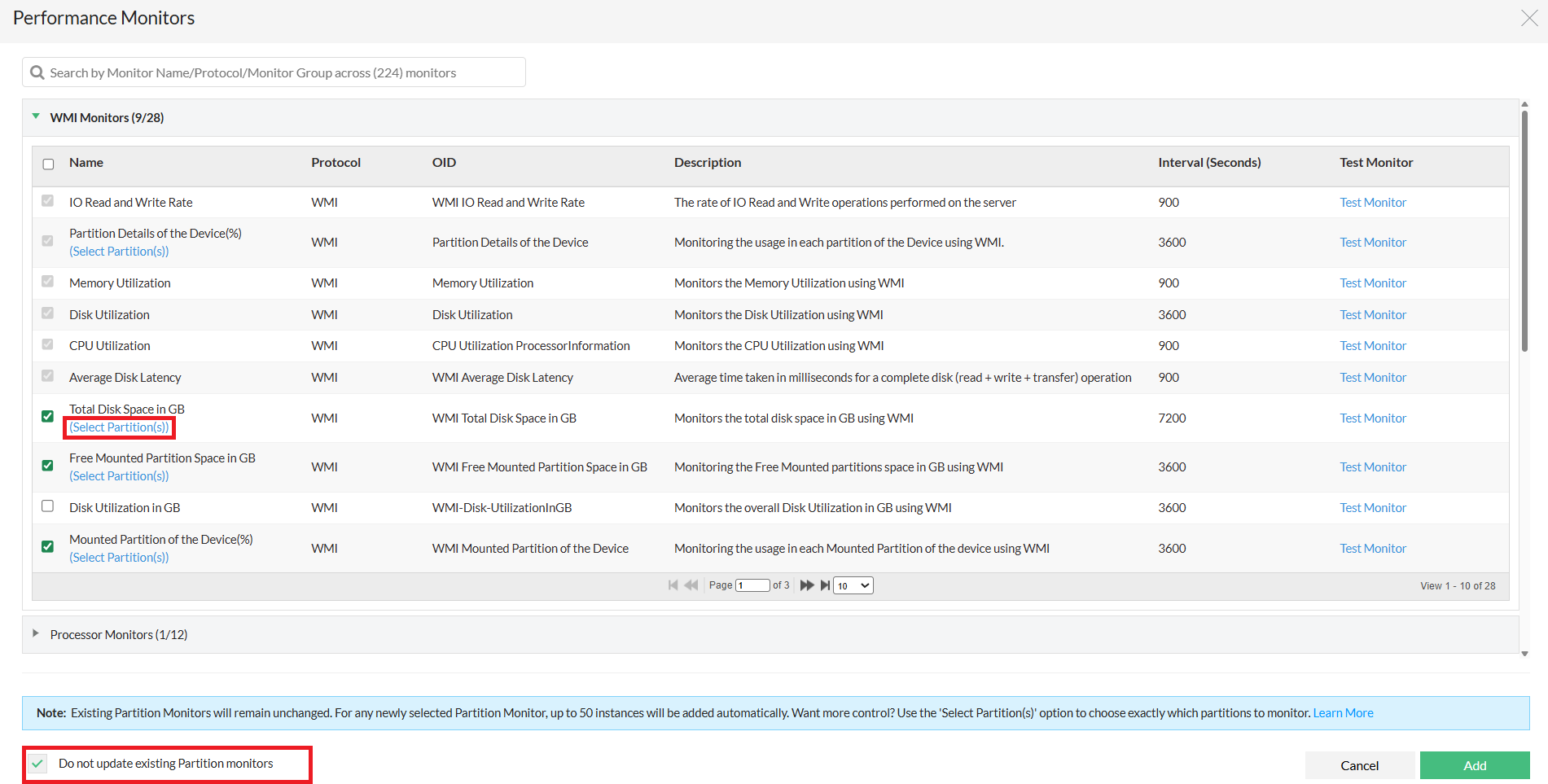
- Navigate to Inventory → Device Snapshot page → Monitors → Add Monitor.
- Use the Select Partition(s) option, under the required partition monitor to choose the exact partitions you want to monitor.
Or you can directly select the monitor, but by default only the first 50 partitions will be added for monitoring. Click here to learn more. - Users can check the 'Do not update existing Partition monitors' option to ensure that the previously added partition monitors remain unchanged, and the partition preferences will apply only to newly selected partition monitors.
- Click Add to add the partition monitor to the device.
- Alternatively, you can add monitors in bulk via Device Templates, or via Performance Monitors page. Learn more. Note that, Select Partition(s) option is available only when adding monitors via the Device Snapshot page.
Note:
- When adding partition monitors from a device’s snapshot page, any partition monitors that were previously associated will be pre-selected by default. If you don’t want these existing monitors to be updated or reprocessed, enable the “Do not update existing partition monitor(s)” checkbox.
New partitions will not be added and previously monitored partitions will not be deleted from OpManager. - When adding monitors without using the Select Partition(s) option, you can monitor up to 50 partitions by default.
When using the Select Partition(s) option, you can manually choose and add up to 100 partitions.
Note that the above partition limits apply per monitor, not across all monitors combined. - To customize the monitored partition limit, please contact support at opmanager-support@manageengine.com.
- Select Partition(s) option is not available in devices monitored via Linux agent.
Example:
Suppose a server has 75 partitions,
- If you add a partition monitor without using the Select Partition(s) option, only the first 50 partitions will be added for monitoring by default, and the remaining 25 will not be included.
- If you use the Select Partition(s) option, you can manually select and monitor all 75 partitions, since the limit allows up to 100 partitions.